

Suppose you are asked for a map of each of Bengaluru's five city corporations. You could build one layout by hand and then repeat the same fifteen steps four more times: change the title, zoom, check the legend, export. The second time it is boring. The fifth time you will make a mistake. A script does the repeating, and a template keeps every page looking the same.
This project builds exactly that. It is the last page of the series. Parts B and C teach each piece on its own: the layout window, templates, Atlas and the pipeline. You can do this project without them, but it will feel more familiar if you have. You do not need to have written a script before. You do need to have made a map layout in QGIS once, which the tutorial Print layouts in QGIS covers, and the design choices behind this layout are explained in the Map Design notes.
What you will build
A script that reads one template and one data layer and produces:
- five finished maps as PDF files, and the same five as PNG pictures
- one combined PDF with all five pages
- a small report file that says what worked
Each map has its own title with its own number, is zoomed to its corporation, outlines that corporation, and shows its position on a locator map.
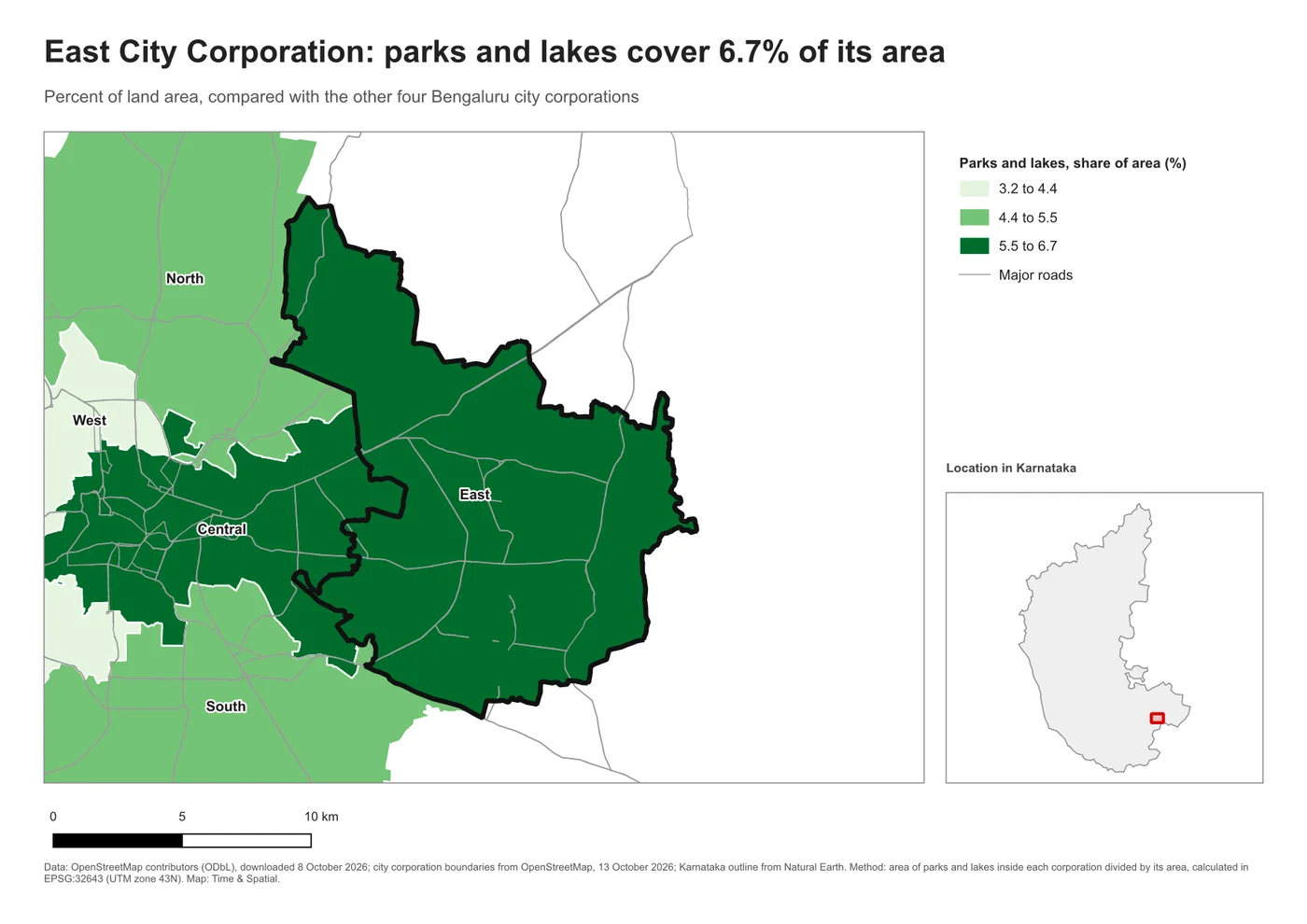
What the map shows
Each map shows how much of a corporation is covered by parks and lakes, as a share of its area. The numbers come from OpenStreetMap, and they are only as complete as the volunteers' mapping. The values here run from 3.2 percent in the West to 6.7 percent in the East. Treat them as an example for learning the workflow and not as a finding about park provision in the city.
What you need
- QGIS 3.34 or later. The project was tested with QGIS 3.44.
- Nothing to install. The Python Console is part of QGIS.
- The download below, unzipped into a folder you can find again.
Downloads
| File | What it is |
|---|---|
| bengaluru_map_series.zip | Everything in one folder: project, data, template, both scripts, sample results, checklist (7.7 MB) |
| corporation_map_template.qpt | The layout template on its own |
| make_map_series.py | The full script |
| starter_script.py | The short starter script |
| map-quality-checklist.md | The checklist for step 4 |
| East.pdf and the combined PDF | Sample results to compare with yours |
Unzip the folder first. The scripts find everything relative to the project file, so the folder can live anywhere, but its contents must stay together.
map-series/
  bengaluru_map_series.qgz            the QGIS project
  data/bengaluru_map_series.gpkg      the input data
  templates/corporation_map_template.qpt
  scripts/starter_script.py
  scripts/make_map_series.py
  output/                             sample results; the script writes new files here
  QA_checklist.md
How the pieces fit together
The idea behind every automated map is to keep four things apart.
| Part | Where it lives | Changes between maps? |
|---|---|---|
| The design: page, fonts, colours, positions | The template (.qpt file) | No |
| The data: regions, values, titles | The GeoPackage and the project | Yes, one row per map |
| The repetition: which region next, where to save | The script | It does the looping |
| The checking: did it work, is it right | The script's checks, the report and you | Every run |
This is why a template makes automation easy. The script never decides where the legend goes. It only fills in what is different.
Step 1: Open the project and look at the template
- Open bengaluru_map_series.qgz in QGIS. You should see five corporations in three shades of green, with major roads on top.
- Open Project > Layouts > Corporation map template. This is the Print Layout window.
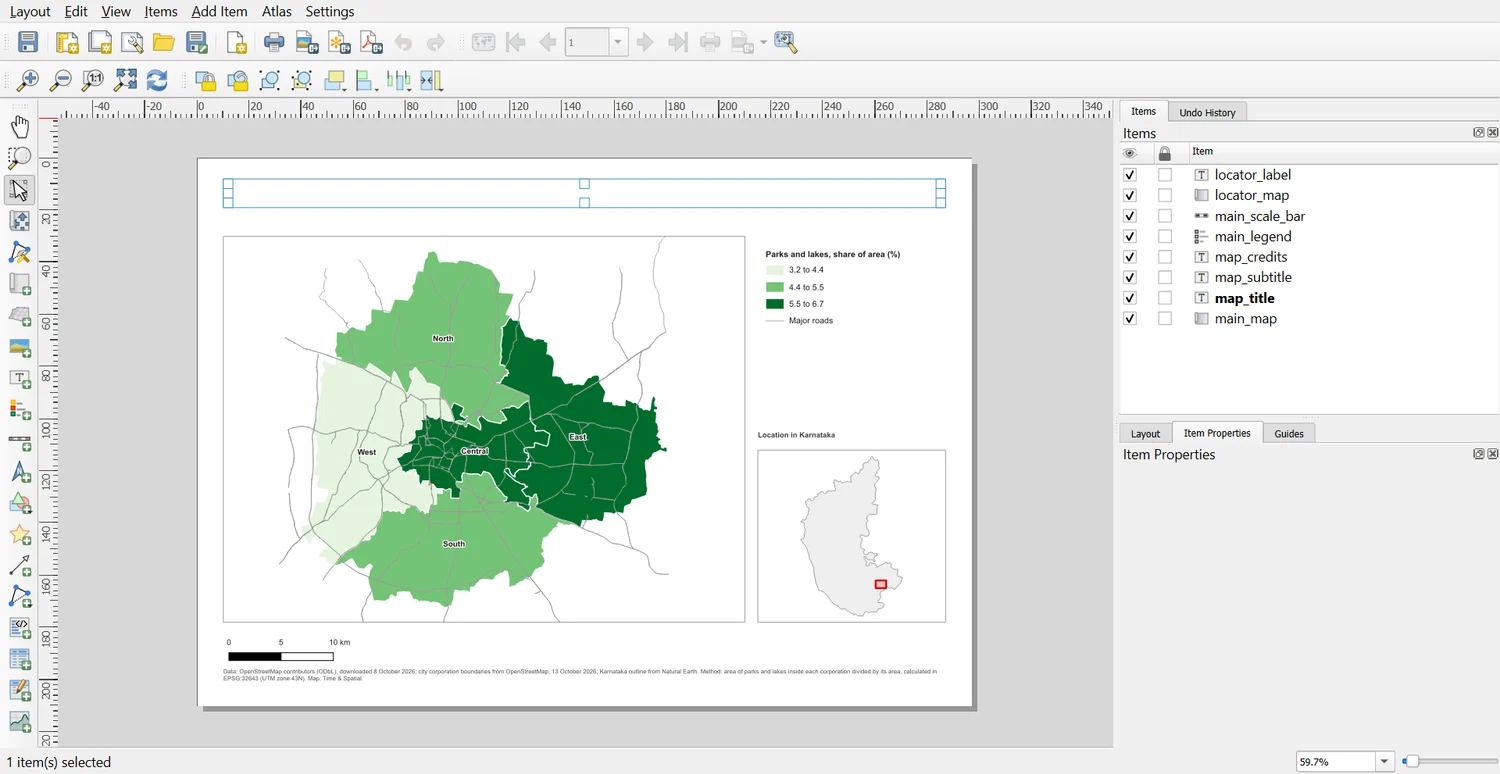
Look at the Items panel on the right. Every item has a short, fixed name: main_map, map_title, main_legend and so on. These are item IDs. You set one by selecting an item, opening Item Properties and typing in the ID box near the top. Python will find items by these names. If you ever rename one, the script will tell you which one is missing.
The title and subtitle contain expressions such as [% attribute(@atlas_feature, 'title') %]. An expression is a small formula that QGIS evaluates when the page is drawn. This one means "the title field of the current Atlas feature". The script replaces it with plain text for the single maps, and the Atlas uses it as it is for the combined PDF.
Step 2: Run the short starter
The starter does the whole job for one map, so you can see the shape of the idea before reading the full script.
- Open Plugins > Python Console and click the Show Editor button.
- Open scripts/starter_script.py in the editor and click Run. You can also copy the code below into an empty editor.
# The shortest version: one map, from a template, exported as a PDF.
# Open bengaluru_map_series.qgz first, then run this in the QGIS Python Console.

# Step 1: bring in the QGIS tools we need
from pathlib import Path
from qgis.core import QgsExpressionContextUtils, QgsLayoutExporter, QgsPrintLayout, QgsProject, QgsReadWriteContext
from qgis.PyQt.QtXml import QDomDocument

# Step 2: find the folder that holds the project file. Everything else is found relative to it.
project = QgsProject.instance()                    # the project that is open in QGIS right now
folder = Path(project.homePath())

# Step 3: build a new Print Layout from the saved template (the .qpt file)
document = QDomDocument()                          # a container for the template's text
document.setContent((folder / "templates" / "corporation_map_template.qpt").read_text(encoding="utf-8"))
layout = QgsPrintLayout(project)                   # an empty page
layout.loadFromTemplate(document, QgsReadWriteContext(), True)   # fill it from the template; True = clear the page first

# Step 4: pick the East corporation from the layer. The filter text works like a QGIS expression.
region = project.mapLayersByName("Parks and lakes, share of area (%)")[0]
east = next(region.getFeatures("\"short\" = 'East'"))      # next() takes the first (only) match

# Step 5: write East's title and subtitle on the page. itemById finds an item by the ID typed in the template.
layout.itemById("map_title").setText(east["title"])
layout.itemById("map_subtitle").setText(east["subtitle"])

# Step 6: tell the dark outline layer which corporation to draw
QgsExpressionContextUtils.setProjectVariable(project, "focus_name", "East")

# Step 7: zoom the map to East, with a quarter more space around it
extent = east.geometry().boundingBox()             # the rectangle that just fits East
extent.scale(1.25)                                 # make it 25 percent bigger on each side
layout.itemById("main_map").zoomToExtent(extent)

# Step 8: make an output folder and save the page as a PDF
(folder / "output").mkdir(exist_ok=True)
result = QgsLayoutExporter(layout).exportToPdf(str(folder / "output" / "East.pdf"), QgsLayoutExporter.PdfExportSettings())

# Step 9: say whether it worked
print("Exported" if result == QgsLayoutExporter.Success else f"Export failed: {result}")
The console prints Exported. Open output/East.pdf. You should see the East map, the same as the East map in Figure 1.1.
Here is what each part did:
- The first lines find the project folder with
project.homePath(), so nothing is typed in by hand. - The template is read from its file and turned into a new layout. The last argument,
True, tells QGIS to start from an empty layout. regionis the layer with the five corporations, andeastis the feature for East.- The two
setTextlines put East's title and subtitle on the page. - The project variable
focus_nametells the dark outline layer which corporation to draw. You will meet it again below. zoomToExtentzooms the map to East, with a quarter more space around it (scale(1.25)).- The last lines export the PDF and report whether it worked.
Step 3: Read the full script
The full script does the same thing for all five corporations, and it checks its work. It is built in six sections. You do not have to change anything below the first one.
Here is the whole script in one table. Read it first, and the code will be easier to follow.
| Section | What happens | In plain words |
|---|---|---|
| 1. Settings | Layer names, field names and folders are stored in named settings | The list of ingredients |
| 2. Helper functions | Six small tools: find a layer, make a safe file name, load the template, find the items, set the layers, export | The kitchen tools |
| 3. Checks | Test that the layers, fields and template items exist | Check that everything is there before you start |
| 4. The loop | For each corporation: fresh page, title, outline, zoom, export | Make one map at a time |
| 5. Atlas | Make one combined PDF with a page for every corporation | Put all the maps in one file |
| 6. Report | Save a table of what worked and what did not | A receipt you can keep |
Every block of code below starts with a short comment and then numbered # Step comments. They are written for you: read the comments first and the code second.
1. Settings
Everything you might want to change is at the top. The layer names, the field names and the amount of space around each area are here, so that you never have to hunt through the code.
# The tools this script uses. Each name after "import" is a tool that QGIS or Python provides.
import csv
import re
import time
from pathlib import Path

from qgis.core import (
    QgsExpressionContextUtils,   # sets project variables, such as focus_name
    QgsLayoutExporter,           # saves a layout as PDF or image
    QgsLayoutItemLabel,          # a text label on the page
    QgsLayoutItemLegend,         # the legend
    QgsLayoutItemMap,            # a map frame
    QgsLayoutItemScaleBar,       # the scale bar
    QgsPrintLayout,              # a Print Layout (the page)
    QgsProject,                  # the open QGIS project
    QgsReadWriteContext,         # needed when loading a template
)
from qgis.PyQt.QtXml import QDomDocument

# These are the only lines you should need to edit. Names in CAPITALS are settings.
project = QgsProject.instance()                     # the project that is open in QGIS
PROJECT_FOLDER = Path(project.homePath())           # the folder that holds the .qgz file
TEMPLATE = PROJECT_FOLDER / "templates" / "corporation_map_template.qpt"   # the saved page design
OUTPUT = PROJECT_FOLDER / "output"                  # where the finished maps are saved

# Layer names: they must match the names in the QGIS Layers panel exactly
REGIONS_LAYER = "Parks and lakes, share of area (%)"   # one feature per map
FOCUS_LAYER = "Selected corporation"                   # draws the dark outline
ROADS_LAYER = "Major roads"
LOCATOR_LAYER = "Karnataka"

# Field names: columns in the regions layer's attribute table
NAME_FIELD = "short"                                   # used for file names and the outline
TITLE_FIELD = "title"
SUBTITLE_FIELD = "subtitle"

# Every item the template must contain: item ID -> what kind of item it must be.
# The script stops early, with a clear message, if one is missing.
REQUIRED_ITEMS = {
    "main_map": QgsLayoutItemMap,
    "map_title": QgsLayoutItemLabel,
    "map_subtitle": QgsLayoutItemLabel,
    "main_legend": QgsLayoutItemLegend,
    "main_scale_bar": QgsLayoutItemScaleBar,
    "map_credits": QgsLayoutItemLabel,
    "locator_map": QgsLayoutItemMap,
}

PADDING = 1.25        # 1.25 leaves 25 percent empty space around each area
PNG_DPI = 150         # picture sharpness of the PNG files
REQUIRED_ITEMS lists every ID the template must contain, and what kind of item it must be. This is the script's safety net.
2. Small helper functions
A function is a named block of code that you can use again. The script has six, each doing one job.
find_layer looks a layer up by name and stops with a clear message if it is missing:
# Helper 1: look a layer up by its name
def find_layer(name):
safe_filename turns a title into a name that is safe to use for a file, by replacing characters that Windows does not allow:
# Helper 2: make a name safe to use as a file name
def safe_filename(text):
load_layout builds a fresh layout from the template. It also checks that the file exists and is valid before using it:
# Helper 3: build a fresh page from the template
def load_layout():
get_items finds each required item by its ID and checks that it is the right type. If anything is missing, it lists everything that is missing at once:
# Helper 4: find every item the template must have, by its ID
def get_items(layout):
set_layers tells each map frame exactly which layers to draw, so the result does not depend on which layers happen to be switched on in the project:
# Helper 5: choose which layers each map frame draws
def set_layers(items):
export_files writes the PDF and the PNG, and then checks that both files exist and are not empty. It returns a list of problems, which is empty when all is well:
# Helper 6: save the page as a PDF and a PNG, and check both files
def export_files(layout, base_name):
3. Check before making anything
The script tests everything it depends on before it makes a single map. A script that fails halfway leaves you with three good maps and two missing, and no clear idea why.
# Step 1: the regions layer must exist and have the three fields we read
regions = find_layer(REGIONS_LAYER)
for field in (NAME_FIELD, TITLE_FIELD, SUBTITLE_FIELD):
    if regions.fields().indexFromName(field) == -1:       # -1 means "no such field"
        raise ValueError(f"The regions layer has no field called {field!r}")

# Step 2: the template must load and contain every required item
get_items(load_layout())            # stops with a clear message if the template is wrong

# Step 3: make the output folder, and say how many maps are coming
OUTPUT.mkdir(exist_ok=True)
print(f"Checks passed. {regions.featureCount()} maps will be made in {OUTPUT}")
4. One map for each corporation
This is the loop at the heart of the script. For every feature it builds a fresh layout, fills in the text, outlines the corporation, zooms to it and exports. A fresh layout each time means no setting from the previous map can leak into the next one.
report = []                                                # one line per output, saved at the end

# The loop below runs once for each corporation, in alphabetical order (sorted by the short name)
for feature in sorted(regions.getFeatures(), key=lambda f: f[NAME_FIELD]):
    name = feature[NAME_FIELD]                             # for example "East"
    started = time.time()                                  # note the time, to report how long it took

    # Step 1: a fresh page from the template, with its items and layers ready
    layout = load_layout()
    items = get_items(layout)
    set_layers(items)

    # Step 2: the text for this map. Plain text replaces the Atlas expression stored in the template.
    items["map_title"].setText(feature[TITLE_FIELD])
    items["map_subtitle"].setText(feature[SUBTITLE_FIELD])

    # Step 3: draw the dark outline around this corporation only
    QgsExpressionContextUtils.setProjectVariable(project, "focus_name", name)

    # Step 4: zoom to this corporation with some space around it
    extent = feature.geometry().boundingBox()              # the rectangle that just fits this corporation
    extent.scale(PADDING)                                  # make it bigger by the padding
    items["main_map"].zoomToExtent(extent)
    items["main_map"].invalidateCache()                    # make sure the map redraws

    # Step 5: save the PDF and PNG, and note whether it worked
    problems = export_files(layout, safe_filename(name))
    report.append({
        "map": name,
        "status": "ok" if not problems else "; ".join(problems),
        "seconds": round(time.time() - started, 1),
    })
    print(f"{name}: {report[-1]['status']}")
One trip through the loop does five things, in this order. They match the # Step comments in the code.
- Build a fresh page from the template and tell each map frame which layers to draw.
- Put this corporation's title and subtitle on the page.
- Tell the outline layer which corporation to draw, using the
focus_namevariable. - Zoom the map to this corporation, with 25 percent space around it.
- Export the PDF and the PNG, and write the result in the report.
Two details deserve a closer look.
The dark outline is a second copy of the corporations layer, styled with one rule: draw only the corporation whose short name matches the project variable focus_name. Changing the variable changes which outline is drawn, and the rule also works for Atlas, where the current feature supplies the name.
The script does not register the layout in the project. It builds it, exports it and lets it go. Registering would add five layouts to the project and would fail on a second run, because two layouts cannot share a name.
5. One combined PDF with Atlas
Atlas is a QGIS feature that makes one page for each feature in a layer. It is the natural tool for a combined PDF, because it writes all the pages into a single file.
# Atlas makes one page for each feature of a layer, all in one file.

# Step 1: a fresh page, as before. An empty focus_name stops the loop's outline from carrying over.
layout = load_layout()
items = get_items(layout)
set_layers(items)
QgsExpressionContextUtils.setProjectVariable(project, "focus_name", "")

# Step 2: switch the Atlas on and tell it which layer to step through, in what order
atlas = layout.atlas()
atlas.setCoverageLayer(regions)                      # one page per feature of this layer
atlas.setSortFeatures(True)
atlas.setSortExpression(f'"{NAME_FIELD}"')           # alphabetical order, by the short name
atlas.setEnabled(True)

# Step 3: make the map frame follow the Atlas, so each page zooms to its own corporation
items["main_map"].setAtlasDriven(True)
items["main_map"].setAtlasScalingMode(QgsLayoutItemMap.Auto)   # choose the scale automatically
items["main_map"].setAtlasMargin(0.15)                         # 15 percent empty space around each area

# Step 4: write all the pages into one PDF, then check the file is there and not empty
combined_path = OUTPUT / "bengaluru_city_corporations_series.pdf"
result, error = QgsLayoutExporter.exportToPdf(atlas, str(combined_path), QgsLayoutExporter.PdfExportSettings())
combined_ok = result == QgsLayoutExporter.Success and combined_path.exists() and combined_path.stat().st_size > 0

# Step 5: add this PDF to the report, and print the result
report.append({
    "map": "combined series (Atlas)",
    "status": "ok" if combined_ok else f"failed: {error}",
    "seconds": 0,
})
print("Combined PDF:", "ok" if combined_ok else f"failed ({error})")
The map frame is set to follow the Atlas, so each page zooms to its own corporation. The title and subtitle come straight from the expressions in the template, and the outline comes from the same rule as before.
Why use both a loop and Atlas? The loop gives you full control: different files, different checks, different layers for different maps. Atlas is shorter when all you want is one page per feature. For many projects Atlas alone is enough. Writing the loop once teaches the objects that you need when the job is less regular.
6. A report you can keep
# Step 1: save the report as a CSV file (a table you can open in Excel)
with open(OUTPUT / "export_report.csv", "w", newline="", encoding="utf-8") as file:
    writer = csv.DictWriter(file, fieldnames=["map", "status", "seconds"])
    writer.writeheader()                             # the column names
    writer.writerows(report)                         # one row per output

# Step 2: print a summary, and point to anything that failed
failed = [row for row in report if row["status"] != "ok"]
print(f"Done. {len(report) - len(failed)} of {len(report)} outputs succeeded.")
if failed:
    print("Look at these first:", [row["map"] for row in failed])
else:
    print("Now open the PDFs and go through the quality checklist.")
Run the script now. When it finishes, the console should look like this, and the folder output/ should hold twelve files.
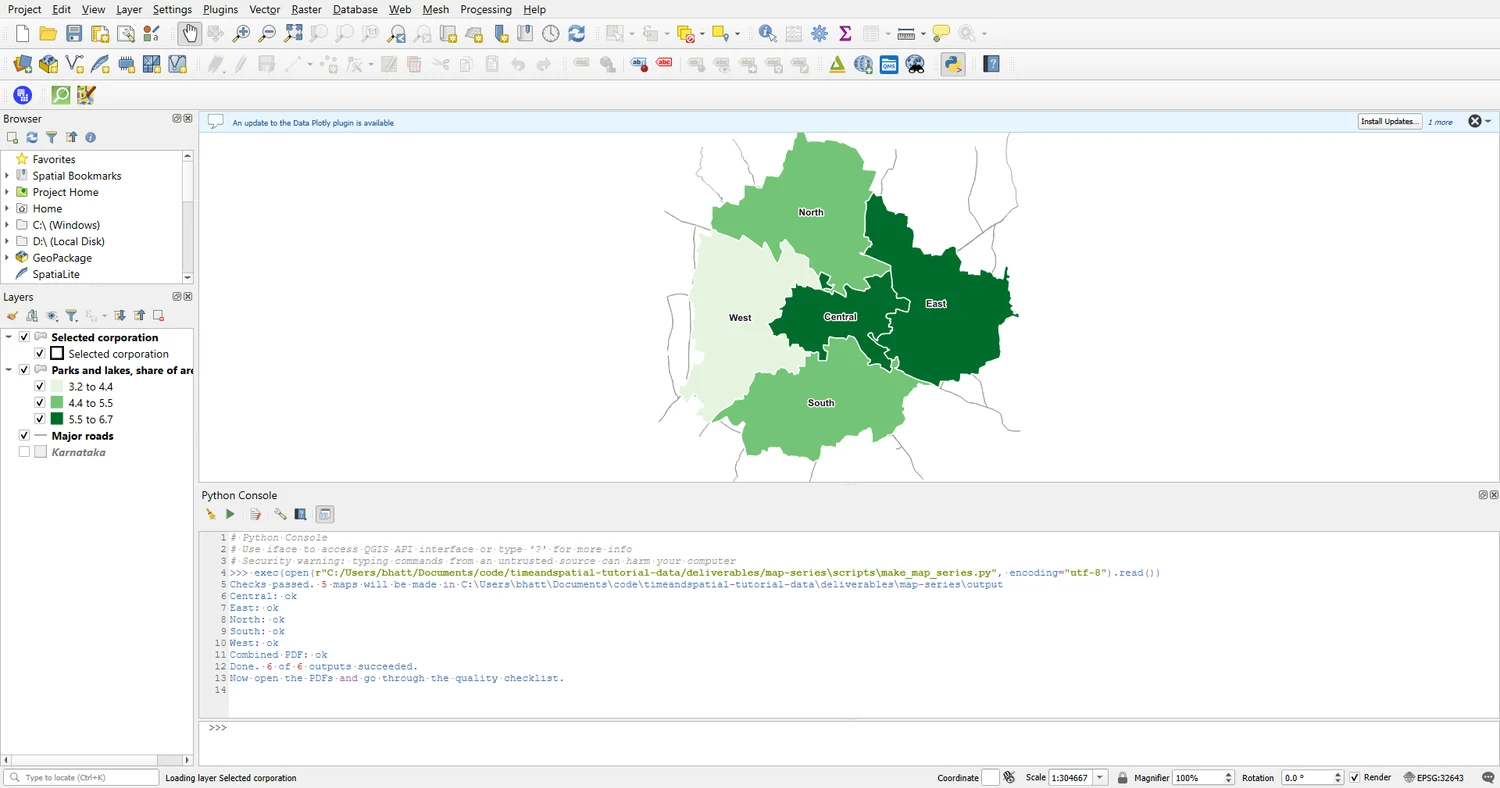
Checks passed. 5 maps will be made in ...\output
Central: ok
East: ok
North: ok
South: ok
West: ok
Combined PDF: ok
Done. 6 of 6 outputs succeeded.
Now open the PDFs and go through the quality checklist.
The script took about eight seconds on the machine used to test it. Bigger layouts and more regions take longer.
Step 4: Look at your maps
A script that reports "ok" has told you only that the files exist. It cannot tell you whether the maps are right. Open the PDFs and use the map quality checklist. Look at each of the five maps for these things:
- Does the title match the map, and does the number in it match the legend class of that corporation?
- Is the whole corporation visible, with some space around it?
- Is the dark outline on the right corporation?
- Does the red footprint on the locator map move and change size from map to map?
- Is the source note complete and not clipped?
- Do the PDF and the PNG look the same?
Look hardest at the first map and at any map that is unusual. If the first one is right and the template has not changed, the others usually are too. The export and checking note explains why this step is the one that matters most.
When it breaks
These are the real messages the script gave when each of these things was broken on purpose.
| Message | What it means | What to do |
|---|---|---|
Layer not found in the project: 'Corporations'. Is bengaluru_map_series.qgz open, and is the name spelled exactly? | The project is not open, or the name in the settings does not match the layer name | Open the project. Check the spelling in section 1 |
Template not found: ...\templates\missing_template.qpt | The path to the template is wrong | Check that the folder structure matches the picture above |
The template is missing these items: north_arrow | The script expects an item that the template does not have | Add the item and give it that ID, or remove it from REQUIRED_ITEMS |
The regions layer has no field called 'district' | A field name in the settings is wrong | Open the layer's attribute table and copy the field name exactly |
The template is not valid XML (line 1): unexpected character | The .qpt file is damaged or was edited by hand | Save the template again from the layout, or copy a fresh one from the download |
Export failed (code ...) | QGIS could not write a file | Check that the output folder exists, that you may write to it, and that the PDF is not open in another program |
All of these are caught in section 3, before any map is made.
Make it your own
- Change
PADDINGfrom 1.25 to 1.05, then to 1.6, and run the script. Compare the East maps. Which suits a map for a report? - Add a line of text to every map. Add a label to the template, give it the ID
map_note, add"map_note": QgsLayoutItemLabeltoREQUIRED_ITEMS, and set its text inside the loop withitems["map_note"].setText(...). Save the template again. - Use your own regions. Replace the layer with a polygon layer that has a name field, a title field and a subtitle field, build a template with the same item IDs, and change the names in section 1. The script itself does not change.
Hint for exercise 3
The title and subtitle can be built in the layer with the field calculator, for example "name" || ': ' || round("value", 1) || ' units'. Then the script only copies them onto the page.
Common mistakes
- Building a different layout for each map by hand, then trying to automate. Design one template first.
- Items without IDs, or IDs that change. The script finds items by ID, so keep them fixed.
- Relying on whichever layers are switched on. Set the layers of each map frame in the script.
- Reusing one layout for every map, so that settings from the previous map leak into the next. Start each map from a fresh copy of the template.
- Trusting "ok". Always open the exported files.
- Typing a full path such as
C:\Users\you\...into the script. Use the project folder, so the project can be moved or shared. - Publishing OpenStreetMap-based maps without the attribution. The source note is part of the template for this reason.