

Why use a layout?
The map canvas is a working view. A print layout is a page with a fixed size where you arrange the map and its supporting elements for printing or sharing. The layout reads from the project, so changes to symbology and labels carry through.
Prepare the project
Before opening a layout, set up what you want on the map.
- Add the layers: a satellite or basemap layer at the bottom, then the vector layers.
- Style and label them. Keep the labelling simple, because the layout will usually be smaller than your screen.
- Zoom to the area to show.
- Save the project.
1. Create the layout
- Project > New Print Layout.
- Name it, for example
Bengaluru overview, and click OK.
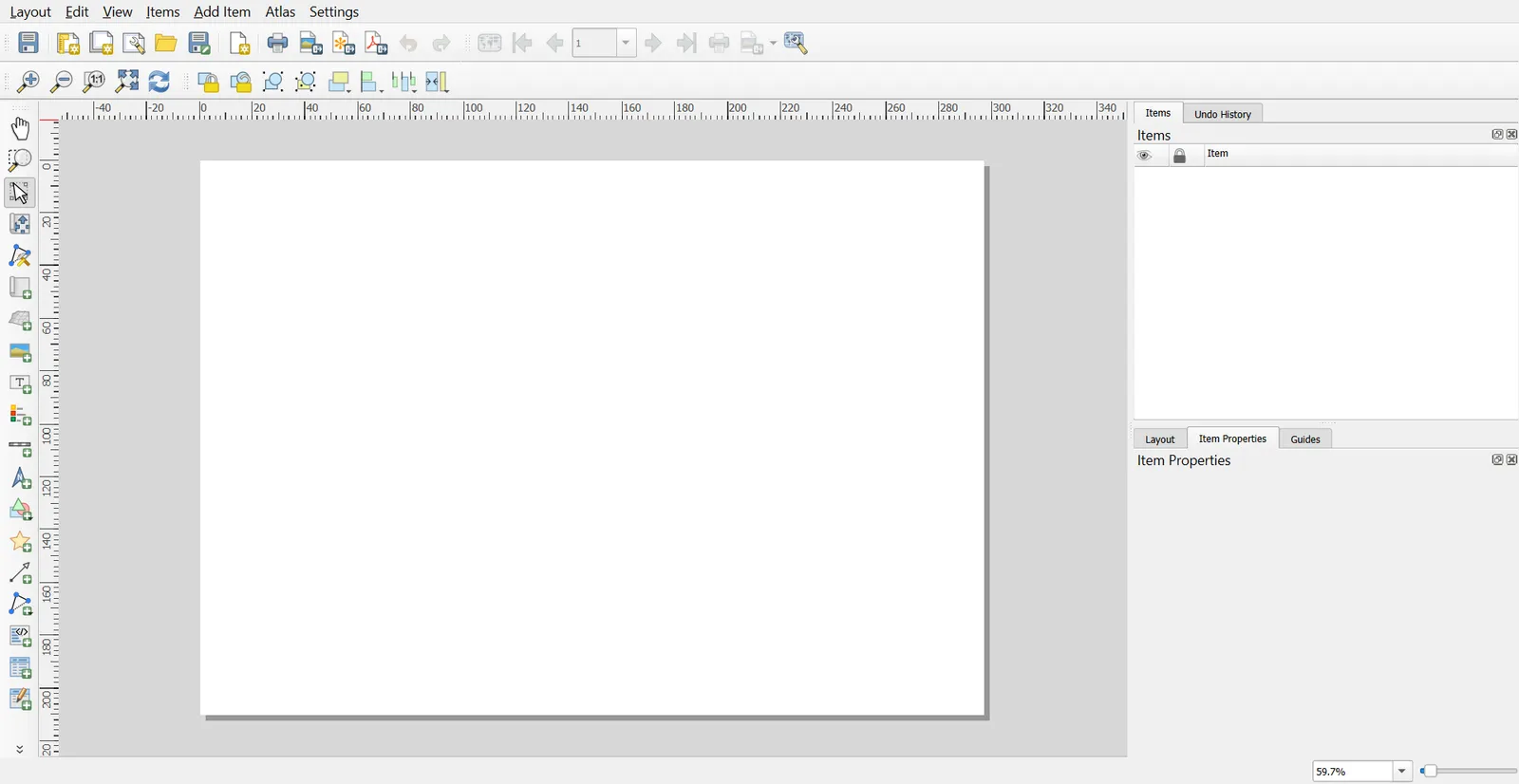
The layout window has a page in the middle, an Items panel and a Properties panel on the right, and Add Item tools on the left or in the menu.
Set the page
- Right-click the page > Page Properties.
- Size: A4. Orientation: Landscape (or Portrait for a tall area).
Choose the page size for how you will use it. A4 and A3 are common for print. For slides or web, use a custom size.
2. Add the map
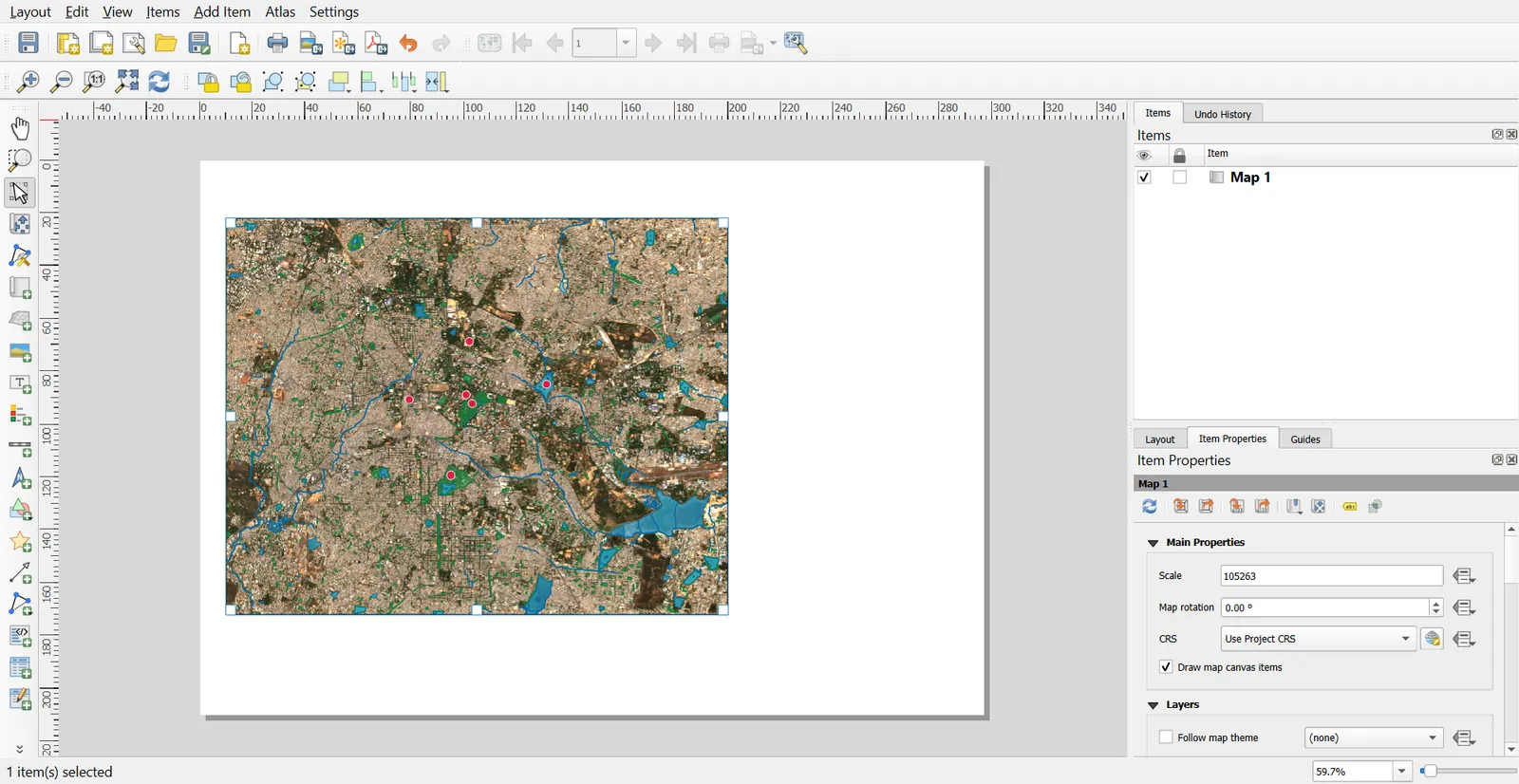
- Add Item > Add Map.
- Drag a rectangle on the page.
- In Item Properties for the map, check Scale and Extents.
Set the scale to a clean number such as 1:250,000. Move the content with Move Item Content (the hand icon), and resize the frame by dragging its handles. If the canvas changes, click Update preview.
To lock the layers shown in this map, tick Lock layers and Lock styles for layers. This stops later edits to the project from changing the layout.
3. Add the title
- Add Item > Add Label.
- Drag a box above the map and type the title.
- In Item Properties, set the font, size and alignment. Use Horizontal alignment Center.
Keep the title short and specific, such as "Parks and lakes in Bengaluru".
4. Add a legend
- Add Item > Add Legend. Drag a box on the page.
- In Item Properties > Legend Items, turn off Auto update.
- Remove layers that do not need to appear, such as the basemap.
- Double-click an item to rename it into plain words, for example
placestoPlaces of interest. - Reorder with the arrows.
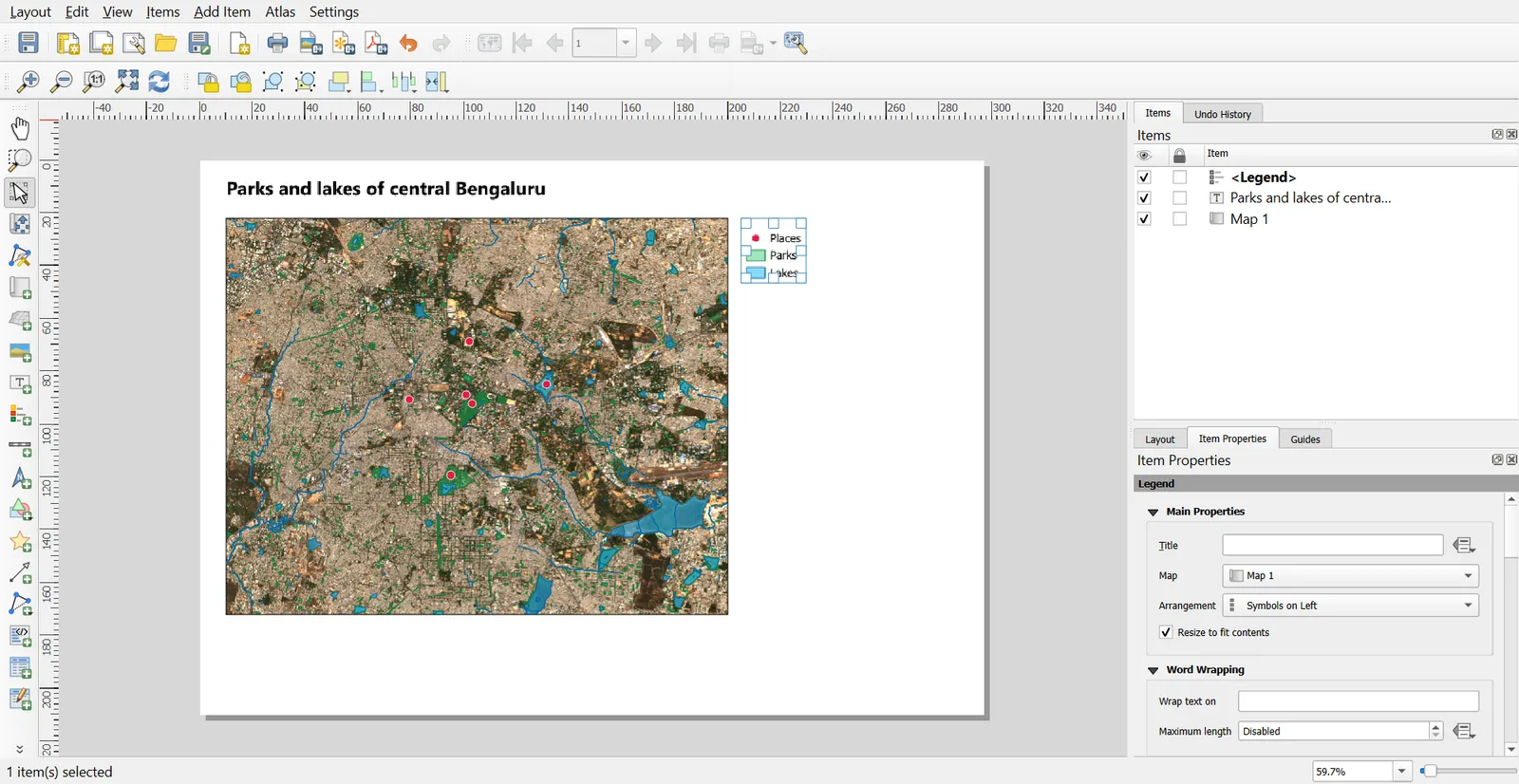
A legend that lists layer file names, like places_utm_clip, reads as unfinished.
5. Add a scale bar
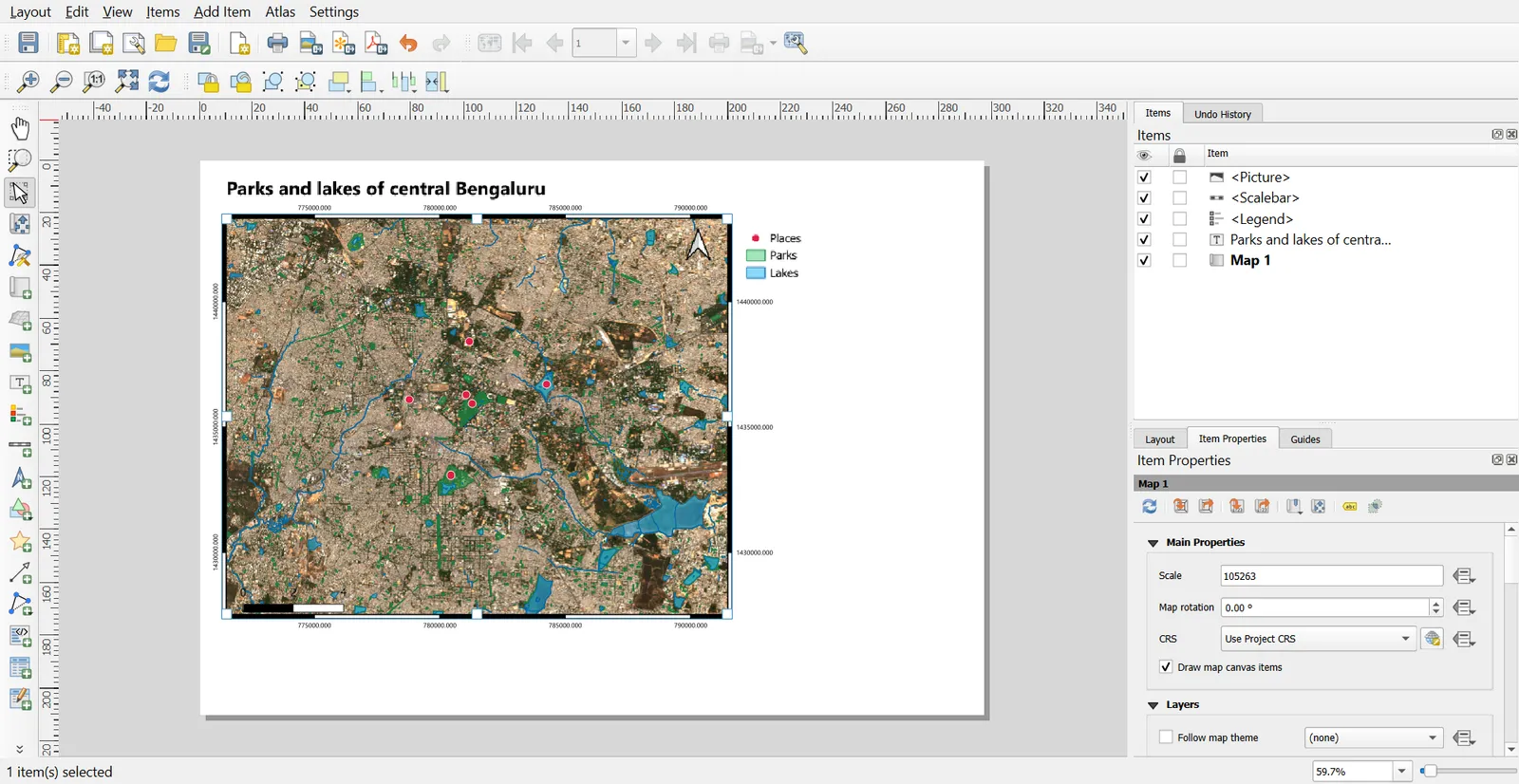
- Add Item > Add Scale Bar.
- Drag a box under the map.
- In Item Properties, choose Linked map, then Units (kilometres), the number of segments, and the length of one segment.
Pick segment lengths that fit your scale. At 1:250,000, 5 km per segment with 2 segments to the right looks sensible.
6. Add a north arrow
- Add Item > Add North Arrow.
- Drag a small box in a corner.
- In Item Properties > SVG Image, pick a style.
A north arrow is needed only when north is not at the top, or on maps people use for orientation. On a map with a coordinate grid, it is optional.
7. Add a coordinate grid
- Select the map item. In Item Properties, open Grids and click the plus.
- Click Modify Grid.
- Choose Interval X and Y, for example
0.05degrees if the grid is in EPSG:4326, or5000metres in a projected CRS. - Under Draw Coordinates, enable them, and choose the position (outside the frame) and the format.
- Set the grid CRS. Use EPSG:4326 for latitude and longitude labels, or the map's CRS for easting and northing.
8. Add an overview map
An overview map shows where the main map sits in a wider area.
- Add a second map item, and set its extent to the larger area.
- In its Item Properties, open Overviews and click the plus.
- Choose the main map in Map frame. A red box appears on the overview.
9. Add credits and data sources
Add another label with the source and any licence text. For this series:
Data: Contains modified Copernicus Sentinel data 2025; Landsat 8 courtesy of the U.S. Geological Survey; © OpenStreetMap contributors.
Projection: WGS 84 / UTM zone 43N (EPSG:32643)
Only include the sources that appear in your map. Add the projection so readers can reproduce your numbers.
10. Align and tidy
- Select several items, then use Align and Distribute from the toolbar.
- Turn on View > Show Grid and View > Snap to Grid to place items on a regular grid.
- Turn on Smart Guides so items align to each other.
- Use a frame on the map (Item Properties > Frame) to give it an edge.
- Use Items panel to reorder and to hide items.
Check the whole page at a distance. Everything should be readable at the size you will use.
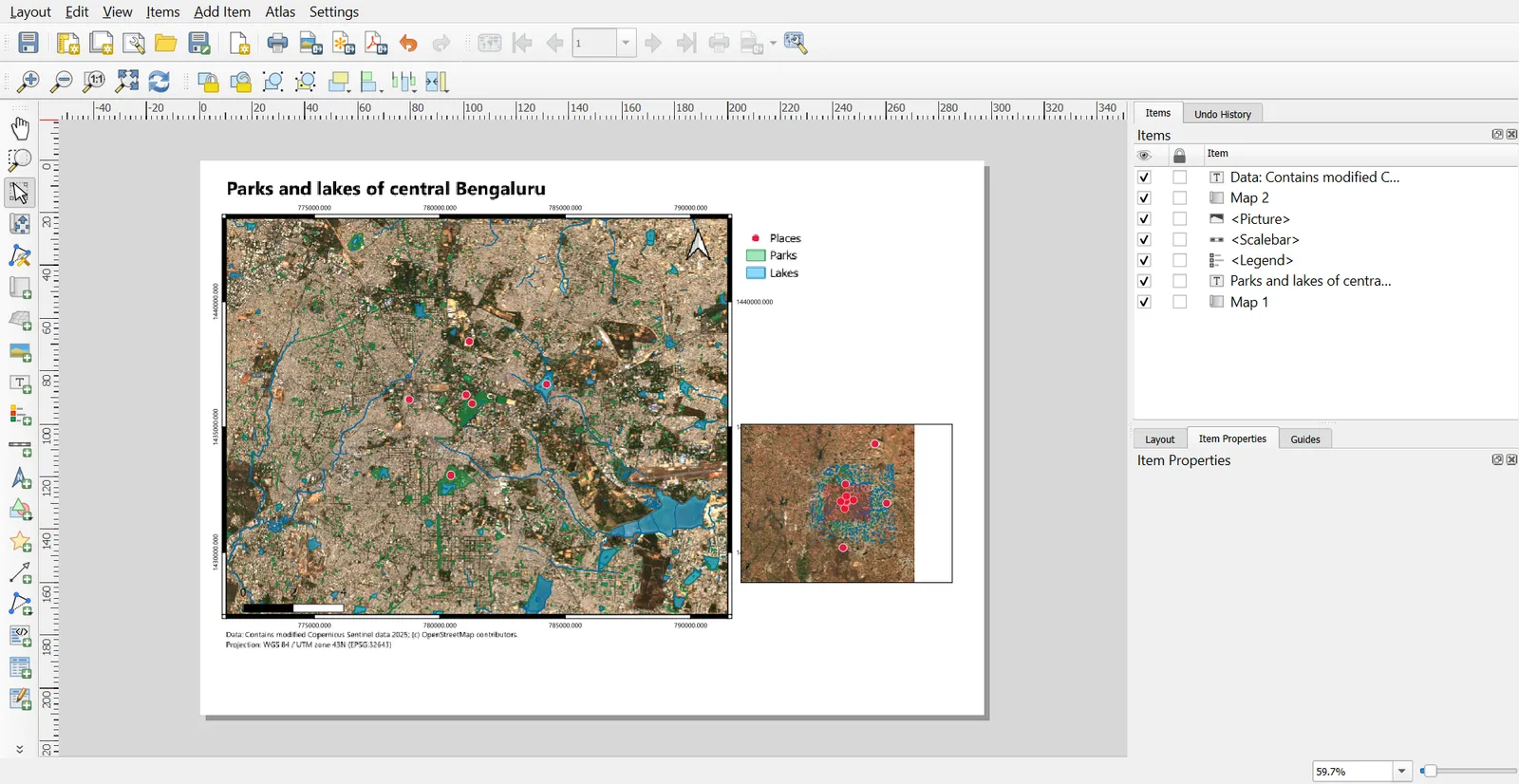
11. Make a map series with Atlas
Atlas creates one page for each feature in a coverage layer, such as one map for each ward, district or park.
- Layout > Atlas Settings. Tick Generate an atlas.
- Coverage layer: pick a polygon layer, such as your area of interest layer.
- Set Page name to a field for the page name.
- Select the map item, and in Item Properties > Controlled by Atlas, tick it, and choose Margin around feature or Predefined scale.
- For text that changes with each page, use an expression in a label:
[% "name" %]. - Atlas > Preview Atlas, then use the arrows to move through pages.
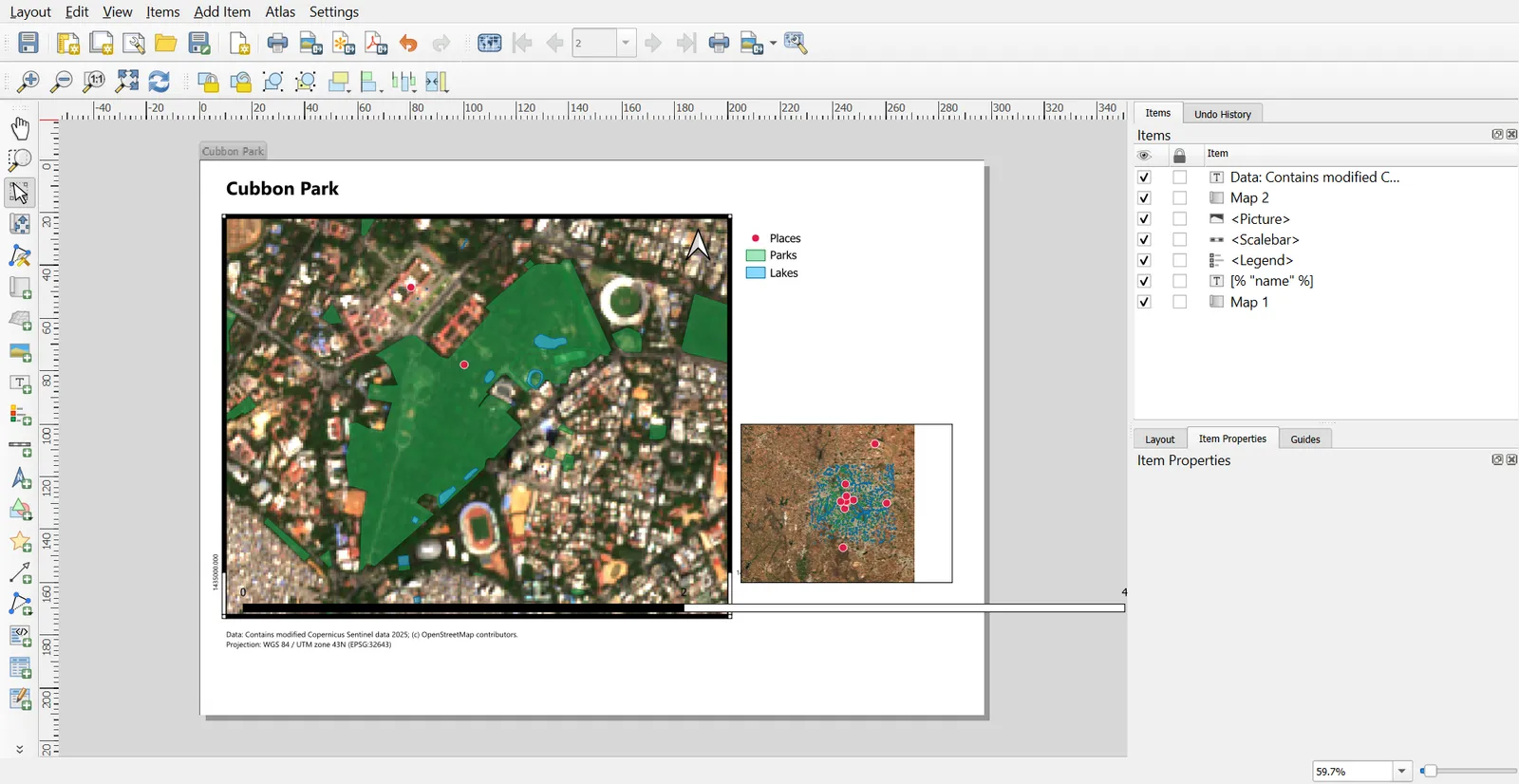
To export all pages, use Atlas > Export Atlas as Images or Export Atlas as PDF.
12. Export
| Format | Menu | Use |
|---|---|---|
| Layout > Export as PDF | Print, sharing, keeps vectors sharp | |
| Image | Layout > Export as Image | Reports, slides, web |
| SVG | Layout > Export as SVG | Editing in Inkscape or Illustrator |
In the options dialog:
- Set Export resolution to 300 dpi for print, and 150 dpi for screens.
- Tick Always export as vectors for PDF so labels stay sharp.
- A raster basemap will stay a raster even when you export vectors.
Save a layout as a template with Layout > Save as Template, so later maps use the same design. Layouts are saved inside the project, so save the project too.
Map design checks
- One main message per map.
- Visual hierarchy: title, then map, then legend, then credits.
- Colours with enough contrast, and fewer than about seven classes on a thematic map.
- Labels that stay readable against imagery, using a text buffer.
- Scale bar, legend and credits present, and a CRS note if numbers matter.
- No overlapping elements, and even margins.
Common mistakes
- Leaving Auto update on in the legend and ending up with a legend full of layer names.
- Changing the canvas after layout and not locking layers.
- Using a scale bar in degrees.
- Exporting at the default resolution and finding it blurry in print.
- Dropping the data source and licence credit.
- Fitting too much on one page.