

A legend answers one question: what do these symbols mean? Anything in it that does not answer that question is in the way. The automatic legend that QGIS builds does not know what your map is about, so it lists everything.
What is a legend?
A legend is a key that matches map symbols to their meaning. It can show colours and classes for an area layer, a line style for roads, and a symbol for points. A good one lets a reader decode the map without guessing.
Why it matters
The legend is where many readers go second, after the title. If it lists internal layer names such as District_Boundaries, or ten layers when the map shows two, they have to decide what to ignore. A legend that includes every layer is a project inventory. It does not explain a map.
The rules
- Include only the symbols the reader needs to read this map. Hide layers that are only context and are obvious, or name them with a plain label such as "Major roads".
- Use plain language. "Parks and lakes, share of area (%)" is better than "pct_green".
- Put the main theme first, then the context layers.
- Show units, and class limits for numbers. A class label such as "3.2 to 4.4" says more than "Low".
- Make sure each legend symbol matches the map exactly. A legend line that is red while the map line is grey confuses everyone.
- For a continuous raster ramp, label both ends with values and units.
- Give the legend a place of its own, so that it does not cover data.
See the difference
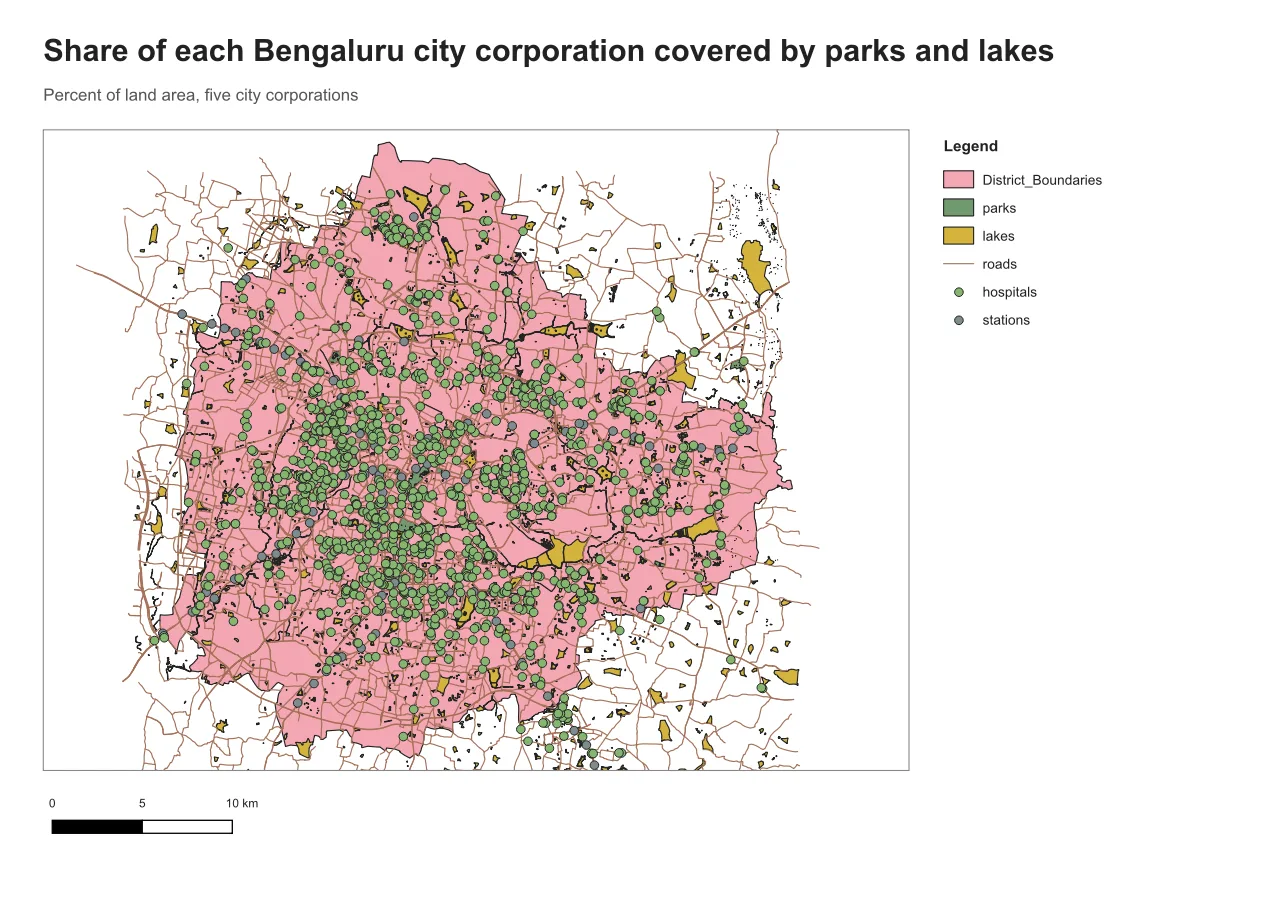
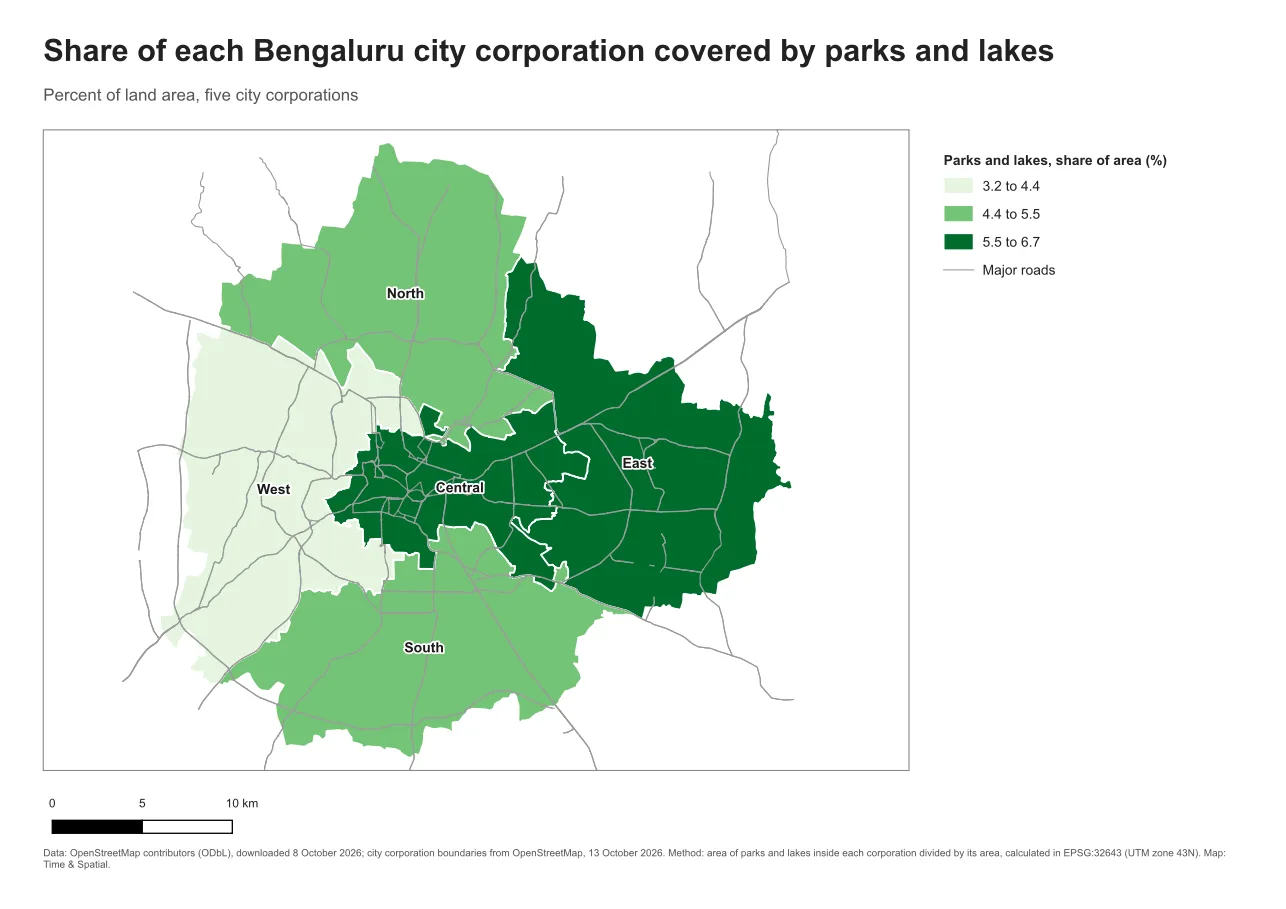
Do it in QGIS
- In the Print Layout, add a legend with Add Item > Add Legend and select it.
- In Item Properties, open Legend Items and untick Auto update. This lets you edit the list freely.
- Select an unwanted entry and click the minus button to remove it. Use the arrows to reorder entries.
- Double-click an entry to rename it. Rename a layer here to give the legend a plain label without changing the project.
- For a graduated layer, the class limits are the labels from the layer's symbology. Set their format (the number of decimals, a unit) in the layer's properties.
- Link the legend to the main map so it follows the right map item, and check it against the map after any change to the symbology.
Common mistake: the automatic legend
Leaving Auto update on means every layer in the project appears, and every change to the project changes the legend. The fix is to switch Auto update off for a finished layout and curate the list by hand.
Glossary
| Term | Meaning |
|---|---|
| Legend, key | A list that explains the symbols used on the map |
| Class | A range of values drawn in the same colour |
| Auto update | The setting that makes the legend follow the project layer list |
| Symbol patch | The small coloured box or line shown beside a legend label |
Practise it
Take a project with five or more layers. Build a layout with the automatic legend, then curate it until each entry answers a question the reader would ask. The Print layouts in QGIS tutorial includes adding a legend.
Test yourself
1. Why not show every project layer in the legend?
The legend would become an inventory of the project instead of an explanation of the map, and readers would have to decide what to ignore.
2. What should a class label for a number show?
The class limits and the unit, such as "3.2 to 4.4" under a heading that says percent.
3. What does unticking Auto update do?
It stops the legend from following the project layer list, so your removals, renames and ordering stay as you set them.