

A map on the QGIS canvas is a working view. It changes every time you pan or zoom. A Print Layout is a page. It has a fixed size, and on it you place the map, a title, a legend, a scale bar and a source note, so that the result can go in a report or on a wall.
This is the first of ten short pages that build one finished map by hand. You will end with the same layout that the automation project uses as its template, and you will know why every item on it is there. Nothing here needs code.
What you need
- QGIS 3.44 LTR, which is free from qgis.org. Other recent versions look almost the same.
- The start project: bengaluru_layout_start.zip (0.9 MB). Unzip it. The folder holds the project file and one GeoPackage with the data.
The data is the five city corporations of Bengaluru, the share of each one covered by parks and lakes, the major roads, and the outline of Karnataka. It comes from OpenStreetMap contributors and Natural Earth. The automation project explains how it was made.
The design reasons for the choices below are in the Map Design notes on map purpose and page size and margins. You do not have to read them first.
Step 1: Open the project
Open QGIS. Choose Project > Open and pick bengaluru_layout_start.qgz. The map shows the five corporations in three shades of green, with major roads on top.
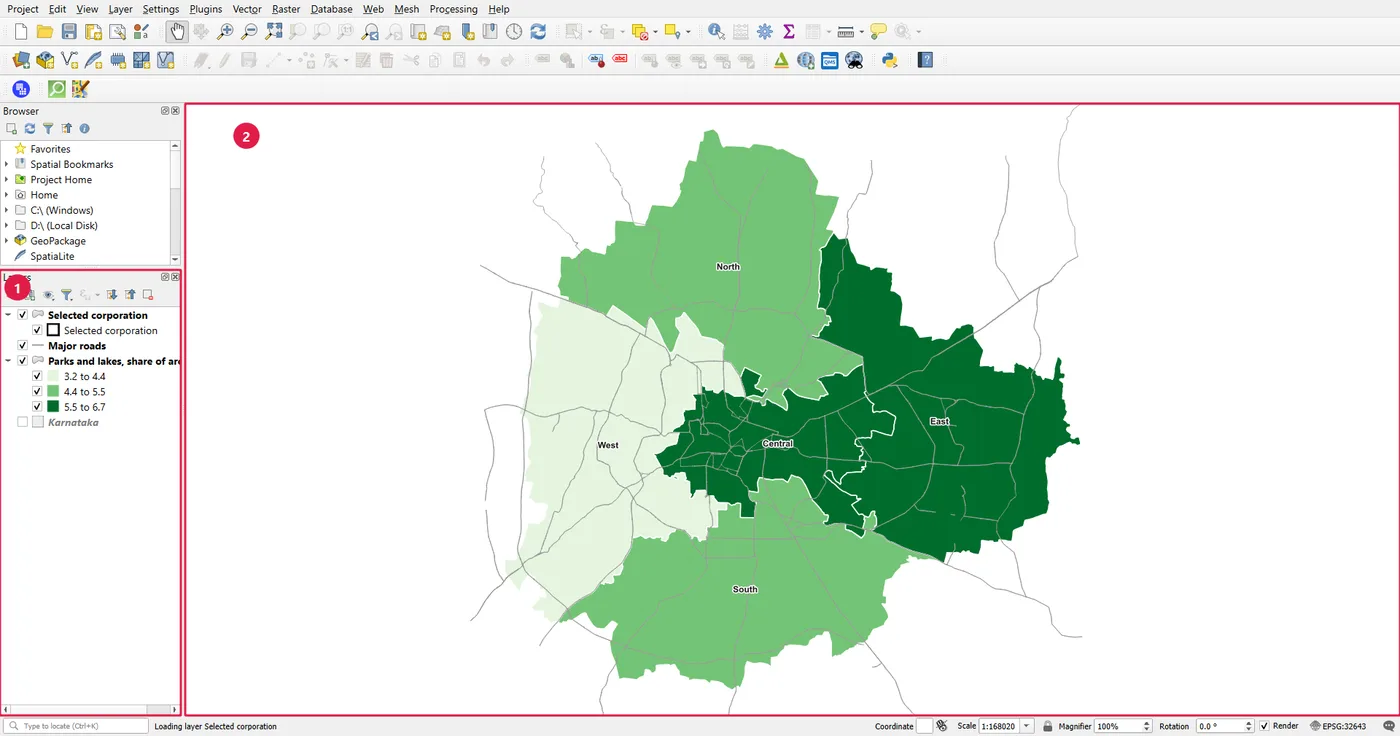
Look at the Layers panel. It has four layers:
- Parks and lakes, share of area (%) is the five corporations. They are shaded by the share of each one that is park or lake, in three classes.
- Major roads are the main roads, drawn in grey.
- Selected corporation draws a dark outline around one corporation. Nothing is selected yet, so you see no outline. It will come into use on the Atlas page.
- Karnataka is the state outline. It is switched off now. A later page uses it for a small locator map.
Step 2: Check the project before you open a layout
A layout reads everything from the project: the layers, their colours, their order and their labels. If the project is untidy, the layout will be untidy too. It is far quicker to fix this on the canvas than inside the layout. Spend two minutes on these checks:
- The coordinate system. Look at the bottom right of the QGIS window. It says EPSG:32643, which is WGS 84 / UTM zone 43N. This is a metre-based system that suits Bengaluru, so distances and the scale bar will be correct. If your own project says EPSG:4326, change it before you make a map.
- Layer names. The legend will use these names. They should make sense to a reader who has never seen the project. A name such as
corporations_v2_finalwould look wrong in a legend. - Layer order and visibility. Roads should sit above the polygons so they stay visible. Layers that should not appear on the map should be switched off.
- Symbols and labels. Set the colours and labels now, on the canvas.
- Saved and in its final place. Save the project in the folder where it will live, so that its data paths stay correct. Here that is the folder you unzipped.
Step 3: Create the layout
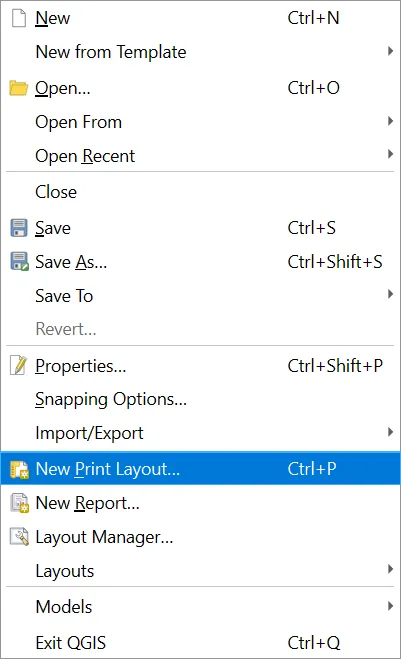
Choose Project > New Print Layout. The shortcut is Ctrl+P.
QGIS asks for a title.
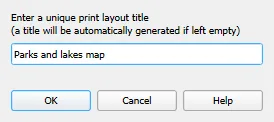
Type Parks and lakes map and press OK. Choose a name that tells you what the layout is, because a project can hold many layouts and the Layout Manager lists them by name. Two layouts cannot share a name. If you leave the box empty, QGIS makes up a name such as Layout 1, which is hard to recognise later.
Step 4: Meet the layout window
The layout opens in its own window.
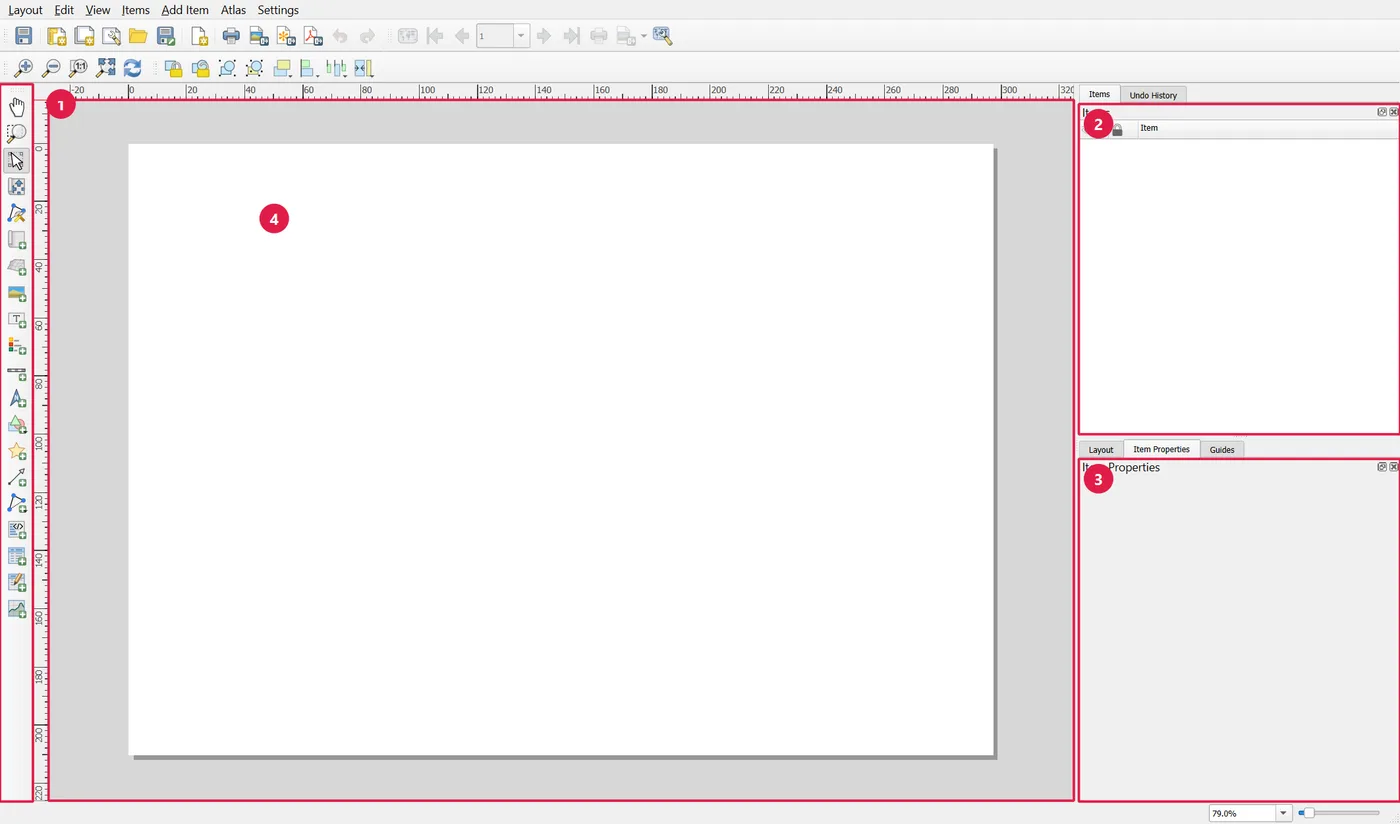
- The toolbox is the column of buttons on the left. The top buttons move and zoom the view of the page. The ones below add items: a map, a picture, a label, a legend, a scale bar, a north arrow, shapes and tables. You will use most of them in this series. The same tools are in the Add Item menu.
- The Items panel lists everything on the page. It is empty now. Later you will use it to select an item that is hard to click, to hide it, or to lock it so that it cannot be moved by accident.
- The Item Properties panel shows the settings of whichever item is selected. Almost all of your work happens here. The tabs next to it are Layout (settings for the whole page, such as export resolution) and Guides (alignment lines).
- The page is the white sheet. Everything outside it is the pasteboard. Items outside the page are not exported.
The menus and toolbars along the top save, export and align, and the zoom box at the bottom right changes the view. Use View > Zoom Full if you lose the page.
Step 5: Set the page size and orientation
Do this first, before you place anything. If you change the page later, the items keep their positions in millimetres, and a map that was balanced on one page can look wrong on another.
Right-click an empty part of the page and choose Page Properties. The Item Properties panel shows the page.
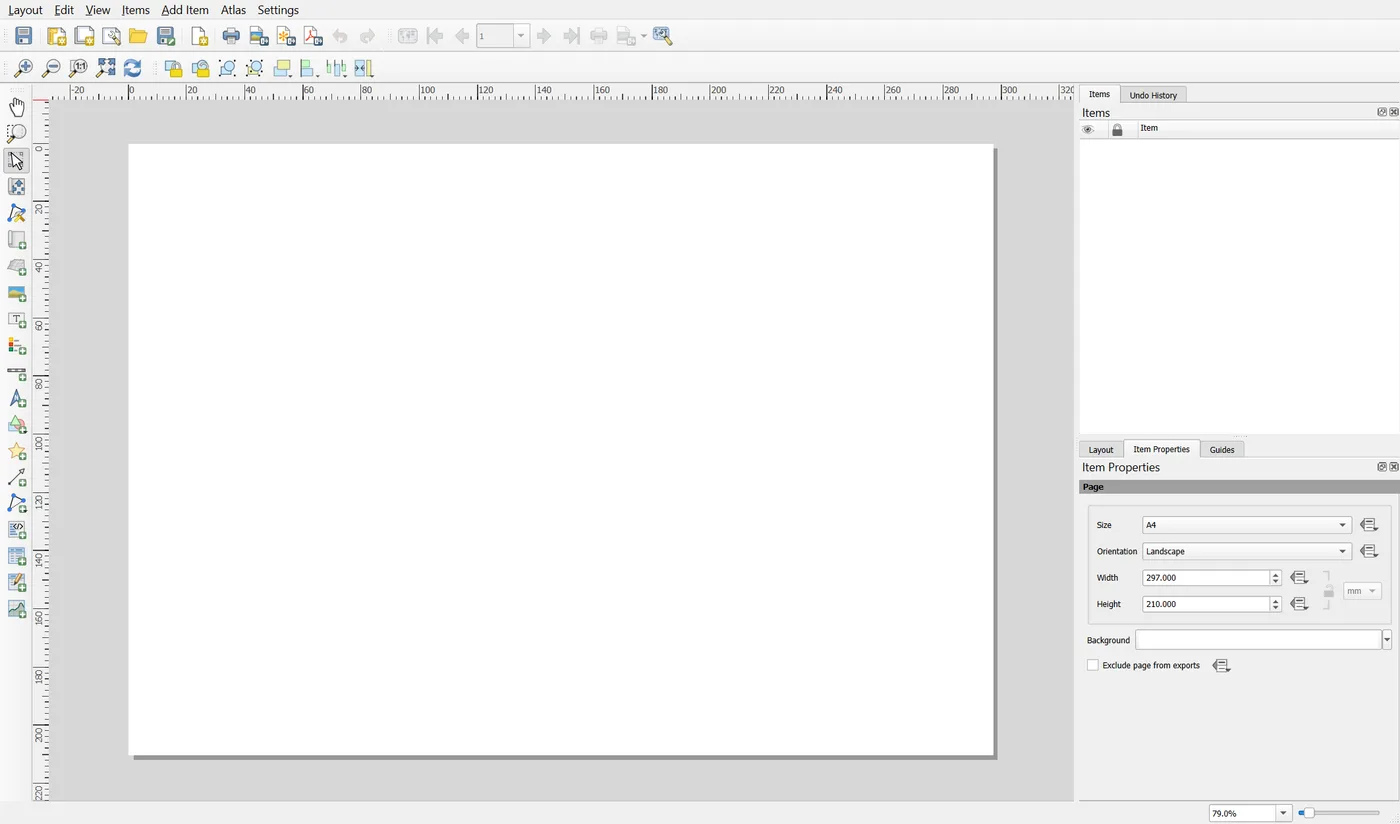
A new layout starts as A4 landscape, 297 by 210 millimetres. That suits this map, because Bengaluru's corporations are about as wide as they are tall, and we need room at the right for a legend. Change the size and orientation here if your map or paper is different. A tall, narrow area, such as a river, usually fits portrait better.
Page size also decides how big text looks. A 12 point font on A4 reads well. The same size on A0 looks tiny. Choose the size you will actually print or show, and design for that.
Step 6: Save the project
Close nothing yet. Choose Project > Save in the main QGIS window, or press Ctrl+S in the layout window. A layout is stored inside the project file. If you do not save the project, the layout is lost when you close QGIS.
To open a layout later, choose Project > Layout Manager in the main window, pick the layout and press Show. You can also duplicate a layout there, which is a quick way to make a variation.
When it breaks
| What you see | Why | What to do |
|---|---|---|
| The layers show a red question mark or an exclamation mark in the Layers panel | QGIS cannot find the data file | Keep the project file and the data folder together. Right-click the layer and choose Repair Data Source if you moved them |
| QGIS says a layout with that name already exists | Two layouts cannot share a name | Pick another name, or delete the old one in the Layout Manager |
| The page is not visible in the layout window | You zoomed or panned away | View > Zoom Full |
| The layout is gone after reopening the project | The project was not saved | Save the project, not only the layout, before you close QGIS |
Make it your own
- Open the Layout Manager and create a second layout named
Portrait test. Set its page to A4 portrait. How would the Bengaluru map fit on it? - Look at the Items panel and the Add Item menu. Write down the items you think this map needs, then compare your list with the next pages.
- Open your own QGIS project. Go through the five checks in Step 2. How many does it pass?
Common mistakes
- Opening a layout before the project is ready. Fix the layers on the canvas first.
- Leaving the layout with its default name. It becomes hard to find among several layouts.
- Choosing the page size last. Decide the size and orientation before you place items.
- Forgetting to save the project. The layout lives in the project file.