

You now have a finished layout for the whole city. A reader will often want one for each corporation. You could duplicate the layout five times and edit each copy by hand, but a change to the design would then have to be made five times. The Atlas does it better. It takes one layout and a layer, and makes one page for each feature of that layer. The design stays in one place. The automation project uses the same Atlas for its combined PDF.
Continue in Parks and lakes map. You will need the layer fields short (the name, such as East), title and subtitle.
Step 1: Switch the Atlas on
Choose Atlas > Atlas Settings. A new Atlas panel opens next to Item Properties.
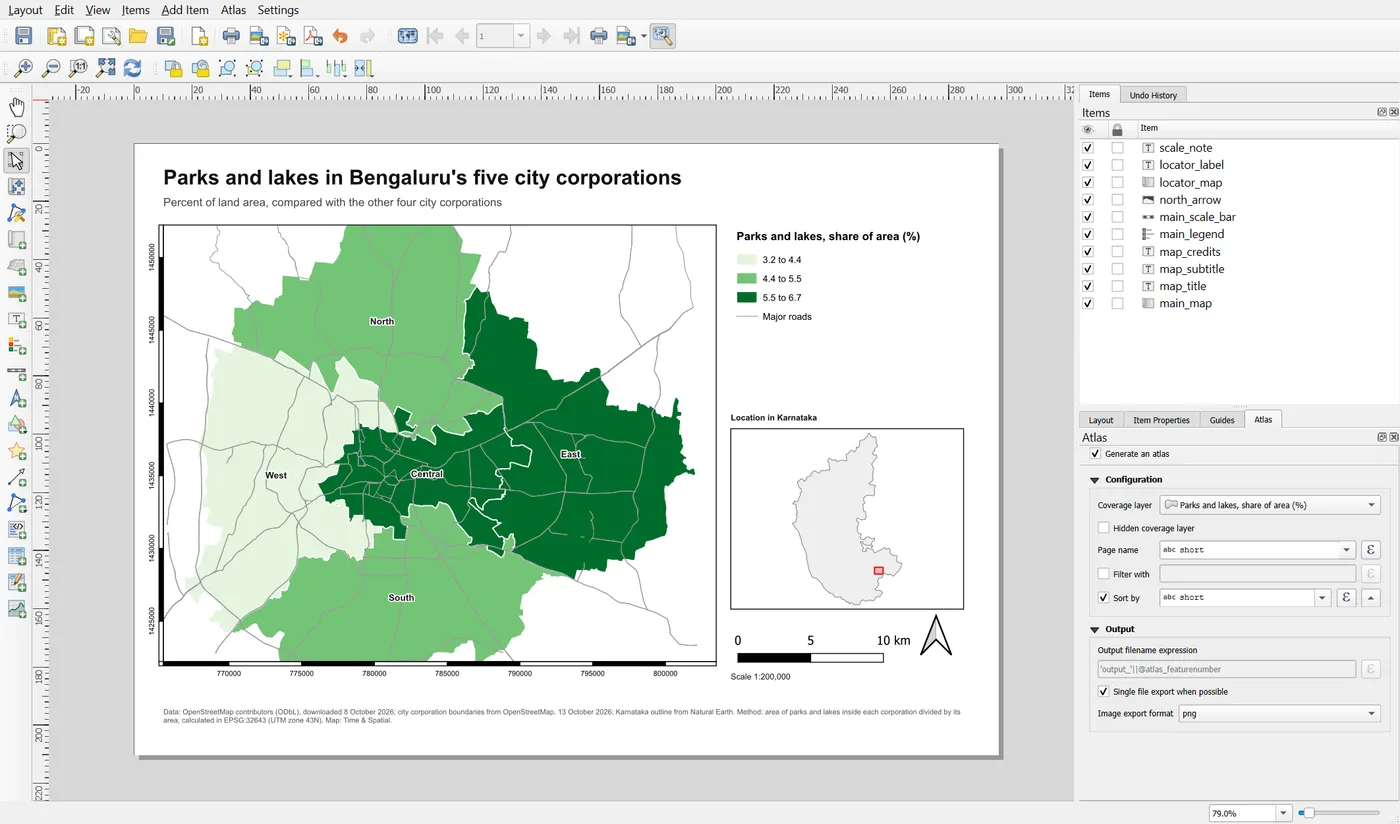
Set it up like this:
- Tick Generate an atlas.
- Coverage layer:
Parks and lakes, share of area (%). Each feature of this layer becomes one page. We have five features, so five pages. - Page name:
short. The preview list will show East, North and so on instead of numbers. - Sort by:
short. The pages come out in alphabetical order, so the result is the same every time. Without a sort, the order depends on how the data happens to be stored. - Leave Filter with empty. If you only wanted some corporations, you would type a condition here.
Step 2: Make the map follow each feature
Select the main map and open the Controlled by Atlas group. Tick it.
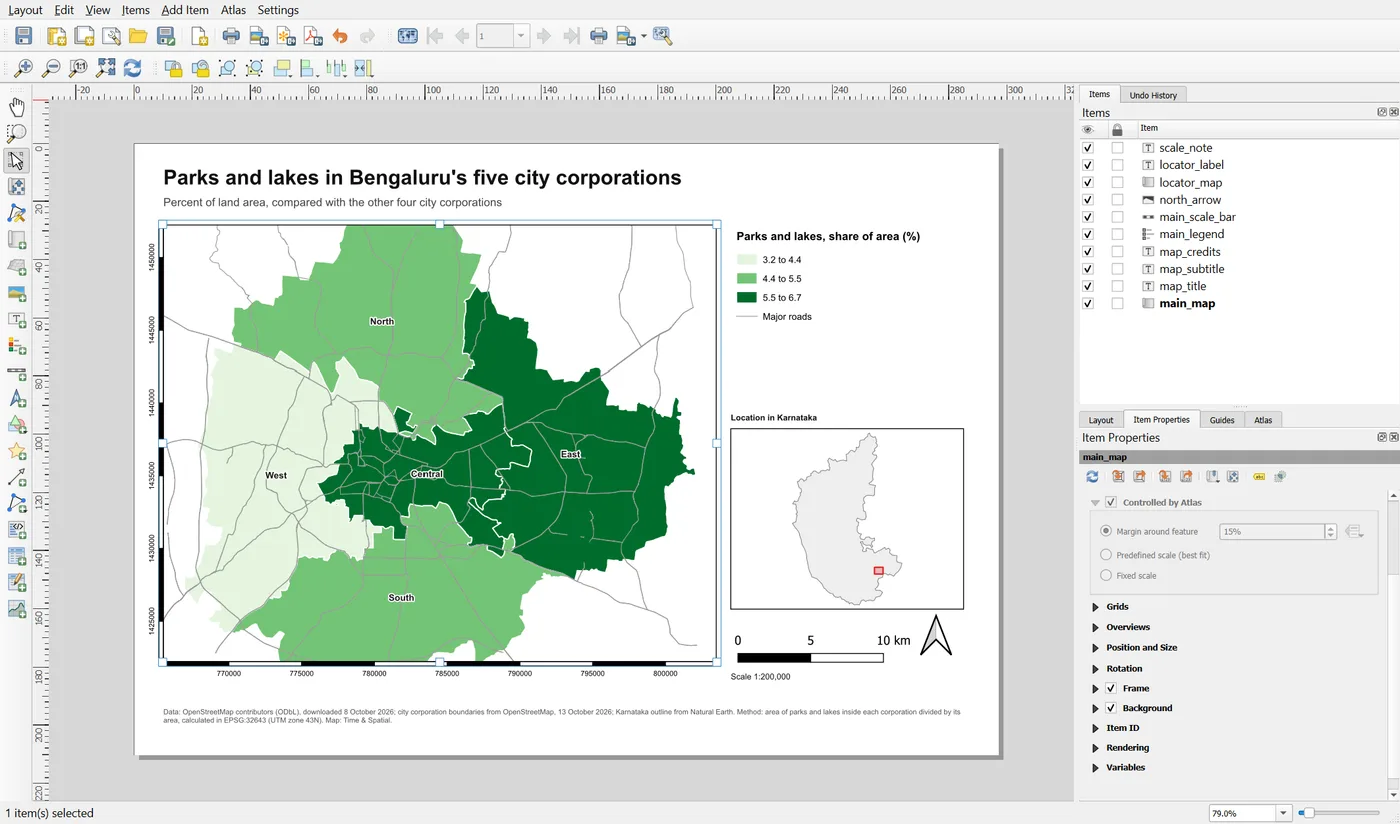
Choose the mode Auto scale with a margin of 15 percent. QGIS zooms to each feature, and leaves 15 percent of empty space around it. Features of different sizes each fill the frame nicely, and the scale changes from page to page. The other modes keep one fixed scale or use a scale from a list, which you would use when every page must be comparable.
Step 3: Fill the text from the data
Select the title and replace its text with:
[% "title" %]
and the subtitle with [% "subtitle" %].
![The title label with the text [% title %] in the Main Properties group](/tutorials/map-layouts/b9-title-expression.webp)
Inside [% %] a field name in double quotes means the value of that field for the page being drawn. Each corporation has its title built in the layer, for example "East City Corporation: parks and lakes cover 6.7% of its area". Doing this in the data is better than building the sentence in the layout, because you can check and fix it in the attribute table.
Step 4: Draw an outline around the current feature
In the previous pages, the dark outline layer Selected corporation drew nothing. Now it becomes useful. This layer is the same polygons as the coverage layer, drawn with one rule:
"short" = coalesce(attribute(@atlas_feature, 'short'), @focus_name)
@atlas_feature is the feature the Atlas is on right now. The rule draws only the polygon whose name matches the Atlas feature. The extra part, @focus_name, is a project variable that does the same job when the Atlas is off, and the automation project uses it. So the outline moves from page to page without any change to the layout. The map already draws this layer, because Part B locked it into the map frame.
Step 5: Check that the scale bar adapts
Each page has a different scale now. A scale bar with a fixed 5 km segment would grow and shrink on the page, and on a close page it could run into the north arrow. The scale bar from Part B avoids this, because its segments are set to Fit segment width. Select it and open the Segments group to see.
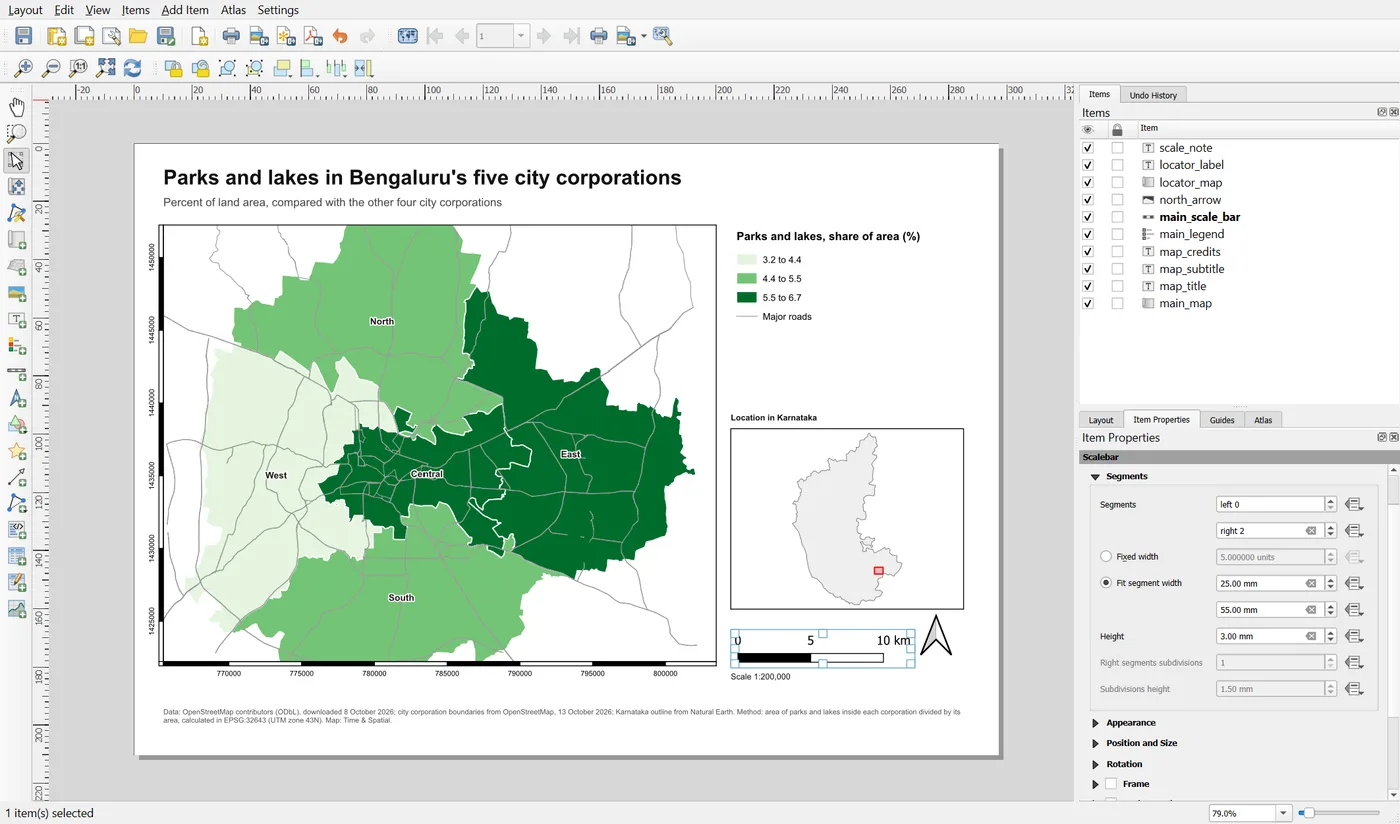
QGIS chooses round values that fit, so the bar stays between 25 and 55 mm. It reads 0, 2, 4 km on a close page, and 0, 5, 10 km on a wide one. If your own scale bar has a fixed width, change it now.
Step 6: Preview the pages
Click the Preview Atlas button in the toolbar. The layout shows the first page. The toolbar gets arrows and a list of page names, which is why we set the page name.
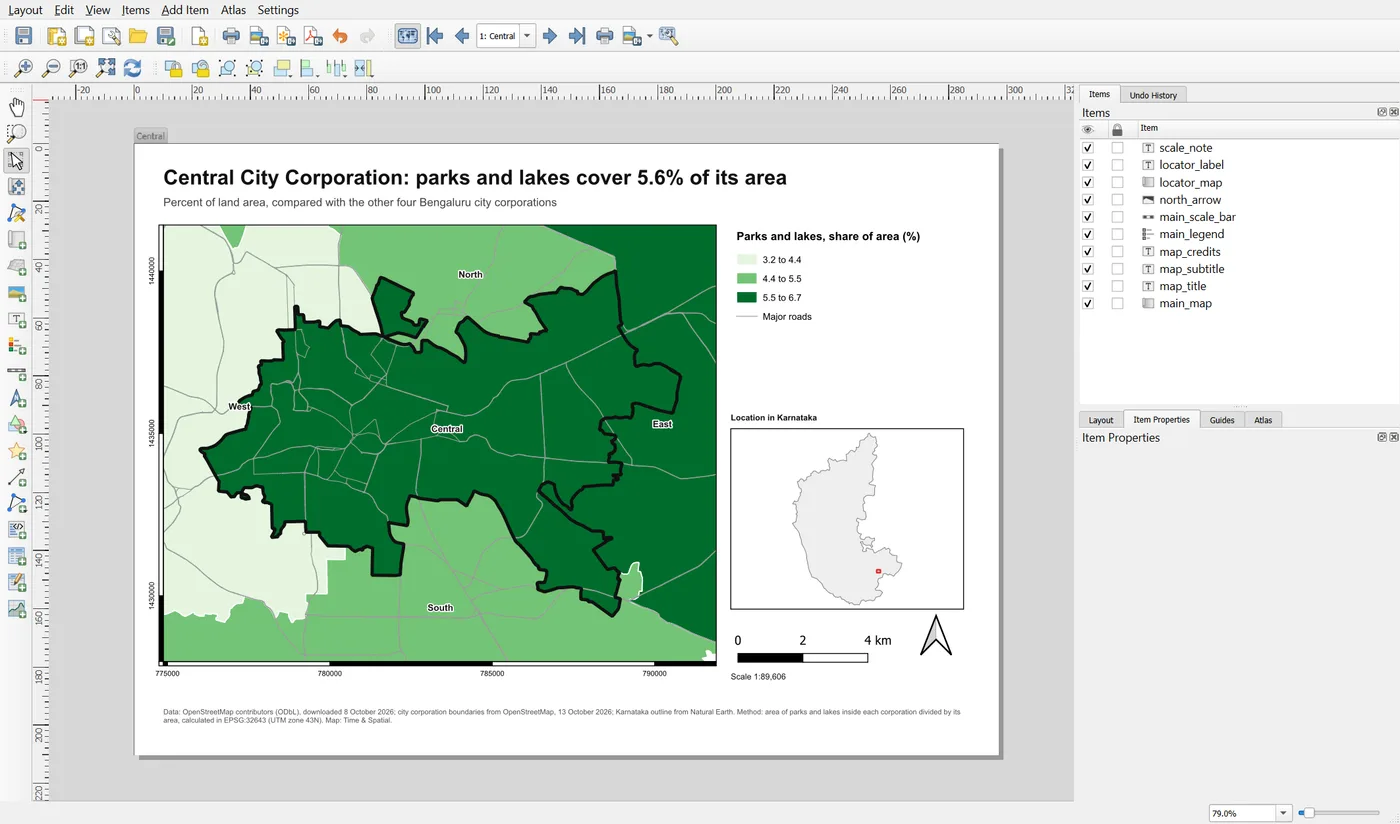
Use the arrows or the list to go through the pages.
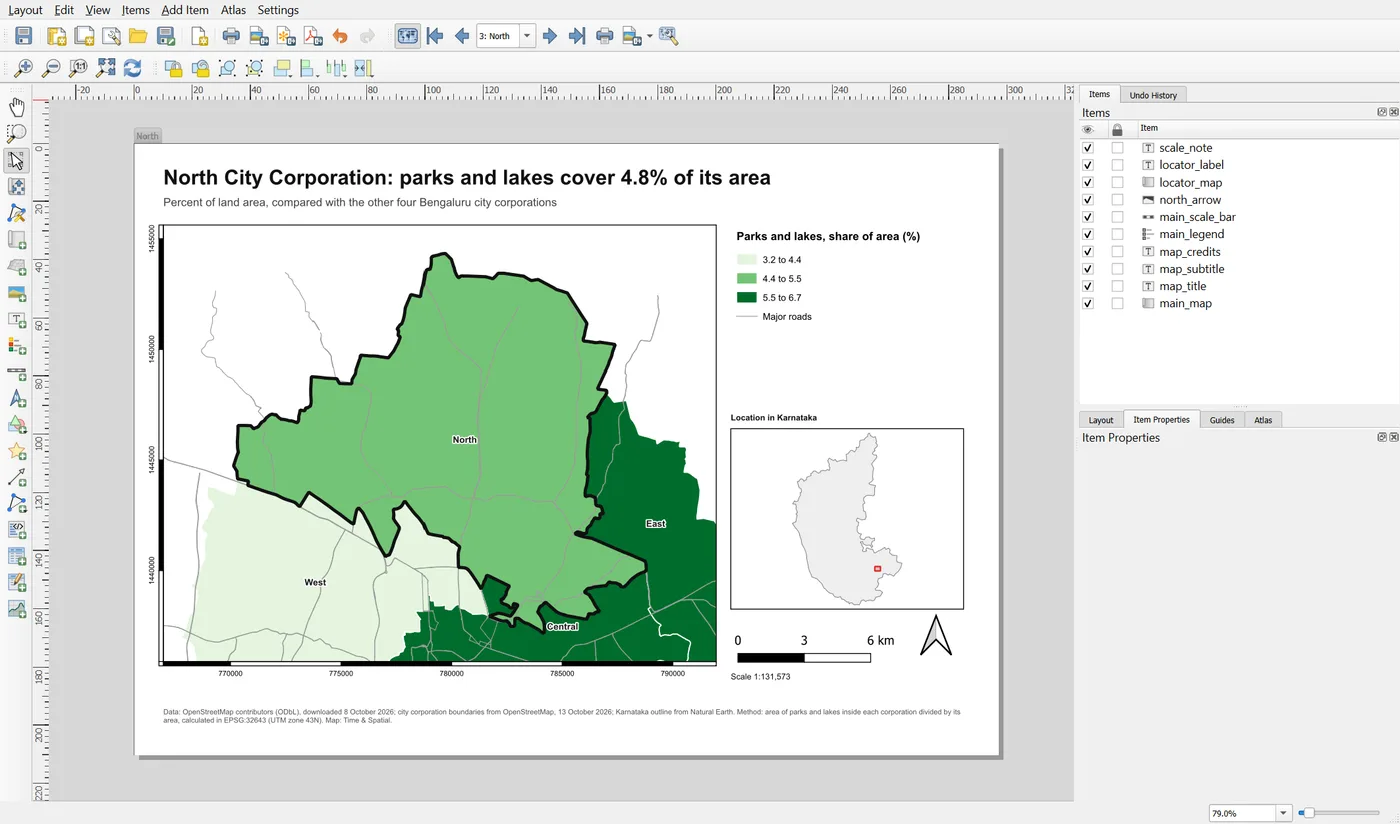
Look at every page, not only the first. Is the whole corporation visible? Is the title right? Does the red box on the locator move? Does anything overlap? This is where problems show up, and it is much cheaper to find them now than after exporting.
Step 7: Export
Open the Atlas menu.
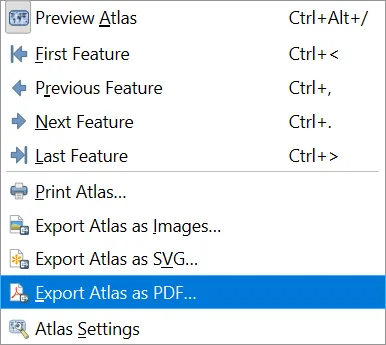
Choose Export Atlas as PDF. With Single file export when possible ticked in the Atlas panel, you get one PDF with five pages. If you untick it, QGIS writes one file per page, named by the Output filename expression. The default is 'output_' || @atlas_featurenumber, which gives output_1, output_2 and so on. Change it to "short" to get Central.pdf, East.pdf and so on. There are matching entries for images and SVG files.
Always open the PDF and look at every page.
Save the project.
Atlas or a script?
The Atlas is the right tool when you need one page for each feature and everything else follows from the feature. A script, as in the automation project, gives you more control: different files, checks before export and a report. Often the best solution uses both, and Atlas does the combined PDF.
When it breaks
| What you see | Why | What to do |
|---|---|---|
| The Preview Atlas button is greyed out | Generate an atlas is not ticked, or no coverage layer is set | Tick it and choose a coverage layer in the Atlas panel |
| Every page shows the same area | The map is not controlled by the Atlas | Tick Controlled by Atlas in the map's properties |
The title shows [% "title" %] as text | Atlas preview is off, or the field name is wrong | Switch on Preview Atlas, and check the field name |
| No outline appears | The outline layer is not drawn by the map, or its rule does not match | Check that the layer is locked into the map, and read the rule |
| The scale bar covers the north arrow | Segments have a fixed width | Use Fit segment width |
| Pages come out in a strange order | There is no sort | Tick Sort by in the Atlas panel |
| The PDF has one page only | Preview was on a single page, or the filter matches one feature | Check the Filter with box, and export the atlas, not the current page |
Make it your own
- Set a filter:
"pct" > 5. How many pages are there now? Remove the filter again. - Change the margin from 15 percent to 5 percent and to 40 percent. Which suits the pages best?
- Export the atlas as separate files named by
"short".
Common mistakes
- Never looking at the later pages. The first page is not the same as the rest.
- Forgetting to sort, so the order changes between runs.
- A fixed scale bar on a map whose scale changes.
- Typing text on the layout that should come from the data.
- Exporting without opening the result.
Key takeaways
Next: Export, reopen and check.