

You spent six pages building this layout. You should not have to do it again for the next map. A template is the layout saved as a file, so that you or anyone else can start from it. This is the idea behind the whole automation project: the design lives in the template, and only the content changes.
Here is the layout you are about to save.
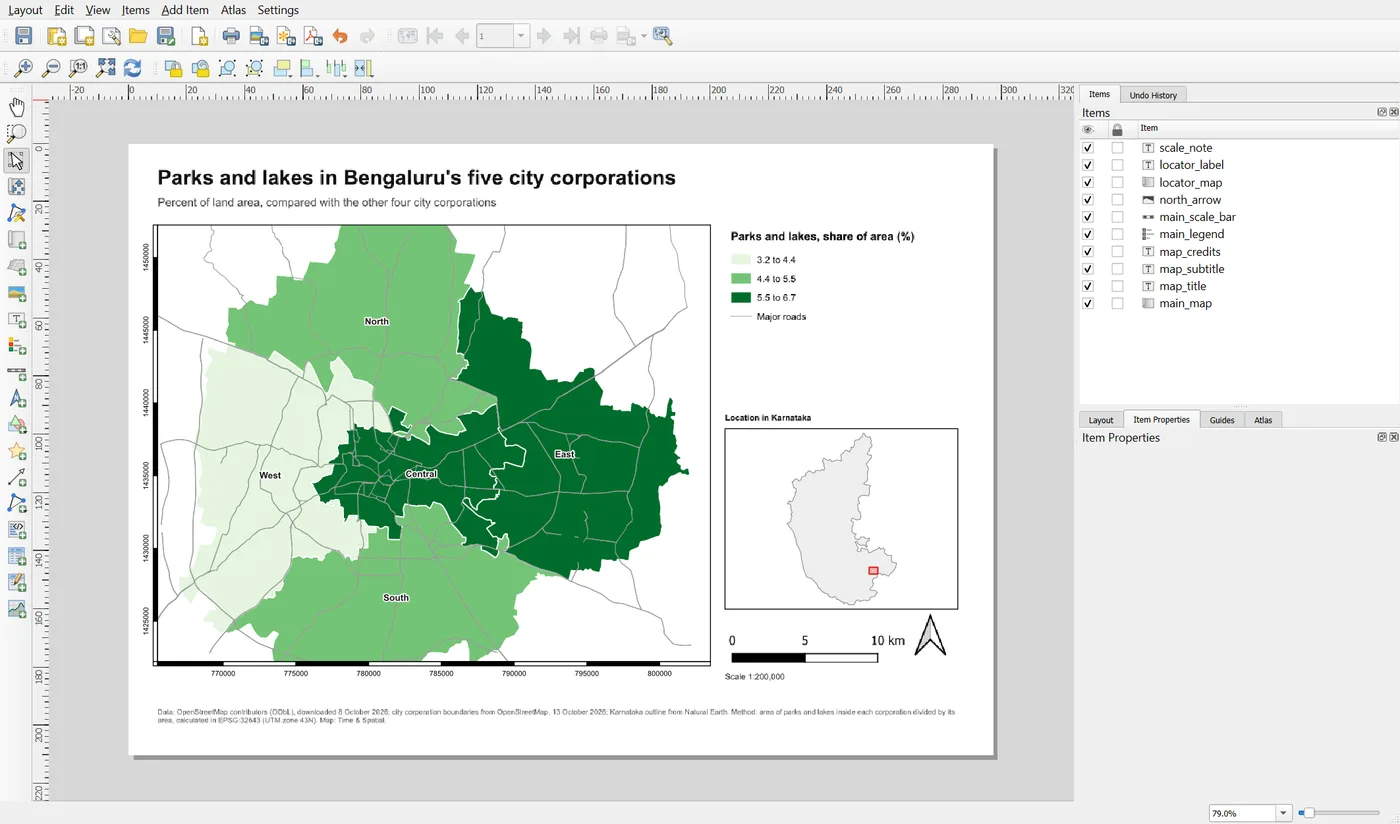
Every item has an ID. This is the list to check before you save:
| ID | What it is |
|---|---|
main_map | The main map |
map_title | The title |
map_subtitle | The subtitle |
main_legend | The legend |
main_scale_bar | The scale bar |
north_arrow | The north arrow |
map_credits | The source note |
locator_map | The locator map |
locator_label | The label above the locator map |
scale_note | The scale text under the scale bar |
Step 1: Save the layout as a template
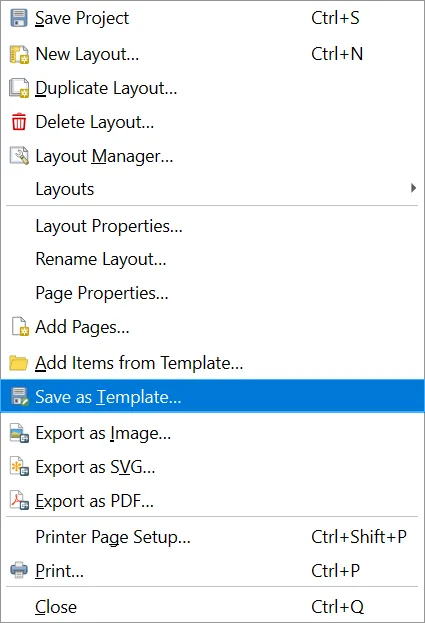
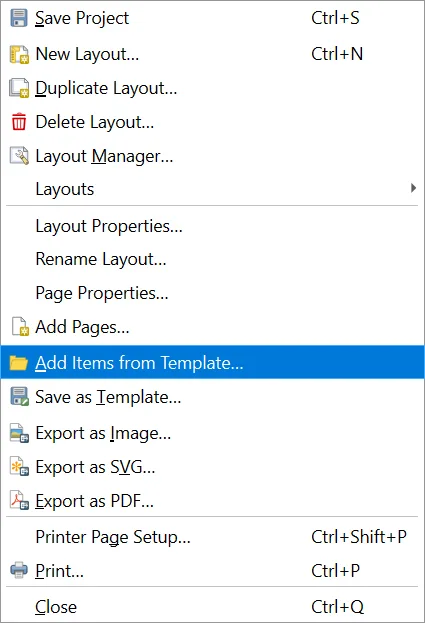
In the layout window, choose Layout > Save as Template. Pick a folder and a name, for example parks_and_lakes_template.qpt.
Keep the template in a folder that you will remember, together with any logos or pictures that the layout uses. By default a template stores a link to a picture file and not the picture itself, so moving the picture breaks the link.
You can download the template from this page: parks_and_lakes_template.qpt. It is a text file in XML. You can open it in a text editor to see how it is built, but do not edit it by hand, because one wrong character makes the whole file unreadable.
Step 2: What a template keeps
A template keeps the design:
- the page size and orientation
- every item, with its position, size and appearance
- item IDs, fonts, colours, frames and grids
- expressions and data-defined settings
- the way the legend is curated
It does not keep:
- the data, since your layers stay in the project
- the project settings, such as the CRS
- pictures, only the link to them
One more thing deserves care. Locked layers and map themes refer to layers by an internal ID. If you load the template into a project where those layers are missing, the locked map shows nothing. Use the same layer names and the same data, or set the layers again after loading.
Step 3: Make a layout from a template
There are two ways.
A new layout from a template. Open Project > Layout Manager. At the bottom is the group New from Template.
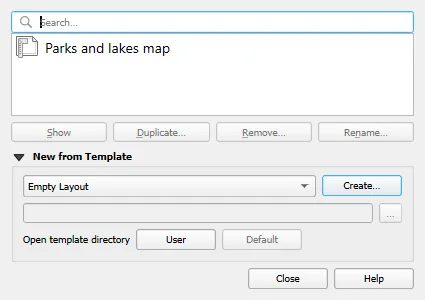
Change Empty Layout to Specific, press the button with three dots and choose your .qpt file. Press Create and give the new layout a name. QGIS builds it at once. The Open template directory buttons show the folder where QGIS looks for templates: put your template in the User folder, and it appears in the dropdown without browsing.
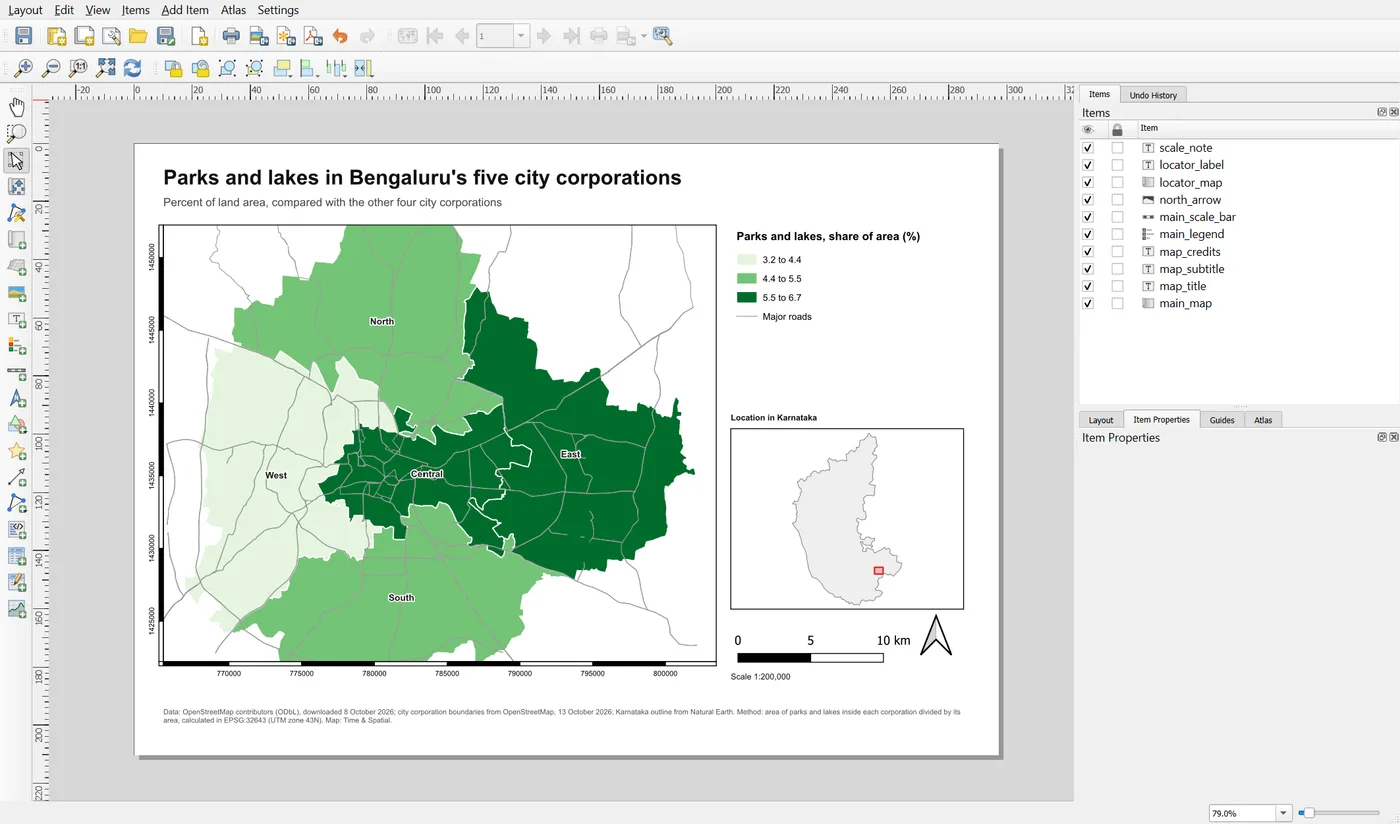
Items from a template. If you already have a layout open and only want to add the items, choose Layout > Add Items from Template and pick the file. This is useful for adding a standard title block or a logo strip to a layout you have already started.
Step 4: Test the template before you rely on it
A template that works only on your own computer is a trap. Test it like this:
- Open the start project again, or a copy of it, so that you have a fresh project.
- Make a layout from the template, as in Step 3.
- Compare it with the original. Is anything missing, shifted or empty?
- Open the Items panel. Are all the IDs in the table above there?
- Export a PDF. Does it look like the original?
Write down what the template expects: which layers, by what names, and which items the script or the person using it will change. For this one it is the map, the title, the subtitle and the locator. A short note saves a lot of questions later.
Save the project.
When it breaks
| What you see | Why | What to do |
|---|---|---|
| The map is empty after loading the template | The locked layers or the theme are not in this project | Open the map's Layers group and choose the layers again |
| QGIS says the template file is not valid | The file was edited by hand or damaged | Save the template again from the layout |
| A picture is missing | The template stored a link to a file that moved | Choose the picture file again, and keep pictures next to the template |
| Item IDs are missing | The template was saved before you added them | Add the IDs in the original layout and save the template again |
| The legend is empty | The legend's linked map is missing | Set the linked map in its Main Properties |
Make it your own
- Make a layout from the template and change the title. Does the original layout change too?
- Save a second template for A4 portrait. What would you have to change?
- Delete the map theme or layer used by the main map, then load the template. What do you see, and how do you repair it?
Common mistakes
- Treating the template as if it contained the data.
- Forgetting to give items IDs before saving.
- Keeping logos in a folder that is later renamed.
- Never testing the template in a fresh project.
- Editing the .qpt file by hand.
Key takeaways
Next: A page with several maps.