

The first script made a map frame and nothing else. This lesson adds the words and the explaining items. It is the code version of the titles and legend and scale bar pages from Part B, and the numbers are the same, so you can compare.
Run lesson2_first_layout.py first, so that the layout First script map exists. Then open scripts/lesson3_layout_elements.py. It starts by finding that layout, and it stops with a clear message if the layout is not there.
Before the steps: the imports
# Lesson 3: add a title, a subtitle, a legend, a scale bar and a source note to the layout from Lesson 2.
from pathlib import Path
from qgis.core import (
    QgsProject,
    QgsLayoutItem,
    QgsLayoutItemLabel,
    QgsLayoutItemLegend,
    QgsLayoutItemScaleBar,
    QgsLayoutPoint,
    QgsLayoutSize,
    QgsLayoutExporter,
    QgsLegendRenderer,
    QgsLegendStyle,
    QgsTextFormat,
    QgsUnitTypes,
)
from qgis.PyQt.QtGui import QFont
There are more classes now: labels, a legend, a scale bar, a text format, and QgsUnitTypes for kilometres. QFont comes from the Qt library that QGIS is built on, and it describes a font. You do not need to remember the list. When you use a new item, look up its class in the PyQGIS documentation and add it here.
Step 1: Find the layout and the map
# Step 1: find the layout and the map from Lesson 2
project = QgsProject.instance()
layout = project.layoutManager().layoutByName("First script map")
if layout is None:
    raise ValueError("Run Lesson 2 first: the layout 'First script map' does not exist.")
map_item = layout.itemById("main_map")
The layout is looked up by its name. layoutByName returns None if there is no such layout, so the script checks for None and stops with a clear message. That beats a confusing error later. The map is found by its ID, main_map, which the previous lesson gave it. This is why items need IDs: scripts find them by name.
Step 2: Make room
# Step 2: make room above the map for a title, and leave a column on the right for the legend
map_item.attemptMove(QgsLayoutPoint(10, 28))
map_item.attemptResize(QgsLayoutSize(190, 150))
The map frame was 10 mm from the top and 170 mm tall, which leaves no space for a title. It moves down to 28 mm and shrinks to 190 by 150 mm. That leaves 28 mm above for the title and subtitle, and a column on the right for the legend. These are the same numbers as in Part B.
Step 3: A helper that adds a label
# Step 3: a helper that adds a label, so we do not repeat nine lines for every piece of text
def add_label(text, x, y, width, height, size, bold=False, item_id=None):
    label = QgsLayoutItemLabel(layout)
    label.setText(text)
    font = QFont("Arial")
    font.setBold(bold)
    text_format = QgsTextFormat()
    text_format.setFont(font)
    text_format.setSize(size)                                   # in points
    text_format.setSizeUnit(QgsUnitTypes.RenderPoints)
    label.setTextFormat(text_format)
    label.attemptMove(QgsLayoutPoint(x, y))                     # millimetres from the top left of the page
    label.attemptResize(QgsLayoutSize(width, height))
    layout.addLayoutItem(label)
    if item_id:
        label.setId(item_id)
    return label
The code needs three labels, a title, a subtitle and a source note. Setting up a label takes about ten lines, and writing them three times would be tedious and error-prone. So the lines go into a function, a named block of code that you call with different values. add_label takes the text, the position, the size, the font size, and optionally a bold flag and an ID.
Inside it:
QgsLayoutItemLabel(layout)makes the label, andsetTextgives it its text.- A text format holds the font and its size.
setSizeUnitsays that the size is in points, as in a word processor. attemptMoveandattemptResizeplace the label, in millimetres.layout.addLayoutItemadds it to the page, andsetIdgives it an ID.
Step 4: The three texts
# Step 4: the title, the subtitle and the source note
study_area = "Bengaluru's five city corporations"
add_label(f"Parks and lakes in {study_area}", 10, 6, 277, 12, 20, bold=True, item_id="map_title")
add_label("Percent of land area, compared with the other four city corporations", 10, 17, 277, 7, 11, item_id="map_subtitle")
add_label(
    "Data: OpenStreetMap contributors (ODbL), downloaded 8 October 2026; Karnataka outline from Natural Earth. "
    "Method: area of parks and lakes inside each corporation divided by its area, calculated in EPSG:32643. Map: Time & Spatial.",
    10, 190, 277, 10, 7, item_id="map_credits",
)
The title uses an f-string: the f before the quote lets you write a variable in curly brackets, here {study_area}. If you change the variable, the title changes. A script that makes thirty maps will do exactly this, with a different value each time. The source note is a long string that Python joins across two lines, because two strings written one after the other are glued together.
The sizes are the same as in Part B: 20 points bold for the title, 11 for the subtitle and 7 for the note. The numbers are starting points, not standards.
A word of caution. Never leave placeholder text, such as "Data source: replace this", in a script that makes a map. It will end up on a map that someone sees.
Step 5: The legend
# Step 5: the legend, linked to the map. Auto update is switched off so that we can remove layers.
legend = QgsLayoutItemLegend(layout)
legend.setLinkedMap(map_item)
legend.setAutoUpdateModel(False)
root = legend.model().rootGroup()
for name in ("Selected corporation", "Karnataka"):
    node = root.findLayer(project.mapLayersByName(name)[0].id())
    if node is not None:
        root.removeChildNode(node)                              # these two are not useful to the reader
regions_node = root.findLayer(project.mapLayersByName("Parks and lakes, share of area (%)")[0].id())
QgsLegendRenderer.setNodeLegendStyle(regions_node, QgsLegendStyle.Hidden)   # no repeated heading
legend.setTitle("Parks and lakes, share of area (%)")
legend.attemptMove(QgsLayoutPoint(205, 28))
layout.addLayoutItem(legend)
legend.setId("main_legend")
This is the longest step, so go through it slowly.
QgsLayoutItemLegend(layout)makes the legend, andsetLinkedMaplinks it to the map.setAutoUpdateModel(False)switches off the automatic list, as unticking Auto update does in Part B. Until you do this you cannot change the list.legend.model().rootGroup()is the legend's list of layers. We take the layers that we do not want,Selected corporationandKarnataka, and remove them withremoveChildNode. Theif node is not Noneguard means the code does not crash if a layer is not in the list.setNodeLegendStyle(..., Hidden)hides the repeated layer name above the classes.- The title, position, ID and
addLayoutItemare as before.
Step 6: The scale bar
# Step 6: the scale bar, linked to the map: two segments of 5 km, none on the left
scale_bar = QgsLayoutItemScaleBar(layout)
scale_bar.setLinkedMap(map_item)
scale_bar.setStyle("Single Box")
scale_bar.setUnits(QgsUnitTypes.DistanceUnit.Kilometers)
scale_bar.setUnitLabel("km")
scale_bar.setUnitsPerSegment(5)
scale_bar.setNumberOfSegments(2)
scale_bar.setNumberOfSegmentsLeft(0)
scale_bar.attemptMove(QgsLayoutPoint(205, 167))
layout.addLayoutItem(scale_bar)
scale_bar.setId("main_scale_bar")
Each line is a setting you have already seen in the Item Properties panel. The most important is setLinkedMap(map_item): a scale bar is only correct for the map it is linked to. setUnitsPerSegment(5) and setNumberOfSegments(2) give two segments of 5 km, and setNumberOfSegmentsLeft(0) puts none on the left of zero, so it reads 0, 5, 10 km.
Step 7: Export and check
# Step 7: export and check
pdf_path = Path(project.homePath()) / "output" / "map_with_elements.pdf"
result = QgsLayoutExporter(layout).exportToPdf(str(pdf_path), QgsLayoutExporter.PdfExportSettings())
print("Exported:" if result == QgsLayoutExporter.Success else f"Export failed ({result}):", pdf_path)
print("Items on the page:", sorted(i.id() for i in layout.items() if isinstance(i, QgsLayoutItem) and i.id()))
The last line prints the IDs of everything on the page. A script cannot see a map, but it can check that every item you expected is there.
Run the script. It prints:
Exported: ...\part-c\output\map_with_elements.pdf
Items on the page: ['main_legend', 'main_map', 'main_scale_bar', 'map_credits', 'map_subtitle', 'map_title']
Open the PDF.
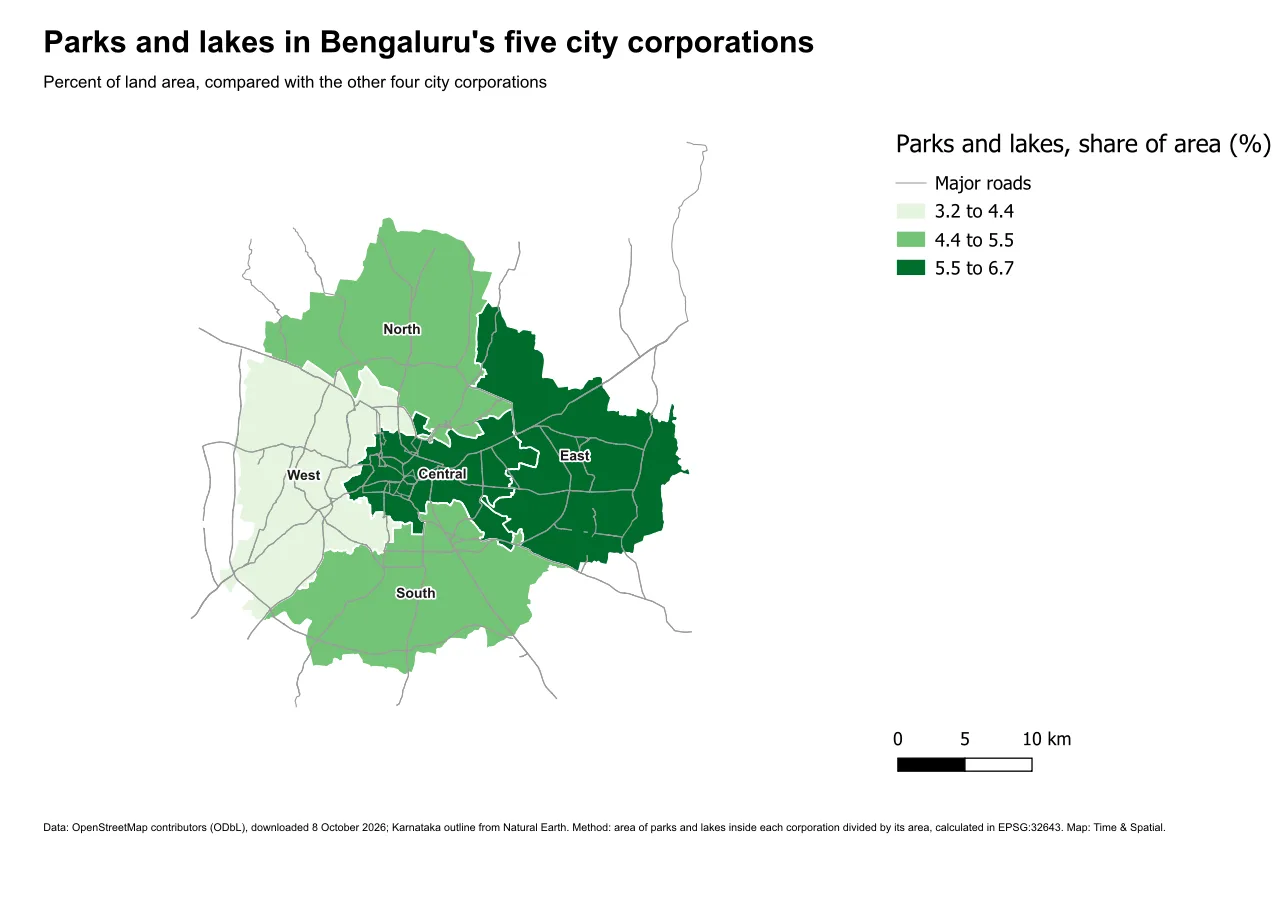
The page now looks like a finished map. The legend still uses the default fonts, which are larger than the rest, and the map sits a little small in its frame. Both are things you would tune in the template, as in Part B, and you can set the legend fonts from code as well. For now, notice that you built this without opening the layout window.
When it breaks
| What you see | Why | What to do |
|---|---|---|
ValueError: Run Lesson 2 first: the layout 'First script map' does not exist. | The layout from the last lesson is not in the project | Run lesson2_first_layout.py first |
AttributeError: 'QGraphicsRectItem' object has no attribute 'id' | layout.items() also returns the page, which has no ID | Filter with isinstance(i, QgsLayoutItem), as the last line does |
IndexError: list index out of range when removing a layer from the legend | The layer name is spelled differently | Copy the exact name from the Layers panel |
| The legend still lists every layer | setAutoUpdateModel(False) was not called before editing | Call it first |
| The title is cut off | The label is too small for the text | Make the label wider or taller, or use a smaller font |
| The scale bar reads the wrong distance | It is linked to the wrong map, or the map's scale changed | Check setLinkedMap |
| The text is much bigger or smaller than expected | The size is in points, not millimetres | Check setSizeUnit |
Make it your own
- Change
study_areatoKarnataka's citiesand run it again. How much of the title changes by itself? - Add a label that says
Map: Time & Spatialat the bottom right, usingadd_label. - Change the scale bar to 2 km per segment with three segments. What does it read?
- Move the legend to x = 215 mm. Is it still inside the margin?
Common mistakes
- Repeating label code instead of writing a function.
- Putting the legend's layers in by hand and forgetting to switch off Auto update.
- Linking the scale bar or the legend to nothing, or to the wrong map.
- Placeholder text in a finished script.
- Not giving items IDs, so later scripts cannot find them.