

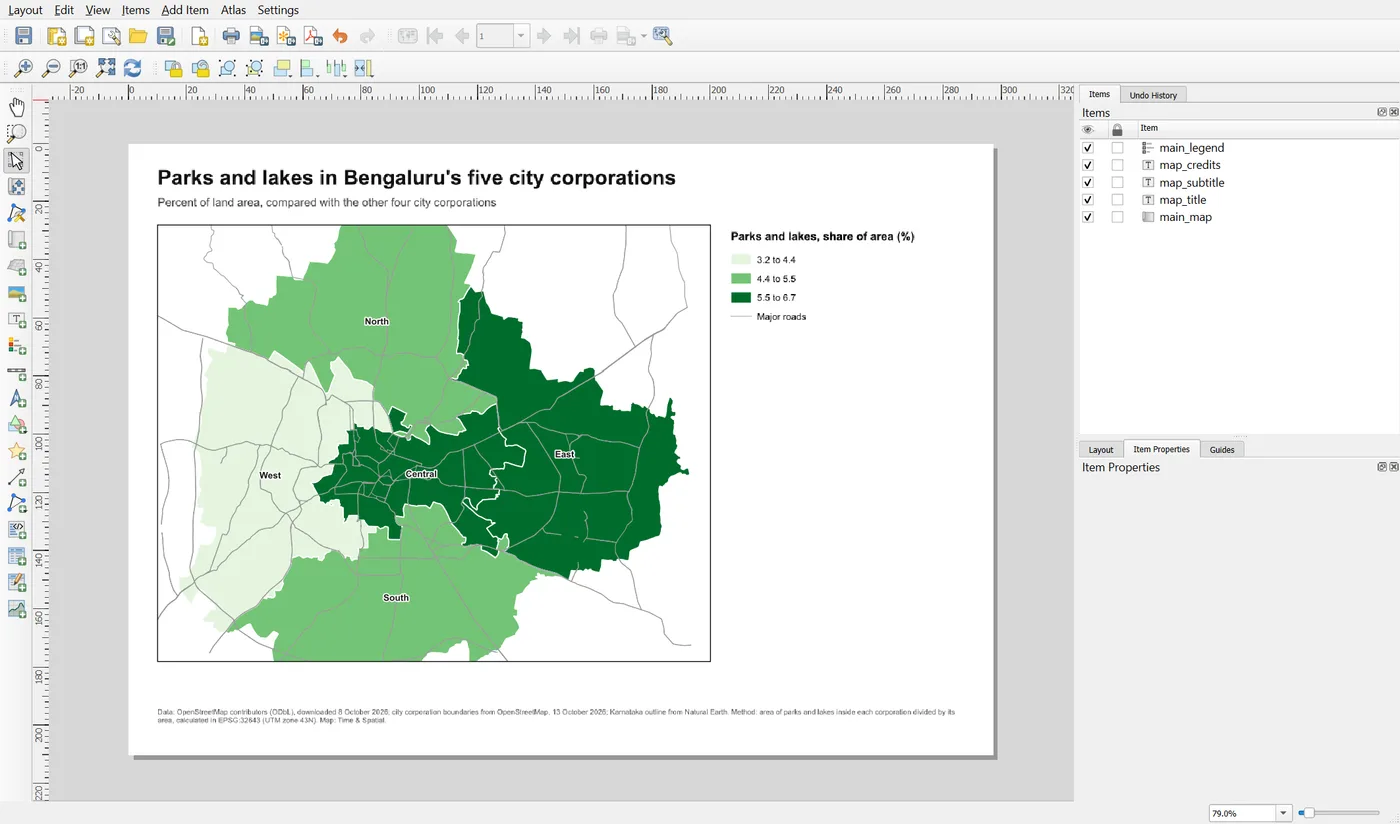
The map is on the page. Now it needs words. A reader looks at the title first, then the map, then the legend, and only then the small print. Your job is to make that order obvious. This page adds the title block at the top, the source note at the bottom and the legend on the right.
Continue in the layout Parks and lakes map from the previous page. The reasoning behind the sizes is in the Map Design notes on typography and reading order.
Step 1: Add the title
Choose Add Item > Add Label and drag a rectangle across the top of the page. In the Main Properties group of the Item Properties panel, type the text:
Parks and lakes in Bengaluru's five city corporations
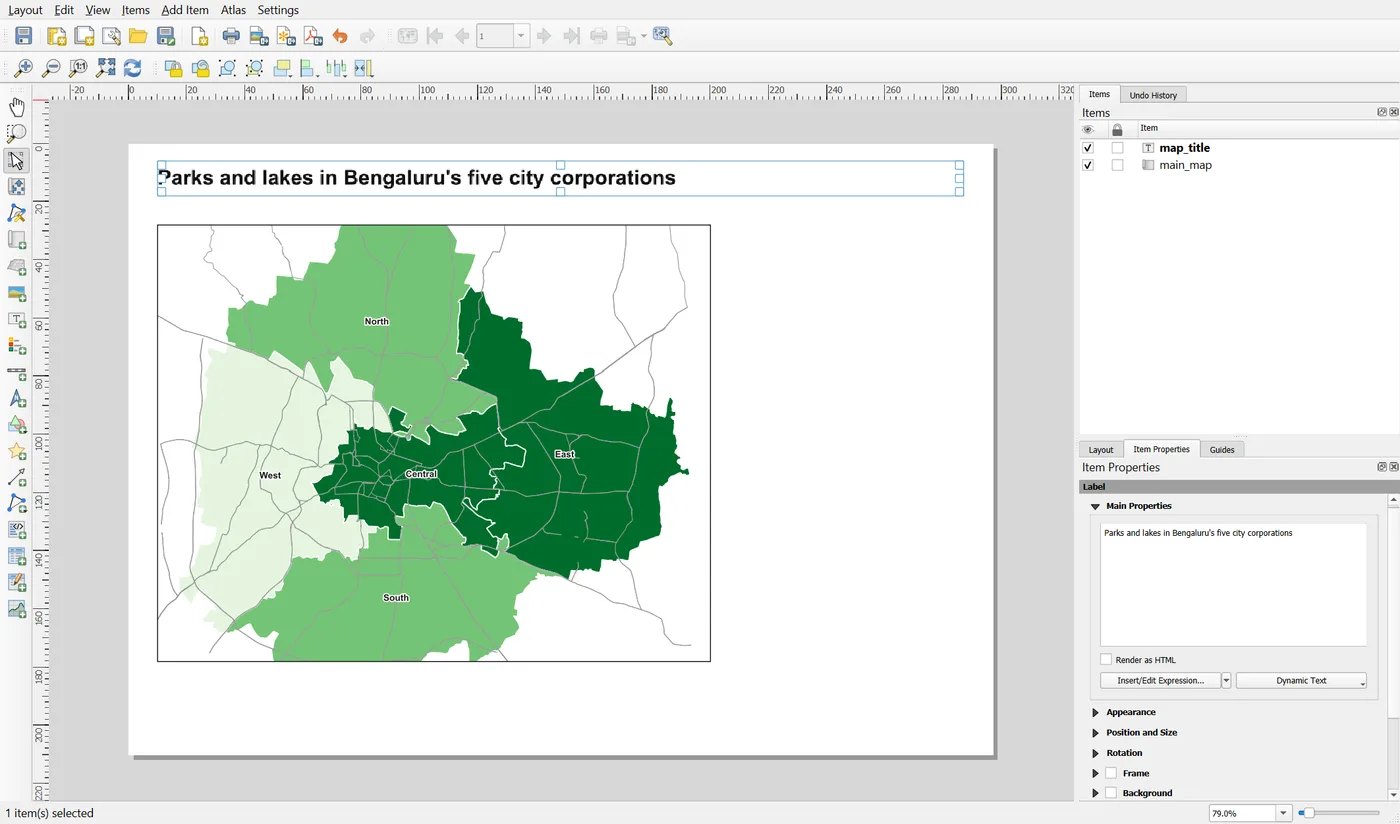
A good title names the subject and the place. It says what the map shows, so the reader does not have to work it out from the colours. "Map of Bengaluru" says almost nothing. The title above would still make sense with no legend.
Now open the Appearance group. Click the Font button and set the font to Arial, Bold, size 20 points. Leave the alignment at Left, so that the title starts at the same edge as the map frame. Set the margins to 0.
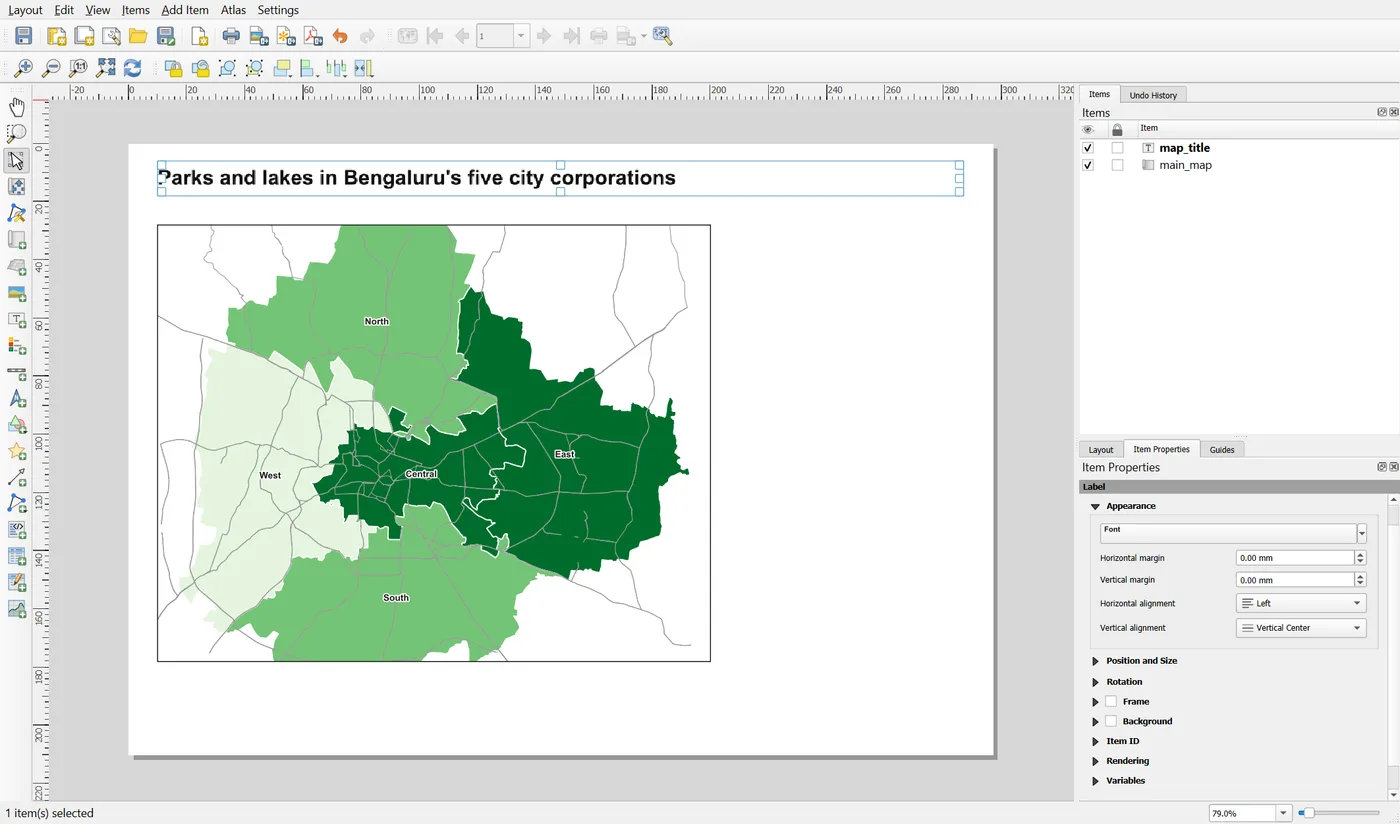
Finally open Position and Size and set X to 10, Y to 6, Width to 277 and Height to 12. The title now starts at the same left edge as the map and spans the page width inside the margins. In the Item ID group, type map_title.
Step 2: Add the subtitle
Add a second label. Give it the text Percent of land area, compared with the other four city corporations, a regular (not bold) 11 point font, and a dark grey colour. Place it at X 10, Y 17, Width 277, Height 7. Give it the ID map_subtitle.
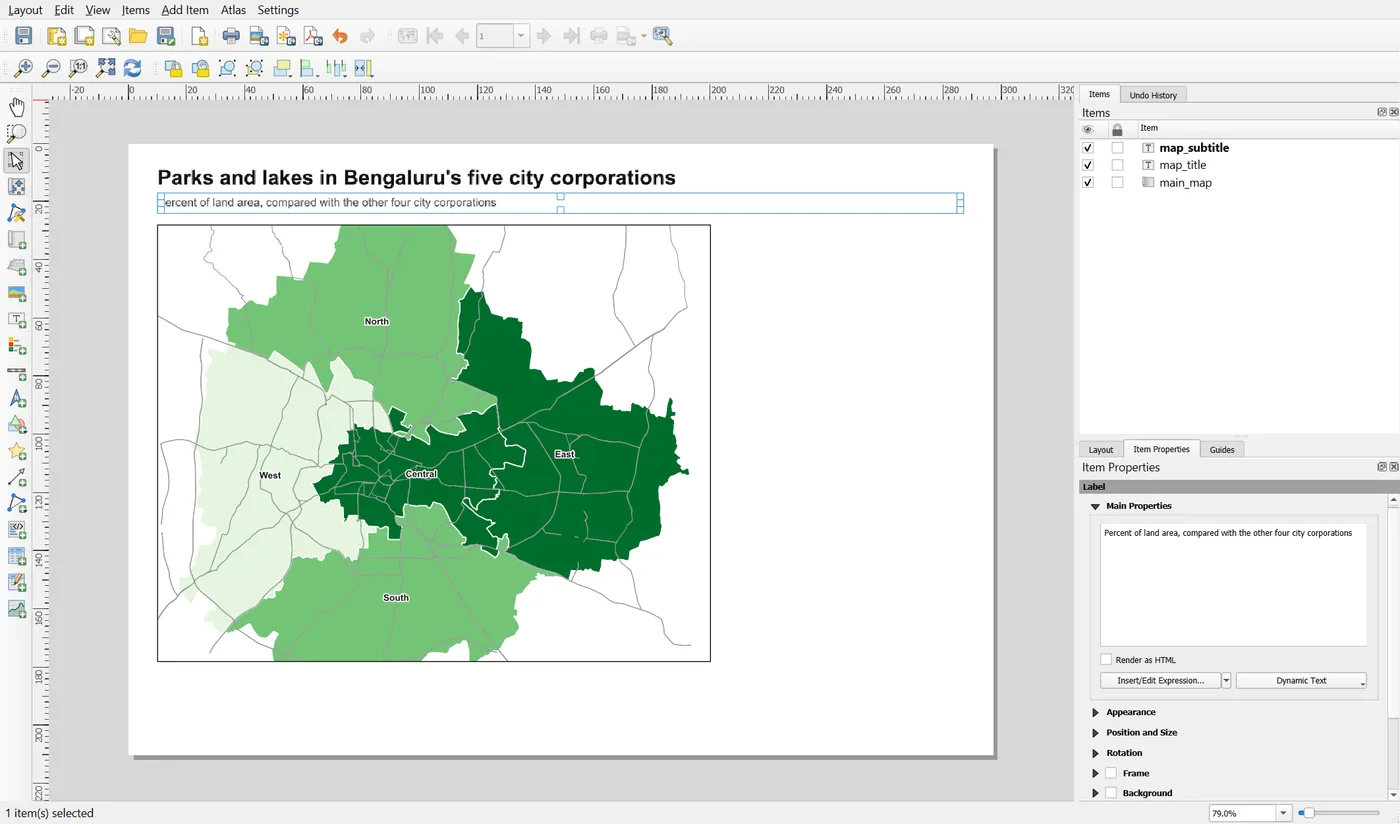
The subtitle carries what is too long for the title: the unit and what the numbers are compared with. Keep it to one line.
The three levels of text are now clearly different: a bold 20 point title, an 11 point subtitle and, soon, a 7 point note. The reader can tell at a glance which line matters most. Do not use more than two or three sizes on one page. These numbers are starting points for A4. If your organisation has its own map specification, follow that.
Step 3: Add the source note
Every map needs to say where its data came from, when, and how the numbers were made. Add a third label near the bottom: X 10, Y 190, Width 277, Height 14, font size 7, a mid grey. Give it the ID map_credits and this text:
Data: OpenStreetMap contributors (ODbL), downloaded 8 October 2026; city corporation boundaries from OpenStreetMap, 13 October 2026; Karnataka outline from Natural Earth. Method: area of parks and lakes inside each corporation divided by its area, calculated in EPSG:32643 (UTM zone 43N). Map: Time & Spatial.
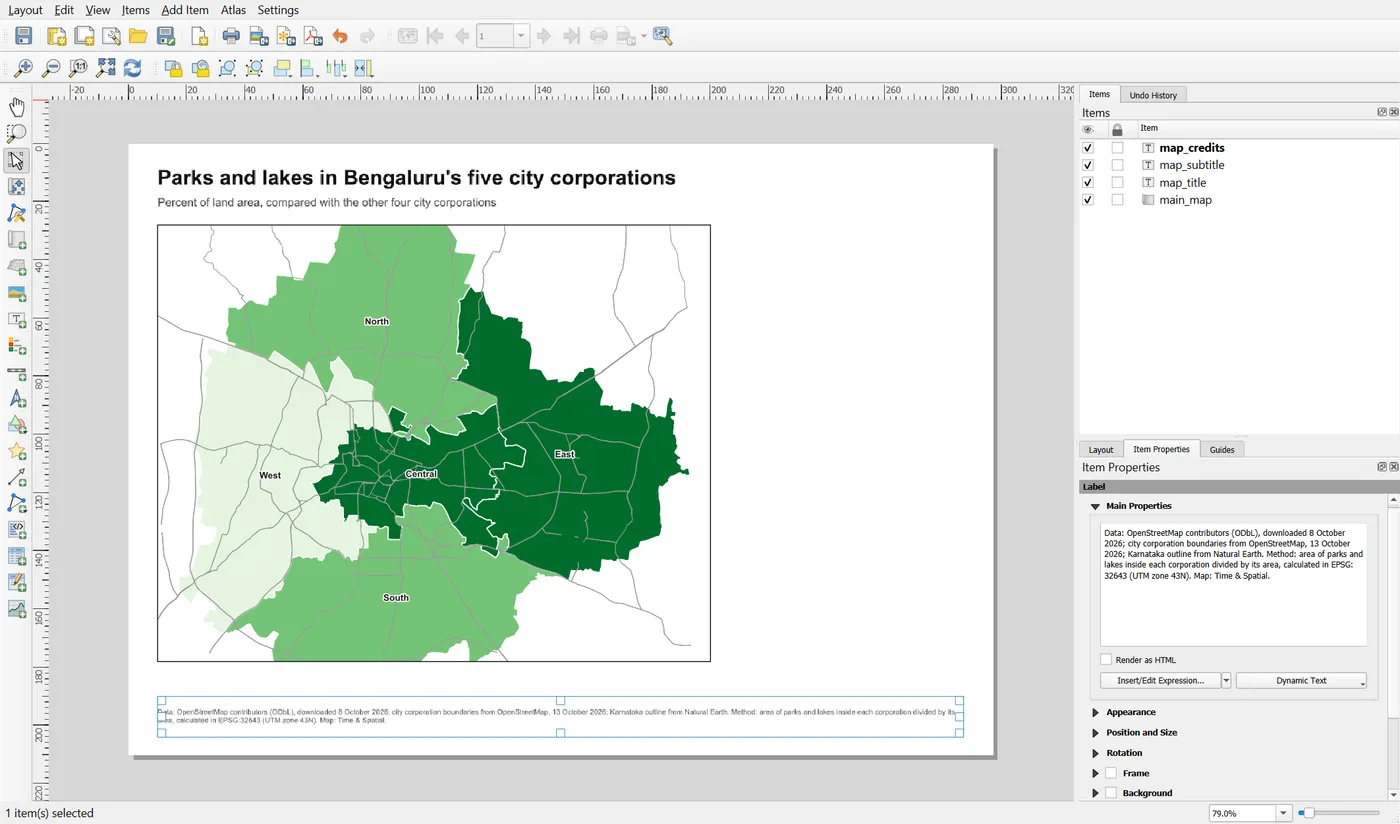
OpenStreetMap data must be credited as "OpenStreetMap contributors". Giving the date, the method and the coordinate system lets a reader judge the result and repeat it. Never leave placeholder text such as "Data source: to be added" on a map that leaves your computer. The note on sources, methods and credits lists what to include.
Click on an empty part of the page. The text is in place.
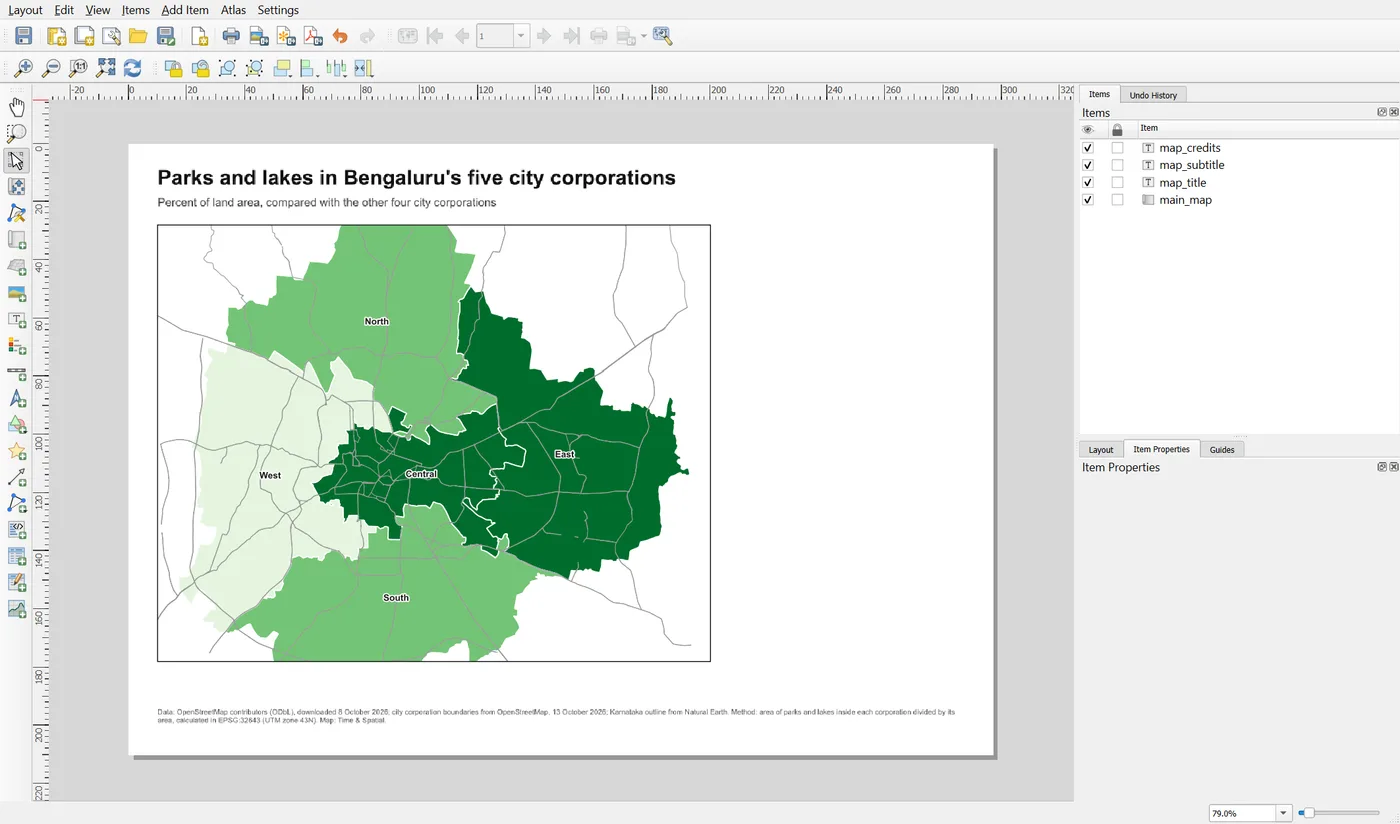
Step 4: Add the legend, and see what is wrong with it
Choose Add Item > Add Legend and drag a rectangle to the right of the map. The Legend Items group lists every layer in the project.
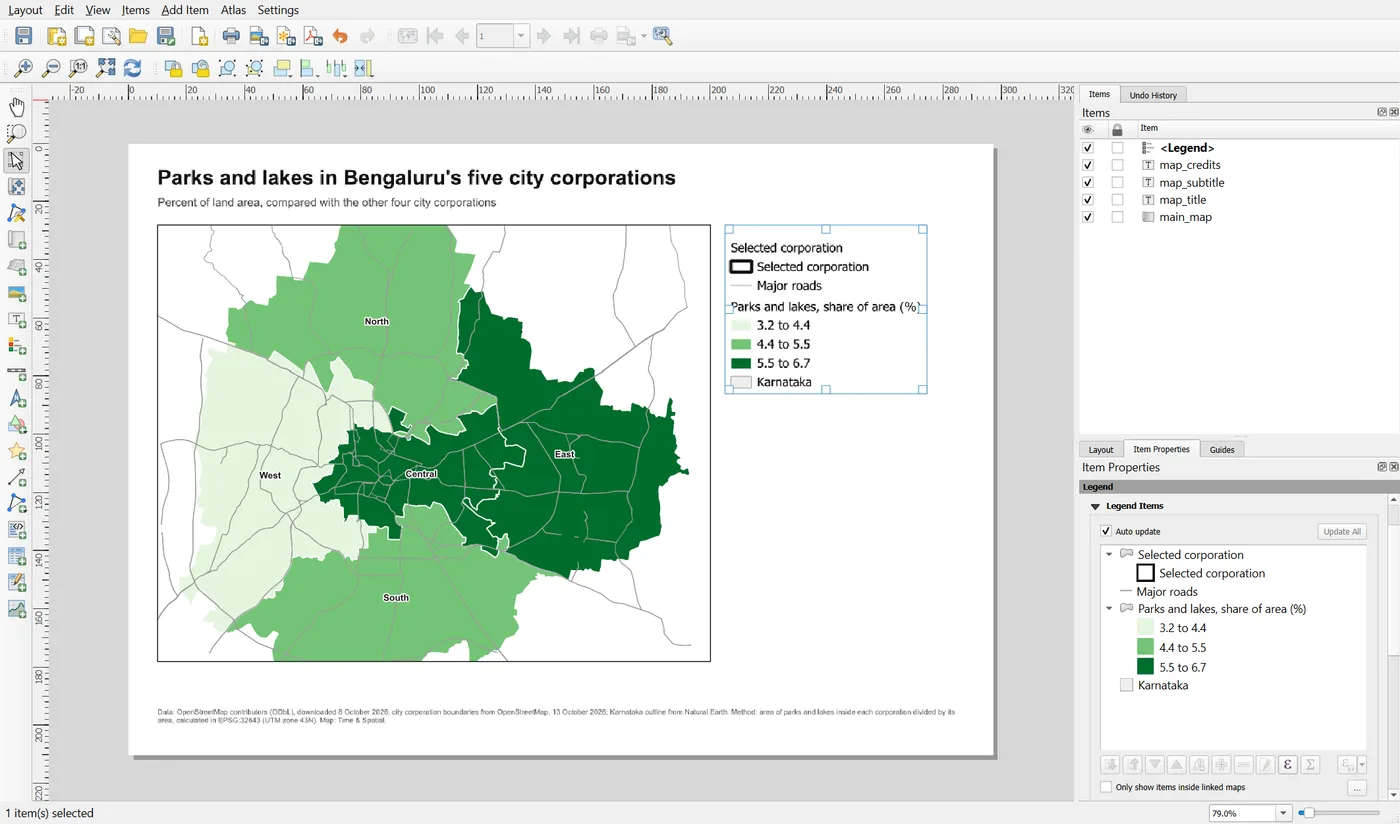
This legend is a project inventory. It lists "Selected corporation" twice, and "Karnataka", which is not on the map at all. The reader does not need those. It also repeats the layer name as a heading above the classes. A legend should explain only what the reader sees on the map.
Step 5: Curate the legend
In the Legend Items group:
- Untick Auto update. While it is ticked, QGIS builds the list itself and the buttons below it are greyed out.
- Select Selected corporation and click the red minus button. Do the same for Karnataka.
- Right-click the Parks and lakes layer in the tree and choose Hidden. This removes the repeated heading and leaves the three classes under the legend title.
- Select Major roads and use the down arrow to move it under the classes.
- In the Main Properties group, type the legend title
Parks and lakes, share of area (%). The title now carries the layer name and the unit. - Open Fonts and Text Formatting and set the title to 11 point bold and the item labels to 9 point.
- Check that the Linked map is
main_map. This is why the map needed an ID. Set the position to X 205, Y 28, and the ID tomain_legend.
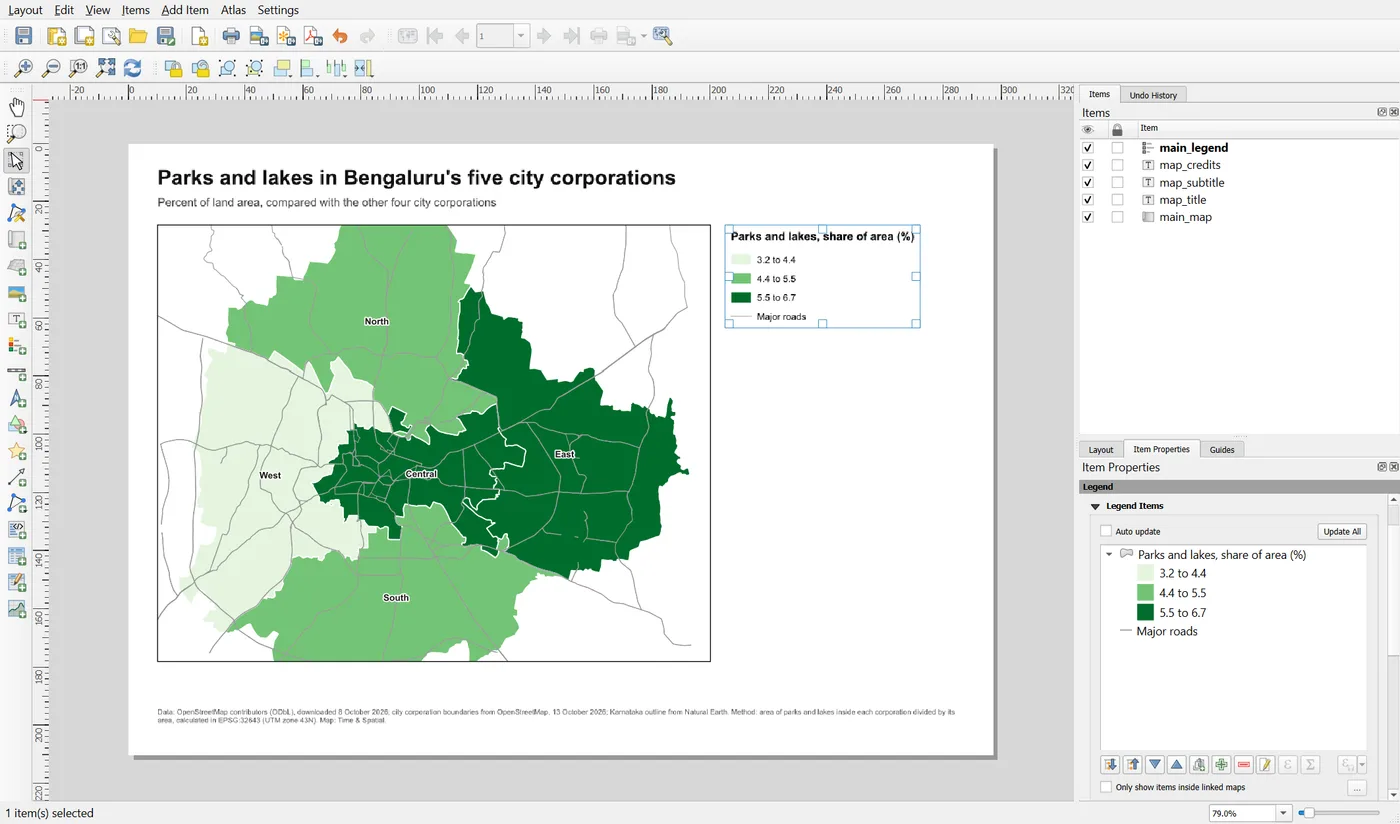
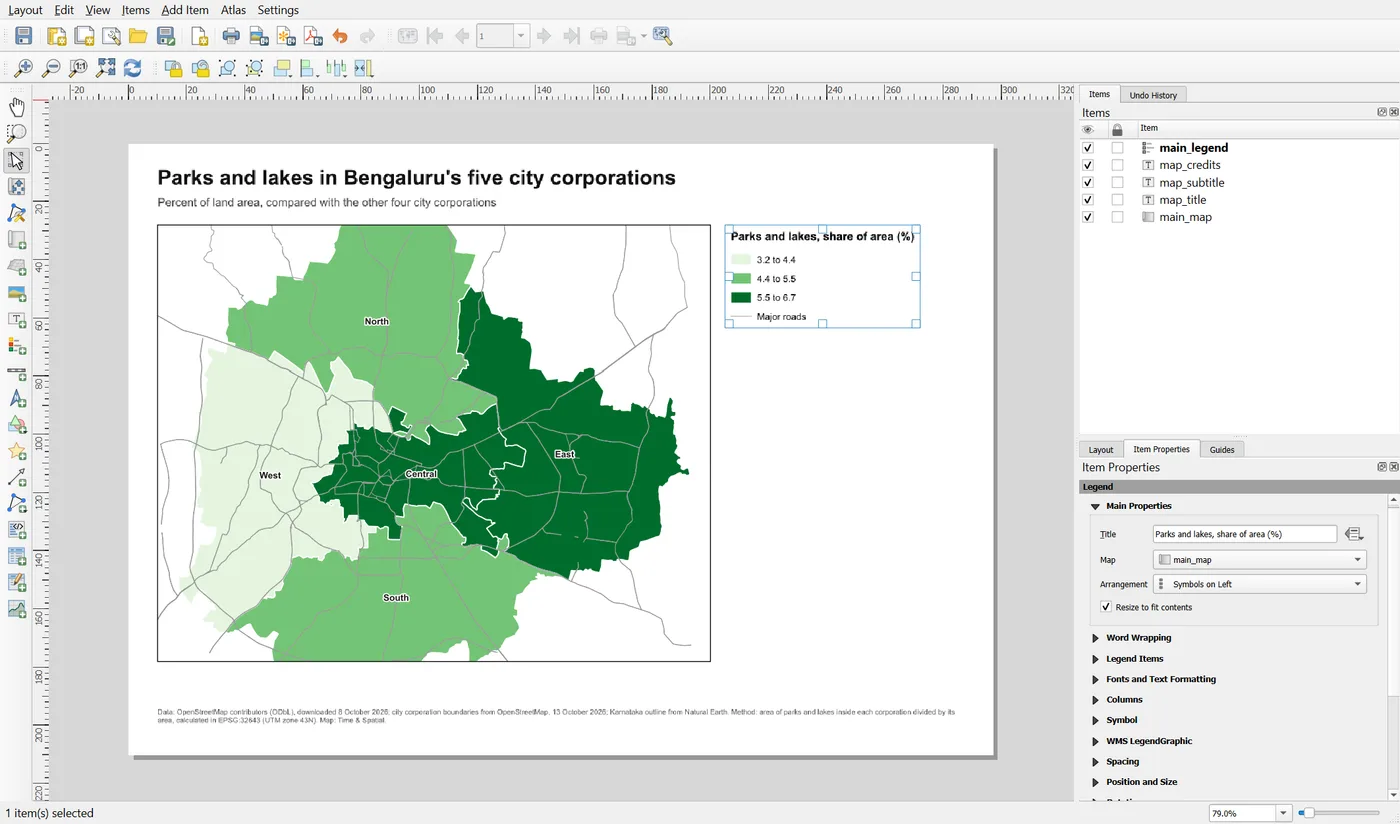
The tick box Only show items inside linked maps is another useful filter. When it is on, the legend lists only the classes that appear in the map frame. It is handy in a map series where each page shows different classes.
After changing the symbology on the canvas, compare the legend with the map. A curated legend does not update by itself. That is the price of control.
Save the project.
When it breaks
| What you see | Why | What to do |
|---|---|---|
| Text is cut off in a label | The label is too small for the text | Make the item taller or wider, shorten the text, or reduce the font size |
| You cannot remove or reorder legend entries, because the buttons are greyed out | Auto update is ticked | Untick Auto update first |
| The legend is empty | The linked map has no layers, or all items are filtered out | Check the linked map, and untick Only show items inside linked maps |
| The legend does not match the map after a style change | A curated legend does not update by itself | Edit the legend entries by hand, or use Update All and curate again |
| The legend spills off the page | The title font is too large | Reduce the font sizes, or widen the space for the legend |
Make it your own
- Change the title to "Map of Bengaluru". Read it with the rest of the page covered. What does it tell you now, compared with before?
- Rename the legend entries so that they say "Low (3.2 to 4.4)", "Medium" and "High". Does that explain the map better or worse than the numbers?
- Make the source note 9 point. At what size does it begin to compete with the map?
Common mistakes
- Using the same size for the title, the subtitle and the note. The reader cannot tell what to read first.
- A title such as "Map of..." or "Untitled".
- Leaving the legend on Auto update, so that every project layer is listed.
- A legend that repeats a layer name above its own classes.
- Placeholder or missing source information on a finished map.