

A scale bar tells the reader how big things are. A north arrow tells them which way is up, when that is not obvious. A coordinate grid lets them find a place by its coordinates. None of the three is always needed, and a map with all of them in the wrong places looks cluttered. This page adds all three so you can see how, and says when to leave each one out. The note on scale bars, north arrows and grids gives the rules.
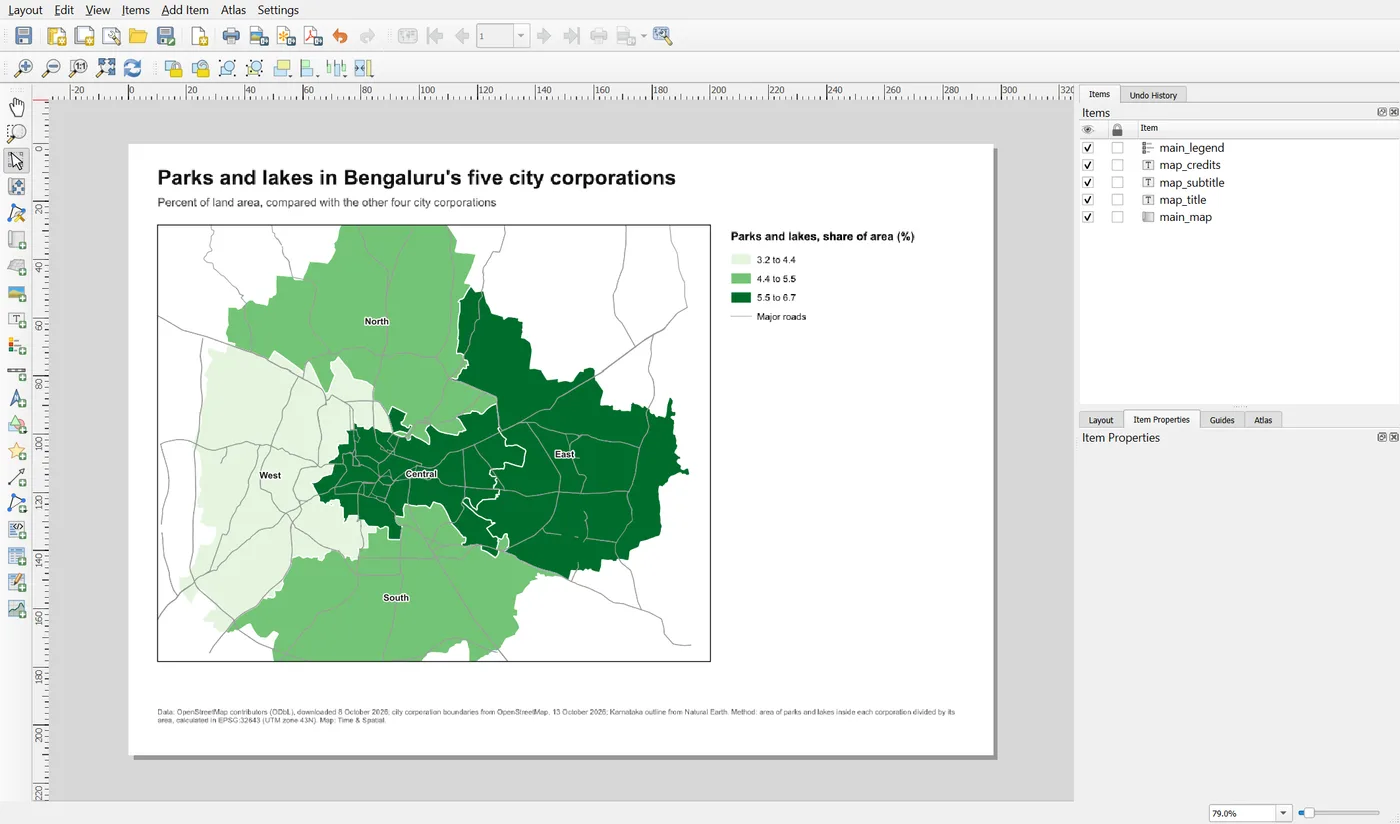
You continue in the layout Parks and lakes map. Here is where you start.
Step 1: Add the scale bar
Choose Add Item > Add Scale Bar and drag a rectangle in the right column, below the legend. The Item Properties panel shows the scale bar's settings.
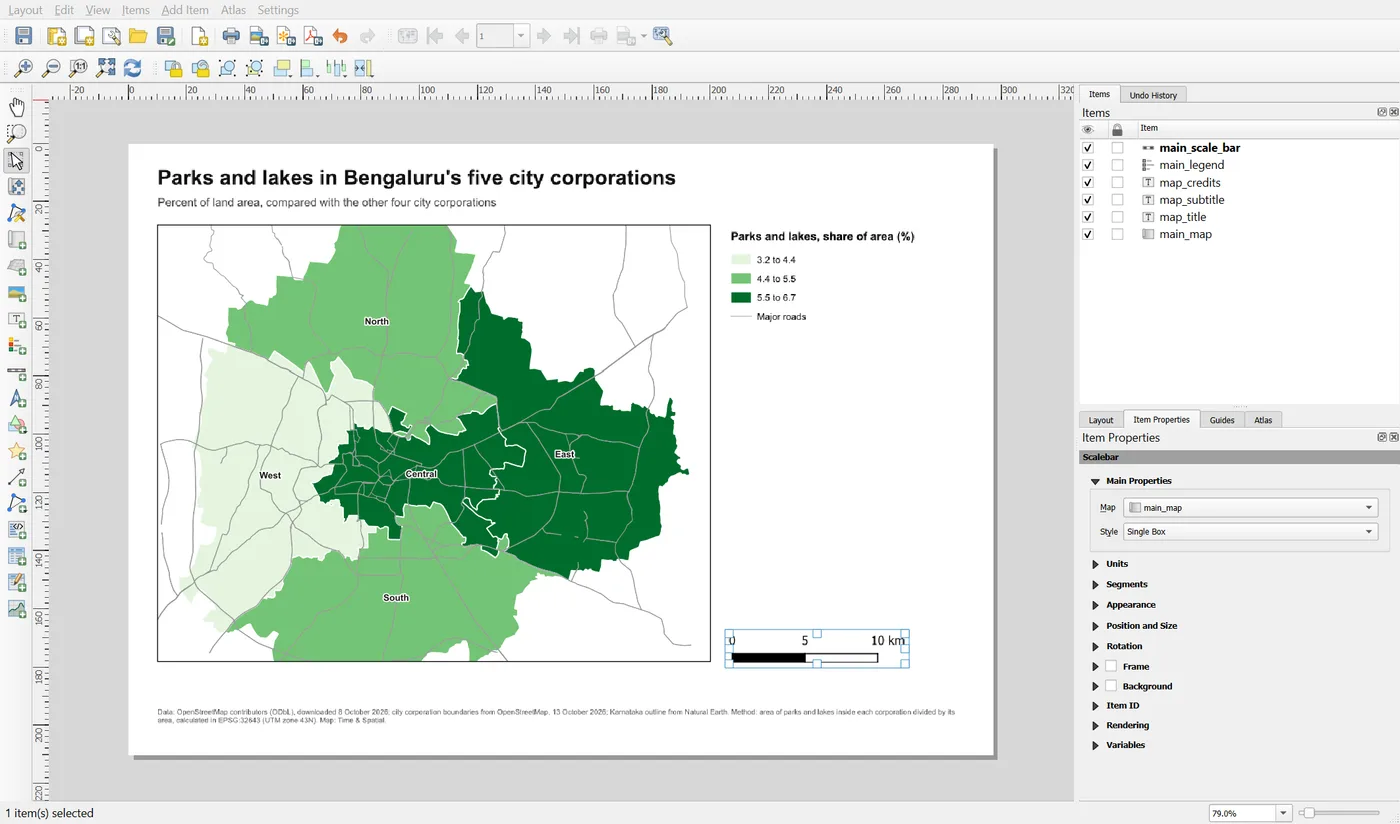
Check three things here:
- Map is
main_map. A scale bar measures one particular map frame, and with several maps on a page it is easy to link the wrong one. This is another reason for the IDs. - Style is Single Box. It is simple and readable. The other styles are fine too, but fewer segments and plainer lines read better than decorative ones.
- Units are Kilometers, with the label
km. Choose units that suit your reader. For a city, kilometres are easier than metres.
Open the Segments group.
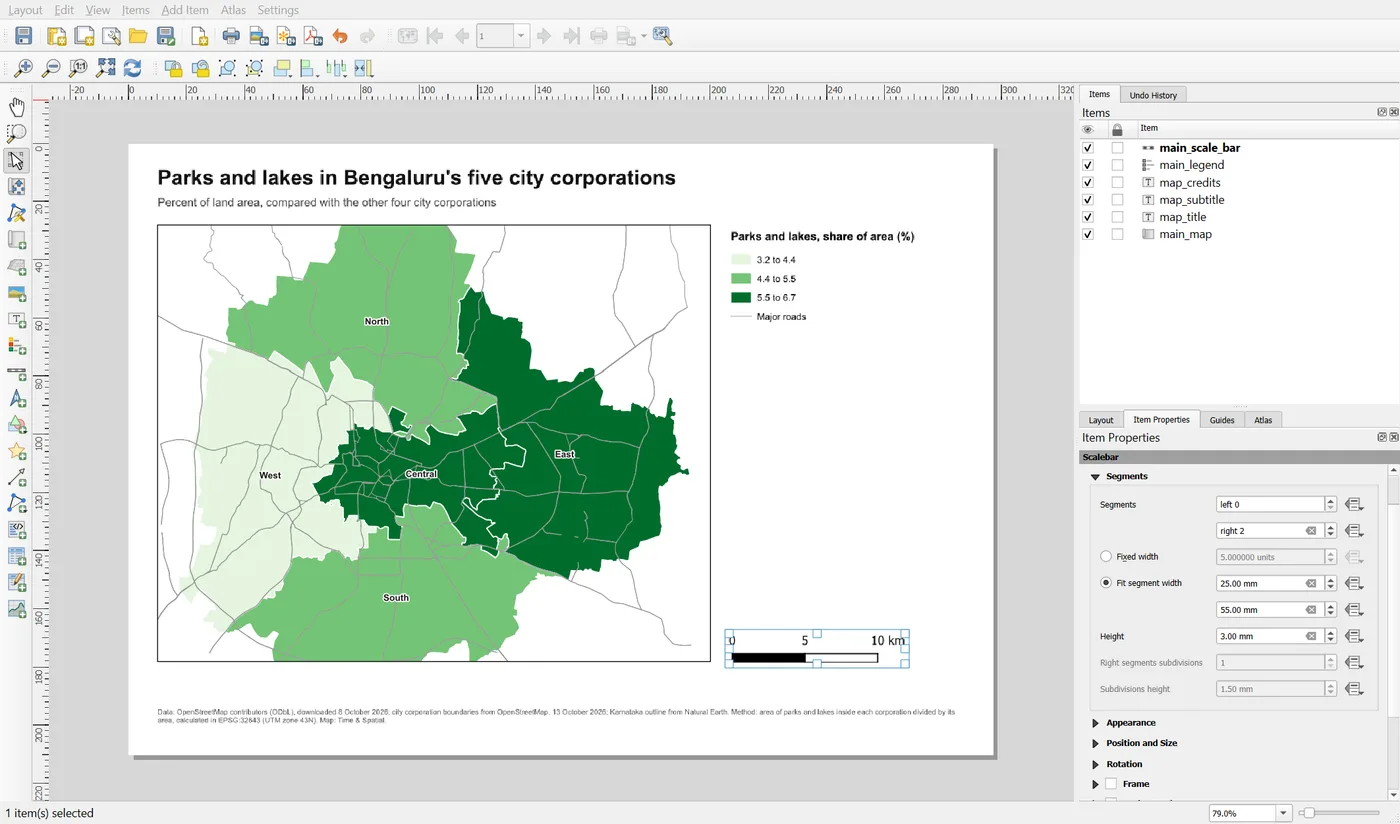
Set left to 0 and right to 2. Then choose Fit segment width and set the minimum to 25 mm and the maximum to 55 mm. QGIS now picks round numbers so that the whole bar stays between 25 and 55 mm wide. At this scale it reads 0, 5, 10 km.
The other choice, Fixed width, keeps the same distance in every segment, for example 5 km, at any scale. That is fine for one map. In a map series the scale changes from page to page, and a fixed 5 km bar can become so long that it runs off the page. Fit segment width is the safer choice, and it is why the series later works with Atlas.
Do not use too many segments. Three or four labels are enough. Move the scale bar to X 205 and Y 167, and give it the ID main_scale_bar.
A scale bar is correct only for the map it is linked to. If you change the map's scale, look at the scale bar again. If you rotate the map or use a very large area, the scale is not the same everywhere, and a scale bar can mislead. For a city-sized map in a projected CRS, as here, it is reliable.
Step 2: Add the north arrow
Choose Add Item > Add North Arrow and drag a small square next to the scale bar. It is a picture item that uses a built-in graphic.
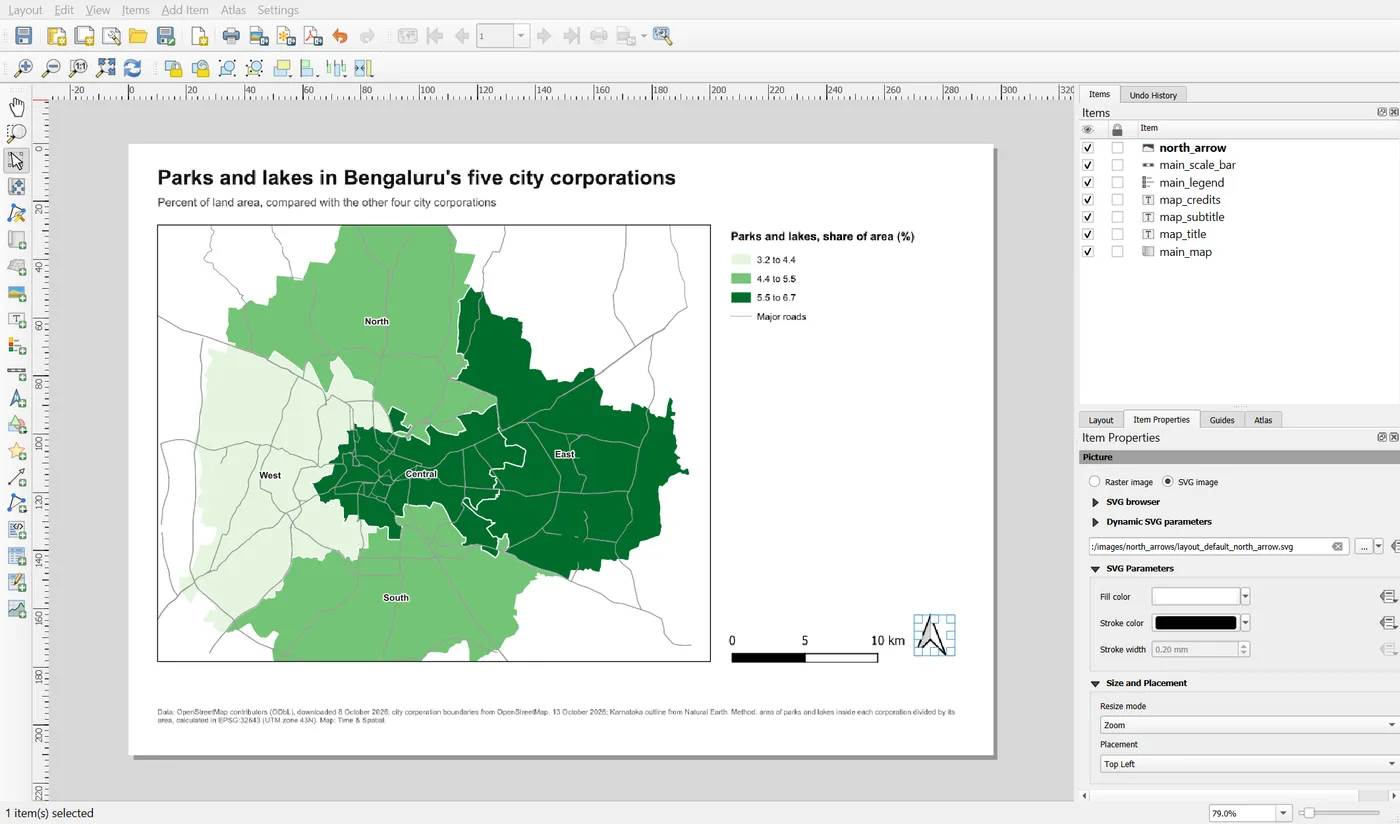
Open Image Rotation.
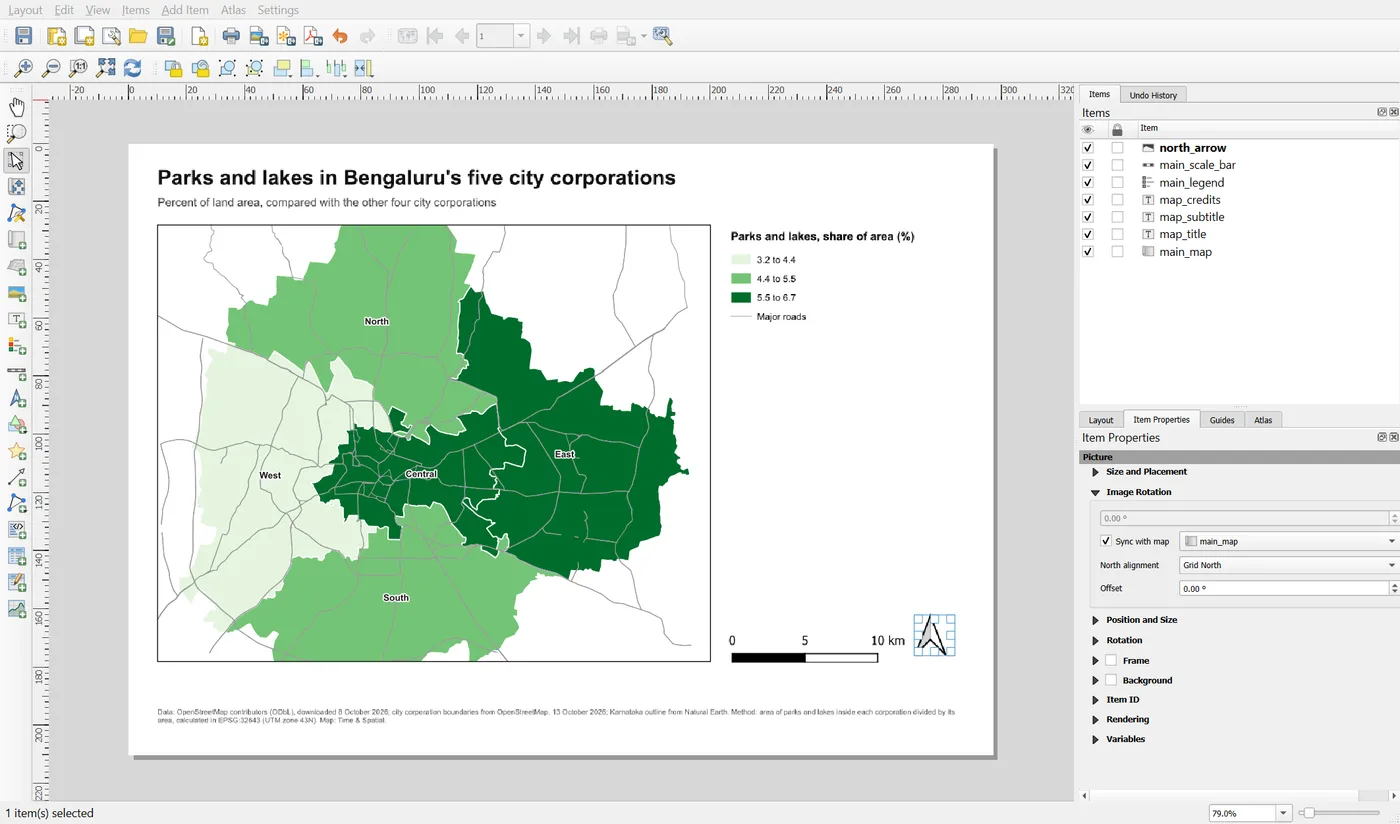
Tick Sync with map and choose main_map. Now, if you ever rotate the map, the arrow turns with it and keeps pointing to north. Set the item to about 14 by 14 mm at X 270, Y 162, and give it the ID north_arrow.
When do you need one? On most maps where north is up, the reader already assumes it, and the arrow adds clutter. Use one when the map is rotated, when the area is unfamiliar, or when your organisation requires it. Keep it small and quiet. It should never be the loudest thing on the page.
Step 3: Add a coordinate grid
A grid belongs to the map item, not to the page. Select the map, open the Grids group and click the green plus button to add a grid. Select it in the list and click Modify Grid.
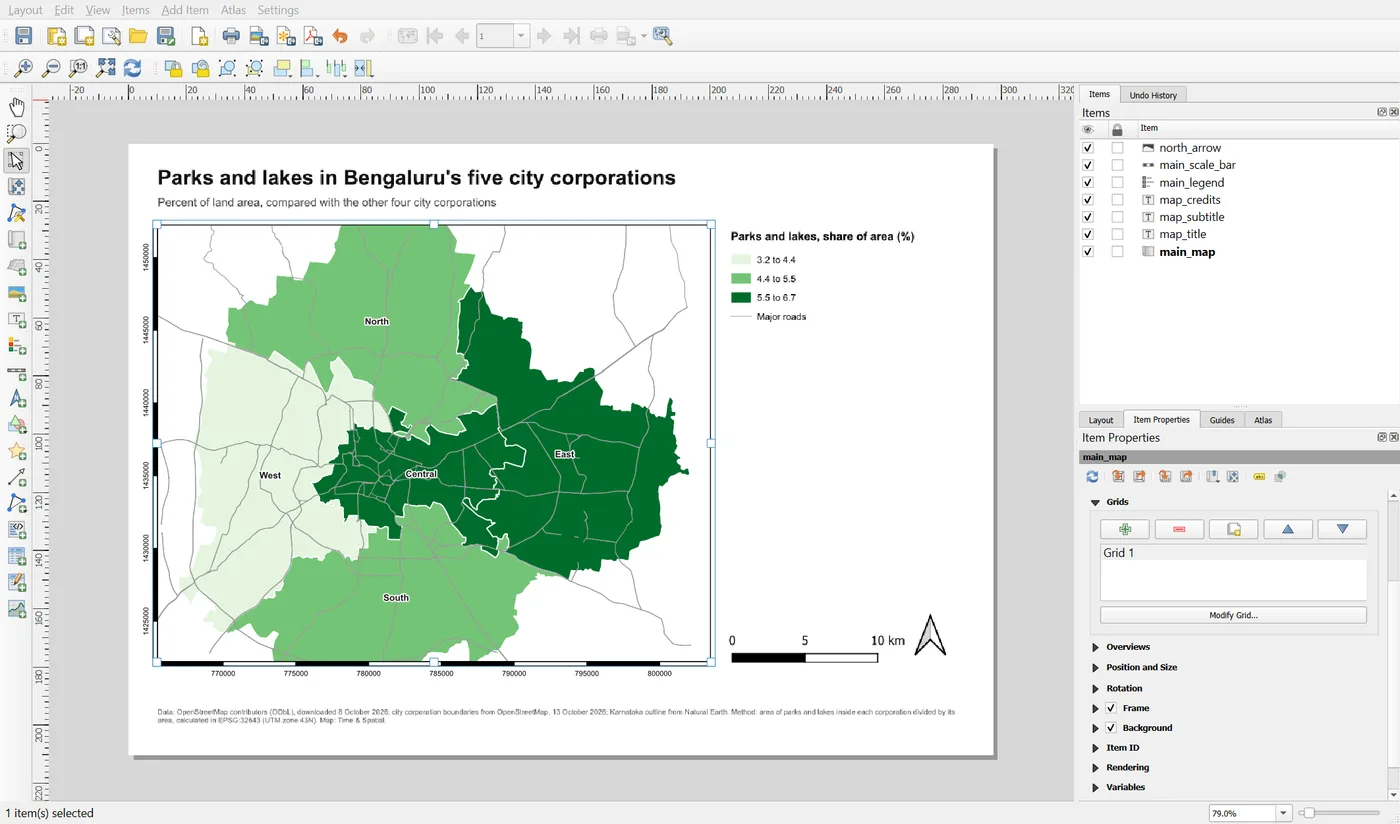
The grid has its own panel.
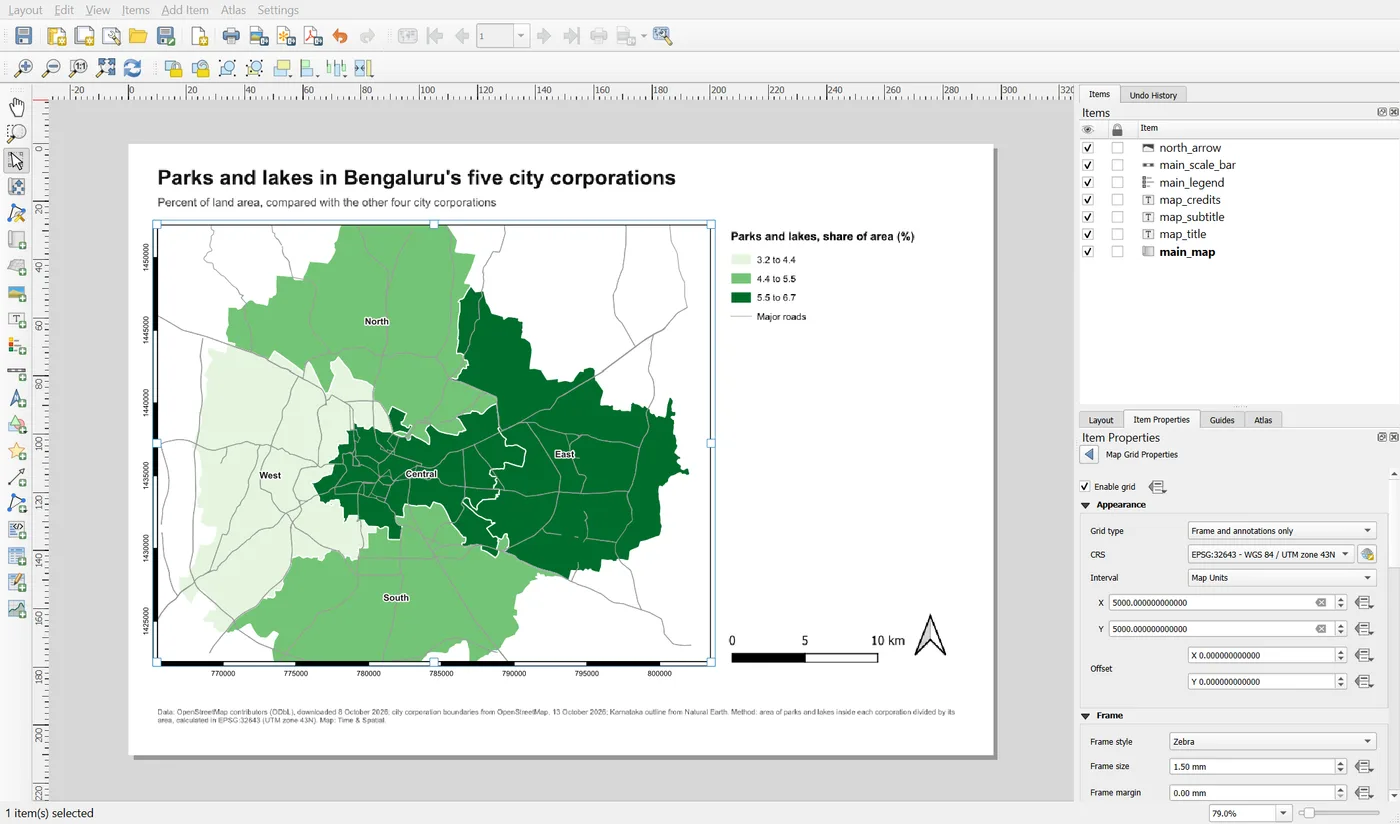
Set these values:
- Grid type: Frame and annotations only. This draws ticks and labels at the edge and leaves the map itself clear. Lines across the map would compete with the data.
- CRS: EPSG:32643, the same as the project. The labels are then in metres. Use a geographic CRS such as EPSG:4326 if you want degrees.
- Interval: 5000 map units in both X and Y. That is one line every 5 km. Pick an interval that gives about five to eight labels across the map.
- Frame: style Zebra, size 1.5 mm, and tick only the left and bottom sides.
- Annotations: tick Draw coordinates. Show them outside the frame, on the left and at the bottom only, with 0 decimals and a 7 point font.
Click the back arrow at the top of the panel to return to the map.
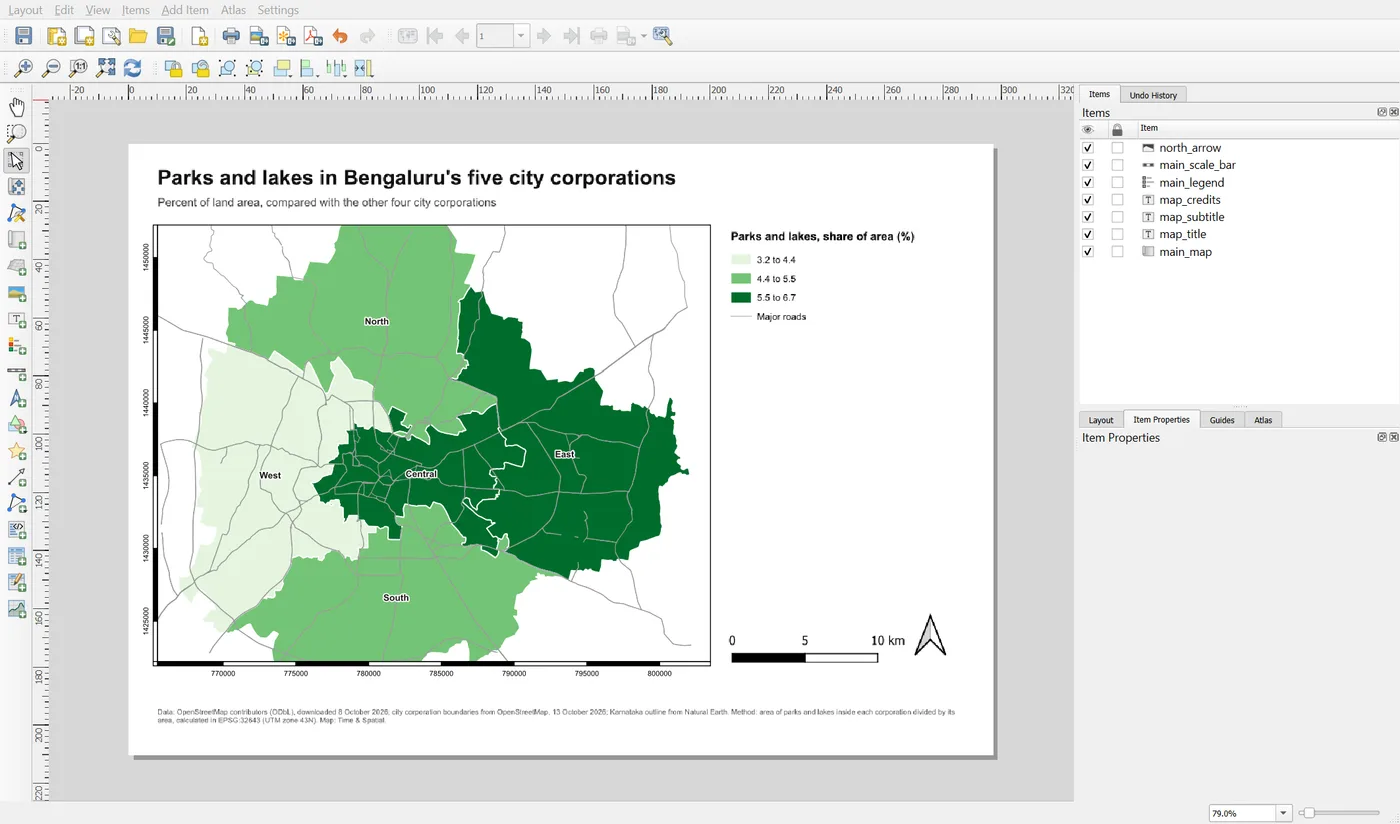
Labels on two sides are enough to find a place. Labels on all four sides crowd the title and the legend. Check that the numbers make sense: easting values around 770,000 to 800,000 and northing values around 1,425,000 to 1,450,000 are right for Bengaluru in UTM zone 43N.
Do you need a grid? For a map that people will use to look up locations or to compare with other maps, yes. For a thematic map that tells a story, as this one does, a grid is optional, and you could remove it. The grid is here so you can see how it works. If you leave it out, you give the data more room.
Save the project.
When it breaks
| What you see | Why | What to do |
|---|---|---|
| The scale bar runs off the page or into other items | It has a fixed width and the scale of the map is large | Choose Fit segment width and set a maximum width |
| The scale bar is wrong after you change the map scale | The numbers fit the old scale | Check the segments and units again |
| The scale bar measures the wrong map | It is linked to another map frame | Change Map in its Main Properties |
| The north arrow does not turn with the map | Sync with map is off | Tick Sync with map and choose the map |
| The grid labels overlap or crowd the edge | The interval is too small | Increase the interval, or show labels on fewer sides |
| Labels show strange numbers or degrees | The grid CRS is not the one you meant | Check the CRS in Map Grid Properties |
| The grid is not listed after adding it | The panel did not refresh | Select another item and then the map again |
Make it your own
- Change the scale bar to miles. Does it help the reader, or only make the numbers less round?
- Set the grid interval to 2000, then to 10000. Which gives the most useful labels?
- Rotate the map by 20 degrees in Main Properties. Watch the north arrow. Then change the rotation back to 0.
Common mistakes
- A scale bar that is linked to no map, or to the wrong one.
- A fixed-width scale bar on a map whose scale will change.
- A north arrow that is large, decorated or heavier than the data.
- A grid with lines that cross the whole map and compete with the colours.
- Grid labels on all four sides, so that they collide with the title, the legend and each other.
- Leaving a grid or arrow on a map where it adds nothing.