

In the previous lesson you created a layout object and registered it. Now you will put something on it. By the end of this page a script makes the first map: an A4 landscape page with a map frame, exported to a PDF. It is the code version of pages 1 and 2 of Part B.
Open bengaluru_layout_start.qgz in QGIS and open scripts/lesson2_first_layout.py in the Python Console editor. Each part below is a piece of that script, and the step numbers match the # Step comments in the code.
Two kinds of numbers
One idea trips up many beginners, so here it comes first. A map frame has two sets of numbers that have nothing to do with each other.
- Its place on the page: where it sits, and how wide and tall it is. These are in millimetres, measured from the top left corner of the page.
- Its geographic extent: which part of the world it shows. These are coordinates, in metres or degrees, depending on the coordinate system.
(10, 10) is 10 mm from the left and the top edge. (777000, 1437000) is a place in Bengaluru. Never mix the two up.
Before the steps: import the classes
# Lesson 2: create a layout, put a map on it and export a PDF.
# Run this in the QGIS Python Console with bengaluru_layout_start.qgz open.
from pathlib import Path
from qgis.core import (
    QgsProject,
    QgsPrintLayout,
    QgsLayoutItemPage,
    QgsLayoutItemMap,
    QgsLayoutPoint,
    QgsLayoutSize,
    QgsLayoutExporter,
)

LAYOUT_NAME = "First script map"
Each name after import is a class that you will use. Path comes from Python and handles file paths. The others come from QGIS:
| Class | What it is for |
|---|---|
QgsProject | The open QGIS project |
QgsPrintLayout | A layout (the page) |
QgsLayoutItemPage | A page, used here to set its size |
QgsLayoutItemMap | A map frame |
QgsLayoutPoint | A position on the page |
QgsLayoutSize | A width and a height |
QgsLayoutExporter | Writes the layout to a PDF or an image |
The Python Console has these classes already, but a script that carries its own import lines also works when you run it from a file.
Steps 1 and 2: The project and a clean start
# Step 1: the project, and its layout manager
project = QgsProject.instance()
manager = project.layoutManager()

# Step 2: remove an old layout with the same name. Two layouts cannot share a name,
# so without this the script fails the second time you run it.
old = manager.layoutByName(LAYOUT_NAME)
if old is not None:
    manager.removeLayout(old)
layoutManager() is where the project keeps its layouts. The second step handles a problem that surprises everyone once. Two layouts cannot have the same name. If a layout called First script map is already there and you try to add another, QGIS refuses, and the layout you built is thrown away. So the script finds an old layout with this name and removes it first. Now you can run it as often as you like.
Step 3: Create the layout and the page
# Step 3: make the layout and set the page to A4 landscape
layout = QgsPrintLayout(project)
layout.initializeDefaults()
layout.setName(LAYOUT_NAME)
page = layout.pageCollection().pages()[0]        # [0] is the first page, because Python counts from 0
page.setPageSize("A4", QgsLayoutItemPage.Orientation.Landscape)
initializeDefaults() gives the layout one empty A4 page. pageCollection().pages() is the list of pages, and [0] takes the first one. Python counts from 0, so the first page is number 0. setPageSize then sets the page to A4 landscape, which is 297 by 210 mm. Choose the size that suits your output. This one suits a report page.
Step 4: The map frame
# Step 4: make the map frame, 10 mm from the left and top, 277 x 170 mm
map_item = QgsLayoutItemMap(layout)
map_item.attemptMove(QgsLayoutPoint(10, 10))
map_item.attemptResize(QgsLayoutSize(277, 170))
map_item.setId("main_map")                       # an ID so that later scripts can find it
QgsLayoutItemMap(layout) makes a map item that belongs to this layout. attemptMove places its top left corner 10 mm from the left and top edges. attemptResize makes it 277 mm wide and 170 mm tall, which leaves a 10 mm margin on the left and right, and 30 mm free below the map for a scale bar and a note. The word attempt means that the layout may adjust the numbers, for example to keep the item on the page. The ID main_map is the same ID you gave the map in Part B. The later lessons find it by that name.
Step 5: Choose the layers
# Step 5: choose the layers. The first one in the list is drawn on top.
regions = project.mapLayersByName("Parks and lakes, share of area (%)")[0]
roads = project.mapLayersByName("Major roads")[0]
map_item.setLayers([roads, regions])
map_item.setKeepLayerSet(True)                   # keep exactly these layers
The frame must know which layers to draw. We find two by name and give the frame a list. The first in the list is drawn on top, so the roads sit over the corporations. setKeepLayerSet(True) tells the frame to keep exactly this list, even if someone later switches layers on or off in the project. Without it, the map would follow the project, and a map series is only reliable if it does not.
Do not hand the frame every layer in the project. Unrelated layers, such as the dark outline layer, would appear in your map. Choose the layers you need.
Step 6: Choose the area
# Step 6: set the area to show. zoomToExtent keeps the size of the frame.
extent = regions.extent()
extent.scale(1.1)                                # 10 percent of empty space around the data
map_item.zoomToExtent(extent)
regions.extent() is the rectangle that just fits all five corporations, in the project's coordinate system. scale(1.1) makes it 10 percent bigger, so there is empty space around the data. zoomToExtent makes the frame show that rectangle. It keeps the size of the frame and changes the scale to fit.
This is the first place where the two kinds of numbers meet. The extent is geographic, and the frame size is in millimetres. They must be in the right coordinate system. Here the layer and the map are both in EPSG:32643, so they agree. Lesson 5 shows how to convert when they do not.
You could use the area shown on the canvas instead, with map_item.zoomToExtent(iface.mapCanvas().extent()). That is quick for an experiment, but iface exists only inside QGIS, and it makes the result depend on where you last panned. A script that reads the extent from the data gives the same map every time.
Step 7: Add the frame and register the layout
# Step 7: add the frame to the layout, then register the layout in the project
layout.addLayoutItem(map_item)
manager.addLayout(layout)
Another reminder that creating and adding are separate. addLayoutItem puts the frame on the page. addLayout registers the layout in the project, so it shows in Project > Layout Manager.
Steps 8 and 9: Export a PDF and check the result
# Step 8: export a PDF into an output folder next to the project file
output_folder = Path(project.homePath()) / "output"
output_folder.mkdir(exist_ok=True)
pdf_path = output_folder / "first_map.pdf"
result = QgsLayoutExporter(layout).exportToPdf(str(pdf_path), QgsLayoutExporter.PdfExportSettings())

# Step 9: report whether it worked
if result == QgsLayoutExporter.Success:
    print("Map exported:", pdf_path)
else:
    print("Export failed. Code:", result)
The folder output is made next to the project file, and exist_ok=True means it is not an error if it is already there. exportToPdf writes the file and returns a code. The code is compared with QgsLayoutExporter.Success, and the script says whether it worked. The path is built from the project folder, so the script has no C:\... path in it and works on any computer.
Run it
Press Run. The console prints:
Map exported: ...\part-c\output\first_map.pdf
Open output/first_map.pdf. This is the result:
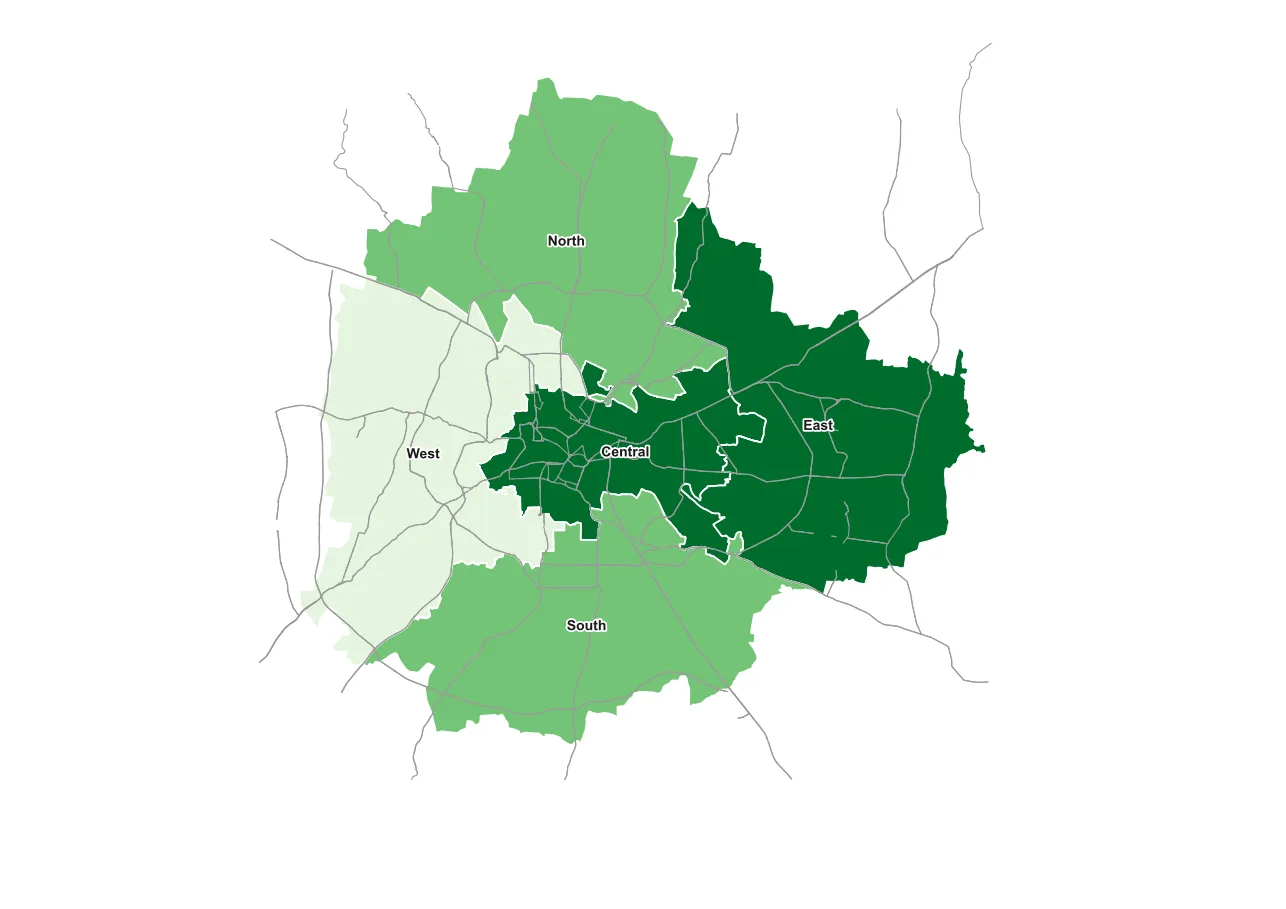
It is a plain map with no title, no legend and no scale bar. That is normal for a first script, and the next lesson adds them. Open Project > Layout Manager. The layout First script map is listed. Double-click it to see the same page in the layout window, and look at the Items panel: the map is there, named main_map.
A successful export tells you the file was written. It does not tell you the map is right, so open the PDF and look at it, every time.
When it breaks
These are real messages from QGIS 3.44.
| What you see | Why | What to do |
|---|---|---|
RuntimeError: wrapped C/C++ object of type QgsPrintLayout has been deleted | A layout with this name already exists, so addLayout returned False and QGIS deleted your new layout | Remove the old layout first, as Step 2 does, or choose a new name |
IndexError: list index out of range on a line with mapLayersByName(...)[0] | No layer has that name, so the list is empty and [0] has nothing to take | Copy the exact name from the Layers panel or from Lesson 1 |
NameError: name 'iface' is not defined | iface exists only inside the QGIS console | Use a layer's extent instead, as this script does |
| The map is blank | The extent does not overlap the data, or the layer list is empty | Print extent and compare it with the layer's extent |
| The map is in the wrong place or cut off | The extent and the map use different coordinate systems | Check both. Lesson 5 converts between them |
Export failed. Code: 3 | 3 is FileError: QGIS could not write the file | Check the folder and the permissions, and close the file if a program has it open |
Make it your own
- Change the page to portrait:
QgsLayoutItemPage.Orientation.Portrait. Which dimension of the page changes, and what happens to the map? - Move the frame to 15 mm from the left and the top and make it 250 by 160 mm. Does it still fit?
- Give the frame only the corporations layer, with no roads. Then try it with the Karnataka layer on its own, and zoom to its extent.
- Change
1.1to1.4in Step 6. What changes?
Common mistakes
- Mixing up millimetres on the page with coordinates on the ground.
- Forgetting to add the item to the layout, or the layout to the project.
- Running the script twice without removing the old layout.
- Giving the frame every layer in the project.
- Trusting "Map exported" without opening the file.