

The last lesson built a layout from scratch with about ninety lines. That is a lot of code for something you already designed in Part B, and every time the design changes you would change the code. A better plan is to design once, by hand, and let the script only fill in what changes. That is what a template is for. The script loads it, finds the few items that change, sets them and exports.
The template for this lesson is templates/parks_and_lakes_template.qpt. It is the layout you finished in Part B, and it comes in the download. Open scripts/lesson4_template.py in the editor.
Before the steps: imports and settings
# Lesson 4: make a layout from a template (.qpt), find its items by ID, change them and export.
from pathlib import Path
from qgis.core import (
    QgsProject,
    QgsPrintLayout,
    QgsReadWriteContext,
    QgsLayoutItemMap,
    QgsLayoutItemLabel,
    QgsLayoutExporter,
    QgsExpressionContextUtils,
)
from qgis.PyQt.QtXml import QDomDocument

LAYOUT_NAME = "Map from template"
REQUIRED_ITEMS = {"main_map": QgsLayoutItemMap, "map_title": QgsLayoutItemLabel}
REQUIRED_ITEMS lists the items the script depends on and what kind each must be. The map frame main_map must be a map, and the title map_title must be a label. This is a small safety net: if the template changes, the script says so, instead of failing somewhere strange.
Step 1: The project and the template path
# Step 1: the project, and the template next to it
project = QgsProject.instance()
manager = project.layoutManager()
template_path = Path(project.homePath()) / "templates" / "parks_and_lakes_template.qpt"
project.homePath() is the folder of the open project, and / joins folders. So the template is found next to the project, wherever the folder is stored.
Step 2: Read the template
# Step 2: read the template file. A .qpt file is XML, so it goes into an XML document first.
document = QDomDocument()
ok, message, line, column = document.setContent(template_path.read_text(encoding="utf-8"))
if not ok:
    raise ValueError(f"Could not read the template (line {line}): {message}")
A .qpt file is XML text. QGIS wants it inside a QDomDocument, a container for XML. setContent reads the text and returns four values: whether it worked, a message, and the line and column of a problem. The script unpacks all four, and if the file is not valid XML it stops and says where. Without the check, a broken file would give an unhelpful error.
Step 3: Make a layout from it
# Step 3: make a layout from it. Remove an older one with the same name first.
old = manager.layoutByName(LAYOUT_NAME)
if old is not None:
    manager.removeLayout(old)
layout = QgsPrintLayout(project)
layout.loadFromTemplate(document, QgsReadWriteContext(), True)     # True = start from an empty page
layout.setName(LAYOUT_NAME)
manager.addLayout(layout)
An old layout with the same name is removed first, as in Lesson 2. The layout is then made empty and filled from the template. The last argument, True, means "clear whatever is on the page first". The second argument, QgsReadWriteContext(), tells QGIS how to read paths and settings. Do not pass the project here. That is a common mistake, and it gives a TypeError.
Step 4: Find the items and check them
# Step 4: a function that finds every required item by ID and checks that it is the right kind
def get_items(layout):
    items = {}
    problems = []
    for item_id, item_class in REQUIRED_ITEMS.items():
        item = layout.itemById(item_id)
        if not isinstance(item, item_class):        # isinstance also catches None, when the ID is missing
            problems.append(item_id)
        items[item_id] = item
    if problems:
        raise ValueError("The template is missing these items: " + ", ".join(problems))
    return items


items = get_items(layout)
This function goes through the required items. layout.itemById(item_id) finds an item by its ID, and isinstance(item, item_class) checks that it is the right kind. If an ID is missing, itemById gives None, and isinstance(None, ...) is false, so one test catches both a missing item and a wrong one. All the problems are collected and reported at once, which is kinder than stopping at the first.
Step 5: Change what changes
# Step 5: change the title, and zoom the map to one corporation
regions = project.mapLayersByName("Parks and lakes, share of area (%)")[0]
east = next(regions.getFeatures("\"short\" = 'East'"))
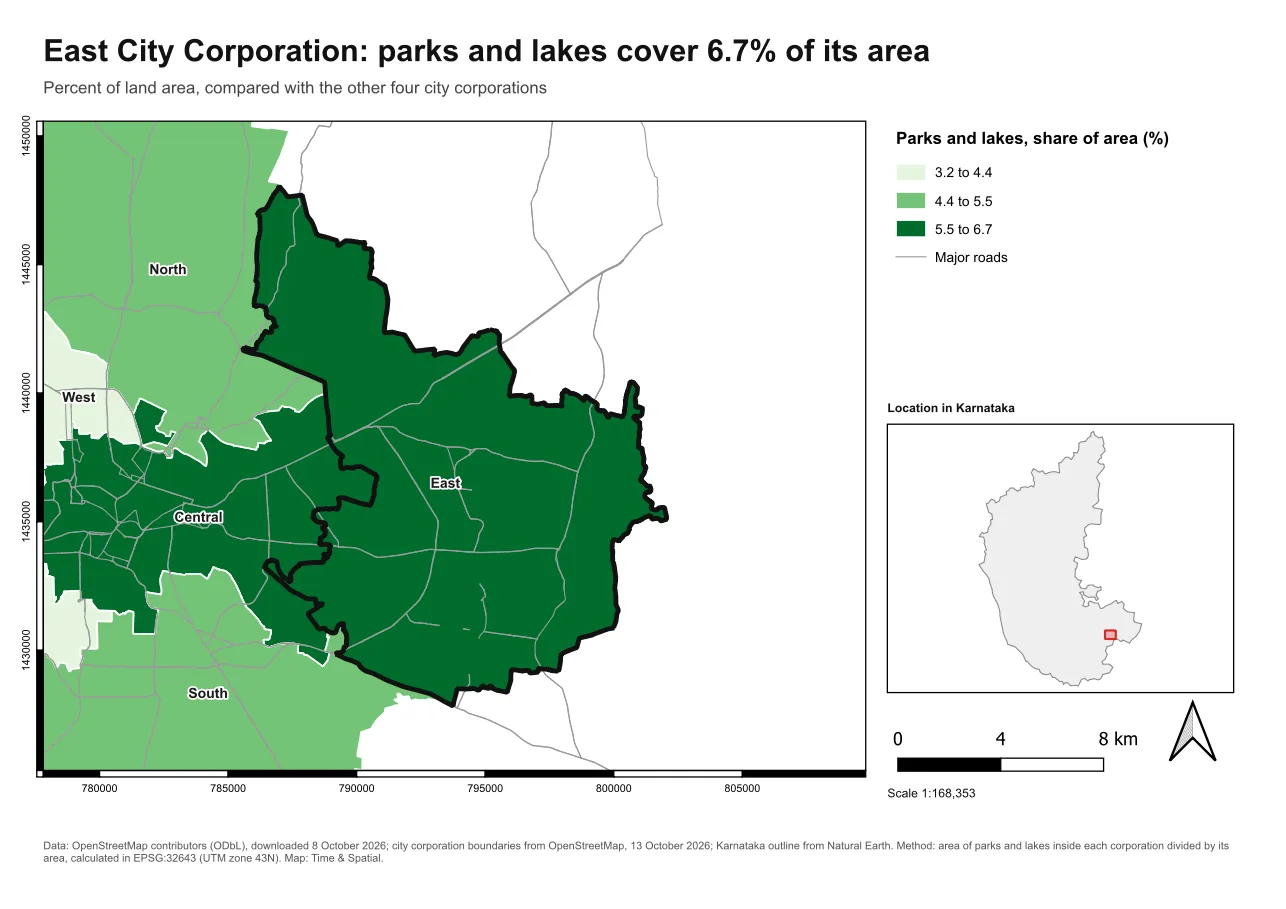
items["map_title"].setText("East City Corporation: parks and lakes cover 6.7% of its area")
QgsExpressionContextUtils.setProjectVariable(project, "focus_name", "East")      # draws the dark outline
extent = east.geometry().boundingBox()
extent.scale(1.25)
items["main_map"].zoomToExtent(extent)
Three things change for each map:
- the title, set as plain text
- the project variable
focus_name, which the dark outline layer reads to decide which corporation to draw. This is the same variable you met in the Atlas page. - the extent: the bounding box of the East corporation, made 25 percent bigger, and given to the map frame
The legend, the scale bar, the grid, the locator map and every font stay exactly as designed. You did not write a line for them.
Step 6: Export
# Step 6: export
output_folder = Path(project.homePath()) / "output"
output_folder.mkdir(exist_ok=True)
pdf_path = output_folder / "East_from_template.pdf"
result = QgsLayoutExporter(layout).exportToPdf(str(pdf_path), QgsLayoutExporter.PdfExportSettings())
print("Exported:" if result == QgsLayoutExporter.Success else f"Export failed ({result}):", pdf_path)
Open East_from_template.pdf. You should see the East corporation with a dark outline.
Step 7: See the check work
# Step 7: see the check work. Rename an item's ID, as if someone had edited the template...
layout.itemById("map_title").setId("title_renamed")
try:
    get_items(layout)
except ValueError as error:
    print("Caught:", error)
layout.itemById("title_renamed").setId("map_title")          # ...and put it back
The last step breaks the template on purpose. It renames the ID of the title, as if a colleague had edited the template, and calls get_items again. The script catches the error and prints it. Then it puts the ID back.
Exported: ...\part-c\output\East_from_template.pdf
Caught: The template is missing these items: map_title
The second line is the point of the lesson. A change in the template stopped the script with a message that says exactly what is wrong, instead of producing a map with no title or crashing later.
When it breaks
| What you see | Why | What to do |
|---|---|---|
TypeError on loadFromTemplate | The second argument is the project | Pass QgsReadWriteContext() |
FileNotFoundError: [Errno 2] No such file or directory | The path to the template is wrong | Check the templates folder next to the project |
Could not read the template (line 1): tag mismatch | The .qpt file is damaged or was edited by hand | Save the template again from the layout, or copy a fresh one |
The template is missing these items: map_title | An ID in the template changed or was deleted | Fix the ID in the layout and save the template again |
RuntimeError: wrapped C/C++ object of type QgsLayoutItemMap has been deleted | An item was kept after its layout was thrown away | Keep the layout in a variable for as long as you use its items |
| The map shows no layers | The template's locked layers are not in this project | Open the project that the template was made for, or set the layers again |
| The title is unchanged | You changed a different label, or the template's text is an expression | Check the ID, and see what the label's text is |
Make it your own
- Change the corporation in Step 5 to
West, and update the title text. Which things must change together? - Add a second required item, such as
main_legend, toREQUIRED_ITEMS. Remove the legend from the layout and run the script. What does it say? - Change
extent.scale(1.25)to1.0. Is the whole corporation visible? When would you want that?
Common mistakes
- Putting the design in the script. Design in the template, content in the script.
- Not checking that the items exist before using them.
- Loading the template without the read-write context.
- Keeping an item after its layout is gone.
- Changing items by their position in a list instead of their ID.