

Text on a map does two jobs. It names things, and it tells the reader how to interpret them. Both jobs fail if the text is hard to read. Typography is the craft of making text easy to read, and on a map that mostly means restraint.
What is typography?
Typography covers the choice of fonts, sizes, weights, spacing and colour of text. A font family is a set of related styles, such as Arial regular, Arial bold and Arial italic. Weight is the thickness of the letters. A typeface with serifs has small strokes on the ends of letters, and a sans-serif typeface does not.
Why it matters
Readers decide in a moment whether text is easy or tiring. Mixed fonts and sizes also make a layout look unplanned, and an unplanned layout makes readers trust the data less. The text on a map is also often small, which makes poor choices cost more.
The rules
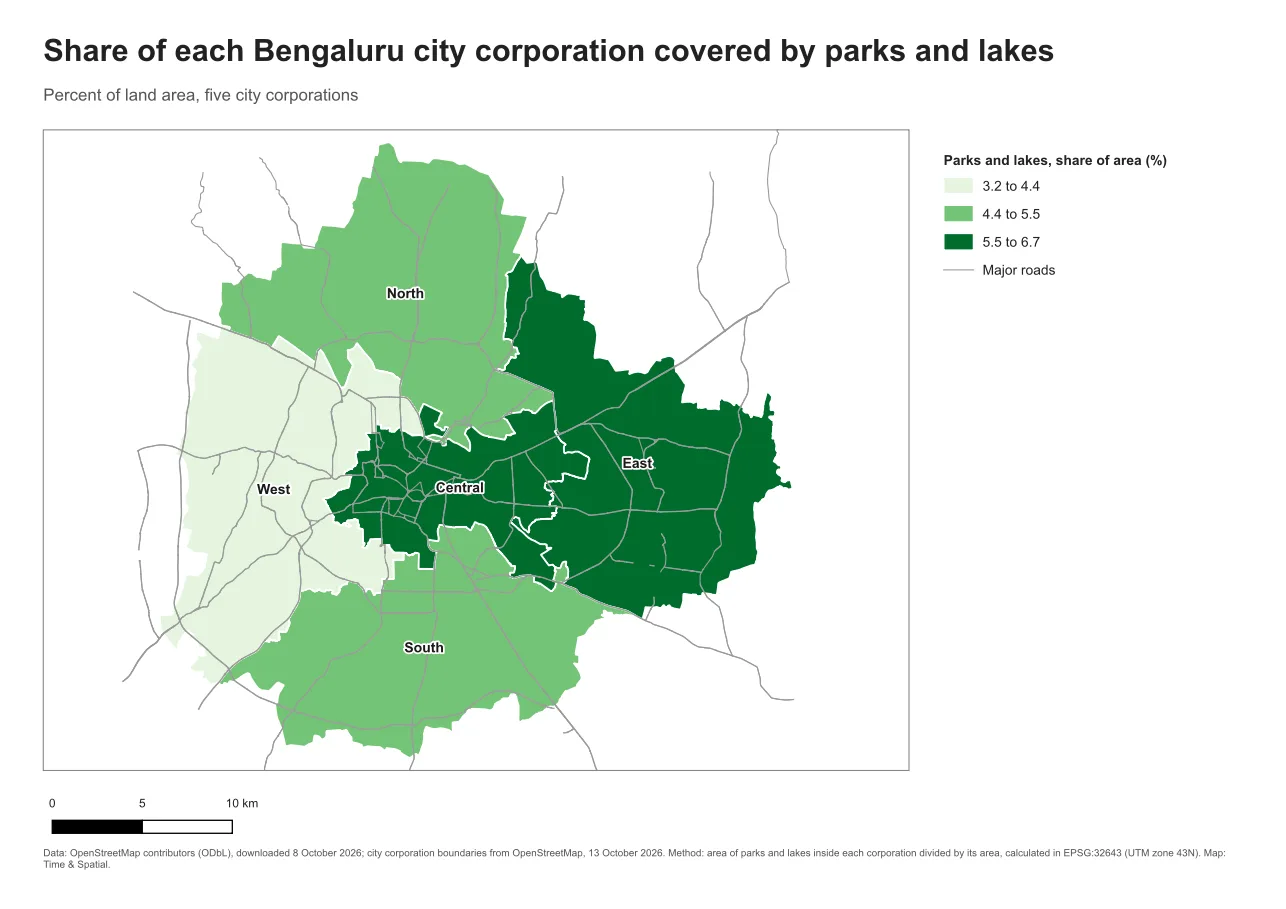
- Use one font family for the whole layout. Pairing two families can work. Pairing four rarely does.
- Define roles and give each a fixed style: title, subtitle, map labels, legend labels, annotations and metadata. Use the same style for the same role everywhere on the page.
- Use size and weight first. Bold and larger sizes mark importance. Avoid shadows, outlines and effects when a plain bold will do.
- Keep strong contrast between text and its background. Dark grey on white reads well. Light grey on a pale colour does not.
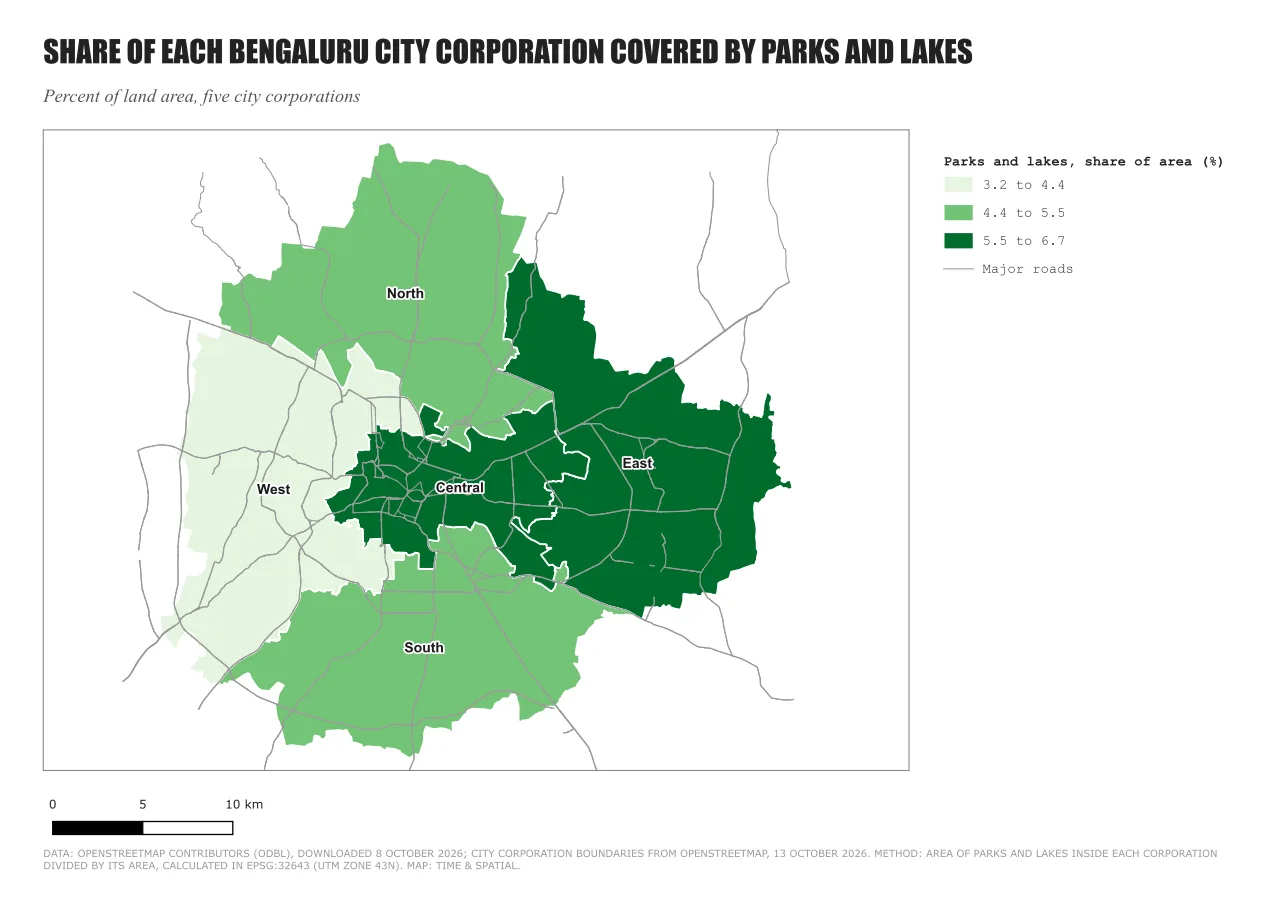
- Avoid long text in all capitals. Capitals have the same height, so long words lose their shape, and the eye reads them more slowly. Short capitals are fine for a small label.
- Use italics sparingly. A little is useful for water names or a note. A lot is tiring.
- Prevent collisions. Labels that overlap each other or sit on dark symbols are unreadable. Move them, shorten them, or add a halo.
- Test at the final size. Print the page or view it at 100 percent. Notes below roughly 6 pt on A4 become hard to read, and that number is a starting guide and not a standard.
See the difference
The only change between the two layouts is the type.
Do it in QGIS
- Add each text item with Add Item > Add Label. In Item Properties, under Appearance, click Font and choose the family, size and colour.
- Set the same family on the legend, the scale bar and any grid labels, in each item's font settings.
- For labels on the map itself, use the Labels tab in the layer's properties. The Buffer section adds a halo, which keeps labels readable over busy colours.
- If you send the PDF to someone else, remember that a font must be installed to display properly unless the PDF carries it. The PDF export dialog has a Text export option that controls how text is written. Open the exported file on another computer when it matters.
Common mistake: a different font for every element
When each element gets its own font, the page looks like a collage. The fix is to choose one family and use weight and size to separate the roles. Add a second family only when you have a reason, such as a serif for the title in a report with a serif body text.
Glossary
| Term | Meaning |
|---|---|
| Font family | A set of related styles of a typeface, such as regular, bold and italic |
| Serif, sans-serif | Letters with small end strokes, or without them |
| Weight | How thick the strokes of the letters are |
| Halo, buffer | A thin outline around text that separates it from the background |
| Leading | The space between lines of text |
Practise it
Open one of your layouts and list every font and size on the page. Reduce the list to one family and four sizes, then compare. The Print layouts in QGIS tutorial shows where each font setting lives.
Test yourself
1. Why avoid long text in capitals?
All capitals have the same height, so words lose their shape and take longer to read.
2. What is a halo on a map label for?
It separates the text from busy colours or lines behind it, so the label stays readable.
3. Why test the text at the final page size?
Text that looks fine zoomed in on a screen can be too small, or collide with other items, on paper.