

On the previous page you made an empty A4 page. Now you put the main map on it. The map item has more control than it first seems to, and most of the problems people have with layouts come from skipping it: a map that changes when someone switches a layer, or a scale that was only set by eye.
Open the layout Parks and lakes map if it is not open. Choose Project > Layout Manager, pick it and press Show.
Step 1: Add the map
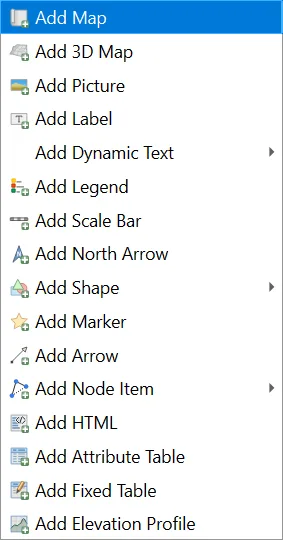
Choose Add Item > Add Map. The cursor turns into a cross. Click and drag a rectangle on the page. Do not worry about the exact size, because you will set it numerically in a moment.
The map shows what the main canvas shows at that moment. It is now listed as Map 1 in the Items panel, and its settings are in the Item Properties panel.
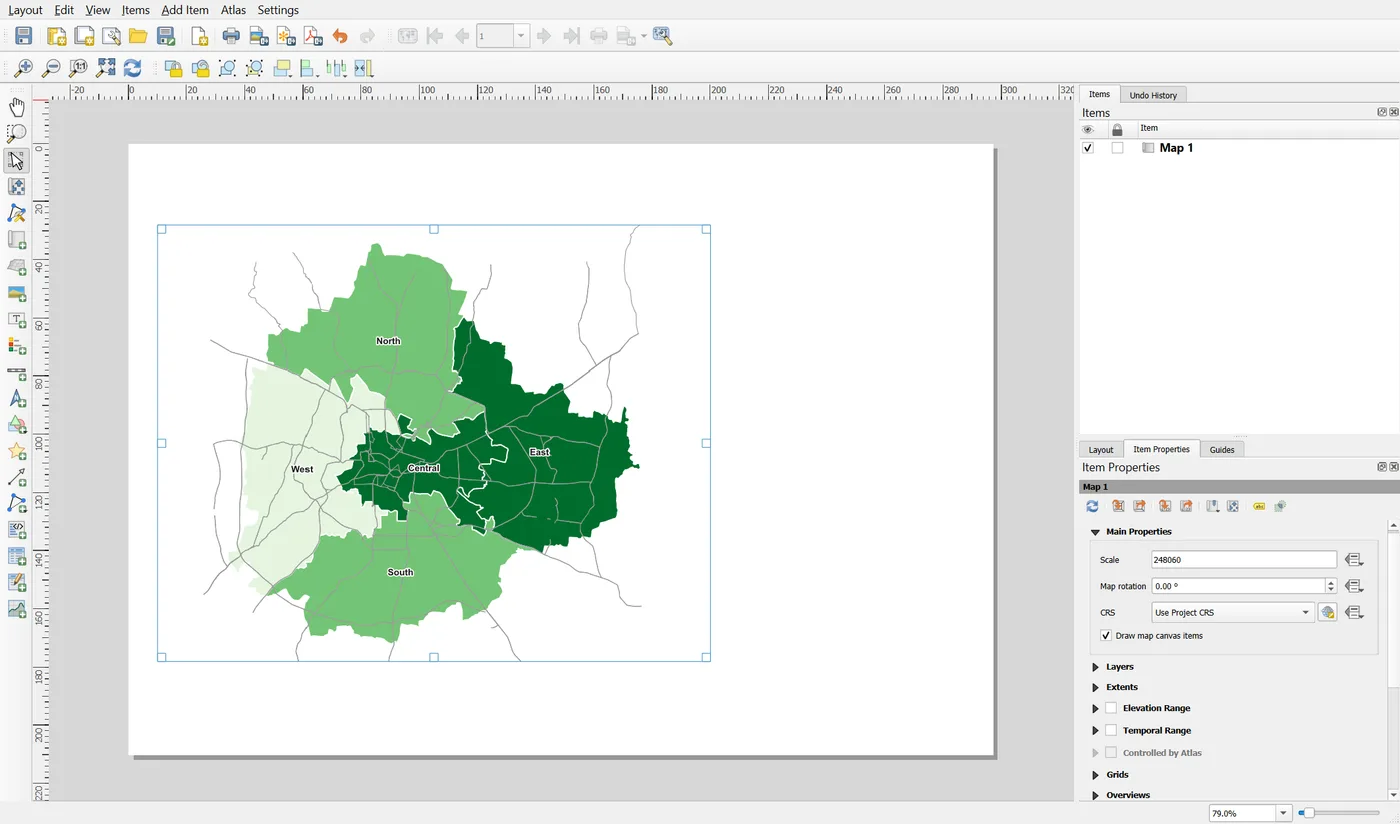
The map frame is not a window onto the canvas. It is an item with its own extent and its own scale. After you add it, panning the canvas does not move it. This is what makes a layout stable, and it is also why you must set the scale yourself.
Step 2: Set the scale
The toolbar above the properties has buttons that copy the extent or the scale between the canvas and the map. They are useful for a first guess. Then set the scale deliberately.
In Main Properties, type 200000 in the Scale box and press Enter.
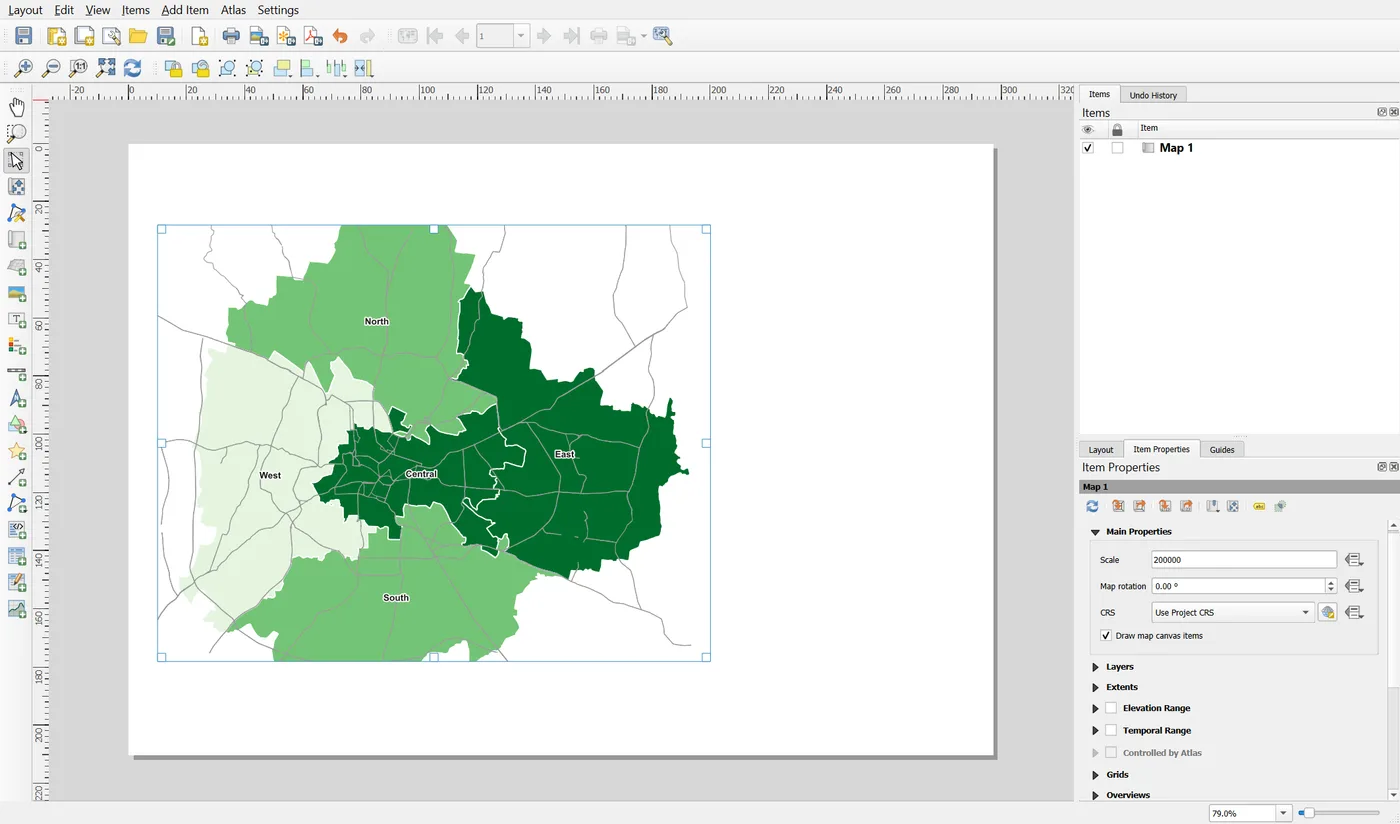
A scale of 1:200,000 means that 1 millimetre on the page is 200 metres on the ground. The frame will be 190 mm wide, so it shows 190 × 200 m = 38 kilometres. That is enough to show all five corporations with a little room around them. Changing the scale keeps the centre of the map where it is.
Round scales such as 1:200,000 are easier to read and to compare between maps than 1:187,342. Dragging the map until it looks right gives you the second kind. The Map Design note on scale, extent and projection says more about this choice.
The Extents group below Main Properties lists the four coordinates of the area on show. You do not need to edit them, but they update as you change the scale, which is a good way to see what the scale does.
Step 3: Set the position and size
You can drag and resize items by hand, but typed numbers are exact and repeatable. Open the Position and Size group.
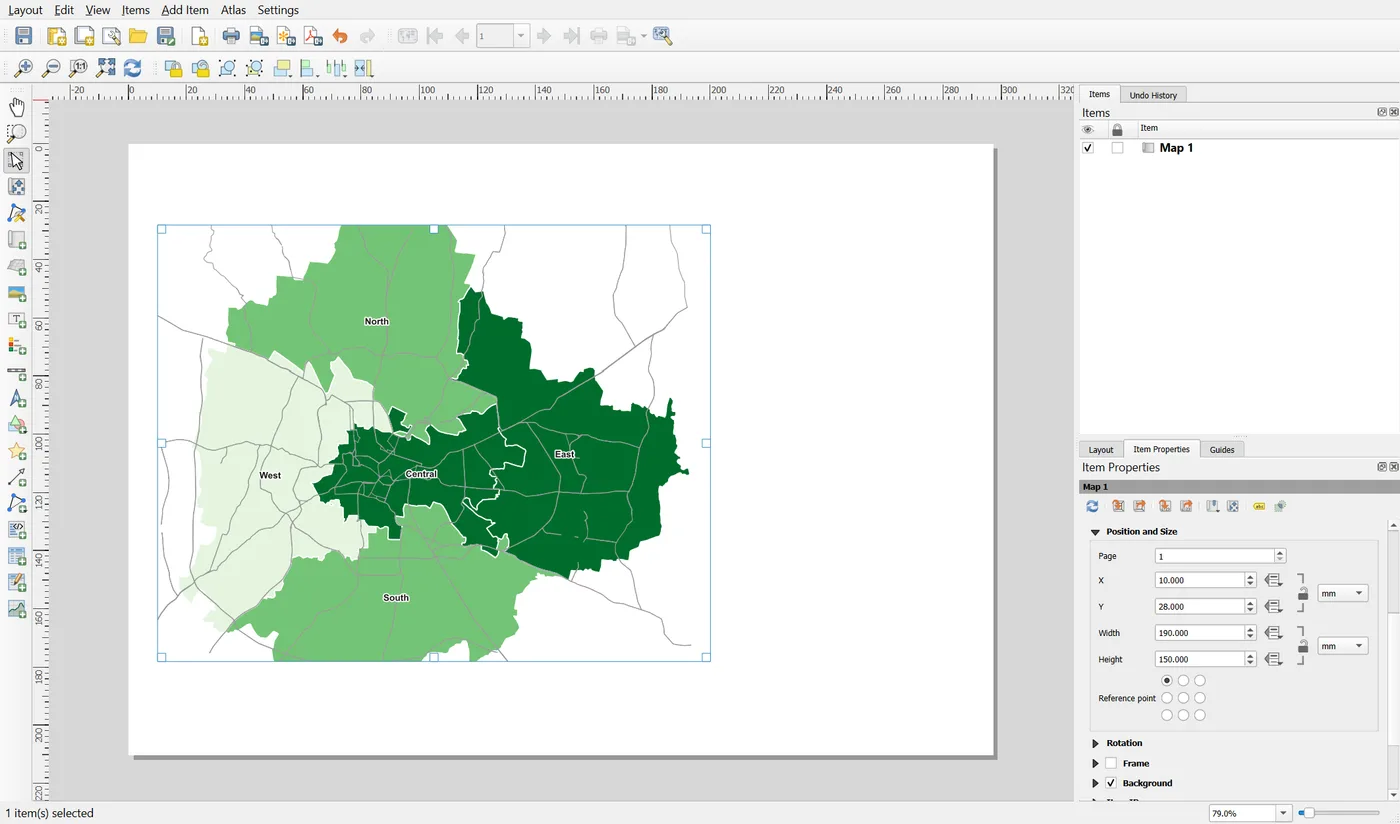
Set X to 10, Y to 28, Width to 190 and Height to 150. All values are in millimetres, measured from the top left corner of the page. This leaves a 10 mm margin on the left, 28 mm at the top for a title and a subtitle, and about 32 mm below for a scale bar and a source note. The legend will go on the right, from x = 205.
The nine dots under Height are the reference point. They say which corner or edge of the item the X and Y refer to. The default, top left, is the easiest to think in.
Why 10 mm? Page margins give the page room to breathe and keep items away from the edge, where printers often cut. The note on page size, margins and balance explains the reasoning. Whatever number you pick, use the same one on every side.
Step 4: Decide which layers the map draws
By default the map follows the canvas. If you switch the Karnataka layer on in the main window, it appears in the layout too, and the legend and scale bar may change with it. That is dangerous in a finished layout, so you give the map a fixed set of layers. There are two ways.
A map theme. A theme is a saved combination of visible layers and their styles. In the main window, arrange the layers as you want them. Click the eye icon at the top of the Layers panel, choose Add Theme and name it Corporations and roads. In the layout, open the Layers group of the map, tick Follow map theme and pick the theme.
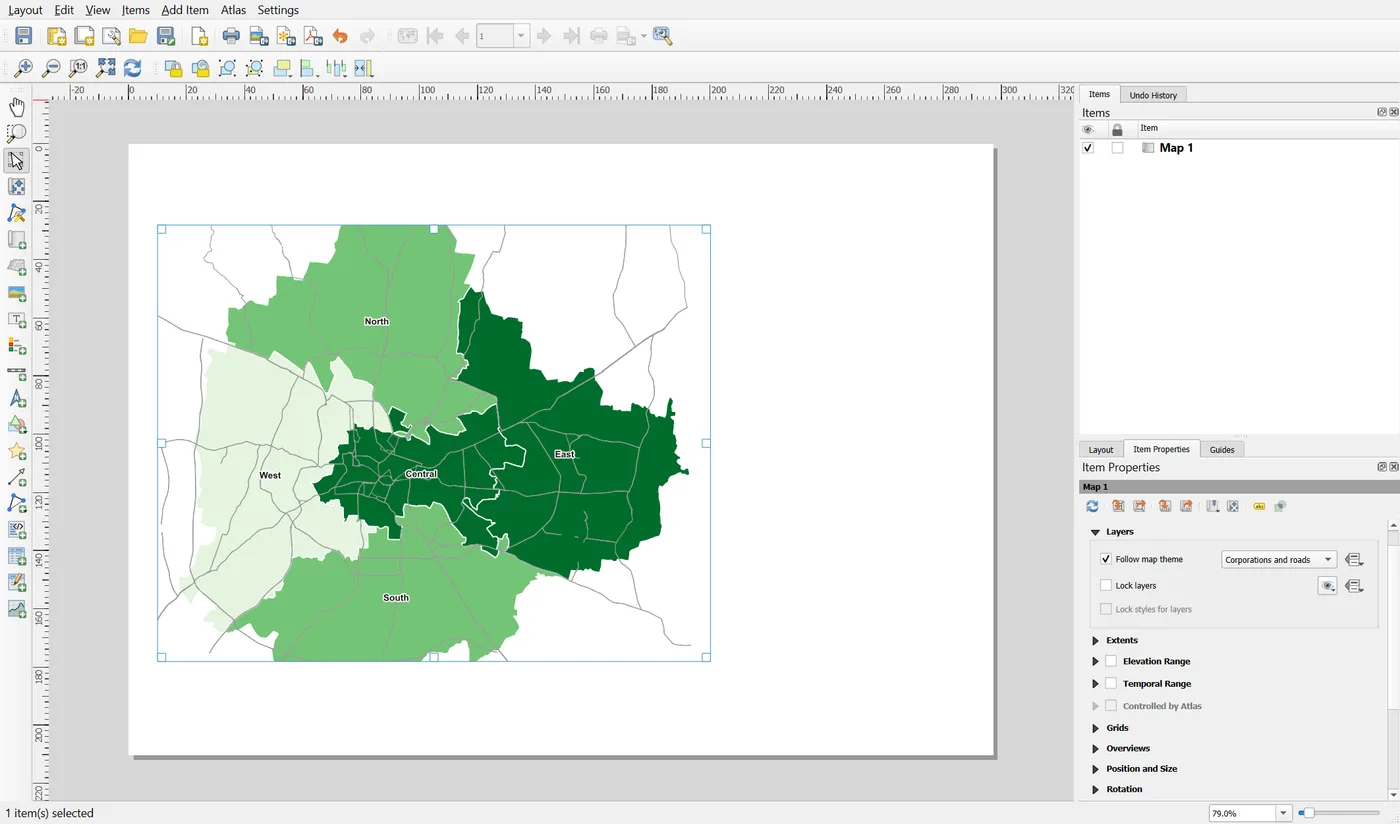
A theme is the better choice when one project has several maps that need different layers, which is the case on a page with more than one map frame. You can change the theme in one place and every map that follows it updates.
Locked layers. Tick Lock layers instead. The map freezes the layers that are visible right now. Tick Lock styles for layers as well if you want the colours frozen too, so that restyling a layer on the canvas does not change the layout.
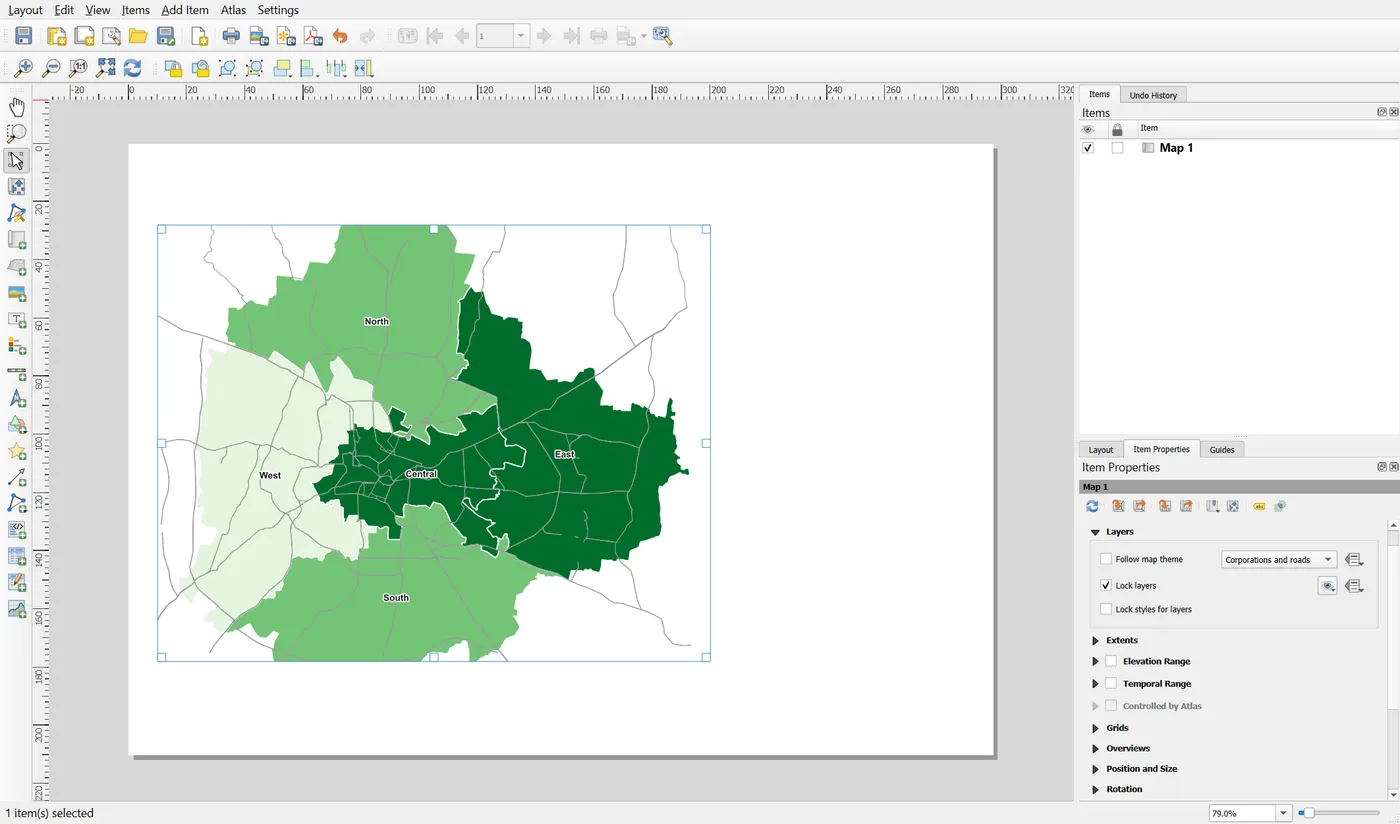
Use a theme or a lock, not both. For a single map, locking is enough. For this series we use locked layers for the main map. The automation project sets the layers from the script, which does the same thing in code.
Step 5: Add a frame
A thin frame shows where the map ends. Open the Frame group and tick it. Set the thickness to 0.3 mm and leave the colour black.
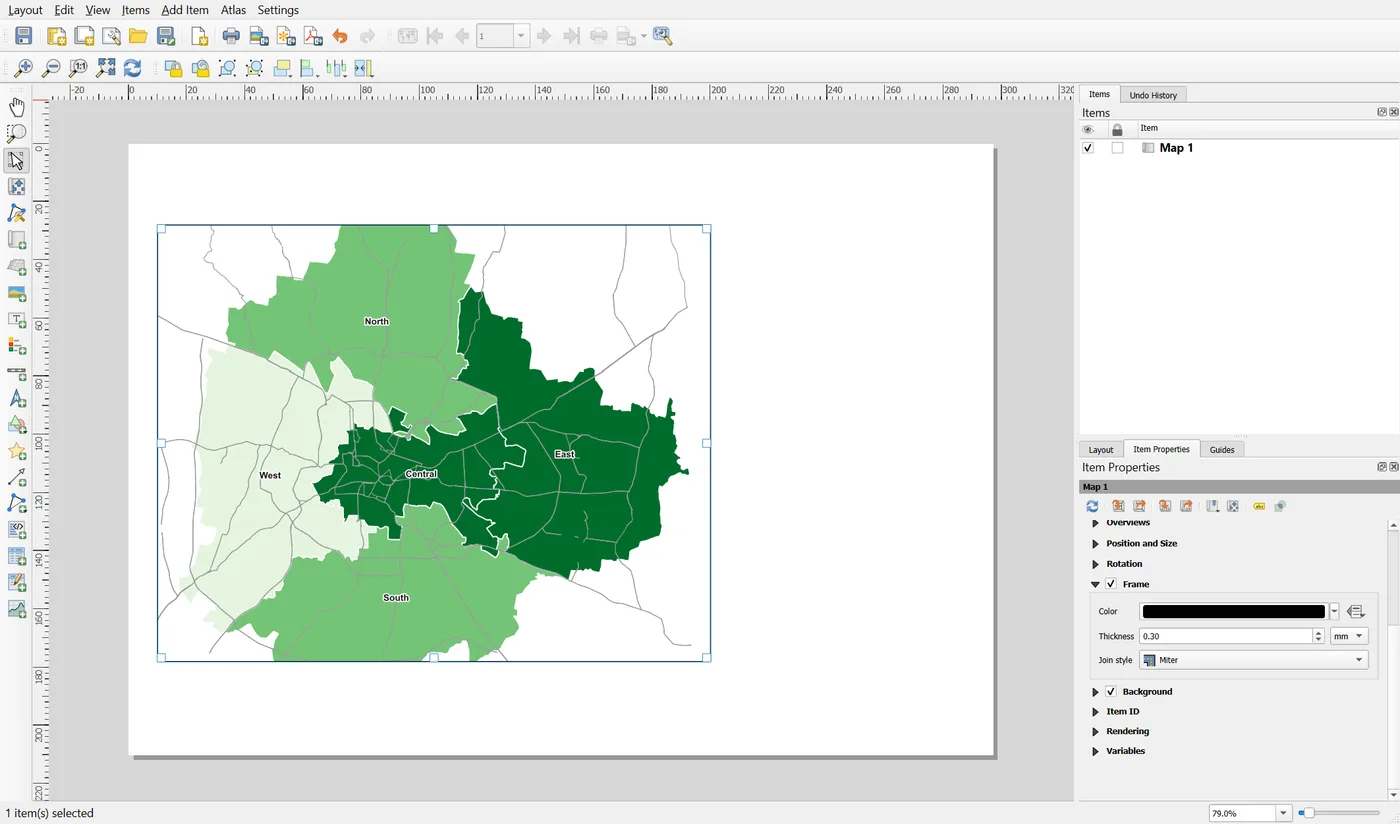
Keep the frame thin. A heavy line fights with the data. If the map's background is white and the page is white, the frame is the only thing that tells the reader where the map stops.
Step 6: Give the map an ID
Every item can have an ID, a short fixed name. Open the Item ID group and type main_map.
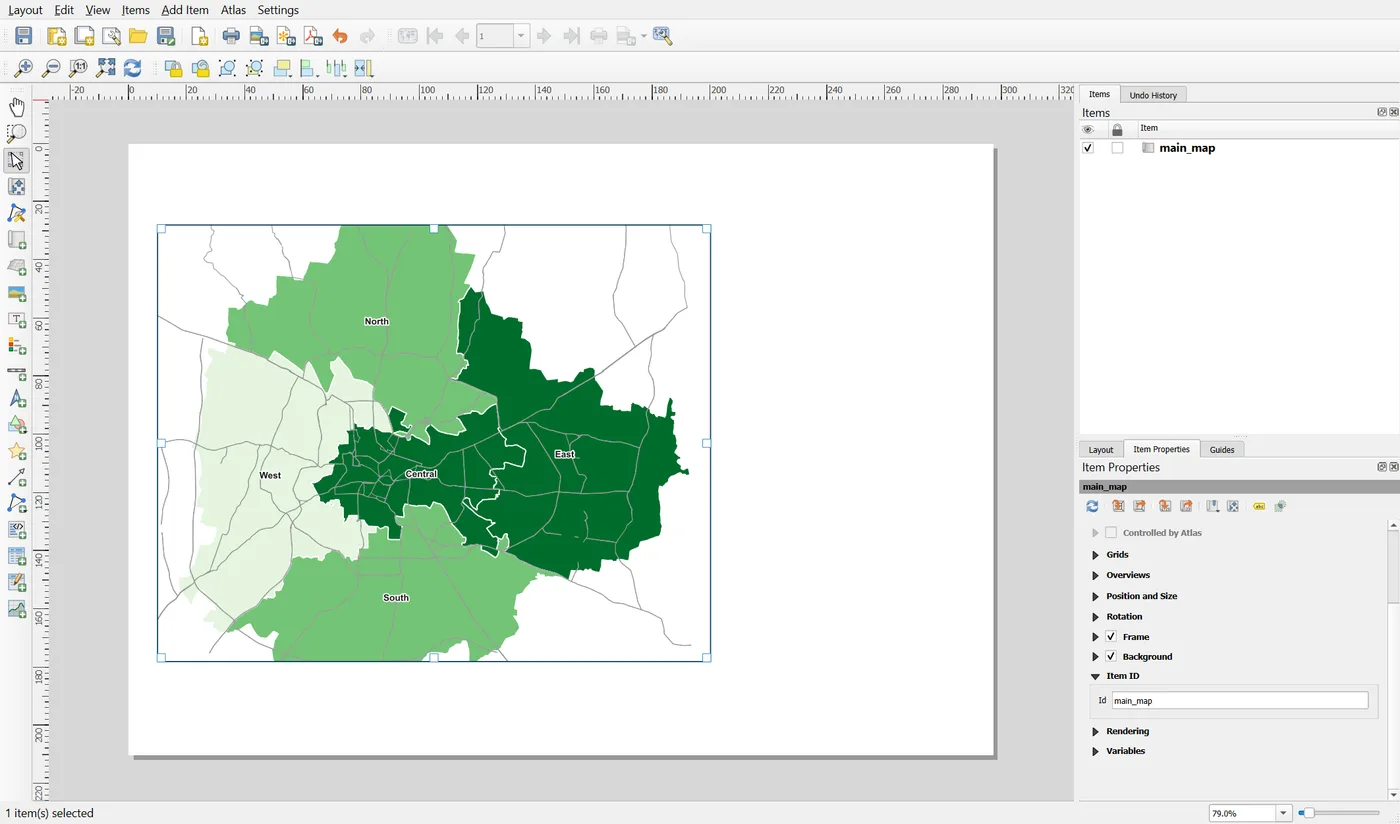
The ID costs a few seconds now and saves a lot later. The Items panel lists items by ID, expressions refer to them, and scripts find them by it. You will give every item an ID in this series. Choose names that say what the item is: main_map, map_title, main_legend.
Click an empty part of the page to deselect the map. This is where you have got to.
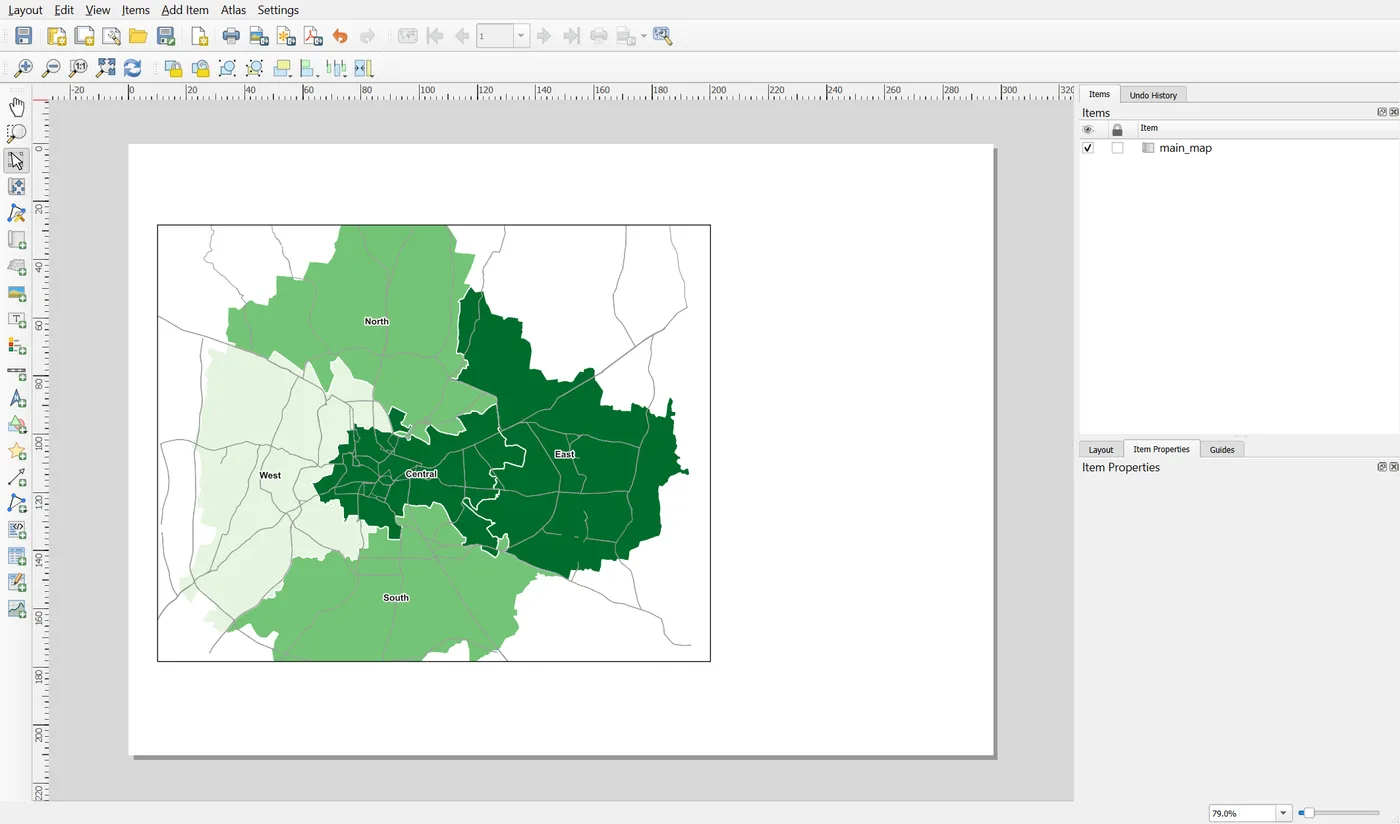
Save the project with Ctrl+S.
When it breaks
| What you see | Why | What to do |
|---|---|---|
| The map changes when you switch a layer on the canvas | The map is not locked and does not follow a theme | Tick Lock layers, or use Follow map theme |
| The map looks different from the canvas | The frame has its own extent and scale | This is normal. Use the toolbar buttons to copy the extent or scale from the canvas |
| The map does not update after you change a layer style | Lock styles for layers is ticked, or the preview is old | Untick Lock styles, or click the Update preview button at the top left of the properties |
| Nothing shows in the frame | The theme or the locked layers are empty, or the scale is far too large | Check the theme in the main window, then set the scale again |
| The scale box does not take your number | You did not press Enter | Press Enter or click out of the box |
Make it your own
- Change the scale to 1:150,000, then to 1:300,000. What happens to the corporations on the page? Which scale would you use for a report page, and why?
- Make a second map theme that shows only the polygons and the roads. Switch the map to it and back.
- Switch the Karnataka layer on in the main window. Does the map in the layout change? Now untick Lock layers. What happens?
Common mistakes
- Setting the scale by dragging until it looks right. Type a round scale.
- Leaving the map unlocked. A later change on the canvas will alter the finished page.
- Locking layers on a map and then wondering why a restyled layer looks the same. Locked styles are frozen too.
- Forgetting the item ID. Everything later is easier with it.
- A frame so thick it draws attention away from the data.
Key takeaways
Next: Title, subtitle, source note and a legend you control.