

A land use and land cover map shows what covers the ground at each place. This tutorial makes one for a 50 km square around Bengaluru from six Landsat 8 bands, using only menus and dialogs. The same task, written as code, is in the Python tutorial on land cover classification with Sentinel-2.
The methods are explained in the study note Image Classification Methods: K-means for grouping without labels, and the supervised methods that learn from labelled samples. Read it first if the terms are new.
What you need
- QGIS 3.34 or newer. This tutorial was made with QGIS 3.44 LTR on Windows.
- The Semi-Automatic Classification Plugin, installed in step 1.
- The data: bengaluru_lulc_landsat.zip (25 MB). Unzip it and keep the folder
bengaluru_lulc_landsat.
| File | What it is |
|---|---|
Landsat8_2025_B2_blue.tif to B7_swir2.tif | Six bands of Landsat 8 and 9 surface reflectance, multiplied by 10,000, 30 m cells, 1667 by 1667 cells, EPSG:32643 |
training_polygons.gpkg | 190 small squares of 3 by 3 cells with the field class_id (1 to 4) and class_name |
training_by_class.gpkg | The same squares dissolved into one polygon for each class, ready to import (step 6 shows how to make it) |
validation_polygons.gpkg | 174 reference cells, one 30 m cell each, with class_id, a fresh random sample never used for training |
lulc_classes.qml | A layer style with the four class colours |
The image is a median of the cloud-free scenes from January to March 2025, so it has no cloud. It is a dry season image, which matters for the results. The four classes are the same as in the Python tutorial.
| Code | Class | Meaning |
|---|---|---|
| 1 | Water | Lakes and tanks |
| 2 | Built-up | Buildings, roads and paved ground |
| 3 | Vegetation | Trees, parks and green crops |
| 4 | Open land | Bare soil, dry fields and cleared plots |
The training squares come from points the author labelled on a high resolution basemap across Bengaluru. Every point was checked by eye against the image: mixed points (for example trees between houses) were removed, and points that clearly showed another class were relabelled. Two of the training squares are water and six more come from a global land cover product, because there are very few labelled water points. The reference cells are a different set: a fresh random sample drawn after the training points were fixed, labelled by the author without seeing any classification, with unclear points dropped. You can draw your own training polygons instead, as step 6 explains.
1. Install the plugin
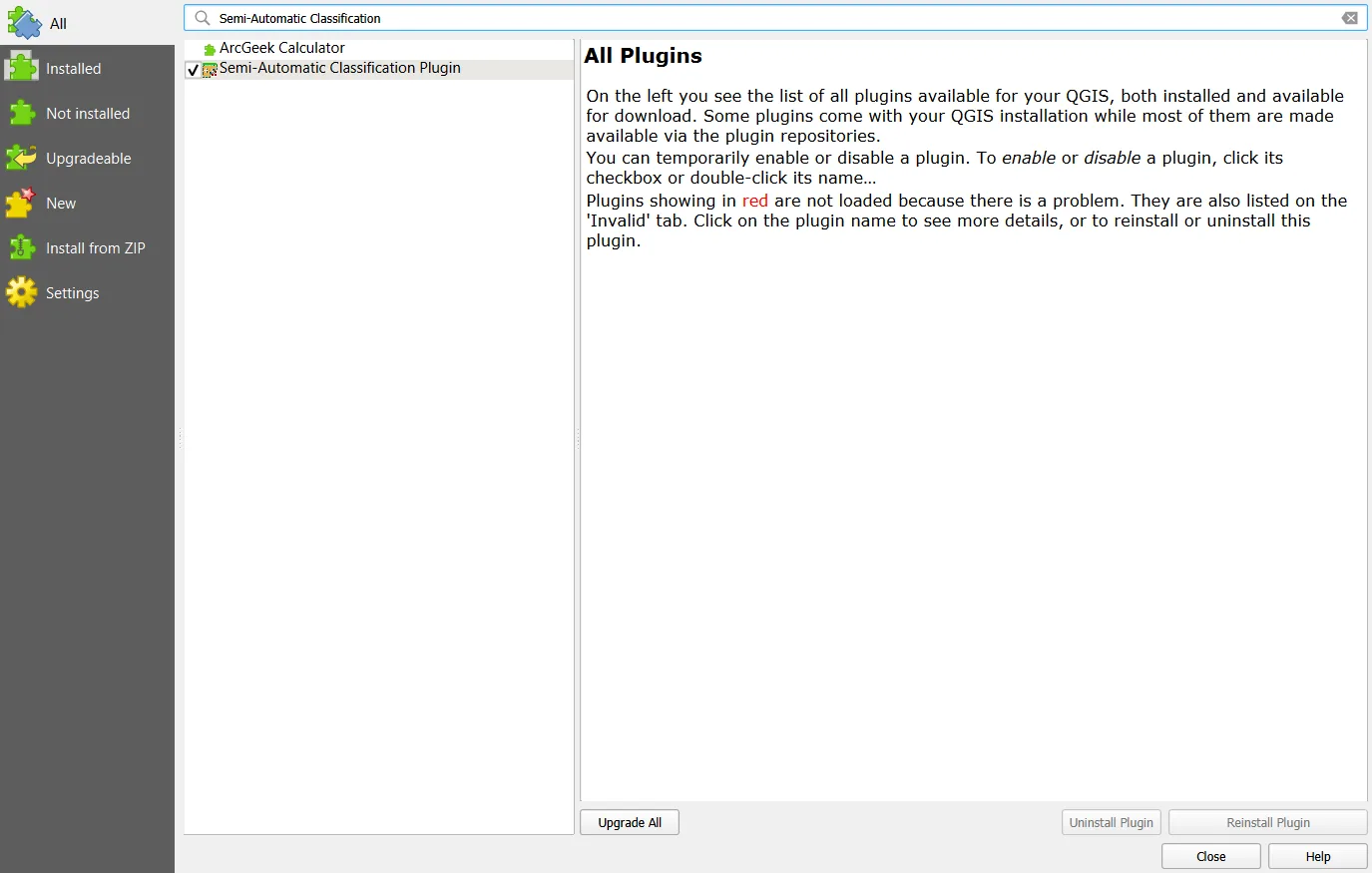
- Open Plugins > Manage and Install Plugins and choose All.
- Search for
Semi-Automatic Classification Plugin, select it and click Install Plugin. - When the plugin starts for the first time, it may offer to install a Python package called remotior-sensus. Accept, and restart QGIS if it asks.
An SCP menu appears in the menu bar, a toolbar appears with an RGB = list, and the SCP Dock opens on the left. The version used here is SCP 8.5.0 with remotior-sensus 0.7.5. Newer versions may move some buttons, and the manual linked above shows the current layout.
QGIS has its own GRASS tools for classification, but at the time of writing the maximum likelihood tool in the QGIS 3.44 Processing toolbox fails with a signature file error, which is why this tutorial uses the plugin.
2. Open the bands and make a band set
- Create a new project and set the project CRS to EPSG:32643 (Project > Properties > CRS).
- Add the six GeoTIFFs with Layer > Add Layer > Add Raster Layer. Keep the layer names.
- Open SCP > Band set. Use the green layer button at the right of the table to list the open layers, select all six and add them to the band set. Check that the order is blue, green, red, NIR, SWIR1, SWIR2.
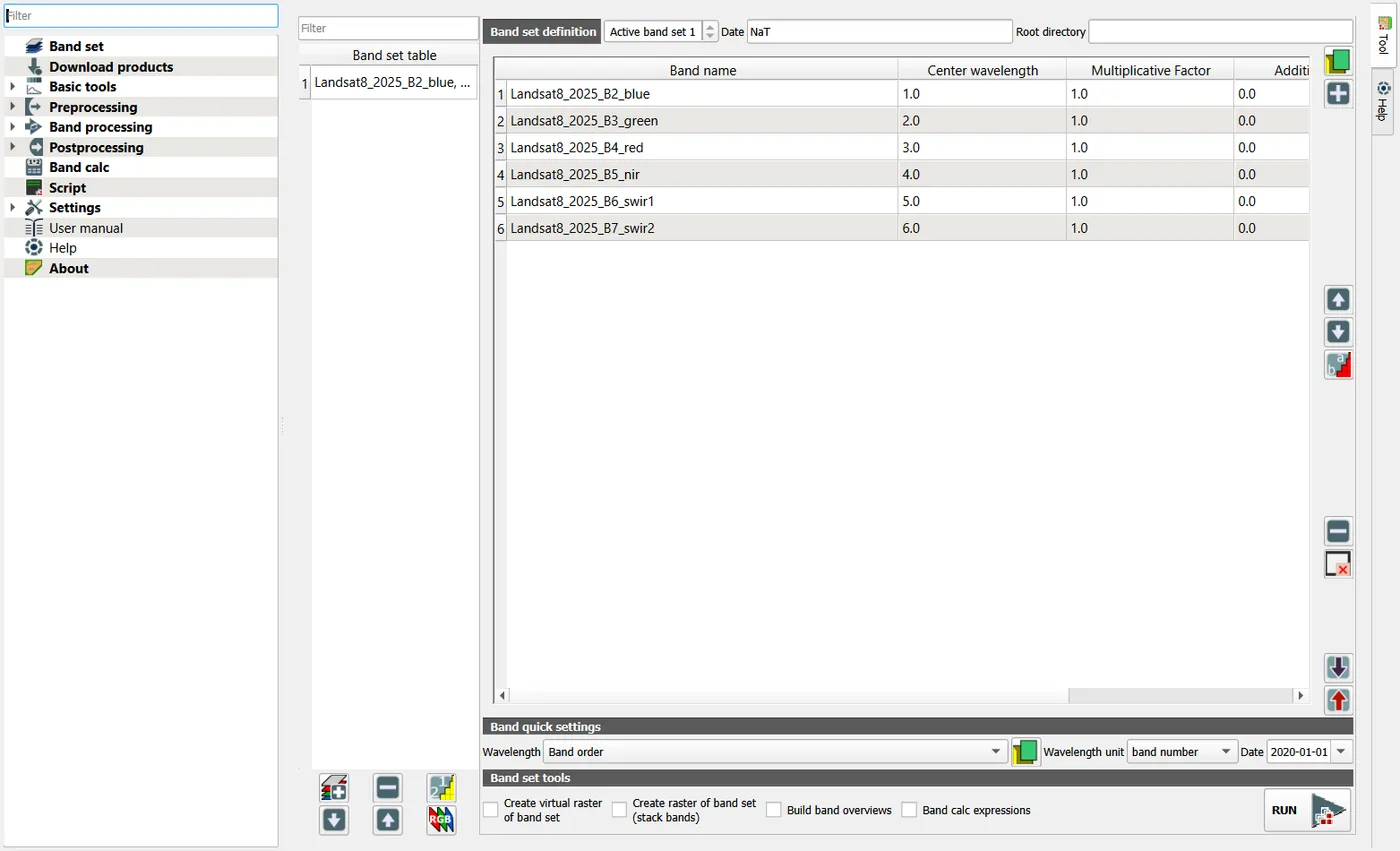
The band set is the stack that the classifiers read. The column Center wavelength shows 1 to 6 because no satellite was chosen, and it only matters for the spectral signature plot. If you want true wavelengths, enter them by hand in micrometres: 0.48, 0.56, 0.65, 0.87, 1.61 and 2.20.
3. Look at the image
Single bands are grey and hard to read. A colour composite puts three bands into the red, green and blue channels. For land cover, the false colour composite SWIR1, NIR, red separates the classes best.
- Use Raster > Miscellaneous > Build Virtual Raster, select all six bands, tick Place each input file into a separate band, and run it. The result is one layer with six bands.
- Open the Layer Properties of the new layer, go to Symbology, choose Multiband color, and set Red to band 5, Green to band 4 and Blue to band 3. Set the min and max of each band by hand (for example 500 to 4500 for bands 5 and 4, and 200 to 2500 for band 3) for a good contrast.
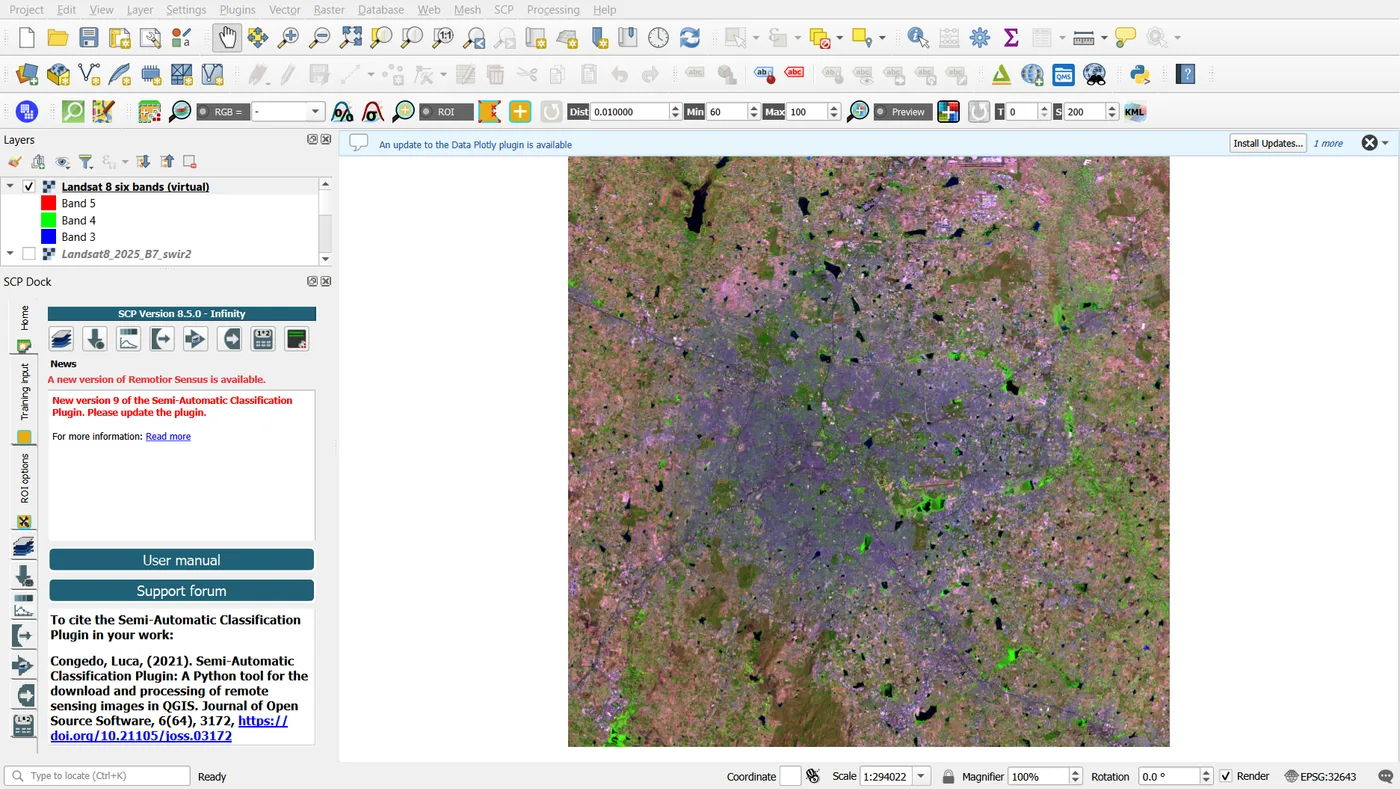
Read it as a legend. Water absorbs near and shortwave infrared, so lakes are black. Vegetation reflects near infrared, so it is green. Built-up land is purple-grey, and the dry fields around the city are pink. The pink and the grey are close, which is the main difficulty of this tutorial.
4. Unsupervised: cluster the pixels
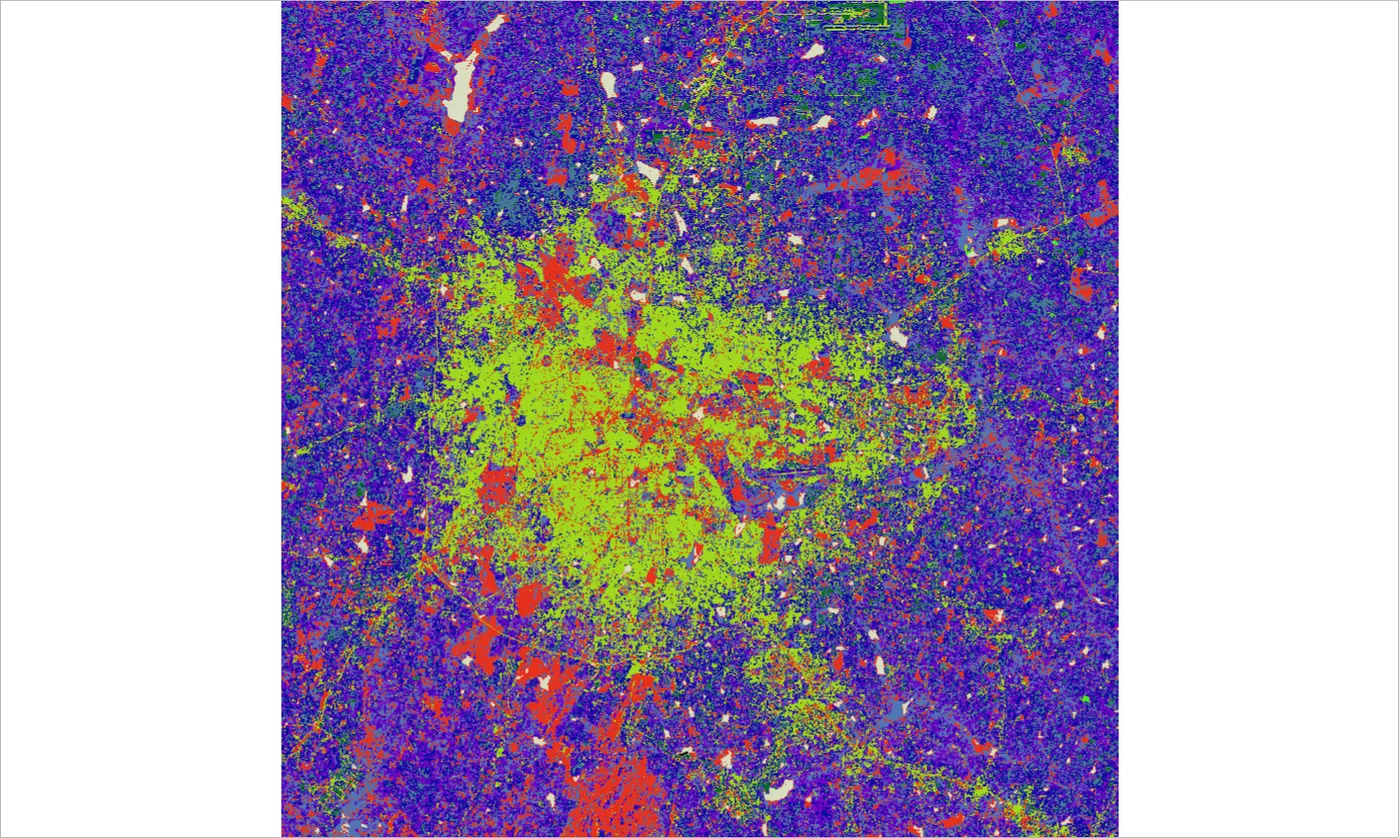
K-means asks for a number of groups and finds them. You ask for more groups than classes and merge them afterwards.
- Open SCP > Band processing > Clustering.
- Set Number of classes to 10, Max number of iterations to 10, and choose Use random seed signatures. Untick Distance threshold. Keep Minimum Distance as the distance algorithm.
- Click RUN and save the output as
kmeans10.tif.
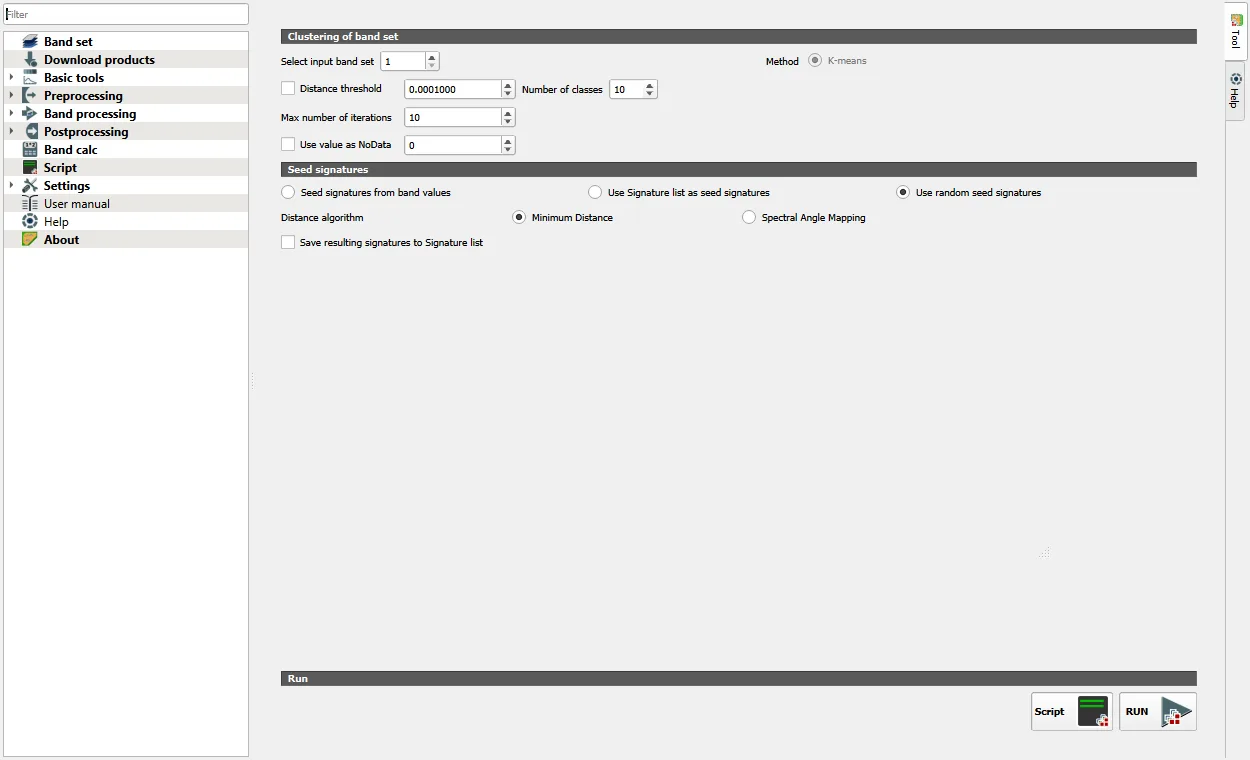
The default seeds, Seed signatures from band values, spread the starting centres evenly between the minimum and the maximum of each band. On this image that left most pixels in three clusters and some clusters nearly empty, so random seeds are the better choice here. Run the tool again with another setting and see the difference, and keep the better result.
5. Name the clusters
A cluster does not know what it is. The training squares can tell you: count how many squares of each class fall in each cluster, and let each cluster take the class that is most common in it. Raster layer zonal statistics or the unique values report do the counting. For this run the counts are below.
| Cluster | Cells | Water | Built-up | Vegetation | Open land | Class given |
|---|---|---|---|---|---|---|
| 1 | 586,494 | 0 | 86 | 36 | 115 | Open land |
| 2 | 2,414 | 0 | 2 | 0 | 0 | Built-up |
| 3 | 42,671 | 63 | 0 | 3 | 0 | Water |
| 5 | 425,002 | 0 | 57 | 51 | 35 | Built-up |
| 6 | 579,516 | 0 | 254 | 36 | 127 | Built-up |
| 7 | 262,628 | 0 | 88 | 3 | 60 | Built-up |
| 8 | 347,819 | 9 | 104 | 111 | 11 | Vegetation |
| 9 | 38,402 | 0 | 14 | 0 | 10 | Built-up |
| 10 | 493,776 | 0 | 394 | 21 | 20 | Built-up |
Cluster 4 came out empty, so it is not listed. The numbers show the problem. Clusters 1, 5, 6, 7 and 8 hold training squares of two or three classes, so no choice of name is right for all their cells. Your clusters will differ a little from these, because K-means starts from random seeds. Name your own.
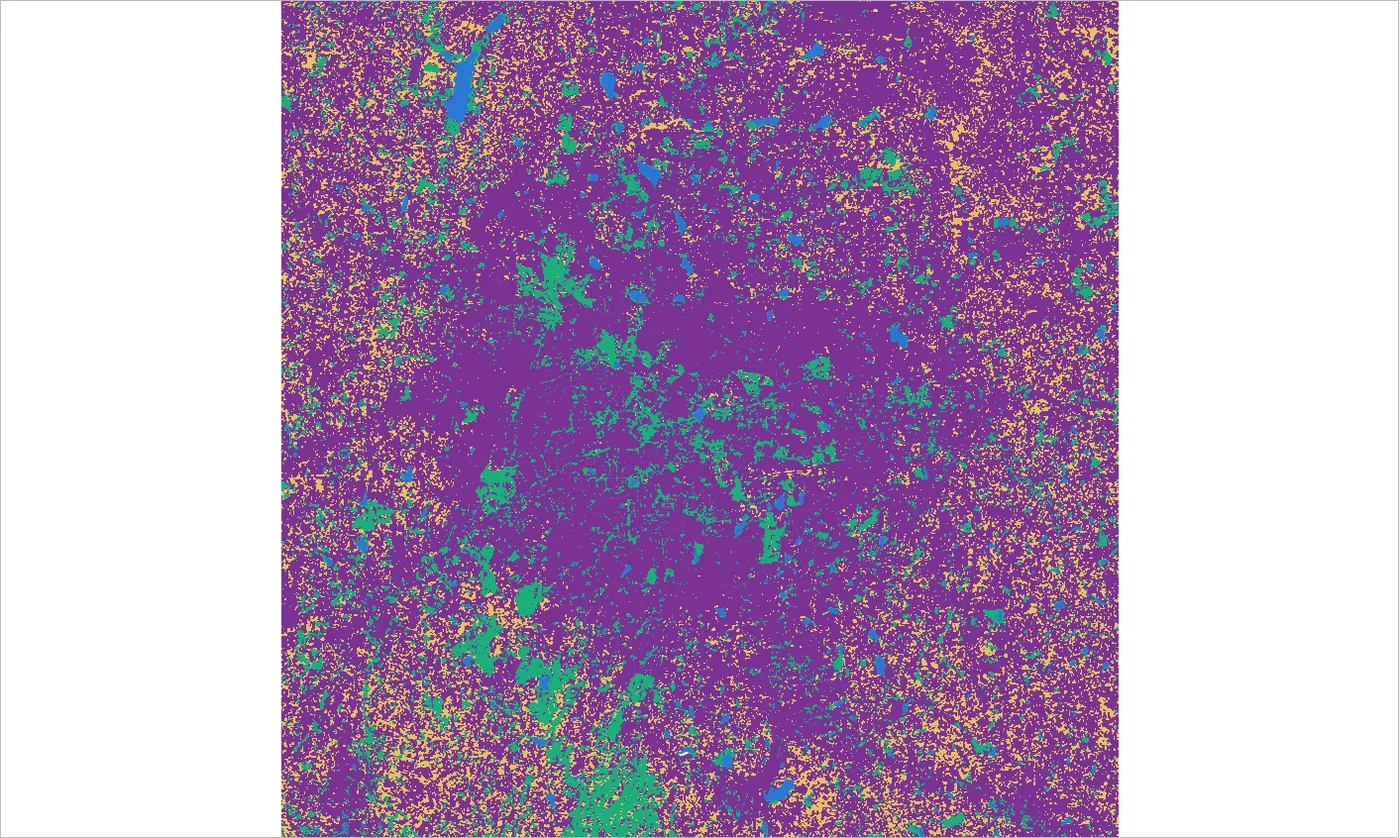
Apply the names with Processing > Toolbox > Reclassify by table. Choose kmeans10, and fill the table with one row per cluster: minimum equal to the cluster number minus 0.5, maximum equal to the cluster number plus 0.5, and the new class code. Use the QGIS tool and not the plugin's Reclassification tab, because the plugin changes the values one after another, so a cluster renamed to 4 can be renamed again by a later row.
Then load lulc_classes.qml on the result (Layer Properties > Symbology > Style > Load Style).
6. Training samples
Supervised classification learns from samples. The plugin stores them in a training input file, and it treats every polygon you import as one signature, which means one spectral description of one class. This matters for the method in step 7. Maximum Likelihood describes a class by its mean and its covariance between bands, and it needs more cells than bands to calculate the covariance. A 3 by 3 square has 9 cells, which is barely more than the 6 bands, so a model built on one square is unreliable. A square cut by the image edge has fewer than 7 cells, and the calculation then fails without a useful message. With 190 separate squares the plugin built 190 signatures, and Maximum Likelihood scored 40 percent in a test, against 69 percent below.
The fix is to give each class one polygon with many cells.
- Open Processing > Toolbox > Dissolve. Choose
training_polygons, set the dissolve fields toclass_idandclass_name, and save the result astraining_by_class.gpkg. The zip already holds this file, so you can skip this step. - In the SCP Dock open the Training input tab and click the button to create a new training input. Save it as
training.scpx. It uses the active band set. - Open SCP > Basic tools > Import signatures, expand Import vector, and select
training_by_class.gpkg. Set MC ID field and C ID field toclass_id, and MC Name field and C Name field toclass_name. Keep Calculate sig. ticked and click Import vector.
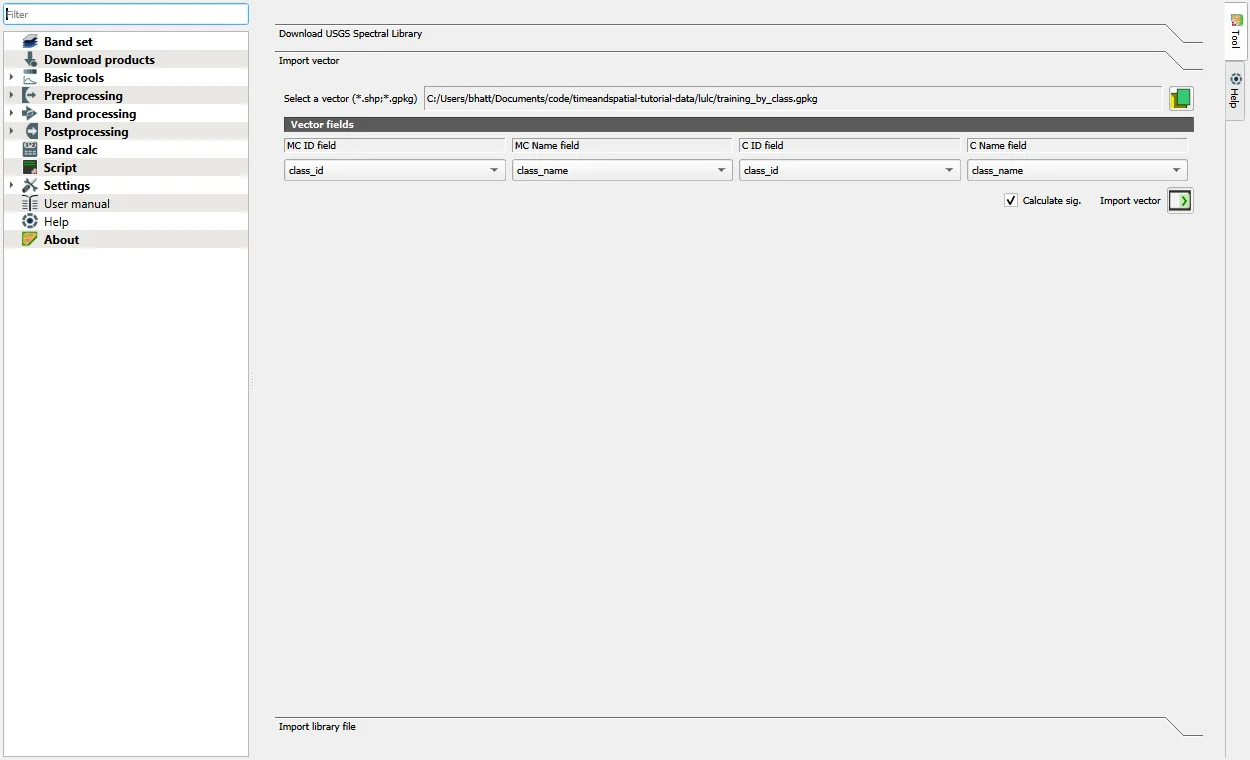
The import takes about half a minute. When it ends, the signature list shows four signatures, one for each class.
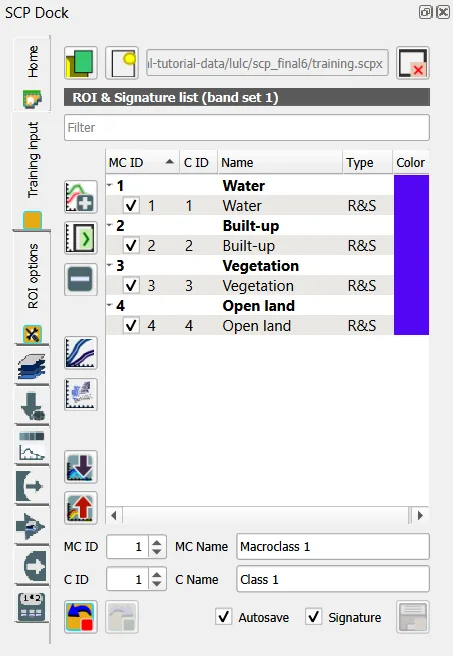
MC ID is the macroclass, the class you want in the map (here 1 to 4). C ID is a subclass inside it, which helps when one class has two looks, such as roofs of tile and of metal. Here both are the same.
To draw your own samples instead, zoom to a place you can identify on a basemap (add one with the QuickMapServices plugin), set MC ID, MC Name, C ID and C Name in the lower part of the dock, and use the Create a ROI polygon tool or the region growing tool on the toolbar. Click Save ROI to training input. Draw 8 to 10 polygons for each class in different parts of the image, each covering at least 20 cells and none cut by the image edge, and avoid mixed places. Give all polygons of a class the same C ID, then dissolve them, or draw one large polygon for each class. The accuracy check below only makes sense if you never use your reference cells for this.
7. Supervised: Maximum Likelihood and Minimum Distance
- Open SCP > Band processing > Classification. Keep Use training on Macroclass ID.
- Open the Maximum Likelihood panel, leave the thresholds off, and click RUN. Save as
class_ml.tif. - Open the Minimum Distance panel, click RUN, and save as
class_md.tif.
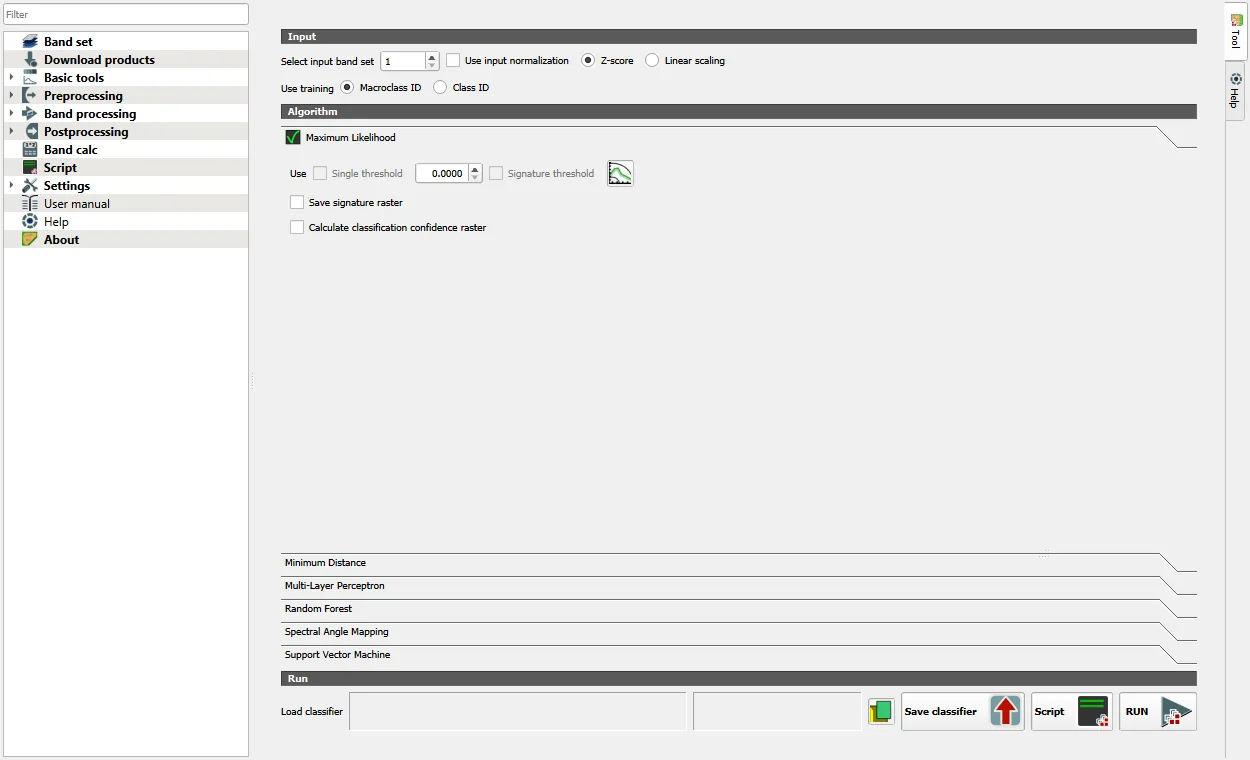
Maximum Likelihood and Minimum Distance took about 6 seconds each on this image. Maximum Likelihood describes each class by its mean and its covariance, as the study note explains. Minimum Distance uses only the mean. The plugin also offers Random Forest, Support Vector Machine and neural network classifiers, which this tutorial does not cover.
Load lulc_classes.qml on both results to get the class colours.
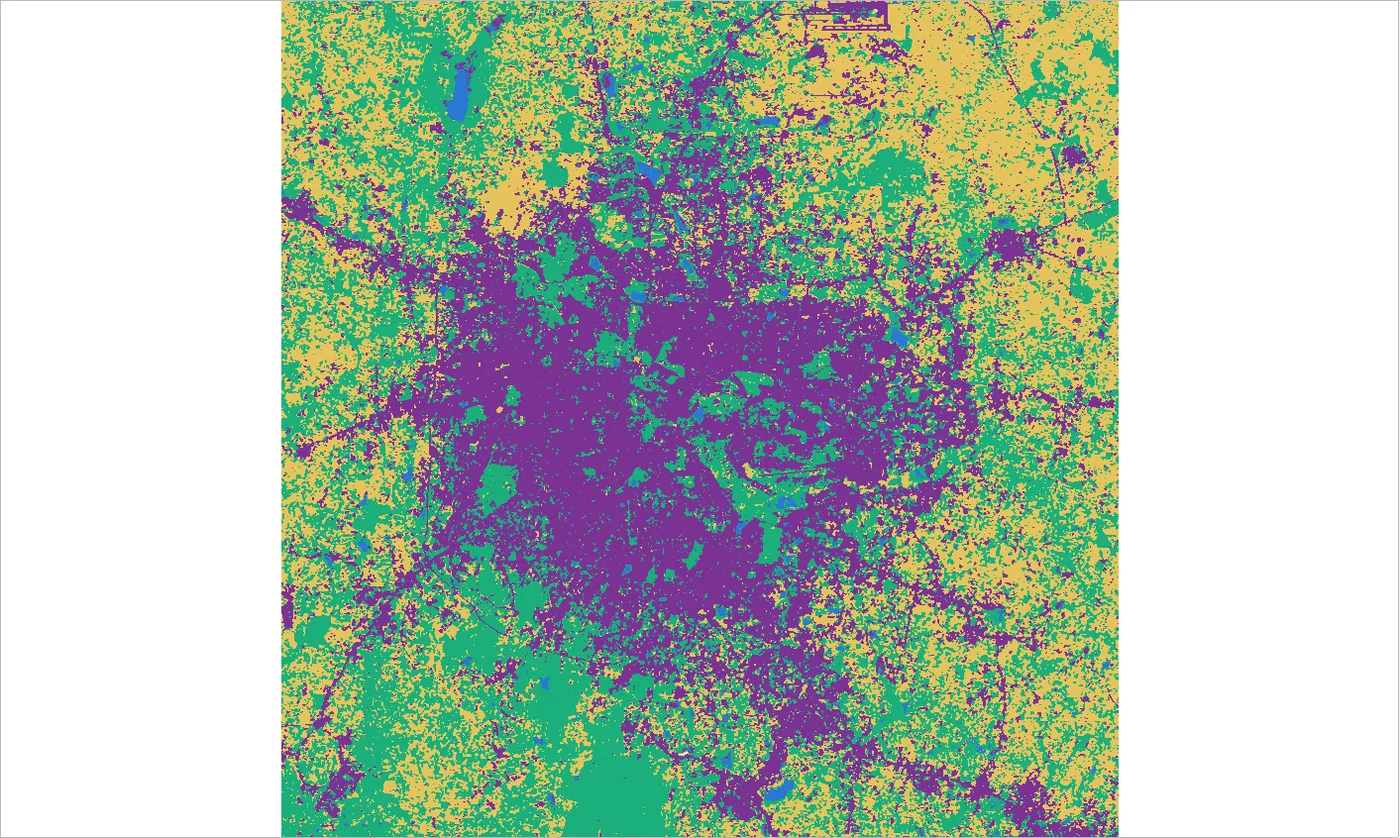
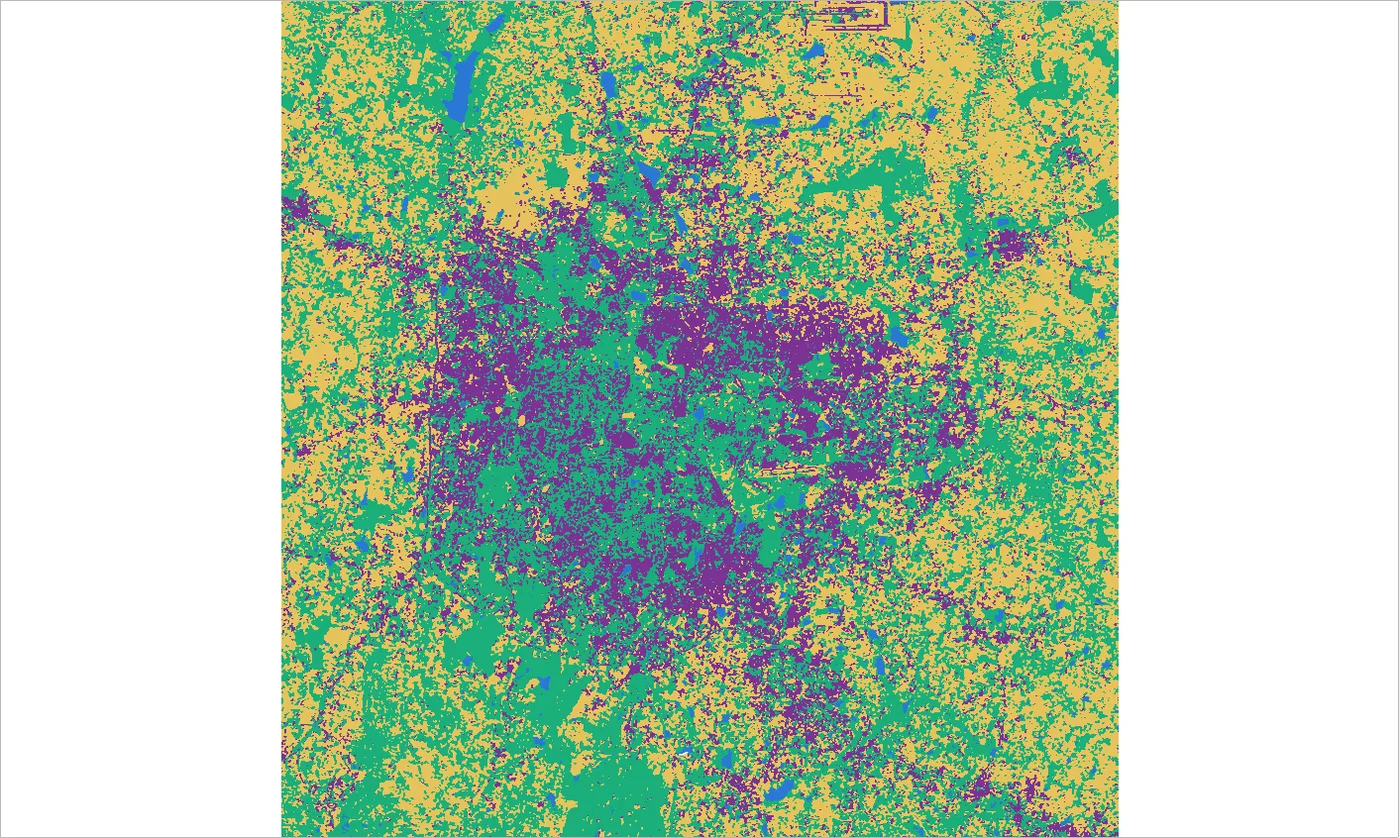
Both maps put a built-up core in the middle, follow the main roads out of the city and pick out the lakes. Maximum Likelihood gives the city a denser purple core, and Minimum Distance leaves more green and sand inside it. Both are noisy: single cells of one class sit inside another. That speckle is the signature of a pixel-based classifier on 30 m cells over a mixed city.
8. Check the maps against independent cells
- Add
validation_polygons.gpkgto the project. - Open SCP > Postprocessing > Accuracy. Select the classification, select
validation_polygonsas the reference, and set Vector field toclass_id. - Tick Use value as NoData and keep 0. Without this, every cell outside the reference polygons is counted as a class of its own and the matrix is buried in zeros.
- Click RUN, save the output, and open the Output panel.
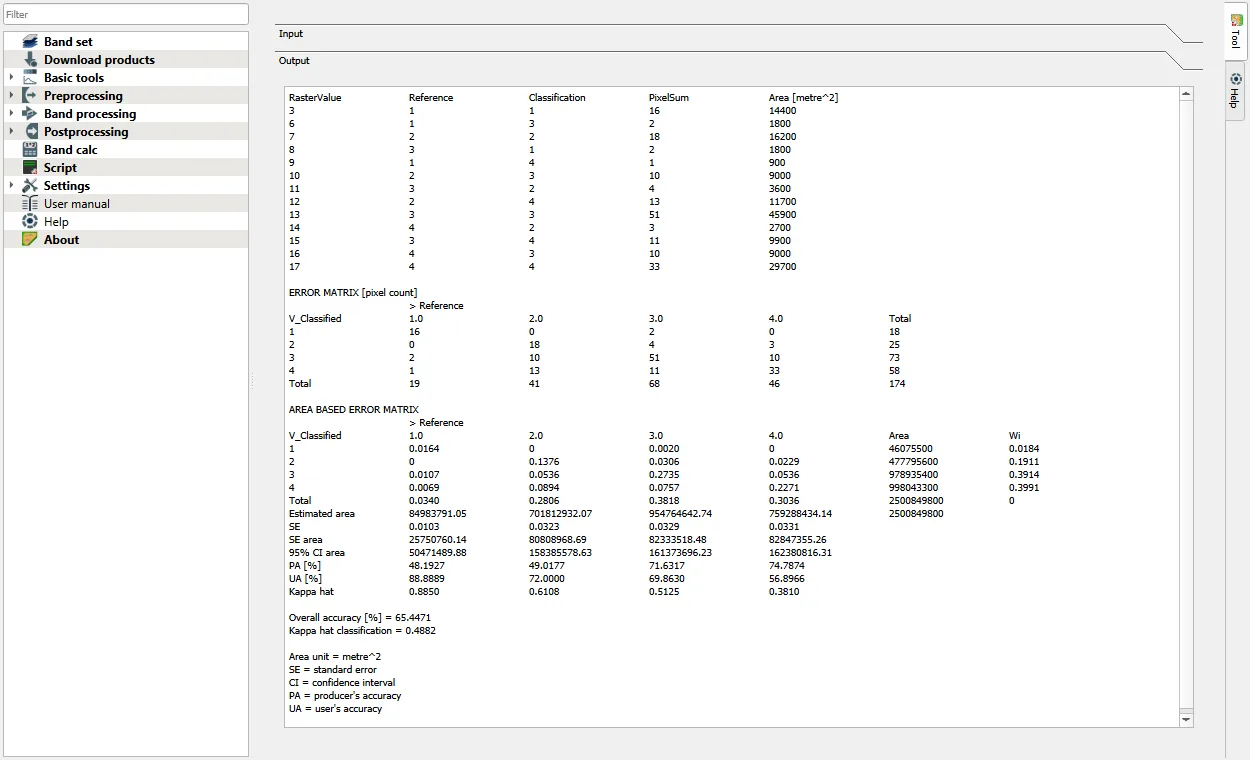
The panel lists the error matrix, the area based matrix, PA (producer's accuracy) and UA (user's accuracy) for each class, the overall accuracy and kappa. For Minimum Distance the plugin gives an overall accuracy of 65.4 percent and kappa 0.49.
The plugin counts every cell a reference polygon touches, so its numbers can differ by a few points from a count of the cell under each reference point. The table below uses the cell under each point, with 174 points: 19 water, 41 built-up, 68 vegetation and 46 open land.
| Method | Overall accuracy | Water (users, producers) | Built-up | Vegetation | Open land |
|---|---|---|---|---|---|
| K-means, clusters named | 53 % | 0.89, 0.89 | 0.37, 0.93 | 0.95, 0.31 | 0.52, 0.35 |
| Maximum Likelihood | 69 % | 0.89, 0.84 | 0.69, 0.85 | 0.74, 0.68 | 0.53, 0.50 |
| Minimum Distance | 68 % | 0.89, 0.89 | 0.74, 0.49 | 0.71, 0.74 | 0.55, 0.70 |
The same numbers are in the chart below. Switch the method to compare the classes.
Read this table with the sample size in mind. With 174 cells the overall accuracy is uncertain by about plus or minus 7 points. Maximum Likelihood and Minimum Distance are therefore equal for practical purposes, and both are clearly ahead of K-means. The two supervised methods fail in different places: Maximum Likelihood finds 85 percent of the built-up cells but only half of the open land, while Minimum Distance finds fewer built-up cells (49 percent) and more open land (70 percent). K-means labels most clusters built-up, so it finds 93 percent of the built-up cells but calls many vegetation and open cells built-up as well, and only 31 percent of the vegetation is found. It used the training polygons only to name its clusters, so a method that needs no labels still reaches 53 percent.
The scores are moderate and open land is the weakest class. The causes are the dry season, when fields, bare plots and built-up land are all pale, and the 30 m cell, which covers many surfaces at once. A reference cell is a single place, and the cell around it can mix roofs, trees and road. The steps are fine. The limits come from the data.
9. Report the areas
- Open SCP > Postprocessing > Classification report, choose the classification and click RUN.
- The Output panel lists the cells and the area of each class.
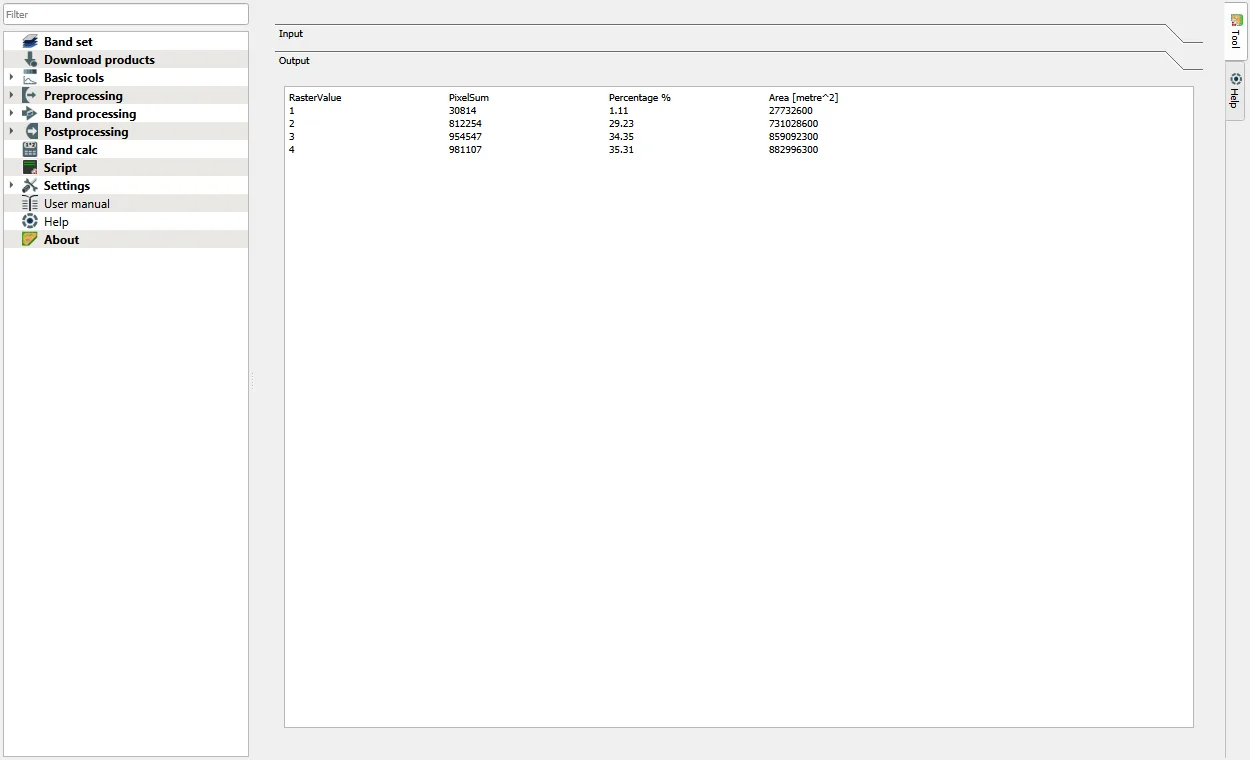
The window covers 2,501 square kilometres. The areas of each map are below, in square kilometres.
| Class | K-means | Maximum Likelihood | Minimum Distance |
|---|---|---|---|
| Water | 38 | 28 | 46 |
| Built-up | 1,622 | 731 | 478 |
| Vegetation | 313 | 859 | 979 |
| Open land | 528 | 883 | 998 |
The methods give very different areas. Built-up land runs from 478 to 1,622 square kilometres, which is more than a threefold difference, and the K-means figure is far too large because most of its clusters were named built-up. Water is the one class on which the maps agree, within about 20 square kilometres. That spread is a better description of the uncertainty than any single figure. Quote map areas next to the accuracy and the method, and do not present one of these as the area of built-up land in Bengaluru. Corrected estimates need area-weighted formulas, as described in the study note.
The same areas are in the chart below.
10. Tidy the map
A pixel-based map has speckle. Raster > Analysis > Sieve (GDAL) removes groups of cells smaller than a threshold and merges them into the larger neighbour. A threshold of 4 cells was used on the Maximum Likelihood map.
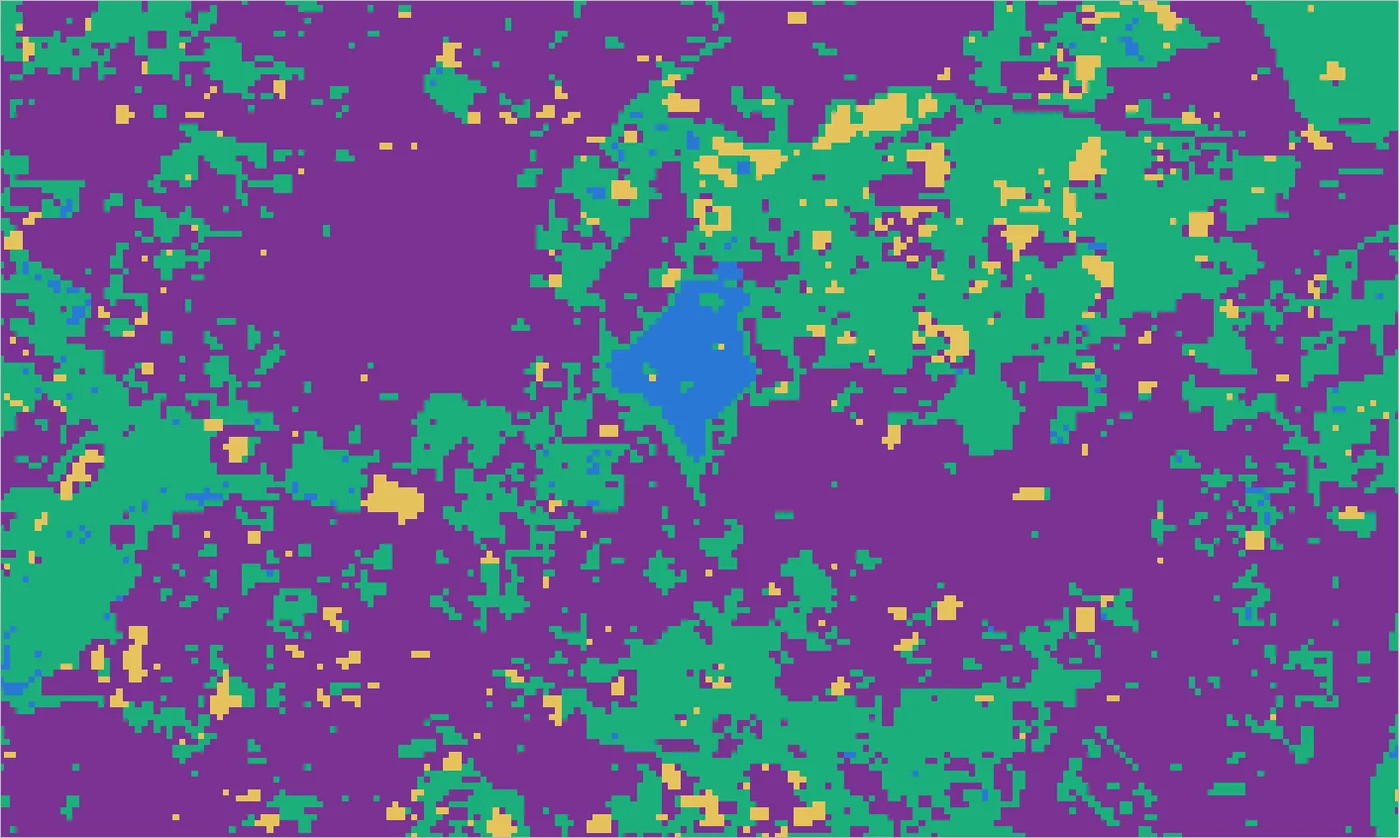
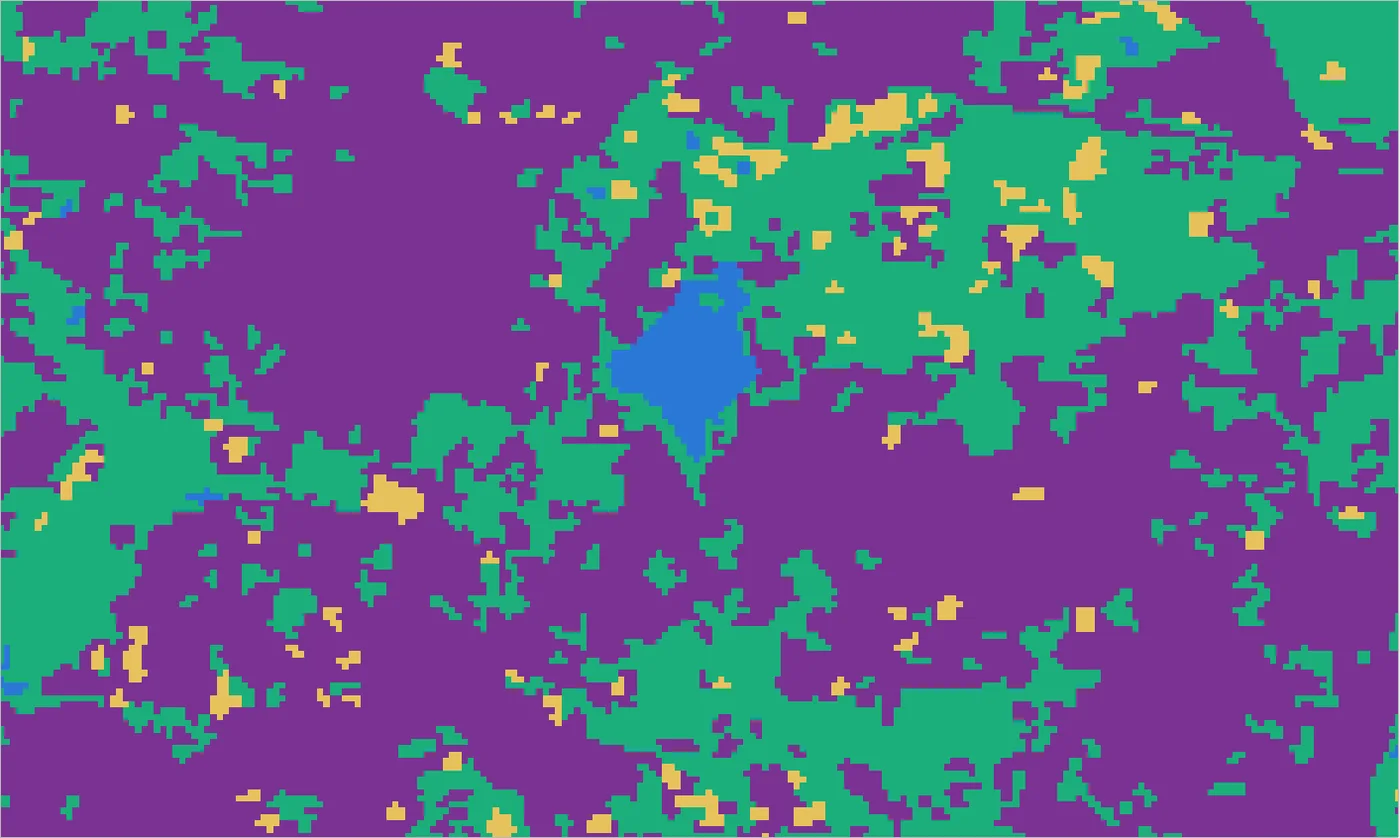
The map looks cleaner, and the overall accuracy stayed at 69 percent. The areas moved little: water went from 28 to 25 square kilometres, because lakes and ponds smaller than 4 cells were absorbed by their surroundings, and the other classes changed by under 10 square kilometres each. Sieving helps the reader's eye and removes real small features. Say which you chose.
What would improve the result
- A second image from the wet season, when crops are green, helps separate fields from built-up land more than any algorithm. Add the bands to the band set and the classifier uses them.
- More and more varied training polygons for the weak classes, drawn on a high resolution basemap.
- Finer imagery. Sentinel-2 at 10 m is used in the Python tutorial.
- More reference cells, at least 50 for each class, and the same reference cells for every method you compare.
Common mistakes
- Skipping the NoData value in the accuracy tool and reading a matrix full of zeros.
- Importing many small polygons for one class. The plugin builds one signature for each polygon, and Maximum Likelihood fails or scores badly on signatures made from a few cells.
- Training polygons cut by the image edge, which leave too few cells for the covariance and make the classification fail without a clear message.
- Reusing the reference cells for training and then quoting the accuracy.
- Naming a cluster from one colour on a map, and not from the samples.
- Comparing methods with too few reference cells and calling a small difference a win.
- Sieving without checking what happened to small classes such as water and small vegetation patches.
- Choosing an output name that already exists. The plugin refuses to overwrite a file.