

A single satellite image is a photograph of one day. A time series is many photographs of the same place, taken one after another and lined up in date order, so that you can follow the place through the year. Fields, forests and towns can look alike on one date and very different on another. How a place changes tells you more than any single picture.
This tutorial builds a small time series with menus and dialogs. It uses twelve monthly NDVI images of a 10 km square around Jagraon, a town in Punjab, India. Punjab makes a good first example because its fields change colour twice a year. The same task, written as code, is in the Python tutorial on raster time series. The two tutorials use the same data and follow the same steps, and they give the same numbers, so you can do one and compare it with the other.
NDVI is the normalised difference vegetation index, (NIR - red) / (NIR + red), where NIR is near infrared light. Green leaves reflect a lot of near infrared and absorb red, so healthy crops give values near 0.8 or 0.9, bare soil gives about 0.1 to 0.2, and roofs and roads stay low. The index is explained in the study note on spectral indices.
The same steps in code
| Step | In this tutorial | In the Python tutorial |
|---|---|---|
| Open the data | Add Raster Layer | rasterio.open |
| One colour scale | Symbology, Min 0 and Max 0.9 | vmin=0, vmax=0.9 |
| Stack the months | Build Virtual Raster | np.stack |
| Dates and animation | Temporal properties and the Temporal Controller | pd.date_range and FuncAnimation |
| The curve of a place | Value Tool | src.index and ndvi[:, row, col] |
| The numbers as a table | Sample raster values | pd.DataFrame |
| Seasonal swing | Cell statistics, Range | np.nanmax minus np.nanmin |
| Seasons | Cell statistics, Maximum, and the Raster calculator | np.nanmax and comparisons |
A few words first
| Word | What it means here |
|---|---|
| Raster | A picture made of a grid of square cells, each holding one number |
| Cell | One square of the grid. In this tutorial a cell covers 10 m by 10 m on the ground |
| Band | One layer of numbers inside a raster file. A file can hold many bands |
| NoData | A special number, here -9999, that means "nothing was measured in this cell" |
| Composite | One image built from several images of the same place, so that clouds and bad cells are left out |
| Stack | Several rasters joined into one file, with one band for each |
| CRS | Coordinate reference system: the rule that links the cells to places on the Earth |
What you need
- QGIS 3.34 or newer. This tutorial was made with QGIS 3.44 LTR on Windows.
- The Value Tool plugin, installed in step 1.
- The data: jagraon_ndvi_2023.zip (36 MB). Unzip it and keep the folder
jagraon_ndvi_2023where it is, because step 5 makes a file that points to the files inside it.
| File | What it is |
|---|---|
monthly/ndvi_2023-01.tif to ndvi_2023-12.tif | One NDVI raster for each month of 2023, 1000 by 1000 cells of 10 m, EPSG:32643, NoData value -9999 |
sites_points.gpkg | Three places called A, B and C, one point each |
sites_squares.gpkg | A 90 m square around each point |
monthly_scenes.csv | How many Sentinel-2 scenes went into each month, and the share of cells that have a value |
Each monthly file was made from Sentinel-2 Level-2A surface reflectance, bands B04 (red) and B08 (near infrared), at 10 m. For every scene, the cells marked as no data, saturated, cloud shadow, medium or high probability cloud, thin cirrus or snow in the scene classification layer were removed, and NDVI was calculated. The value of a cell in a monthly file is the median of the NDVI values that remained in that month. A median is the middle value of a sorted list, so one bad observation does not move it much. EPSG:32643 is WGS 84 / UTM zone 43N, a projected coordinate system whose unit is the metre.
Why months and not single dates? The Sentinel-2 satellites pass over a place about every five days, but in the monsoon many passes are cloudy. A month of passes gives each cell a better chance of at least one clear view. The price is that a monthly file hides what happens inside the month.
1. Install the Value Tool plugin
QGIS has no built-in graph for the values of one cell through time. The Value Tool plugin draws one.
- Open Plugins > Manage and Install Plugins and choose All.
- Search for
Value Tool, select it and click Install Plugin.
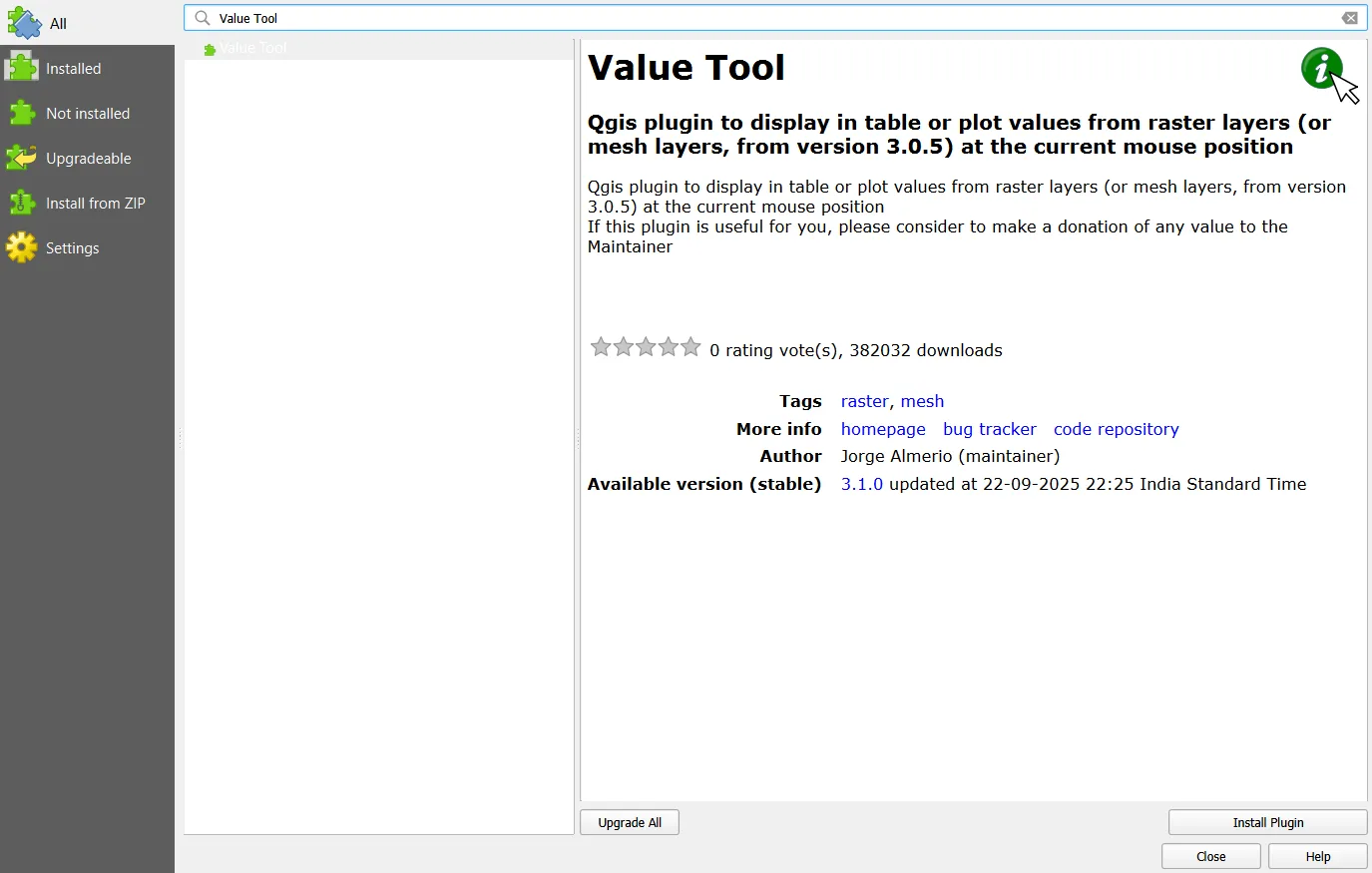
If the panel does not open, show it with View > Panels > Value Tool. The version used here is 3.1.0.
2. Open the twelve months
- Start a new project and choose Layer > Add Layer > Add Raster Layer.
- Click the button with three dots, go into
jagraon_ndvi_2023/monthly, select all twelve files (click the first, hold Shift, click the last) and click Open, then Add, then Close.
QGIS adds the layers in name order and shows them with December at the top. Check the bottom right of the window: the project CRS should read EPSG:32643, because QGIS takes it from the first layer you add.
You should now see twelve layers in the Layers panel. Switch them on one at a time and look at them. They are grey and hard to read, because QGIS stretches each layer between its own lowest and highest value. Step 3 fixes that.
3. Give all months one colour scale
If every month is stretched to its own range, a pale May and a pale November can use the same colours for different NDVI values, and the maps cannot be compared. Use one scale for all twelve.
- Double-click
ndvi_2023-01to open its Layer Properties, and go to Symbology. - Set Render type to Singleband pseudocolor. Set Min to 0 and Max to 0.9.
- Open the Color ramp list, choose All Color Ramps and then YlGn. Keep Interpolation on Linear and Mode on Continuous, and click OK.
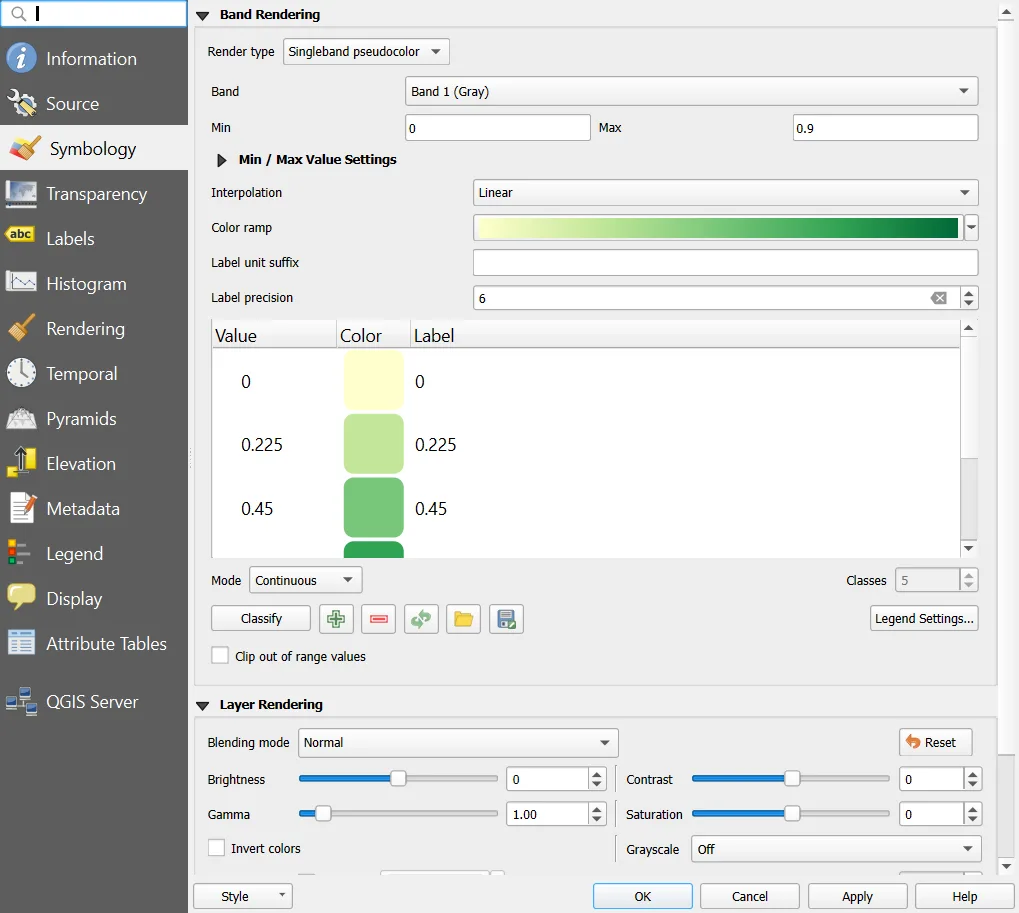
Now copy the style to the other eleven layers.
- Right-click
ndvi_2023-01and choose Styles > Copy Style > Symbology. - In the Layers panel click
ndvi_2023-12, hold Shift and clickndvi_2023-02, so that eleven layers are selected. - Right-click one of them and choose Styles > Paste Style > Symbology.
The scale runs from pale yellow to dark green and uses one hue, so that it stays readable for people who confuse red and green. Switch the layers on one at a time again. The figure below shows all twelve at once: click a month to open it full screen, or switch to Play the year.
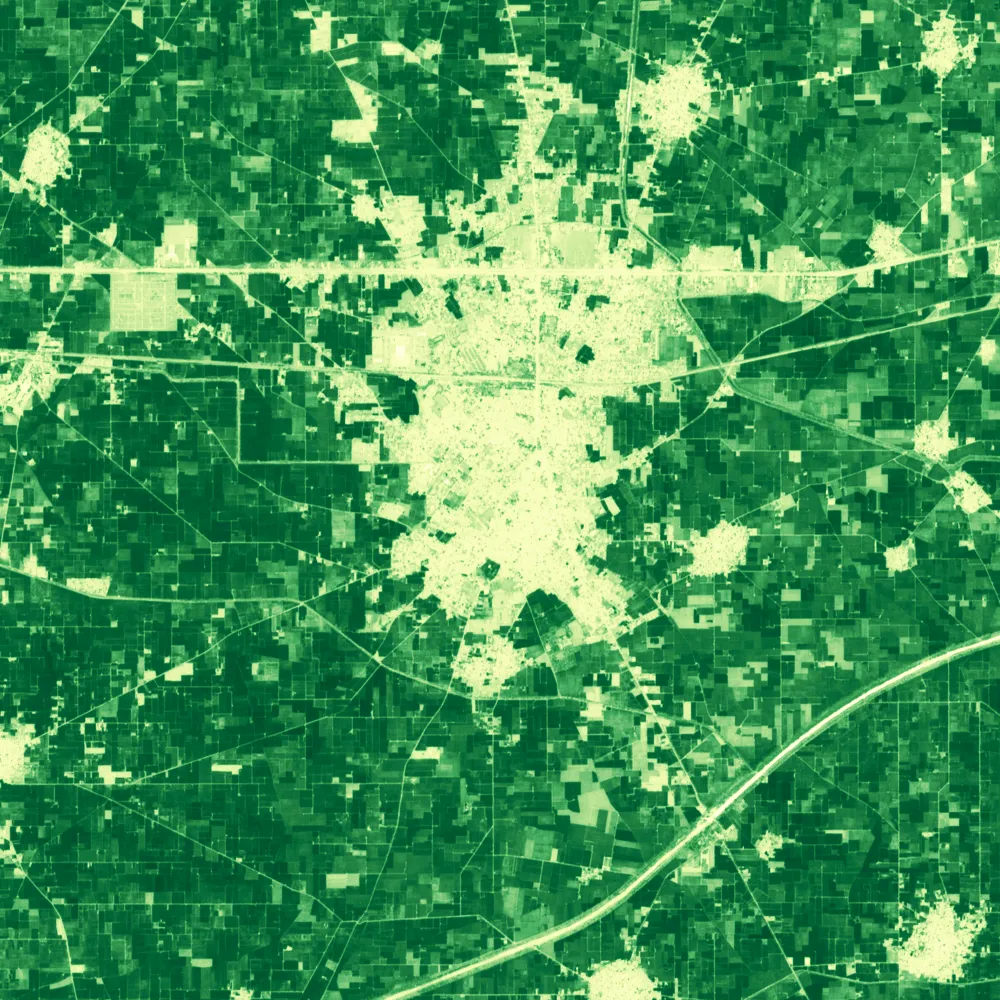
Read the sequence like a film. In January the fields are medium to dark green. February and March are the darkest. In April many fields turn pale, and from May to July most of the square is pale with scattered dark green patches. August and September are dark green again. October is a little lighter, November is the palest month, and December is patchy. The town in the middle stays pale all year, because roofs and roads do not grow.
None of the maps has white gaps. Every month has a value in every cell, and the file monthly_scenes.csv shows that 4 to 6 scenes went into each month. That is why 2023 was chosen. In a cloudier year some cells would have no value and would draw white. In August 2025, for example, only 2 scenes were usable for this square and 37 percent of the cells were empty.
4. Stack the months into one layer
Twelve separate layers are awkward. The temporal tools, the Value Tool graph and many analyses work much better with one layer that has twelve bands, one for each month. A band is one layer of values inside a raster file. Build Virtual Raster stacks files without copying any data.
- Open Raster > Miscellaneous > Build Virtual Raster.
- Click the button with three dots next to Input layers, click Select All, and click OK. The list is sorted by name, so the order is January to December. That order decides the band order, so check it.
- Tick Place each input file into a separate band. Keep Resolution on Average.
- Under Virtual, save the output as
ndvi_2023_stack.vrtin the folderjagraon_ndvi_2023. Click Run.
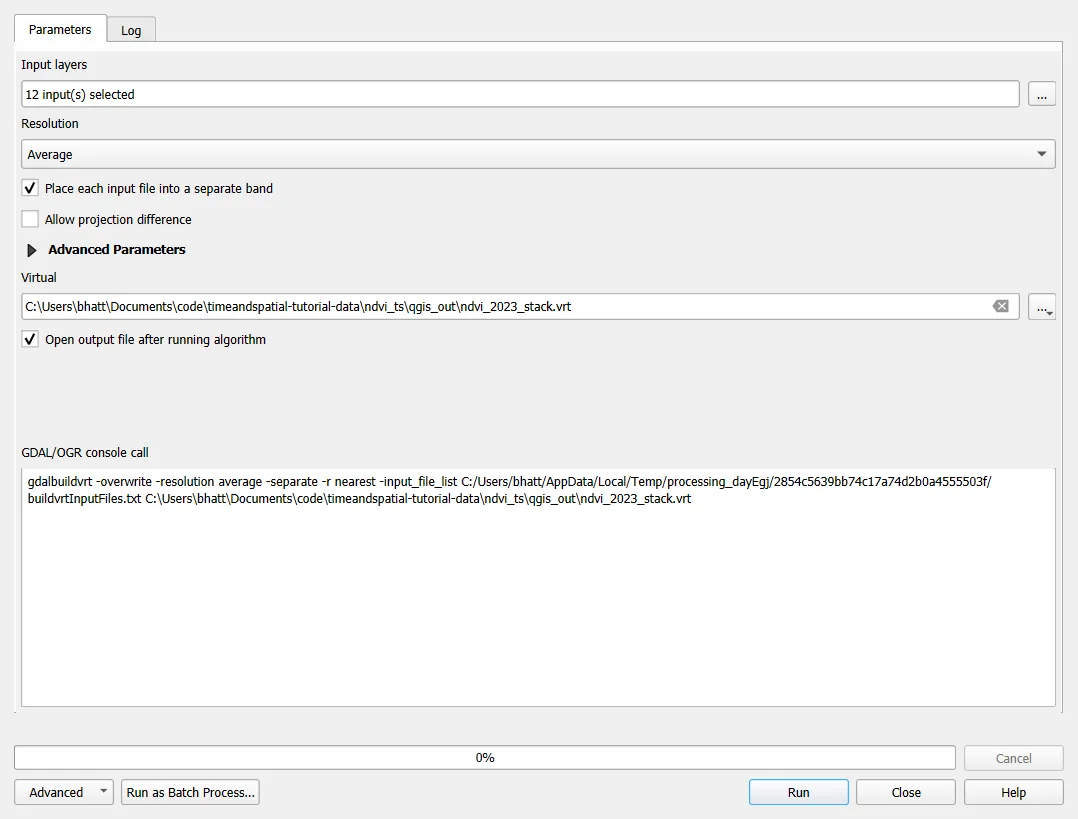
A VRT file is a small text file that lists the twelve source files. It needs the originals to stay where they are, and that is why the folder must not move. A new layer called Virtual appears. Rename it ndvi_2023_stack, then open its Layer Properties and look at the Information page: it lists 12 bands, Band 01 to Band 12.
Style it like the months: open Symbology, set Singleband pseudocolor, Min 0, Max 0.9 and the YlGn ramp. The map shows band 1, which is January. Close the properties. You can now switch the twelve monthly layers off or remove them. The stack holds the same values.
5. Tell QGIS which band is which month
The stack does not know that band 1 is January. QGIS can give every band its own time range, and then the Temporal Controller can play the layer like a film.
- Open the Layer Properties of
ndvi_2023_stackand go to the Temporal page. - Tick Dynamic Temporal Control and set Configuration to Fixed Time Range Per Band. A table with twelve rows appears, with empty Begin and End columns.
- Click the button with the epsilon sign below the table and choose Calculate Beginning by Expression. Replace the text with
make_datetime(2023, @band, 10, 0, 0, 0)and click OK. - Click the same button and choose Calculate End by Expression. Replace the text with
make_datetime(2023, @band, 20, 0, 0, 0)and click OK.
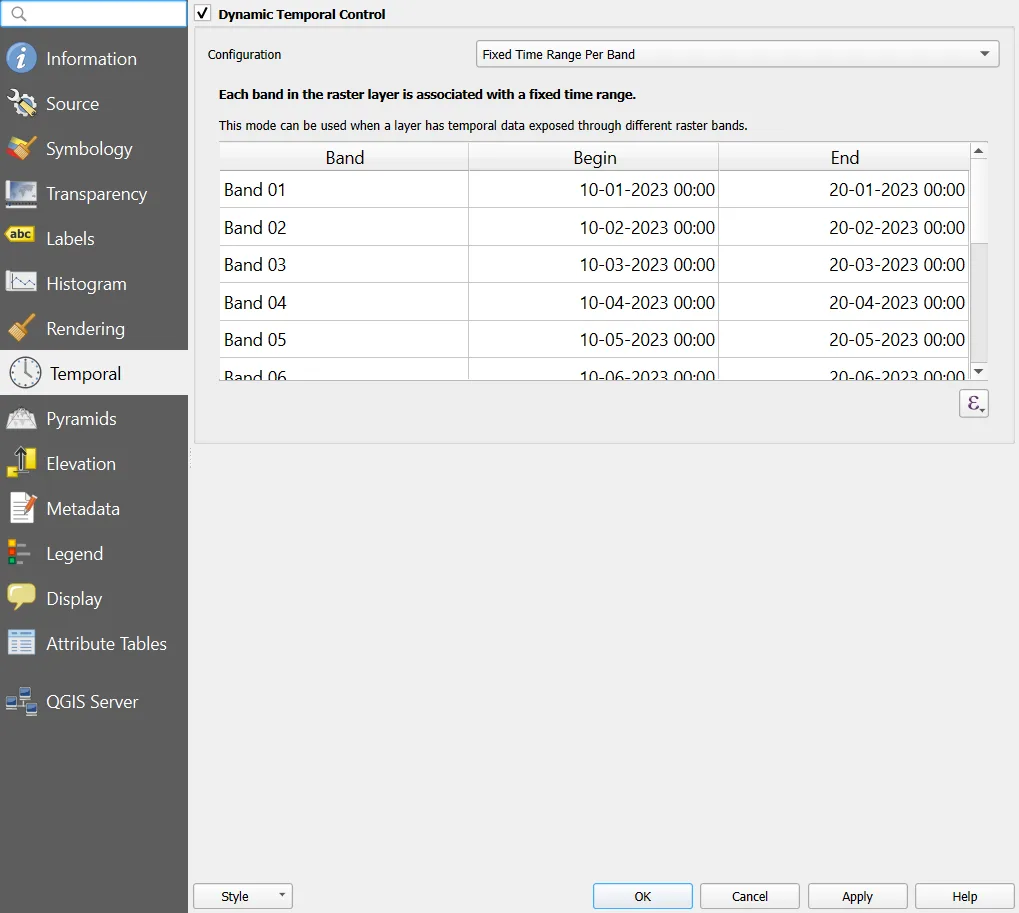
The expression make_datetime(year, month, day, hour, minute, second) builds a date. The variable @band is the number of the band, from 1 to 12, so band 3 gets March. The monthly composite stands for the whole month and has no exact date, so each band is given the 10th to the 20th of its month. This leaves a gap before and after every range, which keeps one band from touching the next in the animation. Click OK to close the properties. To check the work, open the Temporal page again: Band 03 should run from 10-03-2023 to 20-03-2023.
6. Play the year
- Open View > Panels > Temporal Controller Panel, or click the clock button on the toolbar.
- Click the third button in the panel, Animated temporal navigation.
- Set the animation range to
2023-01-01 00:00:00and2023-12-31 23:59:59. Set Step to 1 and the unit to months. - Click Rewind to start, then Go to next frame, one click at a time. The text at the top shows the dates of the current frame, and the map shows the band of that month. Press Play to run the whole year.
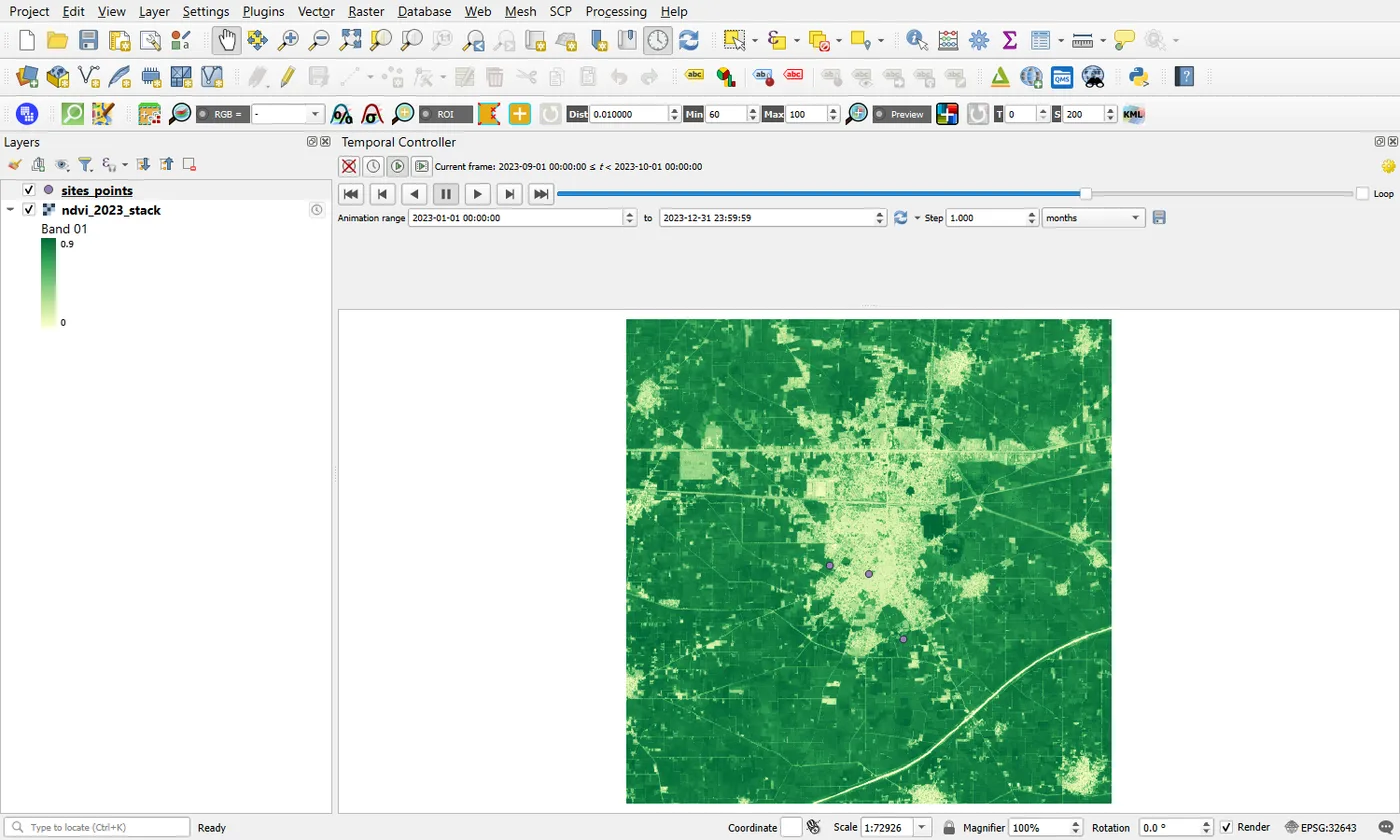
Check the result: in the frame for September the map is dark green, and in the frame for November it is the palest of the year.
Do not use the Set to Full Range button here. It starts the range on the 10th of January, because that is where the first band starts, and the one-month frames then touch the first day of the next band, so each frame can show the wrong month. Typing the first and last day of the year avoids this. If your frames look one month ahead, check this range.
You now have an animation. Rewind to the start and watch the green wave move across the fields: dark in February and March, gone in May and June, back in August and September. Click the first button, Turn off temporal navigation, when you are done, so that the other layers draw normally.
The same film plays below in the browser, so you can compare it with what the Temporal Controller shows.
 JANUARY 2023
Field A peaks in February and again in September, and is bare in June.
7. Read the curve of a place
An animation shows the whole square. A curve shows one place. Add the three sites first.
- Choose Layer > Add Layer > Add Vector Layer, and add
sites_points.gpkgfrom the data folder. - To label the points, open the Layer Properties of
sites_points, go to Labels, choose Single Labels, and set Value tosite.
The three points are A, a field next to the town, B, in the middle of the town, and C, a field to the south-east of it. Now use the Value Tool.
- In the Layers panel, switch off every layer except
ndvi_2023_stackandsites_points. The Value Tool reports the layers that are visible. - In the Value Tool panel, tick Enable and open the Graph tab.
- Move the pointer over point A. There is no need to click: the graph follows the pointer.
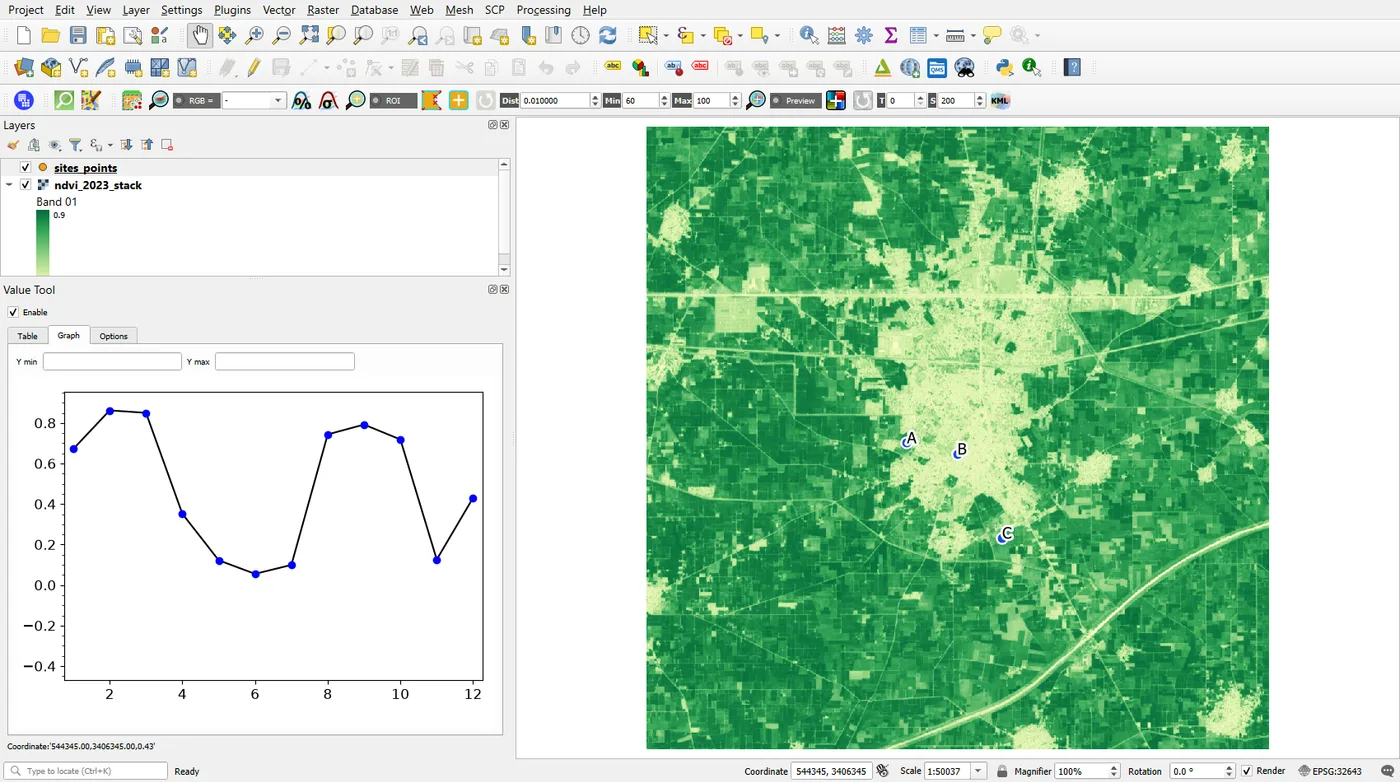
The horizontal axis is the band number, from 1 (January) to 12 (December). Check that the order is right: if the stack was built correctly, point A shows high values in bands 2 and 3 and band 9. If the curve looks mirrored, the bands are in reverse order, and you should rebuild the stack with the inputs sorted from 01 to 12. The Table tab shows the same twelve numbers as a list.
Move the pointer to B and C. Figure 20.7 puts the three graphs side by side.
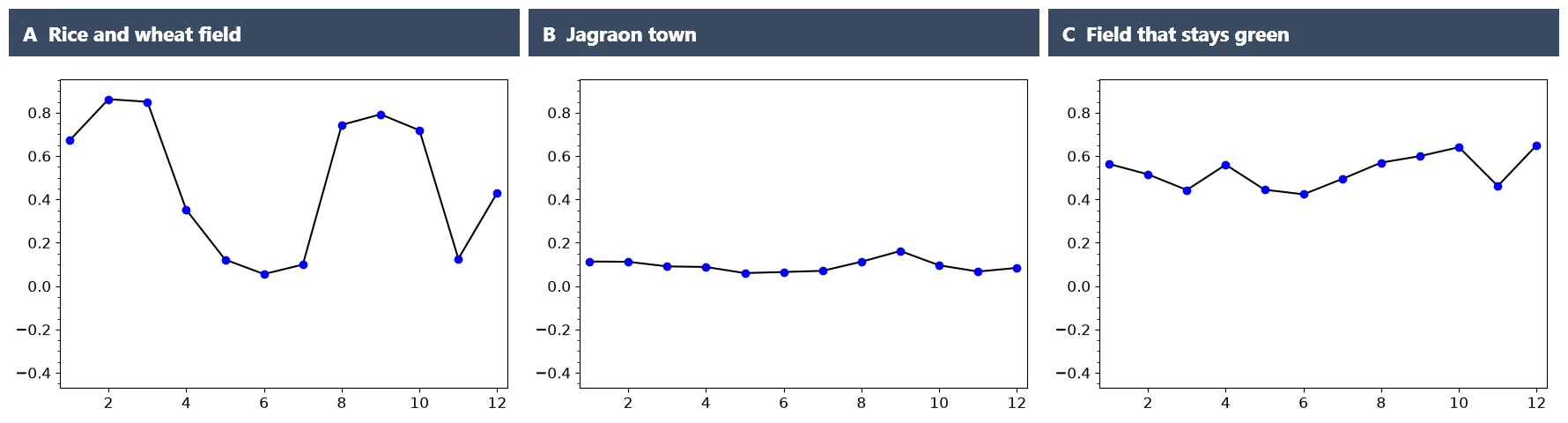
Read the three curves one at a time.
- A has two peaks, in February and March (0.86 and 0.85) and from August to October (0.74, 0.79 and 0.72), with a trough of 0.06 in June and 0.10 in July. That is the pattern of a field with two crops in a year. The usual crop calendar of this region is wheat, sown from late October into December and harvested in April, then rice, transplanted in June and July and harvested from late September into October. A curve like A fits that calendar. NDVI is still low in July, probably because the new rice has little leaf cover yet. It is an inference from the curve, because no one visited this field, and the curve cannot say which crop is growing.
- B, the town, is flat. Its NDVI stays between 0.06 and 0.16 all year. Roofs and roads do not change with the seasons.
- C stays between 0.42 and 0.65 in every month and changes much less than A. Something green grows there for most of the year. The curve cannot say what. A perennial crop, an orchard and a fodder crop can all look like this.
Two places can have the same NDVI on one date and very different curves, so the curve is what tells them apart.
The same three curves are below as a chart. Hover a month to see all three values, and click a name to hide a line.
Show the numbers as a table
| Month | A | B | C |
|---|---|---|---|
| Jan | 0.67 | 0.11 | 0.56 |
| Feb | 0.86 | 0.11 | 0.52 |
| Mar | 0.85 | 0.09 | 0.44 |
| Apr | 0.35 | 0.09 | 0.56 |
| May | 0.12 | 0.06 | 0.44 |
| Jun | 0.06 | 0.07 | 0.42 |
| Jul | 0.10 | 0.07 | 0.49 |
| Aug | 0.74 | 0.11 | 0.57 |
| Sep | 0.79 | 0.16 | 0.60 |
| Oct | 0.72 | 0.10 | 0.64 |
| Nov | 0.13 | 0.07 | 0.46 |
| Dec | 0.43 | 0.08 | 0.65 |
8. Get the numbers as a table
The graph is good for looking. For a report you want the numbers. Sample raster values reads every band of the stack at every point and writes the values into a new table.
- Open the Processing Toolbox (Ctrl+Alt+T), search for
Sample raster valuesand open it. - Set Input layer to
sites_pointsand Raster layer tondvi_2023_stack. Typendvi_as the Output column prefix. - Save the output as
sites_ndvi.gpkgand click Run.
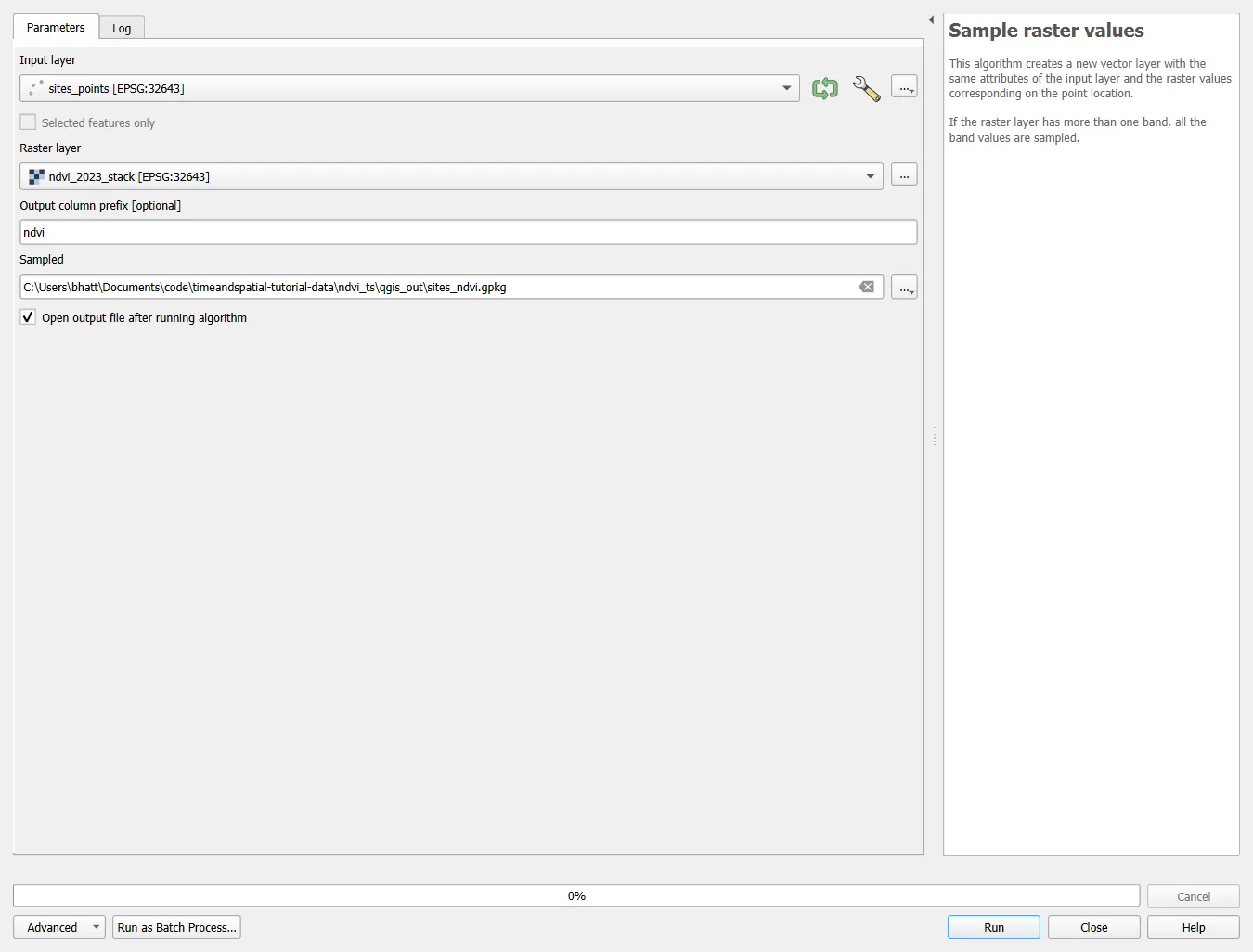
Open the attribute table of the new layer (select it and press F6).
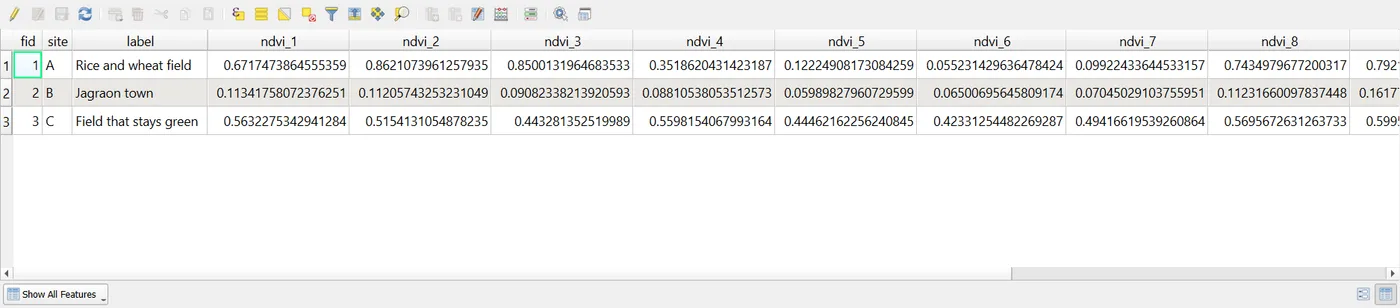
The values, rounded to two decimals, are below. They are the same numbers as in the graphs.
| Site | Jan | Feb | Mar | Apr | May | Jun | Jul | Aug | Sep | Oct | Nov | Dec |
|---|---|---|---|---|---|---|---|---|---|---|---|---|
| A | 0.67 | 0.86 | 0.85 | 0.35 | 0.12 | 0.06 | 0.10 | 0.74 | 0.79 | 0.72 | 0.13 | 0.43 |
| B | 0.11 | 0.11 | 0.09 | 0.09 | 0.06 | 0.07 | 0.07 | 0.11 | 0.16 | 0.10 | 0.07 | 0.08 |
| C | 0.56 | 0.52 | 0.44 | 0.56 | 0.44 | 0.42 | 0.49 | 0.57 | 0.60 | 0.64 | 0.46 | 0.65 |
To use the table elsewhere, right-click the layer and choose Export > Save Features As, and pick CSV as the format. A spreadsheet or the Python tutorial can take it from there.
One cell is only 10 m wide and can fall on a ditch, a tree or the edge of a field. The file sites_squares.gpkg holds a 90 m square around each point. For a more careful study, take the mean of the cells inside such a square with Zonal statistics, and do it for each month.
9. Map the seasonal swing
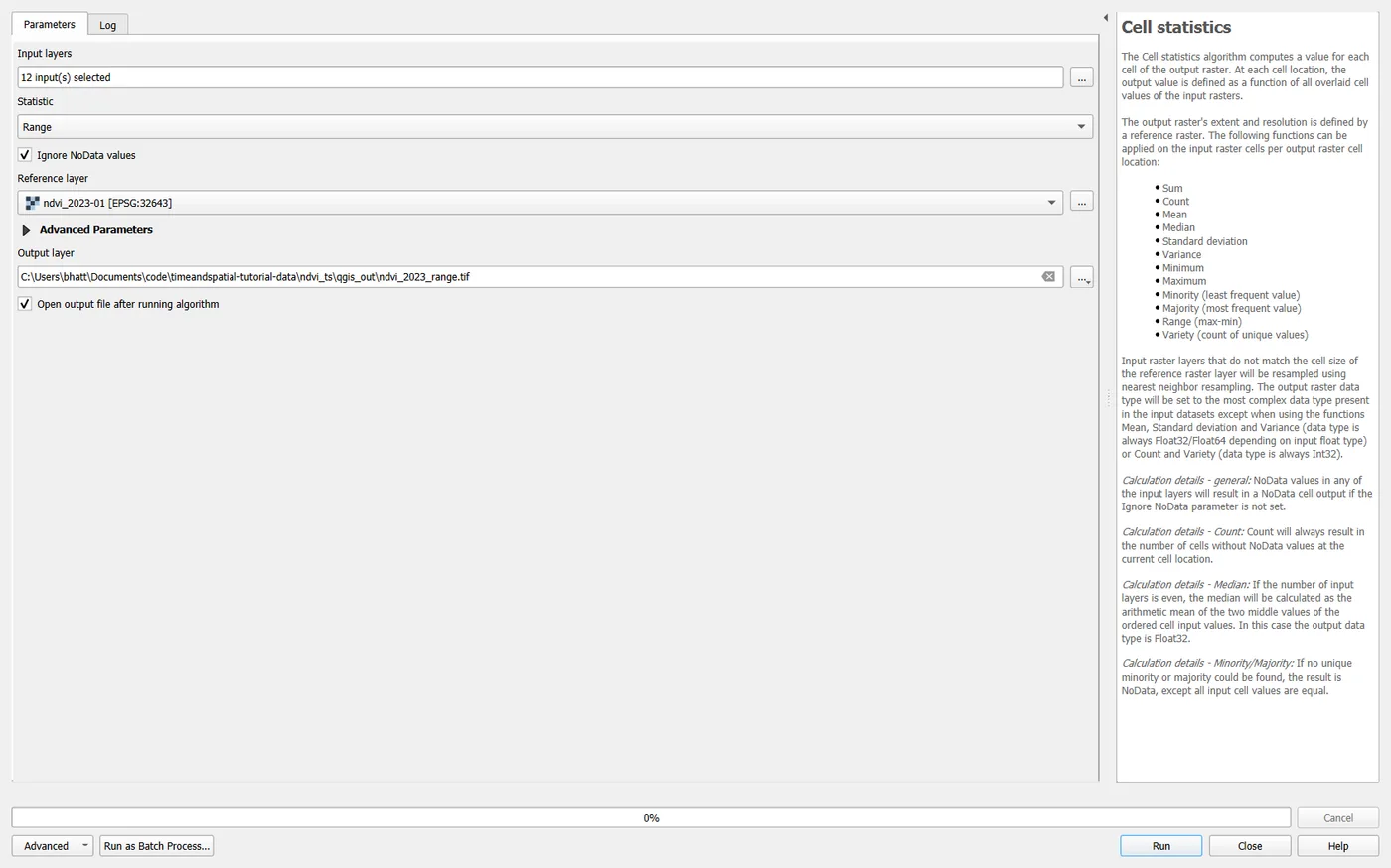
So far you looked at three places. Cell statistics looks at every cell. For each cell it takes the twelve monthly values and returns one number. The range, the highest value minus the lowest, is a good first summary: it is large where the vegetation changes a lot through the year and small where it does not.
- Open the Processing Toolbox, search for
Cell statisticsand open it. - For Input layers click the three dots button and tick the twelve monthly layers
ndvi_2023-01tondvi_2023-12. Use the monthly layers here and not the stack. If you removed them in step 4, add them again from the monthly folder. - Set Statistic to Range, tick Ignore NoData values, and set Reference layer to
ndvi_2023-01. - Save the output as
ndvi_2023_range.tifand click Run.
Style the result with Singleband pseudocolor, Min 0, Max 0.9 and the Viridis ramp, which is a one-direction scale from dark to bright.
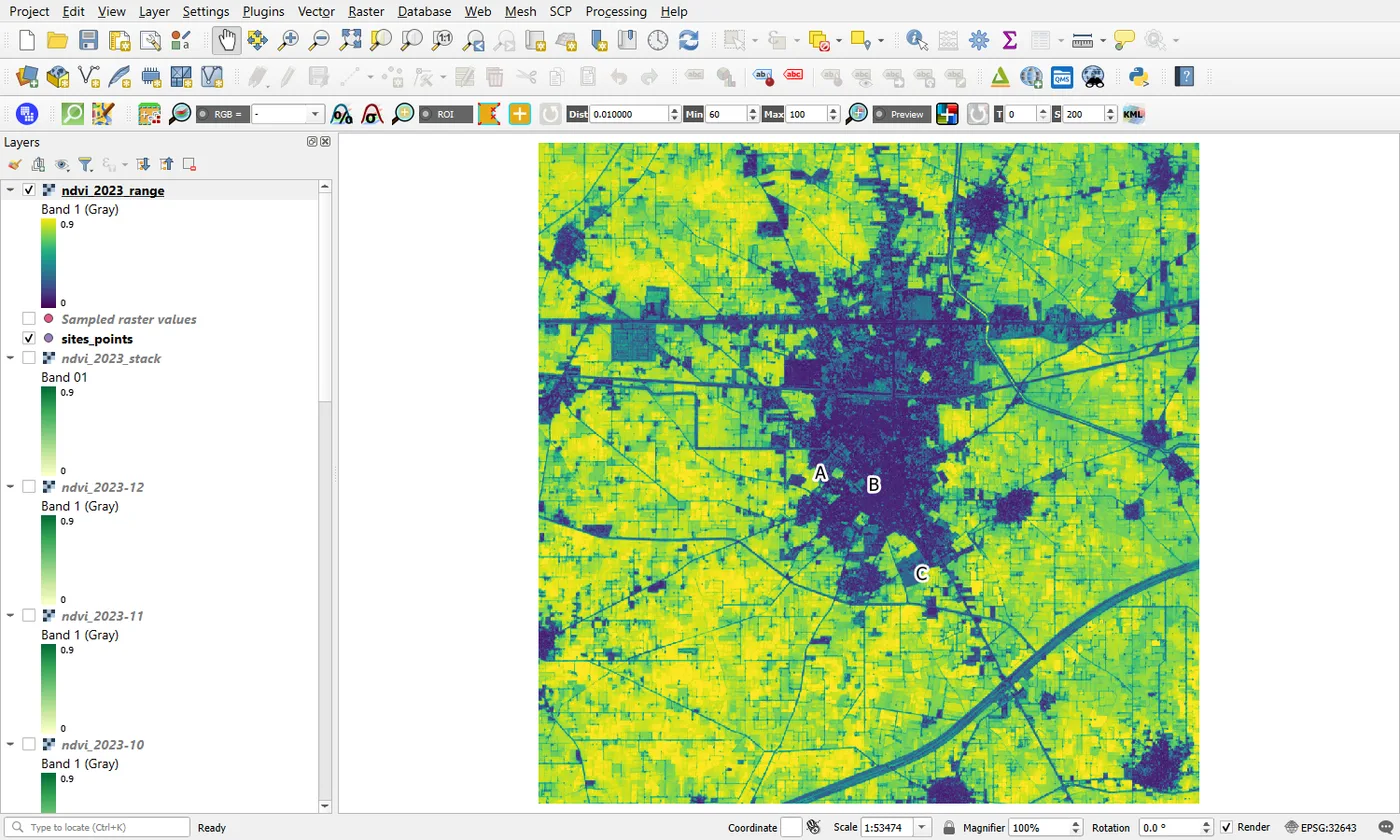
The town is dark: its cells hardly change. Most fields are bright, with a swing of 0.6 to 0.8 between a green crop and bare soil. The mean swing over the square is about 0.64. A is bright, with a swing of 0.81, B is dark, with a swing of 0.10, and C is in between, at 0.23. Roads and other narrow linear features show as thin dark lines, because they do not change either.
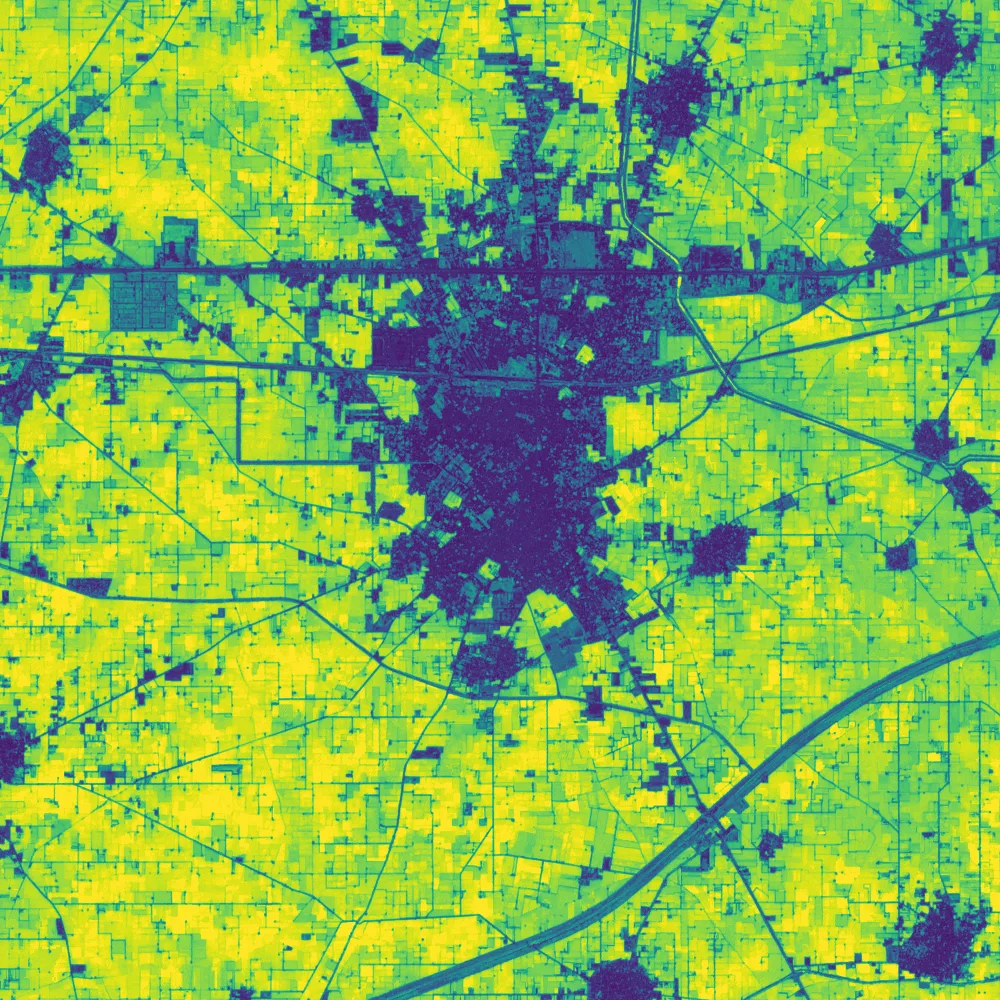
Mean swing over the whole square: 0.64.
The box Ignore NoData values makes no difference with this data, because no cell is empty. It matters when your data has gaps. A cell with one empty month would then use its other eleven months, and if the missing month was its peak or its lowest point, its swing would come out a little too small. Say how you handled missing data whenever you show a map like this.
10. Map the seasons
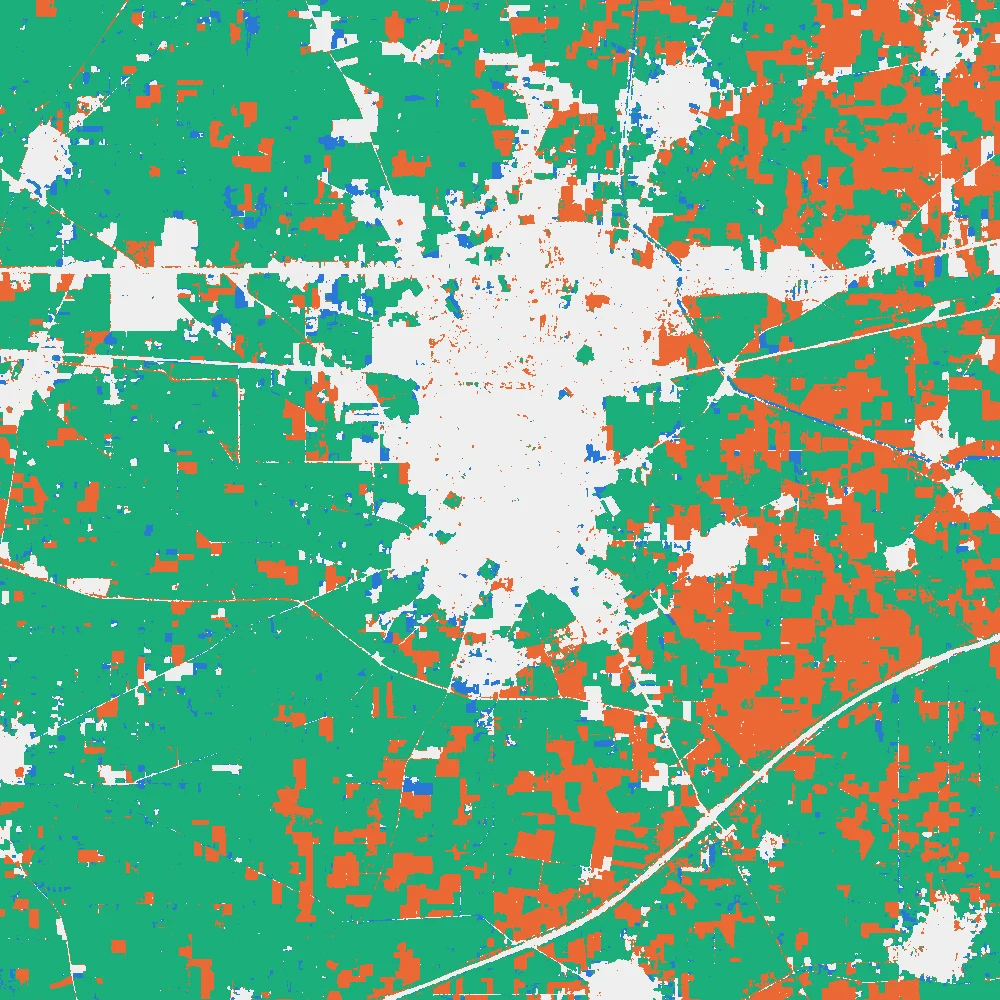
The swing says how much a cell changes. It does not say when it is green. A simple way to add that is to ask two questions of every cell: is it green in winter, and is it green in the monsoon? Winter here means February or March, when the wheat is at its best, and monsoon means August or September, when the rice is. A cell counts as green when its NDVI is above 0.6.
First find the greenest value of each season with Cell statistics.
- Open Cell statistics. Select
ndvi_2023-02andndvi_2023-03as the input layers, set Statistic to Maximum, tick Ignore NoData values, and set Reference layer tondvi_2023-02. Save the output aswinter_max.tif. - Run it again with
ndvi_2023-08andndvi_2023-09, and save the output asmonsoon_max.tif.
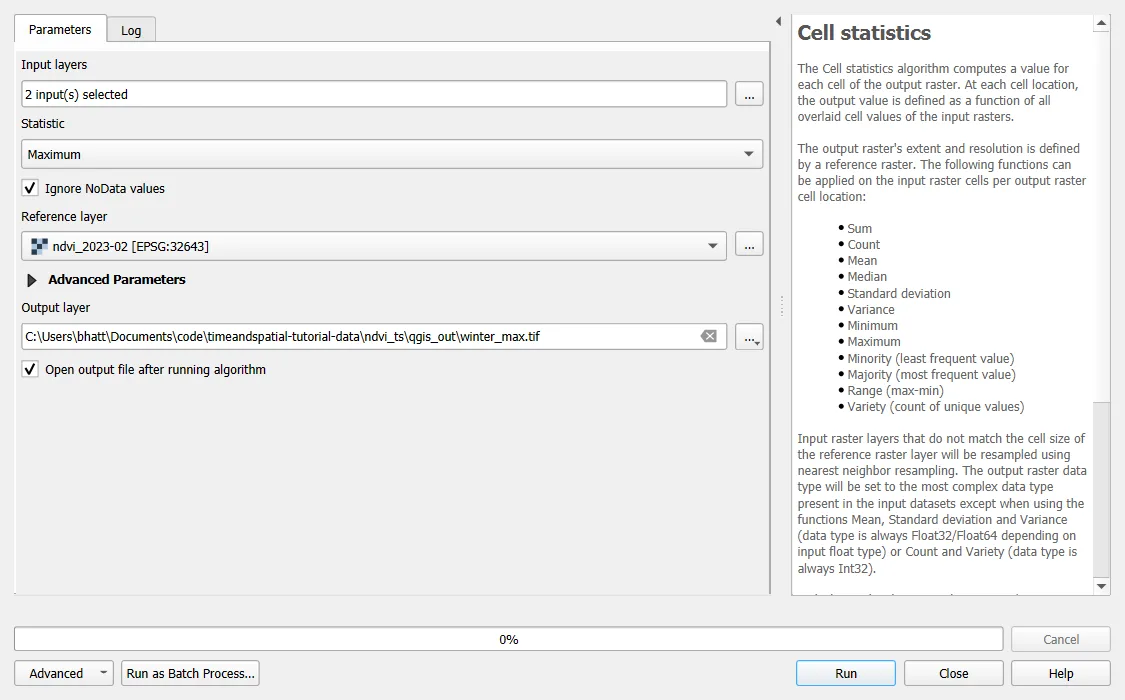
Each result holds, for every cell, the highest NDVI of its two months. Now combine them. Open Raster > Raster Calculator, type the expression below, save the output as ndvi_2023_seasons.tif, and click OK.
("winter_max@1" > 0.6) + 2 * ("monsoon_max@1" > 0.6)
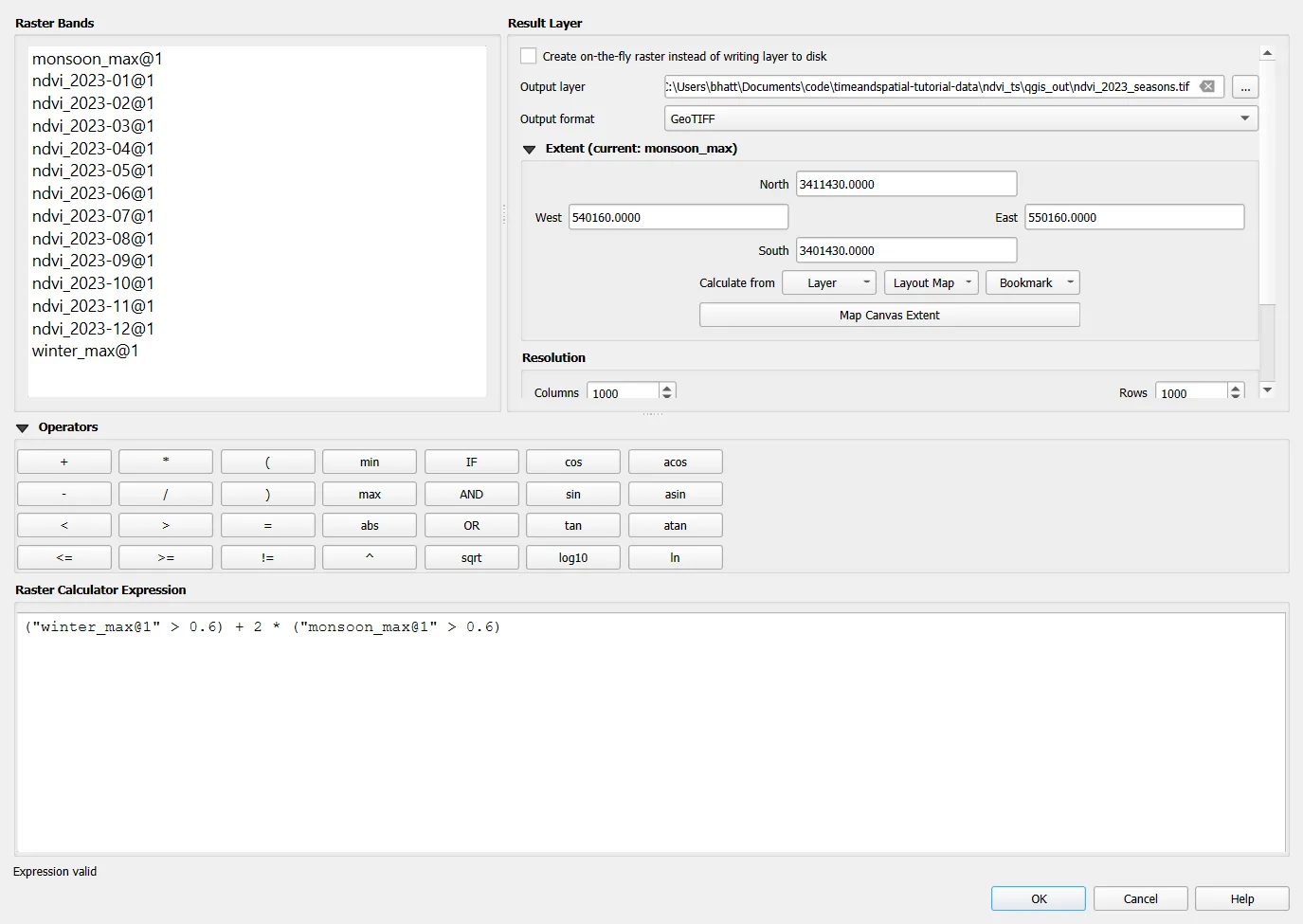
Each comparison gives 1 where it is true and 0 where it is not. The monsoon part is multiplied by 2, so the sum has four possible values: 0 for a cell that is green in neither season, 1 for winter only, 2 for monsoon only and 3 for both.
To colour the result, open its Symbology, set Render type to Paletted/Unique values, click Classify, and give the four values a colour and a label each.
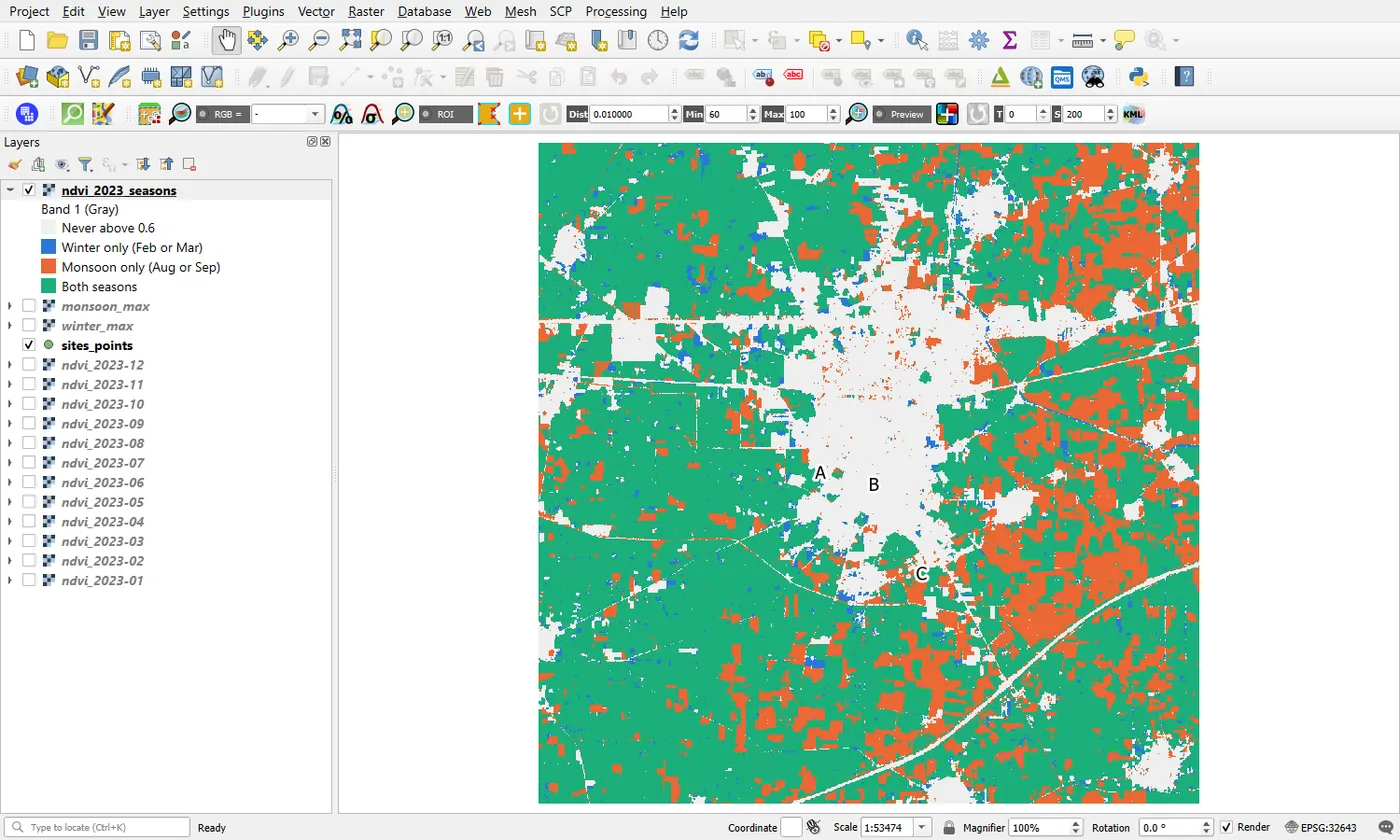
The share of cells in each class comes from Processing > Raster layer unique values report. For this data it gives the numbers below.
| Value | Meaning | Cells | Share |
|---|---|---|---|
| 0 | Never above 0.6 | 195,229 | 19.5% |
| 1 | Winter only | 25,435 | 2.5% |
| 2 | Monsoon only | 192,711 | 19.3% |
| 3 | Both seasons | 586,625 | 58.7% |
About six in ten cells are green in both seasons, which is the rice and wheat pattern of site A spread over the square. Site A falls in class 3. Site B, the town, falls in class 0. Site C also falls in class 0, because its NDVI never goes above 0.6 in these months. These shares describe NDVI curves. They are not a crop map, and they depend on the 0.6 threshold.
Is the result believable?
A curve that looks neat can still be wrong, so check it against something you trust. Two checks follow.
The first check is the crop calendar. In this region wheat is sown from late October into December and harvested in April, and rice is transplanted in June and July and harvested from late September into October. The Pakistani Punjab study in the sources matched NDVI curves to a local calendar with a rabi season (October to April) and a kharif season (May to October). Dates in Indian Punjab are close but not identical. The curve of site A follows it: up through the winter, down in April, low in May and June, up again from August, and down in October and November.
The second check is the single Sentinel-2 images behind the monthly values. They are not in the zip, so the table below is for reading only. It shows site A, the mean of a 9 by 9 block of cells, on single clear dates in 2023. The last column is my reading of the numbers, with no field visit behind it.
| Date | NDVI | Probably |
|---|---|---|
| 17 Jan | 0.64 | wheat growing |
| 13 Mar | 0.95 | wheat at its greenest |
| 2 Apr | 0.64 | wheat ripening |
| 17 Apr | 0.19 | harvested |
| 1 Jul | 0.05 | bare or flooded |
| 11 Jul | 0.15 | new rice with little leaf |
| 10 Aug | 0.70 | rice growing |
| 4 Sep | 0.98 | rice at its greenest |
| 24 Oct | 0.46 | rice ripening |
| 29 Oct | 0.14 | harvested |
| 23 Nov | 0.05 | bare, before the wheat |
| 18 Dec | 0.64 | wheat coming up |
The monthly values tell the same story, with two differences. The peaks are lower: 0.95 on 13 March becomes 0.85 for March, and 0.98 on 4 September becomes 0.79, because a monthly median blends a field that is rising or falling. And July looks very low (0.10), because only 1 July and 11 July had a clear view of the field. The green-up between 11 July and 10 August happened under cloud. A monthly value is only as good as the dates behind it, and that is why monthly_scenes.csv comes with the data.
What this does not tell you
- The curves say how green a place was. They cannot say what grew there. Telling wheat from other winter crops needs field visits or labelled samples, as in the classification tutorial.
- The monthly median hides what happens inside the month. A crop that is sown and harvested within a few weeks may be missed.
- Twelve points a year is a coarse time series. Crop studies often use every Sentinel-2 date.
- One year is not a trend. To say that a place is getting greener or browner you need several years, and you must compare the same months.
- NDVI saturates over dense vegetation, so values near 0.9 do not separate a good crop from a very good one.
Practice
- Move the pointer over other places: a field far from the town, a village, and the long curved line in the lower right. Does each one look like a field with one crop, two crops, or something else?
- Add
sites_squares, and use Zonal statistics on the February and September layers to get the mean NDVI of each square. Does it agree with the point values? - Run Cell statistics again with the statistics Maximum and Minimum and subtract them with the Raster calculator. You should get the same map as Range.
- Run Cell statistics with Mean. Which part of the square has the highest mean NDVI over the year, and which crop pattern could explain it?
- Change the threshold in the Raster calculator from 0.6 to 0.5 and to 0.7. How does the share of cells that are green in both seasons change?
If something goes wrong
- The Value Tool graph is empty. Either Enable is not ticked, the Graph tab is not open, or the stack layer is switched off. Tick Enable, open the Graph tab and switch the stack layer on.
- The graph has more than twelve points. Other raster layers are visible. Switch off every raster layer except
ndvi_2023_stack. - The curve of A peaks in the wrong months. The stack was built in reverse order. Build it again with the inputs sorted from 01 to 12.
- The stack layer is empty or has a warning sign. The data folder was moved after the VRT was made. Move the folder back, or build the VRT again.
- The animation shows the wrong month. The animation range or the step is wrong. Type
2023-01-01 00:00:00and2023-12-31 23:59:59, with a step of 1 month. - Every map is one flat colour. Min and Max are not set to 0 and 0.9. Set them in Symbology and apply the style again.
- The Value Tool is not in the plugin list. There may be no internet, or the plugin repository may be blocked. Check Settings in the Plugin Manager, or install the plugin from a ZIP file.
Common mistakes
- Stretching every month to its own range, so that the colours mean different values in each map.
- Building the stack with the inputs in the wrong order, and then reading December as January.
- Moving the data folder after building the VRT, which breaks the link and gives an empty layer.
- Using Set to Full Range in the Temporal Controller, which can show a month too early.
- Leaving the monthly layers switched on, so that the Value Tool lists thirteen layers instead of one.
- Reading a crop name from a curve that no one checked in the field.
- Saying nothing about missing cells when your own data has them.