

This tutorial ties the series together. It uses the stack from Part 8, the NDVI work from Part 12, the reclassify work from Part 12 and the layout skills from Part 10 to answer two questions about one scene: what covers the ground, and where has vegetation changed?
What is land cover classification?
Land cover classification assigns every pixel to a class such as water, vegetation or built-up, based on its spectral values. Two families of method exist.
| Method | How it works | Needs |
|---|---|---|
| Supervised | You give training samples for each class and the algorithm learns from them | Labelled samples and class definitions |
| Unsupervised | The algorithm groups pixels with similar values and you name the groups afterwards | Only the number of groups |
This tutorial uses a third, simpler approach. It writes the rules by hand from spectral indices, so it needs neither training samples nor a classifier. A supervised classifier is normally the better choice when you have good samples, and plugins such as the Semi-Automatic Classification Plugin can run one from QGIS.
Why it matters
Land cover maps feed planning, flood models, heat studies and area statistics. A classification is also a good test of everything earlier in the series, since a wrong CRS, a mixed up band or a mismatched grid shows up in the result.
Data used
- The scaled Sentinel-2 bands for 15 March 2025 from Part 8, named
green,red,nirandswir1, on a window of 24 km by 16 km at 10 m - NDVI for 14 March 2020 and 15 March 2025 from Part 12 (
ndvi_2020andndvi_2025) - True colour composite from Part 8, for checking
Both dates are within one day of the middle of March, so the vegetation season matches. Check this whenever you compare dates, because a dry season and a wet season scene will differ more than any real change.
1. Check the inputs
- Open Layer Properties > Information for each raster and compare the extent, cell size and CRS. The index rasters must share one grid.
- You need
ndvi_2025from Part 12. Make it again with the Raster Calculator if it is missing:("nir@1" - "red@1") / ("nir@1" + "red@1"). Then make MNDWI,("green@1" - "swir1@1") / ("green@1" + "swir1@1"), and save it asmndwi_2025.tif. Also load the true colour composite and look at it, so you know the area. Clouds, haze or shadows would end up in a class of their own. - Both indices come from surface reflectance, so the thresholds below are comparable across the scene.
2. Classify with the Raster Calculator
This is a rule-based classification. You write down the rules that separate the classes, and the Raster Calculator applies them to every cell. It needs no training samples, and every class can be explained by a number.
The rules use the two indices from Part 8.
| Code | Class | Rule |
|---|---|---|
| 1 | Water | MNDWI above 0 |
| 2 | Dense vegetation | Not water, NDVI 0.5 or more |
| 3 | Moderate vegetation | Not water, NDVI from 0.35 to 0.5 |
| 4 | Sparse vegetation and bare soil | Not water, NDVI from 0.2 to 0.35 |
| 5 | Built-up and other low NDVI | Not water, NDVI below 0.2 |
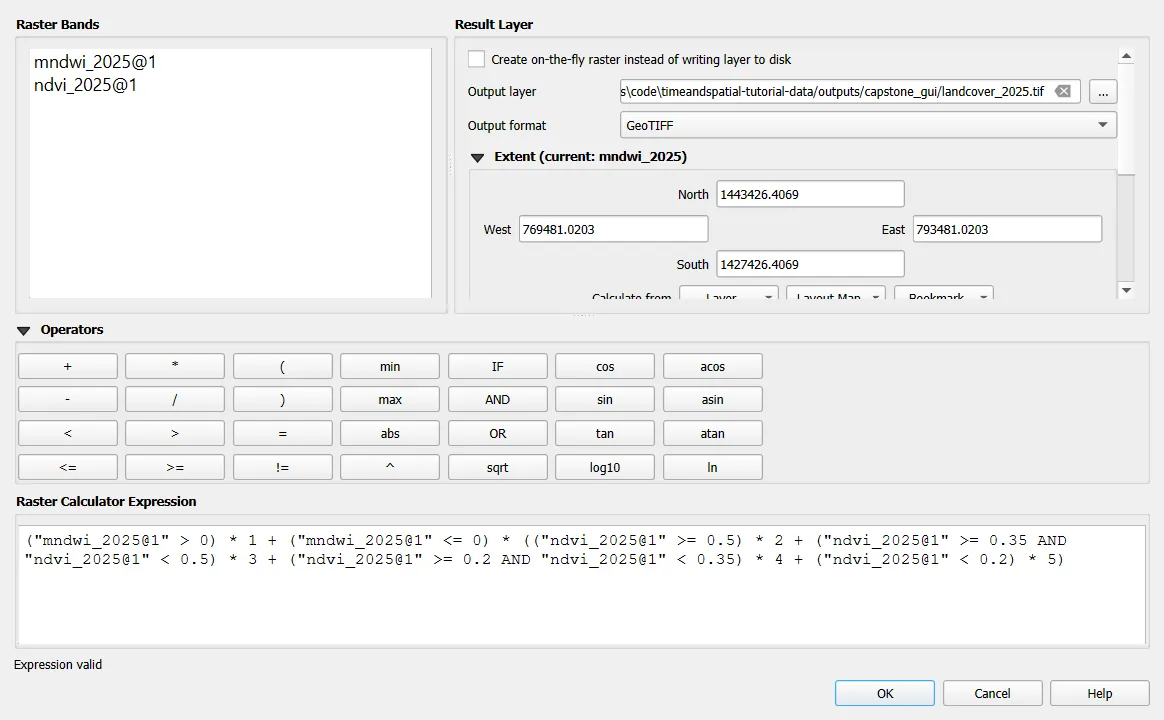
- Open Raster > Raster Calculator.
- In the expression box, enter the rules as one expression. Each condition gives 1 where it is true and 0 where it is not, so multiplying by the class code and adding the pieces gives one class per cell.
("mndwi_2025@1" > 0) * 1 +
("mndwi_2025@1" <= 0) * (
  ("ndvi_2025@1" >= 0.5) * 2 +
  ("ndvi_2025@1" >= 0.35 AND "ndvi_2025@1" < 0.5) * 3 +
  ("ndvi_2025@1" >= 0.2 AND "ndvi_2025@1" < 0.35) * 4 +
  ("ndvi_2025@1" < 0.2) * 5
)
- Set the output layer to
landcover_2025.tif, keep the extent and the CRS ofS2_ndvi, and click OK.
- Open the properties of the new layer, go to Symbology, choose Paletted/Unique values, click Classify and give each value a colour and a label from the table.
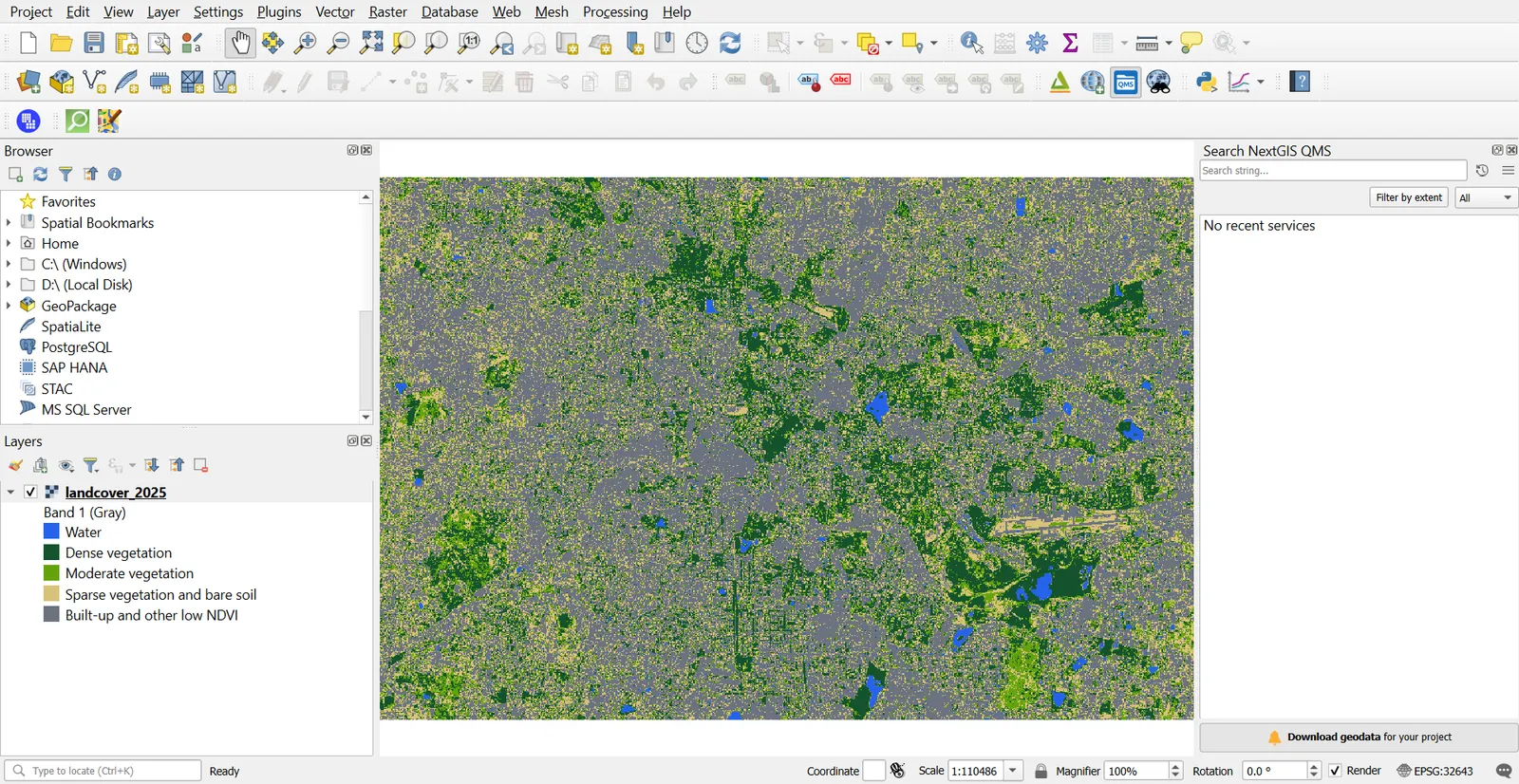
The thresholds are choices. Start from the NDVI table in the note on spectral indices, then click through the image with the Identify tool and see whether the classes make sense. If a park comes out as moderate vegetation, lower the first threshold. Change the numbers and run the calculator again until the map matches what you see in the true colour image.
3. Check the classes
Dense vegetation appears as large green patches that match the parks and tree-covered areas in the true colour image. Water picks out the large lakes, and the airport runway area comes out as sparse vegetation and bare soil. Most of the rest is in the last class. It is speckled, because roofs, roads, dry ground and shaded cells all have a low NDVI and cannot be told apart by NDVI alone.
4. Detect vegetation change
NDVI differencing subtracts the earlier NDVI from the later one.
- Make sure both NDVI rasters share the same grid.
- Raster Calculator:
"ndvi_2025@1" - "ndvi_2020@1". - Reclassify the difference with a threshold. Here, a drop of 0.2 or more is loss, a rise of 0.2 or more is gain, and everything in between is little change.
- Style loss in red, gain in green, and leave the middle class transparent, over the true colour image.
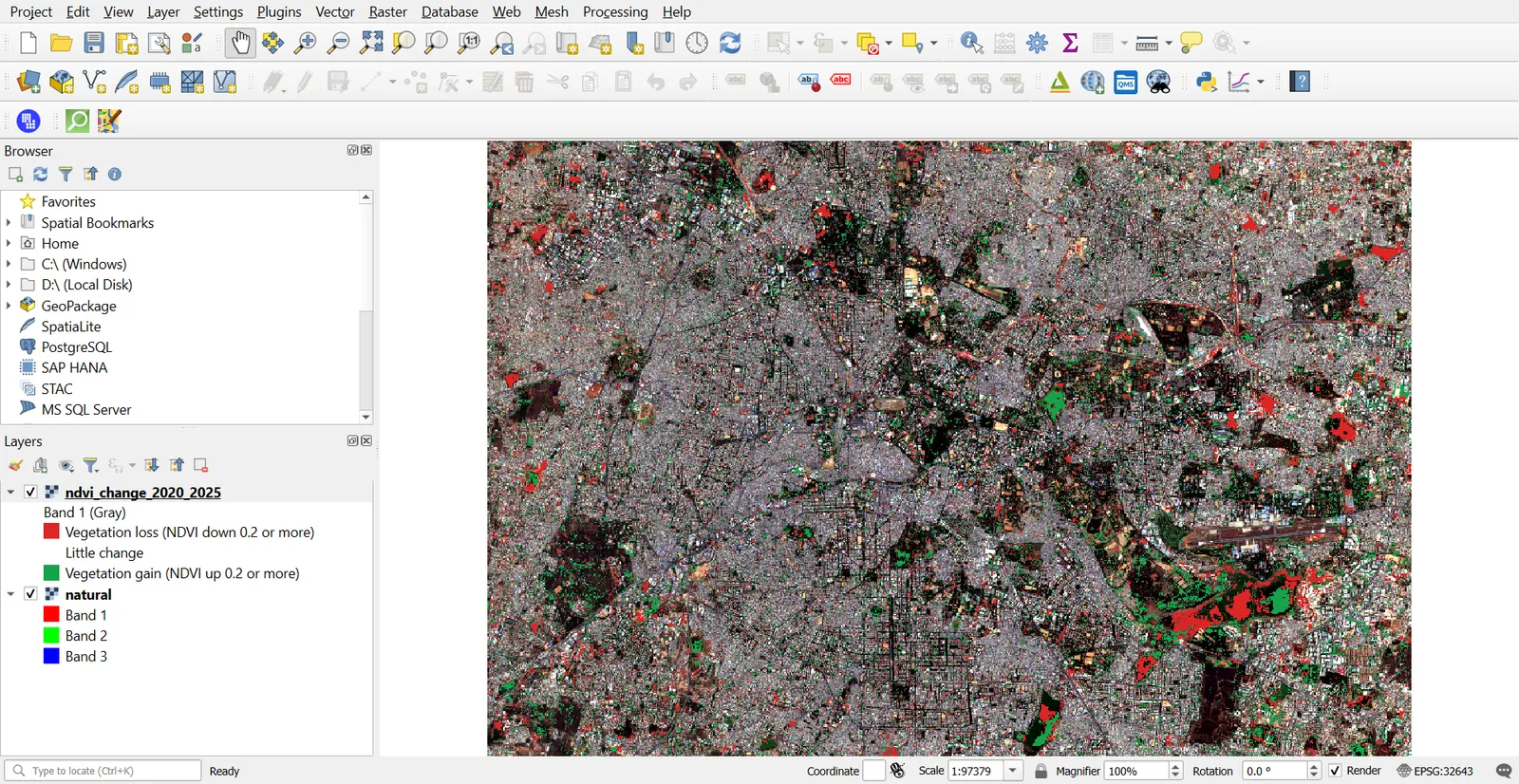
The shares for the window are 4.4 percent loss, 5.6 percent gain and 90.0 percent little change. The threshold of 0.2 is a choice. A smaller one finds more change and more noise, a larger one finds only the strongest changes. Try a few values and see how the shares move.
Read the result with care. NDVI at one date in March depends on recent rain, on crop timing and on the state of the grass, not just on land use. A field planted in 2025 and fallow in 2020 shows up as gain, and a lake bed that dried shows up as change. Cross tabulating the change class against the land cover class helps here. Use Processing > Raster layer zonal statistics or the unique values report on the change raster, with the land cover raster as the zones. In this run, 1.3 percent of the dense vegetation dropped by 0.2 or more, so the large green areas held up, while 17.6 percent of it rose by 0.2 or more. Water shows the largest swing, with 28 percent of its cells dropping, which reflects algae and turbidity and not land change. Mask water before you read vegetation change. Two dates need a visual check of the main patches against high resolution imagery, and ideally more dates.
5. Report the areas
Each 10 m cell is 100 square metres, so one hectare is 100 cells. Multiply the cell count of each class by 100 and divide by 10,000. Processing > Raster layer unique values report does the count in QGIS, and the table below shows the result for this window.
| Class | Area (ha) | Share |
|---|---|---|
| Water | 621 | 1.6 % |
| Dense vegetation | 6,803 | 17.7 % |
| Moderate vegetation | 5,139 | 13.4 % |
| Sparse vegetation and bare soil | 8,005 | 20.8 % |
| Built-up and other low NDVI | 17,832 | 46.4 % |
The window covers 38,400 ha. Almost half of it falls in the built-up and low NDVI class, and the three vegetation classes together cover about 52 percent of the area.
Put the numbers in a layout with the map (Part 10), and state the date, the sensor, the method and the thresholds in the caption. A chart of the areas can be made with the DataPlotly panel from Part 17.
6. What this still needs: an accuracy assessment
A map without an accuracy figure is an unchecked claim. A basic assessment works like this.
- Draw at least 50 random points per class (Processing > Random points in layer bounds, or stratified sampling).
- For each point, decide the true class from high resolution imagery, without looking at the classified map first.
- Build a confusion matrix of mapped class against true class.
- Report overall accuracy and, for each class, the producer's and user's accuracy.
This tutorial did not do that step, so the figures above are descriptive and not validated. Run it before you cite any class area.
Common mistakes
- Choosing thresholds once and not checking them against the image.
- Comparing scenes from different seasons and calling the difference land change.
- Using bands with different grids or CRSs.
- Reporting class areas without an accuracy assessment.
- Choosing a change threshold and not saying why.
- Calling a mixed class by a single name.
- Reading NDVI change over water as land change.