

The layout window is a preview. What matters is the file that you export and send. Fonts, lines, transparency and raster layers can look different in the file, and a clipped label or a blurred note is easy to miss on the screen. This last page of Part B exports the map and shows how to check the result. The note on export and final checks explains the reasoning in more detail.
Step 1: Choose the export resolution
Open the Layout tab next to Item Properties and look at Export Settings.
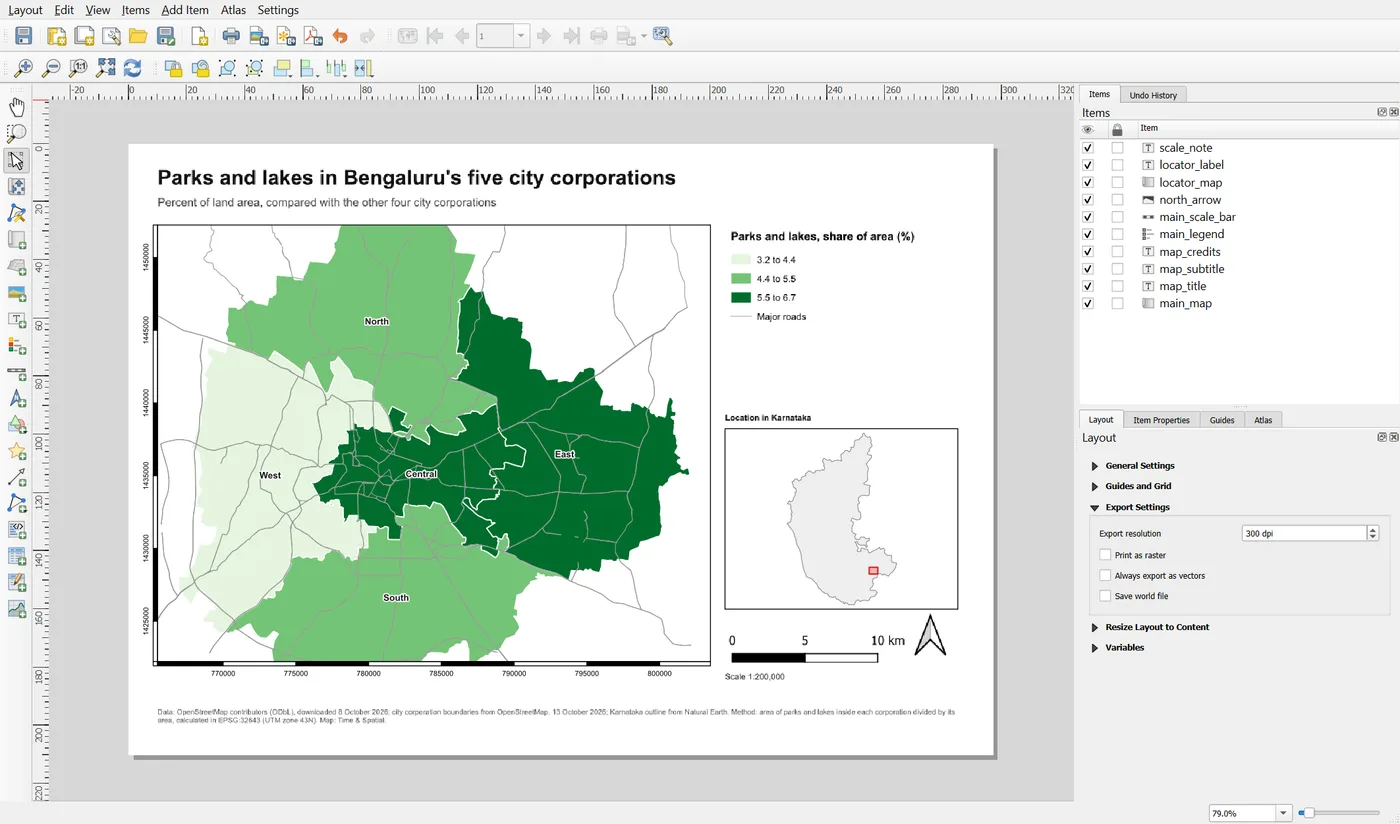
The export resolution is the number of dots per inch in a raster export. It does not change a PDF's vector parts. The default of 300 dpi suits printing. For a web page or a slide, a lower number is usually enough.
I exported the same A4 layout at three resolutions to see what the choice does:
| Resolution | Image size in pixels | PNG file size | Good for |
|---|---|---|---|
| 96 dpi | 1122 × 793 | 0.2 MB | A quick look on screen |
| 150 dpi | 1753 × 1240 | 0.4 MB | A web page or a slide |
| 300 dpi | 3507 × 2480 | 0.9 MB | Printing, and a close look at small text |
A higher resolution makes a bigger file and does not improve poor source data. It only gives the same drawing more pixels. Choose for the use, not for the biggest number.
Two other options are worth knowing. Always export as vectors keeps shapes as lines and fills in a PDF, so you can zoom in without losing sharpness. Print as raster turns the whole page into a picture, which is a last resort when a vector export looks wrong.
Step 2: Export
Open the Layout menu and choose Export as PDF, Export as Image or Export as SVG.
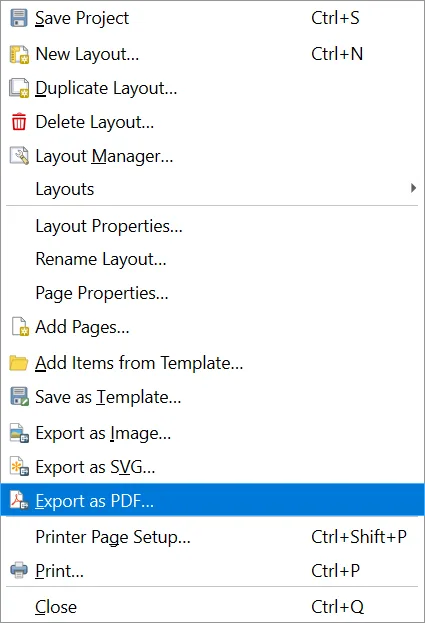
QGIS asks where to save the file, then shows a dialog of options. For this map:
- PDF: the default options are fine. Leave Always export as vectors ticked if you offer it. Tick Create Geospatial PDF only if a reader needs to read coordinates from the file.
- Image: pick PNG, set the resolution and keep Antialiasing on.
Name the files so that you can tell them apart: parks_and_lakes_map.pdf, parks_and_lakes_map_150dpi.png. Do not call them final, final2 and final_really.
Save the project as well. The project, the data and the layout are the editable original. The PDF is only the result.
Step 3: Reopen the file and look at it
Close QGIS, or at least the layout window. Open the PDF in a PDF viewer. Do not check only the first screen. Go through this list:
- Is everything there? Title, subtitle, map, legend, locator, scale bar, north arrow, scale note and source note.
- Is any text clipped? Read the last words of the source note and the title. A label that was too small on screen can be cut off in the file.
- Is the small text readable? Zoom to 200 percent. If you cannot read it at the size it will be used, it is too small.
- Do the colours look right? Compare the legend colours with the map.
- Do the lines look right? Hairlines, the frame and the grid should all be visible.
- Is the file the right size? A PDF with a few raster layers should be well under 10 MB. A huge file may contain an image that is far too large.
- Does it match the layout? Place the PDF beside the layout window. Differences point to raster rendering, transparency or font problems.
Here is a case where the resolution matters. This is the source note, cropped from the 96 dpi image.

The same note from the 300 dpi image:

At 96 dpi the text is soft and tiring to read. At 300 dpi it is crisp. If the page will be projected, small text like this is also a sign that the font is too small for that use. Use the checklist from the Map Design notes: map-quality-checklist.md.
Finally, look at the whole map as a stranger would.
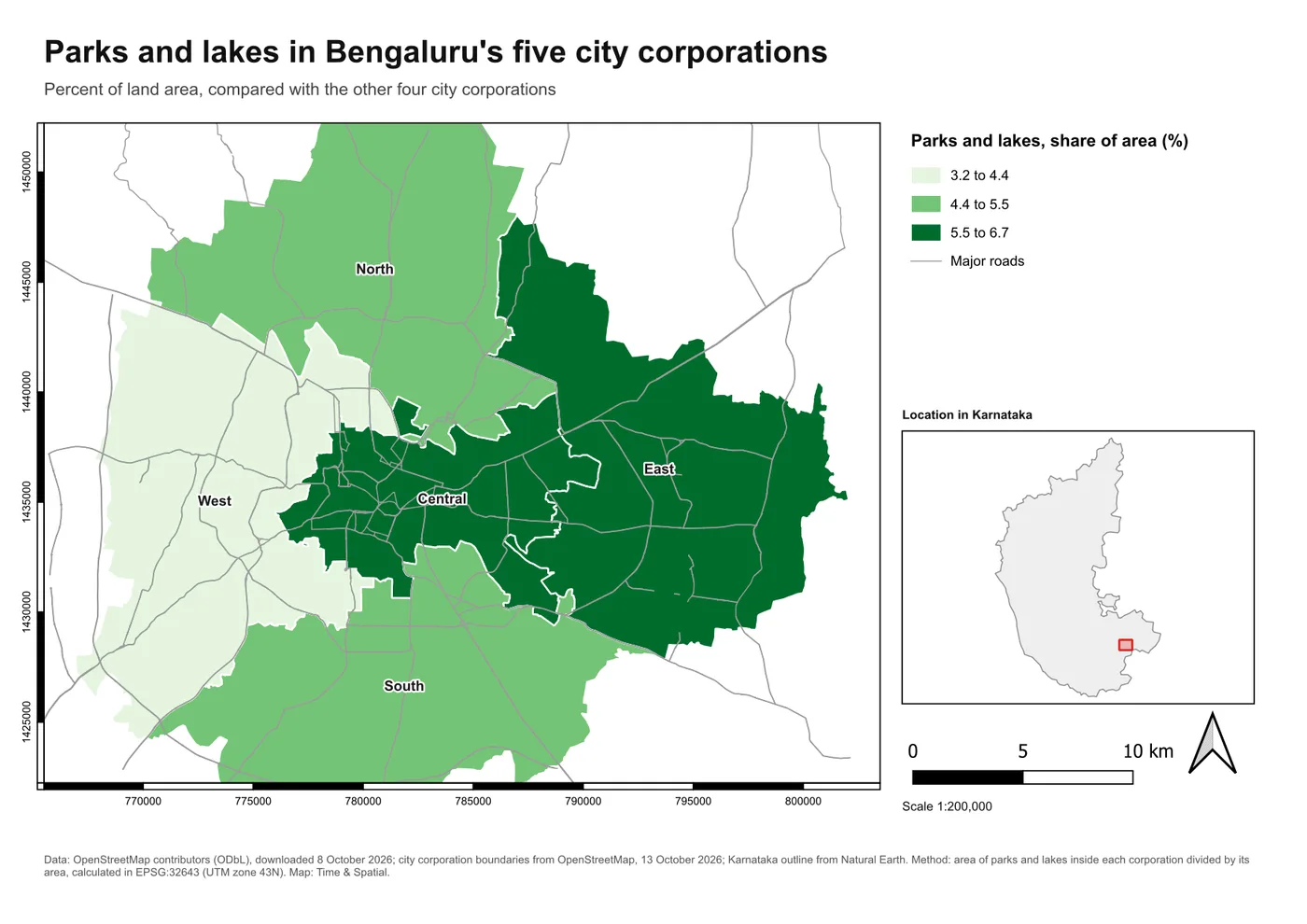
Ask yourself: can I tell what this map is about in five seconds? Is anything missing, overlapping or crowded? Is the source note complete? If you have to explain the map, change the map, not your explanation.
Step 4: Keep the editable files
The deliverable is a PDF or an image. The source is the project, the data and the layout. Keep them together, in a folder with a clear name, and note the date. Next month, when someone asks for a change, you will be glad.
When it breaks
| What you see | Why | What to do |
|---|---|---|
| The PDF looks different from the layout | Raster layers, transparency or fonts render differently | Try Always export as vectors, or Print as raster as a last resort |
| Text is cut off in the file | The label is too small for its text | Make the label bigger, shorten the text, and export again |
| The image is blurry | The resolution is too low | Export at 300 dpi |
| The file is very large | A large raster layer or a very high resolution | Lower the resolution, or simplify the data |
| Fonts look wrong on another computer | The font is not installed there | Use a common font, or export as PDF |
| The export fails | The folder is not writable, or the file is open in another program | Pick another folder and close the file |
Make it your own
- Export the PDF and the 300 dpi PNG. Open both. Which would you send by email, and which would you print?
- Set the source note to 5 point, export, and look at it at 100 percent. Would you accept this on a map you publish?
- Use the checklist on your own export. Which item fails?
Common mistakes
- Judging the map by the layout window and never opening the file.
- Choosing the highest resolution for everything.
- Exporting only once. Export again after every change.
- File names such as
final2. - Losing the project and keeping only the PDF.
Key takeaways
You have now built a complete map by hand and saved it as a template. The next page of the series starts to automate it.