

One map answers one question. Sometimes the reader wants to compare two: is the area with the most park also the biggest area? Two maps next to each other can show it, as long as they are drawn the same way. This page builds a new layout with two maps of the same five corporations. One is coloured by the share of park and lake, the other by the area of each corporation.
You will make a new layout, so go back to the Layout Manager. The rules here are the same as before, so the steps move faster.
Step 1: Two views of the same layer
Each map needs a different look. The map frame can show different layers, but here it is the same layer shown in two styles. A QGIS layer can hold several styles, and a map theme remembers which layers are visible and which style each one uses.
In the main window, right-click the layer Parks and lakes, share of area (%) and choose Styles > Add. Name the new style Area (km2). In the layer's Symbology, choose Graduated, set the value to km2, the mode to Equal Interval, 3 classes, and a Blues colour ramp. Then choose Styles > default to return to the first style.
Now save a theme for each look. With the first style active, click the eye icon at the top of the Layers panel and choose Add Theme. Name it Share of area (%). Switch the layer to the Area (km2) style, add another theme, and name it Area (km2).
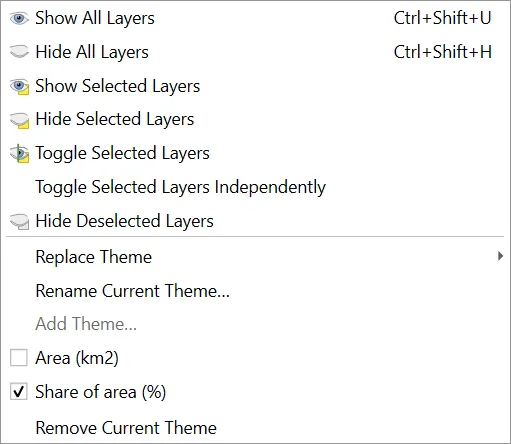
The tick shows the theme that matches what is on the canvas now.
Step 2: Two map frames
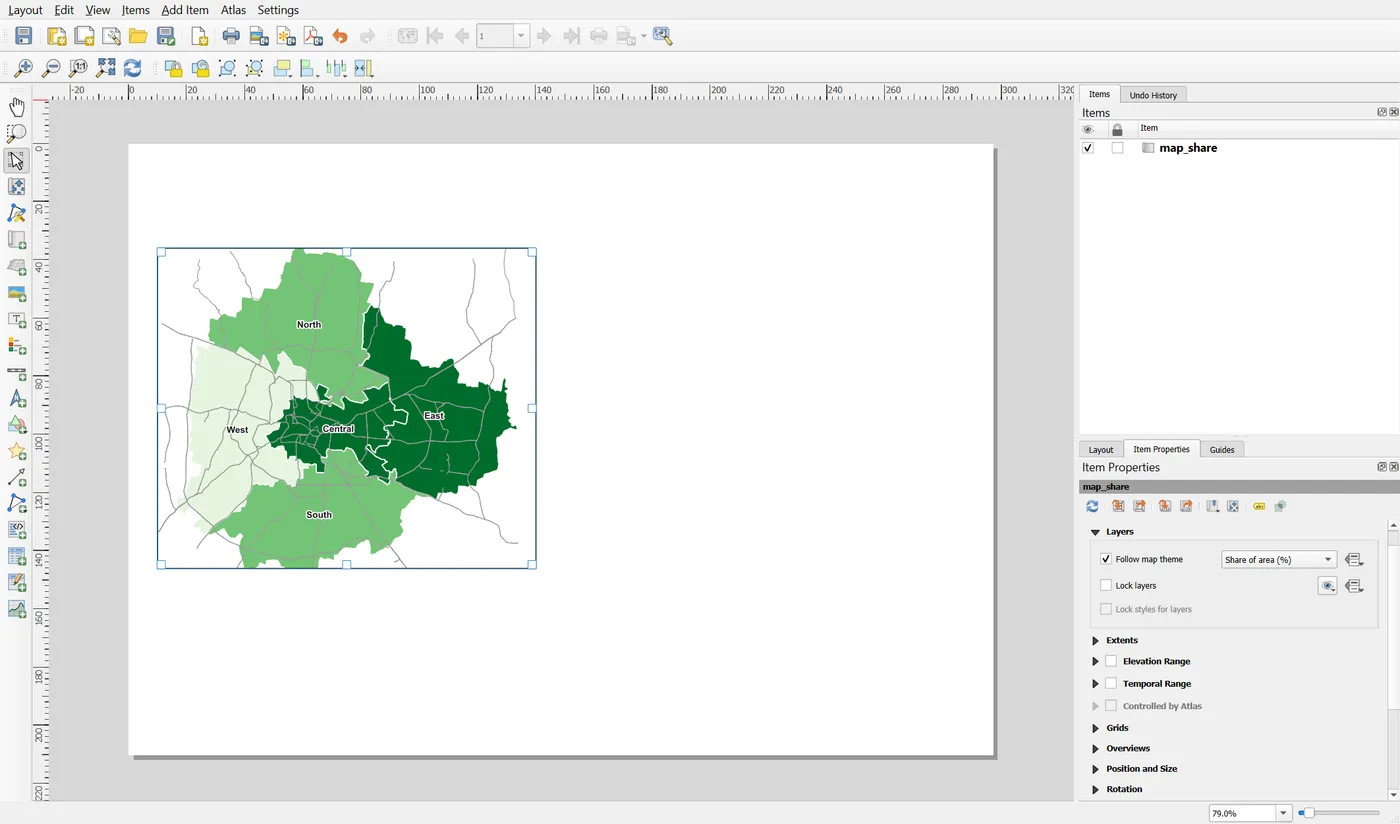
Open the Layout Manager and make a new layout called Two maps compared. Add a map. Set Position and Size to X 10, Y 36, Width 130, Height 110, and the scale to 300000. In the Layers group, tick Follow map theme and choose Share of area (%). Give it the ID map_share.
Add a second map the same way: X 150, Y 36, Width 130, Height 110, the same scale, and follow Area (km2). Give it the ID map_area.
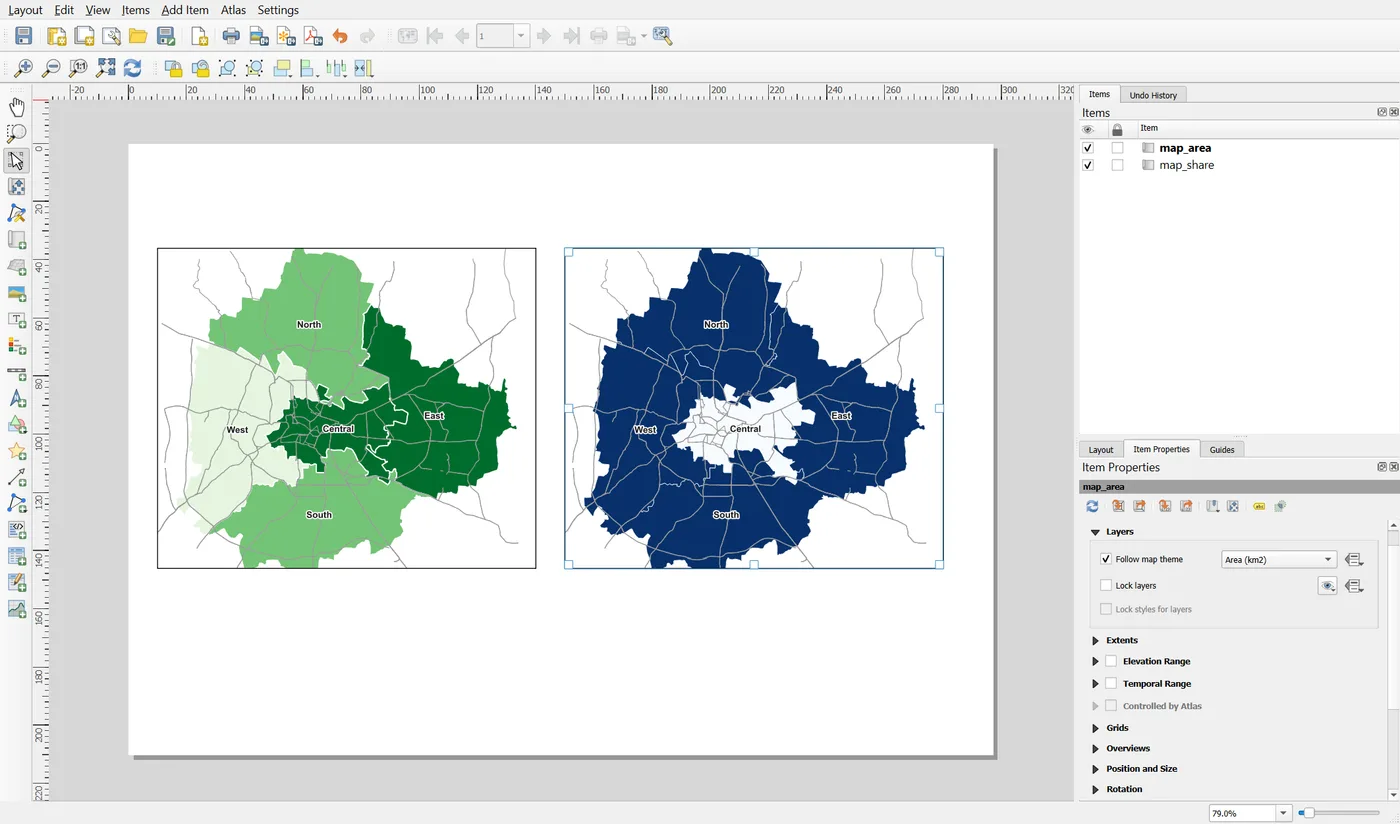
Two maps are only comparable if they show the same area at the same scale. If one is zoomed in more than the other, the reader will compare sizes that are not equal. So do three things:
- Give both maps the same size and the same scale.
- Give both the same extent. Open the Extents group of the first map, write down the four numbers, and type them into the second map.
- Check that the tops and the bottoms line up. Select both maps and use the Align tools in the toolbar, such as Align top, and Distribute for even gaps.
Because both maps share a scale, they can share one scale bar. That saves space and avoids saying the same thing twice.
Step 3: Say what each map shows
Without labels, the reader cannot tell the maps apart. Add a title across the top, and a short heading over each map. Use the same bold 11 point style for both headings, and put each at the same distance above its map.
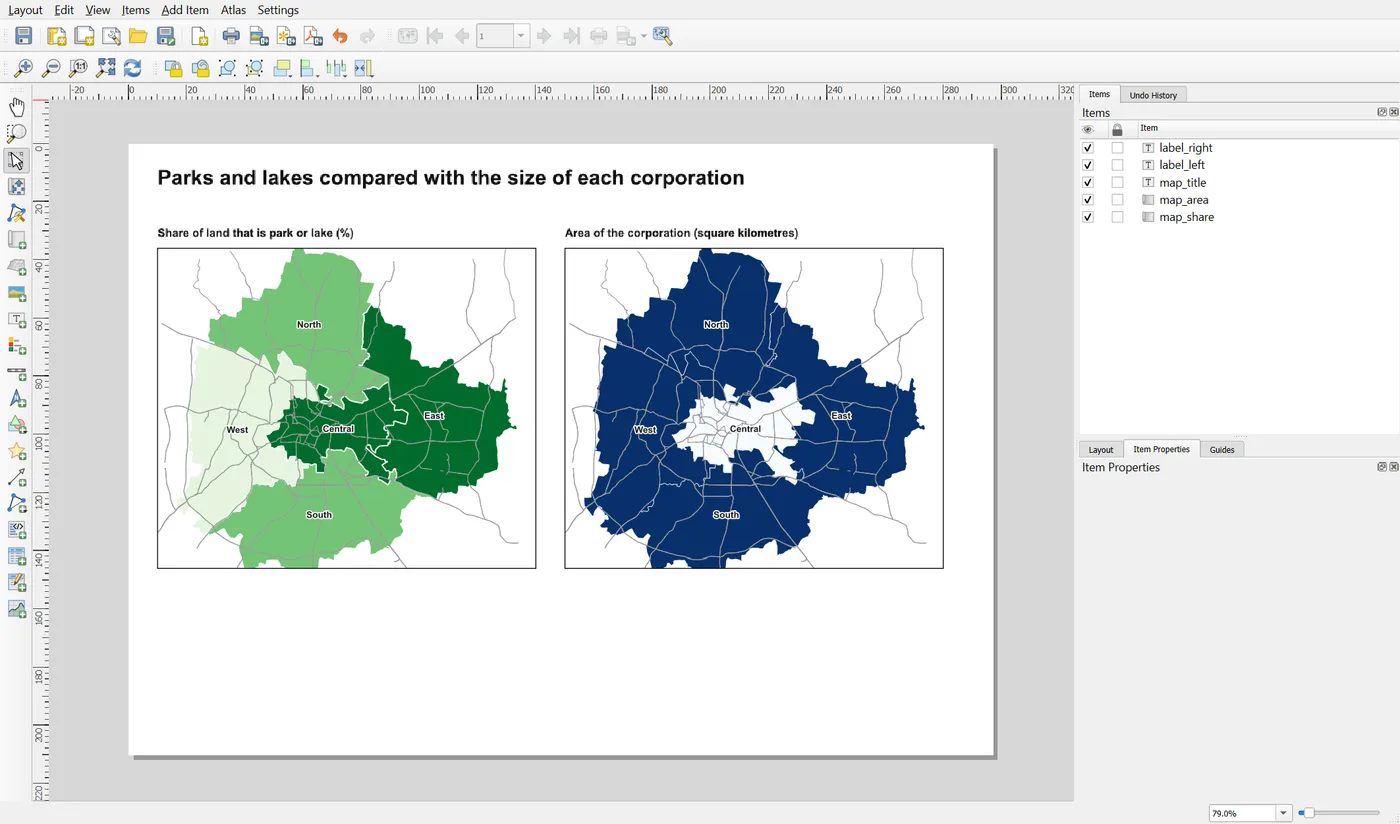
The headings carry the measure and the unit, so the legends can be short.
Step 4: A legend for each map
Add a legend under each map and link each one to its own map. For the first, set the linked map to map_share, switch Auto update off, remove Selected corporation, Karnataka and Major roads, and hide the layer name as before. Repeat for the second with map_area. The second legend picks up the blue classes, because it follows the theme of its linked map.
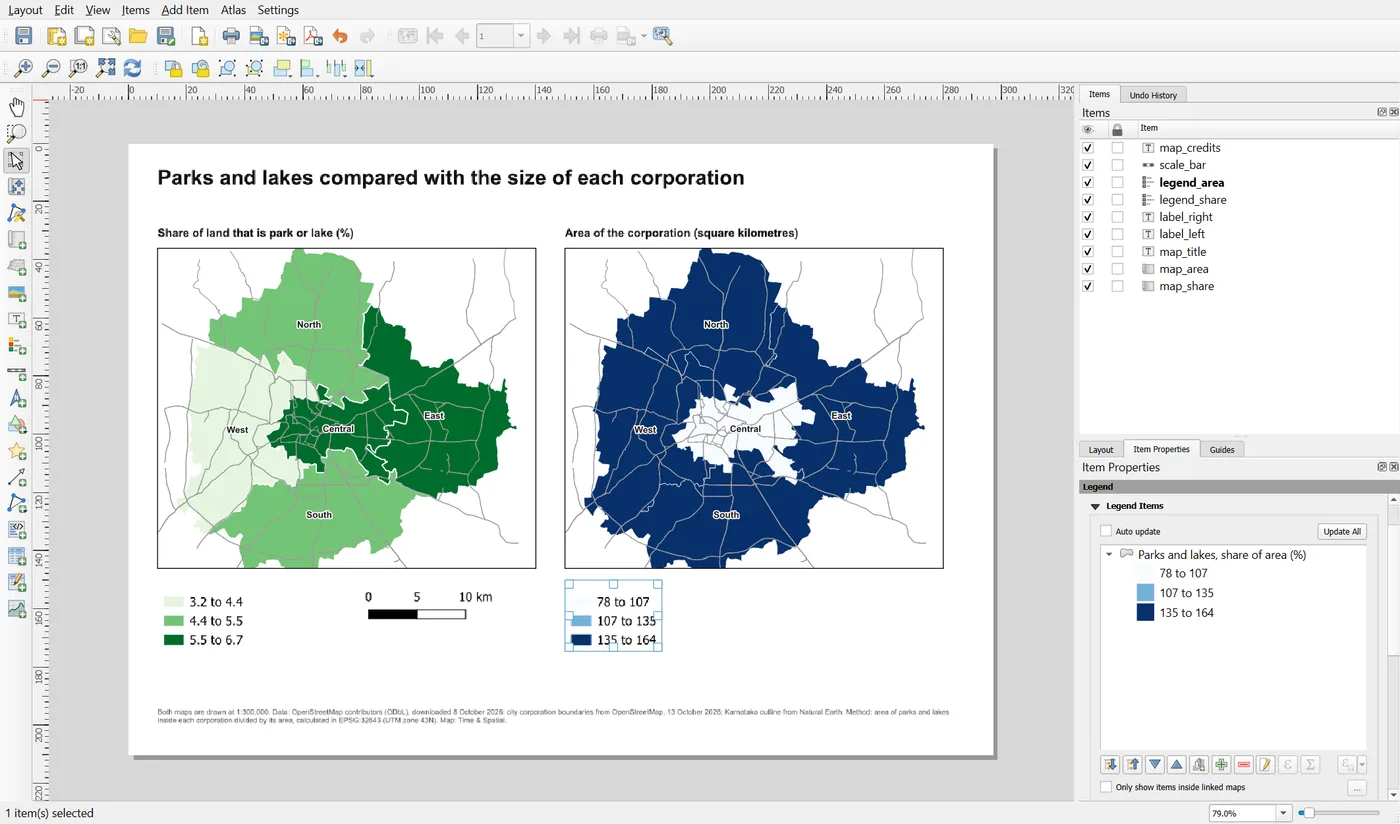
A legend that is linked to the wrong map shows the wrong classes. This is the most common error on a multi-map page, so check each legend against its own map. Set the legend text sizes the same, so that the two look like a pair.
Add one scale bar linked to map_share, and a source note at the bottom. Mention the shared scale in the note: Both maps are drawn at 1:300,000.
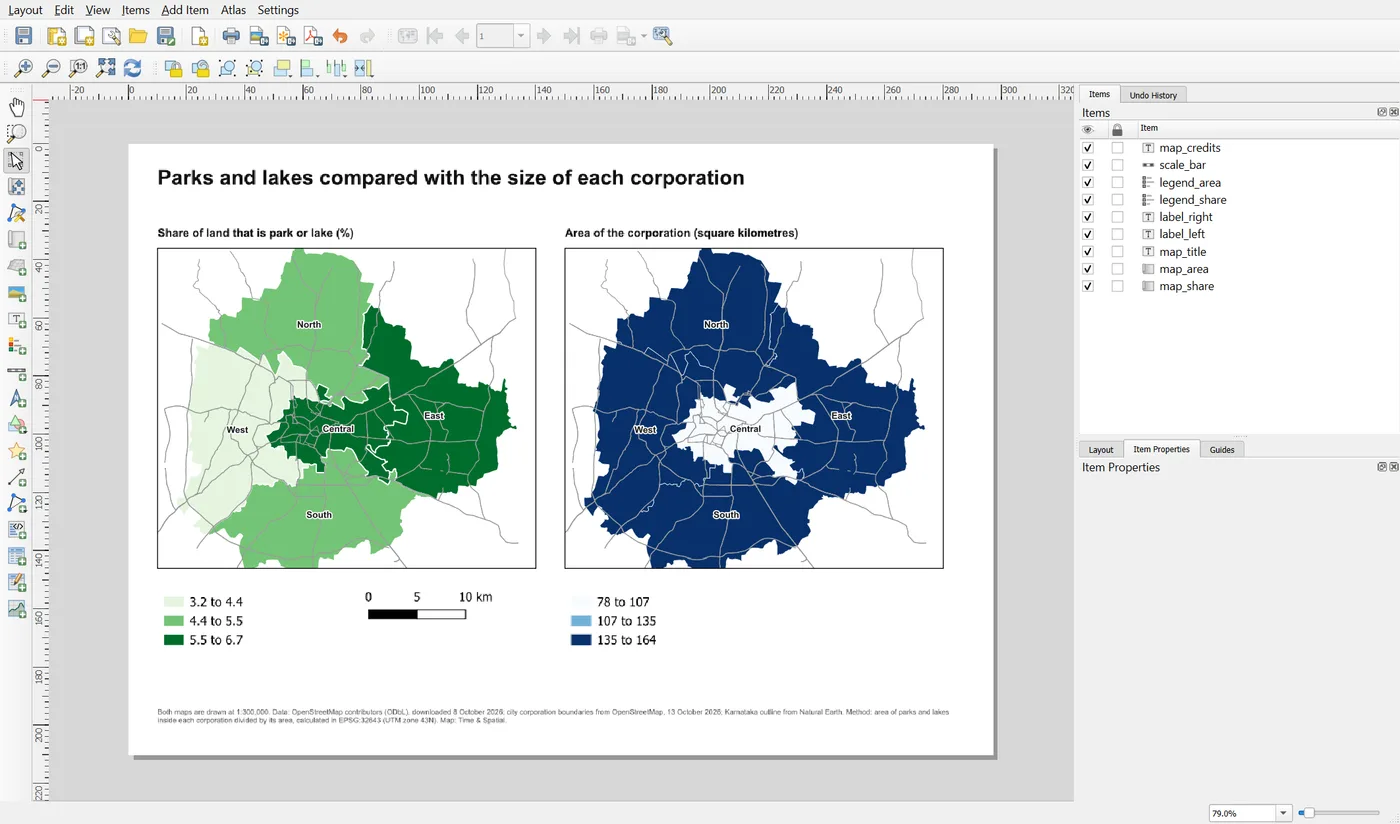
Now read the page as a stranger would. Central is the smallest corporation, about 78 square kilometres, yet 5.6 percent of it is park or lake, one of the higher shares. West is one of the larger corporations and has the lowest share, 3.2 percent. East has the highest share, 6.7 percent. The pair of maps shows at once that size and share are not the same thing. That is the benefit of putting them side by side.
Save the project.
When it breaks
| What you see | Why | What to do |
|---|---|---|
| Both maps look the same | They follow the same theme, or no theme | Choose a different theme for each map in its Layers group |
| A theme is not in the list | It was not saved | In the main window, set the layers and styles and add the theme again |
| The maps do not line up | The extents or sizes differ | Type the same extent and the same size, then align the items |
| The legend shows the wrong classes | It is linked to the other map | Change the linked map in the legend's Main Properties |
| A new style is not in the theme | The theme was saved before you changed the style | Switch to the style, then add the theme again |
| The scale bar is wrong for the second map | The maps have different scales | Give both maps the same scale |
Make it your own
- Add a third map that follows a theme showing only the corporations in a single colour. Does it still help the reader?
- Change the second map's scale to 1:200,000, and look again at the pair. Why is the comparison now harder?
- Swap the two maps. Does the reading order change?
Common mistakes
- Maps at different scales, so the sizes cannot be compared.
- Using the same colours for two different measures.
- A legend linked to the wrong map.
- One legend for two maps that use different colour schemes.
- Two maps without headings, so the reader cannot tell them apart.