

A flat map is good for measuring and comparing. A 3D view helps when the shape of the land is part of the story, as with a valley that channels a road or a ridge that blocks a view. This tutorial shows the 3D view, how to animate it, and how to finish a piece of analysis as a chart and a one page report.
What is the 3D map view?
QGIS can draw layers in a separate 3D window. It takes elevation from a terrain source, such as a DEM, and drapes your other layers on top. Vector layers can also be extruded, for example building footprints with a height field.
The 3D view shows the same data as the 2D map. It does not create new measurements, and the vertical exaggeration you apply is a display choice. Say so in the caption when you publish a 3D image.
Data used
outputs/terrain/dem_utm.tiffrom Part 13, a DSM at 30 m in EPSG:32643, with heights from 751 to 964 msentinel2/43PGQ/TCI.tif, the true colour image- The
parkslayer and the NDVI raster from Part 12, for the chart and report
1. Set the terrain
The 3D view reads its terrain from the project.
- Add the DEM and the true colour image to the project.
- Project > Properties > Elevation. Under Terrain, set the terrain provider to DEM (Raster Layer) and choose the DEM.
- Set Vertical scale. Bengaluru's relief is about 210 m across 30 km, which looks almost flat at a scale of 1. A scale of 8 shows the valleys. Use a smaller value if you want an honest impression, and state the number.
2. Open the 3D map view
- View > New 3D Map View. A new window opens.
- The image layer is draped over the terrain. Switch off the DEM layer in the 2D layer panel if it hides the image, since the terrain now comes from the project setting.
- Move around. The left mouse button pans, the right button rotates and tilts, and the wheel zooms.
- Toggle On-Screen Navigation in the toolbar for arrow buttons that move, rotate, tilt and zoom without the mouse.
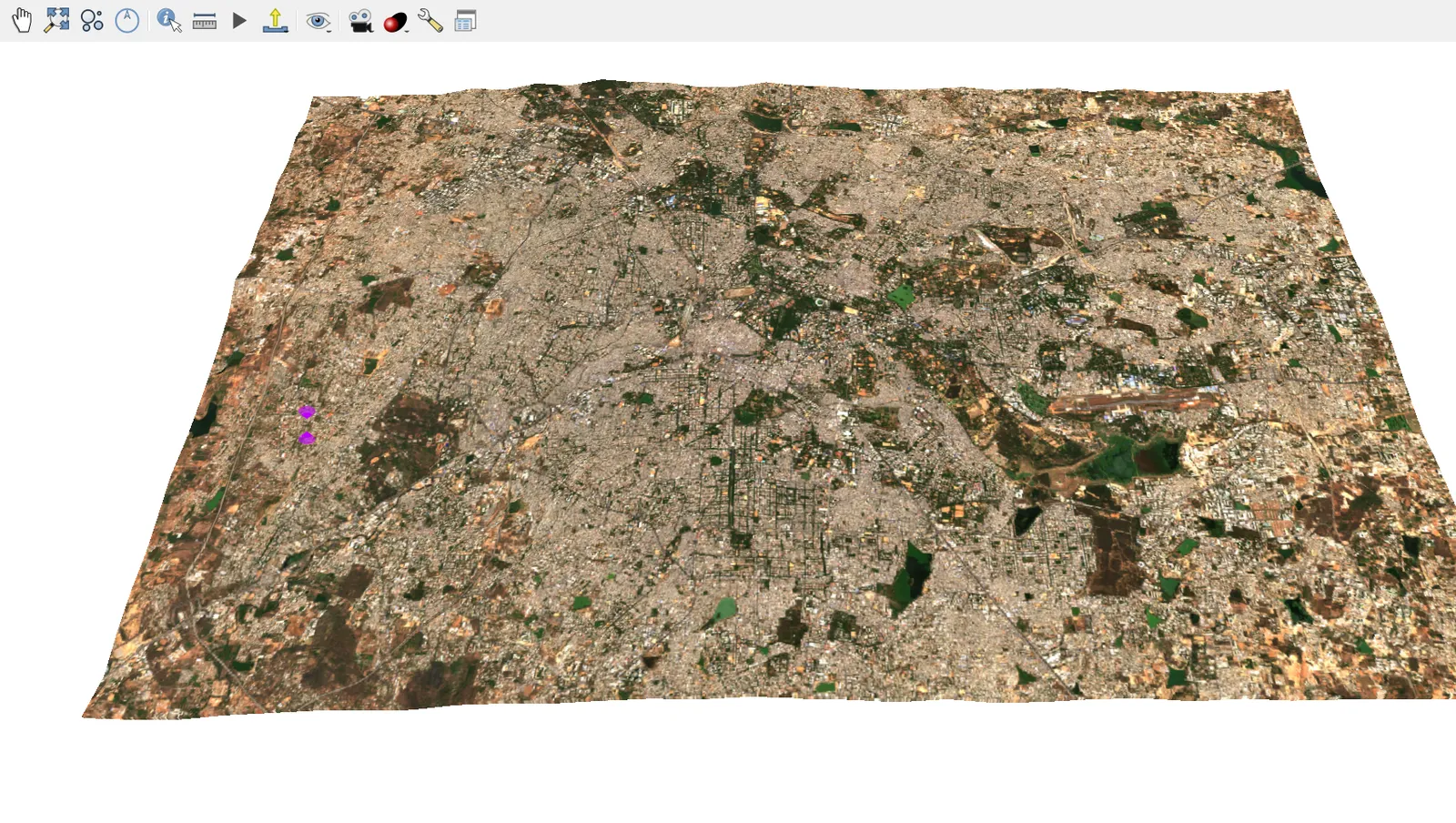
The 3D view has tools of its own: Identify, Measurement Line, a camera control panel for exact positions, and effects such as shadows. Save a view with Save as Image in the toolbar.
QGIS also has a globe mode through View > New 3D Map View (Globe), which draws the layers on an ellipsoid. A globe suits continental data, and a local DEM of one city does not need it.
3. Animate the camera
The 3D window records animations from keyframes.
- In the 3D view, open the Animations panel from the toolbar.
- Move the camera to a start position and click Add keyframe. Give it a time of 0 seconds.
- Move the camera, then add a keyframe at 5 seconds, then another at 10 seconds.
- Press Play to preview.
- Click Export Animation Frames. Choose a folder, a frame rate and a size. QGIS writes a numbered series of PNG files.
- QGIS writes frames and not a video file. Any video editor can join a numbered image sequence into a clip, so import the folder there and set the same frame rate.
A fly-through is a presentation tool. Keep it slow, with few turns, and end on the feature you want people to remember.
For a series of dates instead of a camera path, use the Temporal Controller panel (View > Panels > Temporal Controller). Layers with time settings, such as monthly NDVI, can then play as an animation in the 2D map.
4. Make a graph
A good chart answers one question. Here the question is which parks are greenest.
The DataPlotly plugin draws bar charts, histograms, box plots and scatter plots straight from a layer's attribute table, with no code. Install it from Plugins > Manage and Install Plugins, then switch it on from the Plugins menu or the toolbar to open the DataPlotly panel.
- Prepare the layer. Take the zonal statistics result from Part 12, which has the mean NDVI and the pixel count of each park. Use Processing > Extract by expression to keep the parks with
"ndvi_count" >= 100 AND "ndvi_mean" > 0.6. The pixel count rule matters because a mean over a few cells is unreliable. - Sort it with Processing > Order by expression, using
"ndvi_mean"in descending order, and save the result. DataPlotly draws features in the order of the table. - In the DataPlotly panel, choose the sorted layer, set the plot type to Bar Plot, set X to
nameand Y tondvi_mean, and click Create Plot. - Drag the edge of the panel to make it wider if the labels overlap.
- Use the Save plot as image button at the bottom right of the panel to write the chart as a PNG.
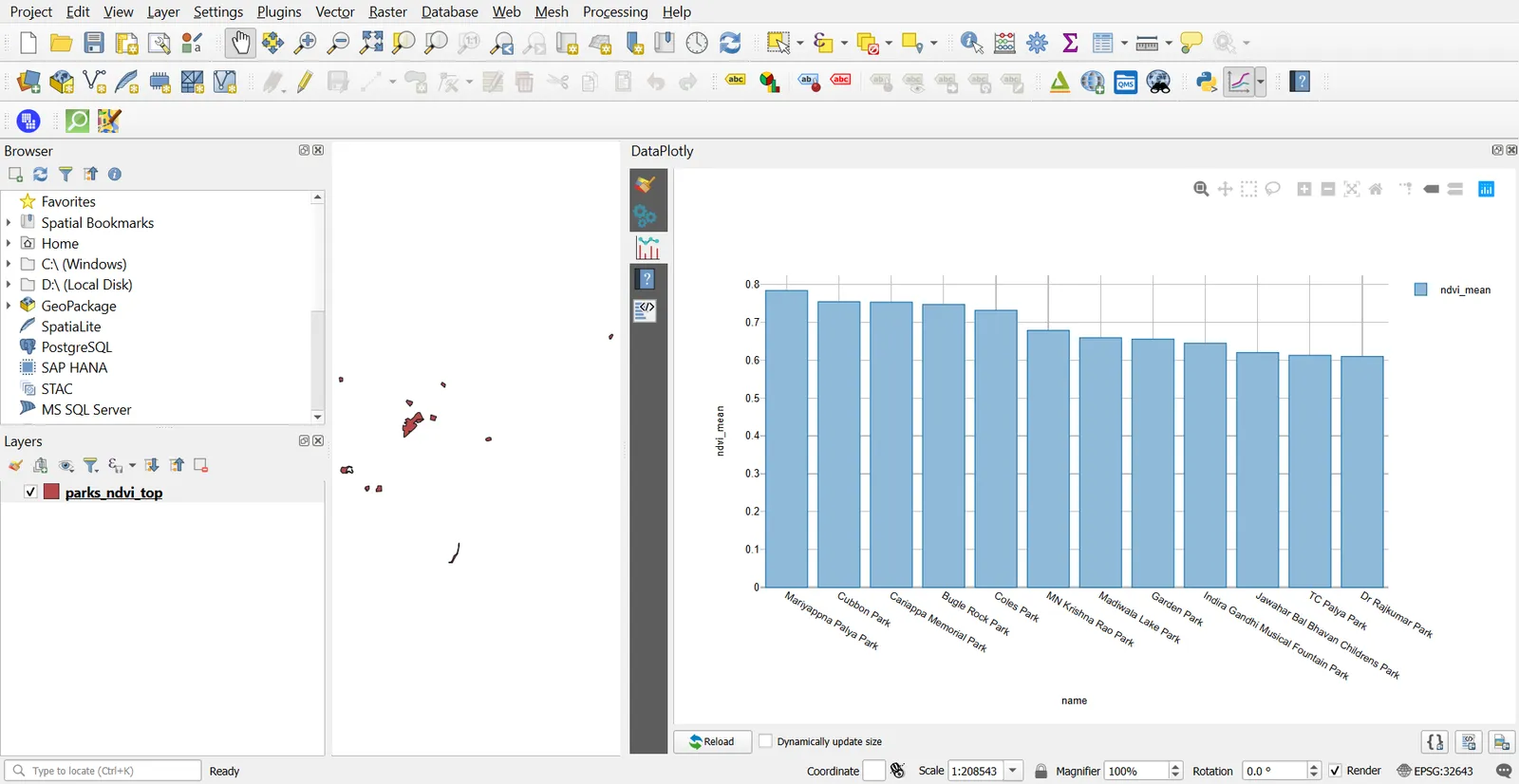
In this run Mariyappna Palya Park has the highest mean NDVI at 0.78, and Cubbon Park follows at 0.75. Cubbon Park has about 6,100 pixels behind its value, so it is the more reliable of the two. Show the count when the audience will rely on a ranking.
5. Build a report page
A report puts a map, a chart and a short note on one page, ready for a PDF.
- Project > New Print Layout. Name it
Park greenness report. - Add a title label across the top.
- Add a map item with the true colour image and the park polygons in transparent green. Set the extent to the study window.
- Add a picture item, set its source to the saved chart
park_ndvi_chart.png, and place it beside the map. - Add a label under both with the data source and what the numbers mean: the date, the sensor, the pixel count rule and the licence line.
- Layout > Export as PDF.
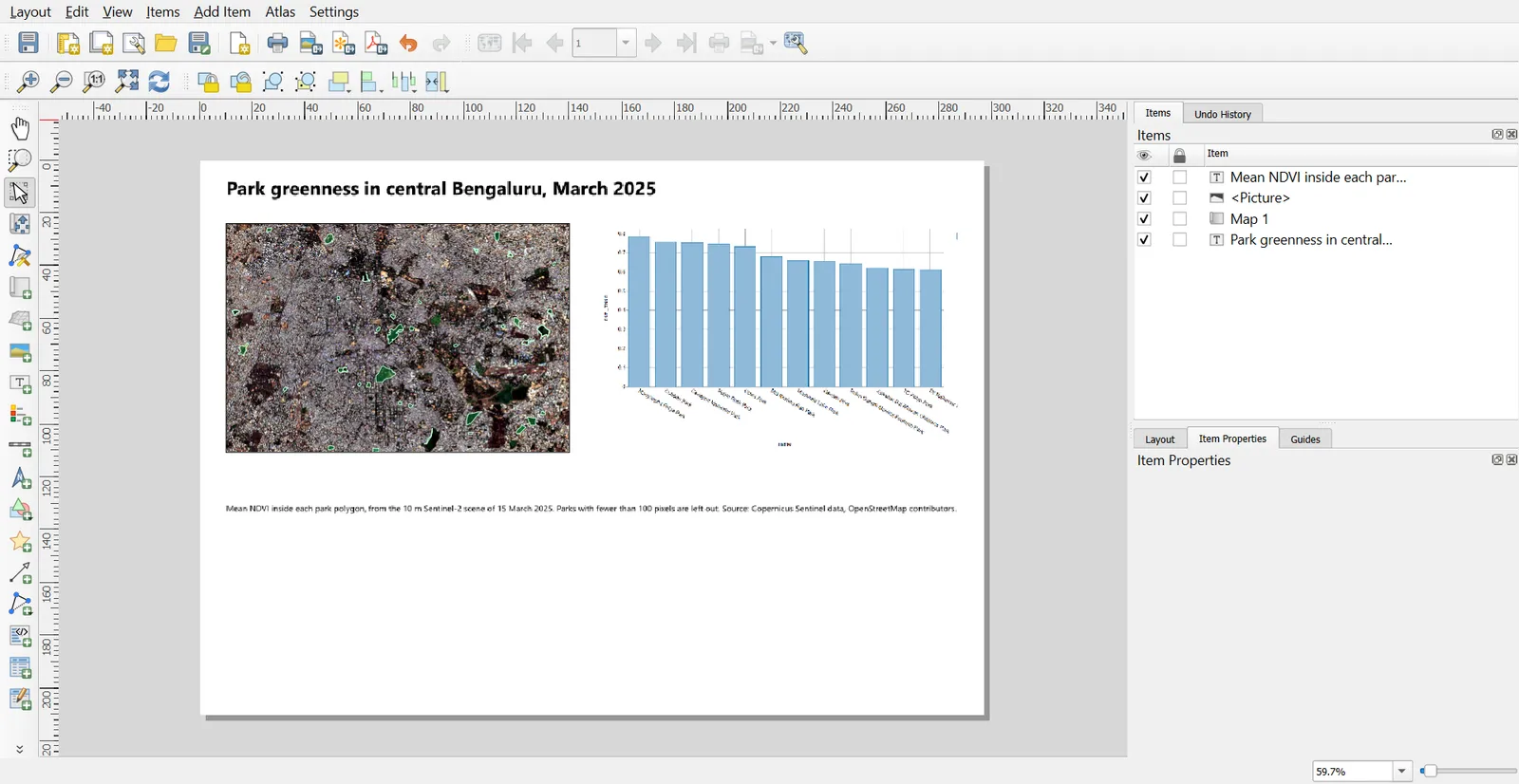
For many pages, such as one per district, switch on Atlas (Part 10) and use a field from the coverage layer in the title and caption.
Common mistakes
- Exaggerating the vertical scale and not saying so.
- Treating a draped image as proof of 3D accuracy.
- Exporting animation frames at a size so large that the export takes hours.
- Ranking features on a statistic that rests on very few pixels.
- Copying a chart into a report without its source, date and units.
- Leaving default chart colours and labels that nobody can read at print size.