

Part 16 used small made-up rasters, so that every number was easy to check. This part uses a real satellite scene: Landsat 8 over Bengaluru on 29 March 2025. Real data has awkward details that made-up data lacks, such as scale factors, a valid range and cloud flags. You will meet each one, and each is only a few lines of code.
The question we ask is simple. We already know, from the map series, what share of each city corporation is park or lake, taken from OpenStreetMap. A satellite measures how green each place looks. Do the two agree? Along the way you will practise opening, masking, calculating, summarising and saving.
This part assumes Part 16 and a little pandas and GeoPandas from Parts 7 to 11. It is rated intermediate because the data is real.
What you need
- Python with rasterio, GeoPandas, pandas, NumPy and Matplotlib, as in Part 16. A Jupyter notebook is the easiest place to work.
- The data: bengaluru_landsat.zip (5.8 MB). Unzip it next to your notebook, so that you have a folder called
bengaluru_landsat.
The full Landsat scene is about 90 MB per band, so the download is a small piece of it, cut around the five corporations. Nothing was changed except the cutting. The folder holds:
| File | What it is |
|---|---|
SR_B4.TIF | Red surface reflectance (band 4) |
SR_B5.TIF | Near infrared surface reflectance (band 5) |
QA_PIXEL.TIF | Quality flags: fill, cloud, shadow, water |
corporations.gpkg | The five city corporations, with the share of park and lake in the column pct |
README.txt | The scene name, date and licence |
The scene is LC08_L2SP_144051_20250329_20250401_02_T1, taken on 29 March 2025 with 0.28 percent cloud cover. Landsat data from the USGS is in the public domain. The corporation boundaries and the park share come from OpenStreetMap contributors.
1. Open the bands and check them
Always look at a raster before you use it.
import numpy as np
import pandas as pd
import geopandas as gpd
import rasterio
import matplotlib.pyplot as plt

# Step 1: open the red band and read its basic facts (the metadata)
with rasterio.open("bengaluru_landsat/SR_B4.TIF") as src:
    print("size:", src.width, "x", src.height, "cells")
    print("cell size:", src.res, "metres")
    print("data type:", src.dtypes[0])
    print("CRS:", src.crs.to_epsg())
    print("NoData value:", src.nodata)
    print("bounds:", [round(v) for v in src.bounds])

# Step 2: the same for the near infrared band. Both bands must match: same size, same cells, same CRS.
with rasterio.open("bengaluru_landsat/SR_B5.TIF") as src:
    print("NIR size:", src.width, "x", src.height, "| same grid as red:", src.transform == rasterio.open("bengaluru_landsat/SR_B4.TIF").transform)
size: 1304 x 1274 cells
cell size: (30.0, 30.0) metres
data type: uint16
CRS: 32643
NoData value: 0.0
bounds: [764925, 1418145, 804045, 1456365]
NIR size: 1304 x 1274 | same grid as red: True
Both bands are uint16, which means whole numbers from 0 to 65,535. They are not reflectance yet. They are digital numbers, and the next step turns them into real values. The NoData value is 0, and the cell size is 30 m. A band in EPSG:32643 is in metres, as is the corporation layer. That matters when we cut with polygons.
2. From digital numbers to reflectance
Landsat stores reflectance as whole numbers to save space. The producer gives a formula to get the real value back:
reflectance = DN × 0.0000275 − 0.2
It also gives a valid range: digital numbers from 7,273 to 43,636. Anything outside that range is not a trustworthy measurement, for example a saturated pixel next to a cloud. Look at what happens if you skip this.
# Step 1: read both bands as they are stored
with rasterio.open("bengaluru_landsat/SR_B4.TIF") as src:
    red_dn = src.read(1)
    profile = src.profile                      # keep the file settings, for saving a result later
with rasterio.open("bengaluru_landsat/SR_B5.TIF") as src:
    nir_dn = src.read(1)

print("red digital numbers:", red_dn.min(), "to", red_dn.max())

# Step 2: apply the scale factor WITHOUT checking the valid range
raw_red = red_dn.astype("float32") * 0.0000275 - 0.2
print("reflectance without the valid range:", round(float(raw_red.min()), 3), "to", round(float(raw_red.max()), 3))
red digital numbers: 6187 to 55947
reflectance without the valid range: -0.03 to 1.339
A reflectance cannot be below 0 or above 1, yet the numbers go beyond both. The valid range handles this.
# Step 3: a helper that turns digital numbers into reflectance, and blanks out invalid cells with NaN
def to_reflectance(dn):
    valid = (dn >= 7273) & (dn <= 43636)          # the producer's valid range for surface reflectance
    reflectance = dn.astype("float32") * 0.0000275 - 0.2
    return np.where(valid, reflectance, np.nan)   # NaN means "not a number": a cell we do not trust

red = to_reflectance(red_dn)
nir = to_reflectance(nir_dn)

# Step 4: check again
print("red reflectance:", round(float(np.nanmin(red)), 3), "to", round(float(np.nanmax(red)), 3))
print("nir reflectance:", round(float(np.nanmin(nir)), 3), "to", round(float(np.nanmax(nir)), 3))
print("cells outside the valid range:", int(np.isnan(red).sum()))
red reflectance: 0.006 to 0.984
nir reflectance: 0.027 to 0.872
cells outside the valid range: 11
Now the values sit between 0 and 1. A few cells were blanked out, and they are better off blank than wrong. astype("float32") matters too: integer arithmetic on uint16 values can wrap around and give nonsense, so convert first, then calculate.
3. Mask clouds and shadows with QA_PIXEL
QA_PIXEL is a quality band. Each cell is a whole number, and each bit in that number is a yes/no flag. Bit 3 is "cloud", bit 4 is "cloud shadow", and so on. To read one flag, shift the number to the right by the bit position and look at the last bit.
| Bit | Meaning |
|---|---|
| 0 | Fill (no data) |
| 1 | Dilated cloud (next to a cloud) |
| 3 | Cloud |
| 4 | Cloud shadow |
| 7 | Water |
# Step 1: read the quality band
with rasterio.open("bengaluru_landsat/QA_PIXEL.TIF") as src:
    qa = src.read(1)


# Step 2: a helper that tells us, for every cell, whether one bit is switched on
def bit_is_set(array, bit):
    return ((array >> bit) & 1) == 1       # shift right by "bit" places, then keep only the last binary digit


# Step 3: count each flag
for bit, name in [(0, "fill"), (1, "dilated cloud"), (3, "cloud"), (4, "cloud shadow"), (7, "water")]:
    print(f"{name:14s} cells: {int(bit_is_set(qa, bit).sum()):>9,}")

# Step 4: a mask for everything we do not want: fill, dilated cloud, cloud and shadow
bad = bit_is_set(qa, 0) | bit_is_set(qa, 1) | bit_is_set(qa, 3) | bit_is_set(qa, 4)
print("cells to mask:", int(bad.sum()), "of", bad.size, "=", round(float(bad.mean()) * 100, 2), "percent")
fill           cells:         0
dilated cloud  cells:        84
cloud          cells:        70
cloud shadow   cells:        83
water          cells:    14,072
cells to mask: 195 of 1661296 = 0.01 percent
Water is not a problem, so we keep it. The scene was nearly clear, and only a small share of cells is flagged. In a cloudier scene this step matters a lot, and you would look at it before anything else.
4. Calculate NDVI
NDVI is (NIR − Red) / (NIR + Red). Plants reflect a lot of near infrared and absorb red, so healthy vegetation gives high values, close to 1. Bare ground and buildings give values near 0, and water is negative.
# Step 1: set the flagged cells to NaN in both bands
red[bad] = np.nan
nir[bad] = np.nan

# Step 2: the NDVI formula. Cells that are NaN in either band come out as NaN.
ndvi = (nir - red) / (nir + red)

# Step 3: a summary. nanmin, nanmax and nanmean ignore the NaN cells.
print("NDVI range:", round(float(np.nanmin(ndvi)), 2), "to", round(float(np.nanmax(ndvi)), 2))
print("mean NDVI:", round(float(np.nanmean(ndvi)), 3))
print("share of valid cells with NDVI above 0.4:", round(float(np.nanmean(ndvi > 0.4)) * 100, 1), "percent")
NDVI range: -0.43 to 0.95
mean NDVI: 0.339
share of valid cells with NDVI above 0.4: 29.1 percent
The range must stay inside -1 to 1. If you see values above 1, one of the earlier steps was skipped. The 0.4 line is a rule of thumb for green vegetation, and the exact number depends on the sensor, the season and the place. Do not treat it as a law.
The date matters as well. Late March is the dry season in Bengaluru, so many surfaces are less green than they would be after the monsoon. A different date would give different numbers.
5. Look at it
# Step 1: read the corporations and check that their CRS is the same as the raster's
corp = gpd.read_file("bengaluru_landsat/corporations.gpkg")
print(corp.crs.to_epsg(), "| rows:", len(corp))
print(corp[["short", "km2", "pct"]])

# Step 2: draw NDVI with the corporation outlines on top
with rasterio.open("bengaluru_landsat/SR_B4.TIF") as src:
    left, bottom, right, top = src.bounds

fig, ax = plt.subplots(figsize=(8, 7))
image = ax.imshow(ndvi, cmap="RdYlGn", vmin=-0.2, vmax=0.8, extent=(left, right, bottom, top))
corp.boundary.plot(ax=ax, color="black", linewidth=1.2)
for _, row in corp.iterrows():
    point = row.geometry.representative_point()          # a point that is certainly inside the polygon
    ax.annotate(row["short"], (point.x, point.y), ha="center", fontsize=9, fontweight="bold")
fig.colorbar(image, ax=ax, shrink=0.75, label="NDVI")
ax.set_title("NDVI from Landsat 8, 29 March 2025")
ax.set_xlabel("Easting (m)")
ax.set_ylabel("Northing (m)")
fig.savefig("bengaluru_ndvi.png", dpi=130, bbox_inches="tight")
print("saved")
32643 | rows: 5
     short    km2   pct
0  Central   77.9  5.63
1     East  163.7  6.67
2    North  159.8  4.75
3    South  152.3  4.73
4     West  163.6  3.20
saved
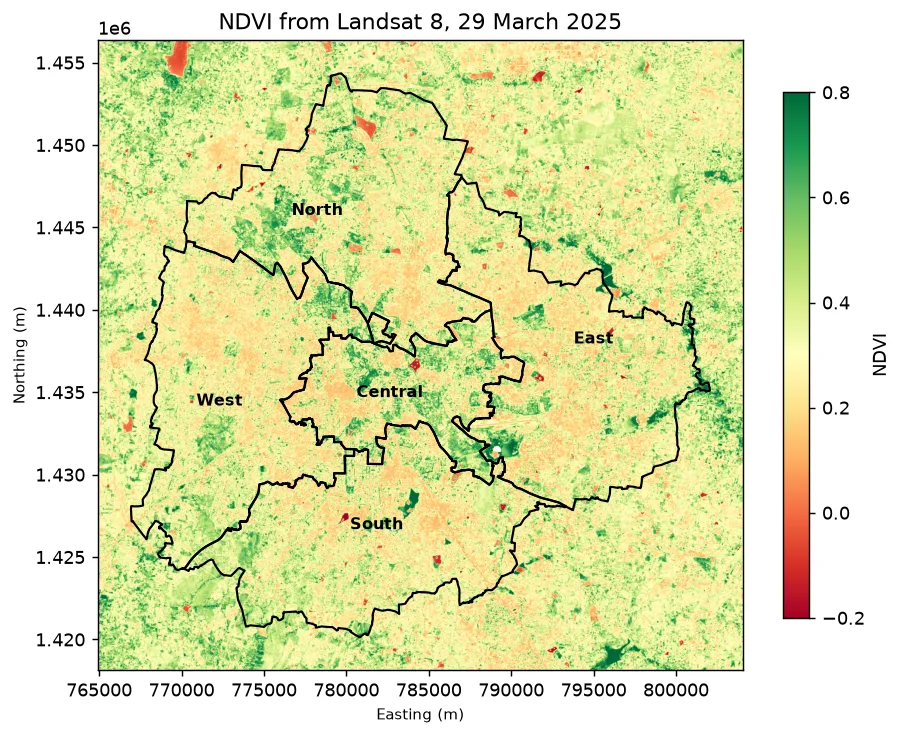
imshow draws the array, and extent places it on the right coordinates so that the outlines line up. Read the colours with the colour bar. Orange and pale yellow are built-up land and dry bare ground. Dark green patches are dense vegetation, such as tree-covered areas and large parks. The red-brown patches are water, because NDVI is negative over water. The fields outside the city boundary are green too, because they are farmland. A look like this catches many errors that numbers do not: a shifted picture, a flipped one, or a layer in the wrong CRS.
6. Zonal statistics for each corporation
Now the main step. For each corporation we want the mean NDVI of the cells inside it. This is a zonal statistic, and you did it with a made-up DEM in Part 16. The approach is the same: cut the raster with the polygon, then calculate on what is left.
NDVI is a NumPy array in memory, and rasterio.mask needs a raster file or dataset. So first we save NDVI as a GeoTIFF. That is useful anyway.
# Step 1: save NDVI as a one-band float GeoTIFF. NaN becomes the NoData value.
profile.update(dtype="float32", count=1, nodata=np.nan, compress="deflate")
with rasterio.open("ndvi_2025.tif", "w", **profile) as dst:
    dst.write(ndvi.astype("float32"), 1)

# Step 2: for each corporation, cut the NDVI raster with its shape and measure what is inside
from rasterio.mask import mask

rows = []
with rasterio.open("ndvi_2025.tif") as src:
    for _, row in corp.iterrows():
        cells, _ = mask(src, [row.geometry], crop=True, nodata=np.nan)    # cells outside the shape become NaN
        values = cells[0]
        values = values[~np.isnan(values)]                                # keep only the cells that have a value
        rows.append({
            "corporation": row["short"],
            "valid_cells": int(values.size),
            "mean_ndvi": round(float(values.mean()), 3),
            "green_share_pct": round(float((values > 0.4).mean()) * 100, 1),
        })

zonal = pd.DataFrame(rows)
print(zonal)
  corporation  valid_cells  mean_ndvi  green_share_pct
0     Central        86510      0.357             38.0
1        East       181722      0.313             23.4
2       North       177517      0.334             28.9
3       South       169201      0.321             25.7
4        West       181767      0.316             23.6
Each row is one corporation. mask(..., crop=True) trims the raster to the polygon's box and blanks everything outside the polygon. We then drop the blank cells and calculate. valid_cells is a useful check. Each cell is 30 m × 30 m, which is 900 m², so a corporation should have about its area divided by 900 cells. Central is 77.9 km², which is 77,900,000 m² ÷ 900 ≈ 86,500 cells, and the table says 86,510. A much smaller number would mean that the polygon and the raster do not overlap properly.
7. Compare with the park share
Join the table to the corporations, then put the two measures next to each other.
# Step 1: bring in the OpenStreetMap park and lake share, matching on the corporation's name
compare = zonal.merge(corp[["short", "pct"]], left_on="corporation", right_on="short").drop(columns="short")
compare = compare.rename(columns={"pct": "park_lake_pct"})

# Step 2: rank each corporation on both measures (1 = highest)
compare["rank_ndvi"] = compare["mean_ndvi"].rank(ascending=False).astype(int)
compare["rank_parks"] = compare["park_lake_pct"].rank(ascending=False).astype(int)
print(compare.sort_values("mean_ndvi", ascending=False).to_string(index=False))

# Step 3: how strongly do the two rankings agree? The ordinary correlation of the two rank columns
# is called the Spearman rank correlation. It runs from -1 (opposite order) to 1 (same order).
rho = compare["rank_ndvi"].corr(compare["rank_parks"])
print("Rank correlation between mean NDVI and park share:", round(float(rho), 2))
corporation  valid_cells  mean_ndvi  green_share_pct  park_lake_pct  rank_ndvi  rank_parks
    Central        86510      0.357             38.0           5.63          1           2
      North       177517      0.334             28.9           4.75          2           3
      South       169201      0.321             25.7           4.73          3           4
       West       181767      0.316             23.6           3.20          4           5
       East       181722      0.313             23.4           6.67          5           1
Rank correlation between mean NDVI and park share: 0.0
Look at the ranks and not only at the number. Central is first on NDVI and second on park share, so there the two measures roughly agree. East is the surprise: it has the highest park and lake share, 6.67 percent, and the lowest mean NDVI. The rank correlation is 0.0, which means that for these five corporations the order on one measure tells you nothing about the order on the other.
Why is East so different? The first idea is water. The OpenStreetMap share counts parks and lakes, and water has a negative NDVI, so lakes could pull East's mean down. I tested this by masking the water cells (bit 7 of QA_PIXEL) and taking the means again. They changed by less than 0.005, and no corporation changed rank. So lakes do not explain it. This tutorial's data cannot say why, and the next step would be to look at East on the map, and at what OpenStreetMap marks as park or lake there. Not every question is answered by the first data you try, and saying so is a fine result.
A warning goes with this. You have five data points. A correlation from five points can look impressive and means very little: one corporation moving in rank changes it a lot. So treat the result as a hint. It might point you at a corporation to look at more closely, and it does not prove that parks drive greenness or the other way round. The two measures also see different things. OpenStreetMap park and lake polygons capture mapped open spaces, while NDVI also picks up street trees, gardens, farmland and any vegetation in the corporation. A difference does not mean that one source is wrong. It may mean that they measure different things.
8. Save the results
# Step 1: write the table as a CSV file that opens in Excel
compare.to_csv("ndvi_by_corporation.csv", index=False)

# Step 2: check what we saved by reading it back
print(pd.read_csv("ndvi_by_corporation.csv")[["corporation", "mean_ndvi", "rank_ndvi"]].head(3))

# Step 3: re-open the NDVI raster and confirm that its properties survived
with rasterio.open("ndvi_2025.tif") as src:
    print("ndvi_2025.tif:", src.width, "x", src.height, "|", src.dtypes[0], "| CRS", src.crs.to_epsg(), "| NoData", src.nodata)
  corporation  mean_ndvi  rank_ndvi
0     Central      0.357          1
1        East      0.313          5
2       North      0.334          2
ndvi_2025.tif: 1304 x 1274 | float32 | CRS 32643 | NoData nan
You now have an NDVI raster, a table, and a picture, each from the same few lines. The final project uses all three together with pandas, GeoPandas and GDAL.
Run this part as a notebook
The code on this page is also a Jupyter notebook, with the theory in text cells, the code, guided practice, an independent assignment and hidden solutions. Download the Part 19 notebook, put it next to the unzipped bengaluru_landsat folder, and run the cells from top to bottom.
Practice
- Change the vegetation threshold from 0.4 to 0.3 and to 0.5. How does the ranking of the corporations change, and how much does the share of green cells change?
- Mask the water cells with bit 7 of
QA_PIXEL, take the zonal means again and compare them with the first table. Do any means or ranks change? - Calculate the mean NDVI of the whole scene before and after the cloud mask. How big is the difference?
- Download a second Landsat scene from another month from EarthExplorer, repeat the steps, and compare the dry and the wet season.
Common mistakes
- Using the digital numbers as if they were reflectance.
- Skipping the valid range and getting NDVI values above 1.
- Doing integer arithmetic on
uint16bands. Convert tofloat32first. - Ignoring the quality band, and letting clouds and shadows pull the means.
- Cutting a raster with polygons in another CRS.
- Reading a correlation from five points as if it were proof.
- Comparing two layers that measure different things and calling one of them wrong.