

Part 12 read rasters with the GDAL Python bindings. Rasterio does the same job with a friendlier interface. It is built on GDAL, so it opens the same formats, but its code is shorter and reads more like normal Python. Most people who work with rasters in Python use it.
What is rasterio?
Rasterio opens raster files and hands you the cells as NumPy arrays, along with the georeferencing: the CRS and the transform that places the grid on the ground. It does not analyse the data itself. You calculate with NumPy, and rasterio reads and writes the files around it.
Install it with pip install rasterio. It also needs numpy, and this part uses geopandas and matplotlib too. Rasterio is a separate package from QGIS's Python, so install it in your own Python environment.
| Task | GDAL bindings (Part 12) | rasterio |
|---|---|---|
| Open | gdal.Open(path) | rasterio.open(path) |
| Size | ds.RasterXSize | src.width |
| Placement | ds.GetGeoTransform() tuple | src.transform object |
| Read | band.ReadAsArray() | src.read(1) |
| Close the file | ds = None | with block |
1. Build a small DEM to work on
As in Part 12, the data is made in code, so the example runs anywhere. It is the same invented terrain: a slope with two hills, on a 30 m grid in EPSG:32643 (UTM 43N).
# Step 1: import the tools
import numpy as np
import rasterio                                   # reads and writes raster files
from rasterio.transform import from_origin        # describes where the grid sits on Earth
from pathlib import Path

Path("rio").mkdir(exist_ok=True)                  # a folder for the files we create
NODATA = -9999.0                                  # the number that means "no value here"

# Step 2: make a test terrain (DEM) of 400 x 400 cells.
# np.mgrid gives the column number (x) and row number (y) of every cell.
y, x = np.mgrid[0:400, 0:400]
# Elevation = base 850 m + gentle slope east + two smooth hills
dem = 850 + 0.25 * x + 300 * np.exp(-((x - 120) ** 2 + (y - 150) ** 2) / 6000) \
          + 180 * np.exp(-((x - 290) ** 2 + (y - 280) ** 2) / 4000)
dem = dem.astype("float32")
dem[20:60, 330:380] = NODATA                       # a patch with no data

# Step 3: say where the grid is on the map: (west edge, north edge, cell width, cell height) in metres
transform = from_origin(770000, 1460000, 30, 30)

# Step 4: write the numbers to a GeoTIFF file.
# "with ... as dst" opens the file, lets us write, and closes it safely at the end of the indented lines.
with rasterio.open(
    "rio/dem.tif", "w",                            # "w" = write a new file
    driver="GTiff", height=400, width=400, count=1,    # file type, grid size, number of bands
    dtype="float32", crs="EPSG:32643", transform=transform, nodata=NODATA,
) as dst:
    dst.write(dem, 1)                              # put our numbers into band 1

print("written")
written
from_origin(west, north, xsize, ysize) makes the transform that places the top left corner and sets the cell size. Opening with "w" creates a file, and the with block closes it, which finishes the write. dst.write(array, 1) writes the array into band 1. Band numbers start at 1 in rasterio, not 0.
2. Open and inspect
# Open the file for reading. Everything we need to know is stored in the file itself.
with rasterio.open("rio/dem.tif") as src:
    print("size:", src.width, "x", src.height, "bands:", src.count)       # columns x rows, number of bands
    print("dtype:", src.dtypes[0])                                         # the kind of number in band 1
    print("crs:", src.crs, "| epsg:", src.crs.to_epsg())                   # the coordinate system
    print("nodata:", src.nodata)                                           # the "empty" marker
    print("cell size:", src.res)                                           # width and height of a cell, in map units
    print("bounds:", src.bounds)                                           # the box the raster covers
    print("transform:", src.transform)                                     # how cells map to coordinates
size: 400 x 400 bands: 1
dtype: float32
crs: EPSG:32643 | epsg: 32643
nodata: -9999.0
cell size: (30.0, 30.0)
bounds: BoundingBox(left=770000.0, bottom=1448000.0, right=782000.0, top=1460000.0)
transform: | 30.00, 0.00, 770000.00|
| 0.00,-30.00, 1460000.00|
| 0.00, 0.00, 1.00|
src.bounds is the extent as left, bottom, right and top. src.res is the cell size in the CRS units, here metres. The transform is an affine object: its first number is the cell width, the third the x coordinate of the west edge, the fifth the negative cell height (rows go downward) and the sixth the y coordinate of the north edge. src.meta gives the main properties as a dictionary, which is handy to copy when writing a new file. Its keys are:
# "meta" bundles the main facts (driver, dtype, size, CRS...) in a dictionary. Here are its keys.
with rasterio.open("rio/dem.tif") as src:
    print(sorted(src.meta))
['count', 'crs', 'driver', 'dtype', 'height', 'nodata', 'transform', 'width']
The command line equivalent is rio info rio/dem.tif, or gdalinfo as in Part 12.
3. Read cells and mask NoData
# Read the numbers twice: as they are, and with NoData cells hidden ("masked")
with rasterio.open("rio/dem.tif") as src:
    raw = src.read(1)                              # band 1, including the -9999 cells
    masked = src.read(1, masked=True)              # band 1, with NoData cells hidden

print("raw minimum:", raw.min())                   # -9999: the marker, not a real elevation
print("mean with NoData included:", round(float(raw.mean()), 1))     # wrong: pulled down by -9999
print("mean with NoData masked:", round(float(masked.mean()), 1))    # correct
print("valid cells:", masked.count(), "of", masked.size)
raw minimum: -9999.0
mean with NoData included: 811.9
mean with NoData masked: 948.7
valid cells: 158000 of 160000
read(1) returns the plain array, so the NoData cells are still -9999 and wreck any statistic. read(1, masked=True) returns a masked array that remembers which cells are NoData, and functions such as mean(), min() and count() skip them. Use masked=True by default. It is the most common source of wrong answers in raster work when forgotten.
4. Coordinates, rows and columns
A raster cell has a row and column, and a place on the ground. Rasterio converts between the two.
with rasterio.open("rio/dem.tif") as src:
    # Step 1: which cell holds this map position? index() turns x, y into row, column.
    row, col = src.index(776000, 1455000)
    print("row, col:", row, col)

    # Step 2: the opposite: xy() gives the map position of the centre of a cell
    x_centre, y_centre = src.xy(row, col)
    print("cell centre:", x_centre, y_centre)

    # Step 3: read the whole band, then pick the value at [row, column]
    print("elevation there:", round(float(src.read(1)[row, col]), 1))

    # Step 4: sample() does steps 1 to 3 for a whole list of points at once
    points = [(776000, 1455000), (780500, 1459000)]
    values = [v[0] for v in src.sample(points)]
    print("sampled:", [round(float(v), 1) for v in values])
row, col: 166 200
cell centre: 776015.0 1455005.0
elevation there: 999.9
sampled: [999.9, -9999.0]
index(x, y) gives the row and column that contain the coordinate, and xy(row, col) gives the centre of that cell. sample reads the values at a list of (x, y) points without loading the whole raster, which suits a table of field sites. The coordinates must be in the raster's CRS. The second point lies in the NoData patch, so sample returns -9999, the NoData value, and not an elevation. Check for NoData before using sampled values. A point outside the raster also returns the NoData value.
5. Read only part of a file with a window
A large raster should not be read whole. A window reads a rectangle of cells.
from rasterio.windows import from_bounds           # a "window" is a rectangle of cells

with rasterio.open("rio/dem.tif") as src:
    # Step 1: turn a map rectangle (left, bottom, right, top) into a window of cells
    window = from_bounds(772000, 1454000, 776000, 1458000, transform=src.transform)
    # Step 2: read only those cells, not the whole file (fast for big rasters)
    part = src.read(1, window=window, masked=True)
    # Step 3: the position of this piece on the map, needed if you save it
    part_transform = src.window_transform(window)

print(part.shape, round(float(part.mean()), 1))
print(part_transform.c, part_transform.f)          # x and y of the piece's top left corner
(133, 133) 1066.9
772000.0 1458000.0
from_bounds turns a rectangle in map coordinates into a window of cells. The new array has its own transform, and window_transform gives it, so you can write the piece out with correct georeferencing.
6. Look at the raster
import matplotlib.pyplot as plt
from rasterio.plot import show                     # draws a raster with real map coordinates on the axes

with rasterio.open("rio/dem.tif") as src:
    fig, ax = plt.subplots(figsize=(6, 5))         # an empty picture with one drawing area
    # Draw the elevation. The transform makes the axes show metres instead of cell numbers.
    image = show(src.read(1, masked=True), transform=src.transform, ax=ax, cmap="terrain")
    fig.colorbar(image.get_images()[0], ax=ax, shrink=0.8, label="Elevation (m)")   # the legend bar
    ax.set_title("Elevation with map coordinates")
    ax.set_xlabel("Easting (m)")
    ax.set_ylabel("Northing (m)")
fig.savefig("rio_dem.png", dpi=130, bbox_inches="tight")
print("saved")
saved
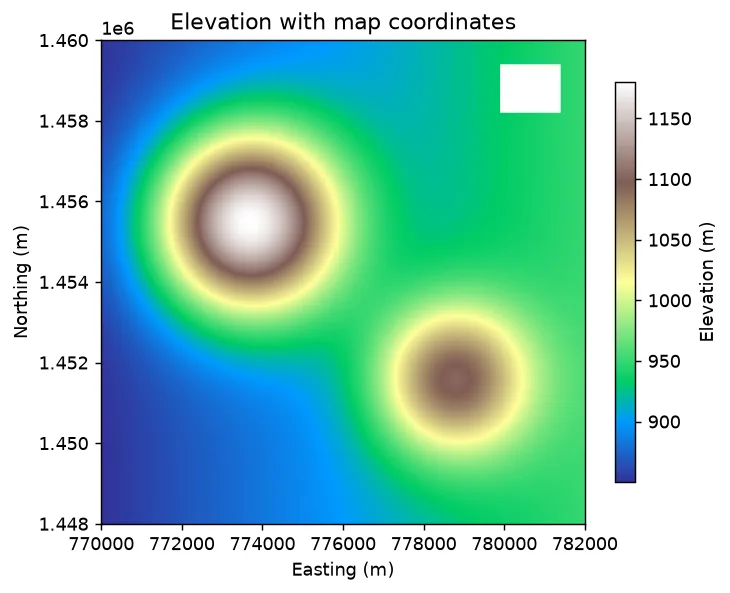
rasterio.plot.show draws the array with the transform, so the axes show real map coordinates, which imshow on its own does not. Masked cells stay blank.
7. Calculate and write a new raster
A calculation uses NumPy on the array, and the result is written to a new file that copies the old georeferencing.
# Goal: mark every cell above 1000 m and save the result as a new raster.

# Step 1: read the elevation (NoData hidden) and keep the file's settings (the "profile")
with rasterio.open("rio/dem.tif") as src:
    elev = src.read(1, masked=True)
    profile = src.profile

# Step 2: True where above 1000 m. .filled(False) turns hidden cells into False.
high = (elev > 1000).filled(False)
nodata_cells = np.ma.getmaskarray(elev)            # True where there was no data

# Step 3: 1 = high, 0 = not high, 255 = no data (a small whole-number raster)
result = high.astype("uint8")
result[nodata_cells] = 255

# Step 4: change the settings that differ from the original: the number type, the NoData value, compression
profile.update(dtype="uint8", nodata=255, compress="deflate")

# Step 5: save it using the updated settings. ** means "pass every setting in the profile".
with rasterio.open("rio/high.tif", "w", **profile) as dst:
    dst.write(result, 1)

print("cells above 1000 m:", int(high.sum()))
print("area km2:", round(int(high.sum()) * 30 * 30 / 1_000_000, 2))      # each cell is 30 x 30 m
cells above 1000 m: 28553
area km2: 25.7
src.profile is the set of file properties. Copy it, change what differs (here the data type and NoData value) with update, and unpack it into rasterio.open with **profile. This keeps the CRS and transform without retyping them. The mask array marks the NoData cells so they can be set to the NoData value 255, which keeps them separate from real zeros.
8. Clip with a polygon
rasterio.mask.mask cuts a raster with polygons. Make a circular study area with GeoPandas, in the raster's CRS.
import geopandas as gpd
from shapely.geometry import Point
from rasterio.mask import mask                     # cuts a raster with a shape

# Step 1: a circle of 2.5 km radius to use as the cutting shape
area = gpd.GeoDataFrame({"name": ["study area"]}, geometry=[Point(776000, 1455000).buffer(2500)], crs="EPSG:32643")

with rasterio.open("rio/dem.tif") as src:
    # Step 2: safety check. The shape and the raster must use the same CRS, or the cut lands in the wrong place.
    assert area.crs == src.crs, "polygon and raster must share a CRS"
    # Step 3: cut. crop=True trims to the circle's box; cells outside the circle become NoData.
    clipped, clipped_transform = mask(src, area.geometry, crop=True, nodata=NODATA)
    profile = src.profile

# Step 4: the result has one extra dimension (bands), so [0] picks band 1. Hide the NoData cells.
clipped = np.ma.masked_equal(clipped[0], NODATA)
print(clipped.shape, "cells in the box,", clipped.count(), "inside the circle")
print("mean elevation:", round(float(clipped.mean()), 1))

# Step 5: save the clipped raster. Its size and position changed, so update those settings first.
profile.update(height=clipped.shape[0], width=clipped.shape[1], transform=clipped_transform)
with rasterio.open("rio/dem_cut.tif", "w", **profile) as dst:
    dst.write(clipped.filled(NODATA), 1)
(167, 168) cells in the box, 21790 inside the circle
mean elevation: 1001.9
crop=True shrinks the result to the polygon's bounding box, and cells outside the polygon get nodata. mask returns the cells as a 3D array of shape (bands, rows, columns), so clipped[0] takes the first band. The numbers are very close to the GDAL clip in Part 12, which gave 166 by 166 cells and 21,784 inside. The difference of a cell or two comes from how each tool rounds the edge of the box, and the mean elevation is the same. The assert makes the script stop with a clear message if the CRS differs, which is the most common clipping error. Reproject the polygons with area.to_crs(src.crs) if they do.
9. Reproject
Reprojecting needs a new grid, so first ask rasterio for a suitable one, then reproject band by band.
from rasterio.warp import calculate_default_transform, reproject, Resampling

dst_crs = "EPSG:4326"                              # the coordinate system we want (longitude, latitude)

with rasterio.open("rio/dem.tif") as src:
    # Step 1: work out the new grid: its position and size in the new coordinate system
    new_transform, new_width, new_height = calculate_default_transform(
        src.crs, dst_crs, src.width, src.height, *src.bounds
    )
    # Step 2: copy the file's settings and change the ones that differ
    profile = src.profile
    profile.update(crs=dst_crs, transform=new_transform, width=new_width, height=new_height)

    # Step 3: create the new file and fill it by reprojecting band 1 of the old one.
    # bilinear = smooth between neighbouring cells (right for continuous values like elevation)
    with rasterio.open("rio/dem_wgs84.tif", "w", **profile) as dst:
        reproject(
            source=rasterio.band(src, 1),
            destination=rasterio.band(dst, 1),
            resampling=Resampling.bilinear,
        )

# Step 4: check the new file
with rasterio.open("rio/dem_wgs84.tif") as out:
    print(out.width, out.height, out.crs.to_epsg())
    print([round(v, 6) for v in out.bounds])
408 400 4326
[77.489979, 13.085137, 77.601665, 13.194633]
calculate_default_transform works out the size and transform of the output grid. reproject fills it, using the resampling method you choose. Use Resampling.nearest for categories, such as land cover classes, and bilinear or cubic for continuous values like elevation. Bilinear on classes invents values that are not classes, as Part 12 showed. The result has the same size as the GDAL warp in Part 12.
10. Multiband rasters and NDVI
A satellite scene has several bands. NDVI (normalised difference vegetation index) uses the red and near infrared bands: (NIR - Red) / (NIR + Red). Healthy vegetation reflects strongly in the near infrared and absorbs red, so its NDVI is high, and bare ground and water are low. To keep this runnable, the two bands are invented:
# NDVI measures how green the land is: (NIR - Red) / (NIR + Red). Healthy plants reflect lots of NIR and absorb red.

# Step 1: make a test scene with two bands. The "vegetation" patch has more NIR and less red.
rng = np.random.default_rng(42)                    # random number maker; 42 means you get the same numbers each run
yy, xx = np.mgrid[0:200, 0:200]
vegetation = np.exp(-((xx - 70) ** 2 + (yy - 90) ** 2) / 2500)          # a green patch
red = (0.25 - 0.18 * vegetation + rng.normal(0, 0.01, (200, 200))).astype("float32")
nir = (0.20 + 0.45 * vegetation + rng.normal(0, 0.01, (200, 200))).astype("float32")

# Step 2: save both bands in one file (band 1 = red, band 2 = near infrared)
with rasterio.open(
    "rio/scene.tif", "w", driver="GTiff", height=200, width=200, count=2,
    dtype="float32", crs="EPSG:32643", transform=from_origin(770000, 1460000, 10, 10),
) as dst:
    dst.write(red, 1)
    dst.write(nir, 2)
    dst.set_band_description(1, "red")
    dst.set_band_description(2, "nir")

# Step 3: read the bands back as decimal numbers
with rasterio.open("rio/scene.tif") as src:
    print(src.count, src.descriptions)
    red_b = src.read(1).astype("float32")
    nir_b = src.read(2).astype("float32")
    profile = src.profile

# Step 4: the NDVI formula. If red + nir is 0 the division is impossible, so we put NaN (not a number) there.
total = nir_b + red_b
ndvi = np.where(total == 0, np.nan, (nir_b - red_b) / np.where(total == 0, 1, total))

# Step 5: summarise (nanmin/nanmax ignore the NaN cells)
print("NDVI range:", round(float(np.nanmin(ndvi)), 2), "to", round(float(np.nanmax(ndvi)), 2))
print("share of cells with NDVI above 0.5:", round(float((ndvi > 0.5).mean()) * 100, 1), "percent")

# Step 6: save NDVI as a one-band raster
profile.update(count=1, nodata=np.nan)
with rasterio.open("rio/ndvi.tif", "w", **profile) as dst:
    dst.write(ndvi.astype("float32"), 1)
2 ('red', 'nir')
NDVI range: -0.22 to 0.88
share of cells with NDVI above 0.5: 11.6 percent
Two bands are written with count=2, and each gets a description. The calculation reads each band as a float, because integer maths on raw reflectance would drop the decimals. The np.where guard avoids dividing by zero. NDVI always lies between -1 and 1. This is a made-up scene, so the numbers say nothing about a real place. With a real Sentinel-2 scene, band 4 is red and band 8 is near infrared, and the files are separate, so you open each with rasterio.open and read it the same way. Remember that reflectance values are often stored as scaled integers, and the scale factor of the product tells you how to convert them.
11. Zonal statistics by hand
Zonal statistics summarise raster cells inside each polygon. This is the typical raster plus vector workflow: elevation per district.
# Goal: a table with one row per district, holding raster statistics (zonal statistics).
from shapely.geometry import box

# Step 1: two districts as rectangles, side by side
districts = gpd.GeoDataFrame(
    {"district": ["West", "East"]},
    geometry=[box(770000, 1448000, 776000, 1460000), box(776000, 1448000, 782000, 1460000)],
    crs="EPSG:32643",
)

# Step 2: for each district, cut the raster to that shape and measure the cells inside it
rows = []                                          # one result row per district goes in this list
with rasterio.open("rio/dem.tif") as src:
    for _, d in districts.iterrows():              # take the districts one at a time
        cells, _ = mask(src, [d.geometry], crop=True, nodata=NODATA)
        cells = np.ma.masked_equal(cells[0], NODATA)      # hide the NoData cells
        rows.append({
            "district": d["district"],
            "cells": int(cells.count()),                  # number of valid cells
            "mean_m": round(float(cells.mean()), 1),      # average elevation
            "max_m": round(float(cells.max()), 1),        # highest cell
        })

# Step 3: turn the list of rows into a table
import pandas as pd
stats = pd.DataFrame(rows)
print(stats)

# Step 4: attach the numbers back to the district shapes, so the result can be mapped
result = districts.merge(stats, on="district")
print(type(result).__name__, result.crs.to_epsg())
  district  cells  mean_m   max_m
0     West  80000   939.8  1180.3
1     East  78000   957.9  1103.0
GeoDataFrame 32643
Each polygon clips the raster, the NoData cells are masked, and the statistics go into a table. The table is then merged back onto the polygons (Part 8), so the result is a GeoDataFrame that can be mapped or saved with to_file. The East district includes the NoData gap, and masking keeps the mean honest. For many polygons, the rasterstats package does this in one call, but writing it out once shows what it does.
12. Rasterio or GDAL?
They share the same engine, so choose by what is easier to read.
| Choose | When |
|---|---|
| rasterio | reading cells, masks, windows, sampling, and writing rasters with NumPy |
| GDAL command line tools | quick conversions, mosaics and warps in a script or batch file |
| GDAL Python bindings | features rasterio does not wrap, such as gdal.Rasterize, Polygonize and BuildVRT |
They read each other's files, so you can mix them in one workflow.
Run this part as a notebook
The code on this page is also a Jupyter notebook. It has the theory in text cells, then the code, then guided practice, an independent assignment and hidden solutions, so you can try each task before you look. Download the Part 16 notebook, open it in JupyterLab and run the cells from top to bottom. Part 1 shows how to install and start Jupyter.
Practice
- Open a real DEM and print its size, cell size, CRS, bounds and NoData. Compare with
gdalinfo. - Read it with and without
masked=Trueand compare the mean. - Sample the elevation at five points in a CSV and add the result as a column in pandas.
- Clip it to a polygon in a different CRS. Fix the CRS error with
to_crs. - Compute NDVI from two real Sentinel-2 bands and save it as a GeoTIFF.
Common mistakes
- Forgetting
masked=Trueand including NoData cells in statistics. - Counting bands from 0. In rasterio the first band is 1.
- Opening a file for writing with the default mode, which is read only. Use
"w". - Writing a file without a
withblock and never closing it. - Clipping with a polygon in a different CRS than the raster.
- Using integer bands in NDVI and losing the decimals.
- Reading a huge raster whole when a window would do.
- Resampling a categorical raster with
bilinear.
Key takeaways
Next: PyQGIS, GeoPandas and GDAL together. When you are ready for real satellite data, Part 19 uses a Landsat 8 scene of Bengaluru.