

In Part B you built a map by clicking. It took ten pages, and the Atlas gave you a series at the end. This part shows how to do the same with Python. You will need to know very little Python: variables, a loop and a function, as in the Coding for GIS series. Every line of code here is explained, and every script was run in QGIS 3.44 before it was written down.
What layout automation is
A QGIS layout is a page with a map, a title, a legend and other items. Layout automation means that a script builds or changes those items and exports the page, so that you do not do it by hand each time.
When is it worth it? Suppose you must make a map of Bengaluru's five city corporations. By hand, that is five times the same fifteen steps: change the title, zoom, check the outline, export. The second time is boring, and the fifth time is where you make a mistake. For a monthly report with thirty districts, it is worse. A script does the thirty maps in the same way, every month.
When is it not worth it? For a single map that you will never repeat. Clicking is faster than writing a script. Be honest about this when you decide.
The five jobs
Every automated map does five different jobs. Keeping them apart is what makes a script easy to understand.
| Job | What it controls | In our Bengaluru example |
|---|---|---|
| Design | The look of the page: positions, fonts, colours | The template from Part B |
| Data | What each map shows | One row per corporation: its name, title and shape |
| Repetition | Which map comes next | A loop over the five rows |
| Export | How each page is written to a file | A PDF for each corporation |
| Checking | Whether the result is complete and right | Checks before and after, and your own eyes |
The design belongs in the template, the content in the data, and only the repetition and the checking belong in the script. The lessons follow this order: this page and the next build a layout in code, then you reuse a template, then repeat it, then export and check, and finally put it all together.
Classes, objects, methods and arguments
PyQGIS code reads like English once you know four words. Here are the first lines you will write:
layout = QgsPrintLayout(project)
layout.setName("Lesson 1 layout")
- QgsPrintLayout is a class: a description of a kind of thing. Here it is a Print Layout. Class names in QGIS start with
Qgs. QgsPrintLayout(project)makes an object: one actual layout. Theprojectin brackets is an argument, a value the class needs. This one says which project the layout belongs to.layoutis a variable. It is a name for the object, so that you can use it again.setName()is a method: something an object can do.layout.setName("Lesson 1 layout")calls it with the argument"Lesson 1 layout".
So the second line means: "layout, set your name to Lesson 1 layout." That is all.
A mental model
Think of a layout as a page, and of every item as an object placed on the page. The map item has a size on the page and a geographic extent. A label has text and a font. A scale bar is linked to a map, so that its numbers are right. You create each object, set its properties and add it to the page. This is what you did with the mouse in Part B.
Get the files
Download bengaluru_layout_part_c.zip (0.9 MB) and unzip it. It holds the project, the data, the template from Part B and one script for each lesson. Keep the contents together in one folder. The scripts find everything relative to the project file, so the folder can be anywhere.
Step 1: Open the Python Console
Open the project bengaluru_layout_start.qgz in QGIS. Then choose Plugins > Python Console. A panel opens at the bottom. Click the Show Editor button to open an editor next to it, then open scripts/lesson1_inspect.py in the editor.
The console already knows the QGIS classes. You can type short commands at the >>> prompt, and the editor holds longer scripts that you run with the green Run button.
Step 2: Look at the project
Every script that you automate depends on the project having the right layers. The first thing to do is to look.
# Step 1: get the project that is open in QGIS
project = QgsProject.instance()
print("Project file:", project.fileName())

# Step 2: list the layers, to check what is loaded and how each one is spelled
print("Layers:")
for layer in project.mapLayers().values():
    print("  ", layer.name(), "| valid:", layer.isValid(), "| features:", layer.featureCount())
QgsProject.instance() returns the project that is open in QGIS now. fileName() is its path. mapLayers() is a dictionary of all layers, .values() takes just the layer objects, and the for loop visits each one. For each layer the script prints its name, whether it is valid, and how many features it holds.
Step 3: Create a layout, then register it
# Step 3: create a layout object. It exists in Python only, so QGIS does not list it yet.
layout = QgsPrintLayout(project)
layout.initializeDefaults()
layout.setName("Lesson 1 layout")
manager = project.layoutManager()
print("Layouts in the project:", len(manager.layouts()))        # 0

# Step 4: register it. Now the Layout Manager knows it, and it is saved with the project.
manager.addLayout(layout)
print("Layouts in the project:", len(manager.layouts()))        # 1

# Step 5: a layout is a page, and a page holds items. A new layout has none until you add some.
items = [i for i in layout.items() if isinstance(i, QgsLayoutItem) and not isinstance(i, QgsLayoutItemPage)]
print("Items on the page:", len(items))                    # 0

# Step 6: tidy up, so that the next lesson starts clean
manager.removeLayout(layout)
print("Layouts in the project:", len(manager.layouts()))        # 0
Run the whole script. This is what the console printed:
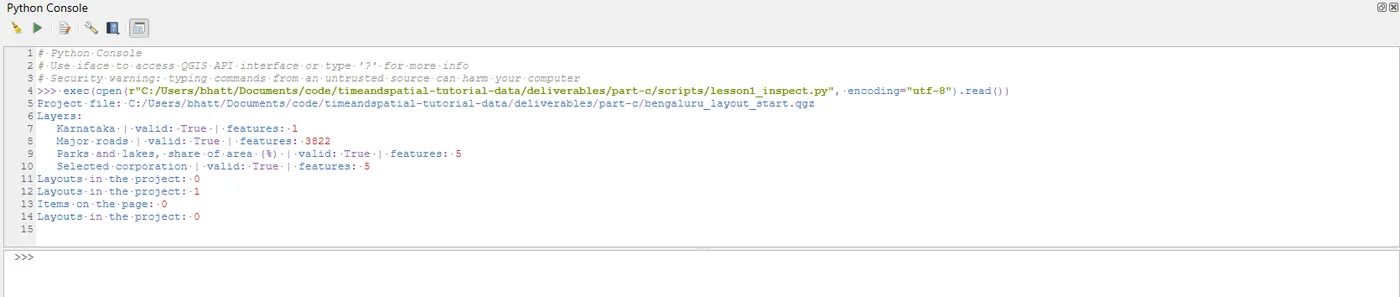
Project file: .../part-c/bengaluru_layout_start.qgz
Layers:
   Karnataka | valid: True | features: 1
   Major roads | valid: True | features: 3822
   Parks and lakes, share of area (%) | valid: True | features: 5
   Selected corporation | valid: True | features: 5
Layouts in the project: 0
Layouts in the project: 1
Items on the page: 0
Layouts in the project: 0
The numbers tell the story. The four layers are there and valid. The roads layer has 3,822 features and the corporations layer has 5, which is what we expect, so the data is fine.
Then look at the three lines of "Layouts in the project": 0, then 1, then 0. After QgsPrintLayout(project) the layout exists as a Python object, but QGIS does not know about it, so the count is 0. After addLayout(layout) the count is 1, and the layout appears in Project > Layout Manager and is saved with the project. At the end we removed it again so that the next lesson starts clean.
This is the first thing to understand about automation. Three things are separate:
- Creating a layout object.
- Adding items to it, such as a map or a label. A new layout has none, as the line
Items on the page: 0shows. - Registering it in the project, so that QGIS lists it and saves it.
A layout that is not registered is gone when the script ends, which is perfect for a script that only exports a file. A layout that is registered stays in the project, which is what you want when you will open it later in the layout window. Both are useful, and in the series project we do not register the layouts at all, so that running the script twice does not fill the project with copies.
When it breaks
| What you see | Why | What to do |
|---|---|---|
NameError: name 'QgsProject' is not defined | The script is running outside the QGIS console, where the classes are not imported yet | Run it in the Python Console, or add the from qgis.core import ... lines at the top |
| The list of layers is empty | No project is open, or the wrong one | Open bengaluru_layout_start.qgz first |
Layouts in the project shows 1 at the start | A layout from an earlier run is still there | Open Project > Layout Manager and remove it, or run the script's last step |
A layer is listed with valid: False | QGIS cannot find its data file | Keep the project and the data folder together |
Make it your own
- Change the layout name in Step 3. Put a
#in front of the lines of Step 6, so that the layout is not removed, and run the script. Open Project > Layout Manager and find your layout under its new name. Then delete it in the manager. - Print the field names of the corporations layer:
print([f.name() for f in layer.fields()])inside the loop. Which fields could be used for a title? - In your own words, explain the difference between a layout and a map item. Then check it against the section "A mental model".
Common mistakes
- Thinking that creating a layout also adds it to the project.
- Using a layer name from memory. Print the names, and copy them exactly.
- Skipping the check of the project and finding out three scripts later that a layer is missing.
- Automating a map that you will make only once.
Key takeaways
Next: Your first layout script.