

A layout can contain the right data and still look wrong. Usually the reason is spacing: items squeezed against the edge, edges that almost line up, text hugging the map frame. These are easy to fix once you know what to look for.
What are page size, margins and balance?
The page size is the physical size of the sheet, such as A4 (210 by 297 mm). Orientation says whether the long side is horizontal (landscape) or vertical (portrait). Margins are the empty borders between the page edge and your content. Balance is how the items are spread across the page, so that no corner is crowded and another is empty.
Why it matters
Printers cannot always print right to the edge of a sheet, and anything near the edge risks being trimmed. Beyond that, a reader finds items faster when they line up. Our eyes read straight edges as order. A legend that sits a few millimetres off from the title looks like a mistake even if nobody can say why.
The rules, with starting values
- Choose the page early. The shape of the page decides how big the map frame can be and where the legend goes. A landscape page suits a map that is wider than tall, and portrait suits a long, narrow area. Neither is a rule.
- Keep one margin all around, for example 10 mm on an A4 page, and keep important text inside it. The 10 mm is a starting value. A printer or publisher may ask for something different.
- Line up related items. Give the title, the map frame and the notes the same left edge. Give the legend and scale bar a shared baseline where you can.
- Leave white space on purpose. Empty space separates groups and rests the eye. It is not wasted.
- Do not shrink the map to fit decoration. If a logo or a large legend forces the map to be small, make the logo or the legend smaller.
- Check the page at its real size. A layout viewed zoomed in on a monitor hides problems that show up on paper.
See the difference
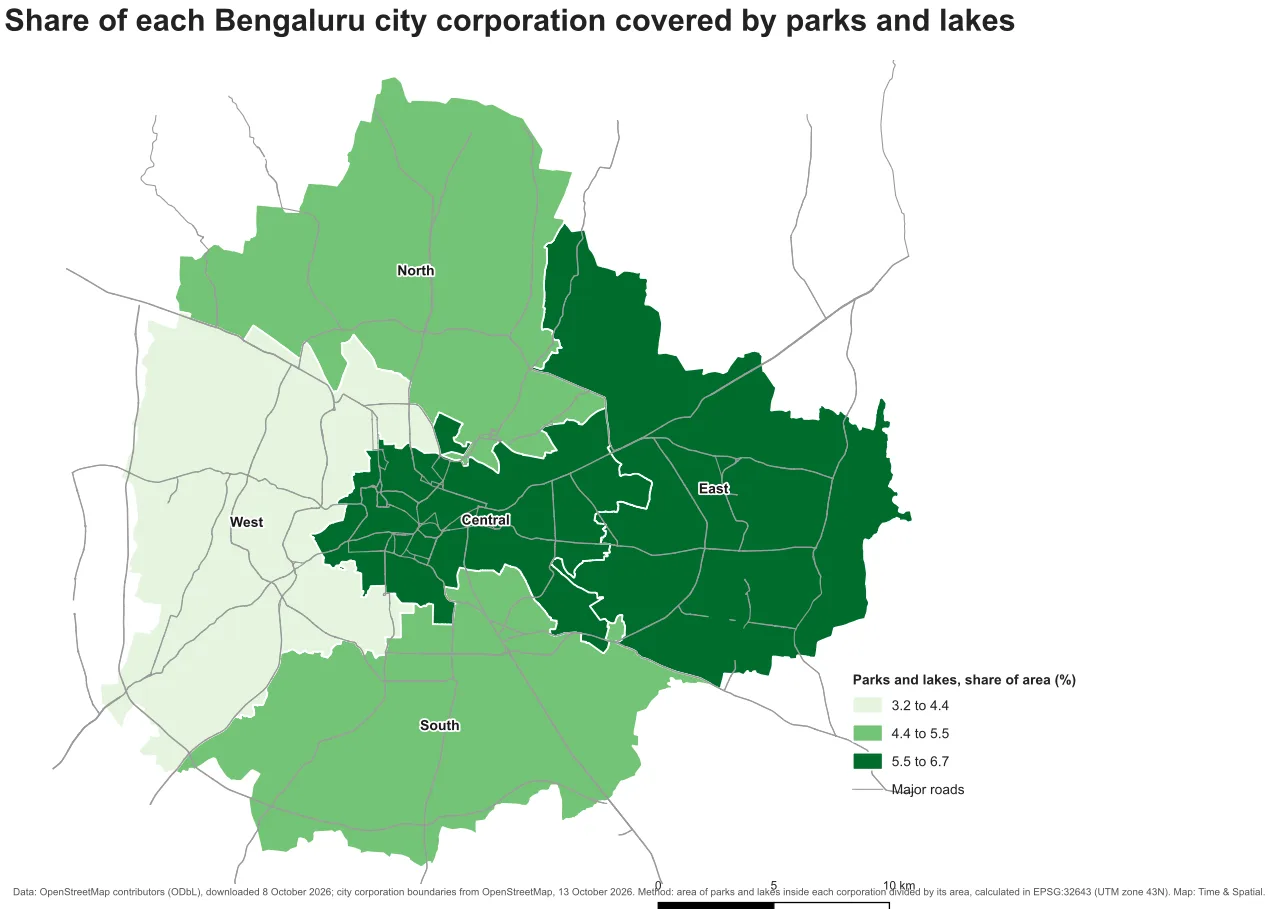
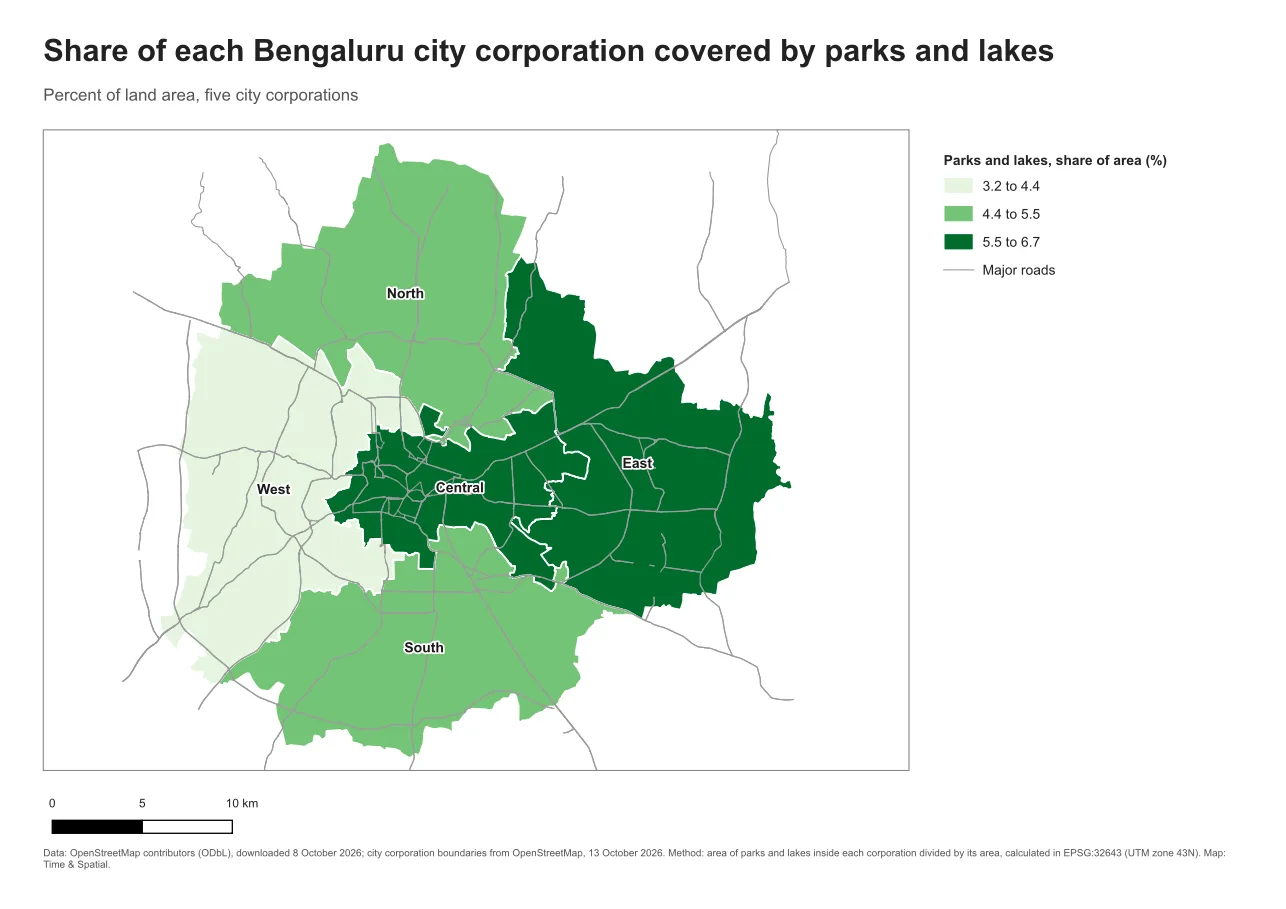
Both pages hold exactly the same items. Only the spacing changes.
Do it in QGIS
- In the Print Layout, right-click the page and choose Page Properties. Set the size to A4 and the orientation to landscape or portrait.
- Turn on rulers from the View menu and drag guides out of them to mark the margins. Guides show on screen only and never print.
- Select an item and open Item Properties. Under Position and Size, type exact values. Typing is more reliable than dragging.
- Select several items and use the alignment tools on the toolbar to line up their left edges or tops.
- Zoom to 100 percent from the View menu and look at the page at its real size.
Common mistake: items floating without a system
The mistake is placing each item by eye. Each one is slightly off, and together they look careless. The fix is to decide the margin and the shared edges first, then type the positions.
Glossary
| Term | Meaning |
|---|---|
| Landscape, portrait | A page that is wider than tall, or taller than wide |
| Margin | The empty border between the page edge and the content |
| Guide | A line on screen that helps you align items, which does not print |
| White space | Empty area that separates groups of items |
Practise it
Open a layout you have made and move one item at a time so that it sits exactly on the margin. Compare it with the original. The Print layouts in QGIS tutorial includes a step on aligning and tidying.
Test yourself
1. Why keep text inside a margin?
Printers can trim or fail to print near the edge, and text close to the edge looks cramped even when it prints.
2. Is white space wasted space?
No. It separates groups and gives the eye somewhere to rest. Filling every gap makes a layout harder to read.
3. Why type positions instead of dragging items?
Typed values are exact and repeatable. Dragging gives edges that are close but not equal.