

A reader who lives in Bengaluru does not need to be told where it is. A reader in another country does. A small locator map in a corner solves that for little cost: it shows the area of the main map as a mark on a larger area they already know. The note on locator maps and insets says when you need one. This page builds it.
Continue in Parks and lakes map. The right column has a free space between the legend and the scale bar. That is where the locator goes.
Step 1: Add a second map
Choose Add Item > Add Map and drag a rectangle in the free space. Then set its position and size in the Position and Size group: X 205, Y 98, Width 80 and Height 62. In the Item ID group, call it locator_map.
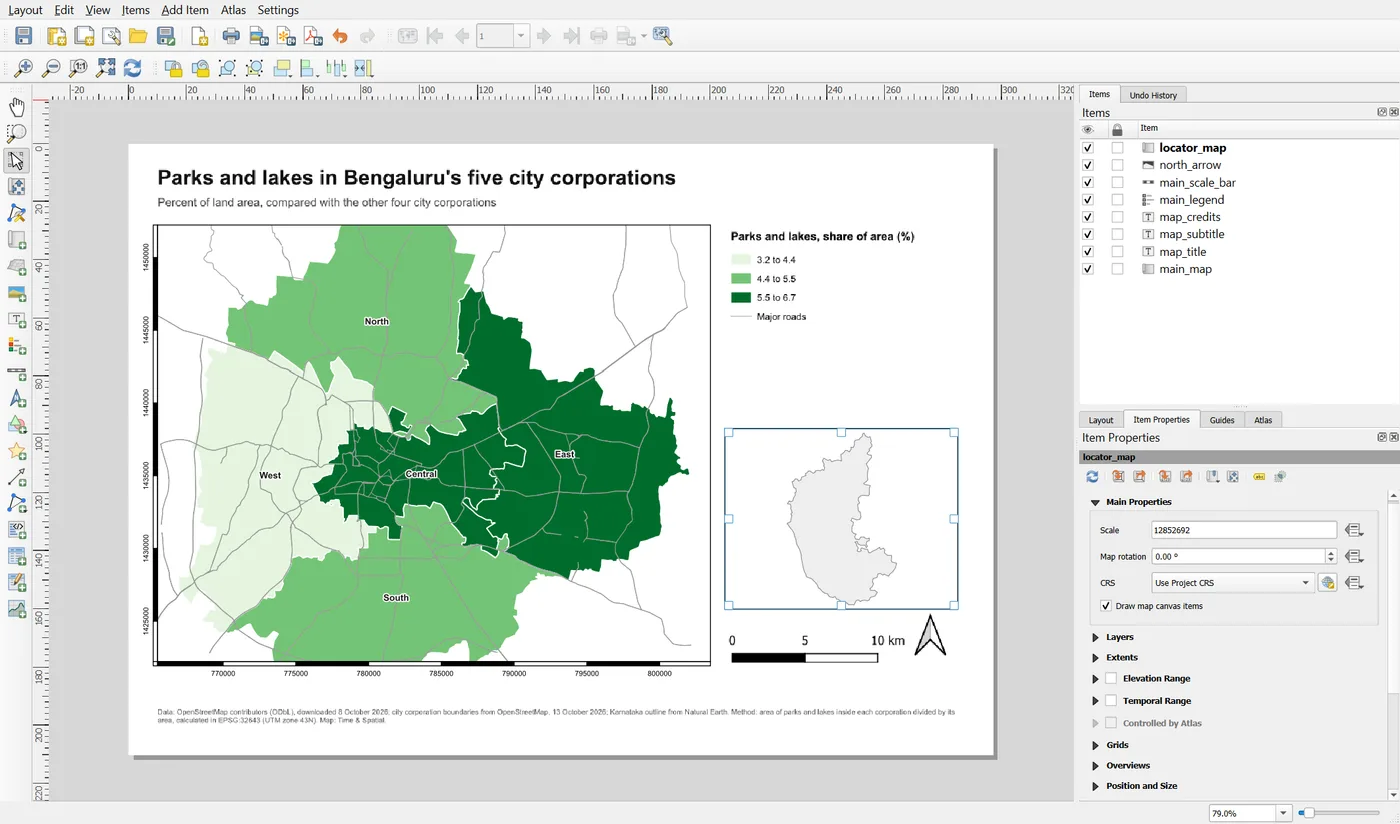
A second map item is completely independent of the first. It has its own extent, scale and layers. That is the whole trick: the locator shows a much bigger area than the main map.
Step 2: Show Karnataka only
The locator needs its own layer and its own area. Do this in three moves:
- In the main QGIS window, switch off every layer except Karnataka, and zoom the canvas to the whole state. Layer > Zoom to Layer does it.
- Back in the layout, select the locator map and click the toolbar button Set map extent to match main canvas extent. The locator now shows Karnataka. Its scale is about 1:9,000,000.
- Open the Layers group of the locator and tick Lock layers. The lock freezes the layers that are visible right now, which is only Karnataka.
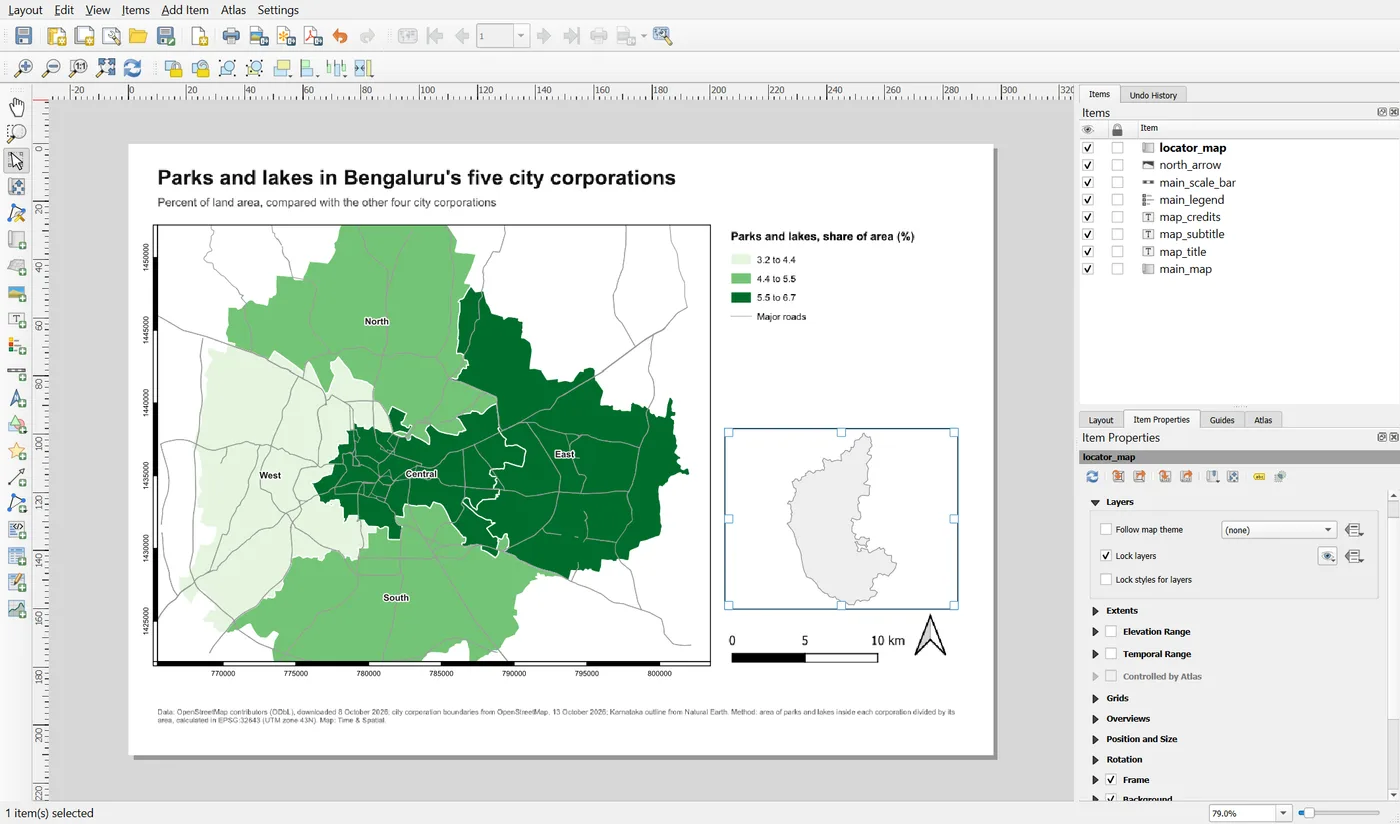
You can now switch the other layers back on in the main window. The main map is also locked, so neither map changes. Without the lock, the locator would also show the corporations and the roads, which would make it unreadable. A locator needs one simple outline.
Finish with a thin frame. In the Frame group, tick Frame and set 0.3 mm, the same as the main map, so the two maps look related.
Step 3: Show where the main map is
On the locator map, open the Overviews group and click the green plus button. QGIS adds an overview named Overview 1. Select it.
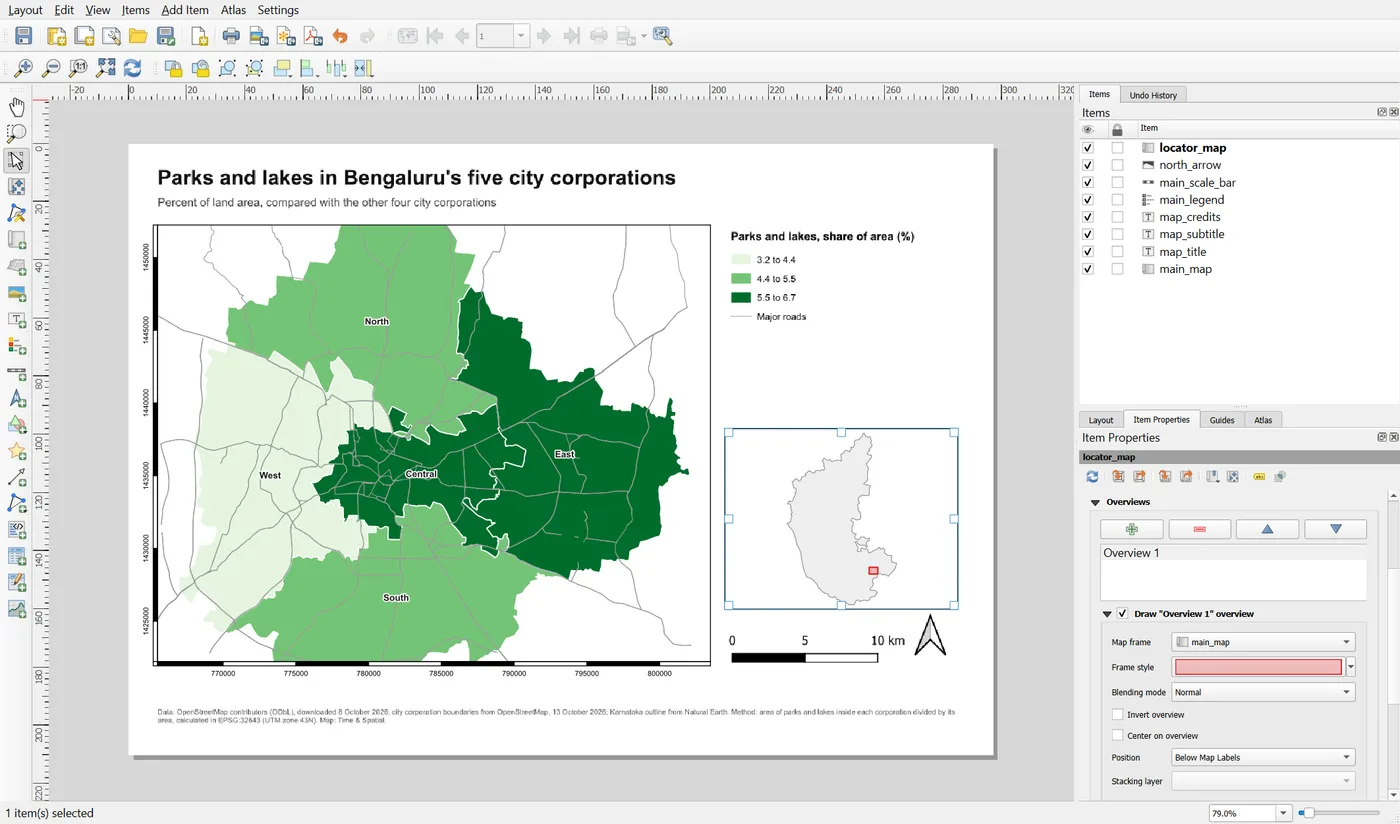
An overview draws the extent of another map frame as a shaded rectangle. Set the Map frame to main_map. Now the locator shows exactly the area that the main map shows, as a small box.
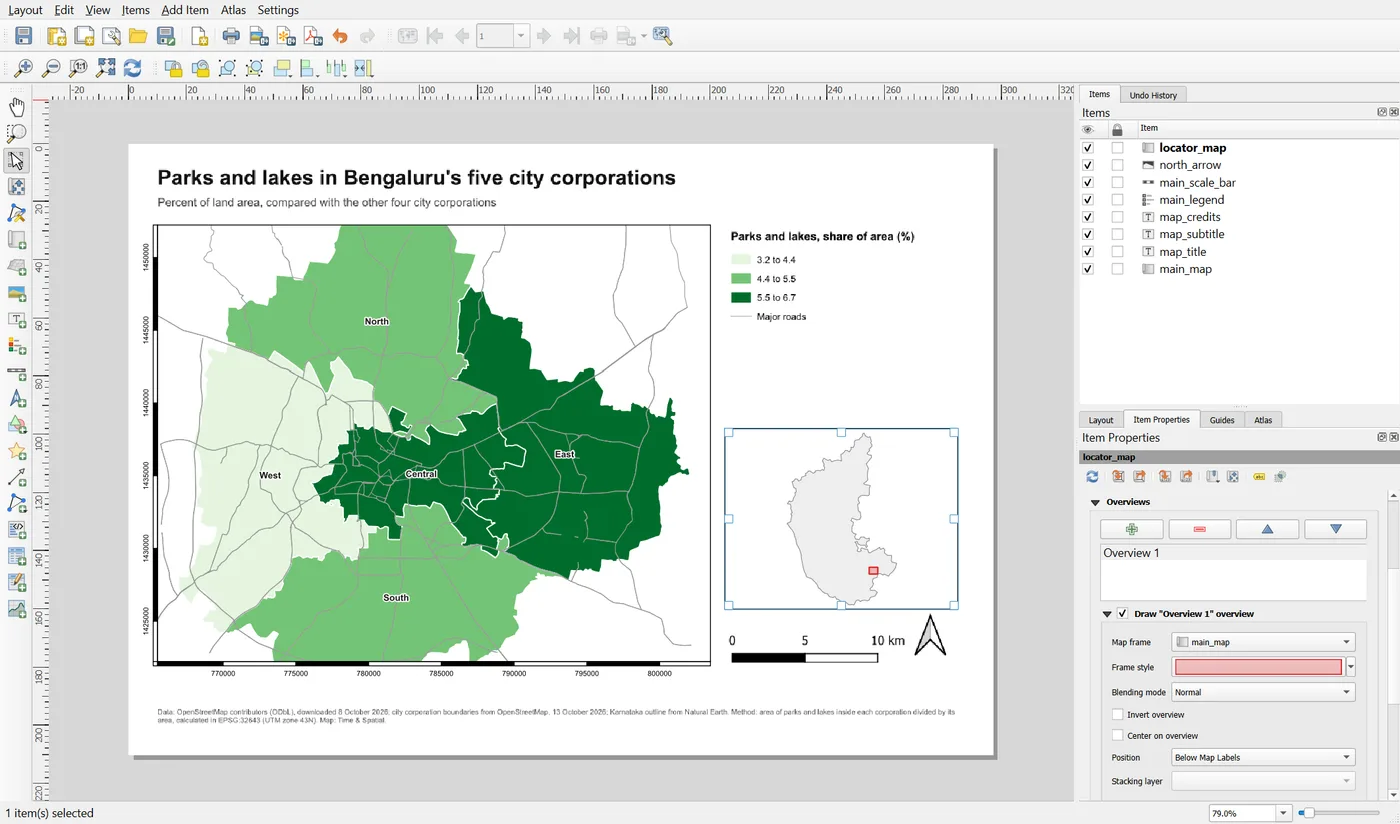
The default box is a pale pink that is hard to see. Click the Frame style swatch and make the fill a semi-transparent red with a red outline about 0.5 mm wide. It must stand out from the grey of Karnataka without looking like a data feature. Keep the same red on every locator you make, so readers learn what it means.
Two more options are worth knowing. Invert overview shades everything outside the box instead of the box, which is a different way to say "here". Center on overview moves the locator so that the box is always in its middle, which helps when the locator shows only part of a country.
Step 4: Label it
A locator is clearer with a short label. Add a label above it that says Location in Karnataka. Use a small bold font, 8 points, at X 205 and Y 92, width 80 and height 5. Give the label the ID locator_label.
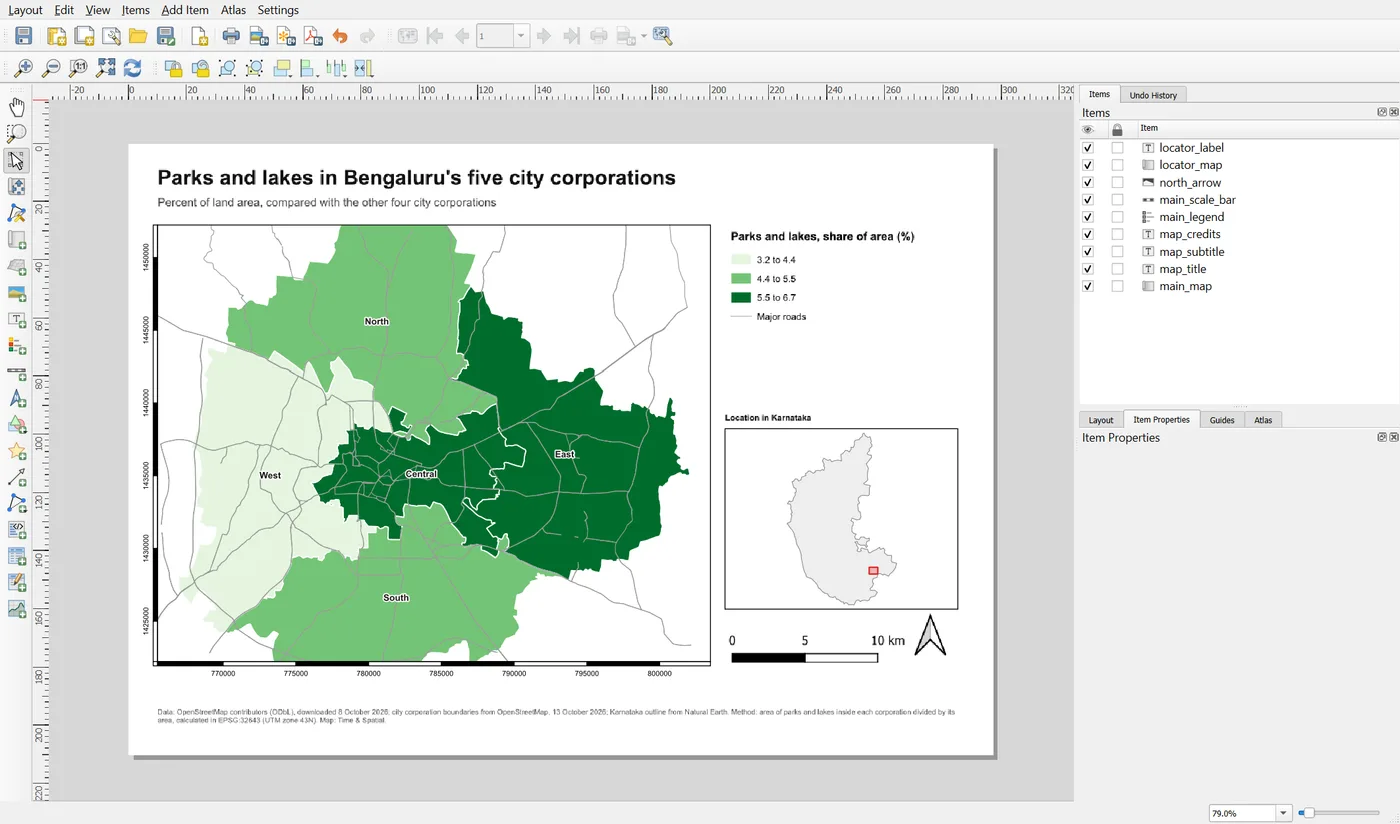
Check the result. A reader who has never heard of Bengaluru can now see that the map shows a small area in the south of Karnataka. The locator should be smaller than the main map and should not draw more attention than it. If you can see it clearly at the size you will print, it is big enough.
Save the project.
When it breaks
| What you see | Why | What to do |
|---|---|---|
| The locator shows the corporations and roads | Its layers are not locked | Tick Lock layers on the locator map after hiding the other layers |
| The red box is missing | The overview has no map frame, or the box is too small to see at this scale | Choose main_map as the Map frame, and make the locator's area smaller if needed |
| The red box is hard to see | The default frame style is pale | Change the Frame style to a stronger red |
| The box does not move when you change the main map | The overview is linked to another map | Check the Map frame setting |
| The locator is too crowded | It shows too much detail | Use one simple layer, such as an outline |
Make it your own
- Tick Invert overview and compare it with the red box. Which makes the position clearer?
- Change the locator's scale to 1:20,000,000 and then to 1:5,000,000. At which scale does the footprint become too small or too large to read?
- Change the main map's scale to 1:100,000. Watch what happens to the red box.
Common mistakes
- A locator that is bigger or louder than the main map.
- A locator with too many layers.
- An overview frame that is hard to see.
- A locator with no label, when the reader may not know what it is.
Key takeaways
Next: Text that updates itself: expressions and data-defined properties.