

Every GIS dataset is a table of values: names, coordinates, populations, dates. Python is a way of working with those values by writing instructions instead of clicking. This part uses one city, Bengaluru, to introduce the smallest pieces of the language. Later parts reuse them on thousands of rows.
What is Python?
Python is a programming language that reads like plain English. You write a line, Python runs it and gives the answer. It is free, and almost every GIS tool has a Python interface: QGIS, ArcGIS, GeoPandas and GDAL.
A program is a text file with instructions that run from top to bottom. A line that starts with # is a comment, a note for humans that Python ignores.
Why it matters
A GIS analyst repeats the same steps often: clean a column, check coordinates, compute a density. Code does that once, the same way every time, and the file records exactly what you did. Someone else can run it and get your result.
How to run Python
This series uses Jupyter notebooks. A notebook is a page made of cells. A text cell holds explanation, and a code cell holds Python that you run with Shift+Enter. The answer appears right under the cell, and the cells share their variables, so you can build a script one step at a time. Every part of the series has a notebook that you can download from its page.
Install Python from python.org, then open a terminal (Command Prompt or PowerShell on Windows) and run:
pip install jupyterlab pandas geopandas rasterio matplotlib
jupyter lab
JupyterLab opens in your browser. Use File > Open to load a downloaded notebook, or click the Python 3 tile to start an empty one. Parts 12 and 13 also need the GDAL Python bindings (from osgeo import gdal). The simplest source is the Python that comes with QGIS, and the notebooks for those two parts were run that way.
Other ways to run the same code:
- VS Code with its Python and Jupyter extensions opens the same notebooks.
- Google Colab runs notebooks in a web page with nothing to install, though GDAL and GeoPandas may need a
pip installcell first. - QGIS has a Python Console (Plugins > Python Console) with Python, pandas, GeoPandas and GDAL ready to use. It is handy for scripting QGIS itself, and Part 17 uses it.
- A plain file ending in
.pyruns withpython my_file.py.
The examples in this series build their own sample data, so no downloads are needed.
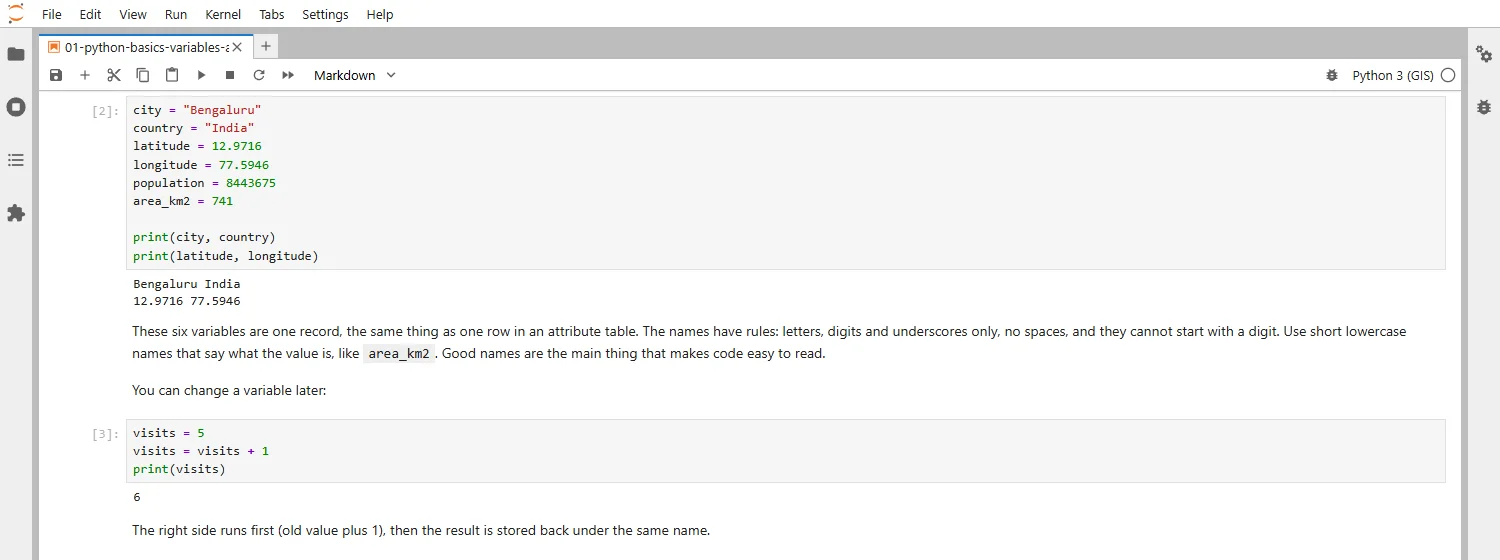
Every code block on these pages has a Copy button. You do not need to retype anything: copy a block, paste it into a notebook cell or into any code editor, and run it. In a notebook, click the cell and press Shift+Enter. The result appears under the cell, as in the picture below, which shows the parts of the JupyterLab window: the menu and toolbar at the top, the kernel name (the Python that runs your cells) at the right, and each cell with its output.
1. Your first lines
# print() shows something on the screen. Text goes inside quotes; numbers do not need them.
print("Hello, GIS")
print(2 + 3)                  # Python can do maths: this prints 5
Hello, GIS
5
print() shows a value on screen. Text goes inside quotes. Numbers do not.
2. Variables
A variable is a name that points to a value. Think of a labelled box. You write name = value, and from then on the name stands for the value.
# A variable is a name that holds a value. The = sign means "store the value on the right under the name on the left".
city = "Bengaluru"            # text (called a string) goes in quotes
country = "India"
latitude = 12.9716            # a number with decimals
longitude = 77.5946
population = 8443675          # a whole number
area_km2 = 741

# print() can show several things at once, separated by spaces
print(city, country)
print(latitude, longitude)
Bengaluru India
12.9716 77.5946
These six variables are one record, the same thing as one row in an attribute table. The names have rules: letters, digits and underscores only, no spaces, and they cannot start with a digit. Use short lowercase names that say what the value is, like area_km2. Good names are the main thing that makes code easy to read.
You can change a variable later:
# A variable can change. Python reads the right side first: take visits (5), add 1, store the answer back in visits.
visits = 5
visits = visits + 1
print(visits)                 # 6
6
The right side runs first (old value plus 1), then the result is stored back under the same name.
3. Data types
Every value has a type. Ask Python with type().
# type() tells you what kind of value a variable holds
print(type(city))             # str   = text
print(type(population))       # int   = whole number
print(type(latitude))         # float = number with decimals
print(type(True))             # bool  = True or False
<class 'str'>
<class 'int'>
<class 'float'>
<class 'bool'>
| Type | Name | Example | Used for |
|---|---|---|---|
str | string | "Bengaluru" | names, codes, addresses |
int | integer | 8443675 | counts, IDs |
float | decimal number | 12.9716 | coordinates, areas, measurements |
bool | boolean | True, False | yes or no questions |
Types matter because they decide what you can do. You can divide numbers but not names.
# Maths with variables. / divides.
density = population / area_km2
print(round(density, 1))      # round(number, how many decimals to keep)
11395.0
/ divides, and round(value, 1) keeps one decimal place. People per square kilometre is the population density.
Other operators are + - * /, ** for a power, // for division that drops the decimals, and % for the remainder.
4. Why coordinates must be numbers
A coordinate that arrives as text cannot be used in a calculation.
# "12.9716" in quotes is TEXT, even though it looks like a number. You cannot do maths with it.
lat_text = "12.9716"
print(type(lat_text))

# float() converts text into a decimal number, so now maths works
lat_number = float(lat_text)
print(lat_number + 1)
<class 'str'>
13.9716
float() converts text to a decimal number, int() to a whole number, and str() back to text. If you try lat_text + 1 without converting, Python stops with a TypeError, because it cannot add a number to text. For a table of coordinates the same problem shows up as a column that will not plot or measure, so check types early.
Another reason is that "9.5" > "12.1" is true when compared as text, because Python compares character by character. As numbers, 9.5 is smaller.
Check that coordinates are valid with a comparison, which gives True or False:
# A comparison asks a yes/no question and answers True or False.
# -90 <= latitude <= 90 reads like normal maths: "latitude is between -90 and 90"
lat_ok = -90 <= latitude <= 90
lon_ok = -180 <= longitude <= 180
print(lat_ok, lon_ok)
print(latitude > 0 and longitude > 0)     # "and" is True only when both sides are True
True True
True
Latitude runs from -90 to 90 and longitude from -180 to 180 degrees. and, or and not combine tests.
5. Strings and place names
Place names in real data are messy: extra spaces, odd capitals, different spellings. String methods fix them. A method is an action attached to a value, written value.method().
raw = "   bENGALURU  "         # messy text: extra spaces and odd capitals

# Each of these is a "method": a small tool attached to the text, called with a dot.
# They return a new text and leave raw unchanged.
print(raw.strip())             # remove the spaces at both ends
print(raw.strip().lower())     # ...then all small letters
print(raw.strip().upper())     # ...then all capitals
print(raw.strip().title())     # ...then Capital At The Start Of Each Word
print(len(raw), len(raw.strip()))      # len() counts characters: before and after trimming
bENGALURU
bengaluru
BENGALURU
Bengaluru
14 9
| Method | What it does |
|---|---|
strip() | removes spaces from both ends |
lower(), upper() | all small or all capital letters |
title() | first letter of each word in capitals |
len() | number of characters (a function, not a method) |
Methods can be chained, as in raw.strip().title(). Each step works on the result of the one before. Strings never change in place, so store the result if you want to keep it:
# Keep the result by storing it in a new variable
clean_city = raw.strip().title()
print(clean_city)
Bengaluru
Split an address into pieces, and join pieces back together:
address = "MG Road, Bengaluru, Karnataka, 560001"

# split(",") cuts the text at every comma and gives a list of pieces
parts = address.split(",")
print(parts)

# This line cleans every piece with strip(). Read it as: "for each piece p in parts, give p.strip()"
parts = [p.strip() for p in parts]
print(parts[1])                # [1] picks the second piece. Counting starts at 0, so [0] is the first.

# join() does the opposite: it glues the pieces together with a separator of your choice
standard = " | ".join(parts)
print(standard)
['MG Road', ' Bengaluru', ' Karnataka', ' 560001']
Bengaluru
MG Road | Bengaluru | Karnataka | 560001
split(",") cuts the text at every comma and returns a list, which Part 2 explains. The line with for removes the leading space from each piece. parts[1] takes the second item, because Python starts counting at 0. " | ".join(parts) glues the pieces with the separator placed between them.
An f-string puts values into a sentence. Put f before the quotes and the variable names inside {}:
# An f-string puts variables inside text. Start with f before the quote, and write variables in { }.
print(f"{city} has {population:,} people in {area_km2} km2.")      # :, adds thousands commas
print(f"Density: {density:.1f} people per km2")                    # :.1f shows 1 decimal
Bengaluru has 8,443,675 people in 741 km2.
Density: 11395.0 people per km2
:, adds thousands separators and :.1f shows one decimal.
6. Reading an error
Errors are normal. Python tells you what went wrong, and the useful part is at the bottom.
# Mixing text and numbers with + is an error. This shows what the error looks like.
# try / except lets us catch the error and print it instead of stopping the program.
try:
    print(population + " people")
except TypeError as error:
    print("TypeError:", error)
TypeError: unsupported operand type(s) for +: 'int' and 'str'
Read it as: you tried to add an int and a str. The fix is str(population) + " people", or an f-string. Without try and except, the program would stop and print a longer message called a traceback. Read a traceback from the bottom up: the last line names the error, and the lines above show where it happened. Part 4 explains try and except.
Run this part as a notebook
The code on this page is also a Jupyter notebook. It has the theory in text cells, then the code, then guided practice, an independent assignment and hidden solutions, so you can try each task before you look. Download the Part 1 notebook, open it in JupyterLab and run the cells from top to bottom. Part 1 shows how to install and start Jupyter.
Practice
- Make variables for your own city: name, country, latitude, longitude, population and area. Print its density.
- Take
" new DELHI "and turn it into"New Delhi"in one line. - Store a longitude as the text
"77.5946", convert it, and check it is between -180 and 180. - Split
"Mysuru-Karnataka-India"at the dashes and print the state.
Common mistakes
- Putting quotes around a number and then trying to calculate with it.
- Using
=(store a value) where==(compare two values) is meant. - Mixing up
"Bengaluru"(text) andBengaluru(a variable name that does not exist). - Expecting
raw.strip()to changeraw. It gives back a new string. - Counting from 1. The first item has position 0.
- Mismatched quotes or brackets, which Python reports as a
SyntaxError.