

A single satellite image is a photograph of one day. A time series is many photographs of the same place, taken one after another and lined up so that you can follow a place through the year. Fields, forests and towns look similar on some dates and very different on others, and the way a place changes tells you more than any single picture.
This part builds a small time series from scratch. It uses twelve monthly NDVI images of a 10 km square around Jagraon, a town in Punjab, India. Punjab is a good place to start because its fields change colour twice a year, so the pattern is easy to see. The same task is done with menus and dialogs in the QGIS tutorial on raster time series. The two tutorials use the same data and follow the same steps, and they give the same numbers, so you can do one and compare it with the other.
Two ideas are used throughout, and both are explained in the study note on spectral indices. NDVI is the normalised difference vegetation index, (NIR - red) / (NIR + red), where NIR is near infrared light. Green leaves reflect a lot of near infrared and absorb red light, so healthy crops give values near 0.8 or 0.9, bare soil gives about 0.1 to 0.2, and roofs and roads stay low. A raster is a grid of cells, and each cell holds one number.
This part assumes you can open a raster with rasterio (Part 16) and know what a pandas table is (Part 7). Every other idea is explained when it first appears.
The same steps in QGIS
| Step | In this tutorial | In the QGIS tutorial |
|---|---|---|
| Open the data | rasterio.open | Add Raster Layer |
| One colour scale | vmin=0, vmax=0.9 | Symbology, Min 0 and Max 0.9 |
| Stack the months | np.stack | Build Virtual Raster |
| Dates and animation | pd.date_range and FuncAnimation | Temporal properties and the Temporal Controller |
| The curve of a place | src.index and ndvi[:, row, col] | Value Tool |
| The numbers as a table | pd.DataFrame | Sample raster values |
| Seasonal swing | np.nanmax minus np.nanmin | Cell statistics, Range |
| Seasons | np.nanmax and comparisons | Cell statistics, Maximum, and the Raster calculator |
A few words first
| Word | What it means here |
|---|---|
| Raster | A picture made of a grid of square cells, each holding one number |
| Cell | One square of the grid. Here a cell covers 10 m by 10 m on the ground |
| Band | One layer of numbers inside a raster file. Each monthly file here has one band |
| NoData | A special number, here -9999, that means "nothing was measured in this cell" |
| NaN | "Not a number". NumPy and pandas use it for a missing value |
| Array | A grid of numbers held in Python memory. A raster becomes an array when you read it |
| Composite | One image built from several images of the same place, so that clouds and bad cells are left out |
What you need
- Python with rasterio, GeoPandas, pandas, NumPy and Matplotlib. A Jupyter notebook is the easiest place to work. If an import fails, install the missing package, for example with
pip install rasterio geopandas pandas numpy matplotlib. - The data: jagraon_ndvi_2023.zip (36 MB). It is the same file as in the QGIS tutorial. Unzip it next to your notebook, so that you have a folder called
jagraon_ndvi_2023.
| File | What it is |
|---|---|
monthly/ndvi_2023-01.tif to ndvi_2023-12.tif | One NDVI raster for each month of 2023, 1000 by 1000 cells of 10 m, EPSG:32643, NoData value -9999 |
sites_points.gpkg | Three places called A, B and C, one point each |
sites_squares.gpkg | A 90 m square around each point, for use in QGIS |
monthly_scenes.csv | How many Sentinel-2 scenes went into each month, and the share of cells that have a value |
Each monthly file was made from Sentinel-2 Level-2A surface reflectance, bands B04 (red) and B08 (near infrared), at 10 m. For every scene the cells marked as no data, saturated, cloud shadow, medium or high probability cloud, thin cirrus or snow in the scene classification layer were removed, and NDVI was calculated. The monthly value of a cell is the median of the NDVI values that remained in that month. A median is the middle value of a sorted list, so one bad observation does not move it much. EPSG:32643 is WGS 84 / UTM zone 43N, a projected coordinate system whose unit is the metre, which is why a cell can be exactly 10 m wide.
The study area is centred near 30.79° N, 75.47° E. The scenes were read from the open Earth Search catalogue. Clouds are the reason for the monthly composite: the Sentinel-2 satellites pass over a place about every five days, but in the monsoon many passes are cloudy, and a month of passes gives a better chance of one clear view for every cell. The year 2023 is used because every month has a value in every cell. Other years are not always so lucky: for this square, August 2025 had only two usable scenes and 63 percent of its cells had a value.
1. Open the data
from pathlib import Path

import numpy as np
import pandas as pd
import geopandas as gpd
import rasterio
import matplotlib.pyplot as plt

# Step 1: point to the data folder and list the twelve monthly files in order
data = Path("jagraon_ndvi_2023")
files = sorted((data / "monthly").glob("ndvi_2023-*.tif"))
print(len(files), "files, from", files[0].name, "to", files[-1].name)

# Step 2: read the small table about how each month was made
scenes = pd.read_csv(data / "monthly_scenes.csv")
print(scenes)
12 files, from ndvi_2023-01.tif to ndvi_2023-12.tif
      month  scenes_used  valid_share
0   2023-01            5          1.0
1   2023-02            6          1.0
2   2023-03            4          1.0
3   2023-04            4          1.0
4   2023-05            5          1.0
5   2023-06            4          1.0
6   2023-07            4          1.0
7   2023-08            5          1.0
8   2023-09            4          1.0
9   2023-10            6          1.0
10  2023-11            4          1.0
11  2023-12            5          1.0
sorted puts the files in the order of their names, and the names carry the month, so January comes first and December last. That order matters, because everything below treats the first file as month 1. Every month has between 4 and 6 scenes behind it, and every cell has a value in every month (valid_share is 1.0). That is why 2023 was chosen. The section on gaps near the end explains what to do when your own data has holes.
Now open one file and look at what it holds.
# Step 1: open January and read the facts about the file
with rasterio.open(files[0]) as src:
    print("size:", src.width, "x", src.height, "cells | cell size:", src.res[0], "m")
    print("CRS: EPSG", src.crs.to_epsg(), "| data type:", src.dtypes[0], "| NoData:", src.nodata)

    # Step 2: read band 1 as a masked array, in which the NoData cells are hidden
    january = src.read(1, masked=True)

# Step 3: look at the values
print("lowest:", round(float(january.min()), 2), "| highest:", round(float(january.max()), 2), "| mean:", round(float(january.mean()), 2))
print("cells without a value:", int(january.mask.sum()))
size: 1000 x 1000 cells | cell size: 10.0 m
CRS: EPSG 32643 | data type: float32 | NoData: -9999.0
lowest: -0.17 | highest: 0.89 | mean: 0.61
cells without a value: 0
The file holds one band of decimal numbers (float32). NoData, here -9999, is a number that stands for "nothing was measured". If a file had cells of -9999 and you took the mean of the raw numbers, those cells would ruin it. Reading with masked=True hides them, so the minimum, the maximum and the mean use real values only. January has no missing cells, but files of other years or places may.
2. Look at the twelve months
Before any calculation, look at the data. Read all twelve files and draw them next to each other.
# Step 1: read the twelve files one by one; cells with no value become NaN ("not a number")
layers = []
for path in files:
    with rasterio.open(path) as src:
        layers.append(src.read(1, masked=True).filled(np.nan))
print(len(layers), "arrays, each with shape", layers[0].shape)

# Step 2: draw all twelve on one shared colour scale from 0 to 0.9
month_names = ["January", "February", "March", "April", "May", "June",
               "July", "August", "September", "October", "November", "December"]
fig, axes = plt.subplots(3, 4, figsize=(14, 11), constrained_layout=True)
for ax, layer, name in zip(axes.flat, layers, month_names):
    picture = ax.imshow(layer, cmap="YlGn", vmin=0, vmax=0.9)
    ax.set_title(name)
    ax.axis("off")

# Step 3: one colour bar for all twelve pictures
fig.colorbar(picture, ax=axes, shrink=0.6, label="NDVI")
fig.savefig("ndvi_twelve_months.png", dpi=90)
print("saved")
12 arrays, each with shape (1000, 1000)
saved
The figure above is interactive: click a month to open it full screen, or switch to Play the year. The colour scale is fixed with vmin and vmax. This is important in a time series. If every picture were stretched to its own lowest and highest value, a pale May and a pale November could use the same colours for different NDVI values, and the pictures could not be compared.
Read the sequence like a film. In January the fields are medium to dark green. February and March are the darkest. In April many fields turn pale, and from May to July most of the square is pale with scattered dark green patches. August and September are dark green again. October is a little lighter, November is the palest month, and December is patchy. The town in the centre stays pale all year, because roofs and roads do not grow.
3. Stack the twelve months into one array
One two-dimensional array holds one month. To follow a place through the year you want all twelve months in one object, so that the twelve values of a cell sit next to each other. NumPy can do that with a three-dimensional array, which you can picture as twelve sheets of paper stacked on top of each other.
# Step 1: stack the twelve 2-D arrays into one 3-D array with the axes (month, row, column)
ndvi = np.stack(layers)
print("shape (months, rows, columns):", ndvi.shape)

# Step 2: keep the georeferencing of the first file, to write new files later
with rasterio.open(files[0]) as src:
    profile = src.profile
print("CRS:", profile["crs"], "| cells are", profile["transform"].a, "m wide")
shape (months, rows, columns): (12, 1000, 1000)
CRS: EPSG:32643 | cells are 10.0 m wide
ndvi[0] is January and ndvi[11] is December. ndvi[:, 500, 500] is the twelve values of one cell, from January to December, which is the time series of that cell. NaN is the NumPy way to say "missing". It is useful because functions such as np.nanmean and np.nanmax skip it, while an ordinary mean returns NaN as soon as one value is missing.
4. Give every month a date and play the year
The array does not know that position 0 is January. A list of dates keeps that link: position 0 gets the first date, position 1 the second, and so on. With the dates in hand, you can play the year as an animation.
# Step 1: one date per month. "MS" means month start, so the dates are the first of each month
months = pd.date_range("2023-01-01", periods=12, freq="MS")
print(months.strftime("%b").tolist())

# Step 2: draw the first month, with a title that shows its date
from matplotlib.animation import FuncAnimation, PillowWriter

fig, ax = plt.subplots(figsize=(5, 5.4))
picture = ax.imshow(ndvi[0], cmap="YlGn", vmin=0, vmax=0.9)
title = ax.set_title(months[0].strftime("%B %Y"))
ax.axis("off")
fig.colorbar(picture, ax=ax, shrink=0.7, label="NDVI")

# Step 3: a function that swaps in the next month and its title
def update(i):
    picture.set_data(ndvi[i])
    title.set_text(months[i].strftime("%B %Y"))
    return picture, title

# Step 4: build the animation from the twelve frames and save it as a GIF
animation = FuncAnimation(fig, update, frames=12, interval=700)
animation.save("ndvi_2023_year.gif", writer=PillowWriter(fps=1.5), dpi=70)
print("saved ndvi_2023_year.gif")
['Jan', 'Feb', 'Mar', 'Apr', 'May', 'Jun', 'Jul', 'Aug', 'Sep', 'Oct', 'Nov', 'Dec']
saved ndvi_2023_year.gif
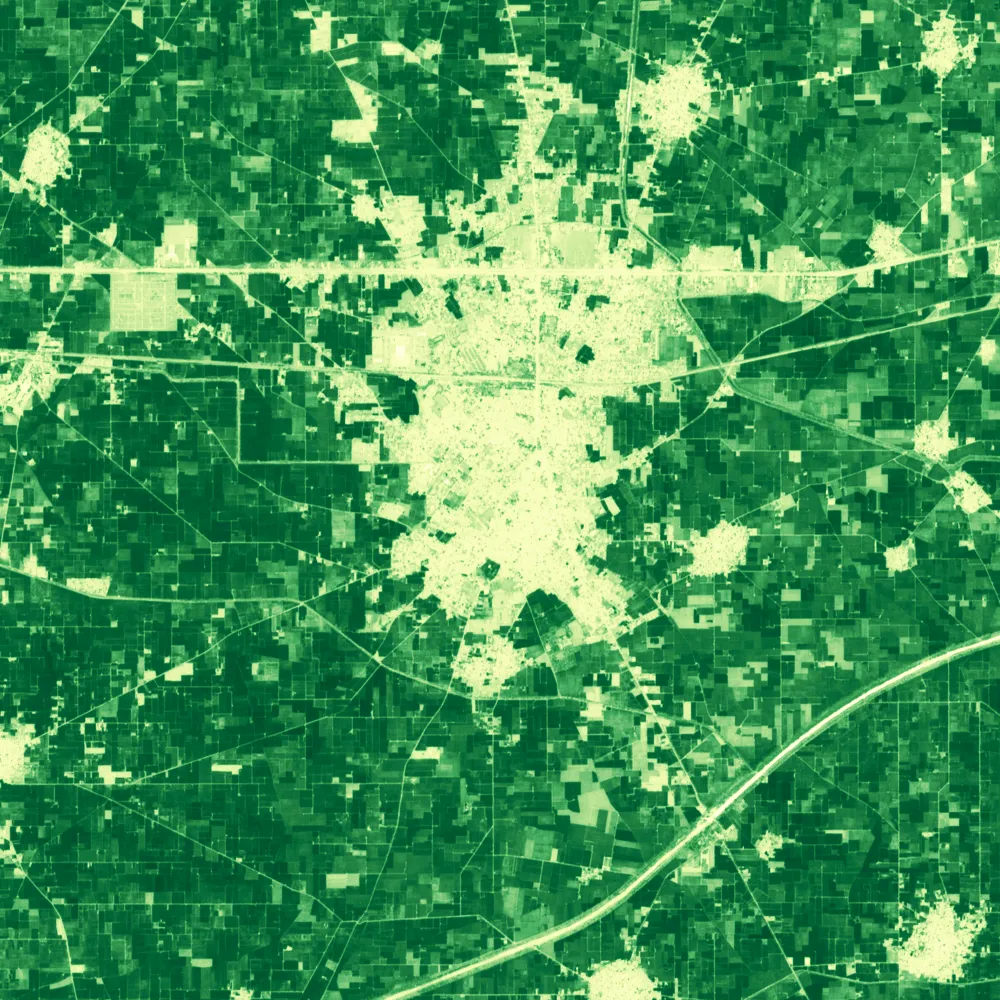 JANUARY 2023
Field A peaks in February and again in September, and is bare in June.
The figure above plays the same film on this page. The GIF that your code saves can be opened in a browser or an image viewer, and in QGIS the Temporal Controller plays it.
5. Read the curve of a place
An animation shows the whole square. A curve shows one place. For that you need the row and column of the place, and the file sites_points.gpkg has three of them.
# Step 1: read the three sites and print their names
sites = gpd.read_file(data / "sites_points.gpkg")
print(sites[["site", "label"]])

# Step 2: turn each map coordinate into a row and column of the raster
with rasterio.open(files[0]) as src:
    cells = {}
    for row in sites.itertuples():
        cells[row.site] = src.index(row.geometry.x, row.geometry.y)
print(cells)

# Step 3: take the twelve values of each cell and put them in a table, one column per site
series = pd.DataFrame(
    {name: ndvi[:, r, c] for name, (r, c) in cells.items()},
    index=months.strftime("%b"),
)
print("table shape:", series.shape)
  site                   label
0    A    Rice and wheat field
1    B            Jagraon town
2    C  Field that stays green
{'A': (508, 418), 'B': (526, 499), 'C': (661, 571)}
table shape: (12, 3)
src.index(x, y) converts a coordinate in the CRS of the raster (metres, here) into the row and column of the cell that contains it. The points file is in the same CRS as the rasters, EPSG:32643. If a points file were in latitude and longitude, you would first convert it with sites.to_crs(32643), or the cells would be wrong.
Now draw the curves.
# Step 1: one colour for each site, and the full name of each site
colours = {"A": "#2a78d6", "B": "#eb6834", "C": "#1baf7a"}
names = dict(zip(sites["site"], sites["label"]))

# Step 2: draw one line for each site and write its name at the end of the line
fig, ax = plt.subplots(figsize=(10, 4.8))
for site in series.columns:
    ax.plot(series.index, series[site], marker="o", linewidth=2, color=colours[site])
    ax.text(11.2, series[site].iloc[-1], f"{site}  {names[site]}", va="center")

# Step 3: tidy the axes
ax.set_ylim(0, 1)
ax.set_xlim(-0.4, 15)
ax.set_ylabel("NDVI")
ax.set_title("NDVI through 2023 at three places near Jagraon")
ax.grid(axis="y", color="#dddddd")
ax.spines[["top", "right"]].set_visible(False)
fig.savefig("ndvi_three_sites.png", dpi=110, bbox_inches="tight")
print("saved")
saved
Show the numbers as a table
| Month | A | B | C |
|---|---|---|---|
| Jan | 0.67 | 0.11 | 0.56 |
| Feb | 0.86 | 0.11 | 0.52 |
| Mar | 0.85 | 0.09 | 0.44 |
| Apr | 0.35 | 0.09 | 0.56 |
| May | 0.12 | 0.06 | 0.44 |
| Jun | 0.06 | 0.07 | 0.42 |
| Jul | 0.10 | 0.07 | 0.49 |
| Aug | 0.74 | 0.11 | 0.57 |
| Sep | 0.79 | 0.16 | 0.60 |
| Oct | 0.72 | 0.10 | 0.64 |
| Nov | 0.13 | 0.07 | 0.46 |
| Dec | 0.43 | 0.08 | 0.65 |
Read the three curves one at a time.
- A has two peaks, in February and March (0.86 and 0.85) and from August to October (0.74, 0.79 and 0.72), with a trough of 0.06 in June and 0.10 in July. That is the pattern of a field with two crops in a year. The usual crop calendar of this region is wheat, sown from late October into December and harvested in April, then rice, transplanted in June and July and harvested from late September into October. A curve like A fits that calendar well. NDVI is still low in July, probably because the new rice has little leaf cover yet. It is an inference from the curve, because no one visited this field. The curve cannot say which crop is growing.
- B, the town, is flat. Its NDVI stays between 0.06 and 0.16 in every month. Roofs and roads do not change with the seasons.
- C stays between 0.42 and 0.65 in every month and changes much less than A. Something green grows there for most of the year. The curve cannot say what. A perennial crop, an orchard and a fodder crop can all look like this.
Two places can have the same NDVI on one date and very different curves, so the curve is what tells them apart.
6. Get the numbers as a table
The chart is good for looking. For a report you want the numbers. They are already in the table series: one row for each month and one column for each site.
# Step 1: print the table, rounded to two decimals
print(series.round(2))

# Step 2: save it as a CSV file that a spreadsheet can open
series.round(2).to_csv("sites_ndvi_2023.csv")
print("saved sites_ndvi_2023.csv")
        A     B     C
Jan  0.67  0.11  0.56
Feb  0.86  0.11  0.52
Mar  0.85  0.09  0.44
Apr  0.35  0.09  0.56
May  0.12  0.06  0.44
Jun  0.06  0.07  0.42
Jul  0.10  0.07  0.49
Aug  0.74  0.11  0.57
Sep  0.79  0.16  0.60
Oct  0.72  0.10  0.64
Nov  0.13  0.07  0.46
Dec  0.43  0.08  0.65
saved sites_ndvi_2023.csv
The numbers are the same as in the table of the QGIS tutorial, where Sample raster values gave one row for each site and one column for each month. Here the table is turned the other way round, with the months as rows, which is the layout pandas prefers for a time series.
7. Map the seasonal swing
So far you looked at three places. The array holds a million, and NumPy can summarise all of them at once by collapsing the month axis. For each cell, take the twelve values and return one number. The range, the highest value minus the lowest, is a good first summary: it is large where the vegetation changes a lot through the year and small where it does not.
# Step 1: for every cell, the highest and the lowest NDVI of the year, skipping NaN
peak = np.nanmax(ndvi, axis=0)
low = np.nanmin(ndvi, axis=0)
swing = peak - low

# Step 2: the answers are ordinary 1000 x 1000 arrays
print("shape:", swing.shape)
print("mean swing:", round(float(swing.mean()), 2))
for site, cell in cells.items():
    print(f"site {site} swing: {swing[cell]:.2f}")

# Step 3: draw the swing map
fig, ax = plt.subplots(figsize=(7, 6.4), constrained_layout=True)
picture = ax.imshow(swing, cmap="viridis", vmin=0, vmax=0.9)
ax.set_title("Seasonal swing (highest minus lowest NDVI)")
ax.axis("off")
fig.colorbar(picture, ax=ax, shrink=0.8, label="NDVI")
fig.savefig("ndvi_swing.png", dpi=110)

# Step 4: save the swing as a GeoTIFF on the same grid as the monthly files
swing_profile = profile.copy()
swing_profile.update(dtype="float32", nodata=-9999, compress="deflate")
with rasterio.open("ndvi_2023_swing.tif", "w", **swing_profile) as dst:
    dst.write(np.where(np.isnan(swing), -9999, swing).astype("float32"), 1)
print("saved ndvi_2023_swing.tif")
shape: (1000, 1000)
mean swing: 0.64
site A swing: 0.81
site B swing: 0.10
site C swing: 0.23
saved ndvi_2023_swing.tif
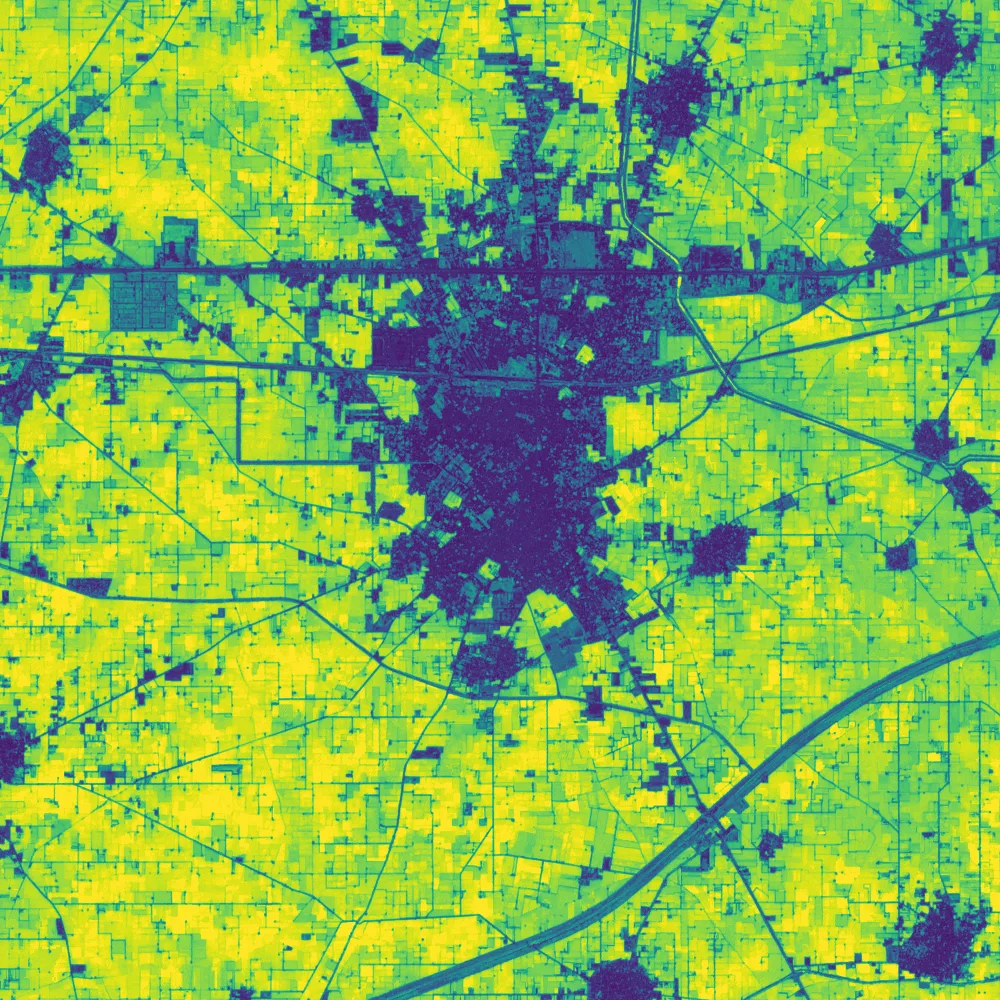
Mean swing over the whole square: 0.64.
axis=0 is the month axis, so each function looks down the twelve sheets at every cell and returns one number per cell. The town is dark: its cells hardly change. Most fields are bright, with a swing of 0.6 to 0.8 between a green crop and bare soil. The values at the three sites are the ones you get from Cell statistics in QGIS. profile came from the first monthly file, so the new file shares its size, CRS and position. Open ndvi_2023_swing.tif in QGIS together with a monthly file, and the two line up exactly.
8. Map the seasons
The swing says how much a cell changes. It does not say when it is green. A simple way to add that is to ask two questions of every cell: is it green in winter, and is it green in the monsoon? Winter here means February or March, when the wheat is at its best, and monsoon means August or September, when the rice is. A cell counts as green when its NDVI is above 0.6.
# Step 1: the greenest value of each season, cell by cell (position 1 is February, 2 is March, and so on)
winter_max = np.nanmax(ndvi[[1, 2]], axis=0)
monsoon_max = np.nanmax(ndvi[[7, 8]], axis=0)

# Step 2: ask the two questions and add the answers: 1 for winter, 2 for the monsoon
classes = (winter_max > 0.6).astype("uint8") + 2 * (monsoon_max > 0.6).astype("uint8")

# Step 3: count the cells in each class and look up the three sites
labels = {0: "never above 0.6", 1: "winter only", 2: "monsoon only", 3: "both seasons"}
for code, name in labels.items():
    count = int((classes == code).sum())
    print(f"{code}  {name}: {count:,} cells, {count / classes.size * 100:.1f}%")
for site, cell in cells.items():
    print(f"site {site}: {labels[int(classes[cell])]}")
0  never above 0.6: 195,229 cells, 19.5%
1  winter only: 25,435 cells, 2.5%
2  monsoon only: 192,711 cells, 19.3%
3  both seasons: 586,625 cells, 58.7%
site A: both seasons
site B: never above 0.6
site C: never above 0.6
Each comparison gives True (1) where it holds and False (0) where it does not. The monsoon part is multiplied by 2, so the sum has four possible values: 0 for a cell that is green in neither season, 1 for winter only, 2 for monsoon only and 3 for both. These are the same classes and the same counts that the Raster calculator gives in QGIS. About six in ten cells are green in both seasons, which is the rice and wheat pattern of site A spread over the square. Sites B and C fall in class 0: the town never gets green, and the NDVI of C stays below 0.6 in these months.
# Step 1: draw the classes with four colours and a legend
from matplotlib.colors import ListedColormap
from matplotlib.patches import Patch

class_colours = ["#eeeeee", "#2a78d6", "#eb6834", "#1baf7a"]
fig, ax = plt.subplots(figsize=(7.5, 6.4), constrained_layout=True)
ax.imshow(classes, cmap=ListedColormap(class_colours), interpolation="nearest")
ax.set_title("Green in winter, in the monsoon, or in both")
ax.axis("off")
ax.legend(
    handles=[Patch(color=c, label=labels[k]) for k, c in enumerate(class_colours)],
    loc="lower left",
)
fig.savefig("ndvi_seasons.png", dpi=110)

# Step 2: save the classes as a GeoTIFF of small whole numbers
class_profile = profile.copy()
class_profile.update(dtype="uint8", nodata=255, compress="deflate")
with rasterio.open("ndvi_2023_seasons.tif", "w", **class_profile) as dst:
    dst.write(classes, 1)

# Step 3: read it back to check that the position survived
with rasterio.open("ndvi_2023_seasons.tif") as check:
    print("saved:", check.width, "x", check.height, "|", check.dtypes[0], "| CRS EPSG", check.crs.to_epsg(), "| left edge", check.bounds.left)
saved: 1000 x 1000 | uint8 | CRS EPSG 32643 | left edge 540160.0
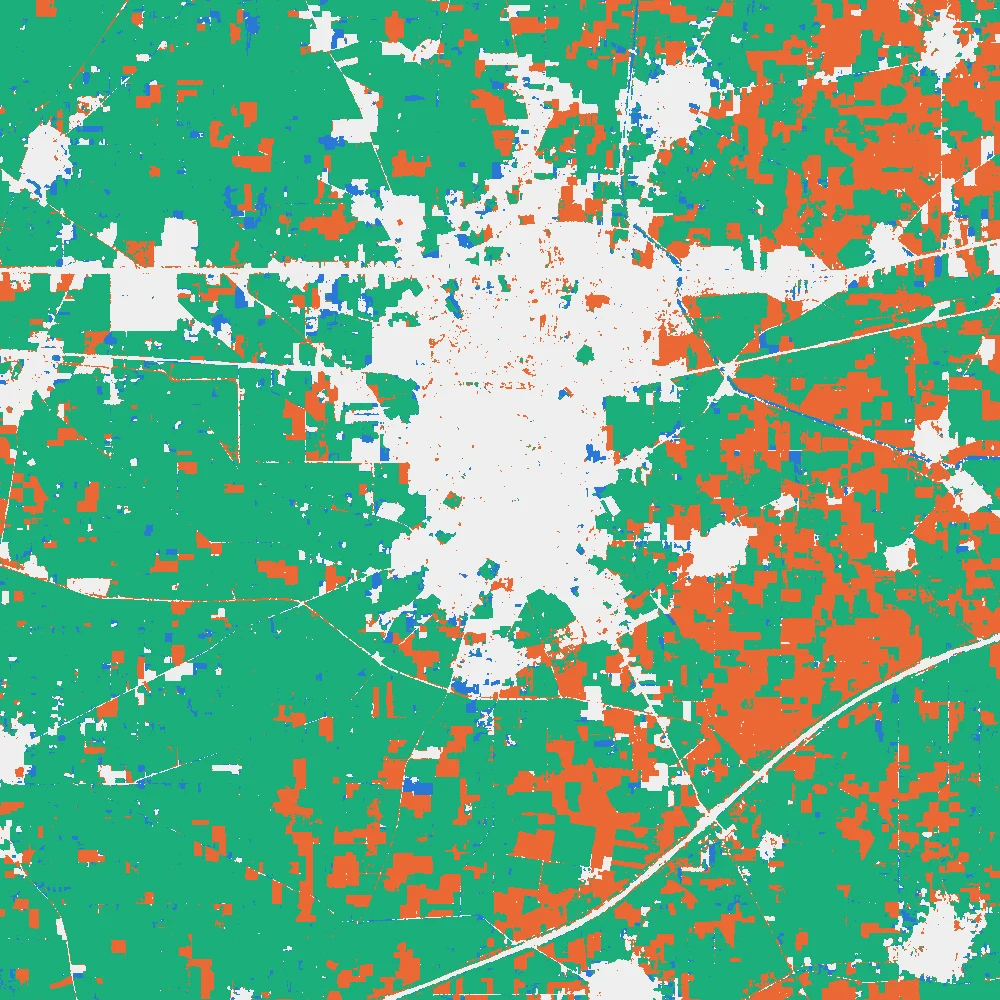
These shares describe NDVI curves. They are not a crop map, and they depend on the 0.6 threshold: Practice 5 asks you to change it. The cells that are never above 0.6 include the town, roads, canals, fallow plots and fields that were harvested before the monthly composite caught them green.
Is the result believable?
A curve that looks neat can still be wrong, so check it against something you trust. Two checks follow.
The first check is the crop calendar. In this region wheat is sown from late October into December and harvested in April, and rice is transplanted in June and July and harvested from late September into October. The Pakistani Punjab study in the sources matched NDVI curves to a local calendar with a rabi season (October to April) and a kharif season (May to October). Dates in Indian Punjab are close but not identical. The curve of site A follows the calendar: up through the winter, down in April, low in May and June, up again from August, and down in October and November.
The second check is the single Sentinel-2 images behind the monthly values. They are not in the zip, so the table below is for reading only. It shows site A, the mean of a 9 by 9 block of cells, on single clear dates in 2023. The last column is my reading of the numbers, with no field visit behind it.
| Date | NDVI | Probably |
|---|---|---|
| 17 Jan | 0.64 | wheat growing |
| 13 Mar | 0.95 | wheat at its greenest |
| 2 Apr | 0.64 | wheat ripening |
| 17 Apr | 0.19 | harvested |
| 1 Jul | 0.05 | bare or flooded |
| 11 Jul | 0.15 | new rice with little leaf |
| 10 Aug | 0.70 | rice growing |
| 4 Sep | 0.98 | rice at its greenest |
| 24 Oct | 0.46 | rice ripening |
| 29 Oct | 0.14 | harvested |
| 23 Nov | 0.05 | bare, before the wheat |
| 18 Dec | 0.64 | wheat coming up |
The monthly values in series tell the same story, with two differences. The peaks are lower: 0.95 on 13 March becomes 0.85 for March, and 0.98 on 4 September becomes 0.79, because a monthly median blends a field that is rising or falling. And July looks very low (0.10), because only 1 July and 11 July had a clear view of the field. The green-up between 11 July and 10 August happened under cloud. A monthly value is only as good as the dates behind it, and that is why monthly_scenes.csv comes with the data.
Extras that only code makes easy
The steps above are the same as in the QGIS tutorial. The rest of this part shows three things that are quick in code and slow with menus.
One cell or a field?
A cell is only 10 m wide. One cell can fall on a ditch, a tree or the edge of a field, and its curve may not represent the place. A steadier choice is the average of a small block of cells. Here is a block of 9 by 9 cells, which is 90 m by 90 m, around each site.
# Step 1: average the block of 9 x 9 cells around each site, one value for each month
half = 4
square = pd.DataFrame(
    {name: np.nanmean(ndvi[:, r - half:r + half + 1, c - half:c + half + 1], axis=(1, 2))
     for name, (r, c) in cells.items()},
    index=series.index,
)

# Step 2: the largest gap between the single cell and the block average, over the year
print("Largest gap between one cell and its 90 m block:")
print((square - series).abs().max().round(2))
Largest gap between one cell and its 90 m block:
A    0.04
B    0.03
C    0.15
dtype: float32
For A and B the single cell and the block agree within 0.05, so either describes the place. For C they differ by 0.15 in some month, so the cell at the point is not typical of the 90 m around it. When you pick places for a real study, draw polygons that lie inside one field, and use the mean of the cells inside. The file sites_squares.gpkg holds such squares for use in QGIS. axis=(1, 2) tells NumPy to average over the row and column axes and keep the month axis, so the result has twelve numbers.
If your data has gaps
This year has no gaps. The check below counts the cells that have a value in every month, next to the number of scenes behind each month.
# Step 1: the share of cells with a value in every month, next to the number of scenes
valid = (~np.isnan(ndvi)).mean(axis=(1, 2))
check = pd.DataFrame({"scenes": scenes["scenes_used"].values, "valid_share": valid.round(2)}, index=series.index)
print(check)
     scenes  valid_share
Jan       5          1.0
Feb       6          1.0
Mar       4          1.0
Apr       4          1.0
May       5          1.0
Jun       4          1.0
Jul       4          1.0
Aug       5          1.0
Sep       4          1.0
Oct       6          1.0
Nov       4          1.0
Dec       5          1.0
Every month has a value in every cell. That is not typical. Monsoon clouds can leave holes, and the same square in August 2025 is an example: only two scenes were usable and 63 percent of the cells had a value, which is why this tutorial uses 2023.
If you meet gaps in your own data, you have two choices. You can leave them as NaN and make sure every function skips them, as np.nanmean and np.nanmax do. Be careful with any statistic for a whole square in a cloudy month: it is calculated on the cells that were clear, and clear cells are not a random sample, because clouds sit over some places and not others. Or you can fill them. The simplest fill is a straight line between the two neighbours. To see how good a straight line is, pretend that August is missing at site A and fill it.
# Step 1: pretend that August is missing at site A
a_series = series["A"].copy()
true_august = a_series["Aug"]
a_series["Aug"] = np.nan

# Step 2: fill the gap with a straight line between July and September
filled = a_series.interpolate()
print("real August:", round(float(true_august), 2), "| filled:", round(float(filled["Aug"]), 2))
real August: 0.74 | filled: 0.45
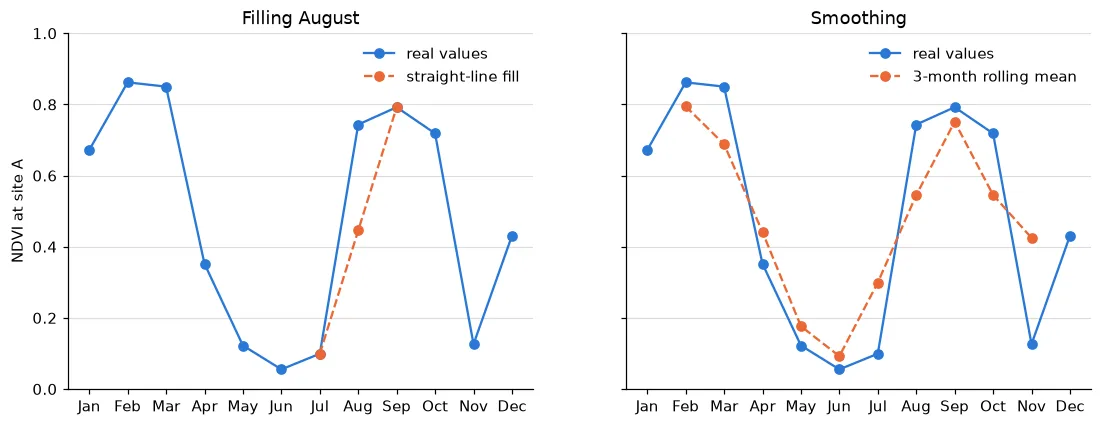
The fill gives 0.45 and the real value is 0.74, an error of 0.29 on a scale where the whole curve runs from 0.06 to 0.86. Site A looks like a rice field: in July it is still nearly bare and in August it is already green, so a straight line from July to September cannot find the jump. A fill is a guess, and it is best used for small gaps in smooth curves. Say so in your report whenever you use one.
Smoothing
A rolling mean replaces each value with the mean of itself and its two neighbours, which removes small bumps from noisy series.
# Step 1: a three-month rolling mean, centred on each month (the first and last months have no value)
smooth = series["A"].rolling(window=3, center=True).mean()
print(pd.DataFrame({"monthly": series["A"], "rolling mean": smooth}).round(2))
     monthly  rolling mean
Jan     0.67           NaN
Feb     0.86          0.79
Mar     0.85          0.69
Apr     0.35          0.44
May     0.12          0.18
Jun     0.06          0.09
Jul     0.10          0.30
Aug     0.74          0.54
Sep     0.79          0.75
Oct     0.72          0.55
Nov     0.13          0.43
Dec     0.43           NaN
Look at March: the real value is 0.85 and the rolling mean is 0.69. Smoothing lowers the peaks and raises the troughs, and the curve of a crop with sharp changes loses the very thing you wanted to see. With twelve points a year, smoothing costs more than it gives. It is more useful with weekly or five-day data, where single dates are noisy.
# Step 1: left, the fill; right, the rolling mean. Both are drawn against the real values
fig, axes = plt.subplots(1, 2, figsize=(12, 4.2), sharey=True)

axes[0].plot(series.index, series["A"], marker="o", color="#2a78d6", label="real values")
axes[0].plot(["Jul", "Aug", "Sep"], filled[["Jul", "Aug", "Sep"]], marker="o", linestyle="--", color="#eb6834", label="straight-line fill")
axes[0].set_title("Filling August")

axes[1].plot(series.index, series["A"], marker="o", color="#2a78d6", label="real values")
axes[1].plot(series.index, smooth, marker="o", linestyle="--", color="#eb6834", label="3-month rolling mean")
axes[1].set_title("Smoothing")

# Step 2: the same tidy-up for both panels
for ax in axes:
    ax.set_ylim(0, 1)
    ax.grid(axis="y", color="#dddddd")
    ax.spines[["top", "right"]].set_visible(False)
    ax.legend(frameon=False, loc="upper right")
axes[0].set_ylabel("NDVI at site A")
fig.savefig("ndvi_fill_smooth.png", dpi=110, bbox_inches="tight")
print("saved")
saved
What this does not tell you
- The curves say how green a place was. They cannot say what grew there. Telling wheat from other winter crops needs field visits or labelled samples, as in the classification tutorials.
- The monthly median hides what happens inside the month. A crop that is sown and harvested within a few weeks may be missed.
- Twelve points a year is a coarse time series. Crop studies often use every Sentinel-2 date, about every five days.
- One year is not a trend. To say that a place is getting greener or browner you need several years, and you must compare the same months.
- NDVI saturates over dense vegetation, so values near 0.9 do not separate a good crop from a very good one.
Run this part as a notebook
The code on this page is also a Jupyter notebook, with the theory in text cells, the code, guided practice, an independent assignment and hidden solutions. Download the Part 22 notebook, put it next to the unzipped jagraon_ndvi_2023 folder, and run the cells from top to bottom.
Practice
- Draw the curve of a place of your own. Pick a row and column (for example
ndvi[:, 300, 700]) and plot it. Is it a field with one crop, two crops or no crop? - Change the block around each site from 9 by 9 to 3 by 3 and to 21 by 21. How do the gaps between the cell and the block change?
- Find the month in which the whole square is greenest on average, using
np.nanmean(ndvi, axis=(1, 2)). Does it match the month in which most single cells peak? Usenp.nanargmax(ndvi, axis=0) + 1for the peak month of every cell. - Count the cells whose swing is below 0.2. Where are they on the map?
- Change the threshold in the seasons step from 0.6 to 0.5 and to 0.7. How do the shares of the four classes change?
If something goes wrong
FileNotFoundError. The notebook is not next to the folderjagraon_ndvi_2023. Move the notebook, or change the path indata = Path(...).ModuleNotFoundError. A package is missing. Install it withpip install, as in the list at the top.len(files)is not 12. The path points to the wrong folder. Printfiles[0]and check that it is a monthly file.- The figure does not appear. You are running a script and not a notebook. Add
plt.show()after the drawing code. - A site gets values that look wrong. The points are in another CRS. Run
sites = sites.to_crs(32643)beforesrc.index. - A result is NaN everywhere. A function without
nanin its name met a missing value. Usenp.nanmean,np.nanmaxandnp.nanmin.
Common mistakes
- Reading the files in a different order from the months, and so putting March where January belongs.
- Taking the mean of a raster that still holds -9999 instead of NaN or a mask.
- Stretching every map to its own minimum and maximum, so that the colours mean different values in each picture.
- Comparing points given in latitude and longitude with rasters in metres, without changing the CRS first.
- Calling a smoothed or filled value an observation.
- Reading a peak month in a cell that never gets green.
- Leaving out the threshold when you quote the share of cells that are green.
- Reading a crop name from a curve that no one checked in the field.