

Data used
- Sentinel-2 L2A, tile 43PGQ, 15 March 2025: B02, B03, B04, B08, B11, B12, SCL
- Landsat 8 Collection 2 Level-2, path 144 row 051, 29 March 2025: SR_B2 to SR_B7
Both are surface reflectance products, which means they have already had atmospheric correction applied. Check the product metadata to confirm what correction a scene has before processing it again.
The bands you need
| Region | Sentinel-2 band | Resolution | Landsat 8 band | Resolution |
|---|---|---|---|---|
| Blue | B02 | 10 m | SR_B2 | 30 m |
| Green | B03 | 10 m | SR_B3 | 30 m |
| Red | B04 | 10 m | SR_B4 | 30 m |
| Near infrared (NIR) | B08 | 10 m | SR_B5 | 30 m |
| Shortwave infrared 1 (SWIR1) | B11 | 20 m | SR_B6 | 30 m |
| Shortwave infrared 2 (SWIR2) | B12 | 20 m | SR_B7 | 30 m |
Band numbers do not line up between the two sensors. NIR is B08 on Sentinel-2 and B5 on Landsat 8. Using the wrong number is the most frequent index error.
1. Prepare the layers
Rename the layers so the expressions stay readable. In the Layers panel, press F2 on a layer and give short names such as S2_B04, S2_B08, L8_B5.
QGIS builds the expression name from the layer name, written as "S2_B04@1", where @1 is the band number inside the file.
Stack the bands for display
Use Raster > Miscellaneous > Build Virtual Raster with Place each input file into a separate band, as in Part 1. Make one stack per sensor, in band order.
For the Landsat stack, use SR_B2, SR_B3, SR_B4, SR_B5, SR_B6, SR_B7 in that order. The band numbers inside the stack will then be 1 to 6.
2. Colour composites
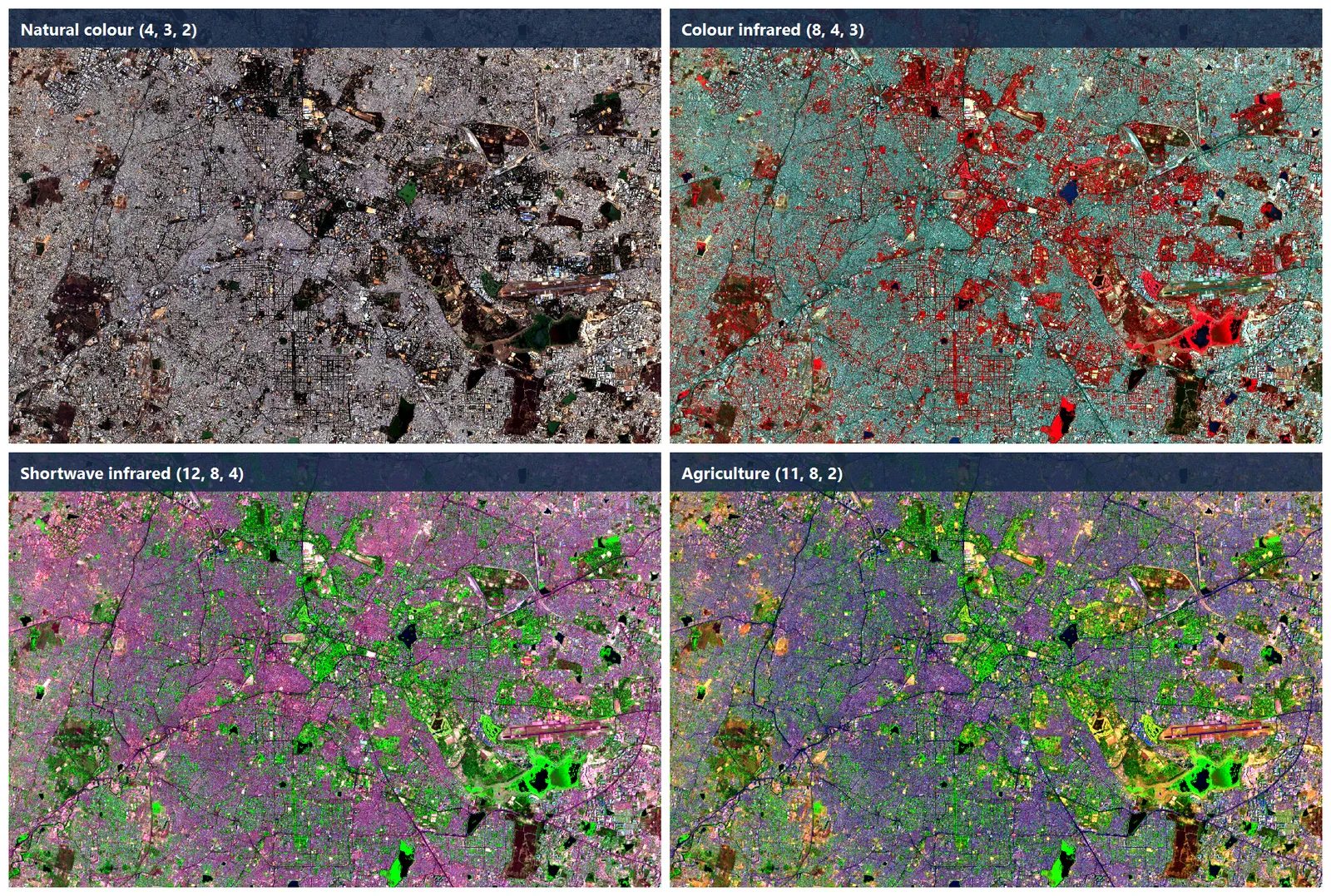
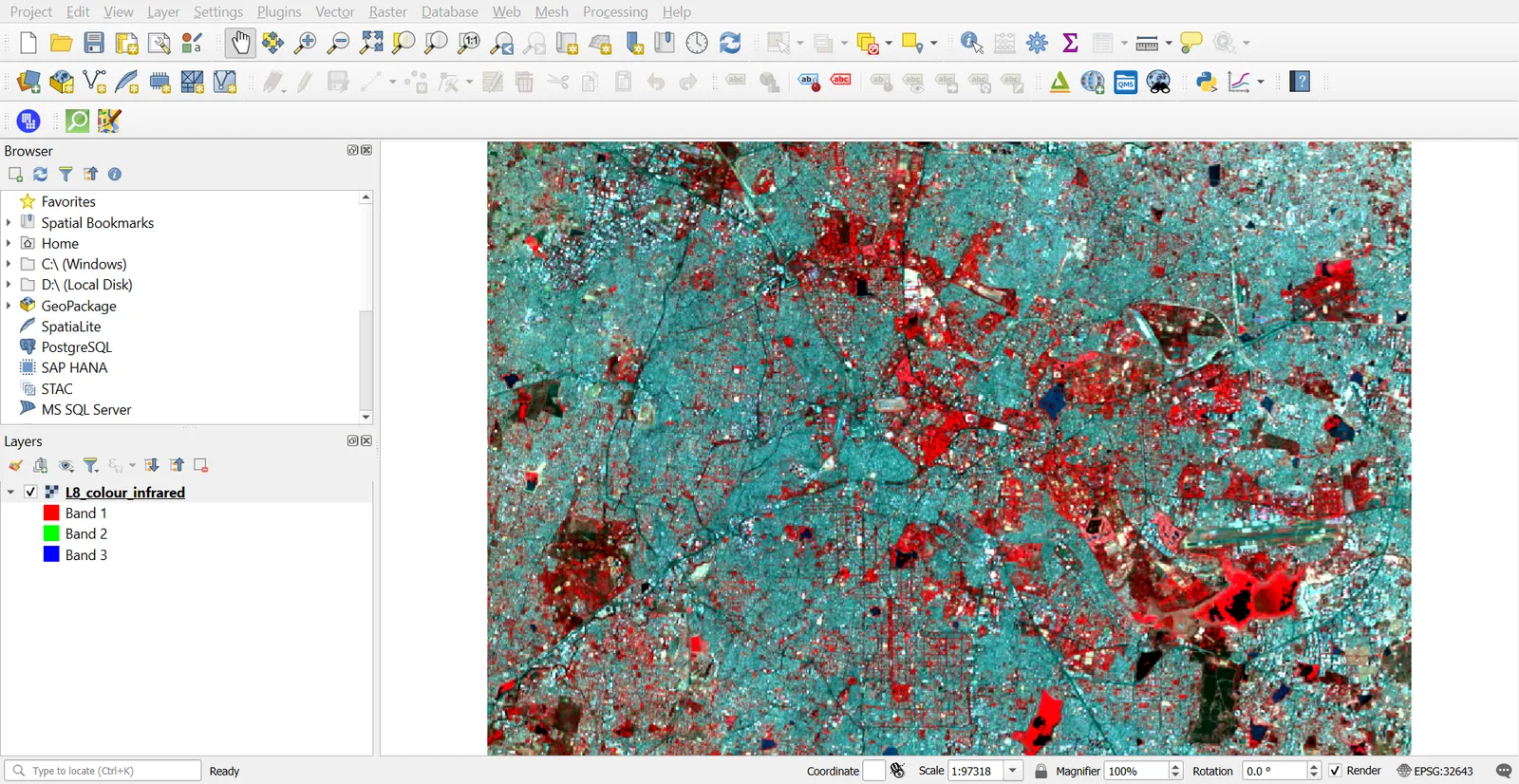
A composite assigns three bands to red, green and blue. Open Layer Properties > Symbology > Multiband color, then choose bands.
Sentinel-2
| Composite | R | G | B | Good for |
|---|---|---|---|---|
| True colour | B04 | B03 | B02 | General interpretation |
| Colour infrared | B08 | B04 | B03 | Vegetation (bright red), water (dark) |
| SWIR composite | B12 | B08 | B04 | Moisture, burn scars, bare soil |
| Agriculture | B11 | B08 | B02 | Crop condition and vegetation vigour |
Landsat 8
| Composite | R | G | B | Good for |
|---|---|---|---|---|
| True colour | 4 | 3 | 2 | General interpretation |
| Colour infrared | 5 | 4 | 3 | Vegetation |
| Shortwave infrared | 7 | 6 | 4 | Burn areas and geology |
| Agriculture | 6 | 5 | 2 | Crops and soil moisture |
Stretch each band under Min / Max Value Settings. Use Cumulative count cut 2% to 98% as a starting point.
3. Scale factors
Surface reflectance values are stored as integers to save space. You must convert them before comparing across scenes, dates or sensors.
Landsat Collection 2 Level-2
reflectance = DN * 0.0000275 - 0.2
Values of 0 are NoData. In the Raster Calculator, apply it to each band:
"L8_B5@1" * 0.0000275 - 0.2
Sentinel-2 L2A
Sentinel-2 L2A values are integers equal to 10,000 times the reflectance. The original ESA files from processing baseline 04.00 onward also carry an offset of 1000, which gives reflectance = (DN - 1000) / 10000. The files in this series come from the Earth Search copies on AWS, and they already have that offset removed. For these files the formula is:
reflectance = DN / 10000
In the Raster Calculator:
"S2_B08@1" / 10000
Check the values instead of assuming. With the offset still present, no valid pixel falls below about 1000. In our tile, clear water in band 11 reads about 165, and about 1 percent of the valid pixels in band 8 are below 1000, so there is no offset to remove. Subtracting 1000 here would give negative reflectance for water and shadow.
4. Cloud masking with SCL
Sentinel-2 L2A includes a Scene Classification Layer (SCL) at 20 m resolution. Each pixel carries a class code.
| Value | Class |
|---|---|
| 0 | No data |
| 1 | Saturated or defective |
| 2 | Dark area pixels |
| 3 | Cloud shadows |
| 4 | Vegetation |
| 5 | Not vegetated |
| 6 | Water |
| 7 | Unclassified |
| 8 | Cloud, medium probability |
| 9 | Cloud, high probability |
| 10 | Thin cirrus |
| 11 | Snow or ice |
Our scene has 0% cloud, so the mask changes little here. The steps still apply to any cloudier scene.
- Load
SCL.tif, rename itS2_SCL. - Open the Raster Calculator and build a clear-pixel mask:
("S2_SCL@1" != 3) AND ("S2_SCL@1" != 8) AND ("S2_SCL@1" != 9) AND ("S2_SCL@1" != 10)
- Save it as
clear_mask.tif. It holds 1 for clear pixels and 0 for cloud or shadow. - Multiply an index by the mask later, or use it as an input to Clip.
For Landsat, use the QA_PIXEL band. Its bits flag cloud, cloud shadow and snow, and you decode them with bit tests. A quick way is the Semi-Automatic Classification Plugin, which includes a mask tool.
SCL is 20 m. To use it with a 10 m band, resample the band or the mask to a common grid first (Raster > Projections > Warp).
5. Spectral indices
An index combines bands into one value per pixel so that a surface type stands out.
| Index | Formula | Highlights |
|---|---|---|
| NDVI | (NIR − Red) / (NIR + Red) | Green vegetation |
| NDWI | (Green − NIR) / (Green + NIR) | Open water (the McFeeters version). Other papers use the same name for a NIR and SWIR index, so check the formula |
| MNDWI | (Green − SWIR1) / (Green + SWIR1) | Open water, with less confusion from built-up areas |
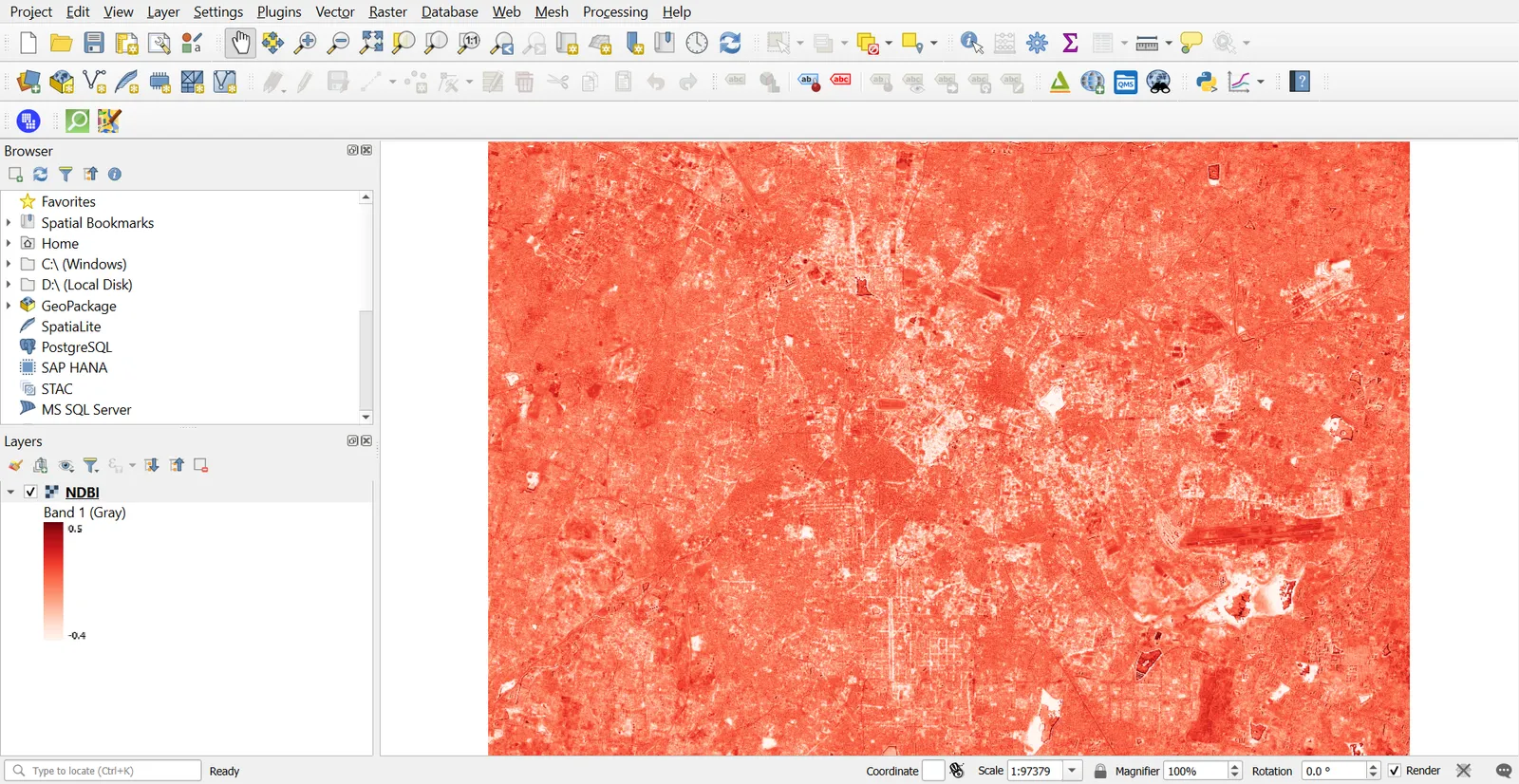
| NDBI | (SWIR1 − NIR) / (SWIR1 + NIR) | Built-up and bare areas |
| NBR | (NIR − SWIR2) / (NIR + SWIR2) | Burned areas and vegetation health |
The formula column uses a minus sign for subtraction. In QGIS, type a hyphen.
Sentinel-2 expressions
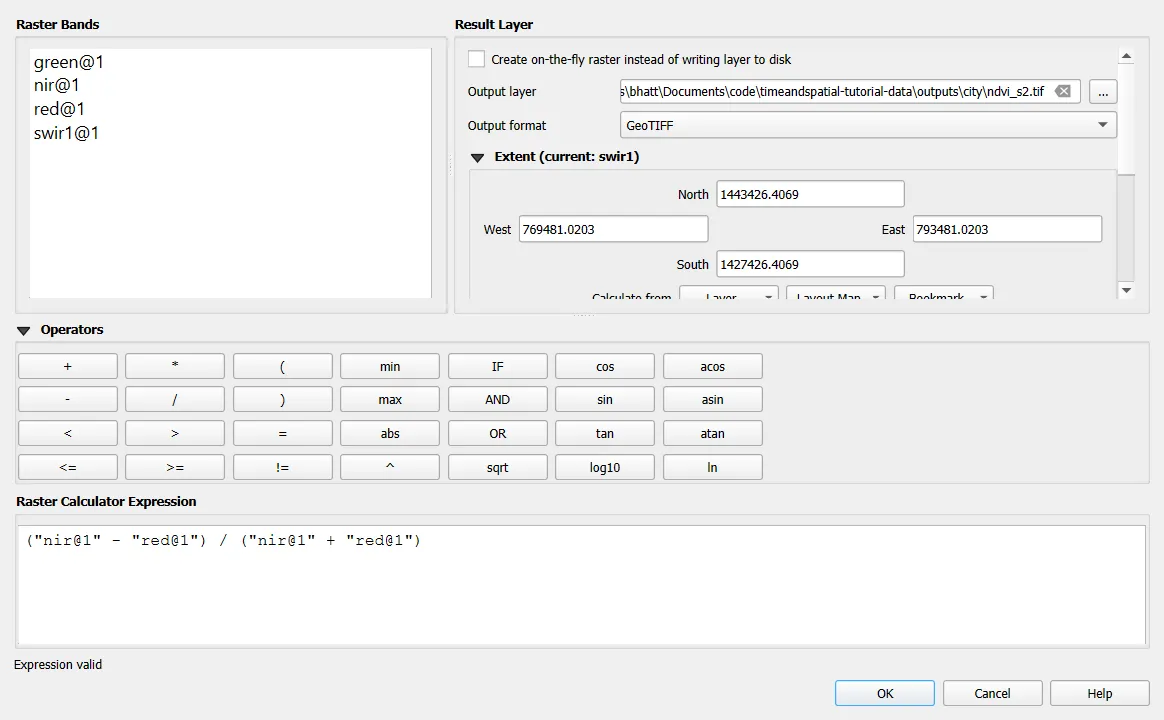
Resample B11 and B12 to 10 m first, so that all inputs share a grid. Then, with scaled layers named nir, red, green, swir1, swir2:
NDVI  = ("nir@1" - "red@1") / ("nir@1" + "red@1")
MNDWI = ("green@1" - "swir1@1") / ("green@1" + "swir1@1")
NDBI  = ("swir1@1" - "nir@1") / ("swir1@1" + "nir@1")
NBR   = ("nir@1" - "swir2@1") / ("nir@1" + "swir2@1")
Each is one expression. Enter it in Raster > Raster Calculator, with the left-hand name left off.
Landsat 8 expressions
All Landsat bands share a 30 m grid, so no resampling is needed. If you applied the scale factors in step 3, use the scaled layers. Otherwise, include them inline:
NDVI = (("L8_B5@1" * 0.0000275 - 0.2) - ("L8_B4@1" * 0.0000275 - 0.2)) / (("L8_B5@1" * 0.0000275 - 0.2) + ("L8_B4@1" * 0.0000275 - 0.2))
Building scaled layers first, then reusing them, is shorter and less error-prone.
6. Style the results
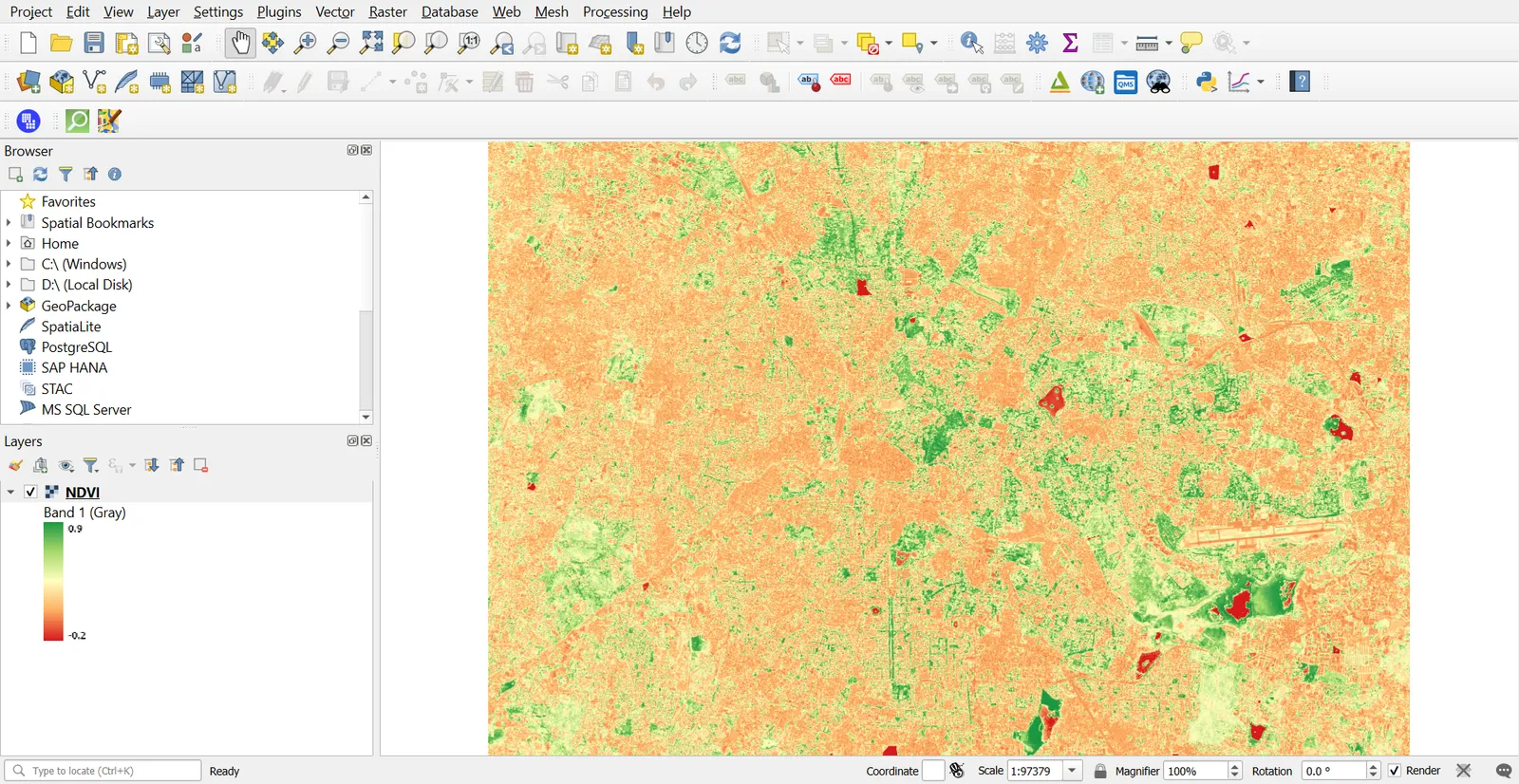
- Layer Properties > Symbology > Singleband pseudocolor.
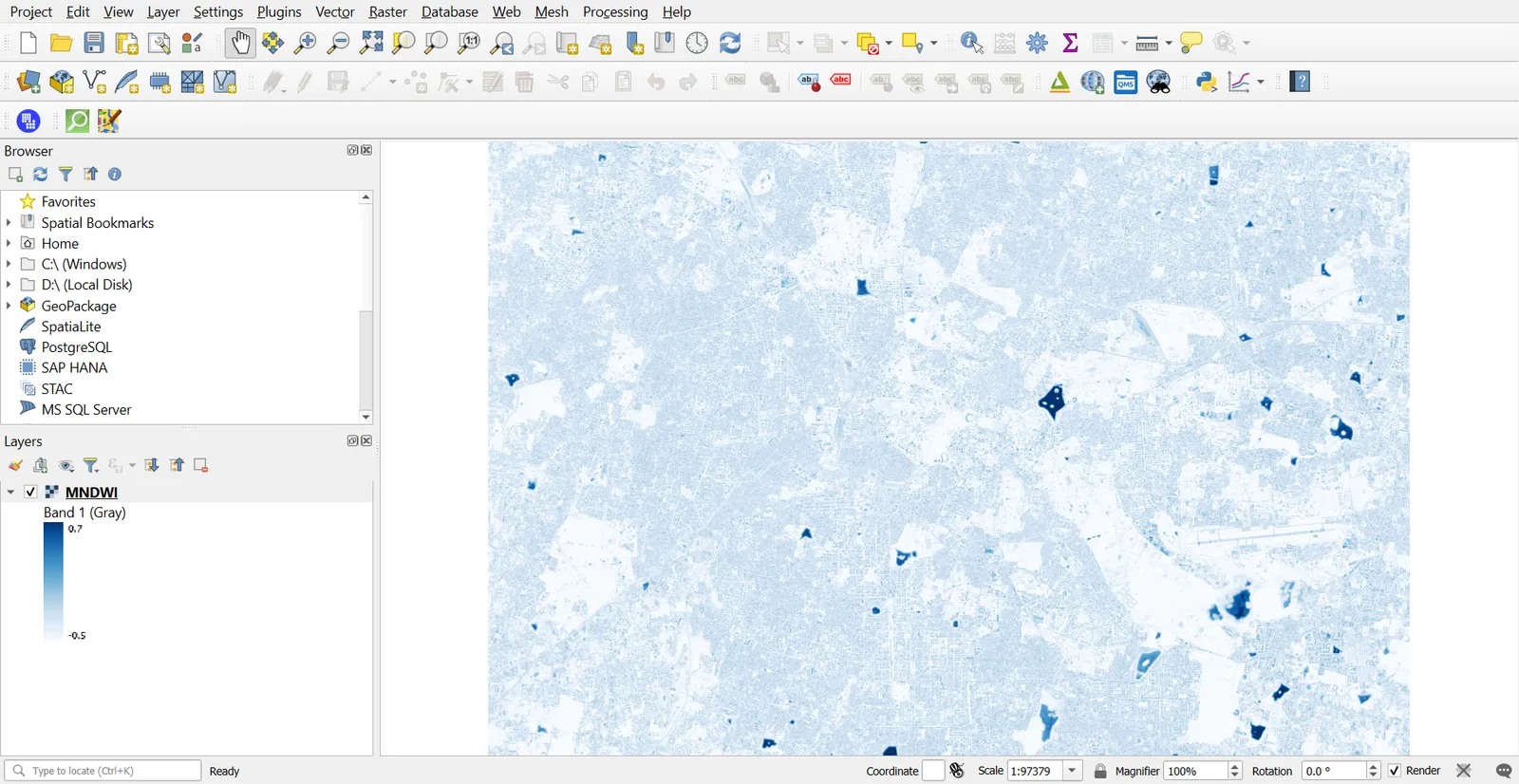
- Choose a ramp: RdYlGn for NDVI, Blues for MNDWI, and a diverging ramp for NBR.
- Set Min and Max. For NDVI,
-0.2to0.9is a reasonable range. - Click Classify, then Apply.
Use the Histogram tab in Properties to see where your values fall, and let it set the thresholds, since a fixed number from a textbook will not suit every scene.
Reading values
Use the Identify tool on a few known places:
- Lalbagh Botanical Garden and Cubbon Park should give high NDVI.
- Ulsoor Lake and Hebbal Lake should give high MNDWI.
- The airport runway area and the city centre should give higher NDBI than the parks.
Checking against places you know is how you confirm your formula and band numbers are right.
7. Compare Sentinel-2 and Landsat
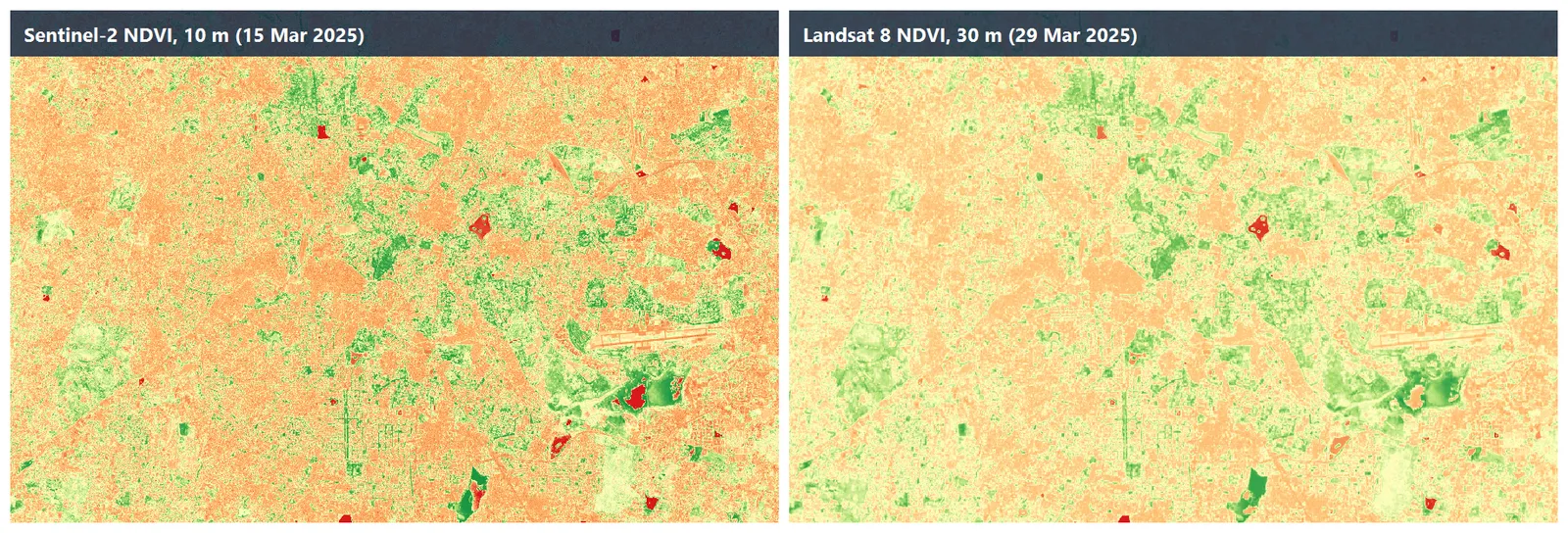
Make the NDVI for both and place them side by side.
- Sentinel-2 shows finer detail, because the pixels are 10 m.
- The two scenes differ by 14 days and by sensor, so values will not match pixel for pixel.
- Landsat 8 and Sentinel-2 have slightly different band widths, so index values differ a little even for the same surface.
Common mistakes
- Using the Sentinel-2 band number for a Landsat scene.
- Skipping the scale factor and offset when comparing scenes.
- Combining 10 m and 20 m bands without resampling.
- Treating an index as a final answer instead of a clue. A water index, for example, can flag shadow.
- Using NDWI and MNDWI interchangeably. They use different bands.
- Leaving cloud, shadow and NoData pixels in the calculation.