

Data used
The places layer from Part 4, joined with place_attributes.csv, so the table has id, name, latitude, longitude, and the joined attr_category and attr_practice_visitors_per_day fields. Export the joined layer to GeoPackage first, so the fields are permanent. The visitor numbers are practice values.
1. Open the attribute table
Select the layer and press F6, or right-click > Open Attribute Table.
The toolbar has the tools you will use most.
| Button | Does |
|---|---|
| Select by expression | Selects rows that match a query |
| Select all, Invert selection | Whole table, or flip the selection |
| Deselect all | Clears the selection |
| Move selection to top | Brings selected rows to the top of the table |
| Filter by selected, Show selected features | Shows only chosen rows |
| Field calculator | Creates or updates a field |
| Conditional formatting | Colours cells by rule |
Click a column header to sort. Right-click the header for Organize Columns, to hide fields. The selection and the map are linked, so selecting a row highlights the feature on the map in yellow.
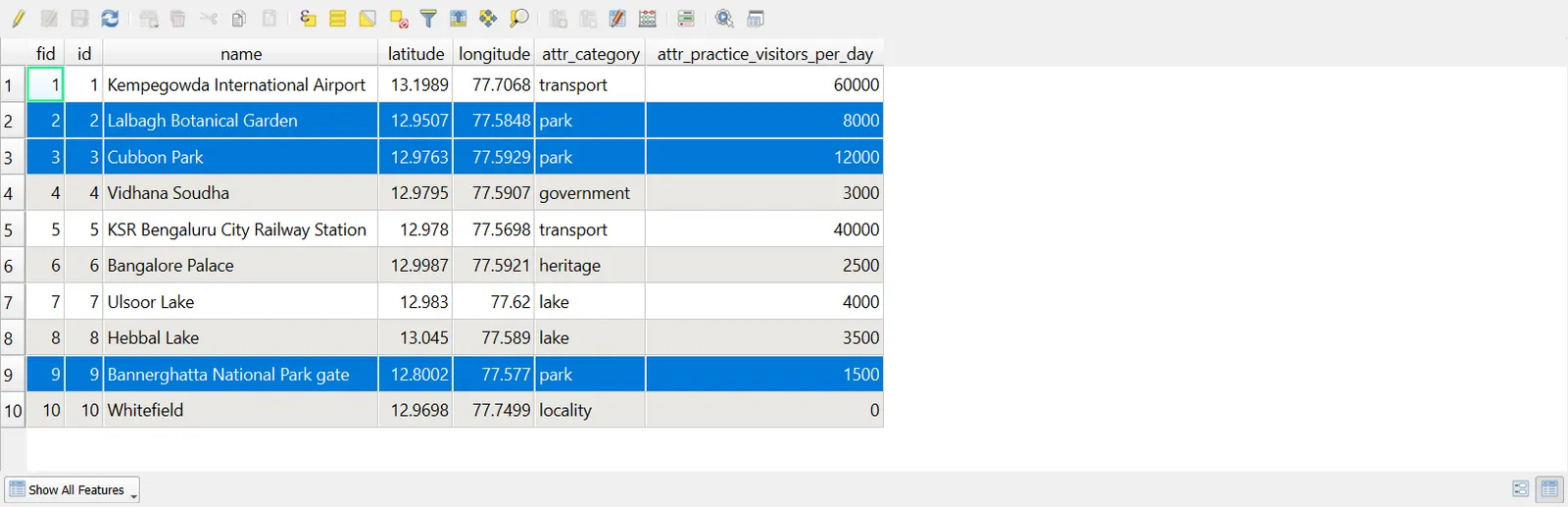
Select by hand
- Click the row number on the left to select a feature, and
Ctrl+clickto add more. - On the map, use the Select Features by Area or Single Click tool.
- Draw a polygon, a freehand shape or a circle to select what falls inside.
2. Select by value
For a quick look, use Select Features by Value (F3).
- Choose the layer, then the field, such as
attr_category. - Enter a value, for example
park, and pick an operator (equal to, contains, and so on). - Click Select Features.
It is the quickest way to run a one-off query.
3. Select by expression
Select by expression (Ctrl+F3) gives you the most control.
- Open it from the attribute table toolbar, or Edit > Select > Select by Expression.
- Type an expression that returns true or false for each feature.
- Check the preview. Click Select Features, then Close.
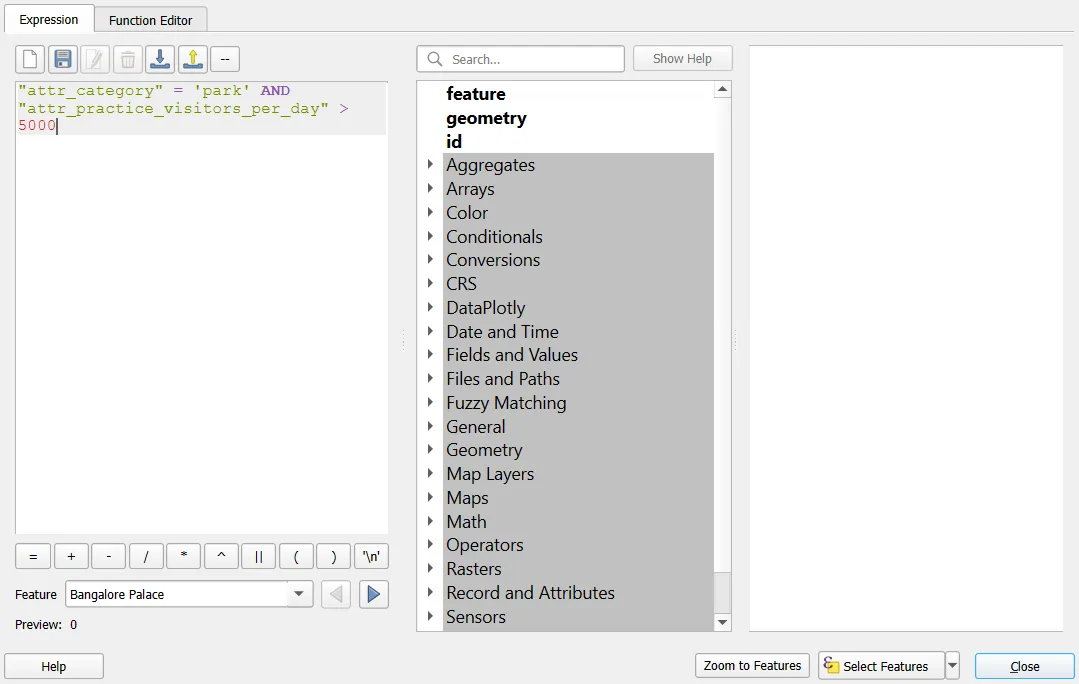
Comparison and logic
| Goal | Expression |
|---|---|
| Equals | "attr_category" = 'park' |
| Not equal | "attr_category" <> 'park' |
| Greater than | "attr_practice_visitors_per_day" > 5000 |
| Between | "attr_practice_visitors_per_day" BETWEEN 2000 AND 10000 |
| Both conditions | "attr_category" = 'lake' AND "attr_practice_visitors_per_day" > 3500 |
| Either condition | "attr_category" = 'park' OR "attr_category" = 'lake' |
| In a list | "attr_category" IN ('park', 'lake', 'heritage') |
| Is empty | "name" IS NULL |
| Is not empty | "name" IS NOT NULL |
Text values go in single quotes. Field names go in double quotes. Mixing them up is the most common syntax error.
Text matching
| Goal | Expression |
|---|---|
| Starts with | "name" LIKE 'Lal%' |
| Contains, ignoring case | "name" ILIKE '%lake%' |
| Length of text | length("name") > 20 |
| Pattern | regexp_match("name", '^Cubbon') |
The % stands for any run of characters. LIKE is case sensitive and ILIKE is not.
Geometry and calculated conditions
You can query the geometry too.
| Goal | Expression |
|---|---|
| Northern places | $y > 13 |
| Within 5 km of a point | distance(transform($geometry, @layer_crs, 'EPSG:32643'), transform(make_point(77.5946, 12.9716), 'EPSG:4326', 'EPSG:32643')) < 5000 |
| Area over 1 hectare (polygons) | $area > 10000 |
For anything involving distance, transform to a projected CRS first, as in Part 7.
Compare with other features (aggregates)
Aggregate functions look at the whole layer, so you can compare each feature to a summary.
"attr_practice_visitors_per_day" > mean("attr_practice_visitors_per_day")
This selects places with above-average visitor numbers. To compare within a group:
"attr_practice_visitors_per_day" > mean("attr_practice_visitors_per_day", group_by:="attr_category")
Combine selections
The dropdown next to Select Features sets how a new selection works with the old one.
| Option | Result |
|---|---|
| Create new selection | Replace the old selection |
| Add to current selection | Union |
| Remove from current selection | Subtract |
| Select within current selection | Intersection |
Use this to build a complex query in small steps.
4. Select by location
To select by position instead of by attribute, use Vector > Research Tools > Select by Location (see Part 6). A common pattern is to select by location first, then refine by attribute with Select within current selection.
5. Filter a layer (Query Builder)
A selection highlights features. A filter hides the ones that do not match. They are different, and it matters when you export or run analysis.
- Right-click
places_full(fromvector/places_full.gpkg) > Filter. - In the Query Builder, write a condition, for example
"category" = 'lake'. - Click Test to see how many features match, then OK.
The layer now holds only matching features. Everything you do from here on, including styling, labelling, analysis and export, sees only those rows. A filter icon shows next to the layer name.
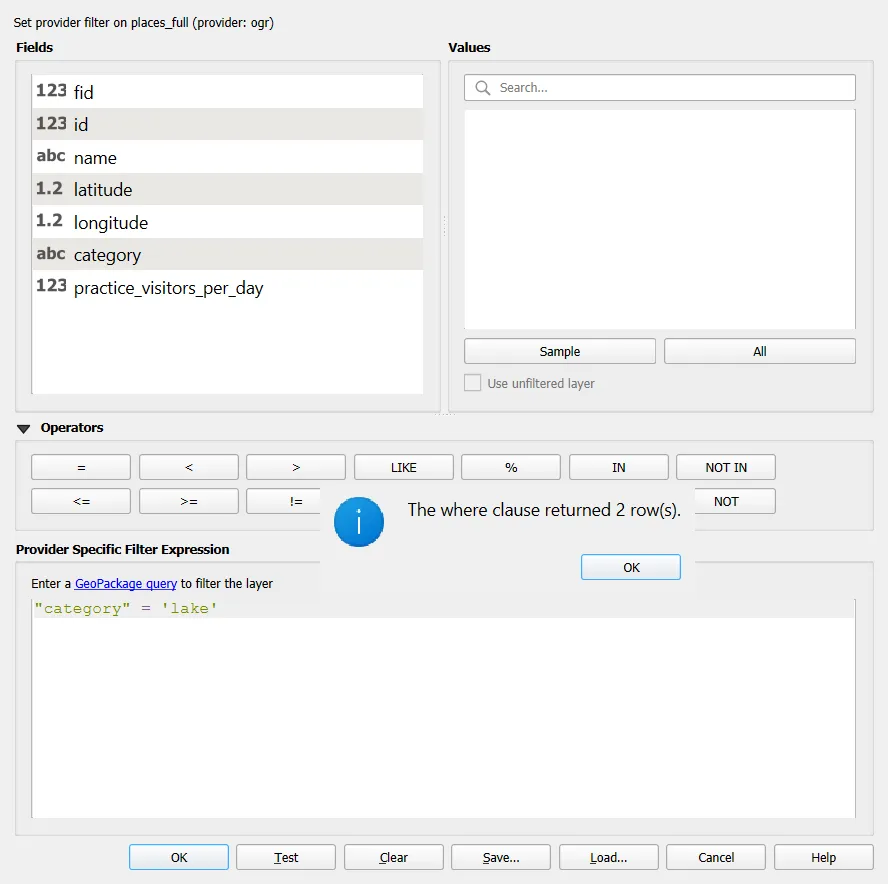
To remove a filter, open the Query Builder and clear the box.
| Selection | Filter | |
|---|---|---|
| Effect | Highlights features | Hides the rest |
| Saved in project | Not kept when you close | Kept |
| Tools use | Only if Selected features only is ticked | Always |
| Good for | Quick checks, exporting a subset | Working with one subset for a while |
6. Filter inside the attribute table
At the bottom left of the attribute table, change Show All Features to Advanced Filter (Expression) or Filter by Form. This hides rows in the table only. The layer itself is unaffected.
7. Use the selection
Selected features can drive other work.
- Export them: right-click > Export > Save Selected Features As.
- Copy and paste them into another layer in edit mode (
Ctrl+C,Ctrl+V). - Run a Processing tool on them only, by ticking Selected features only in the tool dialog.
- Update a field for them only, by ticking Only update selected features in the Field Calculator.
- Read statistics: View > Statistics Panel, with Selected features only ticked.
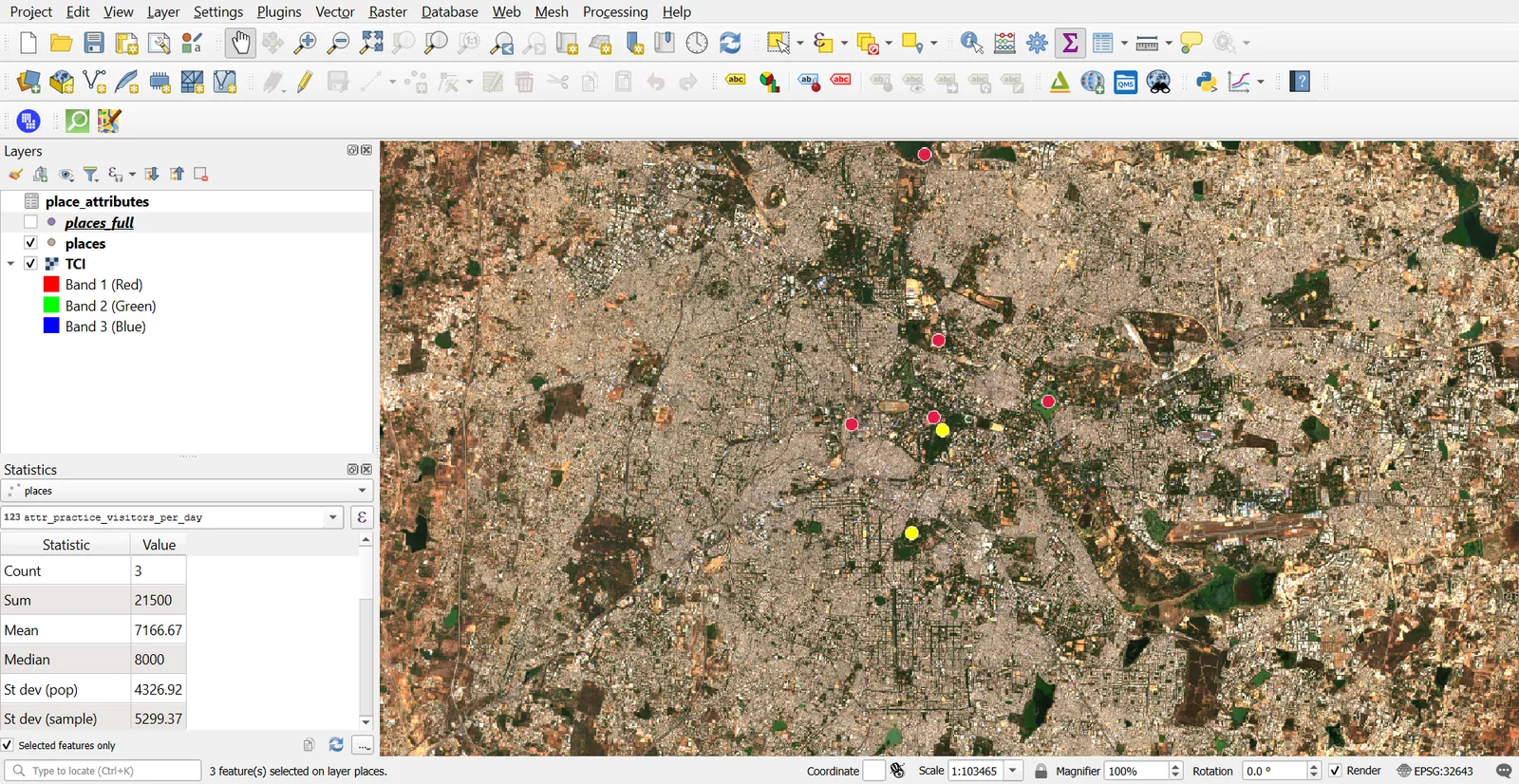
8. Format the table for reading
Conditional formatting colours cells by rule, so you can scan the table.
- In the attribute table, click Conditional Formatting.
- Click New Rule, and type a condition such as
"attr_practice_visitors_per_day" > 10000. - Pick a background colour and Save.
You can also drag columns, change widths, and switch to Form view with the toggle at the bottom right to see one feature at a time.
Practice exercises
- Select all parks. How many are there?
- Select places whose name contains "Lake", ignoring case.
- Select places with above-average visitor numbers. Then, from that selection, keep only those not in the transport category, using Select within current selection.
- Filter the layer to lakes only, then label them.
- Export the places within 5 km of the city centre as a new GeoPackage layer.
Common mistakes
- Using double quotes around text values, which QGIS reads as a field name.
- Forgetting a filter, then trusting counts.
- Expecting a selection to survive closing the project.
- Comparing text to numbers after a join.
- Running a Processing tool without Selected features only, or running it with that ticked when nothing is selected.
- Querying distance in degrees.