

A click sequence in a dialog is hard to repeat 200 times or to hand to a colleague. A script does the same job every time and records what you did. QGIS uses Python for this, and the same language reaches GeoPandas, GDAL and the rest of the scientific stack.
What is PyQGIS?
PyQGIS is the Python interface to the QGIS application. Everything the program does is reachable from it, including layers, the map canvas, the Processing tools and the layout engine. It is the QGIS counterpart of ArcPy in ArcGIS.
Three names come up in almost every script:
| Name | What it is |
|---|---|
iface | The running QGIS window. Available in the console, not in standalone scripts |
QgsProject.instance() | The current project, which holds the layers |
processing.run() | Runs any Processing Toolbox tool by its ID |
Why it matters
Repeated work, such as clipping 30 rasters or reprojecting every layer in a folder, is faster and less error prone as a script. The script also documents the workflow, so you can reproduce a result months later.
The tools you need
- QGIS 3.44 LTR. Its Python has numpy, scipy, pandas, GeoPandas, shapely, pyproj, matplotlib and GDAL (
osgeo). - It does not include rasterio. Read rasters with GDAL, as shown below, or install rasterio in a separate Python environment.
- The tutorial data in
timeandspatial-tutorial-data.
1. The Python console
- Plugins > Python Console (or
Ctrl+Alt+P). A panel opens with an output area and a prompt. - Type a line and press Enter. The console runs it at once.
# Run this in the QGIS Python Console (Plugins > Python Console). "iface" is QGIS itself, already available there.

# Step 1: load a file into the QGIS project as a layer called "places".
# The r before the quote just means "read the backslashes and slashes literally".
layer = iface.addVectorLayer(r"C:/Users/bhatt/Documents/code/timeandspatial-tutorial-data/vector/places_full.gpkg", "places", "ogr")

# Step 2: ask the layer about itself: name, number of features, coordinate system
print(layer.name(), layer.featureCount(), layer.crs().authid())

# Step 3: list the field (column) names
print([f.name() for f in layer.fields()])

# Step 4: go through the features (rows) one at a time and print three values from each
for f in layer.getFeatures():
    print(f["id"], f["name"], f["category"])
The first line loads the GeoPackage into the project and returns the layer. The second prints its name, feature count and CRS. The third lists the field names, and the loop prints three attributes of every feature.
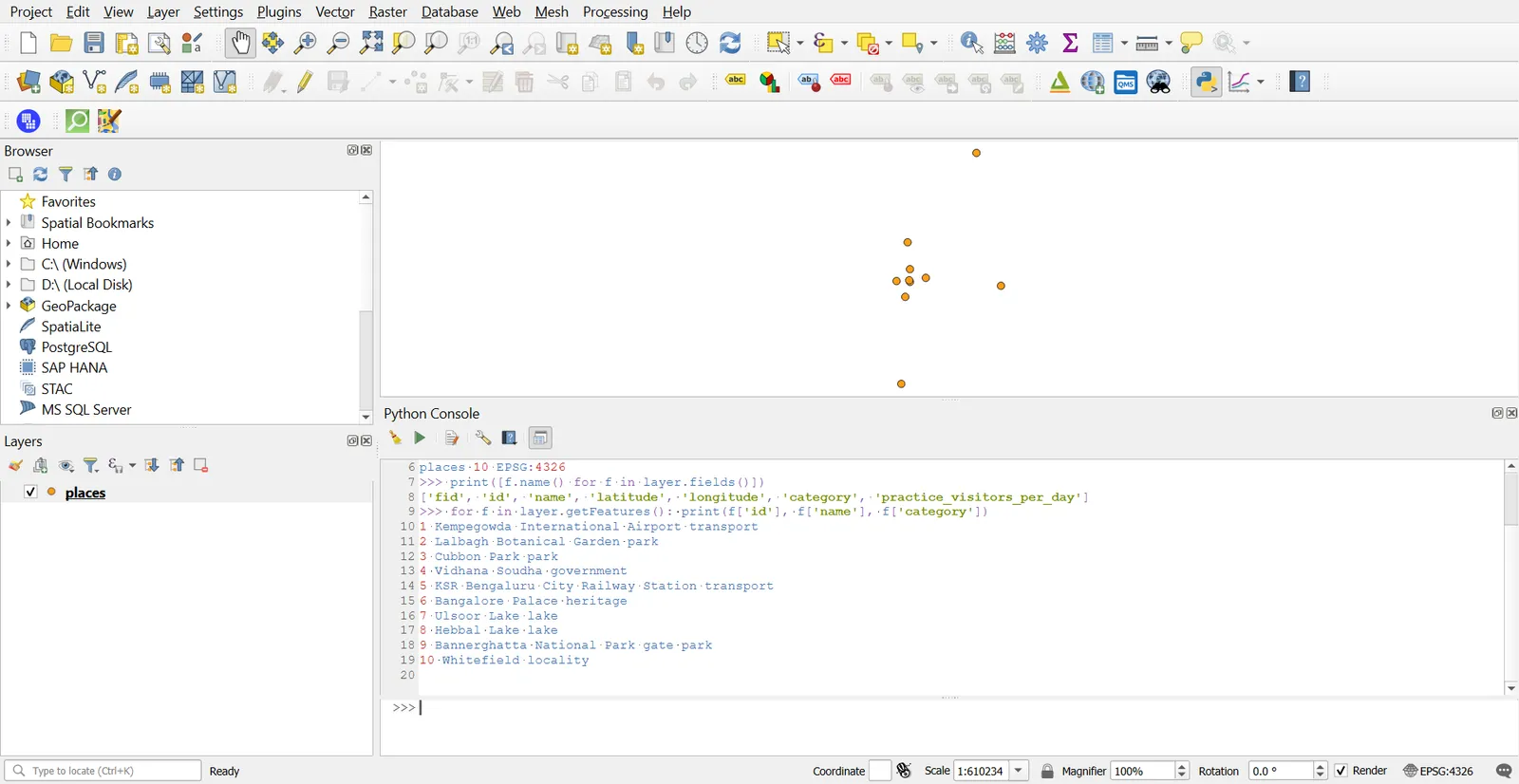
The output shows 10 places in EPSG:4326, and the fields fid, id, name, latitude, longitude, category and practice_visitors_per_day.
Use forward slashes or a raw string (r"...") for Windows paths. A single backslash starts an escape sequence in Python and breaks the path.
The console also has an editor. Click the Show Editor button, write a longer script, and press Run. Save it as a .py file to reuse.
2. Select and change features
# Step 1: select the features whose category is "park" (the same expression language as the QGIS select box)
layer.selectByExpression('"category" = \'park\'')
print(layer.selectedFeatureCount())          # 3

# Step 2: edit the layer. First switch editing on, and find which column number "category" is.
layer.startEditing()
idx = layer.fields().indexFromName("category")

# Step 3: change the category of every selected feature
for f in layer.selectedFeatures():
    layer.changeAttributeValue(f.id(), idx, "green space")

# Step 4: undo everything. Use commitChanges() instead if you want to keep the edit.
layer.rollBack()                              # use commitChanges() to keep the edit
selectByExpression takes the same expression language as the Select by Expression dialog. The edit block changes the category of the selected features and then discards the change with rollBack(). Use commitChanges() instead when you mean to save it. Always call one of the two, or the layer stays in edit mode.
3. Run a Processing tool
Every tool in the Processing Toolbox has an ID that appears in its help text, such as native:buffer. processing.run() takes the ID and a dictionary of parameters.
# Processing = the same tools you find in the QGIS Processing Toolbox, but called from code.
import processing

# Step 1: reproject the layer to metres (UTM 43N), so the buffer distance is in metres.
# run(tool name, settings)  ->  returns a dictionary. ["OUTPUT"] picks the result layer.
# "memory:" means "keep the result in memory, do not save a file".
utm = processing.run("native:reprojectlayer", {
    "INPUT": layer,
    "TARGET_CRS": "EPSG:32643",
    "OUTPUT": "memory:",
})["OUTPUT"]

# Step 2: draw a 2 km buffer around every place
buffers = processing.run("native:buffer", {
    "INPUT": utm,                  # the layer from step 1
    "DISTANCE": 2000,              # metres
    "SEGMENTS": 16,                # how smooth the circle is
    "DISSOLVE": False,             # keep one buffer per place
    "OUTPUT": "memory:",
})["OUTPUT"]

# Step 3: name the result and add it to the project so it shows on the map
buffers.setName("buffer_2km")
QgsProject.instance().addMapLayer(buffers)
The first call reprojects the layer to UTM 43N so distances are in metres. The second buffers every point by 2 km. "OUTPUT": "memory:" keeps the result in memory. Give a file path such as "C:/temp/buffers.gpkg" to write it to disk.
To find a tool's parameter names, run it once in the dialog, then click the Advanced button and choose Copy as Python Command, or call processing.algorithmHelp("native:buffer").
4. Run a script outside QGIS
A standalone script starts QGIS in the background, with no window. It suits scheduled jobs and batch work.
# This version runs OUTSIDE QGIS, as a normal Python script. It needs a little setup that the console does for you.
import sys
from qgis.core import QgsApplication, QgsVectorLayer

# Step 1: tell Python where QGIS is installed, then start QGIS in the background (no window)
QgsApplication.setPrefixPath(r"C:/Program Files/QGIS 3.44.13/apps/qgis-ltr", True)
qgs = QgsApplication([], False)       # False = no screen
qgs.initQgis()

# Step 2: turn on the Processing tools
sys.path.append(r"C:/Program Files/QGIS 3.44.13/apps/qgis-ltr/python/plugins")
import processing
from processing.core.Processing import Processing
Processing.initialize()

# Step 3: open the layer straight from the file (there is no QGIS window, so no iface)
layer = QgsVectorLayer("C:/Users/bhatt/Documents/code/timeandspatial-tutorial-data/vector/places_full.gpkg", "places", "ogr")
print(layer.isValid(), layer.featureCount())      # True means the file opened

# Step 4: run the same reproject tool as before
result = processing.run("native:reprojectlayer",
                        {"INPUT": layer, "TARGET_CRS": "EPSG:32643", "OUTPUT": "memory:"})
print(result["OUTPUT"].crs().authid())

# Step 5: shut QGIS down cleanly when finished
qgs.exitQgis()
Run it with the Python that comes with QGIS, using the launcher in the QGIS bin folder: python-qgis-ltr.bat my_script.py. The launcher sets the environment variables that the QGIS libraries need. A plain python my_script.py usually fails with a DLL error. The script prints True 10 and EPSG:32643. Adjust the install path to match your version.
5. Vectors with GeoPandas
GeoPandas puts vector data into a table with a geometry column, and it works with pandas.
# The same job in GeoPandas: no QGIS needed, just a few lines.
import geopandas as gpd

root = "C:/Users/bhatt/Documents/code/timeandspatial-tutorial-data"

# Step 1: read the file
places = gpd.read_file(root + "/vector/places_full.gpkg")
print(places.crs, len(places))                    # EPSG:4326 10

# Step 2: convert to metres and keep only the parks
places_utm = places.to_crs(32643)                 # metres
parks = places_utm[places_utm["category"] == "park"]
print(parks[["name", "practice_visitors_per_day"]])

# Step 3: distance from the 4th place (position 3, counting from 0) to every place, in metres
print(places_utm.geometry.distance(places_utm.geometry.iloc[3]).round(0).tolist())

# Step 4: 2 km buffers. Copy first so the original points are untouched.
buffers = places_utm.copy()
buffers["geometry"] = places_utm.buffer(2000)

# Step 5: save the parks to a new file
parks.to_file(root + "/outputs/parks_demo.gpkg", driver="GPKG")
read_file loads the layer. to_crs(32643) reprojects it, which is needed before measuring distances. The filter keeps rows where the category is park, and it returns Lalbagh Botanical Garden, Cubbon Park and Bannerghatta National Park gate. distance measures from one geometry to all others, and buffer(2000) draws 2 km buffers. to_file writes the result.
For a file with many layers, such as the OSM GeoPackage, name the layer: gpd.read_file(path, layer="hospitals").
6. Rasters with GDAL
Rasterio is the usual choice in a plain Python environment. In QGIS's own Python, GDAL does the same job.
# The same job with GDAL, on a raster (an NDVI image)
from osgeo import gdal
import numpy as np

gdal.UseExceptions()

root = "C:/Users/bhatt/Documents/code/timeandspatial-tutorial-data"

# Step 1: open the file and take band 1
ds = gdal.Open(root + "/outputs/city/ndvi_2025.tif")
band = ds.GetRasterBand(1)

# Step 2: read the values, and drop the cells marked as "no data"
arr = band.ReadAsArray().astype("float32")
nodata = band.GetNoDataValue()
valid = arr[arr != nodata]

# Step 3: summary numbers
print(arr.shape)                                   # (1600, 2400)  rows x columns
print(round(float(valid.mean()), 3))               # 0.278         average NDVI
print(round(float((valid >= 0.5).mean()) * 100, 1))   # 17.7       percent of cells with NDVI 0.5 or more

# Step 4: where the grid sits on the map
gt = ds.GetGeoTransform()
print(gt[1], gt[0], gt[3])                         # cell size, left, top
gdal.Open opens the file and ReadAsArray returns the band as a numpy array. The nodata value is removed before the statistics, so empty cells do not drag the mean down. For the NDVI of 15 March 2025, the mean is 0.278 and 17.7 percent of cells have NDVI of 0.5 or more. The geotransform holds the cell size (10 m) and the coordinates of the top left corner.
To write a new raster, create a file with gdal.GetDriverByName("GTiff").Create(...), copy the geotransform and projection from the source, and write the array with WriteArray. The scripts behind the maps in Parts 12 to 20 do this.
7. When a script is worth it
Write one when you will repeat the work more than a few times, when the steps must be documented, or when the work is too big to click through. Do not write one for a single analysis that you will never repeat, because the dialog is quicker. The Graphical Modeler (Part 11) sits between the two, and a model can be exported as Python.
What makes a script reproducible
A script is only worth keeping if someone else, or you in six months, can run it and get the same result.
- Write file paths once, at the top, and use forward slashes or raw strings on Windows.
- Never change the input files. Write results to new files.
- Give any random step a fixed seed.
- List the libraries and versions the script needs, for example with
pip freeze. - Print or log what the script did, such as feature counts and the CRS.
Common mistakes
- Using single backslashes in Windows paths.
- Leaving a layer in edit mode without
commitChanges()orrollBack(). - Measuring distance or area on a layer in EPSG:4326.
- Running a standalone script with a plain Python that cannot find the QGIS libraries.
- Forgetting the nodata value when taking statistics of a raster.
- Hard coding paths that only exist on your machine.
- Running
ifacecode in a standalone script, where there is no window.