

So far everything on your page was typed by hand. That is fine for a title. It is not fine for a number that can change, such as a scale, a date, or a value from a layer. If you type it, it will be wrong the first time something changes. An expression is a small formula that QGIS evaluates for you, so the text stays correct. This page shows two uses: expressions inside labels, and the data-defined override button. The same ideas make Atlas work on the next pages, and they are the reason that automated maps can fill their own titles.
Continue in Parks and lakes map.
Step 1: A label with an expression
Add a label under the scale bar: X 205, Y 181, Width 80, Height 5, font size 8, ID scale_note. In its text box, type:
Scale 1:[% format_number(map_get(item_variables('main_map'), 'map_scale'), 0) %]
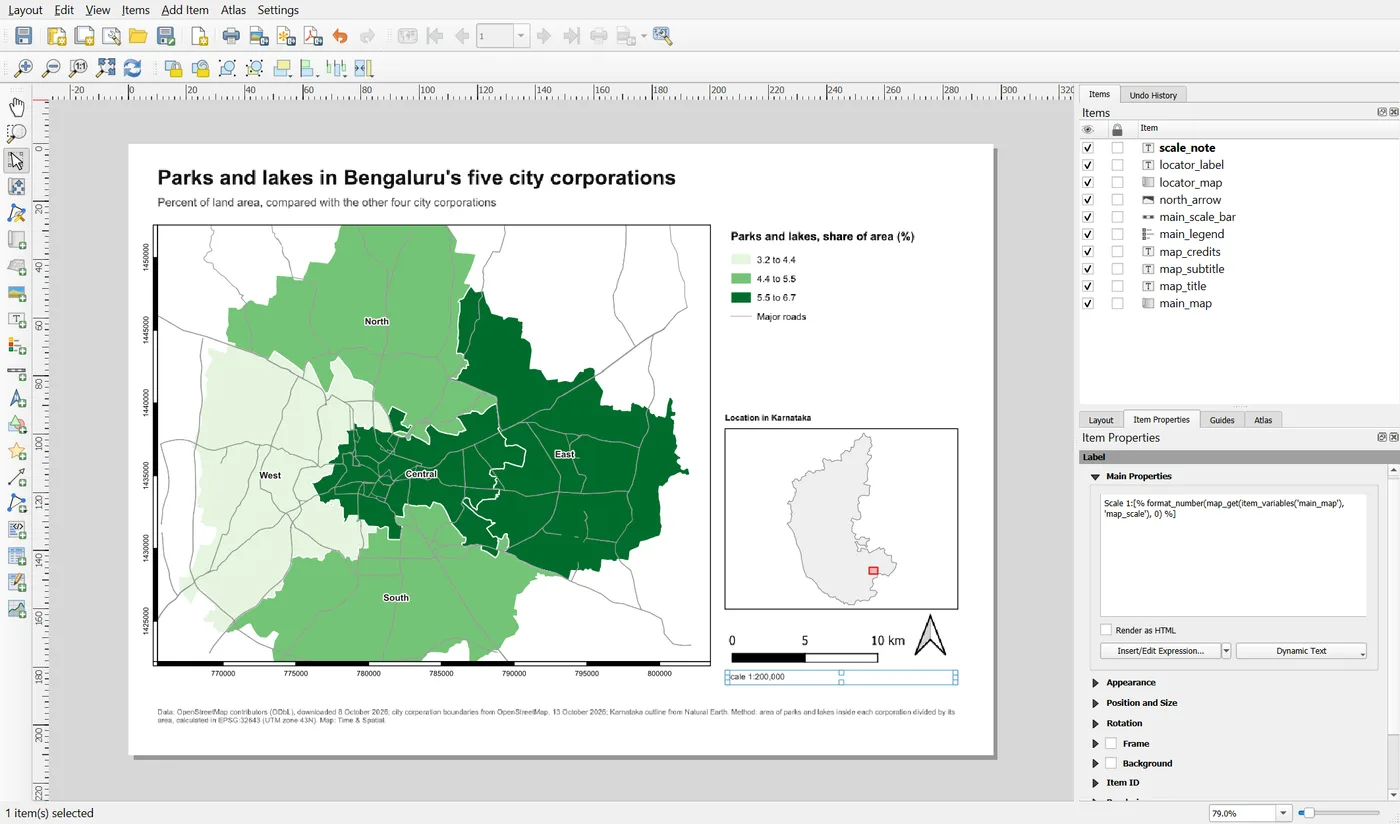
Anything between [% and %] is evaluated. Everything outside it is plain text. In the expression:
item_variables('main_map')collects the settings of the item whose ID ismain_map. This is one more use of the ID.map_get( ..., 'map_scale')picks one of those settings, the scale of the map.format_number( ..., 0)writes the number with no decimals and a thousands separator.
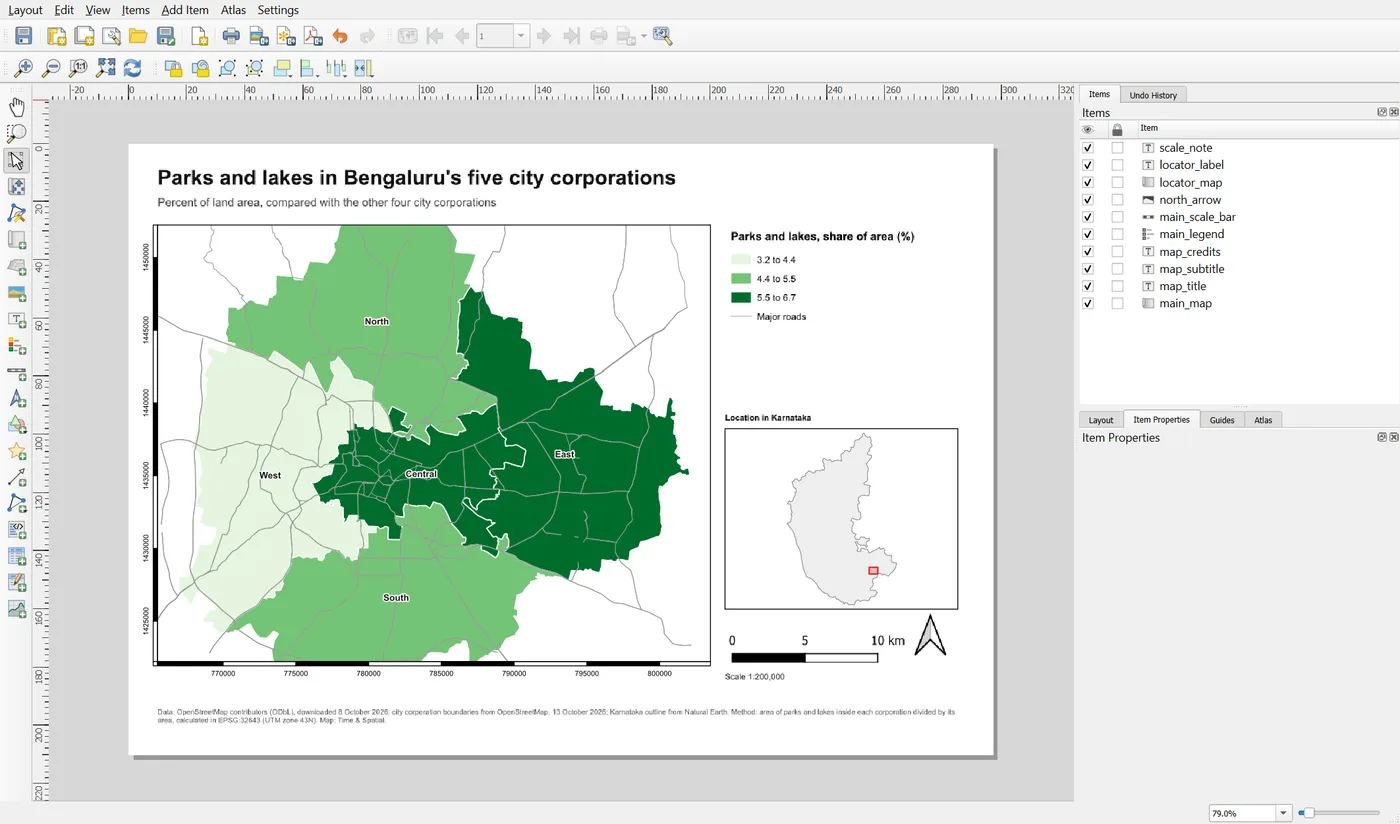
The label now reads Scale 1:200,000. Change the scale of the map to 250000. The label changes by itself. You never have to remember to update it.
Step 2: Use the expression dialog
Typing expressions from memory is hard. Click Insert/Edit Expression... under the text box to open the expression dialog.
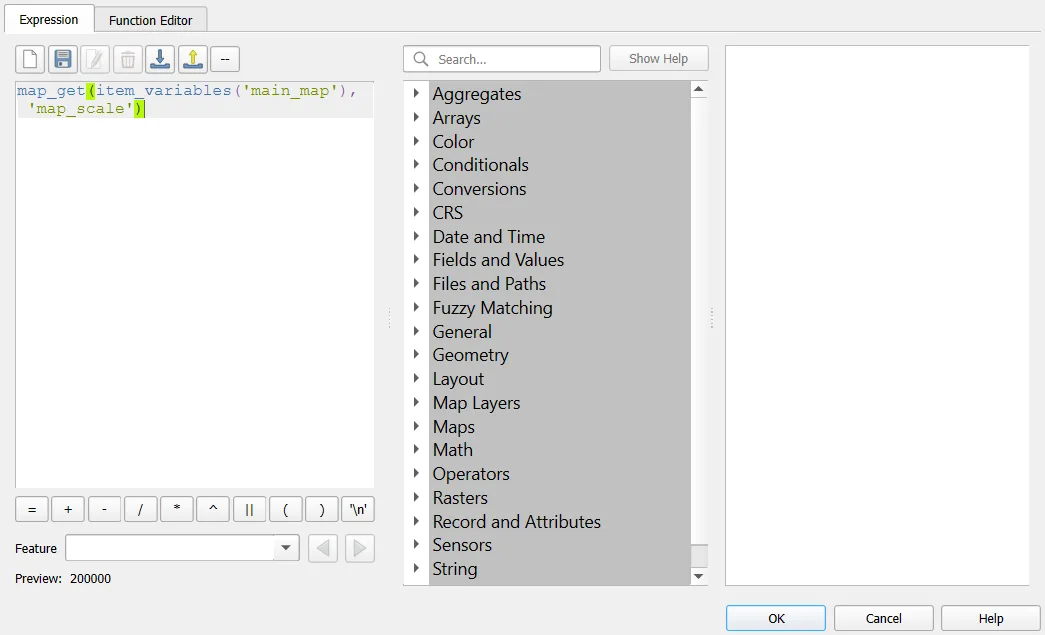
The editor is on the left. Below it a Preview shows the result right away, so you can see a mistake at once. The middle list holds every function, in groups such as Date and Time, Conversions, Maps and Layout. Double-click a function to insert it. The right panel explains the selected function with an example. You rarely need to remember a function name. You only need to know which group to look in.
Other useful expressions for a layout:
| You want | Expression |
|---|---|
| Today's date | [% format_date(now(), 'd MMMM yyyy') %] |
| The name of the layout | [% @layout_name %] |
| The project's title | [% @project_title %] |
| The current Atlas feature's name (Atlas switched on, field called short) | [% "short" %] |
Add Item > Add Dynamic Text offers ready-made text of this kind, and you can look through that menu once to see what is there.
A word of care with dates. A date that is filled in on every export is useful for a draft, but for a published map the "downloaded" and "published" dates should be fixed text. A map must not change its date every time someone opens it.
Step 3: What the data-defined button does
Look at the settings of any item. Next to many of them is a small button with a yellow database symbol. This is the data-defined override. It replaces the typed value of that setting with an expression, a layer field or a variable. If the button is lit up in yellow, the setting is controlled by a formula and not by the box.
To see this working, add a stamp. Add a label with the text DRAFT in large red bold type over the map, with the ID draft_stamp. In the main QGIS window choose Project > Properties > Variables, click the green plus and add a variable named draft with the value 1. Then select the stamp and open the Rendering group.
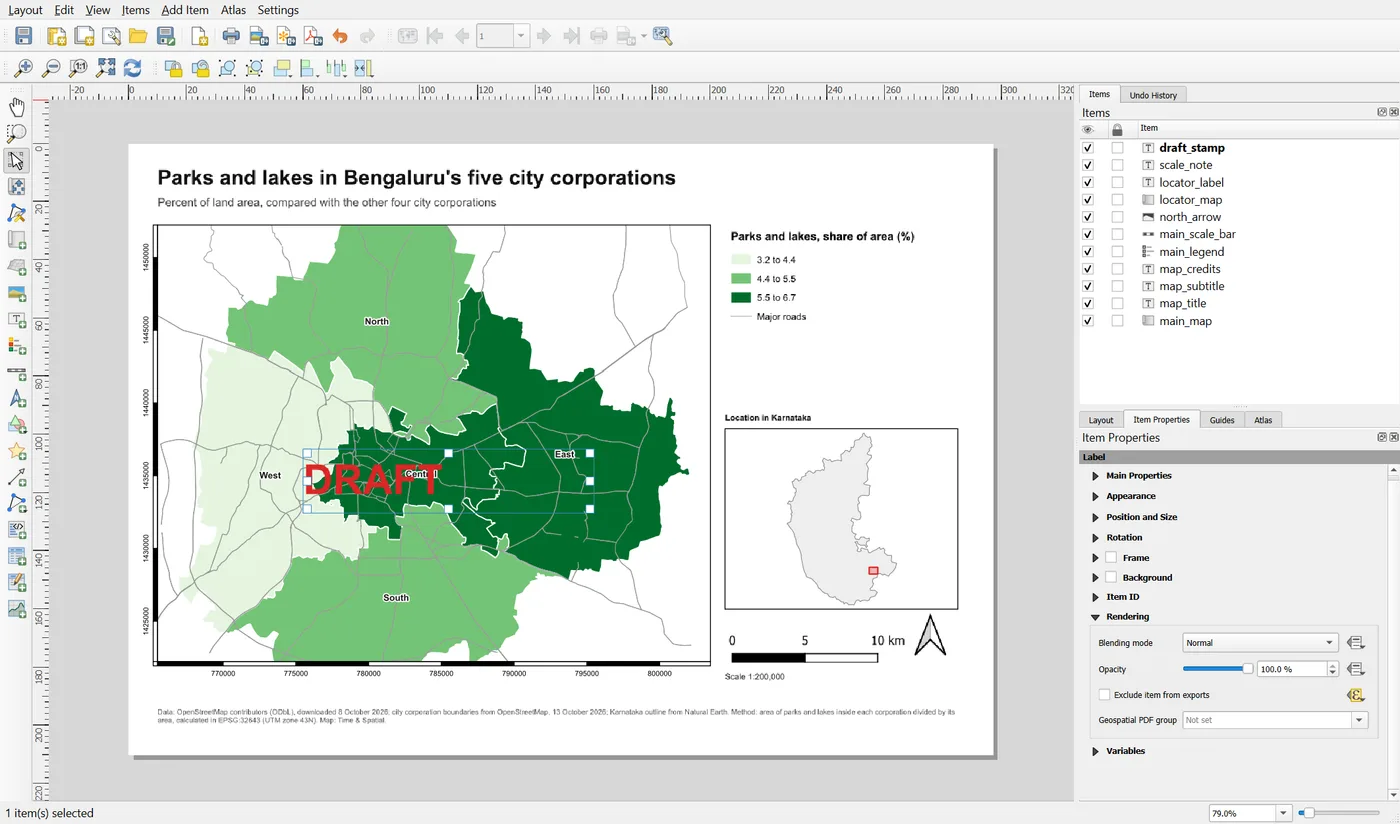
Click the override button next to Exclude item from exports and choose Edit. Type @draft = 0. The button now has a menu:
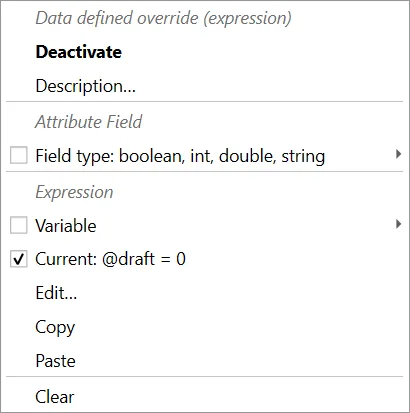
The formula says: leave this item out of the export when the variable draft equals 0. Now there are two states:
draft = 1: the stamp is exported. Each page carries a red DRAFT mark.draft = 0: the stamp is left out of the PDF and the images.
The stamp is still visible on the screen in the layout, so that you do not forget it exists. One variable, set in one place, controls every layout in the project that uses it. This is the pattern behind data-defined properties: put the decision in data, and let the layout follow.
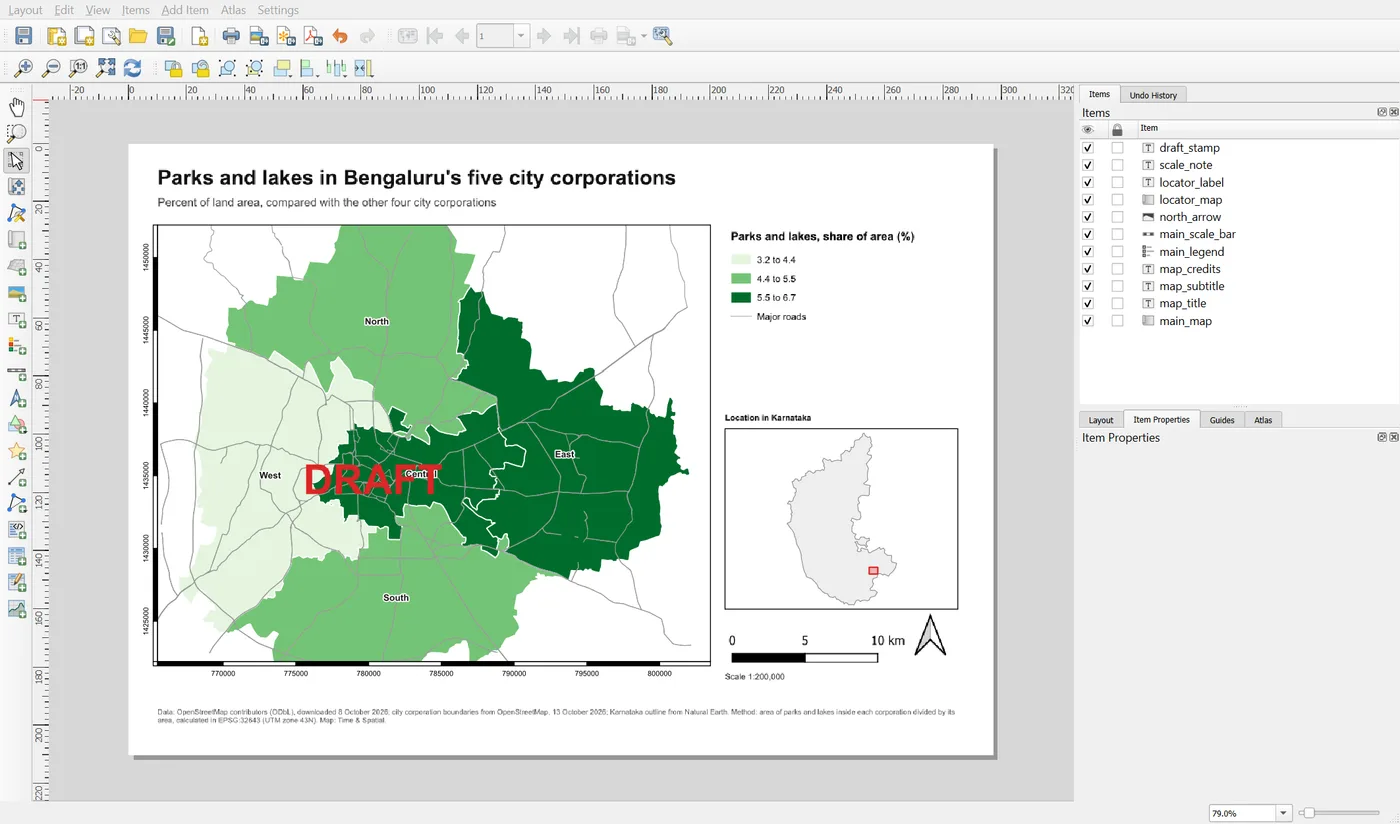
Select the stamp and press Delete when you are done. It was here to show the idea. The scale note stays.
Other things you can drive this way: the position and size of an item, the colour of a frame, the opacity of an item, and in Atlas, the scale and extent of the map. The override button is the same everywhere. Remember: if a setting does not change when you type a new value, look for a lit-up override button.
Save the project.
When it breaks
| What you see | Why | What to do |
|---|---|---|
The label shows [% ... %] as plain text | The text box still has the old text mode, or a bracket is missing | Check that the expression starts with [% and ends with %] |
The label shows nothing or NULL | The expression returns no value, for example a wrong item ID | Open the expression dialog and read the preview |
item_variables gives an error | There is no item with that ID | Check the ID of the item in the Items panel |
| A setting ignores the value you type | A data-defined override is active | Click the override button and choose Deactivate or Clear |
| The date changes every time you export | The label uses now() | Use fixed text for the date of publication |
| A DRAFT stamp is missing from the export when you wanted it | The variable draft is not 1 | Check Project > Properties > Variables |
Make it your own
- Add a label that reads
Printed onfollowed by today's date. Why would you not put this on a map you publish? - Add an expression label that shows the layout name.
- Use the override button on the opacity of the DRAFT stamp, so that the stamp is half transparent when
draft = 1.
Common mistakes
- Typing a number that could be calculated.
- Forgetting that
[%and%]mark the expression. - Using
now()in a map that should have a fixed date. - Not noticing that a lit-up override button is controlling a setting.
- Expressions that refer to an item ID that does not exist or has changed.