

Data used
Download these with QuickOSM (Part 5) for Bengaluru and save them in one GeoPackage called osm_bengaluru.gpkg.
| Layer | Key and value | Geometry |
|---|---|---|
parks | leisure = park | Polygons |
lakes | natural = water | Polygons |
roads | highway = primary | Lines |
hospitals | amenity = hospital | Points |
study_area | Draw a rectangle around central Bengaluru | Polygon |
Reproject every layer to EPSG:32643 first (Reproject Layer, Part 4). Distances and areas below assume metres.
The OSM natural = water layer holds streams and small ponds as well as lakes. Keep only the large water bodies with Extract by Expression: area($geometry) > 50000, which keeps polygons larger than 5 hectares. In the tutorial window of 26 km by 17 km around the city centre this leaves 48 lakes.
Run Vector > Geometry Tools > Check Validity on the polygon layers and Processing > Fix Geometries if errors appear. Invalid polygons are the main reason overlay tools fail.
1. The overlay tools
Overlay tools compare two layers. Find them under Vector > Geoprocessing Tools.
| Tool | Output |
|---|---|
| Clip | Input features cut to the shape of the overlay. Attributes come from the input only |
| Intersection | The parts where both layers overlap, with attributes from both |
| Union | Everything from both layers, split where they overlap, with attributes from both |
| Difference | The parts of the input that are not covered by the overlay |
| Symmetric Difference | The parts covered by only one of the two layers |
| Dissolve | Merges features that share a value (single layer) |
Practice: parks that are not near lakes
- Buffer
lakesby 500 m with Dissolve result ticked, and name itlake_zone. - Run Difference with
parksas the input andlake_zoneas the overlay. The result is the park area farther than 500 m from a lake. - Run Intersection of
parksandlake_zone. The result is park area within 500 m of a lake. - Add a field
area_hawith the Field Calculator,$area / 10000, to both outputs and compare the totals with Statistics Panel.
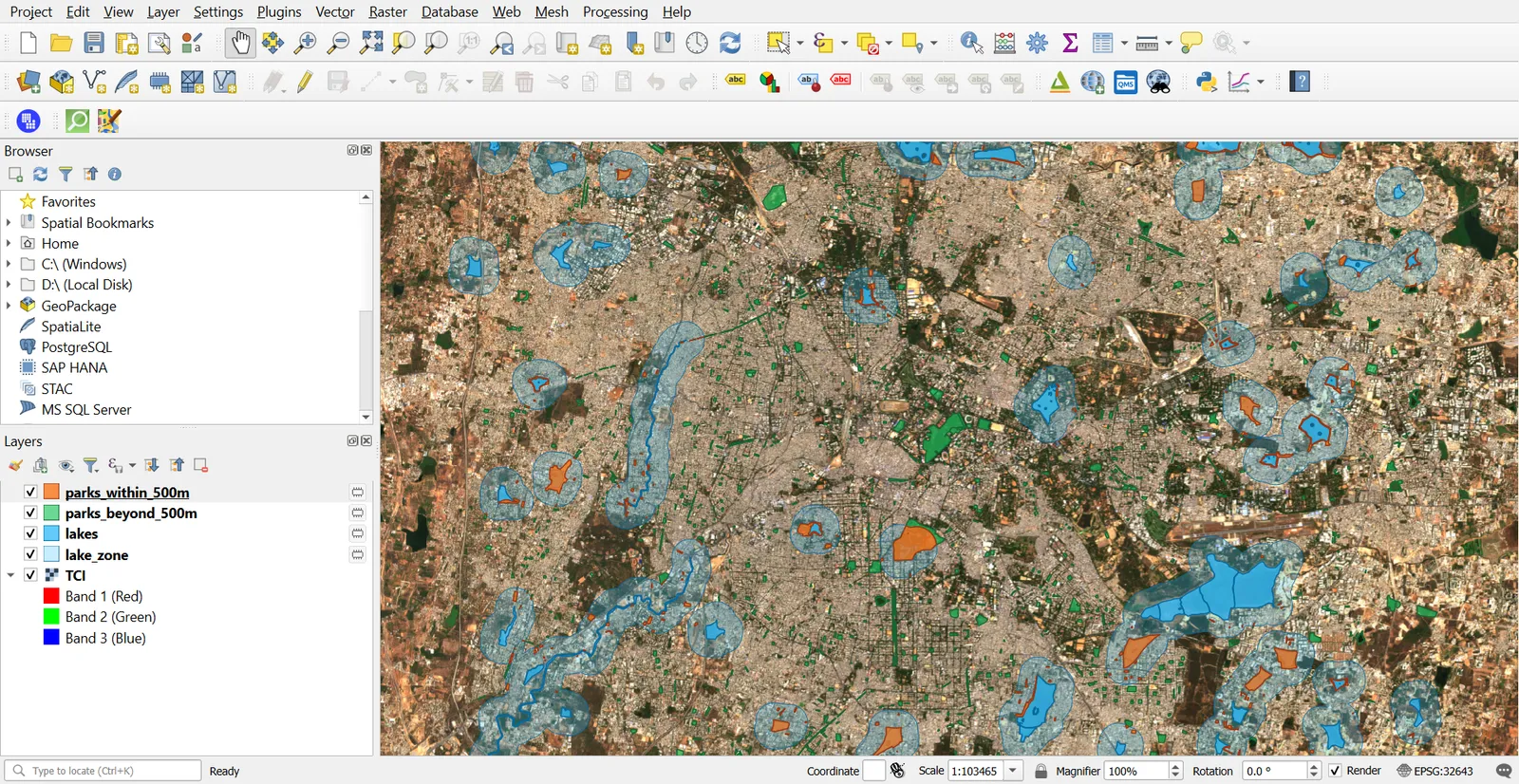
In the 26 km by 17 km window, the OSM parks have 431 ha within 500 m of a lake and 625 ha beyond it. Your numbers will differ with the window and with the OSM extract date.
Union and overlap
Union keeps all areas from both layers, so a polygon from layer A and a polygon from layer B that overlap become three pieces: A only, B only, and both. Features that came from only one layer have empty fields for the other layer, so look for NULL values when you read the table.
2. Points in polygon
Point in polygon analysis counts or summarises points inside each polygon.
- Create a polygon grid: Processing > Create Grid. Type: Rectangle, Extent from
study_area, Horizontal and Vertical spacing2000m, CRS EPSG:32643. - Open Processing > Count Points in Polygon. Polygons: the grid. Points:
hospitals. Output field name:hospital_count. - Style the grid with Graduated symbology on
hospital_count.
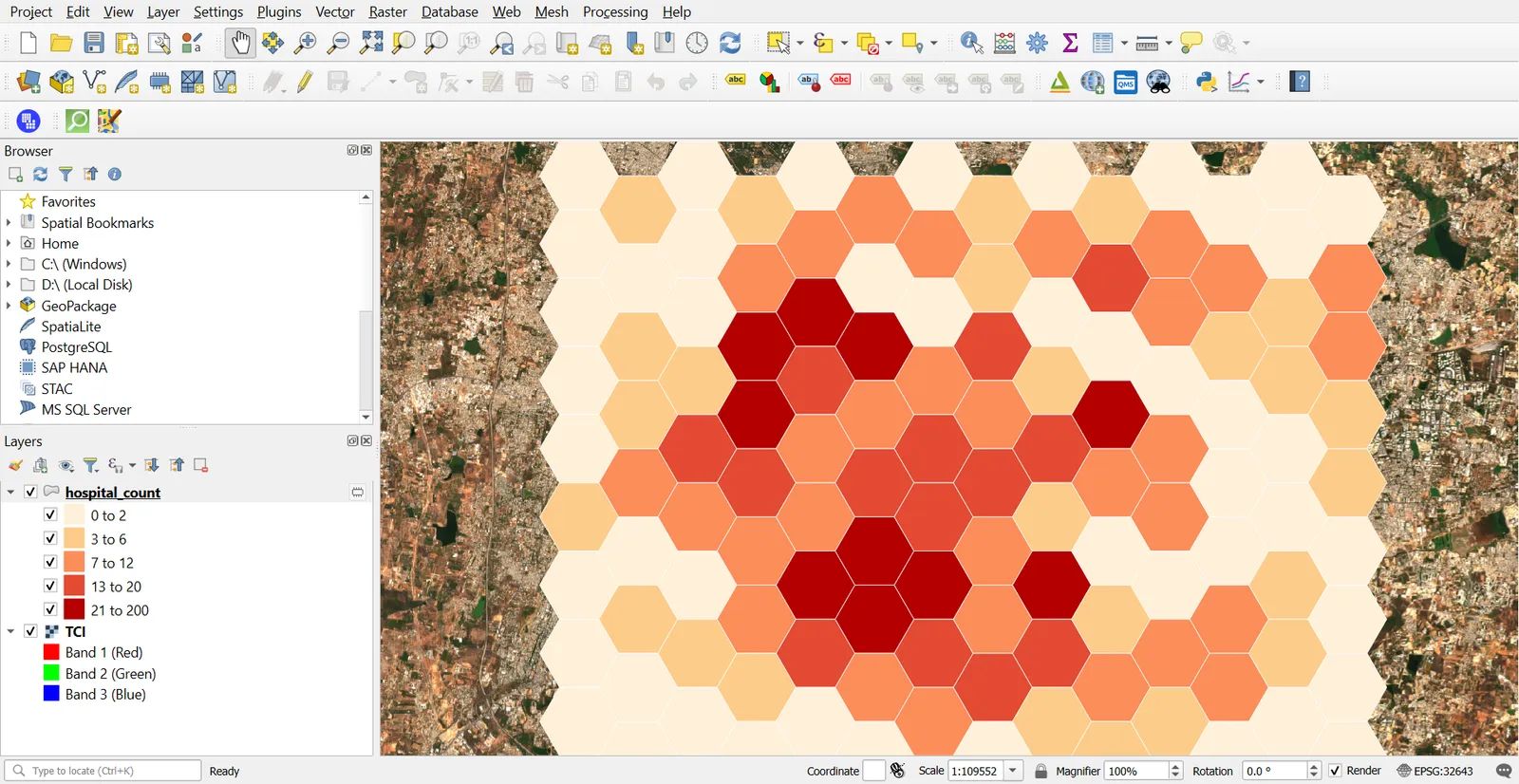
To summarise an attribute instead of counting, use Join Attributes by Location (Summary), choose the point layer, a numeric field, and the statistics you want (sum, mean, max).
Extract by location
Vector > Research Tools > Select by Location (or Processing > Extract by Location) picks features by their relationship to another layer. Predicates include intersects, contains, within, touches and crosses. Pick the one that matches your question. "Hospitals within parks" uses within, and "parks that contain a hospital" reverses the layers.
3. Lines in polygon
- Open Processing > Sum Line Lengths. Lines:
roads. Polygons: the grid. - The output has
LENGTH(the total length of road in each cell) andCOUNT(how many line pieces). DivideLENGTHby the cell area to get road density. - To split roads at the grid edges, run Intersection (lines first, grid second). Each piece keeps the grid cell ID.
Polygon on polygon
Run Intersection between parks and the grid to get the area of park in each cell, then Dissolve by cell ID and add $area to see park area per cell.
4. Proximity analysis
Buffers
Buffer draws a zone at a set distance. Use Multi-ring Buffer (constant distance) to draw several zones at once, for example hospitals at 500 m, 1000 m and 2000 m. Each ring gets a distance field you can use for styling.
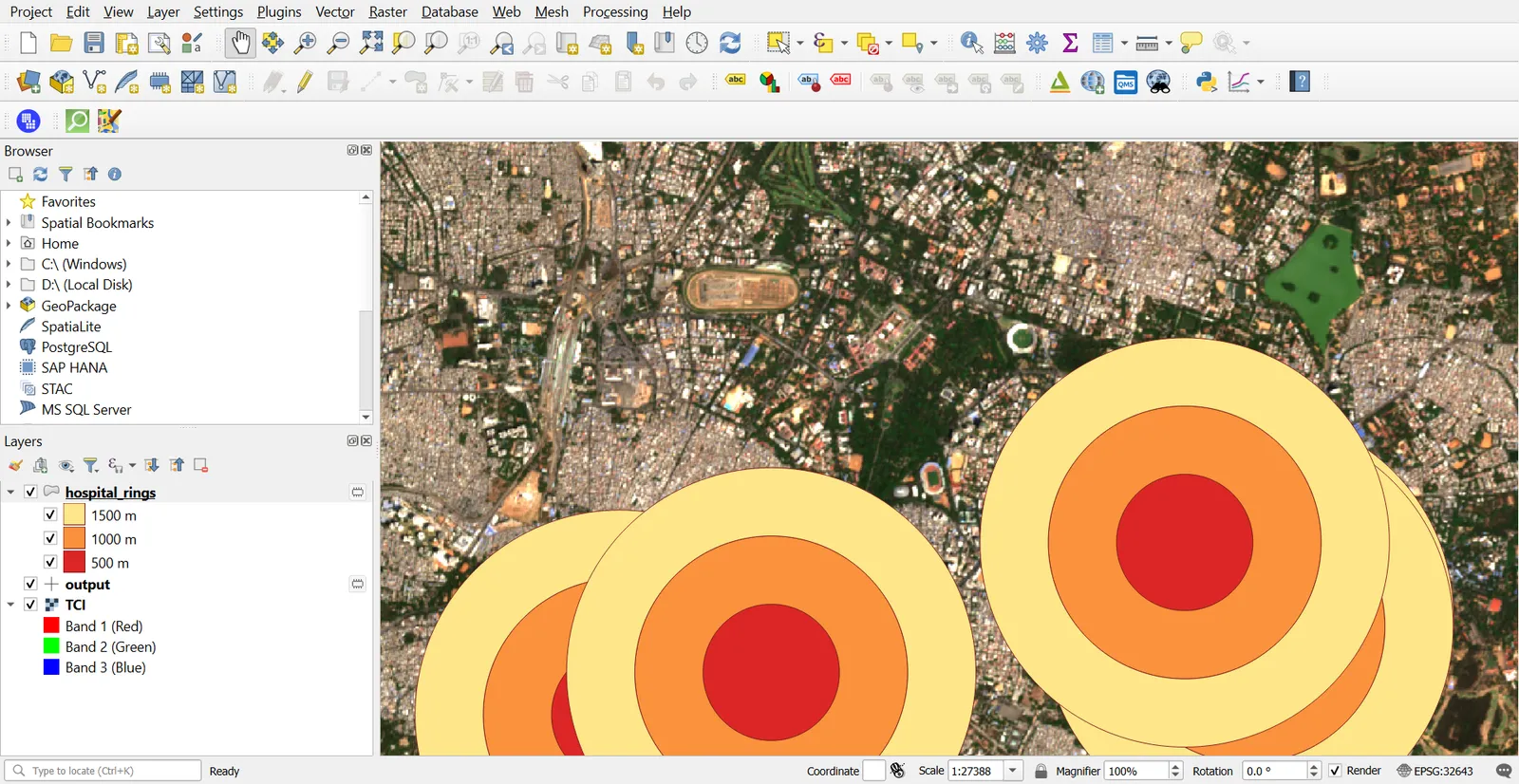
Nearest feature
Processing > Join Attributes by Nearest finds the closest feature in another layer.
- Input layer:
places_utm(from Part 4). Input layer 2:hospitals. - Maximum nearest neighbors:
1. - The output has the hospital's attributes and a
distancefield, in the layer's CRS units (metres here).
This gives straight-line distance. For travel distance along roads, use the network tools in Q16.
Distance matrix
A distance matrix lists the distance between every pair of points.
- Processing > Distance Matrix.
- Input point layer and Target point layer can be the same or different.
- Matrix type: choose Linear (N * k x 3) for a long table with one row per pair, or Standard (N x T) for a grid.
- Number of nearest points to use:
0for all. - Run and open the output table.
Distances are straight lines, measured in the layer CRS. For a geographic CRS the result is in degrees, so reproject first.
Nearest neighbour analysis
Vector > Analysis Tools > Nearest Neighbour Analysis reports the observed mean distance, the expected mean distance for a random pattern, and the ratio between them. A ratio below 1 suggests clustering and above 1 suggests dispersion. It gives a first look at the pattern, and it does not replace a proper statistical test (see Q18).
5. Build a model
The Graphical Modeler saves a series of tools as one tool you can run again.
- Processing > Graphical Modeler. Name it
hospital_access, groupPractice. - Under Inputs, drag in a Vector Layer (name it
Hospitals, point type) and a Number (name itDistance in metres, default1000). - Under Algorithms, drag in Buffer. Set Input layer to the
Hospitalsmodel input, and Distance to theDistance in metresinput. Tick Dissolve result. - Drag in Extract by Location. Features to extract from: your places layer. Where the features: intersect. By comparing to: the Buffer output. Name the output
Places near hospitals. - Click the save icon, then run the model (the play button).
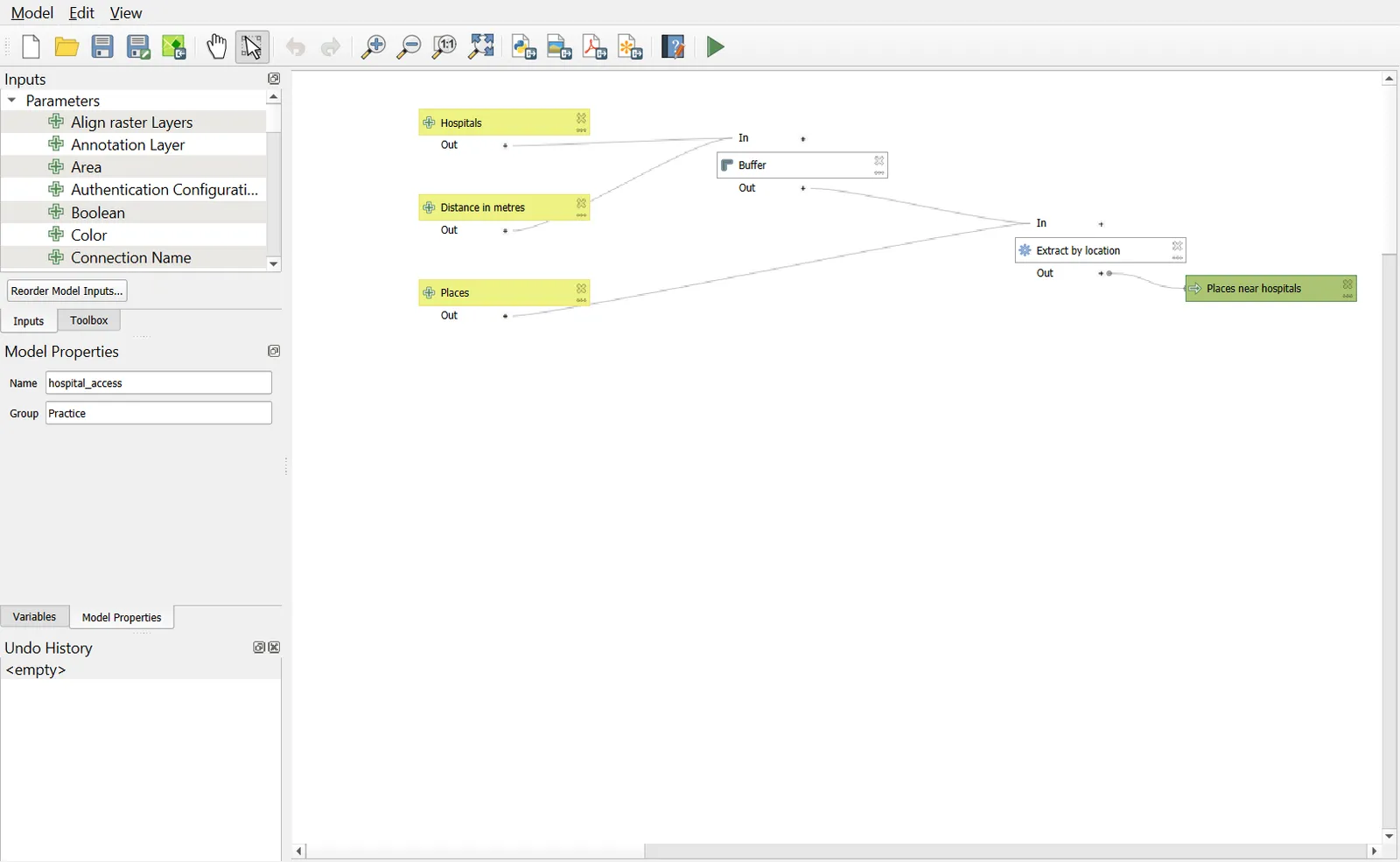
The saved model appears in the Processing Toolbox under Models. Right-click it and choose Execute as Batch Process to run it on many layers at once.
Model tips
- Give every input and output a clear name, because those names become the labels in the dialog.
- Mark only the final results as outputs. Intermediate layers can be temporary.
- Test each tool once by hand before putting it in the model.
- Keep the CRS consistent. A model has no way of knowing that your two layers disagree.
Common mistakes
- Running overlay tools on invalid geometry, which fails or silently drops features.
- Measuring distance in degrees.
- Using Union when only Intersection is needed, which multiplies features.
- Forgetting to dissolve buffers, which double counts overlapping areas.
- Mixing up the input and overlay layers in Difference. The result is the reverse.
- Treating straight-line proximity as travel time.