

Data used
- NDVI for 15 March 2025 and 14 March 2020, made with the formula from Part 8 (
ndvi_2025.tif,ndvi_2020.tif). Calculate both from the Sentinel-2 tile 43PGQ, using the same bands and the same scale and offset. parksandlakespolygons from Q11.
Both NDVI rasters must share the same extent, cell size and CRS, or the local statistics will fail. Sentinel-2 tiles from the same MGRS tile do.
1. Reclassify
Reclassification replaces ranges of cell values with new class codes. It turns a continuous raster into something you can map, count and compare.
Choose the classes
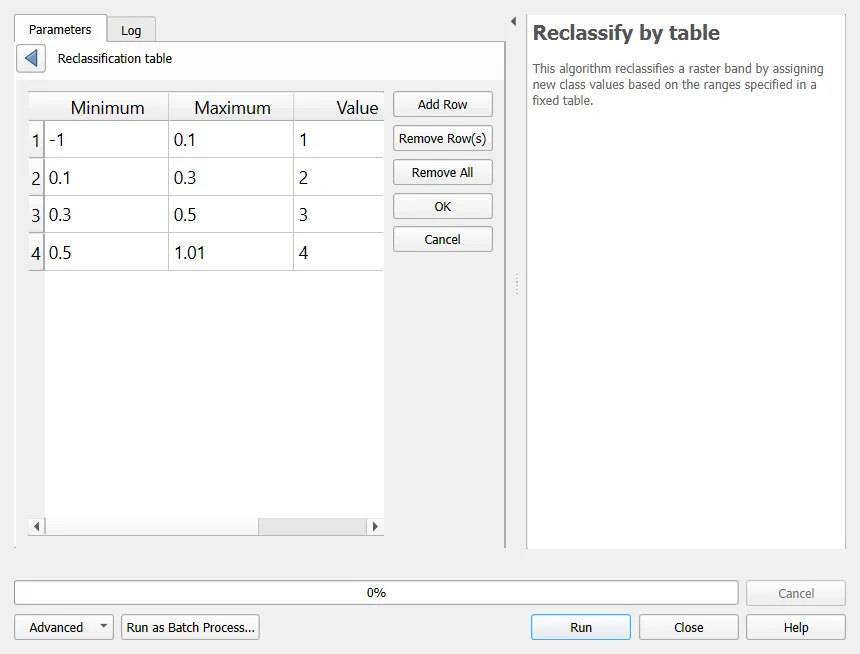
Use thresholds you can justify. The histogram helps, and so does checking against imagery. For this scene, one possible scheme is below. Treat the breaks as a starting point, and check them against the true-colour image.
| NDVI range | Class | Code |
|---|---|---|
| Below 0.1 | Water, built-up and bare ground | 1 |
| 0.1 to below 0.3 | Sparse vegetation | 2 |
| 0.3 to below 0.5 | Moderate vegetation | 3 |
| 0.5 and above | Dense vegetation | 4 |
Run the tool
- Processing Toolbox > Reclassify by Table.
- Raster layer:
ndvi_2025. Band: 1. - Click the
...next to Reclassification table, then Add Row for each class. Fill Minimum, Maximum and Value. - Range boundaries: choose
min < value <= maxormin <= value < max, so each cell falls in exactly one class. - Output data type: Byte is enough for class codes.
- Run, and style the result with Paletted/Unique values.
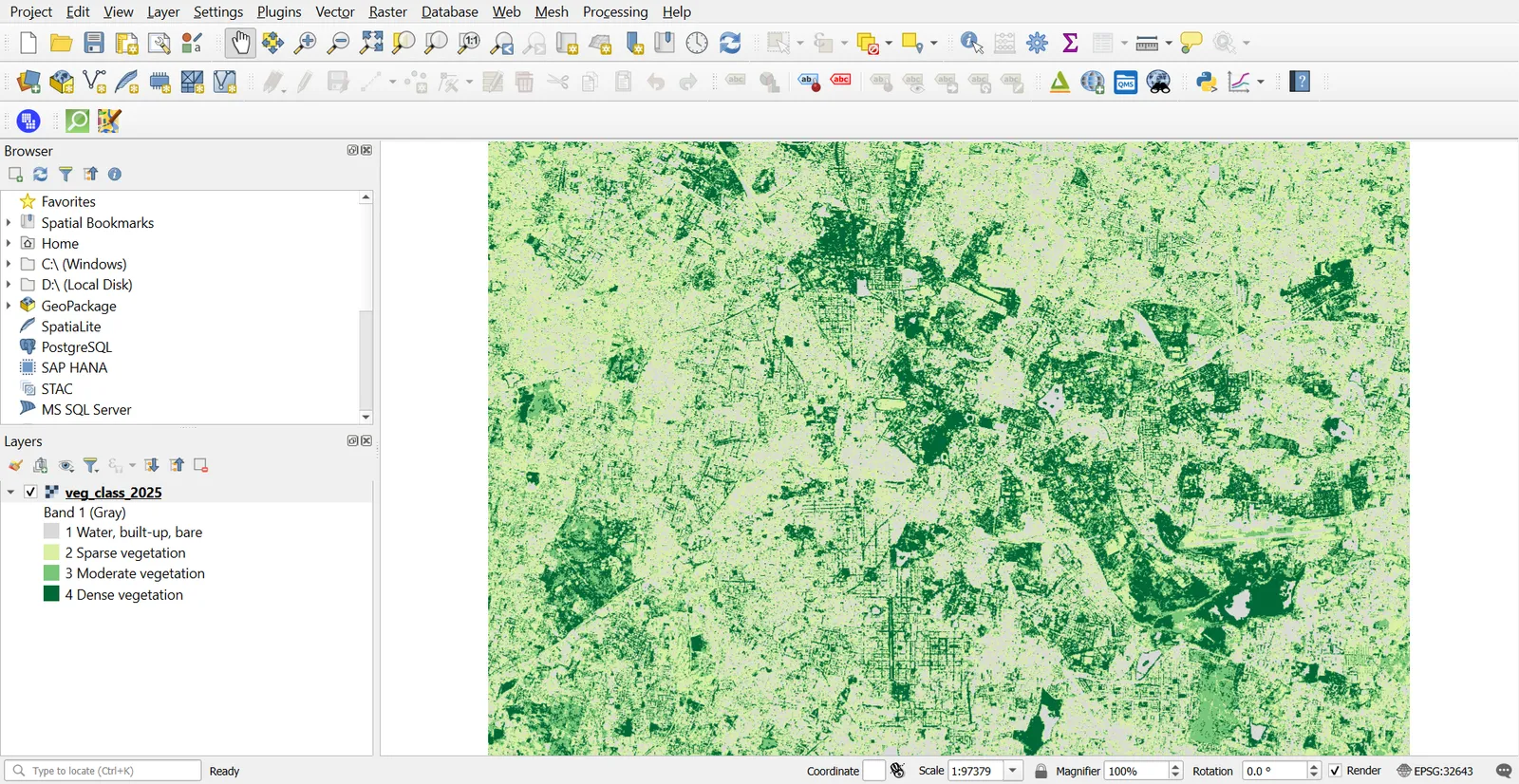
Alternatives: Reclassify by Layer (read the table from a layer), or the Raster Calculator with a conditional expression.
("ndvi_2025@1" < 0.1) * 1 +
(("ndvi_2025@1" >= 0.1) AND ("ndvi_2025@1" < 0.3)) * 2 +
(("ndvi_2025@1" >= 0.3) AND ("ndvi_2025@1" < 0.5)) * 3 +
("ndvi_2025@1" >= 0.5) * 4
Each test returns 1 or 0, and multiplying by the class code adds up to a single class value per cell.
2. Class areas
Processing > Raster Layer Unique Values Report counts cells in each class.
- Input layer: the reclassified raster.
- Run. The report gives the cell count and area for each value.
- Area is in the layer's units. In EPSG:32643 with 10 m cells, one cell covers 100 square metres, so 10,000 cells make 100 hectares.
Open the HTML report, or save the table as CSV.
3. Raster overlay
Raster overlay combines layers cell by cell using map algebra. Cells that line up are combined, so layers must share a grid.
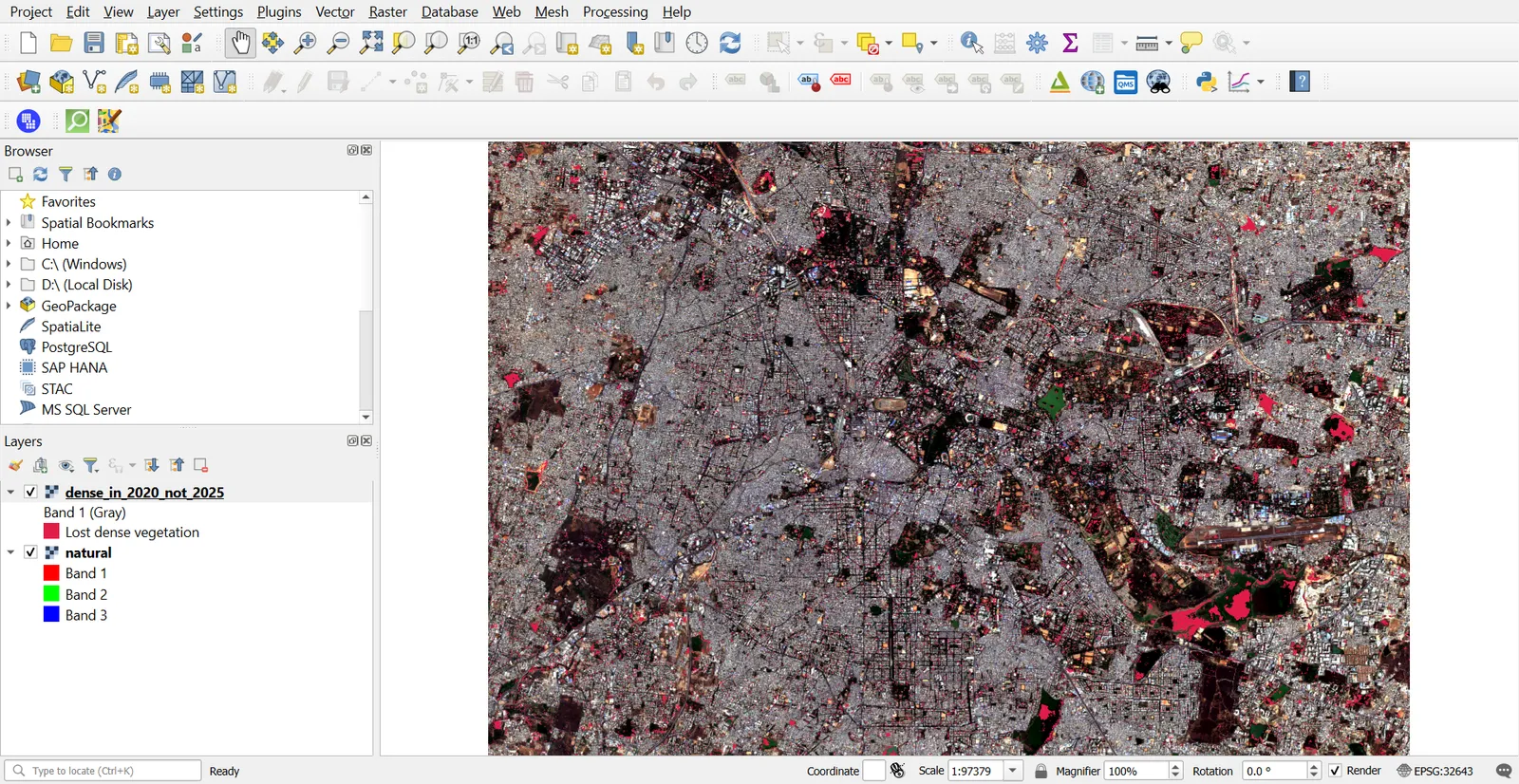
Boolean overlay: vegetation that was lost
- Make two masks with the Raster Calculator:
"ndvi_2020@1" >= 0.5and"ndvi_2025@1" >= 0.5. - Combine them to find cells that were dense in 2020 and are not in 2025:
("mask_2020@1" = 1) AND ("mask_2025@1" = 0)
- Style the result in red, with 0 transparent.
Weighted overlay
A weighted overlay multiplies each layer by a weight and sums them. It is the basis of the suitability analysis in Q15.
0.5 * "slope_score@1" + 0.3 * "road_score@1" + 0.2 * "water_score@1"
The weights should add up to 1. Each input layer should be on the same scale, such as 1 to 5, before weighting.
Masking
To keep values only inside a class or polygon, multiply by a 0 and 1 mask, or use Clip Raster by Mask Layer. For example, to see NDVI only on parks, clip ndvi_2025 by parks.
4. Zonal statistics
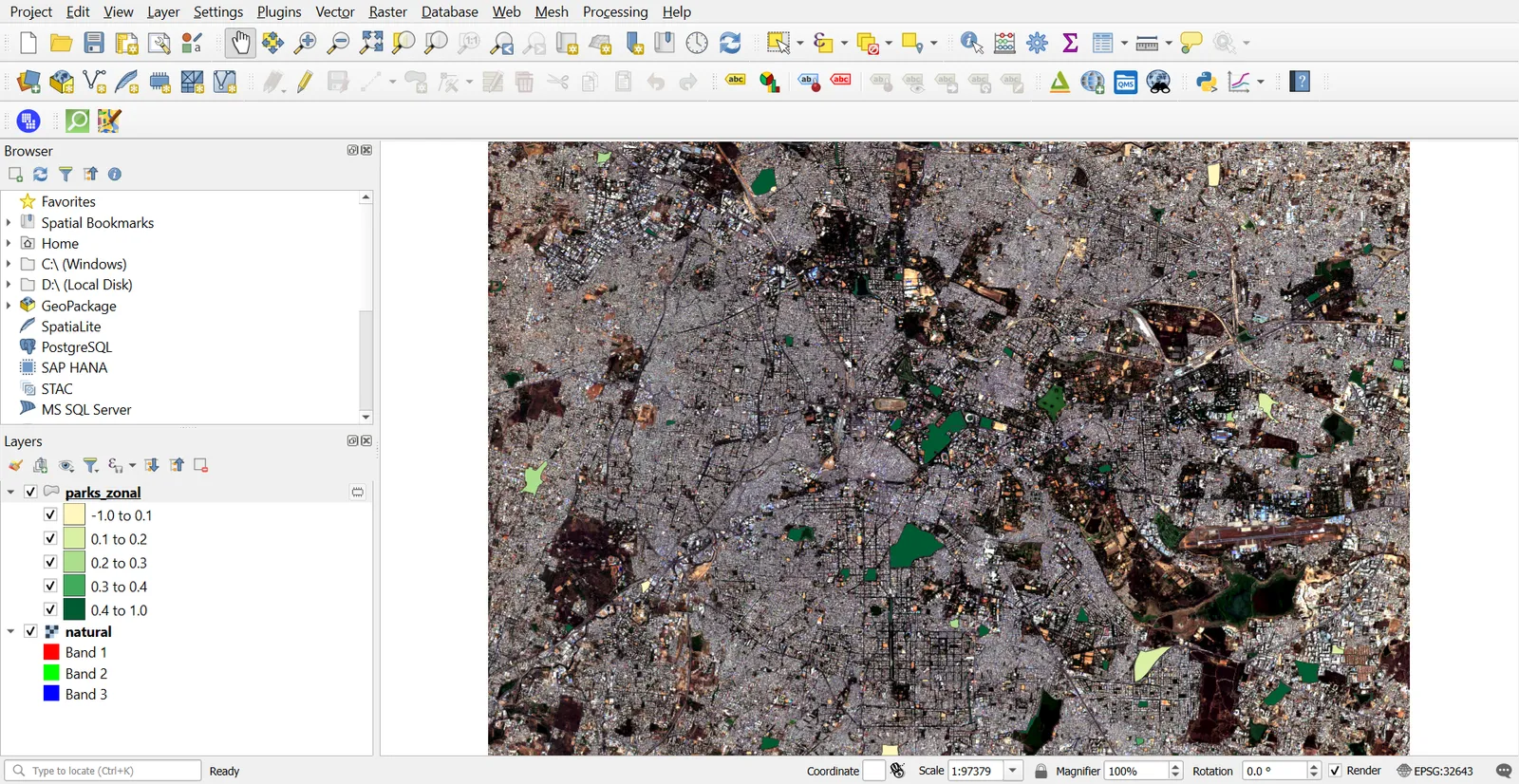
Zonal statistics summarise a raster inside each polygon, such as mean NDVI for each park.
- Processing Toolbox > Zonal Statistics.
- Input layer:
parks. Raster layer:ndvi_2025. Raster band: 1. - Output column prefix:
ndvi25_. - Statistics to calculate: Count, Mean, Median, Minimum, Maximum, Standard deviation.
- Run. The output layer has new columns, such as
ndvi25_mean. - Repeat with
ndvi_2020and the prefixndvi20_. - In the Field Calculator, create
ndvi_changeas"ndvi25_mean" - "ndvi20_mean".
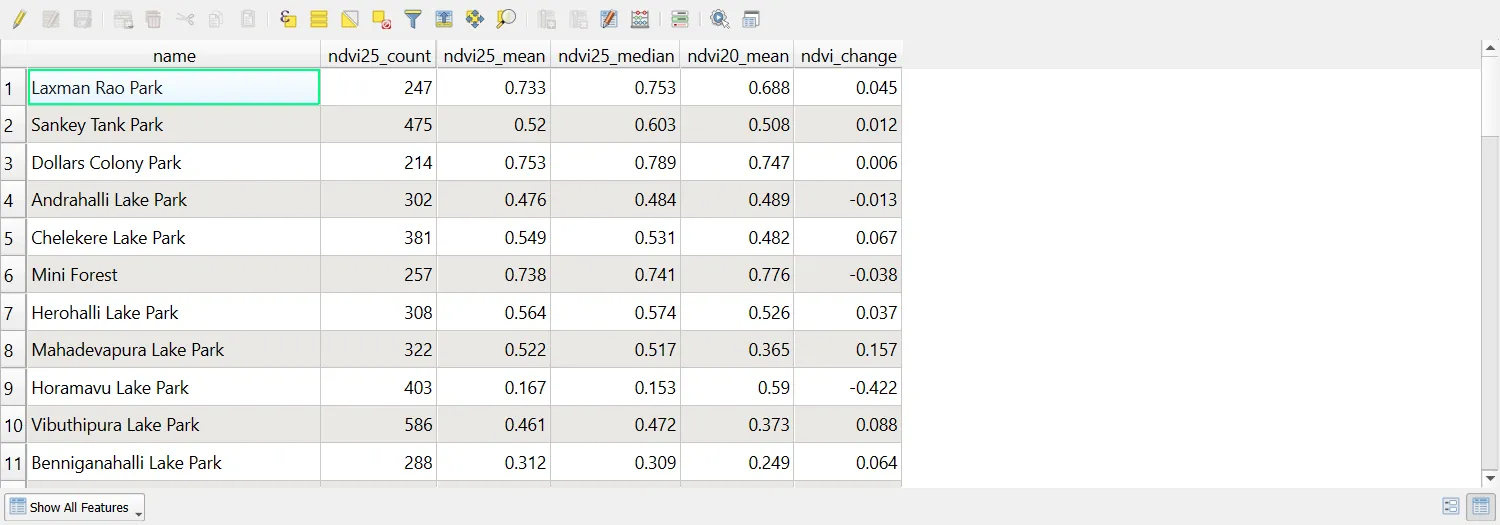
For counts per class within each polygon, use Zonal Histogram on the reclassified raster. It adds a column for each class code.
5. Local statistics
Local statistics work cell by cell across several rasters. This is the reverse of zonal statistics, which works within zones.
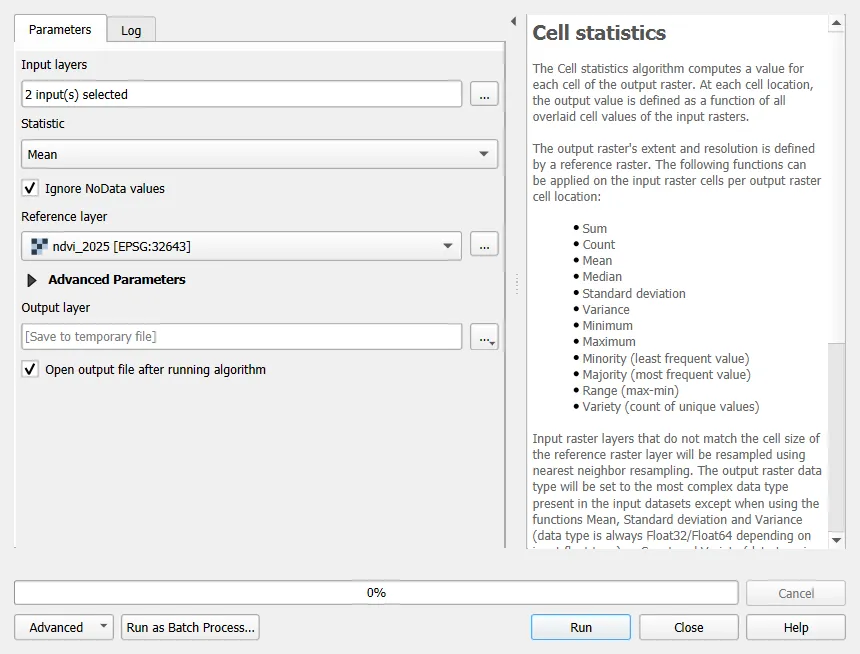
- Processing Toolbox > Cell Statistics.
- Input layers:
ndvi_2020andndvi_2025(add more dates if you have them). - Statistic: Mean, then Run again for Maximum, Minimum, Range, Standard deviation or Sum.
- Reference layer: choose one of the inputs so the output matches its grid.
- Tick Ignore NoData values if some dates have gaps.
The result shows, for example, the mean NDVI for each cell across all dates. A high standard deviation marks cells that changed a lot.
Other raster tools to know
| Task | Tool |
|---|---|
| Summary of a whole raster | Raster Layer Statistics |
| Values at point locations | Sample Raster Values |
| Match cell size and extent | Align Rasters |
| Convert values between data types | Translate (Convert Format) |
| Mask to the strongest class | Raster Calculator with a conditional |
Common mistakes
- Using class breaks from a textbook without looking at the histogram.
- Overlaying rasters of different extent or cell size without aligning them first.
- Forgetting NoData in map algebra. A NoData cell in any input becomes NoData in the output.
- Using different scale factors on two NDVI dates.
- Trusting the mean of a polygon that has only a few cells.
- Reading the area from the wrong units.