

Vector data in short
A vector layer stores features as geometry plus a table of attributes. There are three geometry types.
| Type | Stores | Example |
|---|---|---|
| Point | One coordinate pair | A tree, a well, a station |
| Line | An ordered set of vertices | A road, a canal |
| Polygon | A closed ring of vertices | A lake, a district, a building |
Each feature is one row in the attribute table. Open it with F6 or right-click the layer > Open Attribute Table.
Common formats: Shapefile (.shp, several files), GeoPackage (.gpkg, one file, many layers), GeoJSON and KML. For new work, GeoPackage is the safer default. Shapefiles cut field names to 10 characters and limit file size to 2 GB.
Data used
outputs/ndvi_city.tif, a 12 km by 9 km clip of the NDVI raster from Part 1 (step 7.5) around central Bengaluru, 1,201 by 901 cellsvector/places_full.gpkg, the ten places from Part 4 with acategoryfield, ready to style- Sentinel-2
TCI.tifas a background
Set the project CRS to EPSG:32643 before you start.
1. Raster to vector (R2V) conversion
R2V conversion turns raster cells into vector shapes. It works well on a raster that has a small number of values, such as a classified map or a thresholded index. It works badly on continuous values like raw reflectance, because every different value becomes its own polygon.
Step 1: make a two-class raster
We will mark vegetated pixels (NDVI above 0.4) as 1 and everything else as 0.
- Open Raster > Raster Calculator.
- Enter this expression, using your NDVI layer:
"ndvi@1" > 0.4
- Name the layer
ndviin the Layers panel first, so the expression matches. Save asveg_mask.tif. The output holds 1 where the test is true and 0 where it is false.
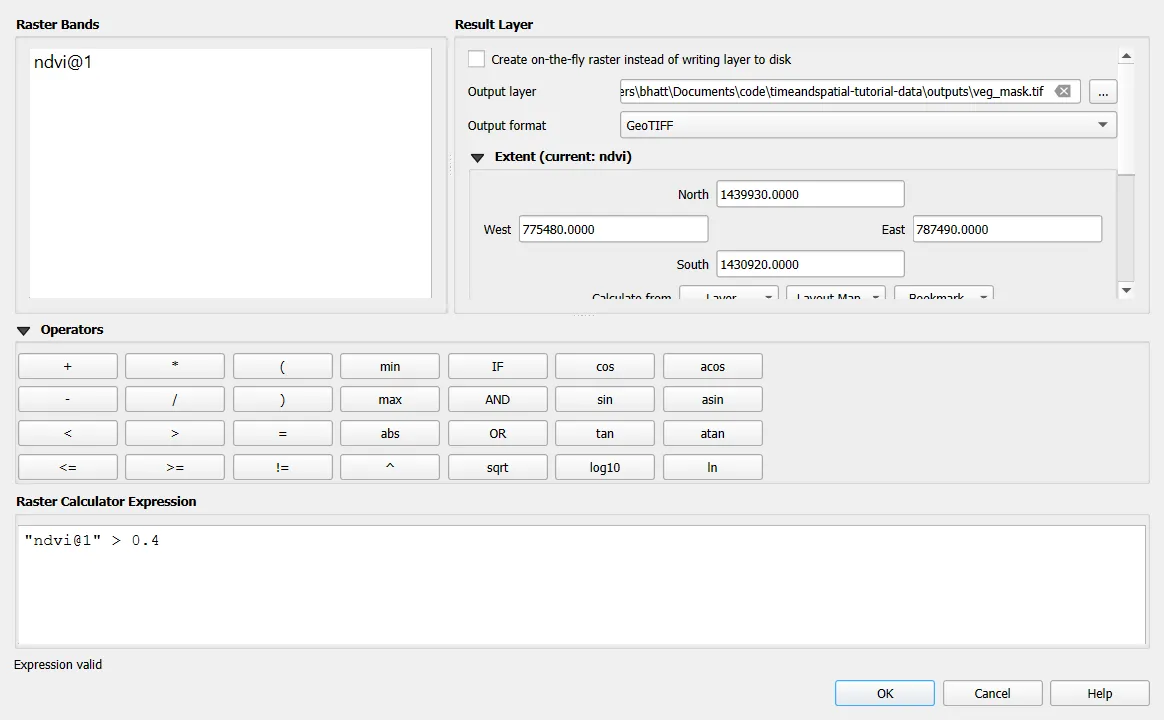
The threshold of 0.4 is a starting point for this scene. Check it against the true-colour image and change it if the result looks wrong.
Step 2: convert to polygons
- Open Raster > Conversion > Polygonize (Raster to Vector).
- Input layer:
veg_mask. Name of field to create:class. - Run. Each group of connected pixels with the same value becomes one polygon, and its value goes in the
classfield.
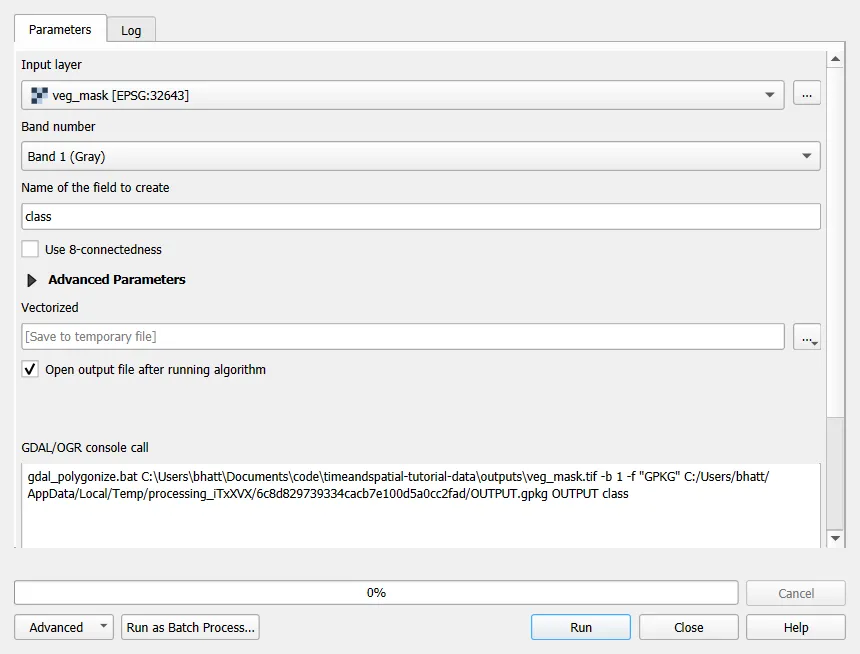
Do this on a clipped area first. A full 10,980 by 10,980 tile produces millions of polygons. The 12 km by 9 km clip used here gives about 15,500 polygons, of which about 12,000 are class 1.
Step 3: keep what you want
- Open the attribute table and use Select by Expression (
Ctrl+F3):"class" = 1. - Right-click the layer > Export > Save Selected Features As, choose GeoPackage, name it
vegetation.gpkg.
Step 4: clean up the result
Polygons made from pixels have stair-step edges.
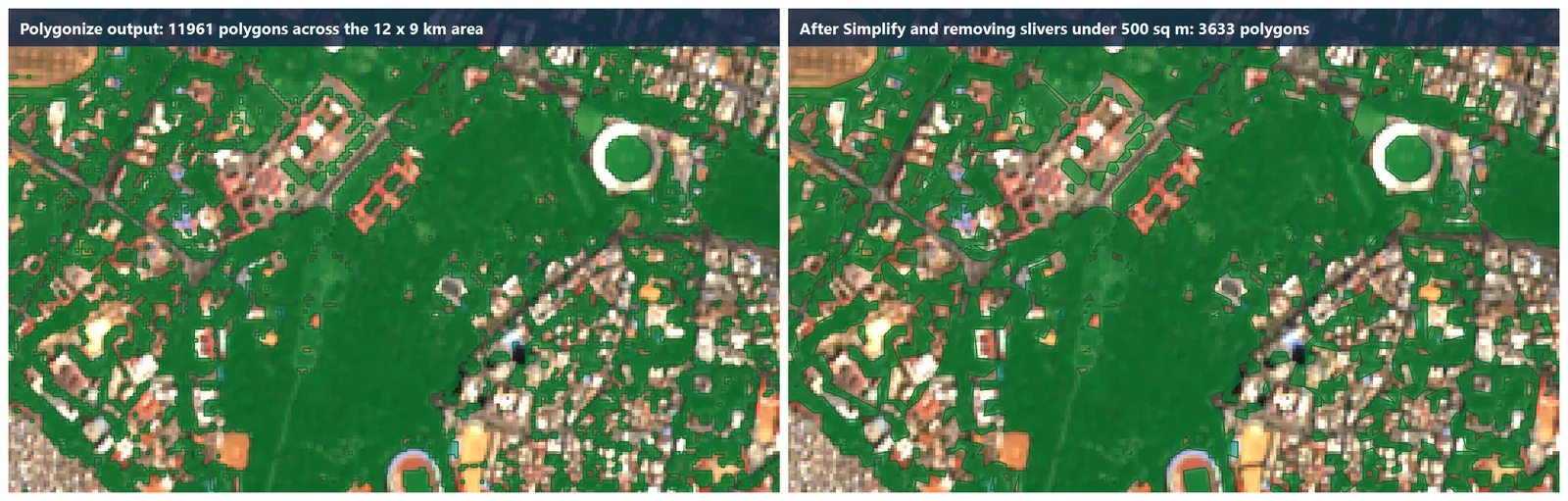
- Vector > Geometry Tools > Simplify, with a tolerance near the pixel size (10 m), reduces vertices.
- Processing Toolbox > Smooth rounds the corners. It looks nicer but moves the boundary, so skip it if you need area figures.
- Delete small slivers with Extract by Expression using
$area >= 500, which keeps only polygons of 500 square metres or more. This step cut the result in this tutorial from about 12,000 polygons to about 3,600.
The other direction, vector to raster, is Raster > Conversion > Rasterize (Vector to Raster).
2. Create a new vector layer
- Layer > Create Layer > New GeoPackage Layer.
- Database: choose a file such as
bengaluru.gpkg. - Table name:
survey_points. Geometry type: Point. CRS: EPSG:32643. - In New Field, add
name(Text) andtype(Text), clicking Add to List after each one. - Click OK.
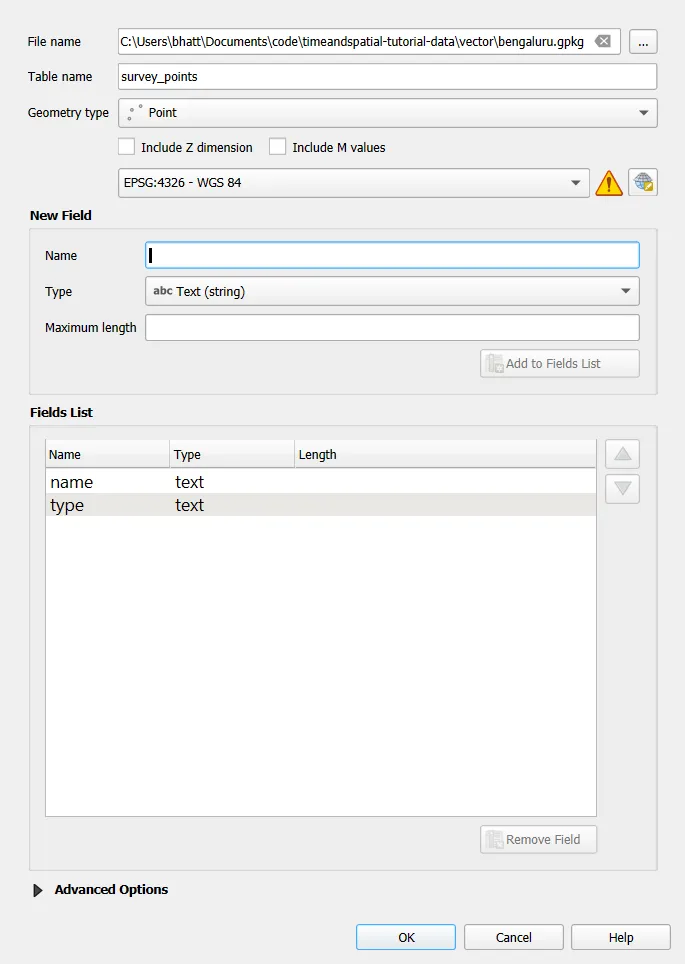
Repeat the process with Line and Polygon geometry, naming them survey_roads and survey_areas.
3. Edit vector features
Turn on editing
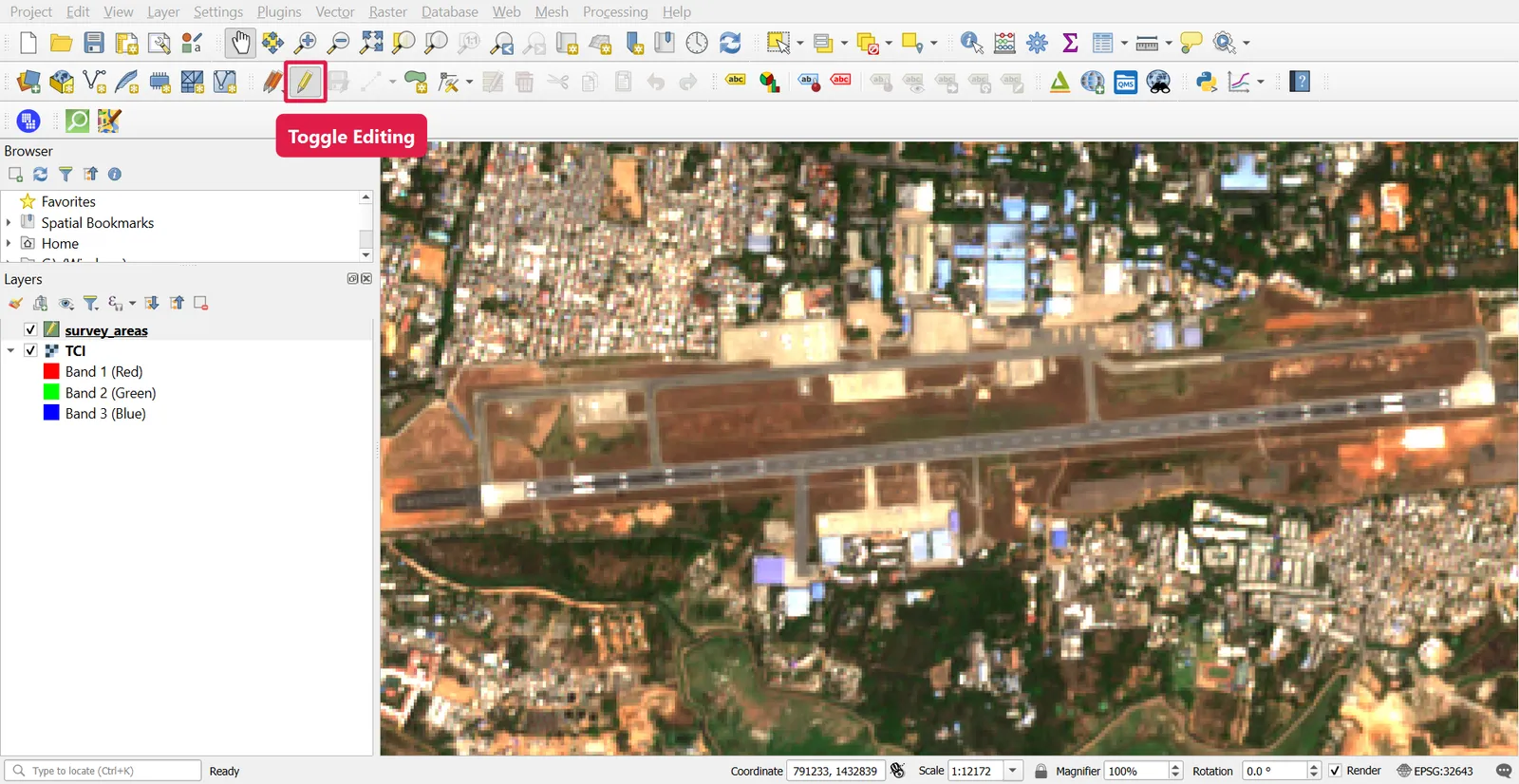
Select the layer, then click the pencil icon (Toggle Editing). A layer must be in edit mode before you can change it. Save changes with the Save Layer Edits icon, and turn editing off when you finish.
Add features
| Geometry | Tool | How |
|---|---|---|
| Point | Add Point Feature | Click the location, then fill in the attribute form |
| Line | Add Line Feature | Left-click each vertex, right-click to finish |
| Polygon | Add Polygon Feature | Left-click each vertex, right-click to close |
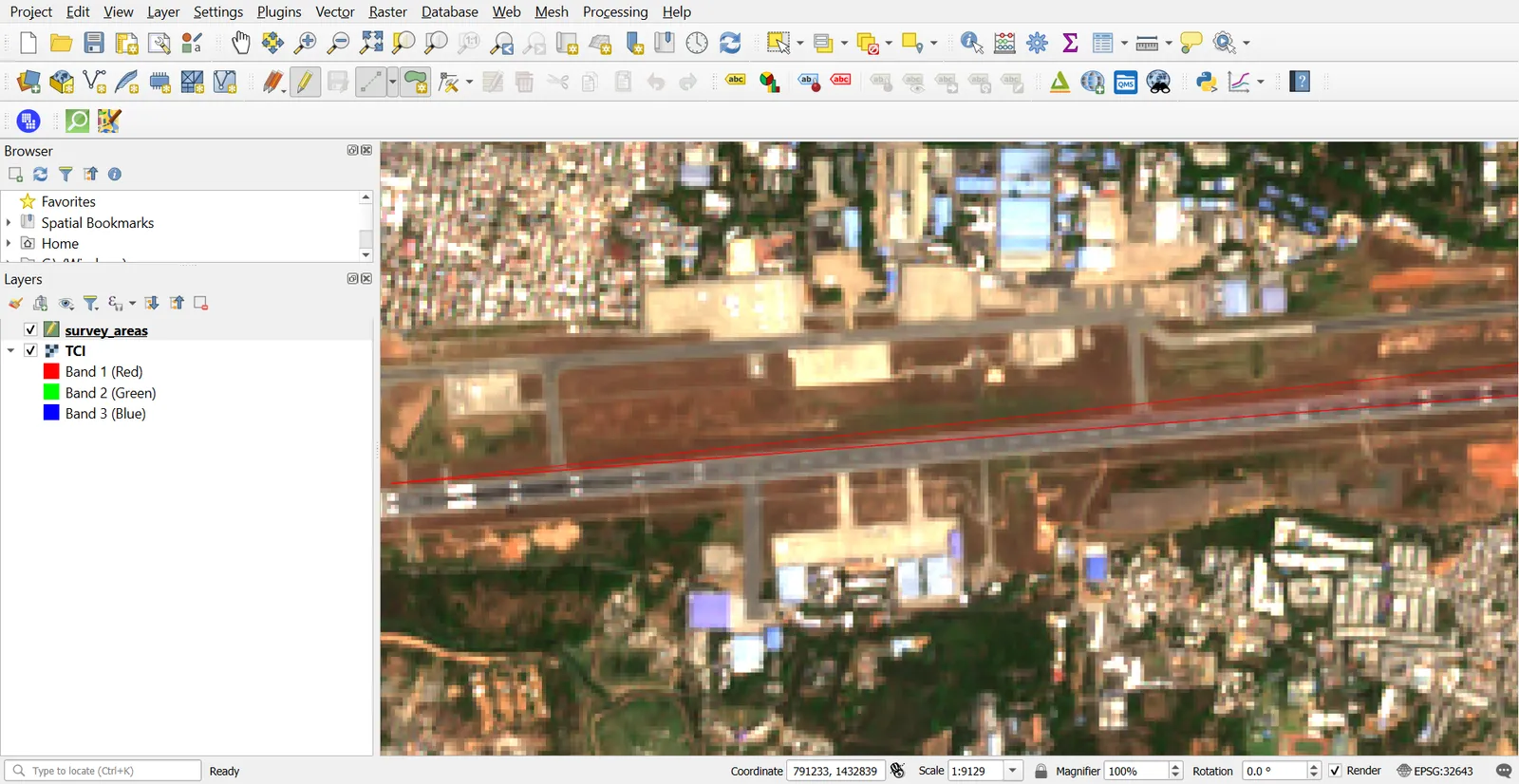
Digitize the old HAL airport runway as a polygon on the Sentinel-2 true-colour image. Zoom to about 1:10,000. The runway is only about 40 m wide, so it is about four pixels wide at 10 m resolution, and your vertices will follow the pixel edges.
Change features
| Task | Tool |
|---|---|
| Move a feature | Move Feature(s) |
| Move, add or delete vertices | Vertex Tool |
| Cut a feature in two | Split Features, draw a line across it |
| Join two polygons into one | Select both, then Edit > Edit Geometry > Merge Selected Features |
| Delete a feature | Select it and press Delete |
| Undo or redo | Ctrl+Z, Ctrl+Y |
With the Vertex Tool you can right-click a feature to open its vertex editor, which lists coordinates you can type over.
Edit attributes
Open the attribute table and click the pencil in its toolbar to edit cell values directly. The table also has a Field Calculator, covered in Part 4.
4. Snapping
Snapping makes a new vertex jump to an existing one. Without it, polygons that should share an edge end up with tiny gaps and overlaps.
- Project > Snapping Options (this turns on the Snapping Toolbar).
- Click the magnet icon to enable snapping.
- Choose All Layers, snap to Vertex and Segment, and a tolerance of 10 pixels.
- Turn on Enable Topological Editing, so that moving a shared vertex moves it in both polygons.
- Turn on Avoid Overlap on Active Layer, so a new polygon cannot overlap an existing one.

Check for topology errors
Enable the Topology Checker plugin (Plugins > Manage and Install Plugins > Installed). Open Vector > Topology Checker, add rules such as "must not have gaps" or "must not overlap", and press Validate All. Errors are marked on the map.
Alternatively, run Vector > Geometry Tools > Check Validity.
5. Style a layer
Open Layer Properties > Symbology. The renderer at the top decides how features are drawn.
| Renderer | Use for |
|---|---|
| Single Symbol | All features look the same |
| Categorized | One symbol per unique value, such as land-use type |
| Graduated | Value ranges with a colour ramp, such as population classes |
| Rule-based | Custom conditions, such as "area" > 1000 AND "type" = 'lake' |
Categorized example
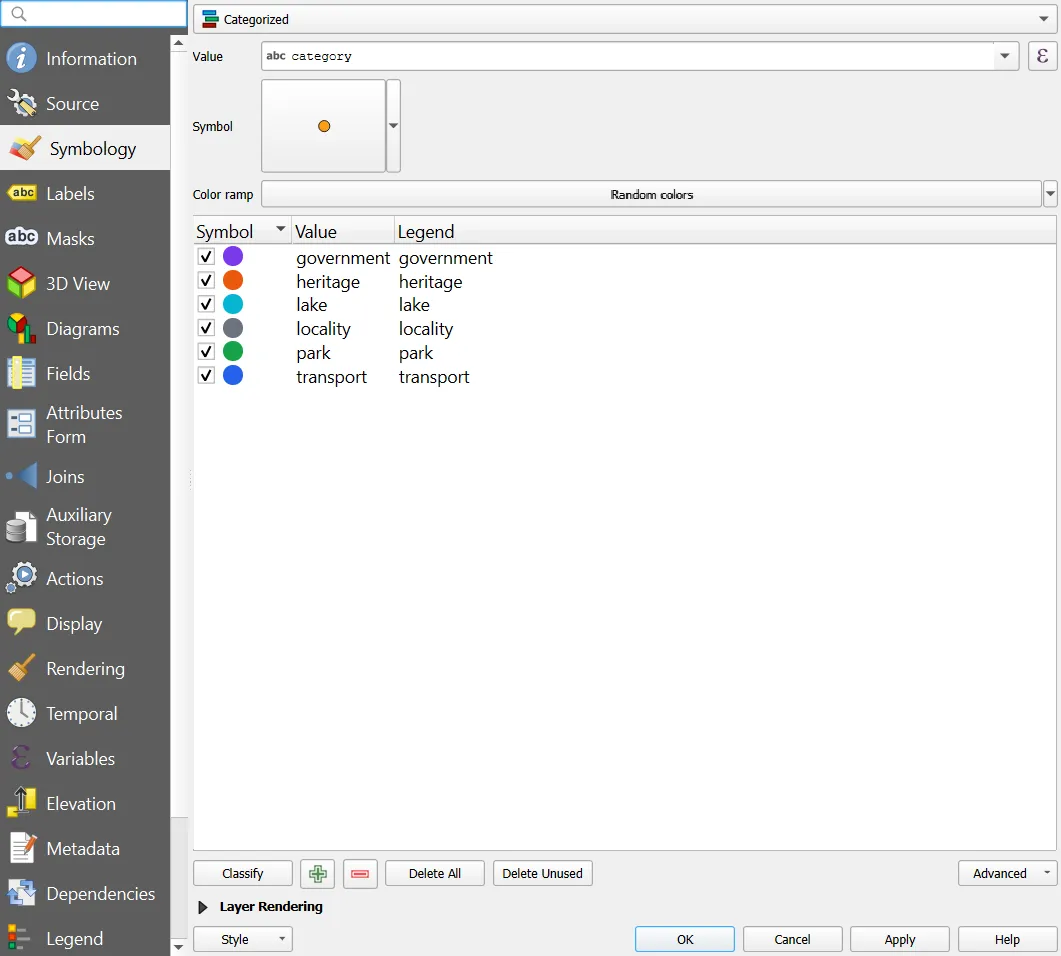
- Load
places_full.gpkgfrom the tutorial data, or any layer with a text field. - Symbology > Categorized. Column:
category. - Click Classify, then adjust each colour by double-clicking its symbol.
- Delete the empty category called
all other valuesif you do not need it.
Graduated example
Choose Graduated, a numeric column, a colour ramp and a mode. Equal Count (Quantile) puts the same number of features in each class. Natural Breaks (Jenks) groups similar values. Equal Interval splits the range evenly. Try each one, because the map changes noticeably.
Symbol tips
- Click the symbol to open the symbol selector. You can change fill, outline width and transparency.
- Use layer-level opacity under Symbology > Layer Rendering to see imagery through polygons.
- Save a style with Style > Save Style, so you can load it into other projects.
6. Labels
Open Layer Properties > Labels.
| Mode | Effect |
|---|---|
| Single Labels | One label from one field or expression |
| Rule-based Labeling | Different label settings for different features |
| Blocking | Features act as obstacles and are never labelled |
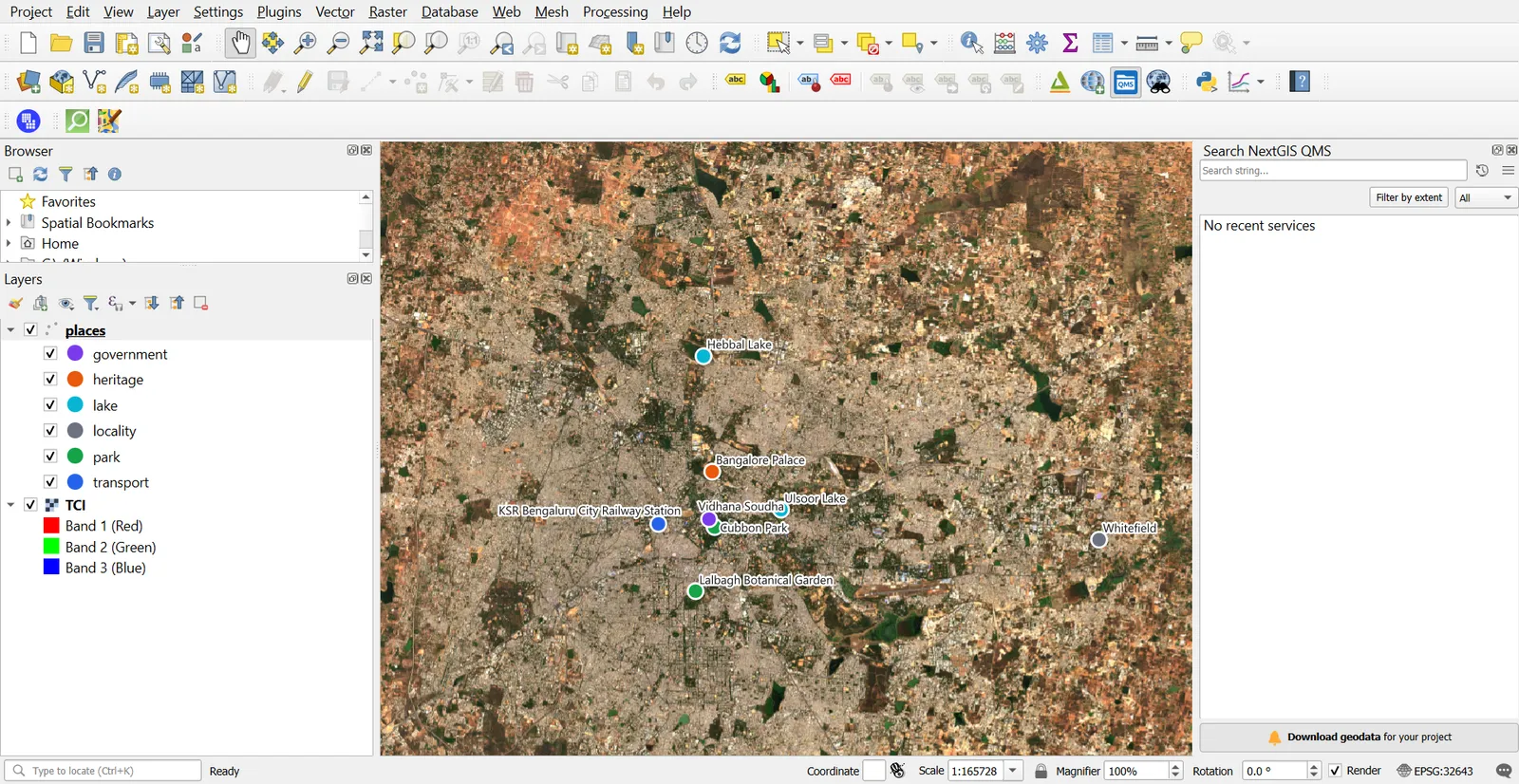
Add a basic label
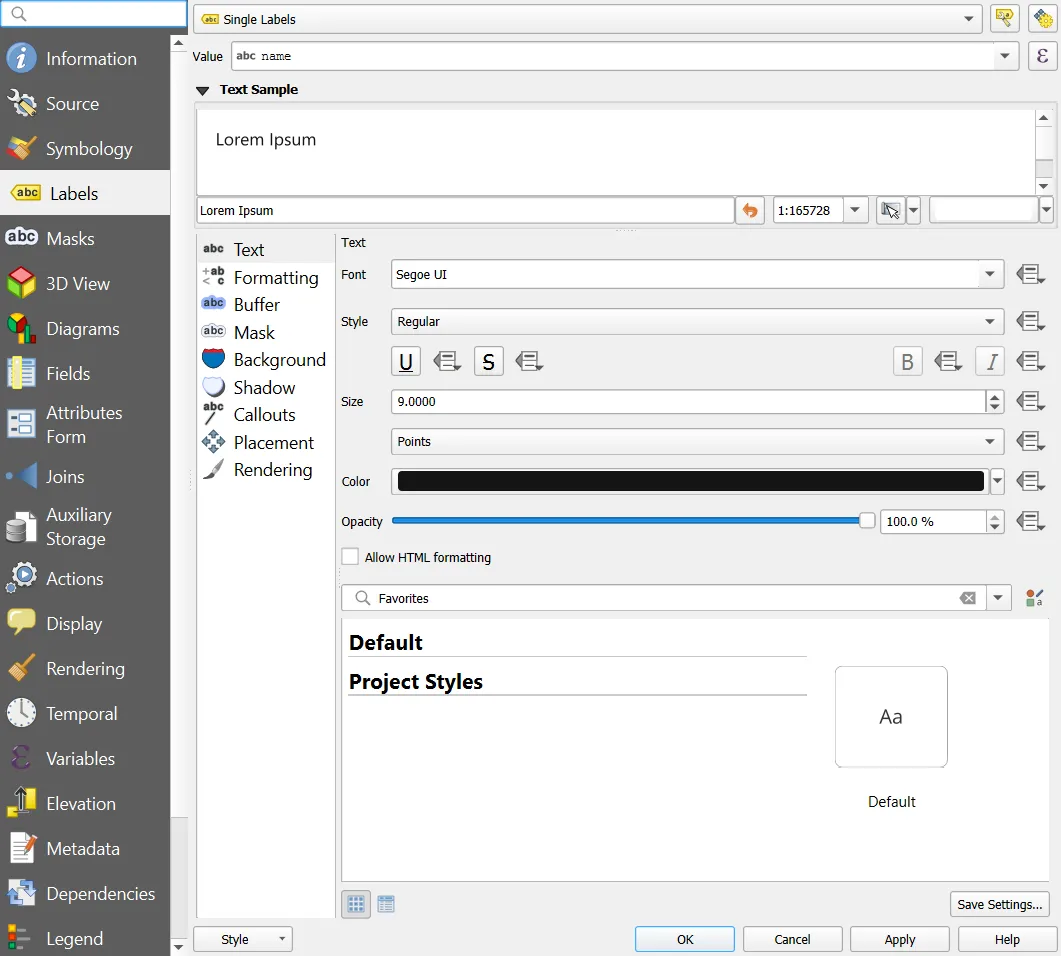
- Mode: Single Labels. Label with:
name. - Text tab: set font and size.
- Buffer tab: tick Draw text buffer, white, 1 mm. This keeps the text readable over imagery.
- Placement tab: for points use Around Point, for polygons use Offset from Centroid or Horizontal.
- Rendering tab: tick Show all labels for this layer if some are missing.
Label with an expression
Click the epsilon icon next to Label with and type an expression. For example, this joins the name with the category:
"name" || ' (' || "category" || ')'
If a label is missing, check scale-dependent visibility, the label priority, and whether another label is in its way.
Common mistakes
- Polygonizing a continuous raster and ending up with millions of polygons.
- Forgetting to save edits before turning editing off.
- Digitizing without snapping, which creates gaps and overlaps.
- Choosing the wrong CRS for the new layer. Changing it later means reprojecting.
- Drawing polygons at too small a scale, which makes vertices jittery.
- Using Graduated classes without looking at the data distribution first.