

What is georeferencing?
Georeferencing gives an image a position on the Earth by linking points on the image to known coordinates. The image is then warped, or stored with a transform, so that GIS can draw it in the right place.
It is not the same as orthorectification. Georeferencing fits an image to coordinates. Orthorectification also removes distortion from terrain and sensor geometry using a DEM. A georeferenced image can still have terrain displacement.
Three methods, named by what supplies the known coordinates:
| Method | Known coordinates come from | Typical use |
|---|---|---|
| Image to image | Another image that is already georeferenced | Aligning an old or unreferenced image to a recent one |
| Image to ground | Points measured in the field, for example GPS | Survey photos, drone images, scanned plans with surveyed corners |
| Image to map | A georeferenced map, or the printed grid on a paper map | Scanned toposheets and old maps |
Key terms
- GCP (ground control point): a point you can find on the image and for which you know the true coordinates.
- Source coordinates: pixel position on the image (column, row).
- Target coordinates: the real-world coordinates in the target CRS.
- Transformation: the mathematical model that moves the image onto the GCPs.
- Residual: the distance between where a GCP lands after the transformation and where it should be. Smaller is better.
- RMSE (root mean square error): one number summarising all residuals.
Prepare the practice images
The tutorial rasters are already georeferenced, so we first make an unreferenced copy to practise on.
- Open your QGIS project with
sentinel2/43PGQ/TCI.tif(reference) and the Landsat 8 true-colour (SR_B4, SR_B3, SR_B2 as red, green, blue; see Part 1). - Zoom to an area with clear features such as Bengaluru city, lakes, roads and the airport.
- Show only the Landsat layer.
- Project > Import/Export > Export Map to Image.
- Untick Append georeference information (embeds a world file or XML).
- Save as
landsat_unreferenced.png.
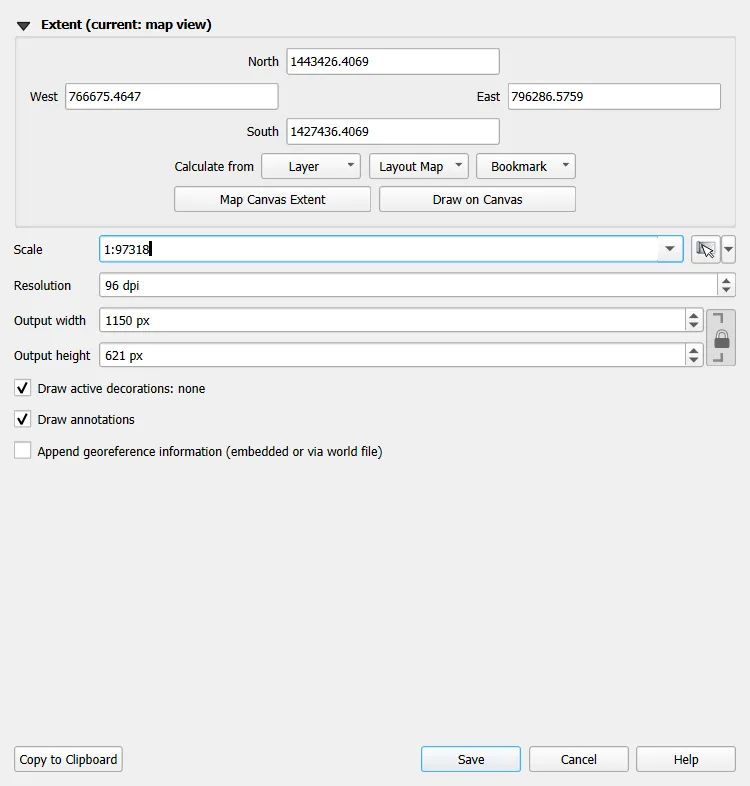
This PNG has no coordinates. If you open it in QGIS, it appears near 0,0.
Open the Georeferencer
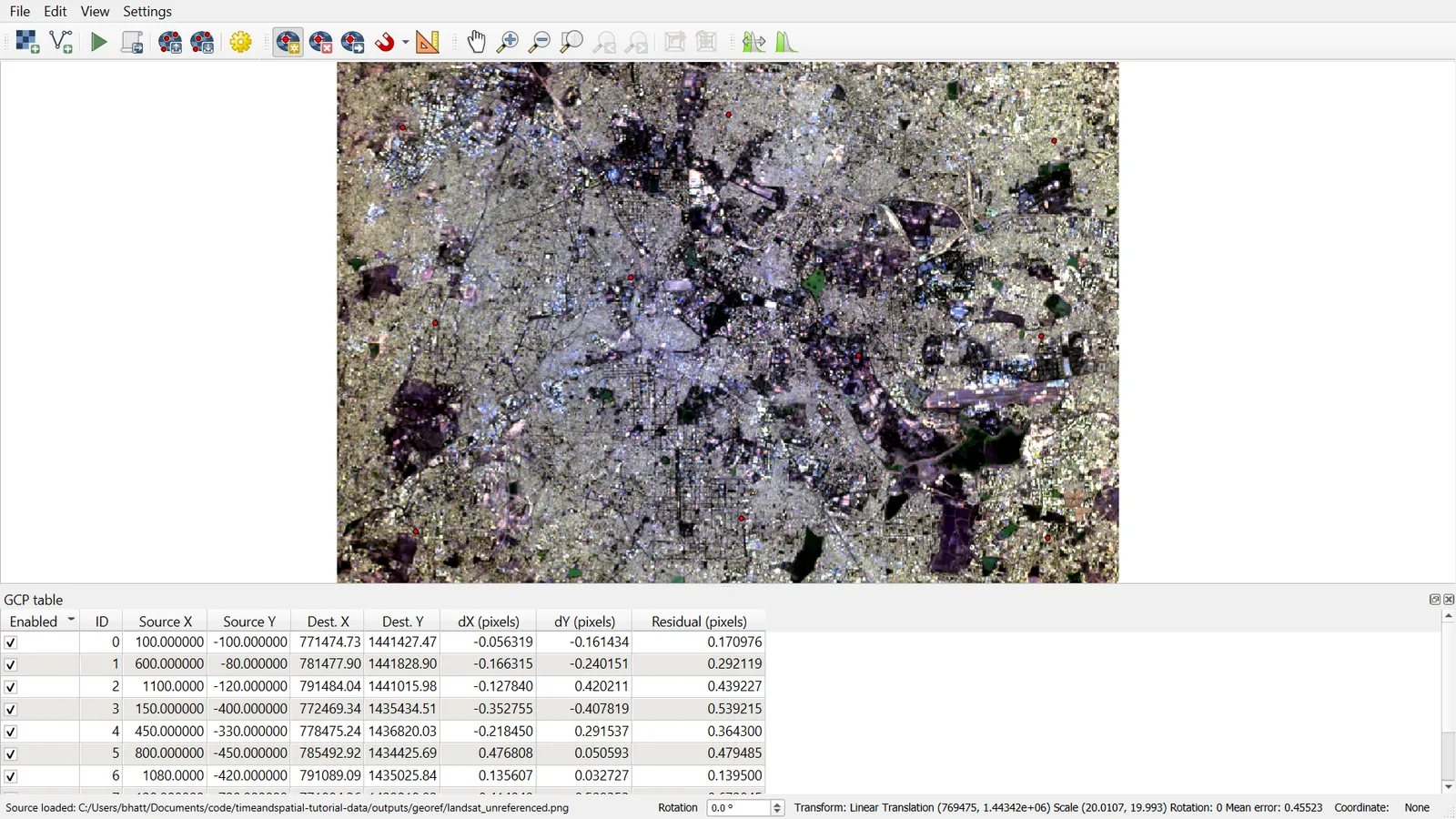
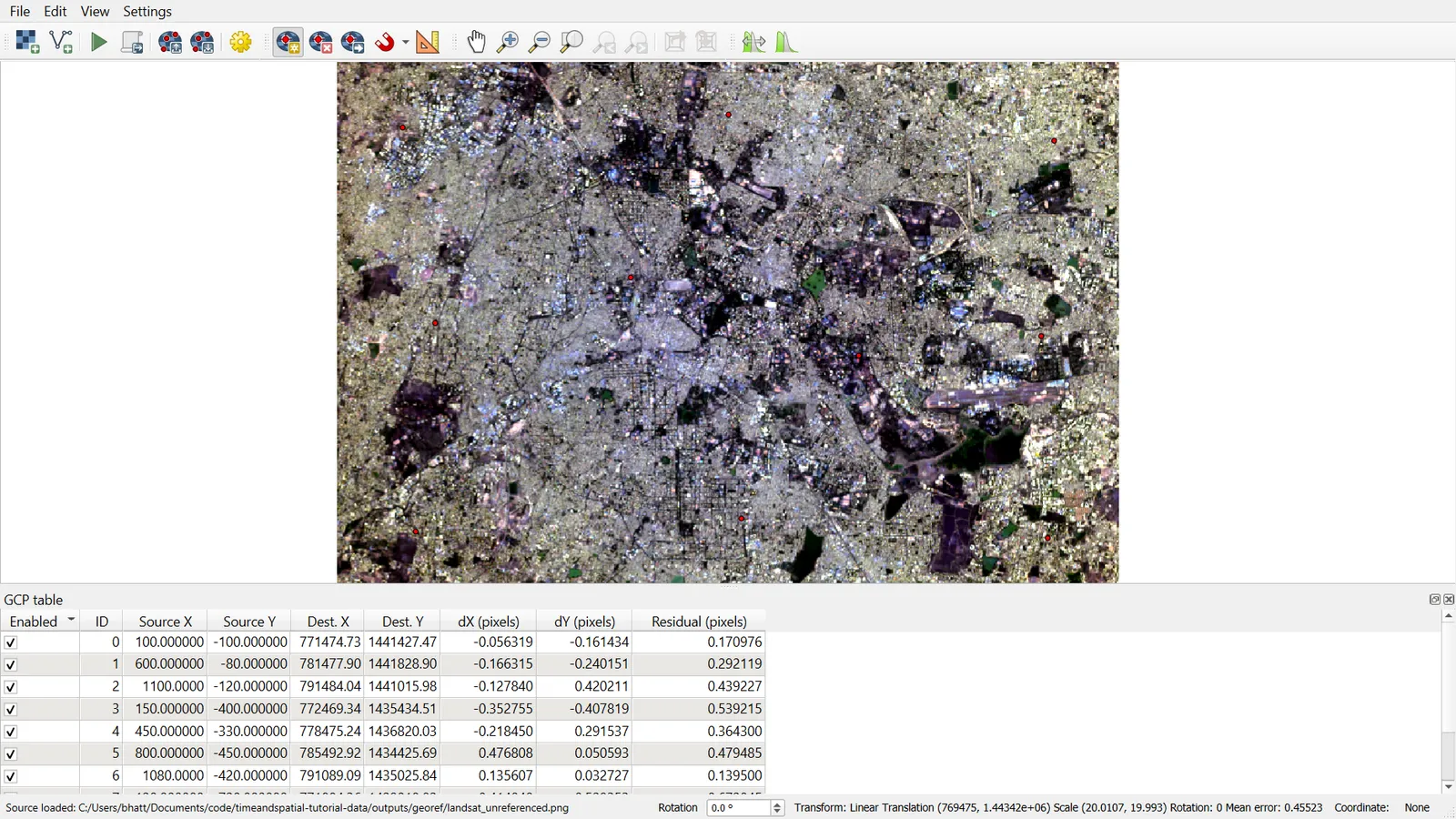
Layer > Georeferencer. The window has a top toolbar, the raster on the left, and the GCP table at the bottom.
- File > Open Raster (or the open icon) and choose
landsat_unreferenced.png. - Settings > Transformation Settings (details below).
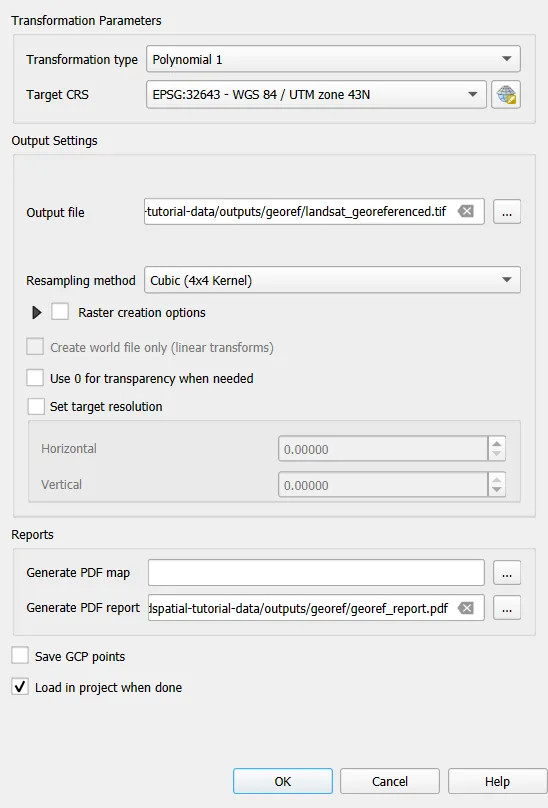
Transformation settings
| Setting | Recommended value | Why |
|---|---|---|
| Transformation type | Polynomial 1 | Straight, predictable, needs at least 3 GCPs. Good start for satellite images |
| Resampling method | Nearest neighbour for classified data, Cubic for imagery | Controls how new pixel values are computed |
| Target CRS | EPSG:32643 | Match the reference image |
| Output raster | landsat_georef.tif | Choose a short path |
| Compression | LZW | Smaller file |
| Create world file only | Off | We want a warped GeoTIFF |
| Save GCP points | On | Lets you reopen and edit later |
| Load in QGIS when done | On | See the result immediately |
Which transformation type?
| Type | Minimum GCPs | Does | Use when |
|---|---|---|---|
| Linear | 2 | Shift and scale only | Image only needs moving and scaling |
| Helmert | 2 | Shift, scale and rotate | Scans of maps that are not distorted |
| Polynomial 1 | 3 | Adds shear (affine) | Most satellite images and scans |
| Polynomial 2 | 6 | Bends the image slightly | Mild non-linear distortion |
| Polynomial 3 | 10 | More bending | Rare, risky with few points |
| Thin Plate Spline | 10 or more | Rubber-sheeting, forces points to match exactly | Old, warped or hand-drawn maps |
| Projective | 4 | Perspective | Oblique photos, building facades |
More GCPs help only if they are well placed. Spread them around the whole image, including near the corners, and avoid clustering.
Method 1: image to image
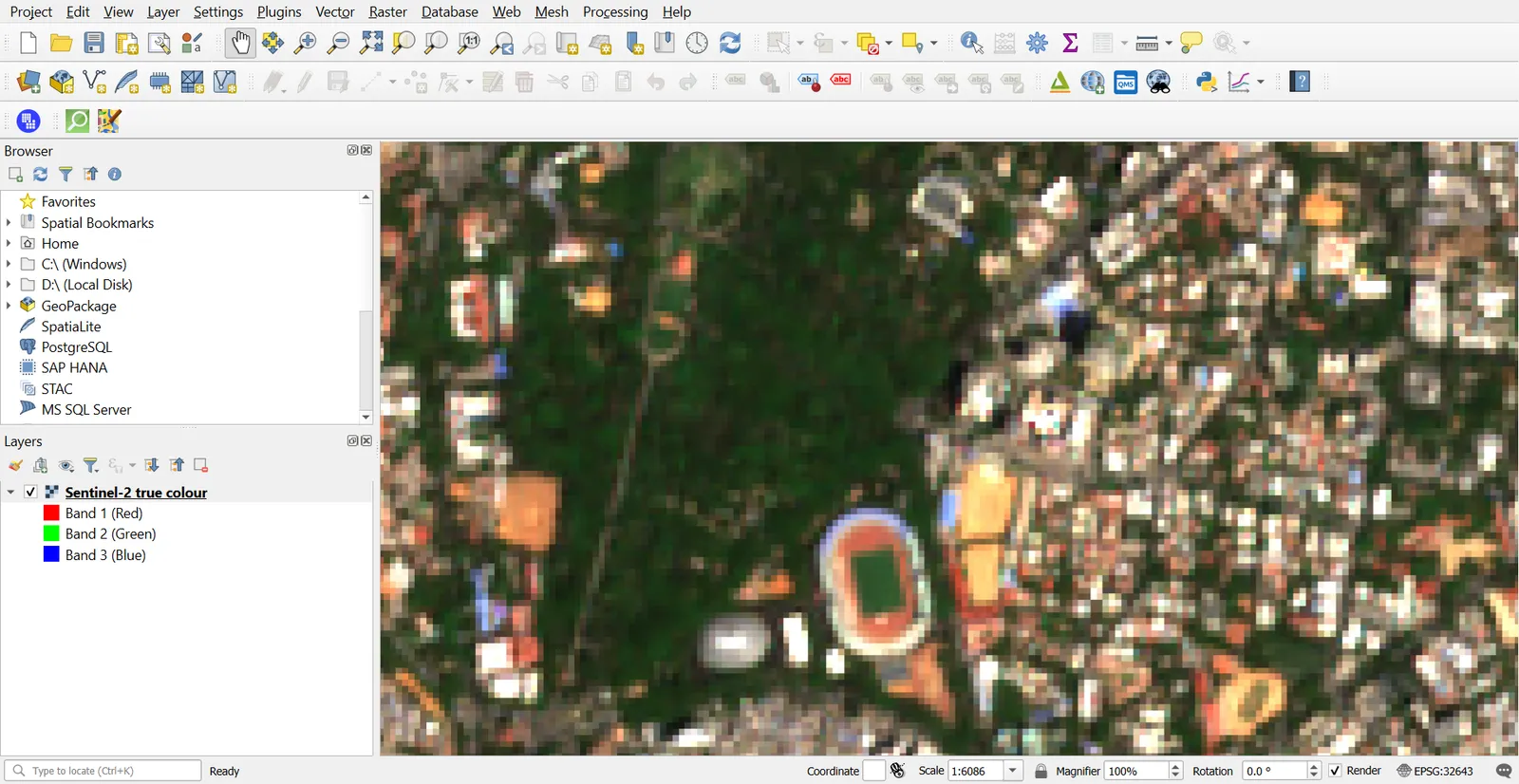
You will pick matching features on the unreferenced Landsat image and on the Sentinel-2 reference.
Pick good control points
Good points:
- Road intersections and bridges
- Airport runway ends
- Corners of reservoirs or large buildings
- Sharp field boundaries
Poor points:
- Shorelines or rivers that move between dates
- Clouds and shadows
- Anything that has been built or removed between acquisitions
- Vegetation edges
Steps
- In the Georeferencer, zoom to a first feature (for example a runway end).
- Click Add Point (
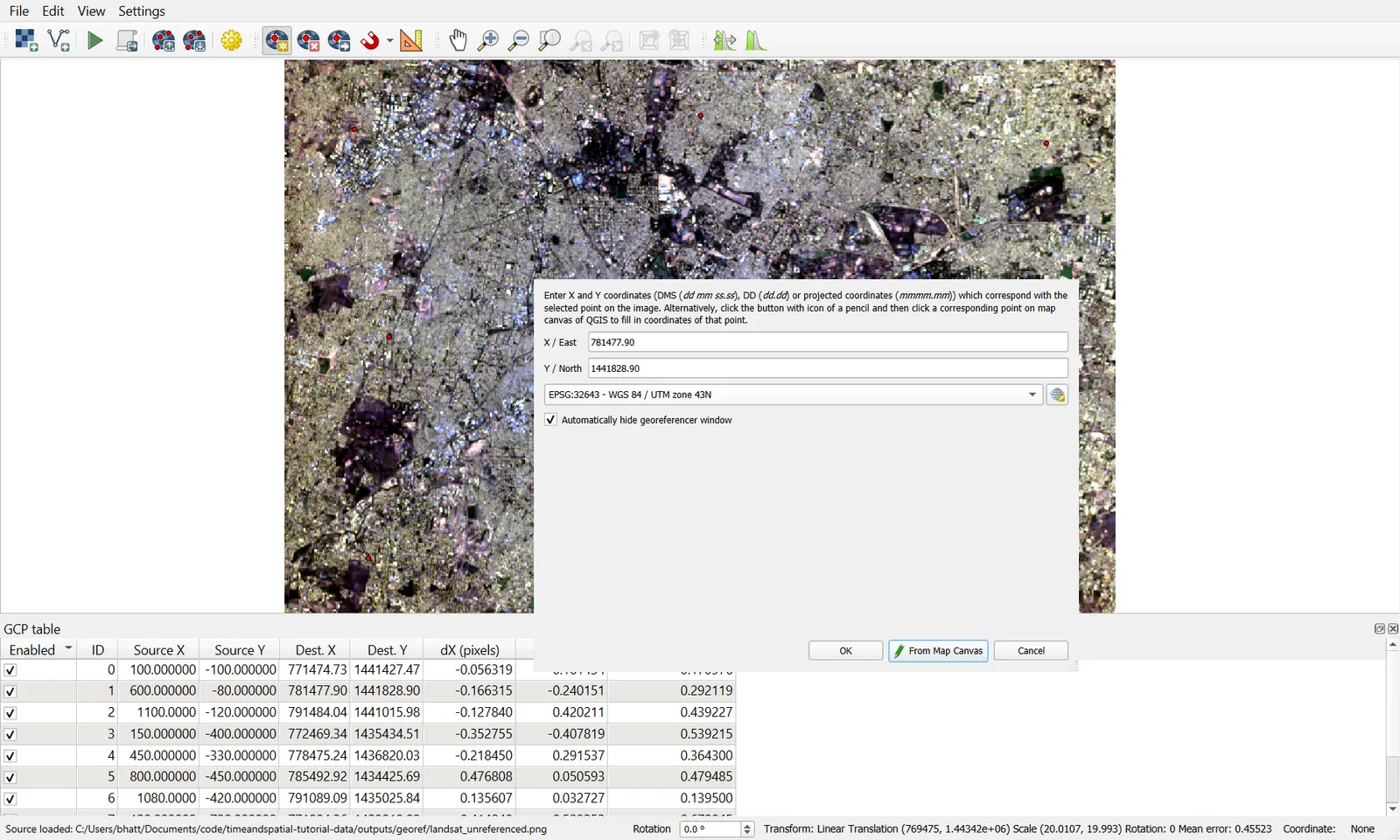
Ctrl+P) and click the exact spot on the image. - In the Enter Map Coordinates window click From Map Canvas. The Georeferencer minimises.
- In the main QGIS canvas, click the same feature on the Sentinel-2 layer. The coordinates fill in. Click OK.
- Repeat for at least 8 to 10 points around the whole image.
- The GCP table at the bottom shows each point's source X/Y, destination X/Y and residual.
Read the residuals
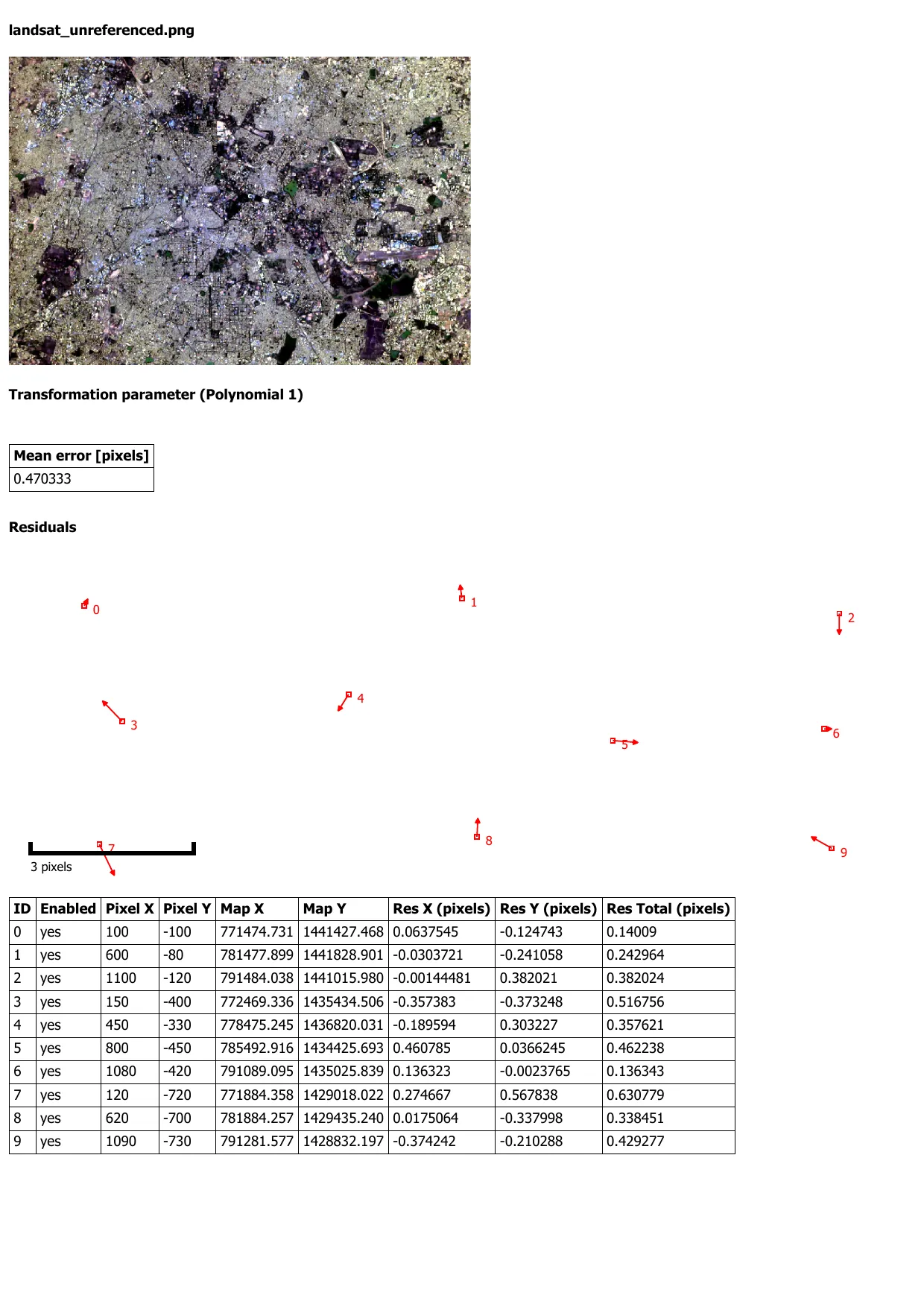
- A residual is shown in pixels of the source image.
- Aim for an RMSE under 1 pixel. For a 30 m Landsat image that is about 30 m on the ground.
- If one point has a much larger residual than the others, it is probably wrong. Select it in the table, press Delete, or re-pick it.
Run
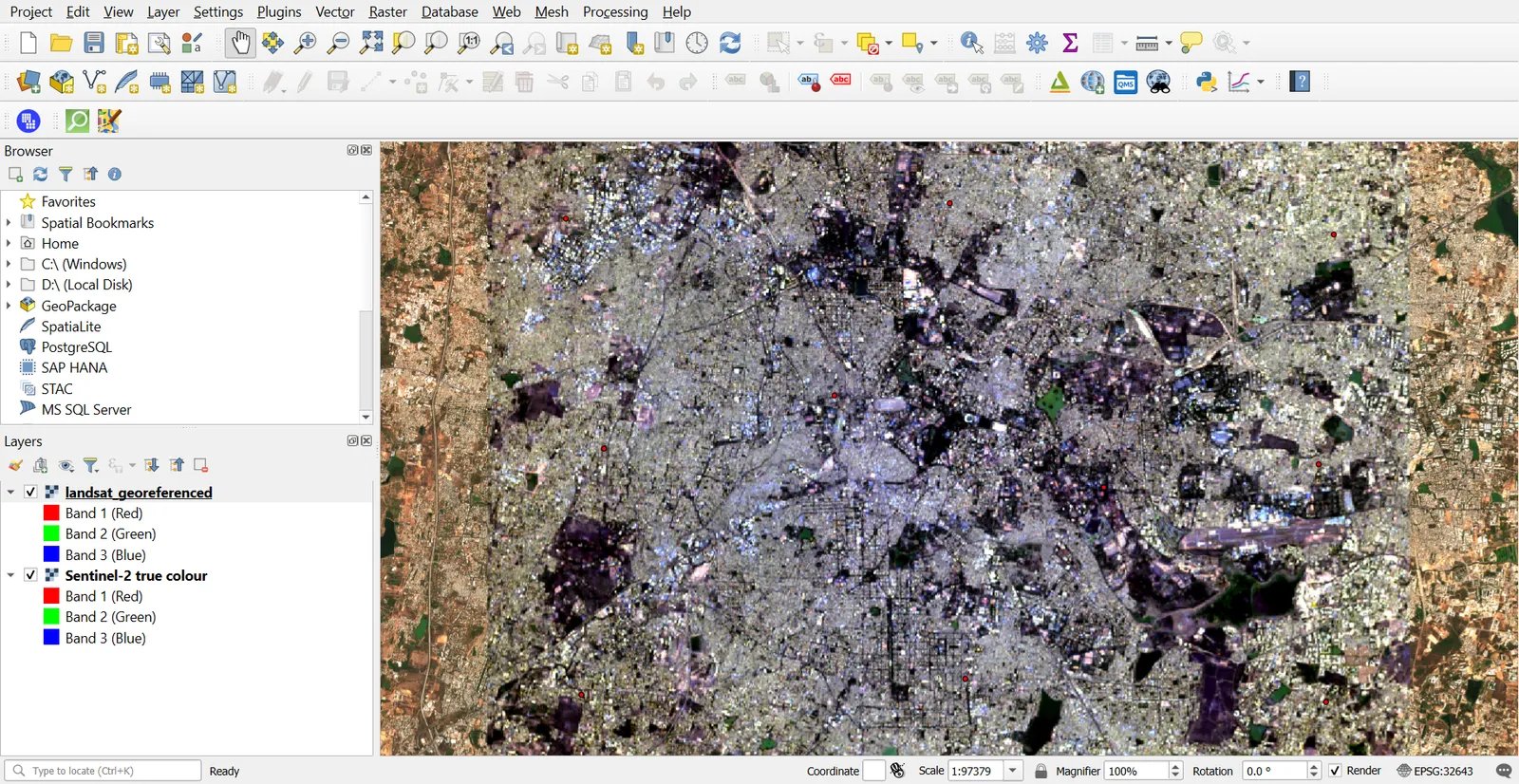
- Click Start Georeferencing (the green play button). QGIS writes
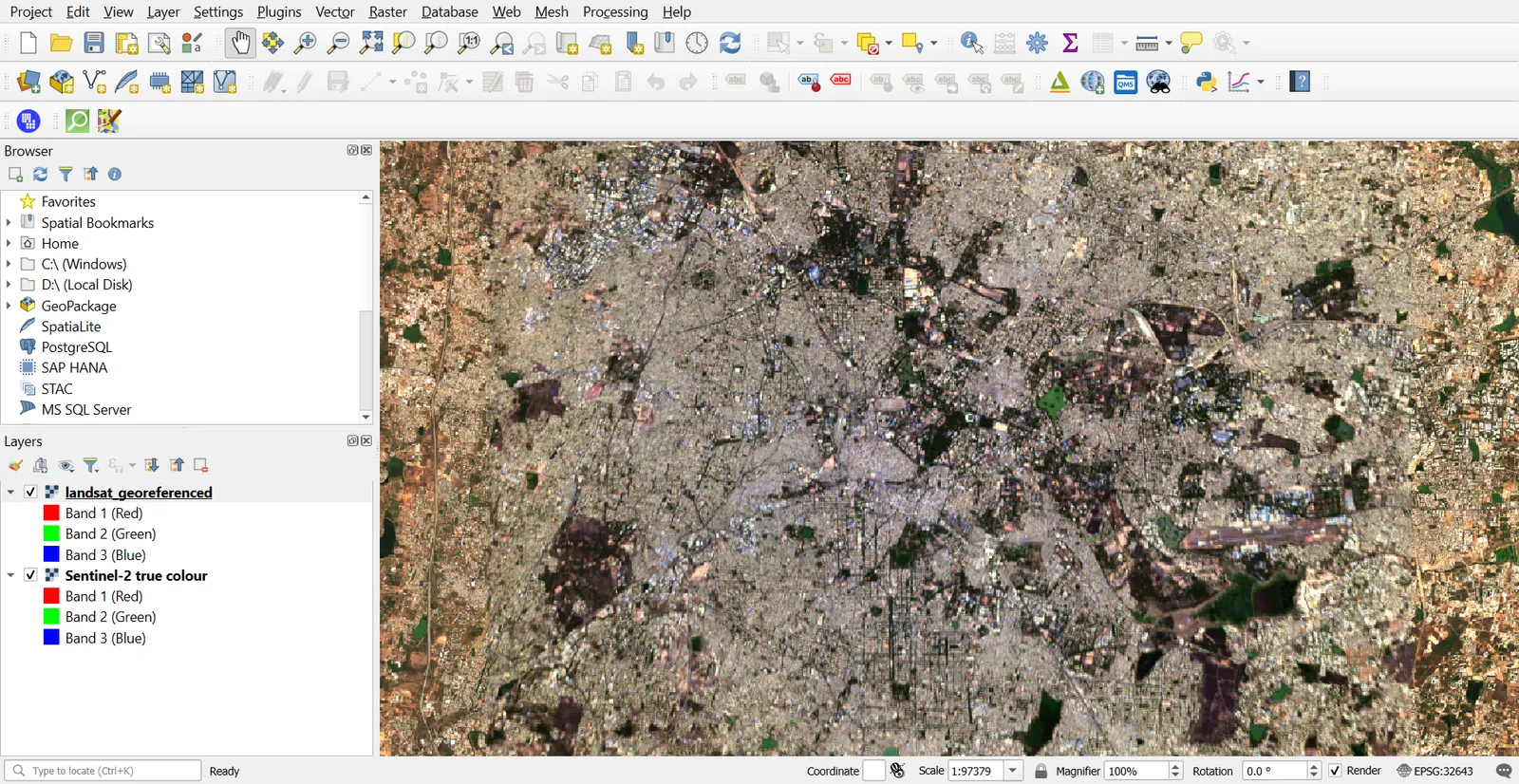
landsat_georef.tifand loads it. - Drop the transparency of the new layer or use Swipe (install the Layer Swipe plugin or use Layer Styling) to compare it against Sentinel-2.
- Check at features that were not used as GCPs, such as another road junction. That is a fair accuracy test.
Method 2: image to ground
Here the known coordinates are typed in, for example from a GPS survey or a plan with surveyed corners.
For practice you can read coordinates from the Sentinel-2 layer and treat them as if they were GPS readings.
- Open
landsat_unreferenced.pngin the Georeferencer again (File > Open Raster). - Click Add Point on a feature.
- In Enter Map Coordinates, type the X / East and Y / North values yourself. Set the Target CRS to match what your GPS recorded.
- Click OK, then add the other points.
- For an exercise, read the coordinates from the Coordinate box in the status bar, or from the Derived section of the Identify results, while pointing at the feature on the Sentinel-2 layer.
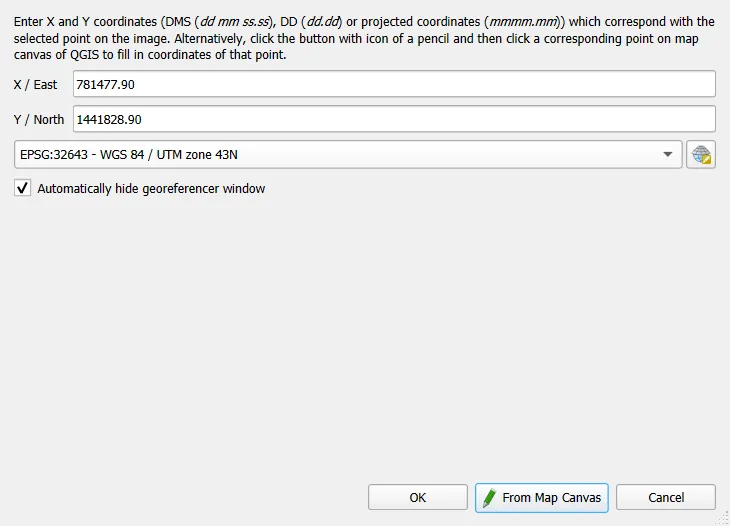
Some points to watch:
- Use the right CRS. GPS gives latitude and longitude in WGS 84 (EPSG:4326). If your target is EPSG:32643, enter the coordinates as UTM metres, or set the point CRS to EPSG:4326 and QGIS will convert.
- Axis order: X is easting (longitude), Y is northing (latitude). Swapping them is the single most common mistake.
- Units: degrees and metres can not be mixed in one GCP set.
Method 3: image to map
Use this for scanned maps, such as a toposheet.
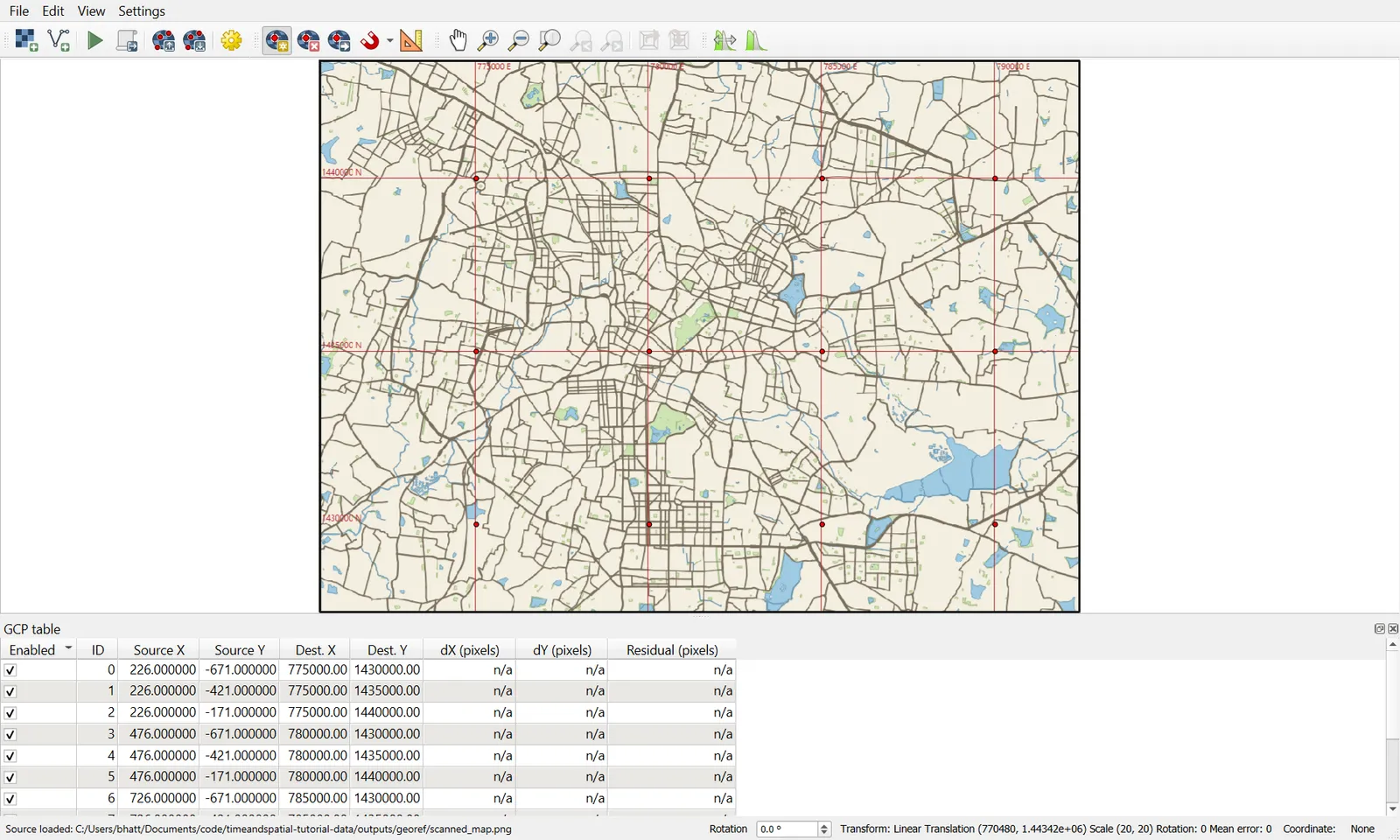
A paper map usually prints a graticule (latitude and longitude lines) or a grid (UTM or other projected grid) with labels at the edges. Those intersections are excellent GCPs.
- Scan or photograph the map flat, at 200 to 300 dpi.
- Open it in the Georeferencer.
- Add a point at each grid line intersection, typing the coordinates from the labels.
- Use at least 4 points near the four corners and a few more in the middle.
- Choose Polynomial 1 for a clean scan, Thin Plate Spline for an old or warped map.
- Set the Target CRS to the CRS stated in the map margin (a Survey of India toposheet is usually in a Polyconic or Everest-based CRS, so read the legend carefully).
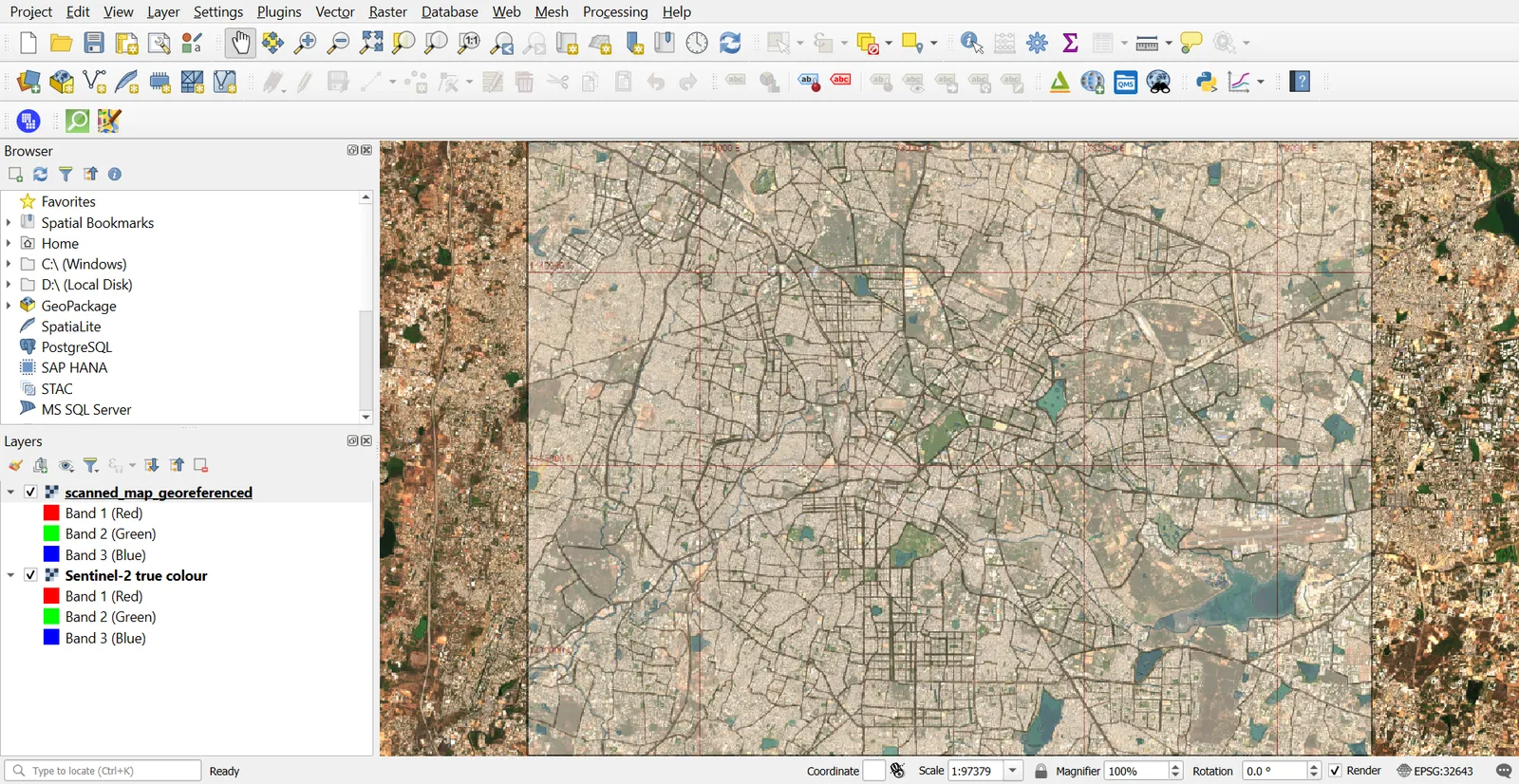
- Run and check against OpenStreetMap (use QuickMapServices) or Sentinel-2.
Save and reuse the GCPs
- Save GCP Points writes a
.pointsfile. Reload it with Load GCP Points to edit and rerun. - Generate PDF Map and Generate PDF Report from the toolbar create a documented record of the residuals.
Common mistakes
- Using too few GCPs, or all in one corner.
- Choosing features that moved: shorelines, vegetation edges, temporary buildings.
- Using high-order polynomials with few points. They can twist the image away from the control points.
- Swapping X and Y, or mixing degrees with metres.
- Forgetting to set the target CRS before running.
- Checking accuracy only with the same GCPs that built the transformation.
- Resampling several times. Each warp softens the image, so georeference once from the original.