

Data used
Two practice files, in the vector folder of the tutorial data.
places.csv has ten places in and around Bengaluru.
| id | name | latitude | longitude |
|---|---|---|---|
| 1 | Kempegowda International Airport | 13.1989 | 77.7068 |
| 2 | Lalbagh Botanical Garden | 12.9507 | 77.5848 |
| 3 | Cubbon Park | 12.9763 | 77.5929 |
(The other seven rows follow the same pattern.) The coordinates are approximate, so check them against the basemap.
place_attributes.csv has the same ten id values with a category column and a practice_visitors_per_day column. The visitor numbers are made-up practice values. Do not quote them as real data.
1. Import a CSV as points
A CSV is a plain table. It becomes a map layer only when you tell QGIS which columns hold the coordinates.
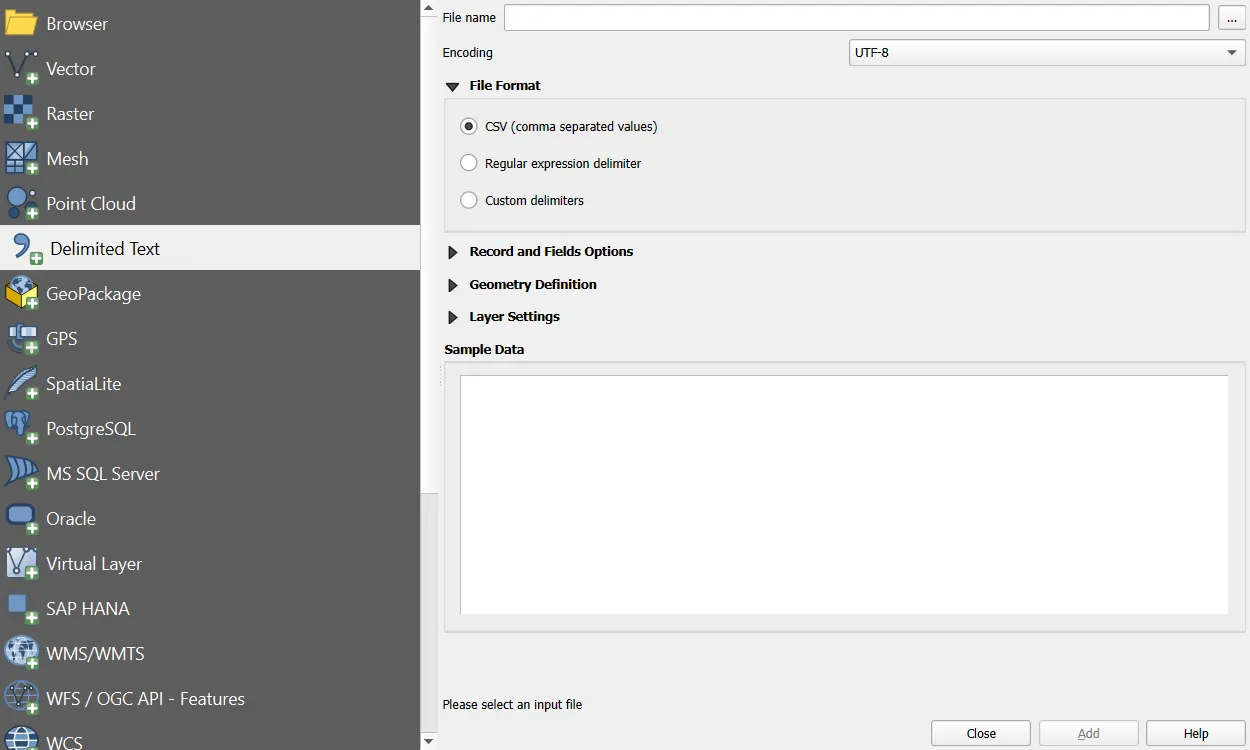
- Layer > Add Layer > Add Delimited Text Layer (
Ctrl+Shift+T). - File name: choose
places.csv. - File format: CSV (comma separated values).
- Record and Fields Options: tick First record has field names, and tick Detect field types.
- Geometry Definition: choose Point coordinates.
- X field:
longitude. Y field:latitude. - Geometry CRS: EPSG:4326 (WGS 84), because the values are in degrees.
- Click Add, then Close.
Check the data types
Open the attribute table. Numbers should be left-aligned as numbers, not as text. In the dialog's sample data, set the type to Whole number or Decimal number if QGIS guessed Text. A text id will not join to a numeric id in step 3.
Make it permanent
A delimited text layer is only a view of the CSV. Export it so you have a real spatial file.
- Right-click the layer > Export > Save Features As.
- Format: GeoPackage. File name:
places.gpkg. Layer name:places. - CRS: keep EPSG:4326 for now.
- Click OK. The new layer loads into the project.
2. Extract coordinates
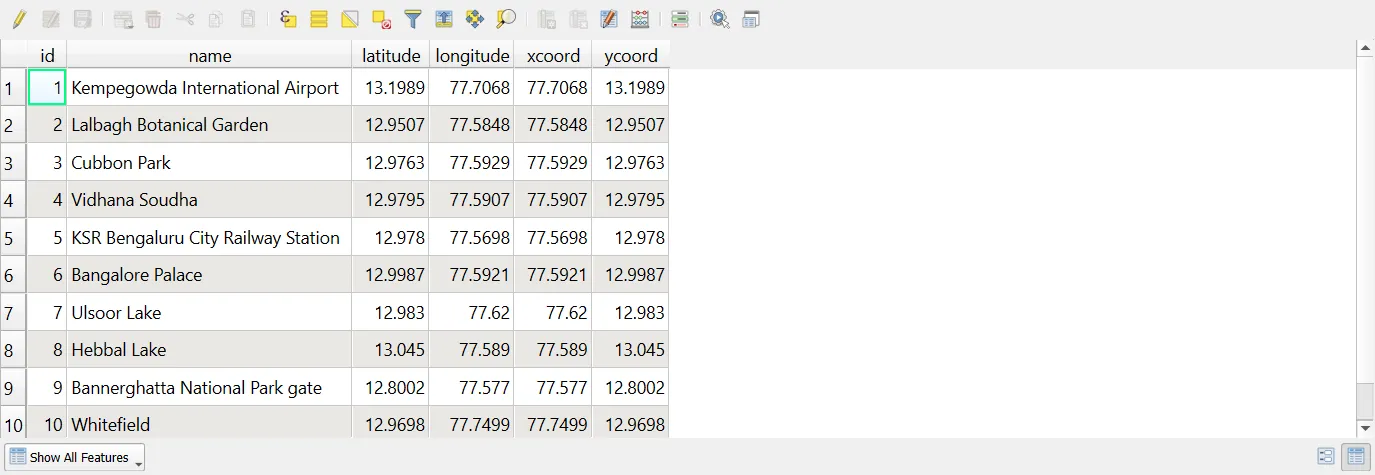
You can calculate coordinates from geometry and store them in attribute fields.
With the geometry tool
- Vector > Geometry Tools > Add Geometry Attributes.
- Input layer:
places. Calculate using: Layer CRS. - Run. The output layer has
xcoordandycoordfields.
With the Field Calculator
Open the calculator with Ctrl+I. These expressions return the coordinates of a point layer:
$x
$y
$x and $y return values in the layer's CRS. To get latitude and longitude from a layer in a projected CRS, convert first:
x(transform($geometry, @layer_crs, 'EPSG:4326'))
y(transform($geometry, @layer_crs, 'EPSG:4326'))
For a line or polygon layer, use the centroid:
x(centroid($geometry))
Read coordinates by clicking
The Coordinate box in the status bar shows the cursor position in the project CRS. Click the small icon next to it to switch between map coordinates and the extent of the view, and use Identify Features to read the coordinates of a clicked point under Derived.
3. Join an external table
A join attaches the columns of a table to a layer by matching a common field.
- Load
place_attributes.csvthrough Layer > Add Layer > Add Delimited Text Layer. Choose No geometry (attribute only table). - Double-click the
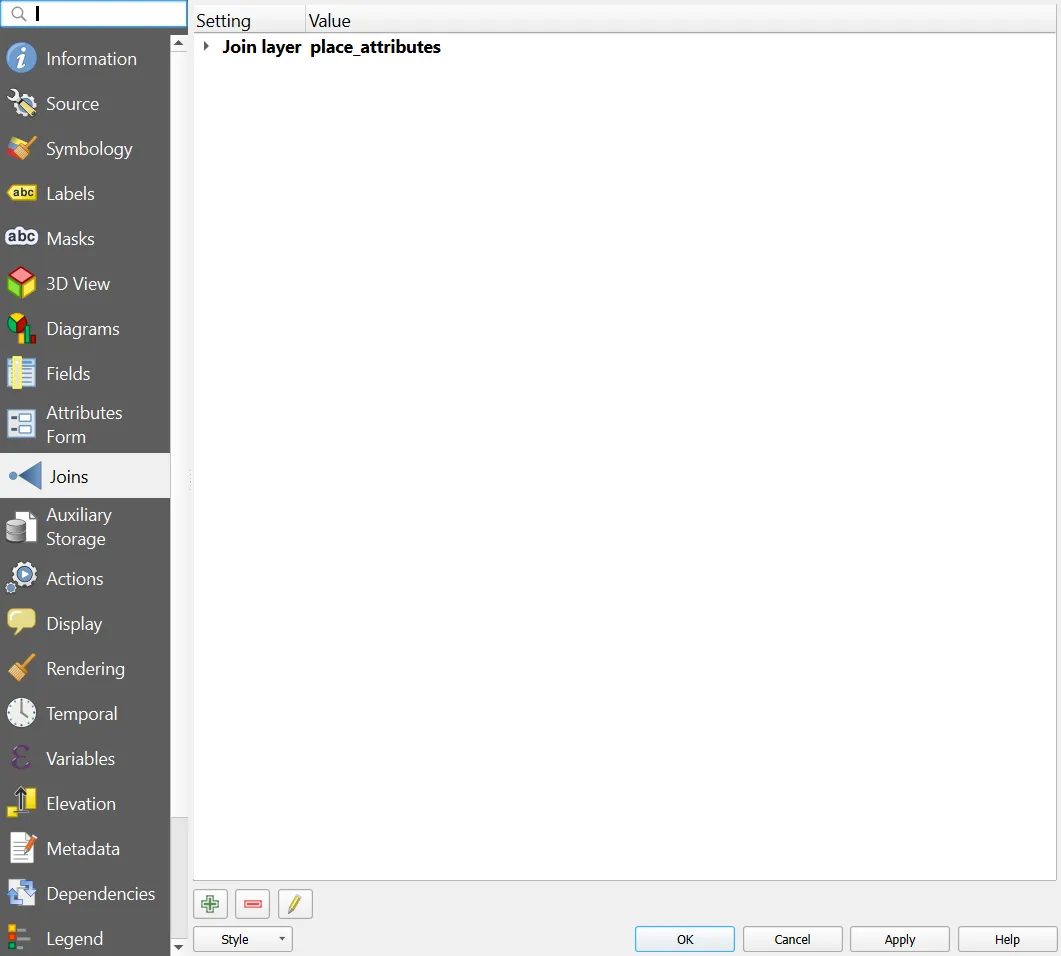
placeslayer to open Layer Properties > Joins. - Click the green plus.
- Join layer:
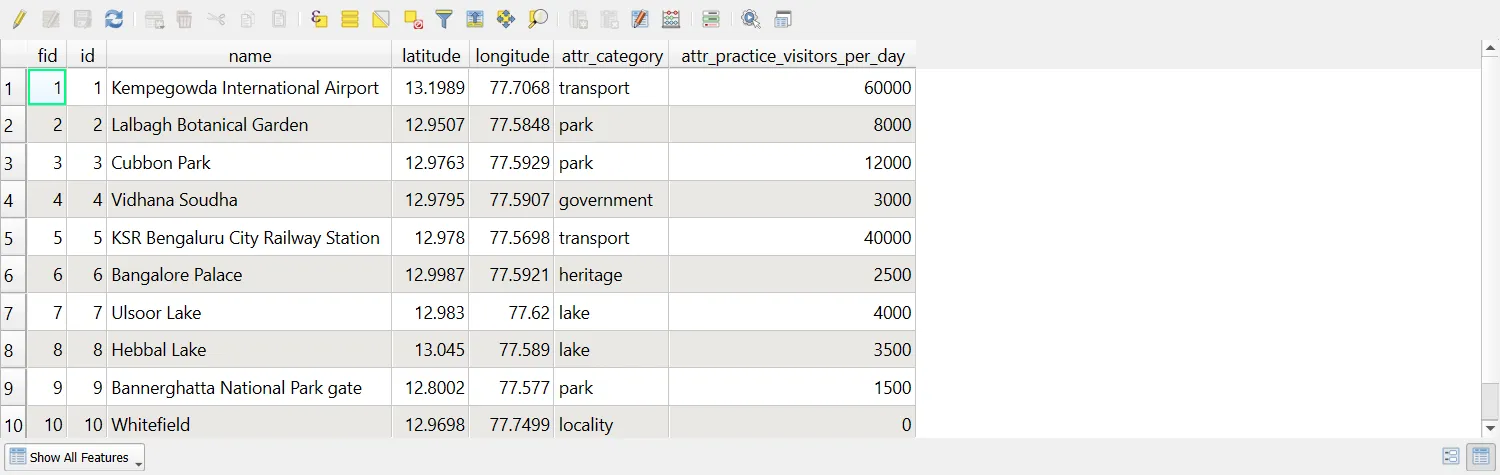
place_attributes. Join field:id. Target field:id. - Tick Custom field name prefix and type
attr_so the new fields are easy to spot. - Click OK twice, then open the attribute table.
Join as a new, permanent layer
A join in Layer Properties exists only inside the project. To keep it, use Processing > Join Attributes by Field Value, or export the joined layer with Save Features As. If you export, the joined columns come with it.
When the join does not work
- Fields with different types (text against number) never match.
- Extra spaces or different capitalisation in text keys break matches.
- A key that is not unique in the table gives you only the first match.
- Leading zeros lost in a CSV, for example
0123read as123, break matches.
4. Projection and transformation
The CRS tells software how coordinate numbers relate to places on the Earth. Three things are easy to mix up.
| Action | What it does | Changes the data? |
|---|---|---|
| Project CRS | Sets the map canvas CRS. QGIS reprojects layers on the fly | No |
| Set Layer CRS | Corrects the CRS label of a layer when the label is wrong or missing | No |
| Reproject (export with a new CRS) | Converts the coordinates into a new CRS | Yes, in the new file |
Fix a wrong or missing CRS
If a layer sits in the wrong place, QGIS may have the wrong CRS label for it. Right-click the layer > Layer CRS > Set Layer CRS, and pick the one the data was really made in. Use this only when you know the correct CRS. It does not move the data.
Reproject a layer
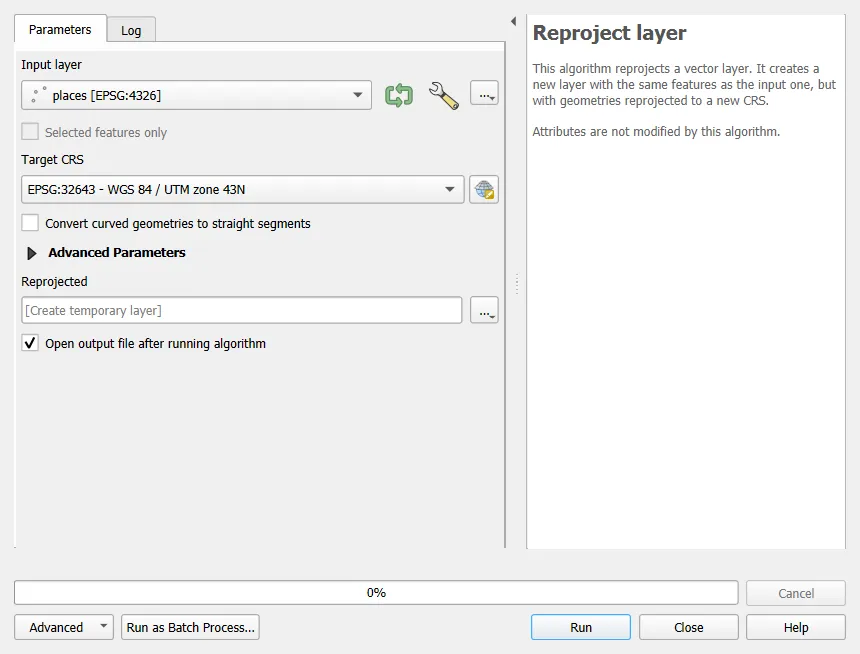
- Vector > Data Management Tools > Reproject Layer.
- Input layer:
places. Target CRS: EPSG:32643 (WGS 84 / UTM zone 43N). - Run, then save the output as
places_utm.gpkg. - Open the attribute table and add
$xand$yfields to see that the numbers are now in metres.
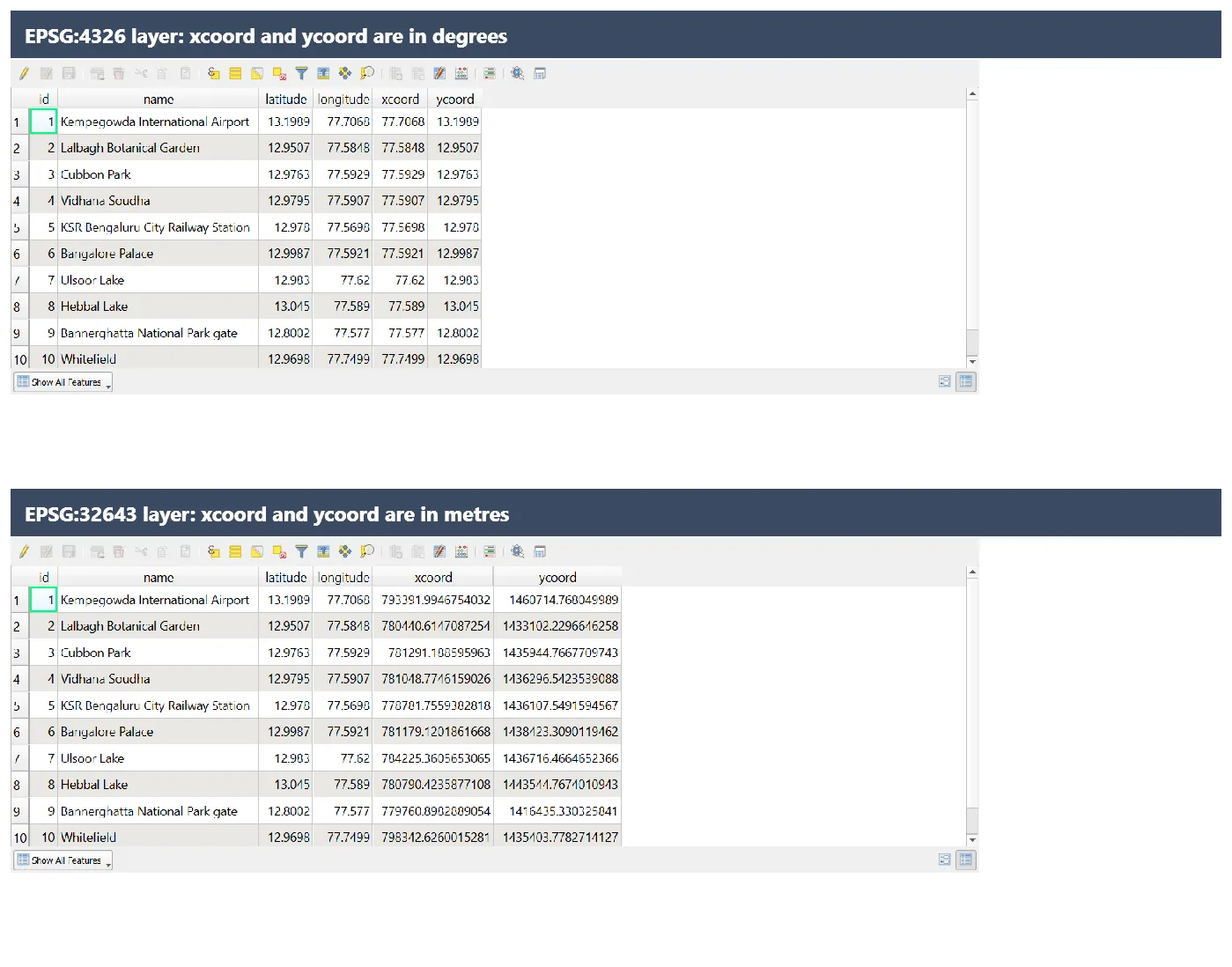
A geographic CRS such as EPSG:4326 stores coordinates in degrees. A projected CRS such as EPSG:32643 stores them in metres, which suits measuring distance and area. For Bengaluru, UTM zone 43N is a reasonable choice. For all of India, a national projection such as an Albers equal-area CRS is used when you need area comparisons across states.
Datum transformations
Changing between CRSs on different datums can need a datum transformation. QGIS suggests one when you reproject and lists the options with their accuracy. Pick the one that matches your region, and avoid the Ballpark option unless an error of a few metres is acceptable.
5. Field calculator
The Field Calculator creates or updates a field from an expression.
- Open the attribute table, then the Field Calculator (
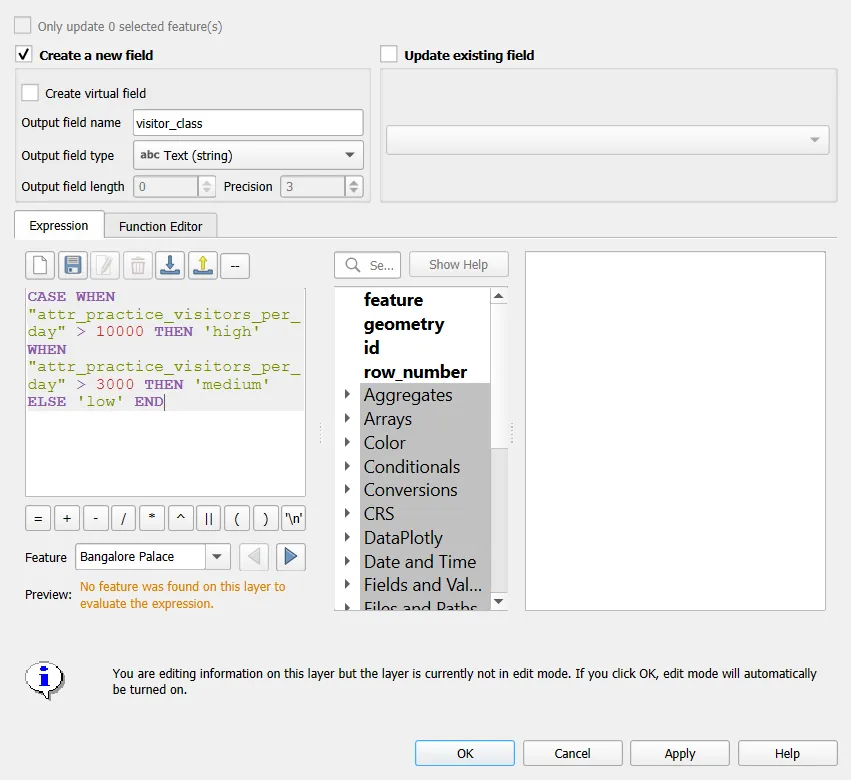
Ctrl+I). - Choose Create a new field, and set Output field name, Output field type and Output field length.
- Write the expression, check the preview, then click OK.
- Turn off editing and save.
Useful expressions
| Goal | Expression |
|---|---|
| Combine text | concat("name", ' - ', "attr_category") |
| Upper case | upper("name") |
| Area in square metres (polygons) | $area |
| Area in hectares | $area / 10000 |
| Length in metres (lines) | $length |
| Classify with a condition | CASE WHEN "attr_practice_visitors_per_day" > 10000 THEN 'high' WHEN "attr_practice_visitors_per_day" > 3000 THEN 'medium' ELSE 'low' END |
| Distance to a point | distance($geometry, make_point(77.5929, 12.9763)) |
| Round a number | round("value", 2) |
$area and $length use the ellipsoid set under Project > Properties > General, so the figures are ellipsoidal measurements in metres or square metres. Use area($geometry) for planar values in the layer's CRS units. In a geographic CRS the planar value is in square degrees, which is rarely what you want.
Update an existing field
Tick Update existing field and choose it from the list. This is how you fill a column in bulk. Work on a copy if the layer matters, because there is no undo once you save.
Common mistakes
- Putting latitude in the X field.
- Using EPSG:4326 for distance or area, which gives degrees.
- Setting the layer CRS to fix a position problem without knowing the real CRS.
- Joining a text field to a numeric field.
- Treating a project join as permanent.
- Dividing an area in square metres by the wrong factor when converting to hectares or square kilometres.