

DEM, DSM and DTM
These three terms are often mixed up.
| Term | Surface it represents |
|---|---|
| DEM (digital elevation model) | A general term for a raster of elevation values |
| DSM (digital surface model) | The top of everything: ground, buildings, trees |
| DTM (digital terrain model) | The bare ground, with buildings and vegetation removed |
The Copernicus GLO-30 product we use here is a DSM. Over a dense city like Bengaluru, heights include buildings and tree canopy, so slope and flow results are approximate. A DTM would be better for hydrology, and it is harder to find openly at this resolution. Keep this in mind when you read results.
Data used
dem/Copernicus_DSM_COG_10_N12_00_E077_00_DEM.tifcovers 12 N to 13 N, 77 E to 78 E.dem/Copernicus_DSM_COG_10_N13_00_E077_00_DEM.tifcovers 13 N to 14 N, 77 E to 78 E, which includes the airport.- Cell size is 1 arc second, about 30 m. The CRS is EPSG:4326, and heights are in metres above the EGM2008 geoid.
1. Prepare the DEM
Merge
Raster > Miscellaneous > Merge, with both tiles as input. Name the result dem_merged.tif. Alternatively, Build Virtual Raster merges them without writing a large file.
Clip
Clip by extent, or by a polygon, to the area you need. A smaller area makes every later step faster.
Reproject to metres
Slope calculations need horizontal and vertical units to match. In EPSG:4326 the horizontal unit is degrees, so slope comes out wrong unless the tool is told how to convert.
- Raster > Projections > Warp (Reproject).
- Source: the clipped DEM. Target CRS: EPSG:32643.
- Resampling method: Bilinear. Output resolution:
30metres. - Run, and save as
dem_utm.tif.
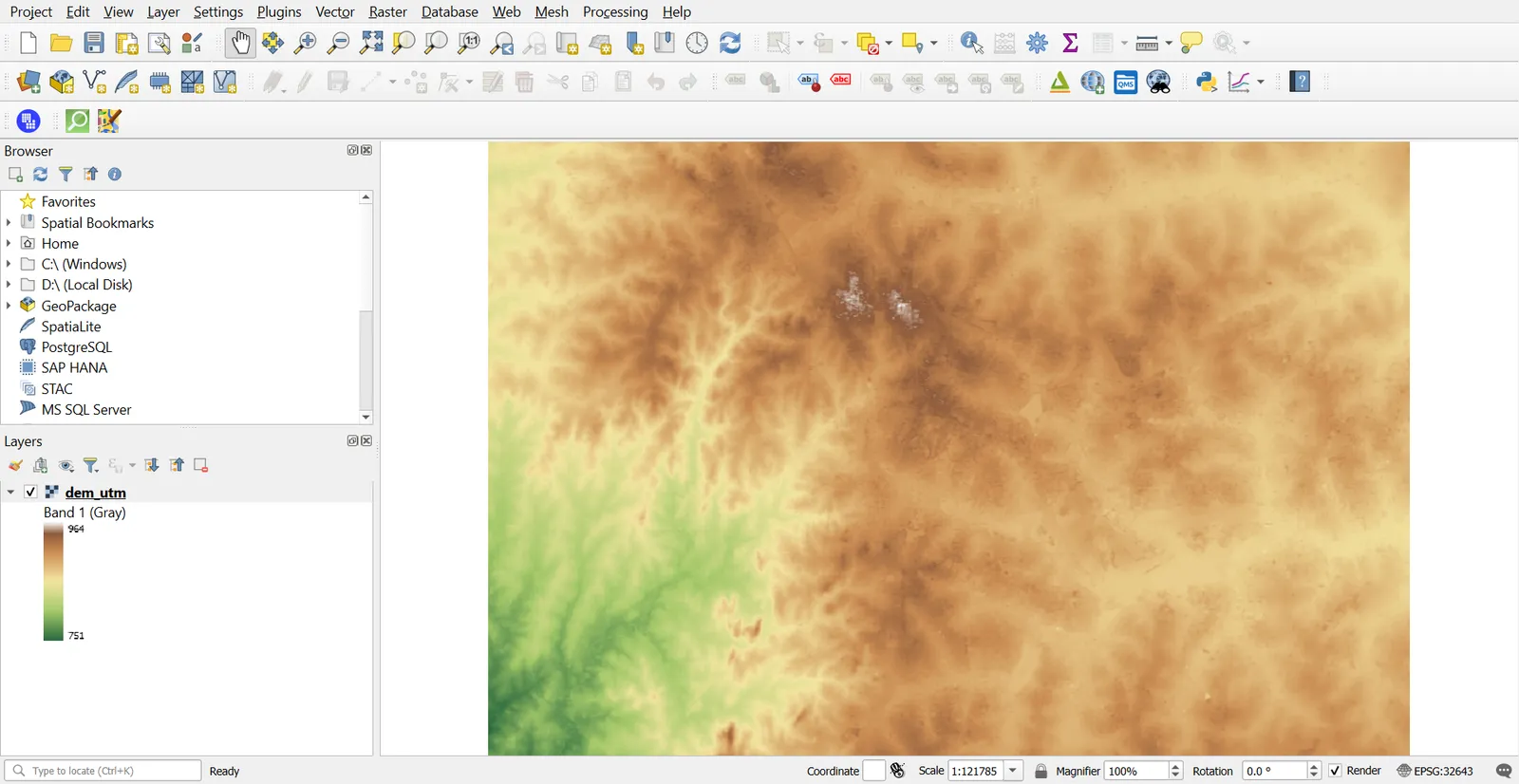
Style the DEM with Singleband pseudocolor and a terrain ramp, and check the minimum and maximum make sense for your area.
2. Slope, aspect and hillshade
Open the Processing Toolbox and search for each tool, or use Raster > Analysis.
| Output | Tool | Meaning |
|---|---|---|
| Slope | Slope | Steepness. Choose degrees or percent |
| Aspect | Aspect | Compass direction the slope faces, from 0 to 360 |
| Hillshade | Hillshade | Shaded relief, lit from a chosen azimuth and altitude |
| Ruggedness | Ruggedness Index | Local variation in elevation |
| TPI | Topographic Position Index | Whether a cell is higher or lower than its neighbours |
Slope
- Slope with input
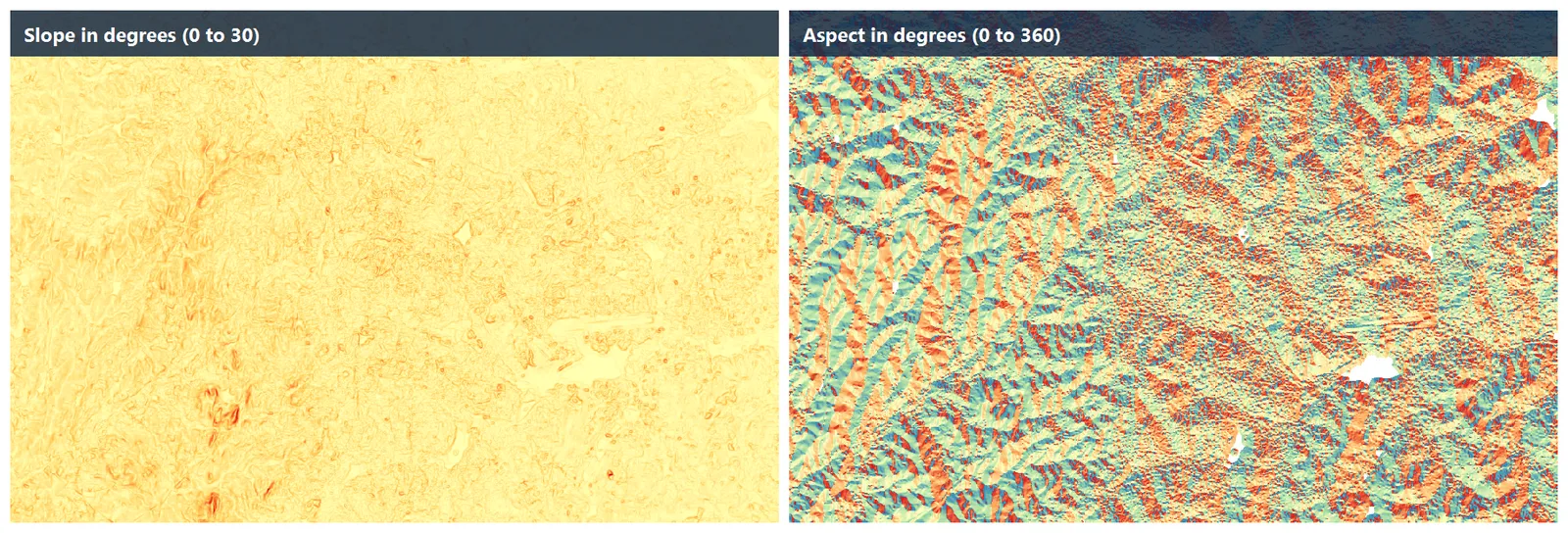
dem_utm. Slope expressed as: degrees. Z factor: 1, since the horizontal and vertical units are both metres. - Style with a graduated ramp from 0 to 30 degrees.
Aspect
Run Aspect on dem_utm. Flat cells have no aspect and get a NoData or -9999 value. Reclassify to eight compass classes (N, NE, E and so on) for a clean map.
Hillshade
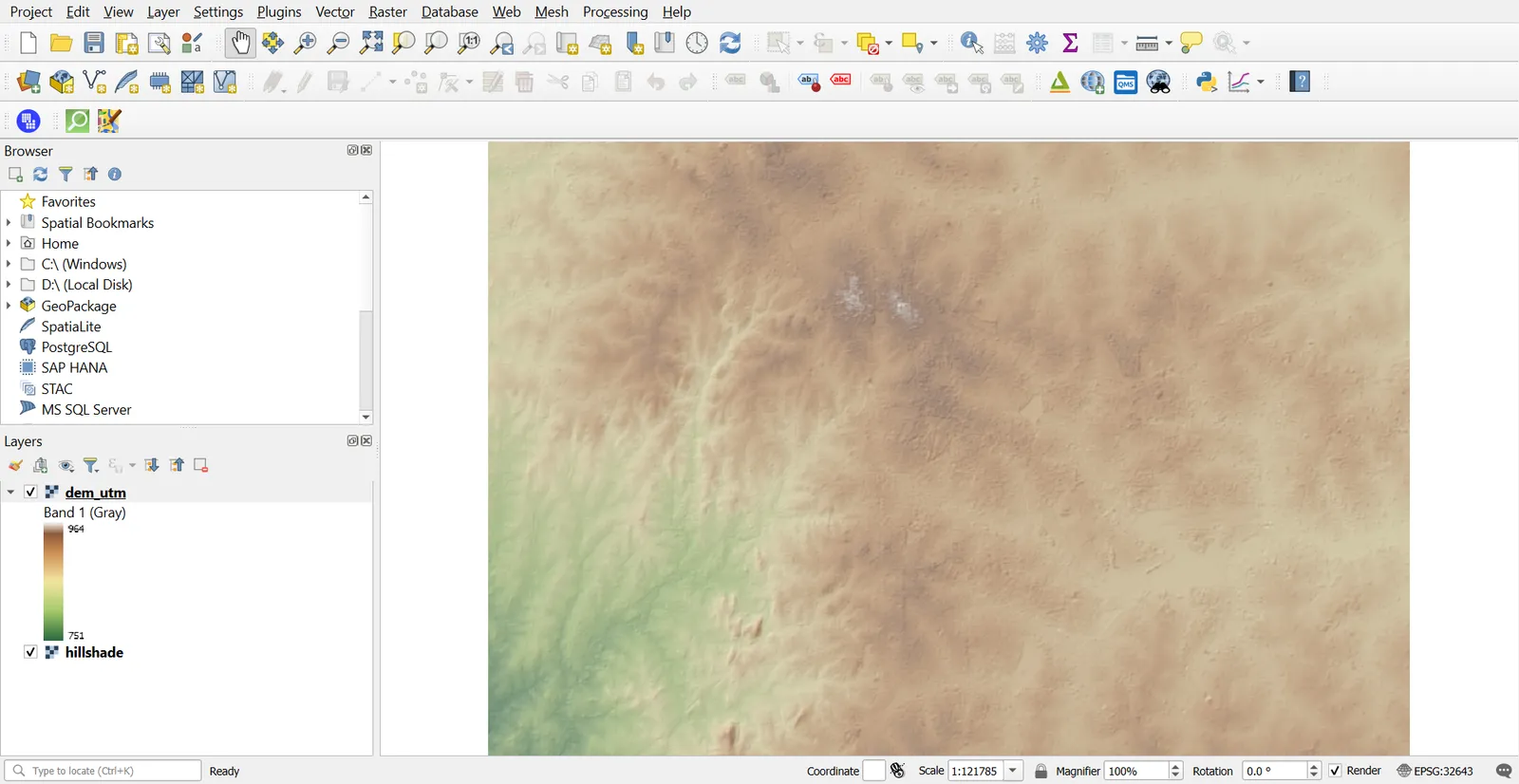
Hillshade with the defaults (azimuth 315, vertical angle 45) looks natural. Put it under the DEM and set the DEM layer opacity to about 50%.
If you must work on a DEM in degrees, set Z factor to the correct value. The tool's help page gives the conversion, and it varies with latitude.
3. Contours
- Raster > Extraction > Contour.
- Input:
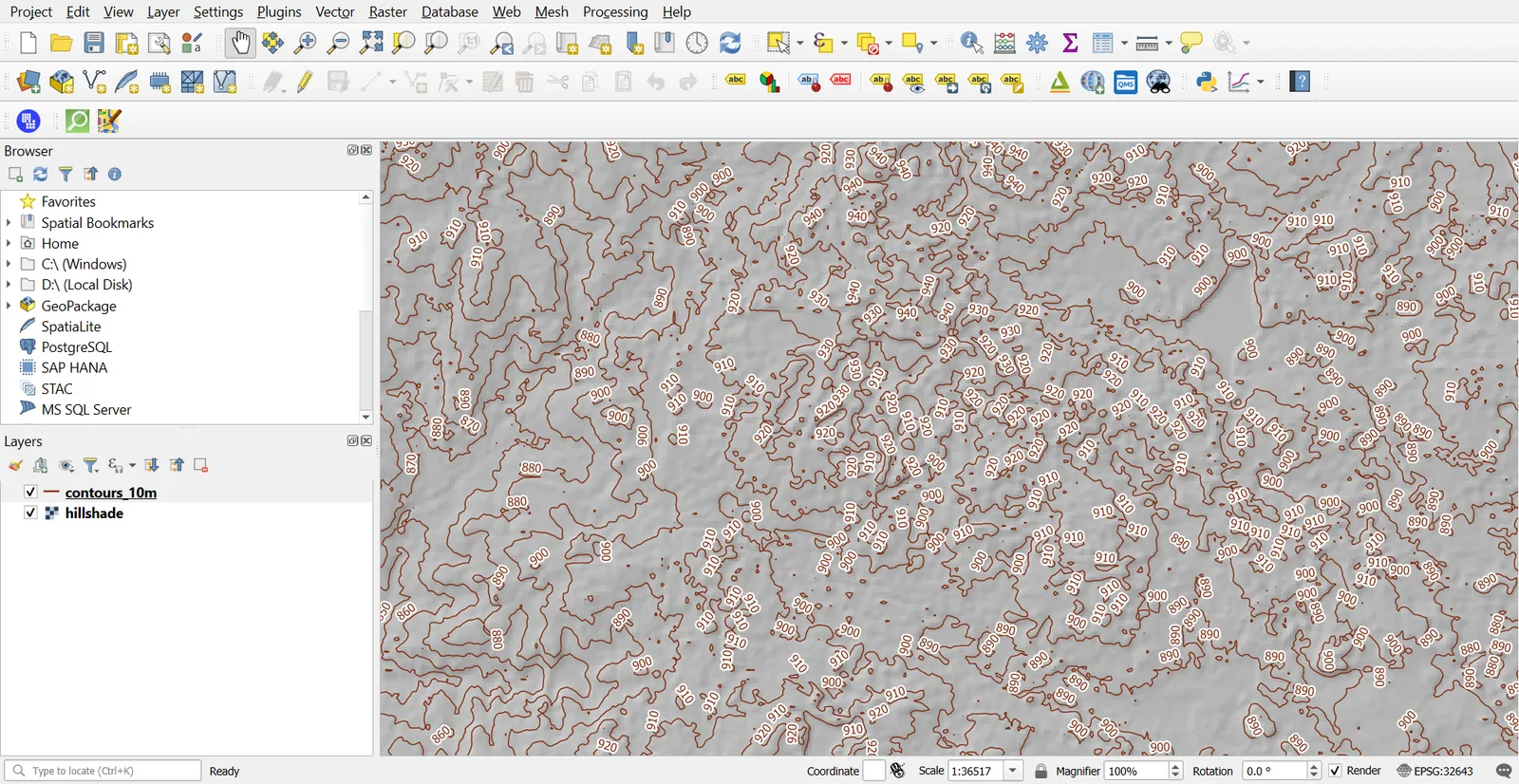
dem_utm. Interval between contour lines:10metres (Bengaluru's relief is low, around 900 m). - Attribute name:
elev. Run. - Label the lines with
elev(Part 3). Use Contour Polygons if you need filled bands.
To smooth noisy contours, smooth the DEM first with a low-pass filter or use a larger interval. Do not smooth the lines afterwards if elevation matters, because smoothing moves them.
4. Viewshed
A viewshed shows the area visible from a point.
- Add an observer point layer and digitize a point, for example on a hilltop or tower.
- Processing Toolbox > Viewshed (GDAL), if available in your QGIS version. Or install the Visibility Analysis plugin.
- Inputs: the DEM, the observer point, and observer height (for example
1.7m, or30m for a tower). - Set the maximum distance (for example 10,000 m), and run.
- Cells marked visible have value 255 in the default GDAL output. Others are 0.
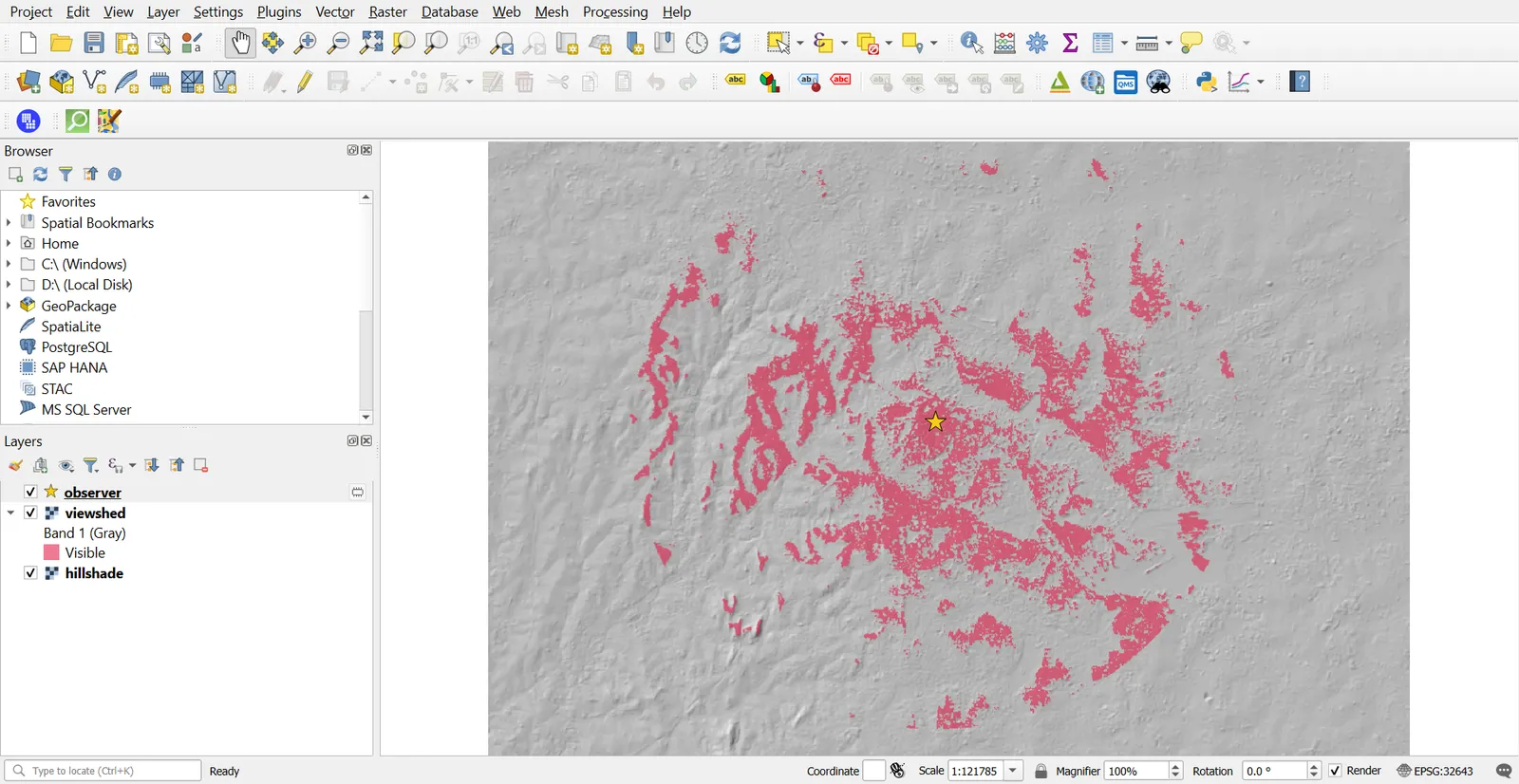
A DSM includes buildings, so the viewshed accounts for them. Check target height too, since you are asking whether a person or object of that height can be seen.
5. Hydrological analysis
Hydrology tools work from the DEM to find where water flows.
The tools used here are in the Processing Toolbox under GRASS, which the standard Windows installer includes. SAGA offers similar tools (Fill Sinks, Catchment Area, Channel Network), but it is not installed with every release, so this tutorial uses GRASS. Tool names vary a little between versions, so search by keyword.
Workflow
- Fill sinks. Run GRASS
r.fill.dirondem_utm. Small pits in a DEM trap flow in the model, so fill them first. The output isdem_filled. - Flow direction and accumulation. Run GRASS
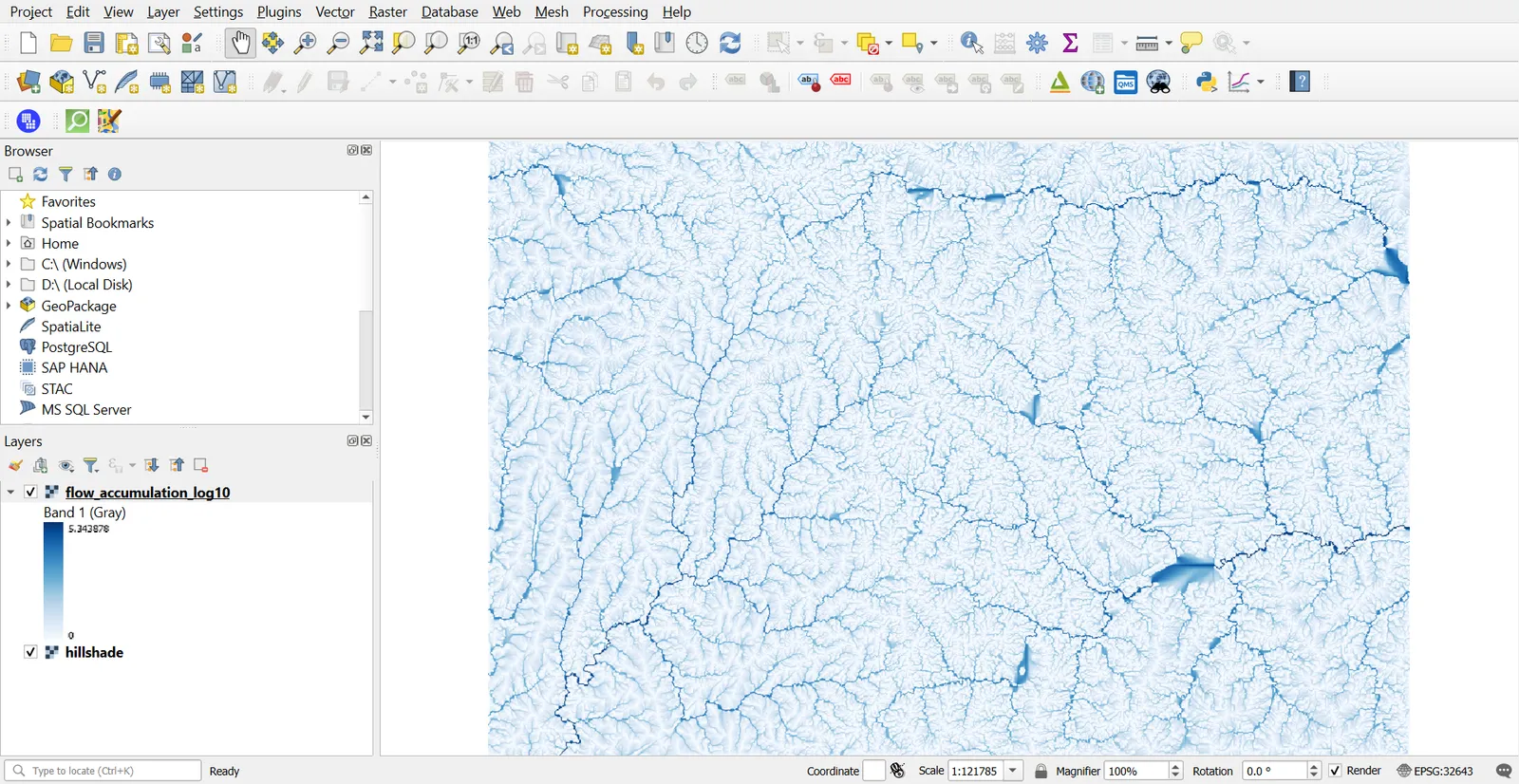
r.watershedondem_filledwith a threshold of 500 cells, and ask for the accumulation and drainage outputs. Each accumulation cell holds the number of cells that drain into it, and the values reach about 220,000 in this window. - Streams. Pick a threshold on flow accumulation. GRASS
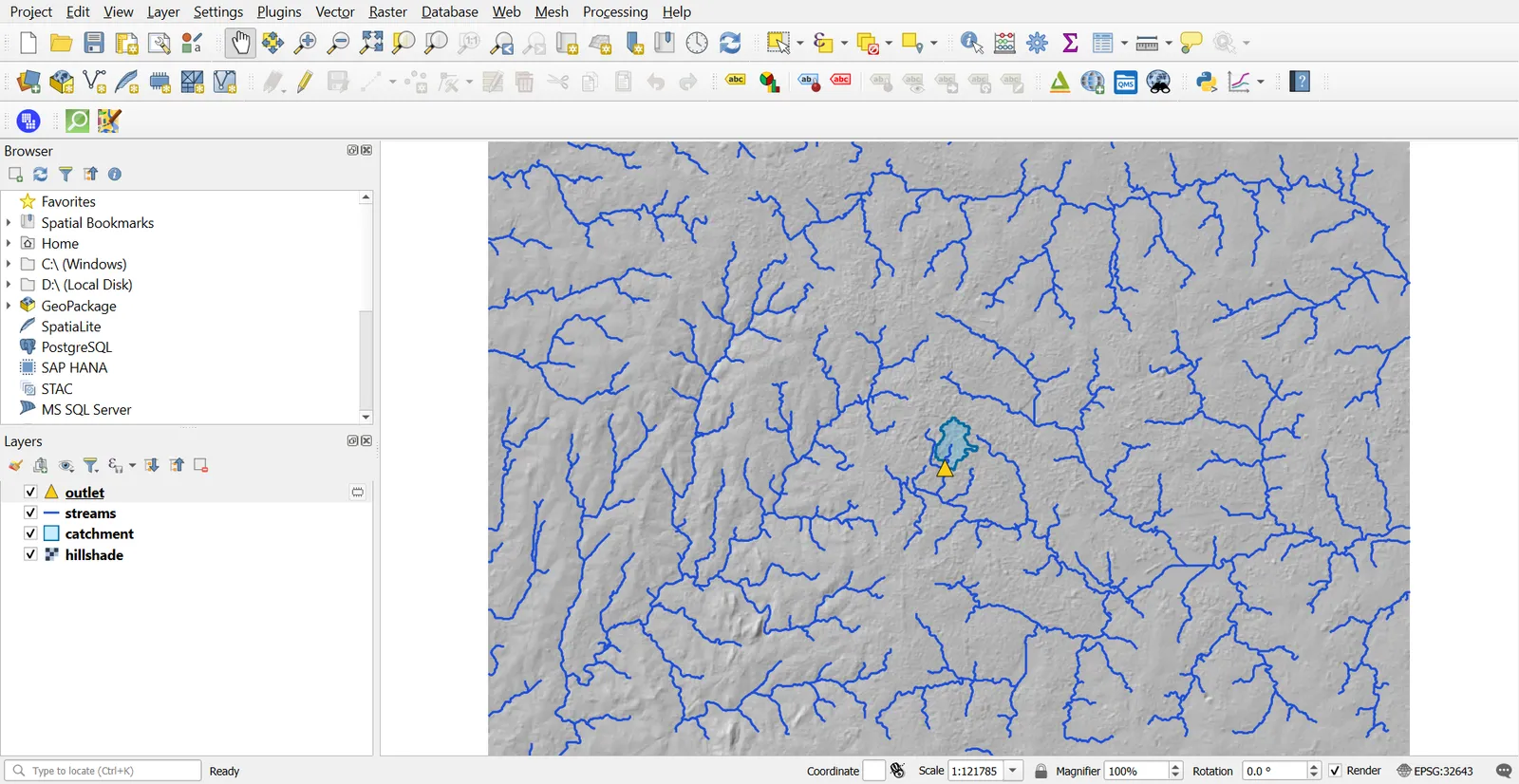
r.stream.extractdoes this and writes both a stream raster and a stream line layer. With a threshold of 500 cells (0.45 square kilometres at 30 m cells) this window gets a dense network of about 1,400 segments. A lower threshold gives more streams, and a higher one gives only the main channels. In a city, many of these channels are drains or roads, so check them against the OSM waterway layer. - Convert to lines.
r.stream.extractalready gives lines. If you start from a stream raster instead, vectorise it (Part 3, R2V conversion). - Watersheds. GRASS
r.water.outlettakes the drainage raster fromr.watershedand an outlet point and returns the upstream catchment as a raster. Polygonize it (Part 3) to get a polygon. Choose an outlet on a stream, such as a cell with an accumulation of a few thousand, so the catchment is not a single cell. Or user.watershedto produce all basins.
6. Elevation profile
- View > Elevation Profile.
- Set the DEM layer elevation in its properties (Layer Properties > Elevation, represent by Single band, and tick Enable).
- Click Capture Curve and draw a line on the map.
- Export the profile as an image or as a table.
Common mistakes
- Computing slope on a DEM in degrees without a Z factor.
- Reading a DSM as bare ground.
- Skipping the sink fill before flow accumulation.
- Choosing a stream threshold without checking it against known streams.
- Using a very small contour interval on a coarse DEM, which draws noise.
- Forgetting the observer height in a viewshed.