

What is a spatial database?
A spatial database stores geometry and attributes together and lets you query both with SQL. Compared with a folder of Shapefiles, it keeps many layers in one place, enforces data types, and handles many edits and users.
| Database | Type | Good for |
|---|---|---|
| GeoPackage | One file, based on SQLite | Single user, portable projects, sharing |
| SpatiaLite | One file, SQLite with spatial functions | Single user, SQL-heavy work |
| PostgreSQL with PostGIS | Server database | Many users, large data, advanced spatial SQL |
This tutorial builds a GeoPackage, because it needs no server. The PostGIS connection is covered briefly at the end.
1. Build a GeoPackage
Add layers to a new GeoPackage
- Right-click the
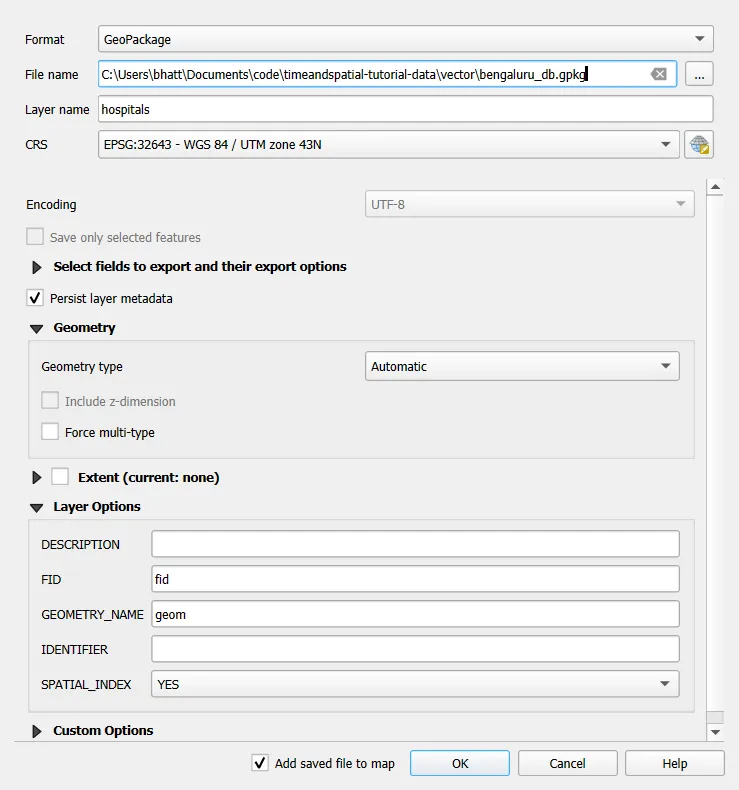
places_fulllayer (the ten places with theircategoryfield, fromvector/places_full.gpkg) > Export > Save Features As. - Format: GeoPackage. File name:
bengaluru_db.gpkg. Layer name:places. - Click OK.
- Repeat for another layer, such as the OSM hospitals from Part 5. This time, pick the same file name and, when QGIS asks, choose Overwrite Layer or Add New Layer. Give the layer a new name, such as
hospitals. The OSM layer is large, so for a quick test export only the features inside the map view. Do not choose Overwrite File, or you will erase the first layer.
See what is inside
Open the Browser panel, find bengaluru_db.gpkg, and expand it. Each table appears as a layer. You can drag any of them into the project.
2. DB Manager and SQL
- Database > DB Manager.
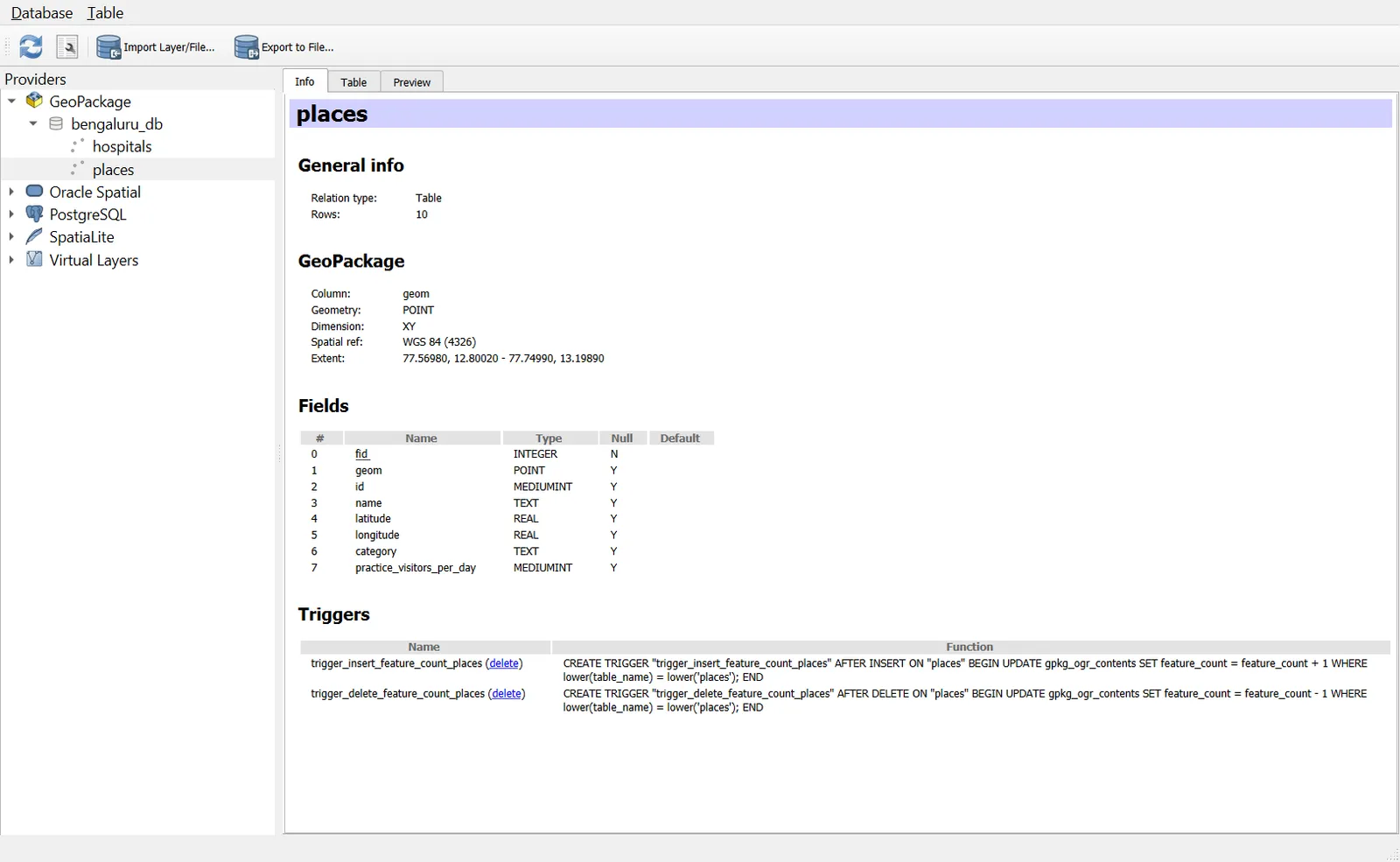
- Expand GeoPackage, then
bengaluru_db.gpkg. - Select
placesand use the Info, Table and Preview tabs to see the schema, rows and map.
Run an SQL query
- In DB Manager, click SQL Window (or Database > SQL Window).
- Type a query:
SELECT id, name, category, geom
FROM places
WHERE category = 'park';
- Click Execute. The result appears below the editor.
- Tick Load as new layer, set the Geometry column to
geom, and click Load to put the result on the map.
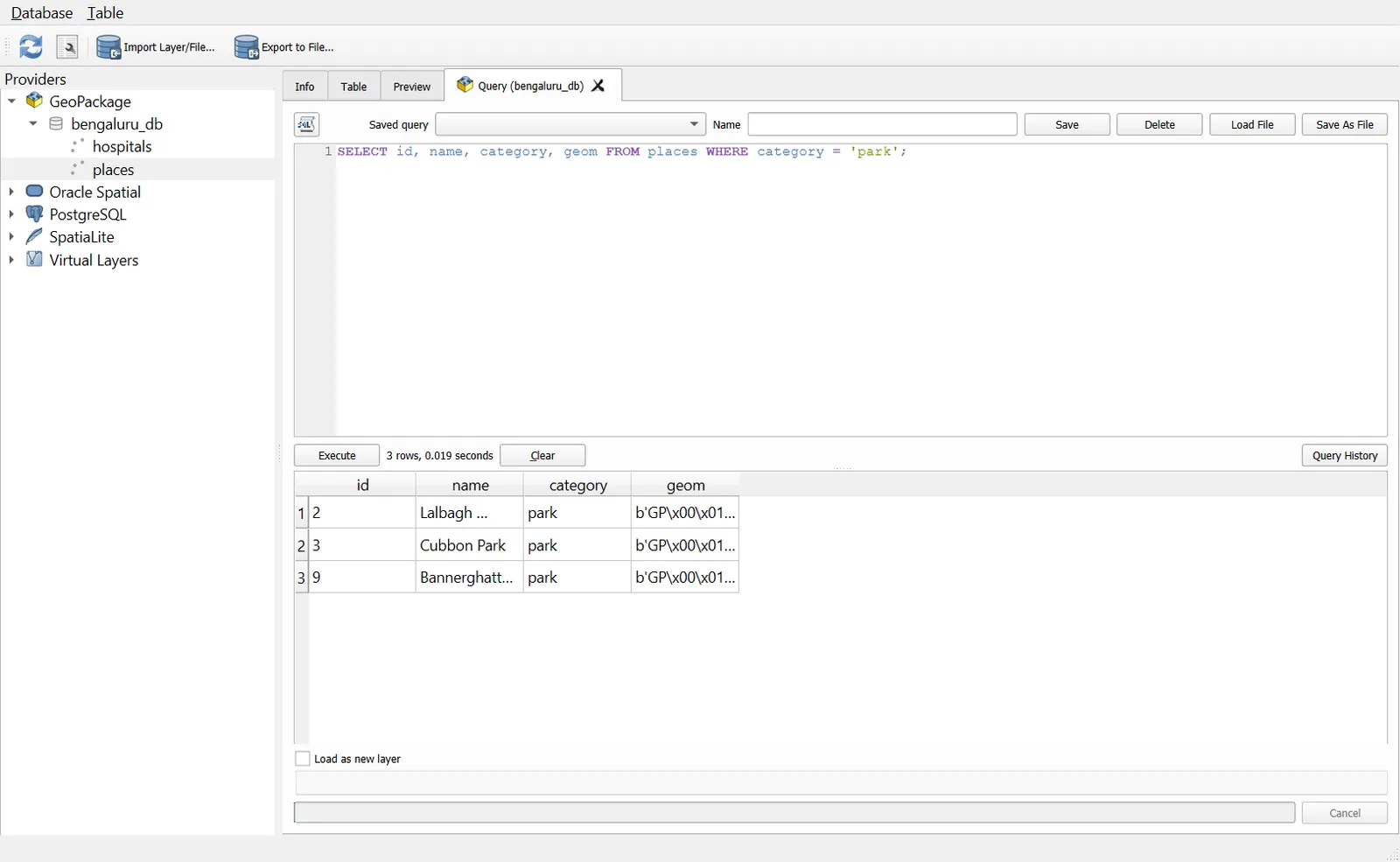
The geometry column in a GeoPackage is usually geom, although it can have another name. Check the Info tab.
A spatial query with a virtual layer
Spatial functions in SQL differ between database engines, so the quickest way to practise is a virtual layer, which uses SpatiaLite functions on any loaded layer.
- Layer > Add Layer > Add/Edit Virtual Layer.
- Name it
nearest_to_centre, and paste the query below into Query. - Click Add.
SELECT name,
       ST_Distance(ST_Transform(geometry, 32643),
                   ST_Transform(MakePoint(77.5946, 12.9716, 4326), 32643)) AS metres,
       geometry
FROM places
ORDER BY metres
LIMIT 5;
This lists the five places closest to a point near the city centre, with the distance in metres. The geometry column of a virtual layer is called geometry. ST_Transform converts the coordinates to EPSG:32643 so the distance is in metres.
Virtual layers
A virtual layer runs SQL on any loaded layer, including a Shapefile or a CSV, and treats the result as a layer. You can try a query this way before you build a database.
3. Export spatial data
Export a layer
Right-click > Export > Save Features As. Choose format, CRS and fields. Tick Save only selected features to export a subset.
Export a map
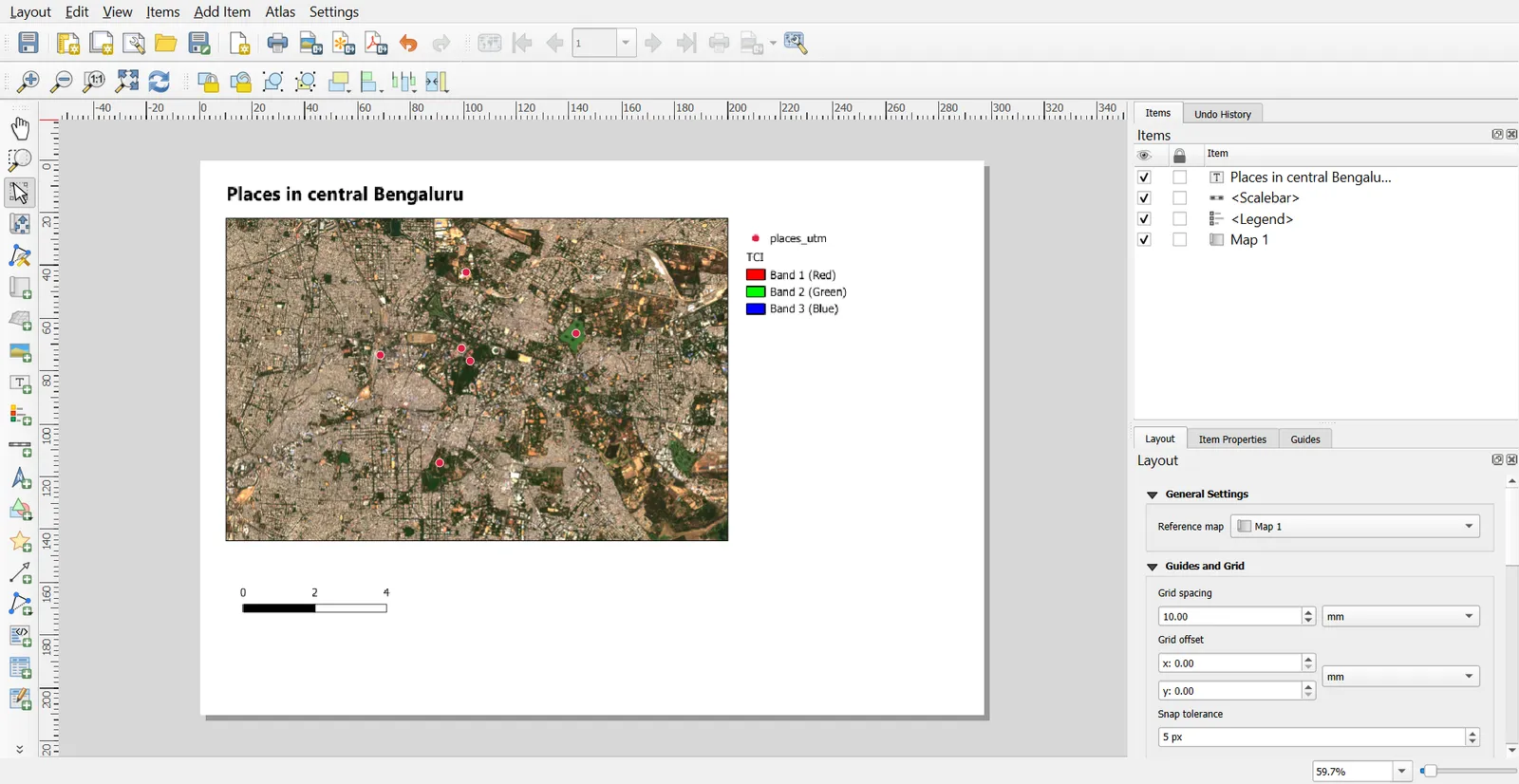
- Project > New Print Layout. Name it
Bengaluru map. - Add a map with Add Item > Add Map, then drag a rectangle.
- Add a legend, a scale bar, a north arrow and a title from the Add Item menu.
- Layout > Export as Image (or PDF).
Export a project
Project > Save As keeps .qgz. To package everything for someone else, use Processing > Package Layers, which copies chosen layers into one GeoPackage, then send that file together with the project.
4. Spatial analysis tools
Find these in the Vector menu or the Processing Toolbox. Use projected data (EPSG:32643) whenever distance or area matters.
First, reproject places to EPSG:32643, as in Part 4, and name the result places_utm.
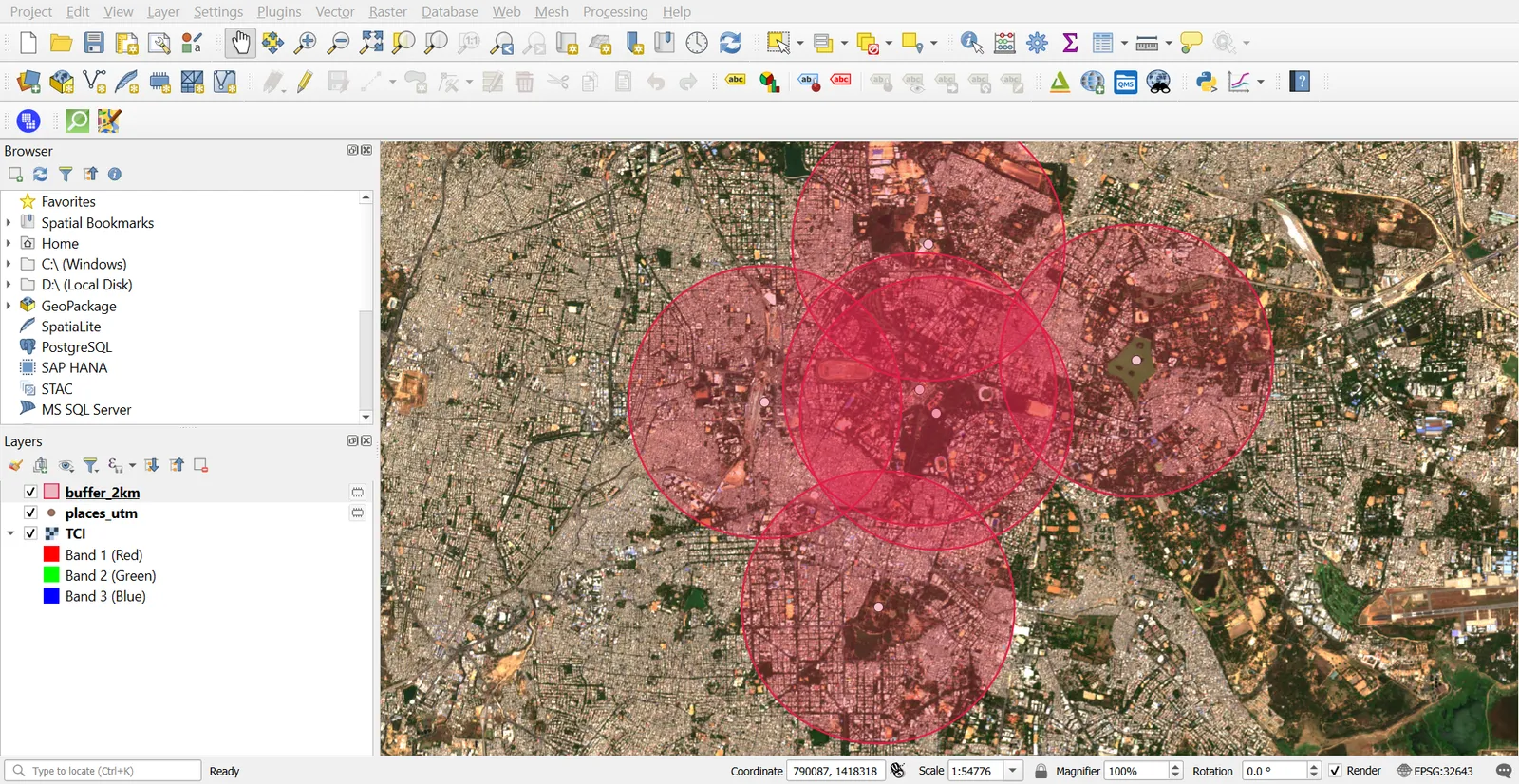
Buffer
A buffer draws a zone at a fixed distance around features.
- Vector > Geoprocessing Tools > Buffer.
- Input layer:
places_utm. Distance:2000metres (check the units shown next to the field). - Segments:
16for smooth circles. Tick Dissolve result if you want one merged shape. - Run.
Select by location
This picks features of one layer based on where they are relative to another.
- Vector > Research Tools > Select by Location.
- Select features from
hospitals_utm. Where the features: intersect. By comparing to: the buffer layer. - Run. The selected hospitals are highlighted.
Export the selection with Save Selected Features As, or count them with Statistics Panel.
Clip
Clip cuts one layer to the shape of another. Vector > Geoprocessing Tools > Clip. The input is the layer to cut (for example hospitals_utm), and the overlay is the polygon to cut with.
Intersect
Intersect keeps the parts of two layers that overlap, and combines their attributes. It also works with a line layer and a polygon layer, for example roads that pass through a park.
Dissolve
Dissolve merges features that share a value. Vector > Geoprocessing Tools > Dissolve, with Dissolve field(s) set to category. Leave the field empty to merge everything into one feature.
Join attributes by location
This copies attributes from one layer to another based on where they are.
- Processing Toolbox > Join Attributes by Location.
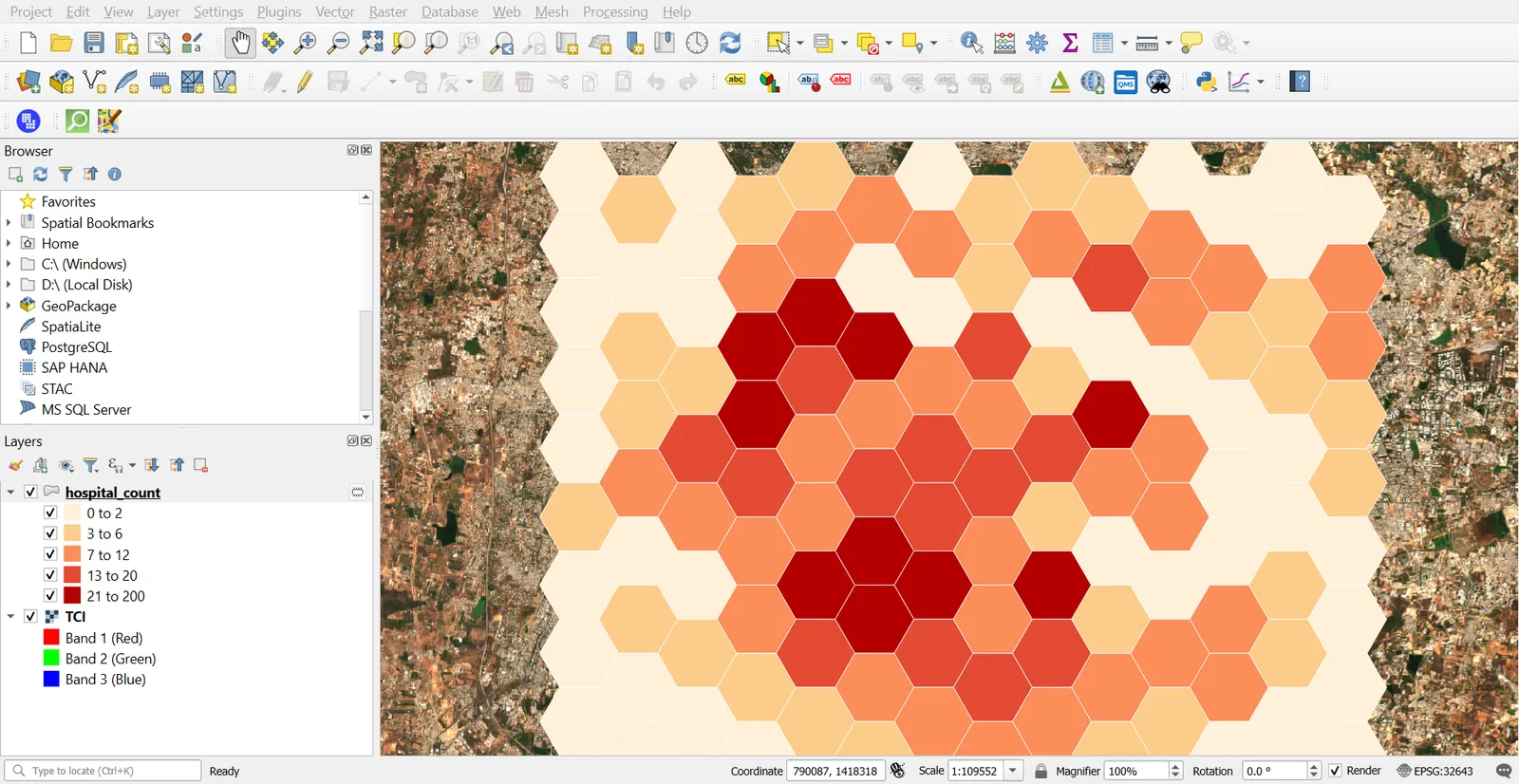
- Base layer: a polygon layer such as wards or buffers. Join layer:
places_utm. - Predicate: intersects. Join type: take attributes of the first matching feature, or one-to-many, if you want every match.
- Run.
For a count instead, use Count Points in Polygon, which writes a NUMPOINTS field for each polygon.
Nearest feature
Join Attributes by Nearest finds the closest feature in another layer, for example the nearest railway station to each place. It adds a distance column. Use a projected CRS so that the distance is in metres.
Summaries
- Vector > Analysis Tools > Basic Statistics for Fields gives mean, min, max and standard deviation.
- Vector > Analysis Tools > Statistics by Categories groups numeric values by a category.
- Vector > Analysis Tools > List Unique Values reports distinct values.
Chain tools with the Graphical Modeler
To repeat a workflow, use Processing > Graphical Modeler. Drag tools onto the canvas, connect their inputs and outputs, and save the model. It then appears in the Processing Toolbox.
5. Connect to PostGIS (optional)
If you have a PostgreSQL server with the PostGIS extension:
- Layer > Data Source Manager > PostgreSQL > New.
- Enter Name, Host, Port (5432 by default), Database, and your credentials.
- Click Test Connection, then OK.
- Connect, select a table, and click Add.
You can import layers into PostGIS with DB Manager > Import Layer/File. The Time and Spatial study guide on spatial databases and PostGIS covers the concepts in more detail.
Common mistakes
- Choosing Overwrite File when you meant to add a layer, which erases the other layers in the GeoPackage.
- Buffering in a geographic CRS, so that 2000 means 2000 degrees or the distance is silently wrong.
- Running tools on layers with different CRSs without checking the output.
- Forgetting that tools run on selected features only, if Selected features only is ticked.
- Using Intersect when Clip is enough, which duplicates attribute columns.
- Joining by location without deciding on one-to-one or one-to-many, which changes the feature count.