

The straight line distance between two places in a city says little about the trip. A driver follows roads, which bend, dead-end and cross rivers only at bridges. Network analysis puts that structure into the calculation.
What is a network in GIS?
A network is a set of line features that connect at shared vertices. Each line segment is an edge, each connection is a node, and each edge has a cost, usually its length or the time to travel it. Routing tools search the graph for the lowest total cost between nodes.
The QGIS routing tools used here work on an ordinary line layer. They build the graph while they run, using the line geometry, and snap your start and end points to the nearest line.
Why it matters
Hospital access, school catchments, delivery planning and emergency response all depend on how far people travel along the road, not how far they are as the crow flies. Along real roads the trip is always at least as long as the straight line, and in a city it is usually 10 to 40 percent longer.
Data used
roadsfromosm_bengaluru.gpkg(Part 5), reprojected to EPSG:32643 and clipped to a window of 40 km by 28 km around the city centre. The clipped layer has 13,317 line features with the fieldshighway,railwayandname.places_full.gpkgfrom Part 4, reprojected to EPSG:32643.- The QNEAT3 plugin, installed from Plugins > Manage and Install Plugins. It adds OD matrix and iso-area tools to the Processing Toolbox.
Use a projected CRS. The routing tools measure length in the layer's units, so a layer in degrees returns costs in degrees.
1. Check the network
Before routing, look at the lines.
- Open the attribute table and check the
highwayvalues, such asprimary,secondaryandresidential. - Look for obvious gaps. A road that stops short of another one will not connect, so a path may take a long detour or fail.
- Check whether the lines should be one way. OSM stores that in tags that this layer does not expose as a field, so the examples treat every road as two way.
A raw OSM extract is a reasonable teaching network. For serious routing, build the network from a dedicated source and clean it, because small gaps and missing one way restrictions change results.
2. Shortest path between two points
- Processing Toolbox > Network analysis > Shortest path (point to point).
- Input layer: the roads layer. Path type to calculate: Shortest.
- Start point and End point: pick them on the canvas with the button next to each field, or type coordinates in the project CRS.
- Run.
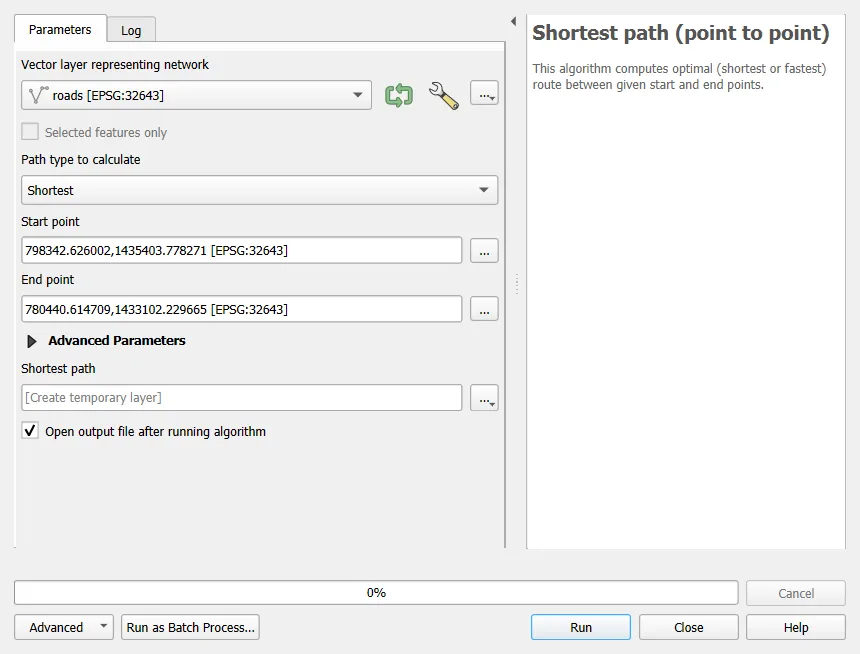
The example runs from Whitefield (77.7499 E, 12.9698 N) to Lalbagh Botanical Garden (77.5848 E, 12.9507 N). The output is a line with three attributes: start, end and cost.
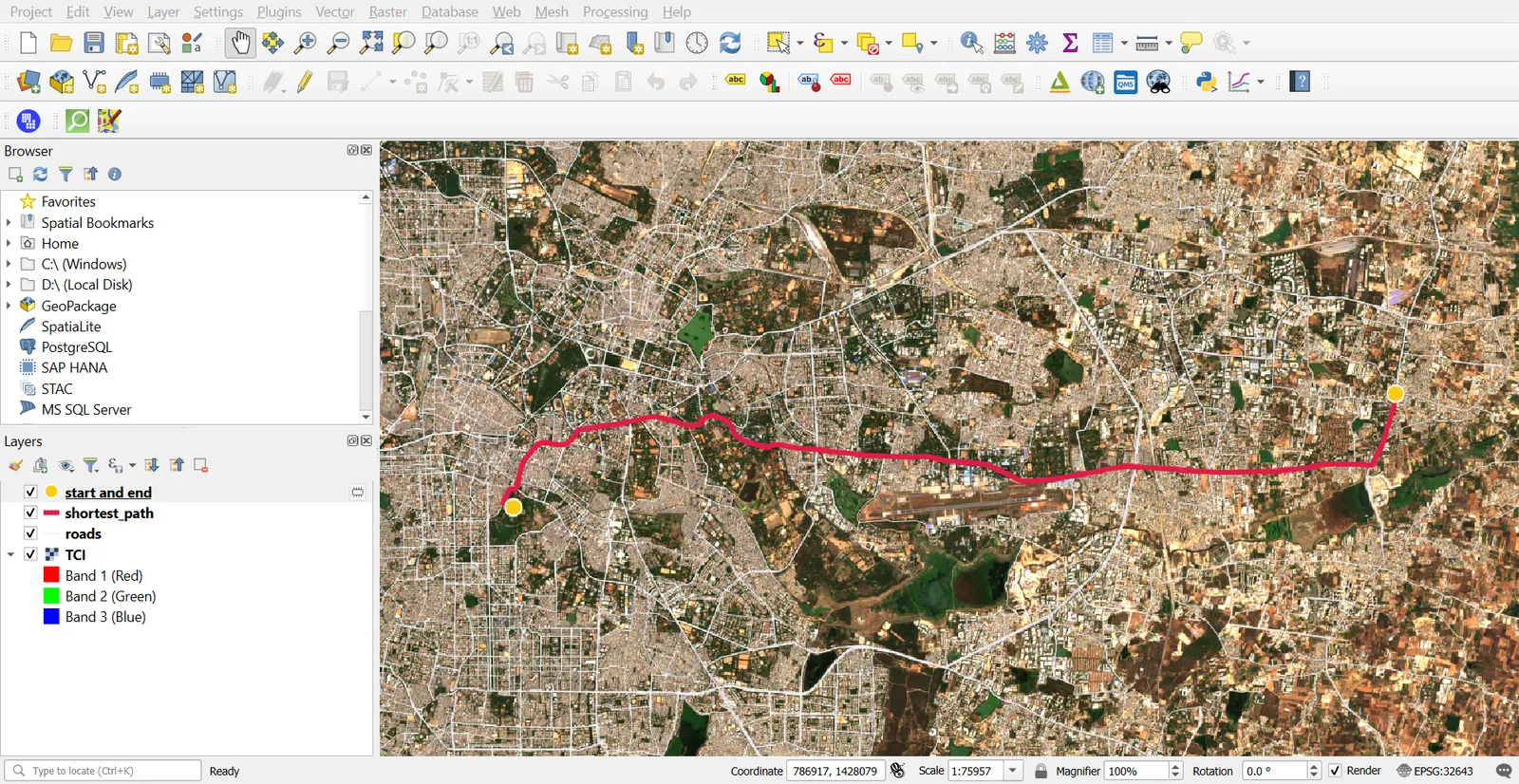
In this run the cost is about 20,621 m, so the route is 20.6 km long. The straight line between the two points is about 18.1 km, so the roads add about 14 percent. Check the route against a map service. A route 10 to 30 percent longer than the straight line is common in a city. A ratio near 2 suggests a missing link in the data.
For travel time, use Fastest instead, and give the tool a speed. The speed field is empty in this layer, so QGIS uses the default speed you set (50 km/h in the example). The result is then a time, and it treats every road as 50 km/h, which is a rough guess.
3. Service area
A service area shows everything reachable within a limit, such as 5 km along the roads.
- Processing Toolbox > Network analysis > Service area (from point).
- Input layer: roads. Path type: Shortest. Travel cost:
5000. - Start point: Cubbon Park, at 77.5929 E, 12.9763 N.
- Run. The tool writes the reachable road pieces as a line layer, and the points where the limit ends.
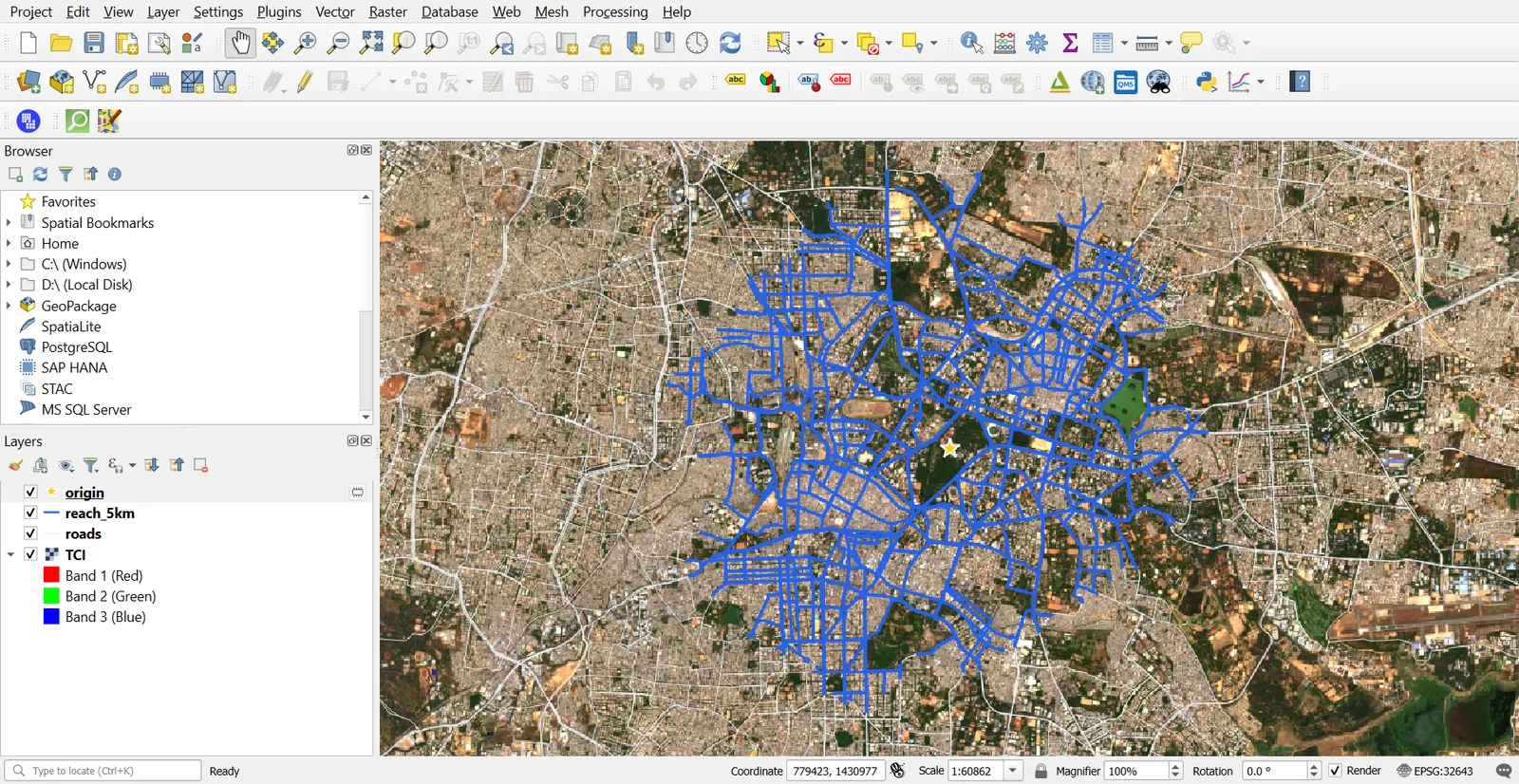
The shape is irregular. It reaches farther along the straight arterial roads and falls short where the grid breaks up or a lake or railway blocks the way.
For polygons rather than lines, QNEAT3 has iso-area tools, which build contours or polygons around the roads. They need a cell size for the interpolation step, and their parameters differ between versions, so open the dialog and set them there before running from a script.
4. OD matrix with QNEAT3
An origin-destination (OD) matrix lists the travel cost between every origin and every destination. It answers questions such as which depot is closest to each customer.
- Processing Toolbox > QNEAT3 > OD Matrix from Points as Table (n:n).
- Network layer: roads. Point layer: your places. Unique point ID field:
id. - Optimization criterion: Shortest. Leave the direction and speed options at their defaults.
- Run, and open the output table.
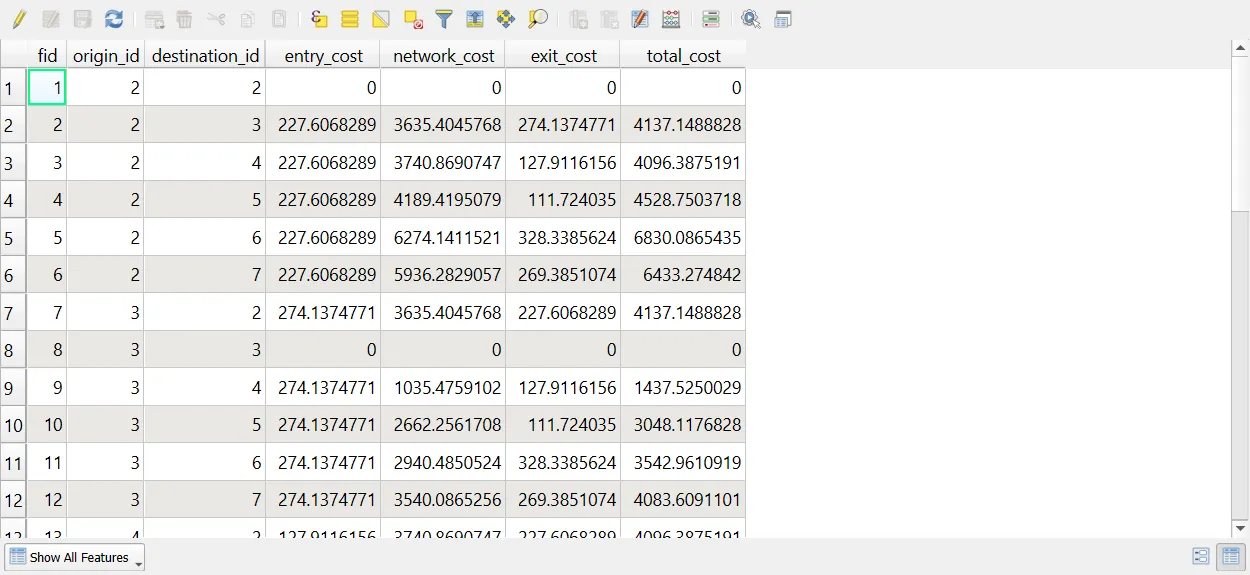
The table has one row for each origin and destination pair. For six places there are 36 rows.
| Column | Meaning |
|---|---|
origin_id, destination_id | The place IDs |
entry_cost | Distance from the origin to the nearest point on the network |
network_cost | Distance travelled along the network |
exit_cost | Distance from the network to the destination |
total_cost | The sum of the three |
For example, the table shows 4,137 m between Lalbagh (id 2) and Cubbon Park (id 3), and only 1,438 m between Cubbon Park (id 3) and the Vidhana Soudha (id 4). A pair with no value could not be linked through the network. That happens when a place snaps to a stretch of road that is not connected to the rest, and it is a data problem to fix, not a result.
The entry and exit costs are straight lines from the point to the road. If a point lies far from any road, they become large, which tells you the point is poorly placed.
5. Check your results
- Compare a few paths with a web map.
- Compare each OD value with the straight line distance. The network distance should never be shorter.
- Look for NULL values and for paths with odd detours, and trace them to gaps in the lines.
- Change the speed or the path type and see what moves.
Common mistakes
- Running routing tools on a layer in degrees.
- Assuming a raw OSM layer is a clean network without checking for gaps.
- Ignoring one way streets, turn restrictions and barriers that the data does not hold.
- Trusting a travel time that comes from one default speed for all roads.
- Reading an empty OD cell as zero when it means no route was found.
- Snapping points to the nearest line without checking how far away that line is.