

Site selection questions all have the same shape. Where could a new clinic, warehouse or school go, given that it should be close to roads, away from existing facilities and off steep ground? This tutorial answers that with a raster workflow that you can repeat for any set of criteria.
What is a distance surface?
A distance surface is a raster in which every cell stores how far it is from the nearest feature of some kind. Two versions matter here.
| Surface | What each cell holds | Needs |
|---|---|---|
| Euclidean distance | Straight line distance to the nearest source | Source features only |
| Cost distance | Accumulated travel cost to the nearest source, summed over the cells crossed | Source features and a cost raster |
A cost raster says how hard each cell is to cross. A cell of 1 costs one unit per step, a cell of 5 costs five, and a cell with no value is a barrier that cannot be crossed.
Why it matters
A straight line ignores lakes, steep slopes and anything else in the way. For a bird it is right. For a person, a road crew or a water pipe it usually is not. Suitability studies also depend on distances, such as the distance to the nearest road, so a small error in the distance raster passes into the final ranking.
Data used
outputs/terrain/dem_utm.tifandslope.tiffrom Part 13, 30 m cells, EPSG:32643hospitals,roads,lakesandparksfromosm_bengaluru.gpkg(Part 5), reprojected to EPSG:32643 and clipped to the DEM extenthillshade.tiffrom Part 13, for the background
The window covers 30 km by 20 km, which is 1000 by 667 cells.
1. Prepare the layers
- Reproject each OSM layer to EPSG:32643 with Reproject Layer.
- Keep lakes larger than 50,000 square metres with Extract by Expression:
area($geometry) > 50000. This drops small ponds and stream fragments. - Keep parks larger than 20,000 square metres in the same way.
- Make sure the DEM, slope raster and every mask you build use the same extent and cell size. All raster overlay in this tutorial depends on that.
2. Euclidean distance
The Proximity tool in GDAL measures the distance from every cell to the nearest cell holding a target value, so first turn the vector layer into a raster mask.
- Raster > Conversion > Rasterize (Vector to Raster). Input:
hospitals. Burn-in value: 1. Output size: the same width and height as the DEM, with the DEM extent. - Raster > Analysis > Proximity (Raster Distance). Input: the mask. Values:
1. Distance units: Georeferenced coordinates. - Run the same two steps for
roads.
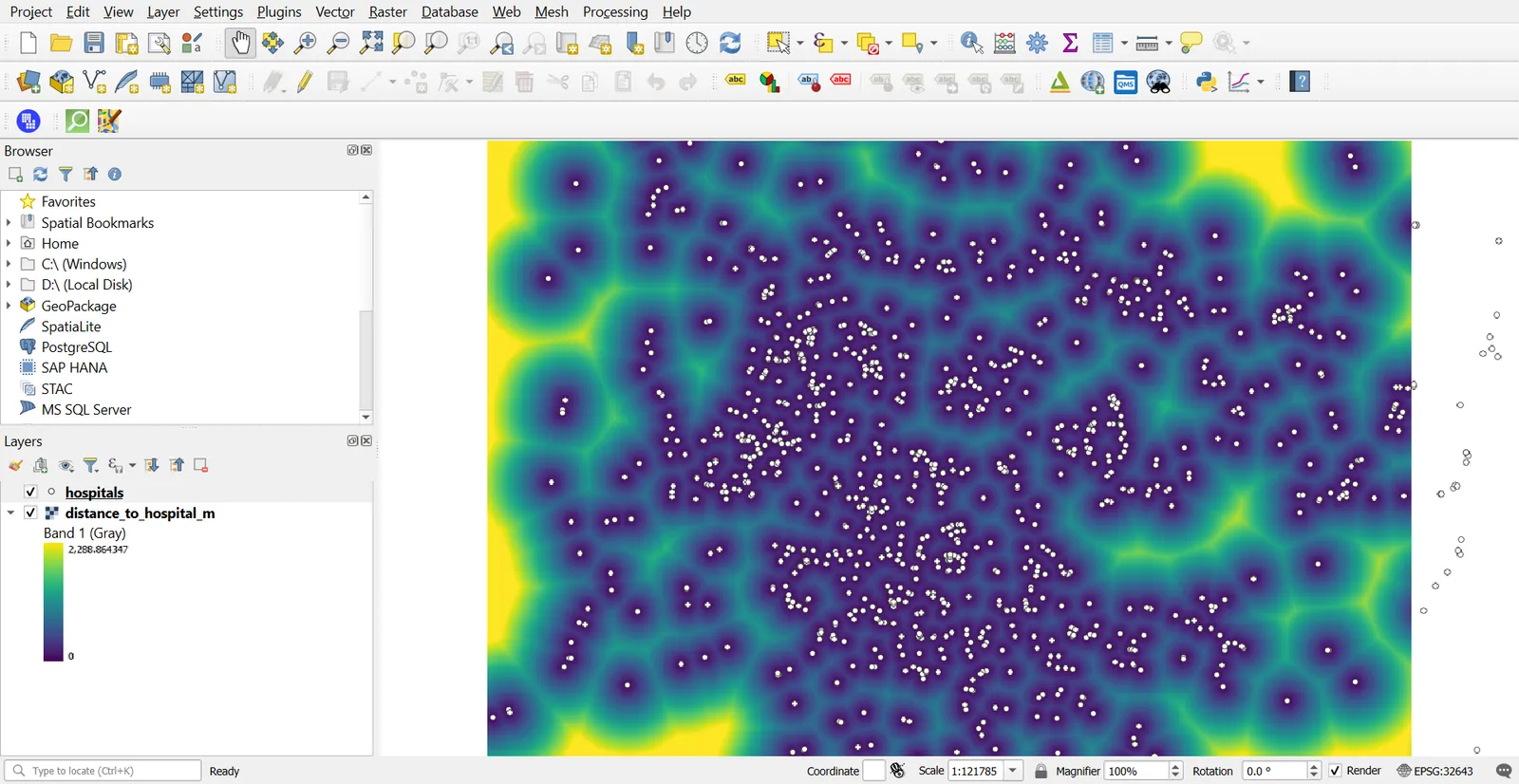
In this window the farthest cell is about 3.3 km from a hospital, and the median cell is 108 m from a road.
3. Cost surface and cost distance
Steep ground is slower and more expensive to build on, so slope is a natural cost.
- Open the Raster Calculator and enter
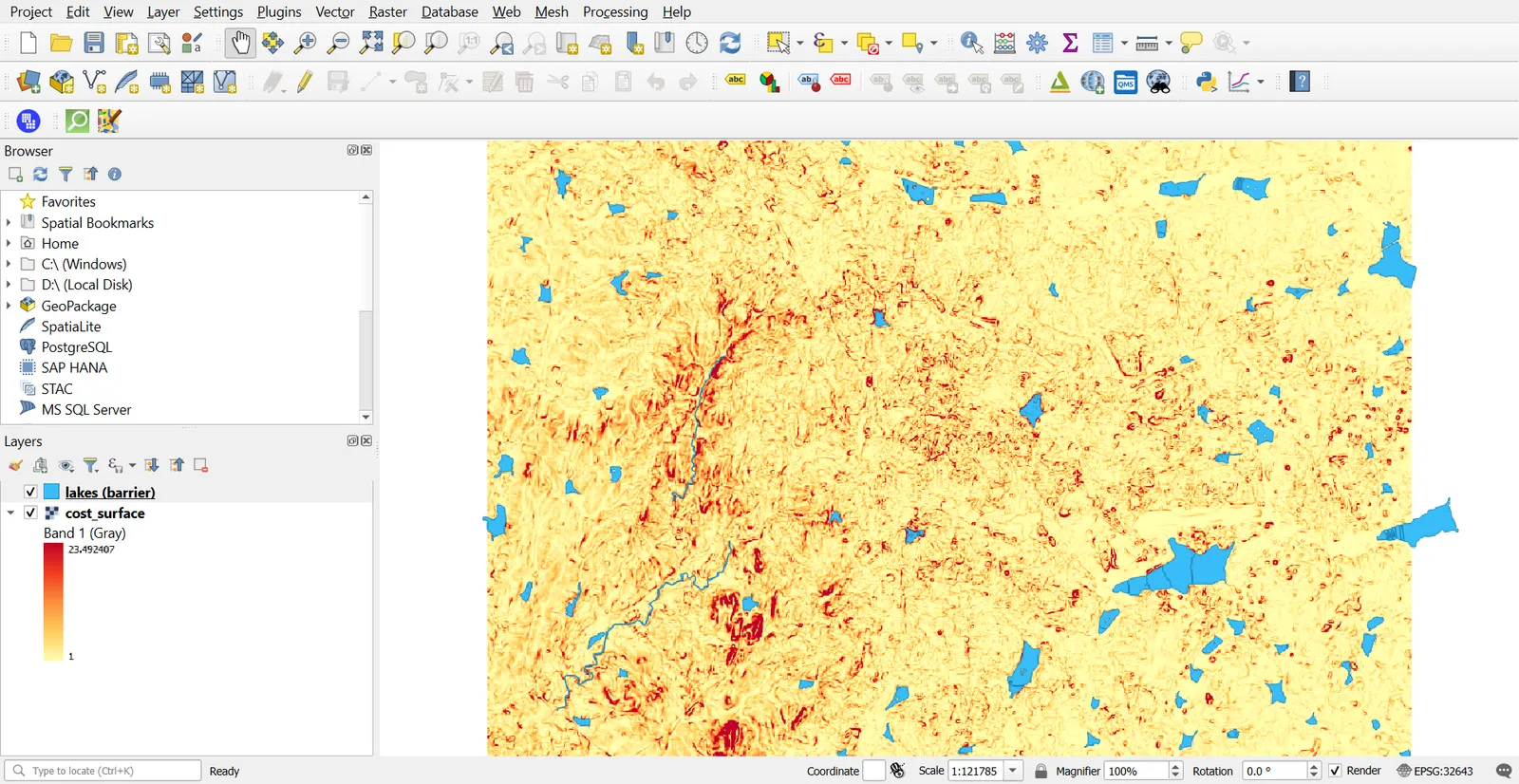
1 + ("slope@1" / 2) ^ 2. A flat cell costs 1, a 4 degree cell costs 5, and a 6 degree cell costs 10. The curve is a choice, not a rule, so pick one you can defend. - Mark lakes as barriers by giving lake cells a very high cost. Rasterise the large lakes with Raster > Conversion > Rasterize (vector to raster) so that lake cells are 1 and all others are 0, on the same grid as the cost raster. Then use the Raster Calculator with a conditional, such as
if("lakes@1" = 1, 100000, "cost@1"), so that the cheapest path goes around the lakes. - Processing Toolbox > GRASS > r.cost. Input: the cost raster. Start coordinates: one hospital, for example the one nearest the city centre.
Compare the result with straight line distance from the same point.
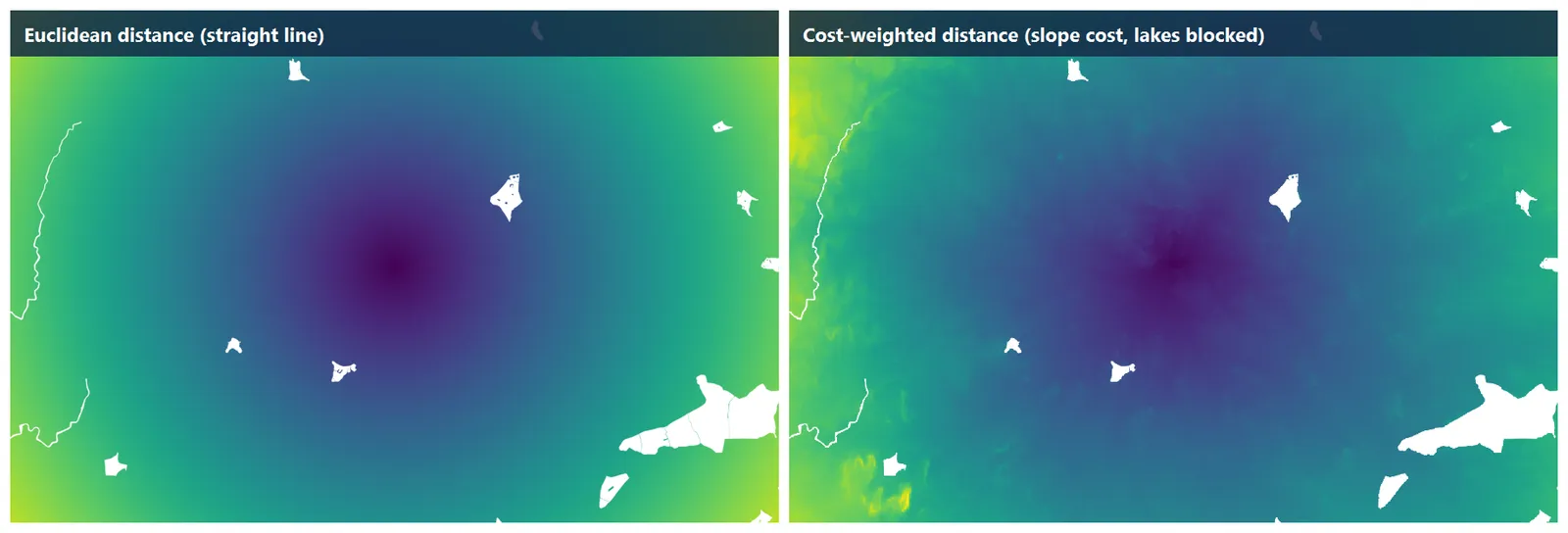
The Euclidean rings are circles. The cost rings stretch and bend around lakes and up the slopes on the western side. r.cost reports cost in cell units, so multiply by the 30 m cell size when you want a number comparable with metres, and remember that it then mixes metres with the slope penalty.
4. Score each factor from 0 to 1
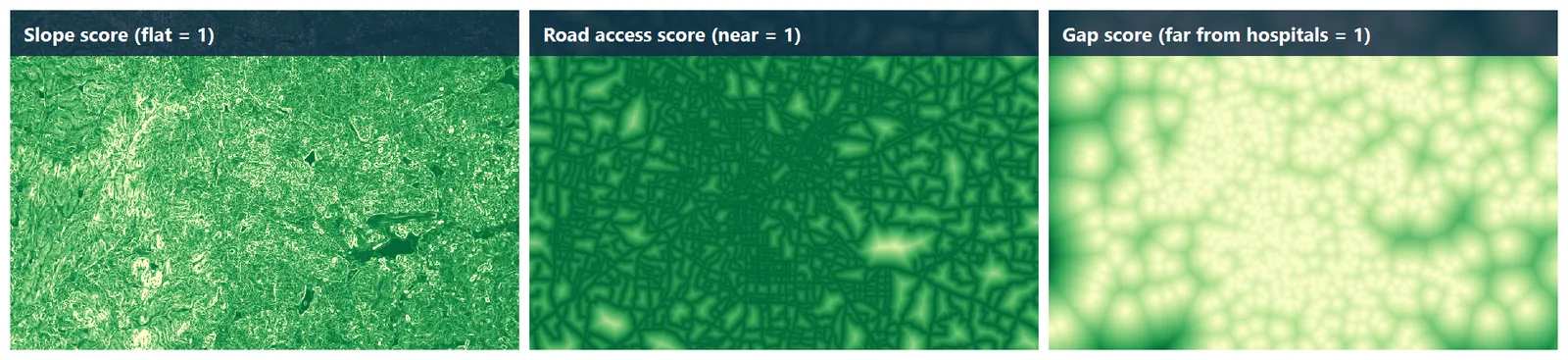
A raw distance in metres and a slope in degrees cannot be added. Convert each factor to a score between 0 (bad) and 1 (good) with a linear stretch.
| Factor | Score formula | Reason |
|---|---|---|
| Slope | 1 - min(slope / 8, 1) | Flat ground scores 1, 8 degrees or more scores 0 |
| Road access | 1 - min(distance to road / 1500, 1) | On a road scores 1, 1.5 km or more scores 0 |
| Gap from hospitals | min(distance to hospital / 3000, 1) | Far from existing hospitals scores 1 |
The last factor is reversed on purpose. This example looks for places that existing hospitals do not serve, so distance is good. Change the formula when your question is the opposite.
5. Weighted overlay
A weighted overlay multiplies each score by a weight and adds them. The weights should add up to 1, so the result stays between 0 and 1.
- Choose weights: slope 0.2, road access 0.4, hospital gap 0.4.
- Open the Raster Calculator and enter:
0.2 * "score_slope@1" + 0.4 * "score_road@1" + 0.4 * "score_hosp@1"
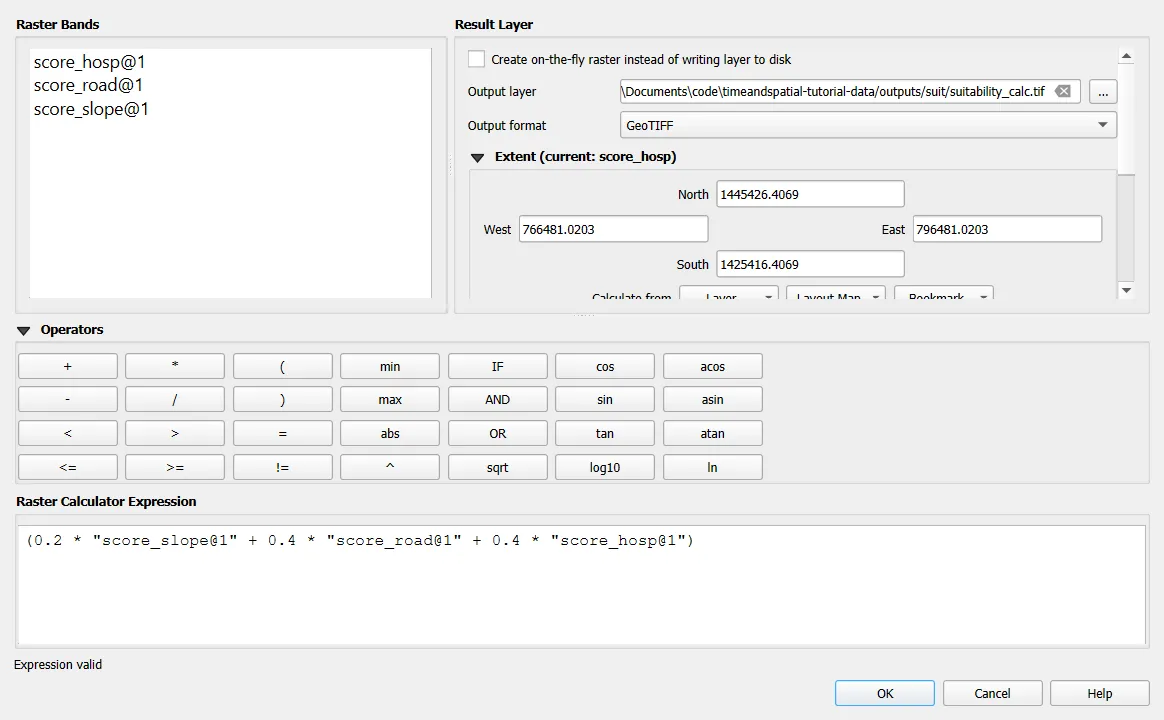
Weights are judgements. Write down why you chose them, and rerun with other weights to see whether the best areas stay the same.
6. Apply constraints and pick the best cells
Some places are not options at all, whatever their score. Lakes and parks are excluded here.
- Rasterise the large lakes and parks and set those cells to no data in the suitability raster. Multiply by a 0 and 1 mask is the same idea.
- Open the Layer Properties > Histogram or use the Statistics for raster tool to find the 95th percentile. In this run it is 0.74.
- Keep cells at or above that value, which gives the top 5 percent. Style them in a strong colour over the suitability ramp.
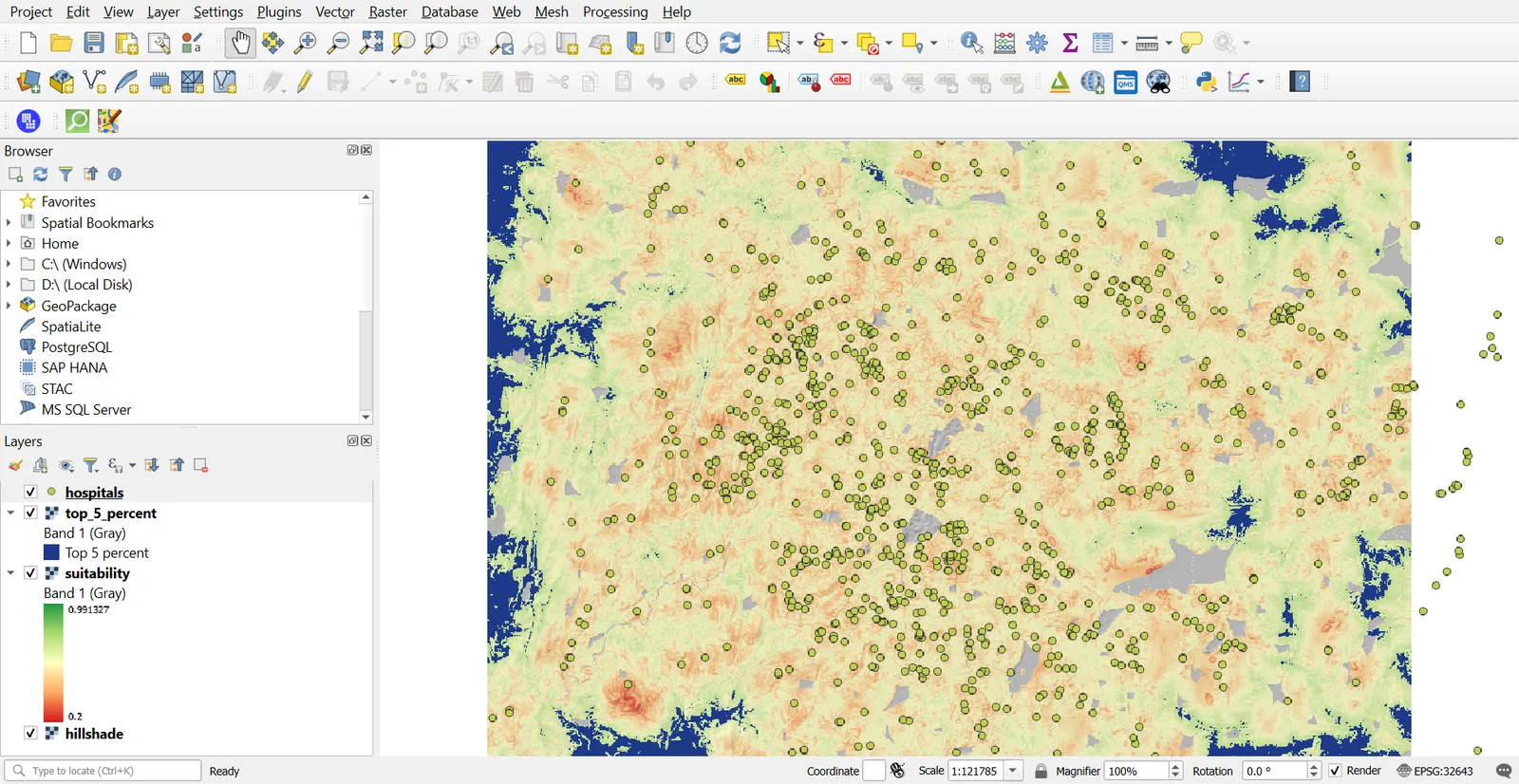
Scores in this run range from 0.21 to 0.99. The highest scoring areas sit in the flat outer parts of the window, which fits the inputs: they are far from existing hospitals and, at 30 m cells, close enough to a road. A map like this shortlists areas. A real decision also needs land ownership, price, zoning and a visit.
Common mistakes
- Adding factors without converting them to a common scale first.
- Forgetting that a distance score can run in either direction.
- Using a geographic CRS, where distance comes out in degrees.
- Measuring distance on a window that cuts off features just outside it.
- Treating the weights as facts instead of choices.
- Reading the result as a recommendation when it is a ranking of the criteria you chose.