

Data used in this tutorial
All of it is free and open. Nothing needs a paid licence.
| Data | Scene | Why we use it |
|---|---|---|
| Sentinel-2 L2A, tile 43PGQ | 15 March 2025, 0% cloud | Main image, 10 m bands |
| Sentinel-2 L2A, tile 43PHQ | 15 March 2025, 0% cloud | Neighbouring tile, used for mosaicking |
| Landsat 8 Collection 2 Level-2, path 144 / row 051 | 29 March 2025 | Second sensor, 30 m, used later for image-to-image georeferencing |
The area is southern India, around Bengaluru. Both Sentinel-2 tiles and the Landsat scene use EPSG:32643 (WGS 84 / UTM zone 43N), so they line up without reprojection.
Bands used:
- Sentinel-2: B02 (blue), B03 (green), B04 (red), B08 (near-infrared), B11 and B12 (shortwave infrared, 20 m), TCI (true-colour preview), SCL (scene classification)
- Landsat 8: SR_B2 to SR_B7 (blue to SWIR 2), ST_B10 (thermal), QA_PIXEL, and the MTL metadata file
Folder layout:
timeandspatial-tutorial-data/
  sentinel2/43PGQ/   B02.tif B03.tif B04.tif B08.tif B11.tif B12.tif TCI.tif SCL.tif
  sentinel2/43PHQ/   (same files)
  landsat8/          LC08_..._SR_B2.TIF ... MTL.txt
1. Install QGIS
- Go to qgis.org/download and pick the Long Term Release (LTR). LTR changes less often, which keeps screenshots and steps stable.
- Run the installer and keep the default options. It also installs GDAL and GRASS, which the Processing Toolbox uses. SAGA is not part of every release, so open the Processing Toolbox and see which providers you have.
- Open QGIS Desktop. Do not start the "QGIS with GRASS" shortcut for now.
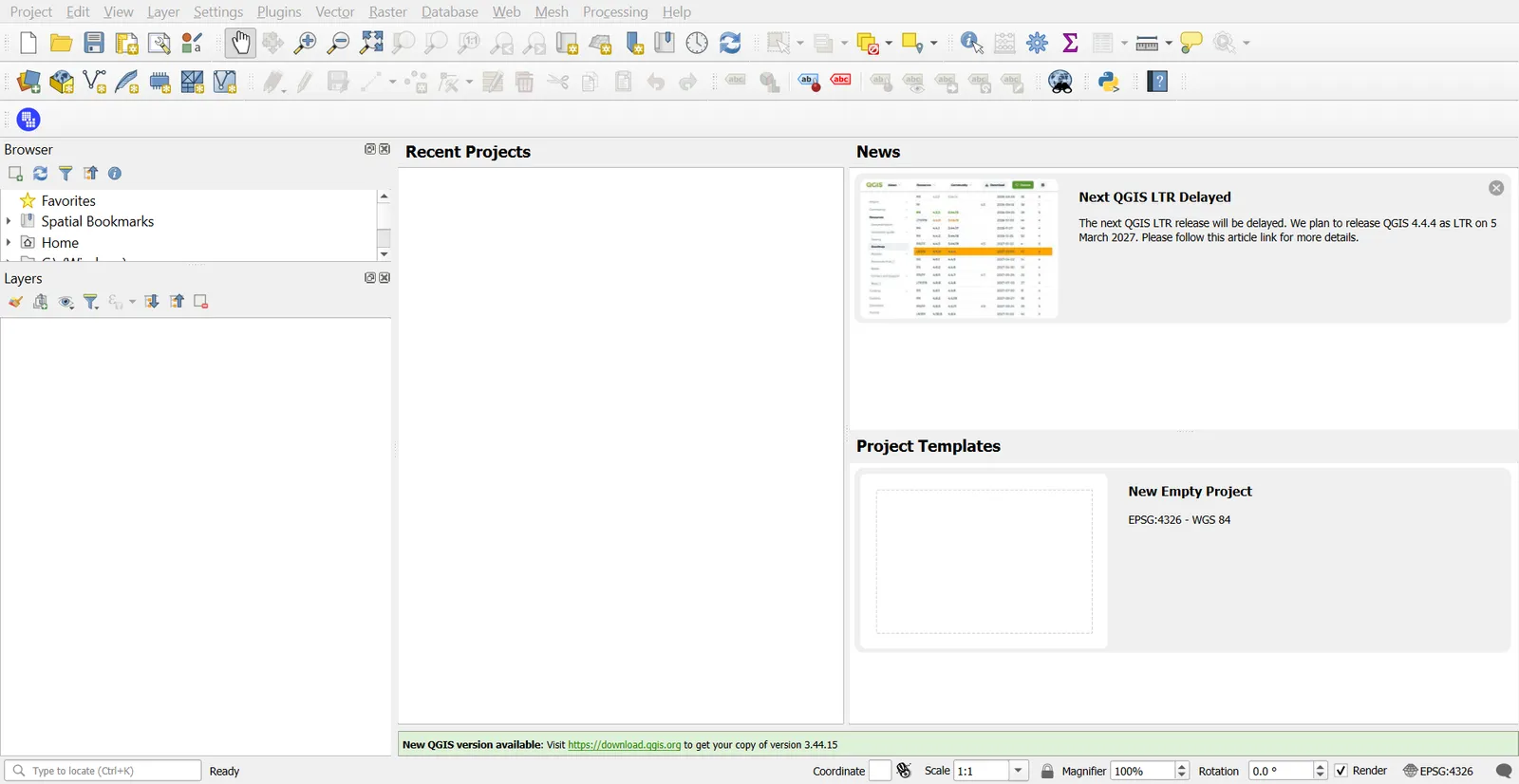
2. The QGIS interface
Learn these areas first. Everything else in the tutorial uses them.
| Area | Where | What it does |
|---|---|---|
| Menu bar | Top | Project, Layer, Vector, Raster, Processing, Plugins, Settings |
| Toolbars | Under the menu | Pan, zoom, identify, select, measure, digitizing |
| Browser panel | Left | Browse folders and add data by drag and drop |
| Layers panel | Left | Order, visibility and properties of the layers in the project |
| Map canvas | Centre | The map itself |
| Processing Toolbox | Right (Ctrl+Alt+T) | Every analysis tool, searchable |
| Status bar | Bottom | Coordinates, scale, rotation and the project CRS |
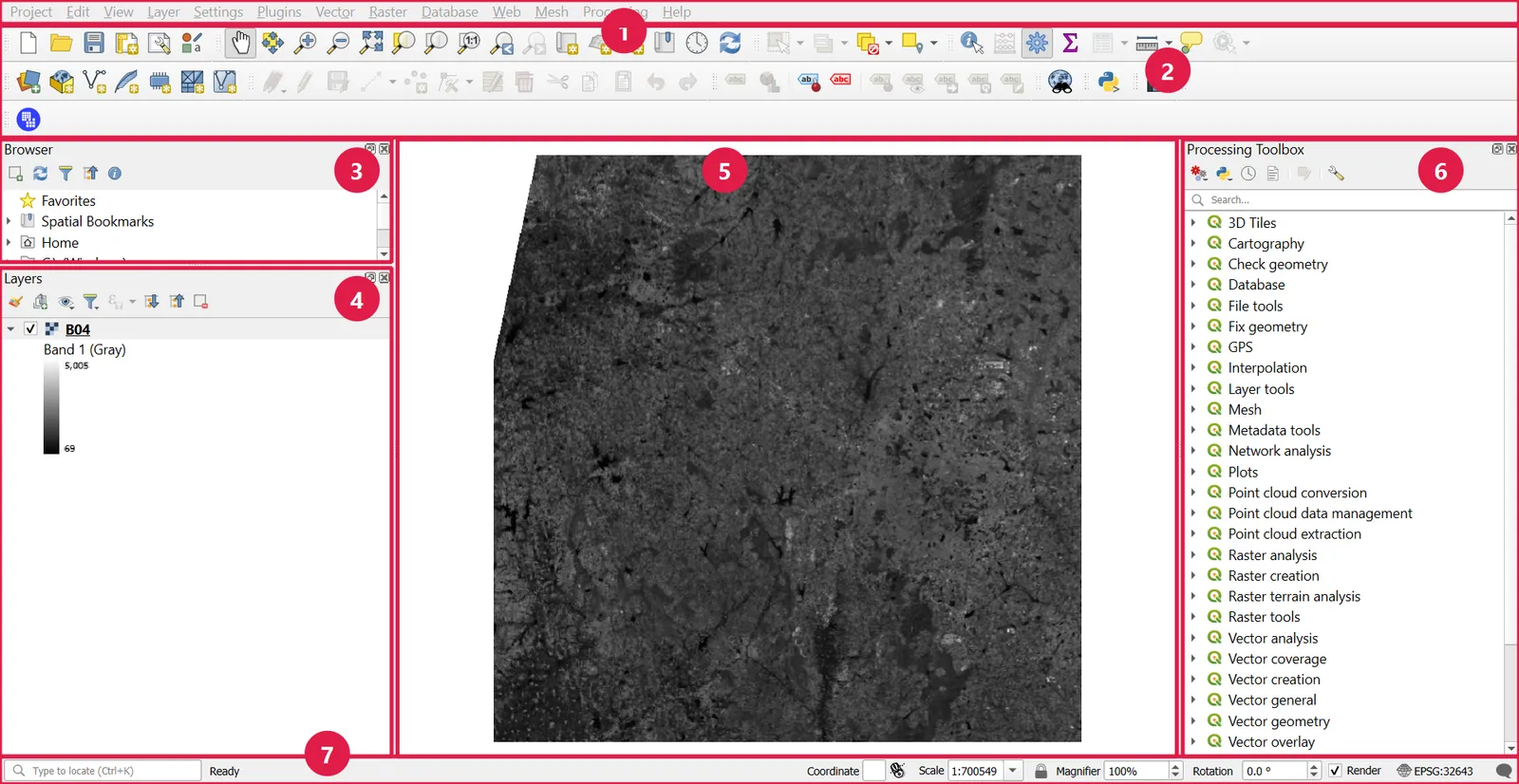
You can switch panels on by right-clicking an empty spot on the toolbar area, or from View > Panels. Layer Styling (F7), Identify Results and Statistics are the useful ones.
Save your project early with Project > Save As, name it qgis_basics.qgz, and keep it next to the data. The project stores layer paths, styles and the project CRS, not the data itself.
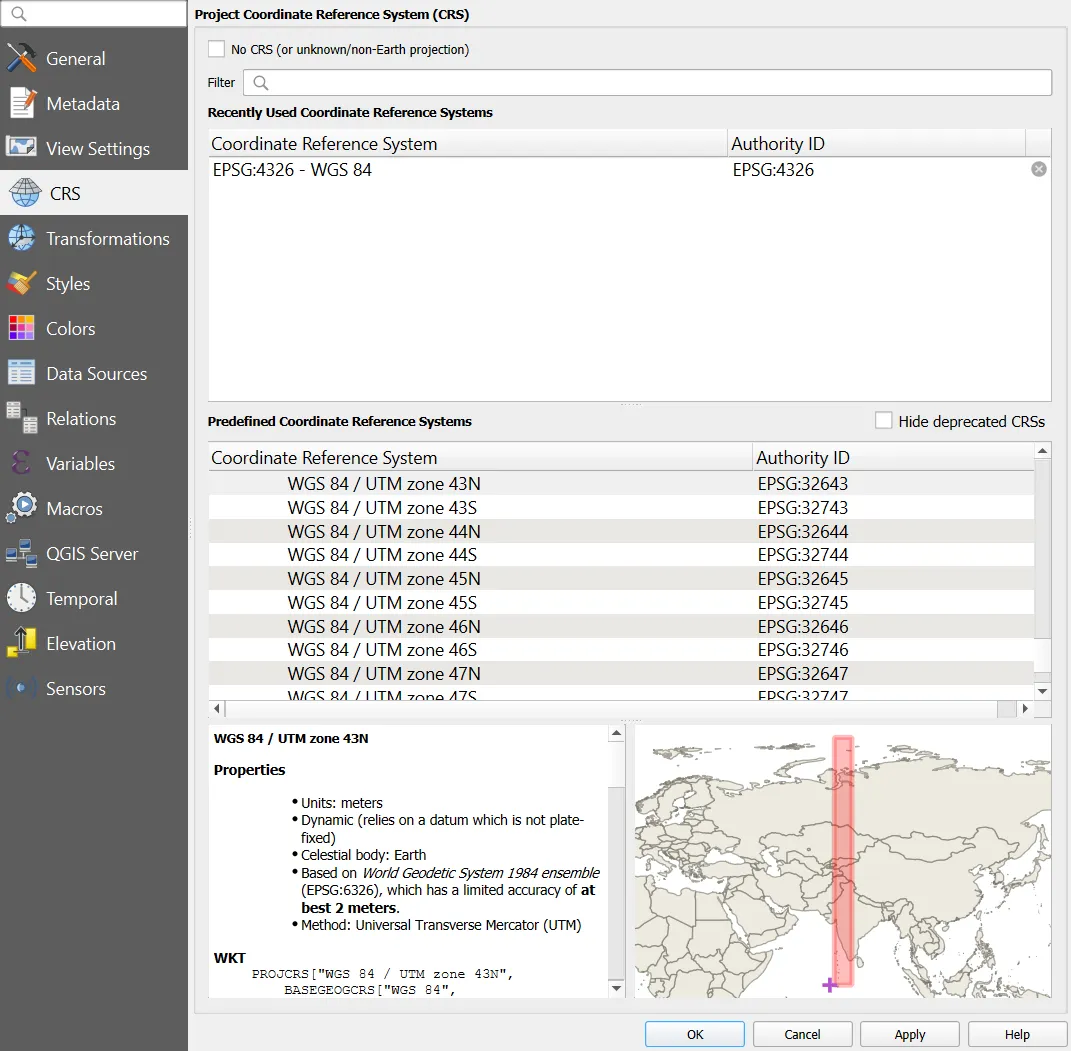
Set the project CRS
The project CRS is the coordinate system the map canvas draws in. QGIS reprojects layers on the fly to match it. It does not change the CRS of the files themselves.
- Click the CRS button at the bottom right of the status bar (it shows something like
EPSG:4326). - Search
32643, select WGS 84 / UTM zone 43N, then OK.
3. Plugins
A plugin adds tools to QGIS. Core plugins ship with QGIS (for example the Georeferencer). Community plugins come from the official plugin repository.
Install a plugin
- Plugins > Manage and Install Plugins.
- Open the All tab and type the plugin name in the search box.
- Select it and press Install Plugin.
- Check it appears under the Installed tab with its box ticked. Untick to disable it.
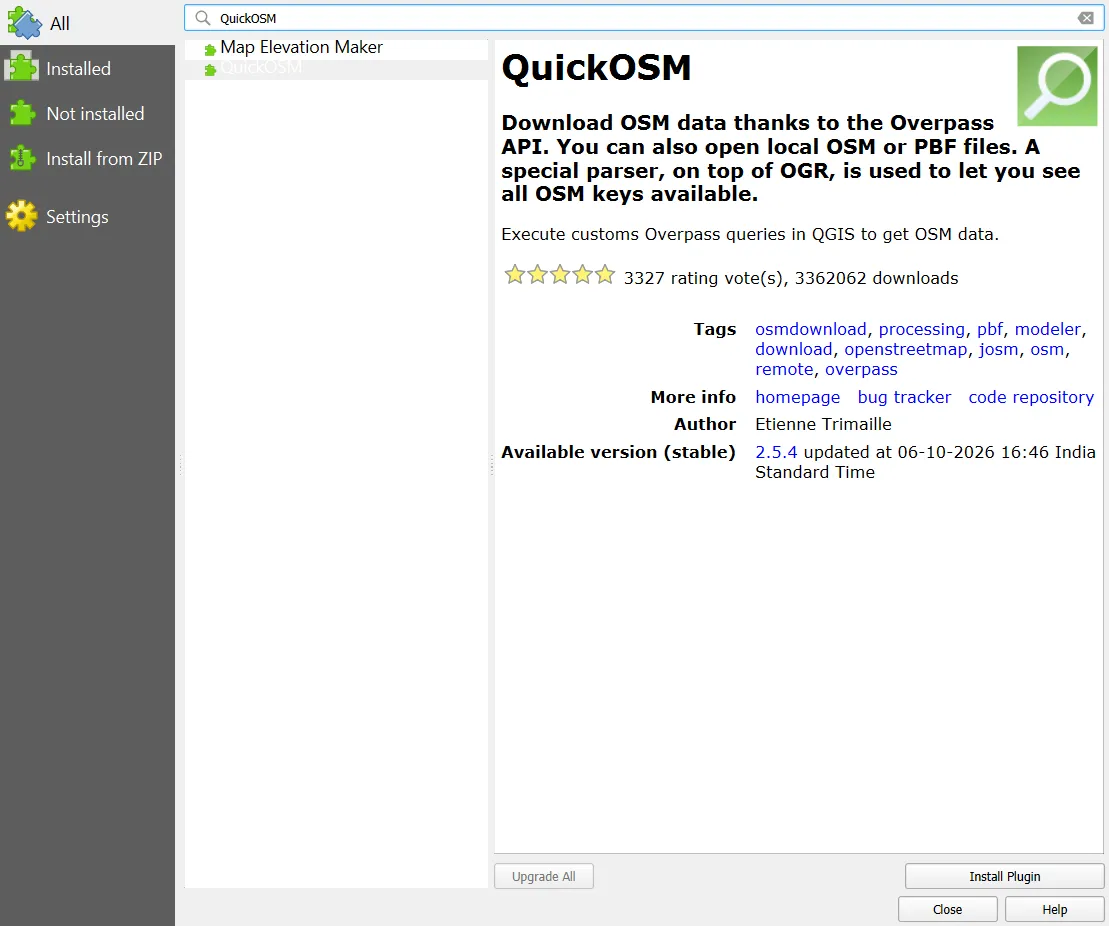
Plugins used across this tutorial series:
| Plugin | Used for |
|---|---|
| QuickMapServices | Add Google, Bing, OpenStreetMap and other basemaps |
| QuickOSM | Download OpenStreetMap data by key and value |
| Freehand raster georeferencer | Optional alternative for rubber-sheet style georeferencing |
| Semi-Automatic Classification Plugin | Optional, for Sentinel-2 and Landsat preprocessing |
In QGIS 3.44, the Installed tab lists the core plugins Processing, DB Manager, MetaSearch Catalog Client and GRASS. The Georeferencer and the GDAL tools are built into QGIS and do not appear as plugins any more.
4. Load a raster
A raster is a grid of cells, and each cell holds a value. A single-band file holds one value per cell. A true-colour image combines three bands.
Add one band
- Layer > Add Layer > Add Raster Layer (
Ctrl+Shift+R). - Click the
...button, go tosentinel2/43PGQ/and selectB04.tif. - Click Add, then Close.
You can also drag the file from the Browser panel into the canvas.
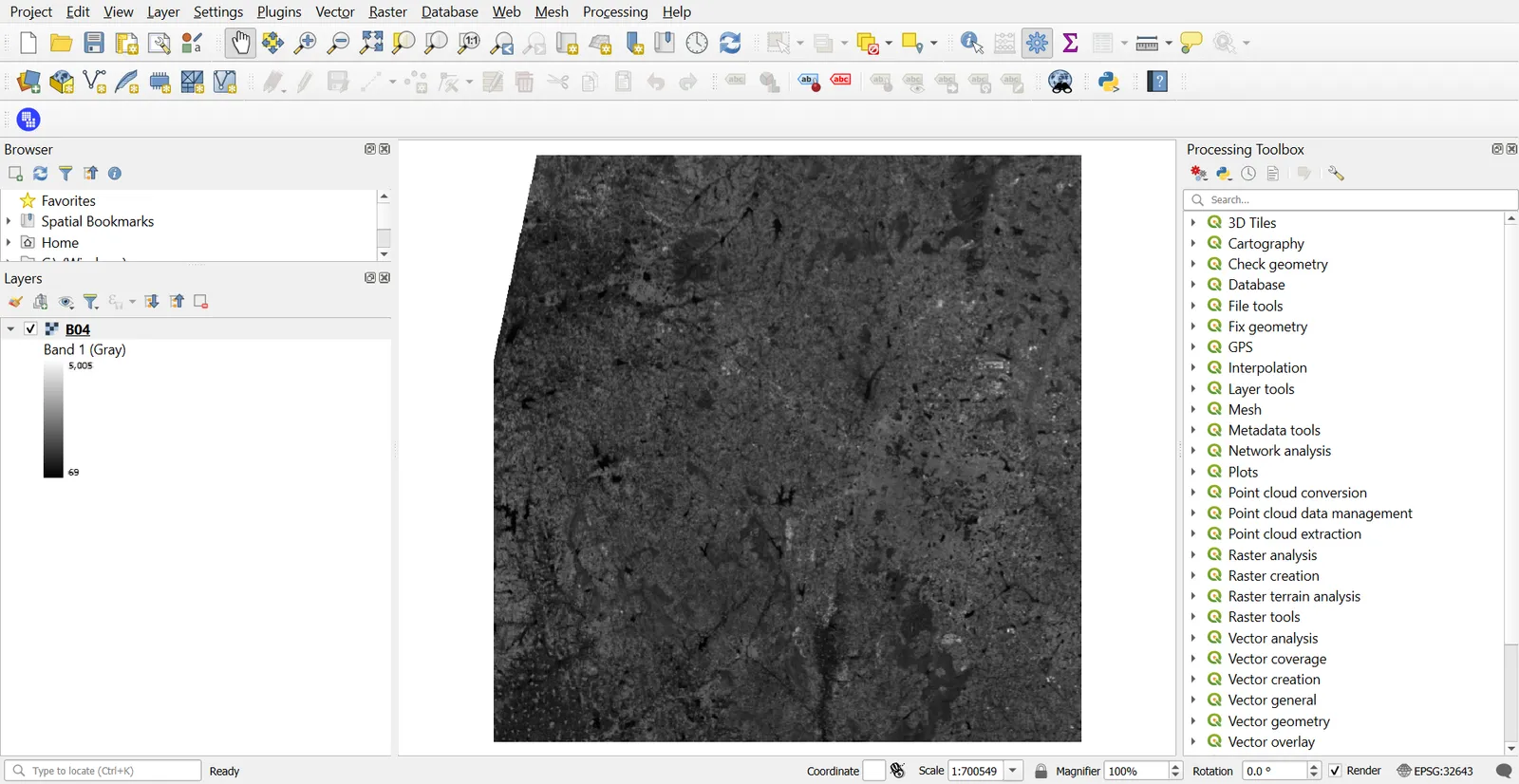
Add B03.tif, B02.tif and B08.tif the same way. You now have four layers.
Zoom, pan and navigate
| Action | How |
|---|---|
| Zoom in or out | Scroll wheel |
| Pan | Hold the space bar and move the mouse, or use the Pan tool |
| Zoom to a layer | Right-click the layer > Zoom to Layer(s) |
| Zoom to a scale | Type a scale (for example 1:25000) in the status bar scale box |
| Previous view | View > Zoom Last |
5. Inspect a raster
Layer properties
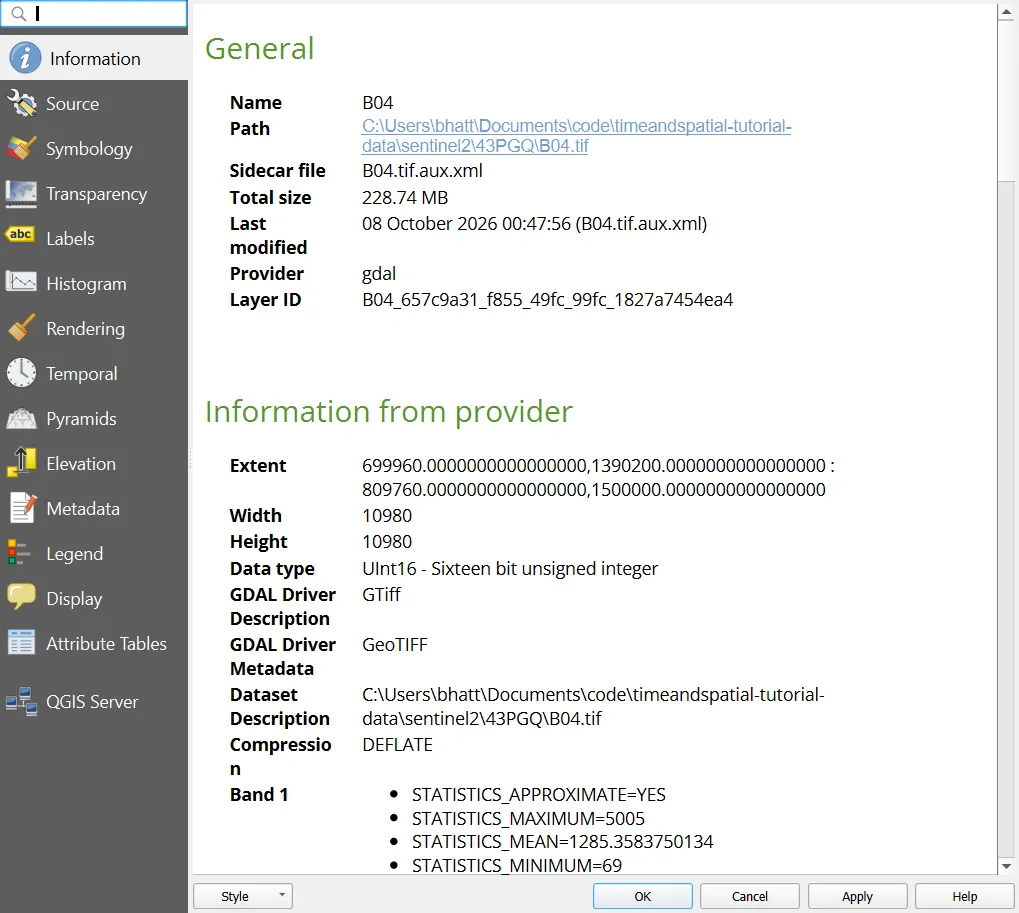
Double-click B04 to open Layer Properties, then check the Information tab. Note down:
- CRS: EPSG:32643
- Extent: the coordinates of the corners
- Width and height in pixels: 10980 x 10980
- Pixel size: 10 m x 10 m
- Data type: UInt16
- Band count and NoData value
Pixel values with Identify
- Click the Identify Features tool (
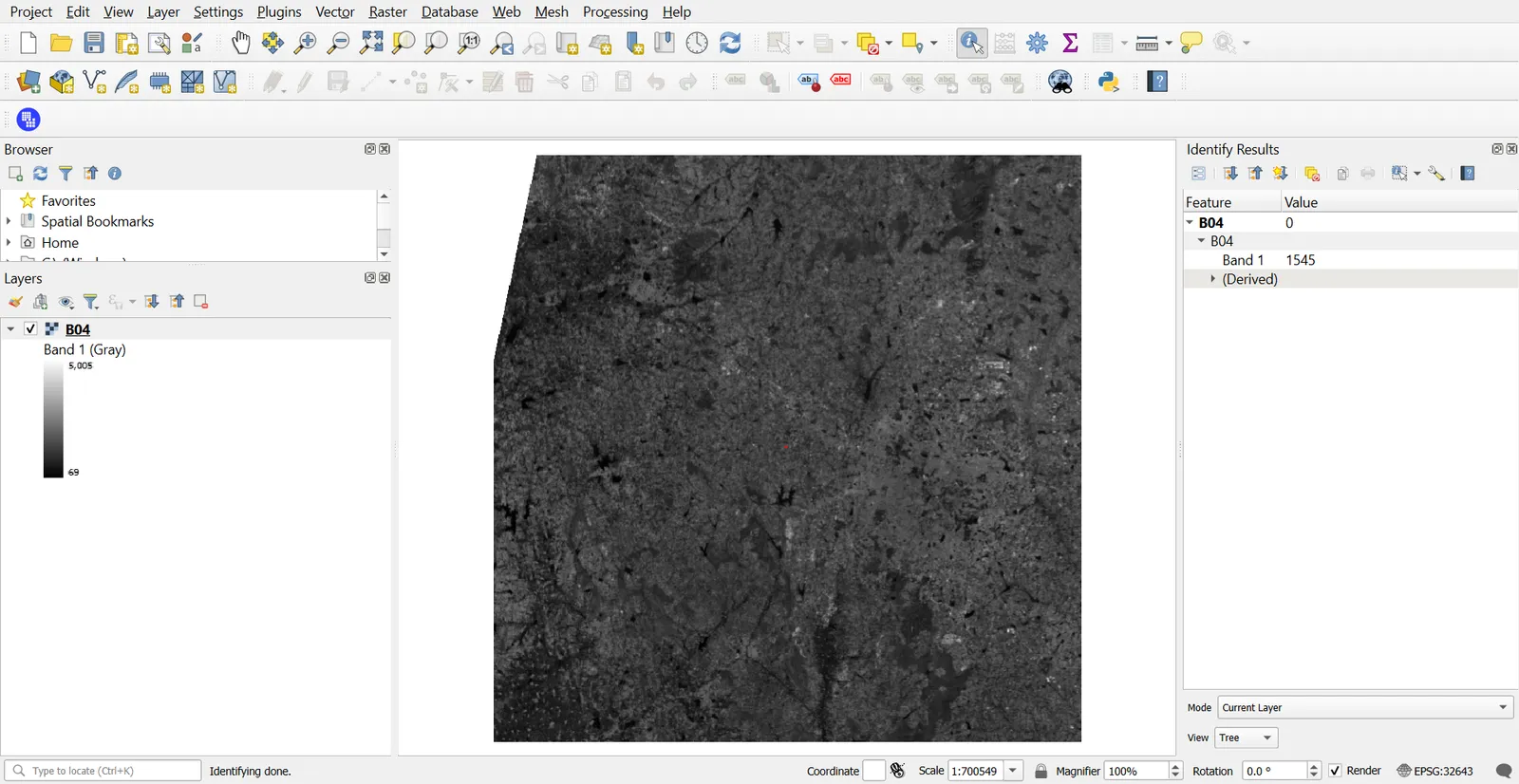
Ctrl+Shift+I). - Click on a pixel. The Identify Results panel lists the value of each raster band at that point.
- Change Mode to Top down if you want values from all layers under the cursor.
For quick checks, open View > Statistics Panel, or press the Value Tool plugin if you have installed it.
Statistics and histogram
In Layer Properties > Histogram, click Compute Histogram. A histogram shows how many pixels have each value. A sharp spike at the low end is often water or shadow. Use it when you decide how to stretch contrast.
6. Style and visualise a raster
Single band, grey
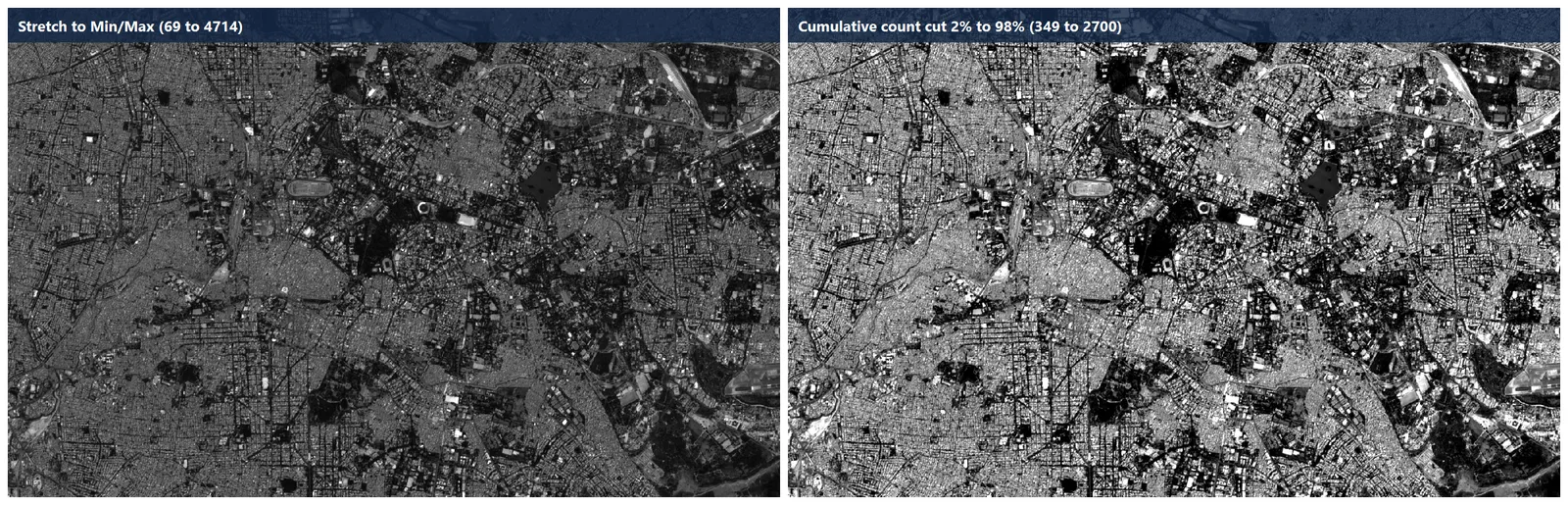
Layer Properties > Symbology > Render type: Singleband gray. Choose the Min / Max values and a Contrast enhancement.
| Setting | Meaning |
|---|---|
| Min / Max | Values mapped to black and white |
| Cumulative count cut (2% to 98%) | Ignores the extreme tails, usually looks better |
| Stretch to MinMax | Uses the real minimum and maximum, often looks flat |
Single band, colour ramp
Use Singleband pseudocolor to show values as a colour ramp. Good for DEMs, indices and temperature.
Multiband colour, with a band combination
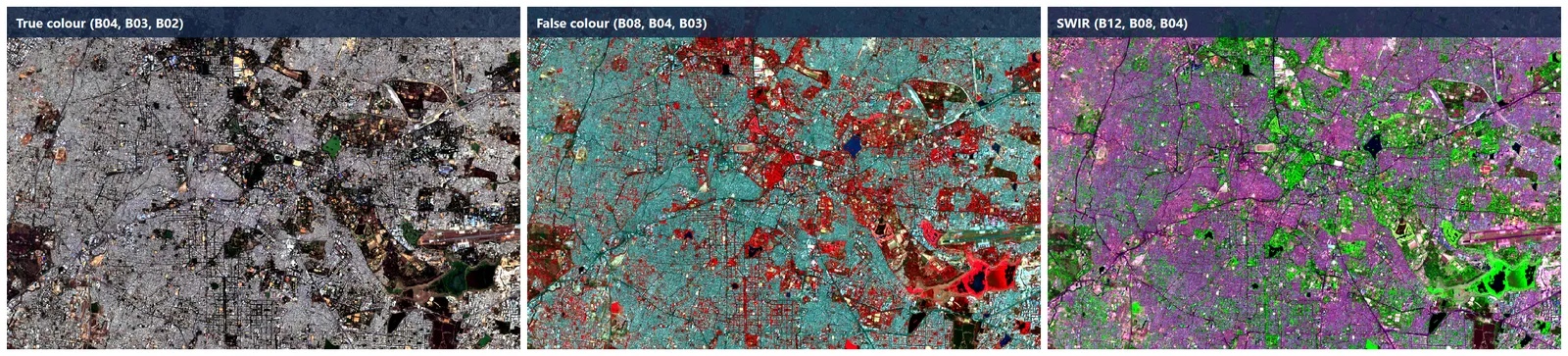
A band combination assigns three bands to red, green and blue. Which bands you pick decides what stands out.
First you need one multi-band layer. See step 7. After stacking, choose Render type: Multiband color and set:
| Combination | Red | Green | Blue | What it shows |
|---|---|---|---|---|
| True colour | B04 | B03 | B02 | The scene as the eye sees it |
| False colour (vegetation) | B08 | B04 | B03 | Healthy vegetation in bright red |
| SWIR false colour | B12 | B08 | B04 | Moisture, burned areas, bare soil and built-up areas |
7. Raster processing
You can find every tool below in the Processing Toolbox (search by name) or in the Raster menu.
7.1 Stack bands into one file (layer stacking)
A stack is one file with several bands.
- Raster > Miscellaneous > Build Virtual Raster.
- Input layers: select
B02,B03,B04,B08. The order is the band order, so keep it blue, green, red, NIR. - Tick Place each input file into a separate band.
- Run. The result is a virtual raster (
.vrt), a small text file pointing to the original bands. - To make a real GeoTIFF, right-click the layer > Export > Save As..., choose GeoTIFF, name it
s2_43PGQ_stack.tifand OK.
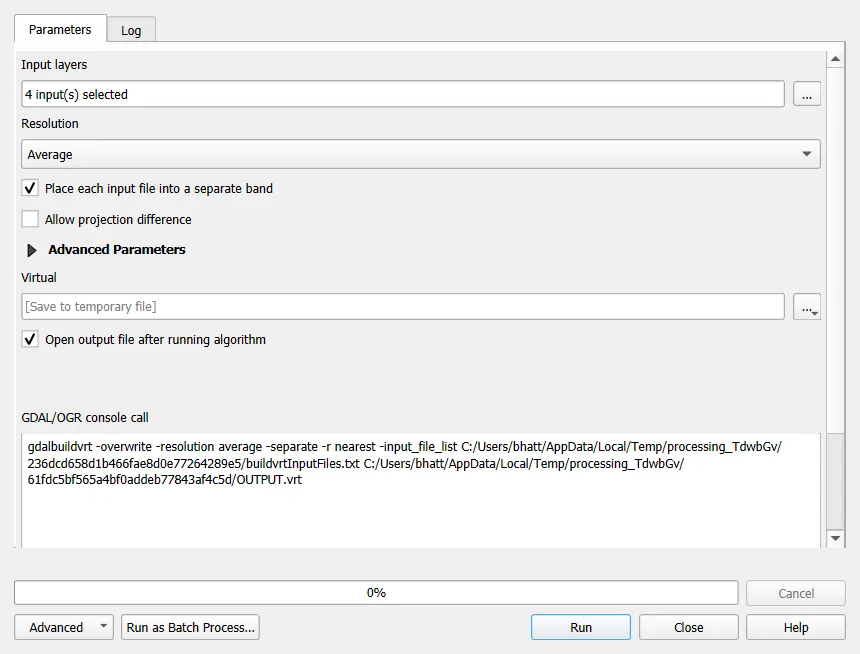
B11 and B12 are 20 m, so do not stack them with the 10 m bands directly. Resample or warp them to 10 m first (see 7.4).
7.2 Mosaic two tiles
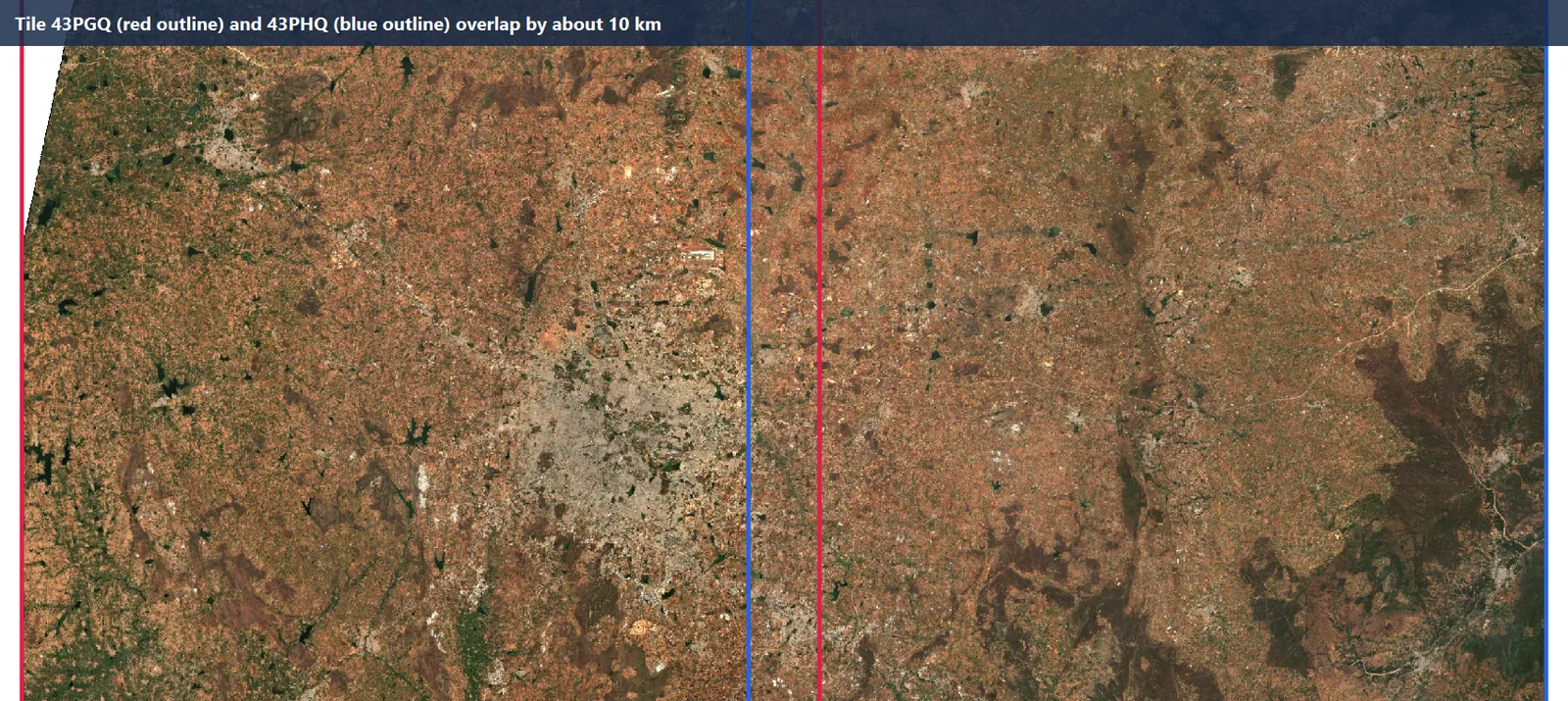
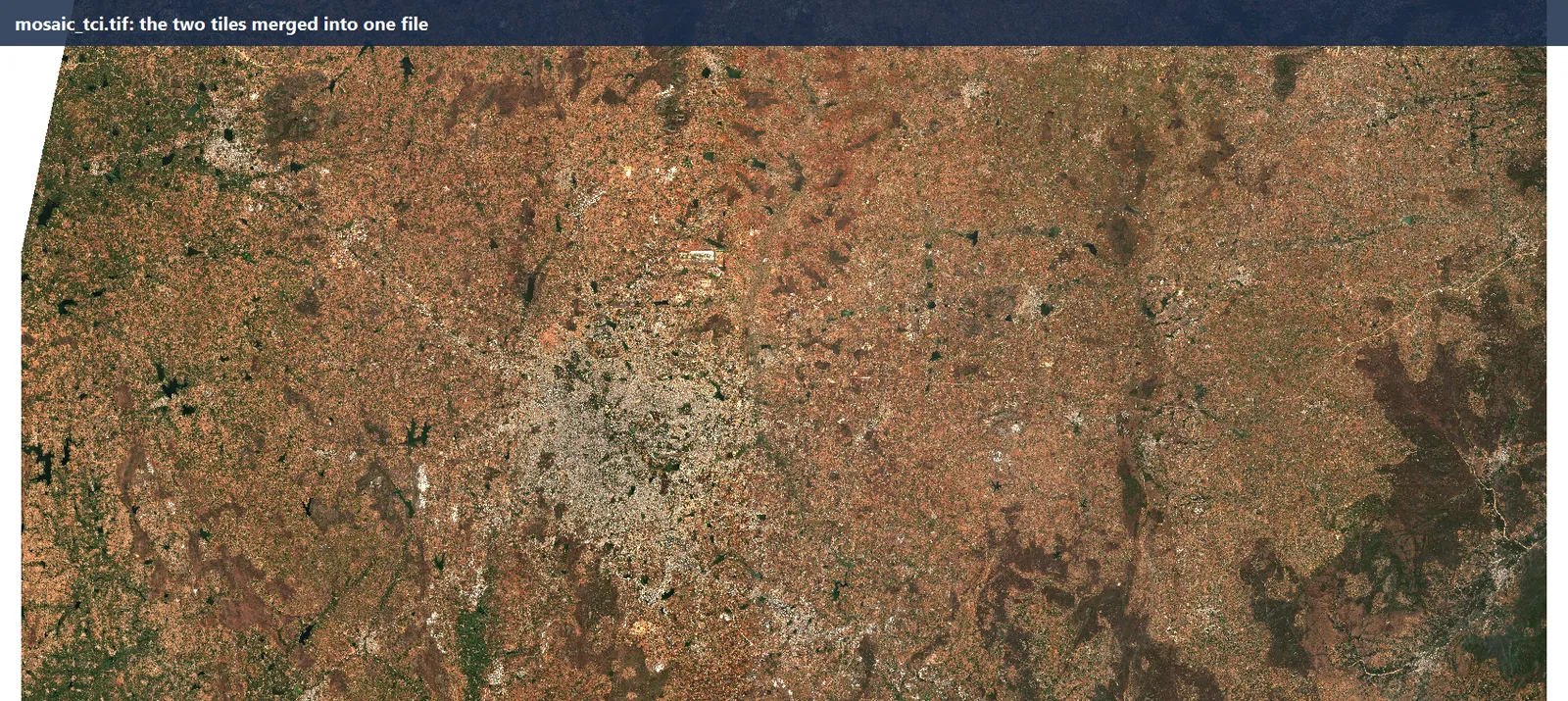
A mosaic joins neighbouring images into one.
- Load
sentinel2/43PGQ/TCI.tifandsentinel2/43PHQ/TCI.tif. The two tiles should touch or overlap along an edge. - Raster > Miscellaneous > Merge.
- Input layers: both TCI files. Leave Grab pseudocolor table off.
- Set the NoData value for output bands to
0. - Choose an output file
mosaic_tci.tifand Run.
7.3 Clip a raster
Two ways: by extent or by a polygon.
For a rectangle, clip by extent:
- Raster > Extraction > Clip Raster by Extent.
- Click Calculate from Layer / Map Canvas Extent or draw the box on the canvas.
- Run, saving to
clip_extent.tif.
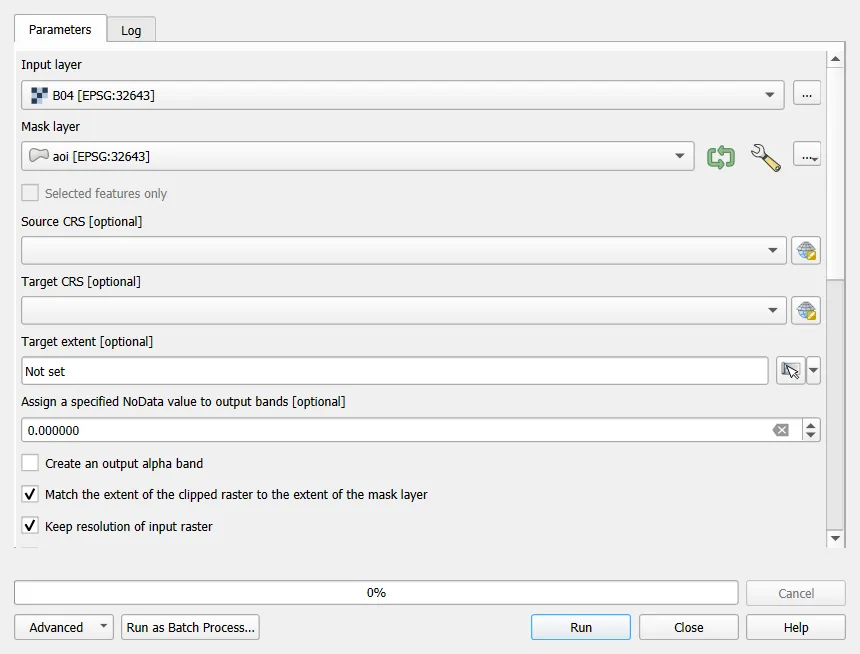
For an irregular area, clip by a polygon mask:
- Create a polygon layer for your area of interest: Layer > Create Layer > New GeoPackage Layer, geometry Polygon, CRS EPSG:32643. Digitize a polygon around Bengaluru.
- Raster > Extraction > Clip Raster by Mask Layer.
- Select the raster and the mask layer. Tick Match the extent of the clipped raster to the extent of the mask layer and set NoData to
0. Run.
7.4 Reproject or resample
- Raster > Projections > Warp (Reproject).
- Target CRS: for example
EPSG:4326. - Resampling method: use Nearest neighbour for classified data and Bilinear or Cubic for continuous data.
- Output file resolution: set a value in the target units. In EPSG:4326 that is degrees, so
0.0001is about 11 m. In EPSG:32643 it is metres, so10. - Run.
To bring B11 (20 m) to 10 m, set the Target CRS to the same EPSG:32643 and the output resolution to 10.
7.5 Raster calculator
The Raster Calculator does maths on pixel values. Use it for indices.
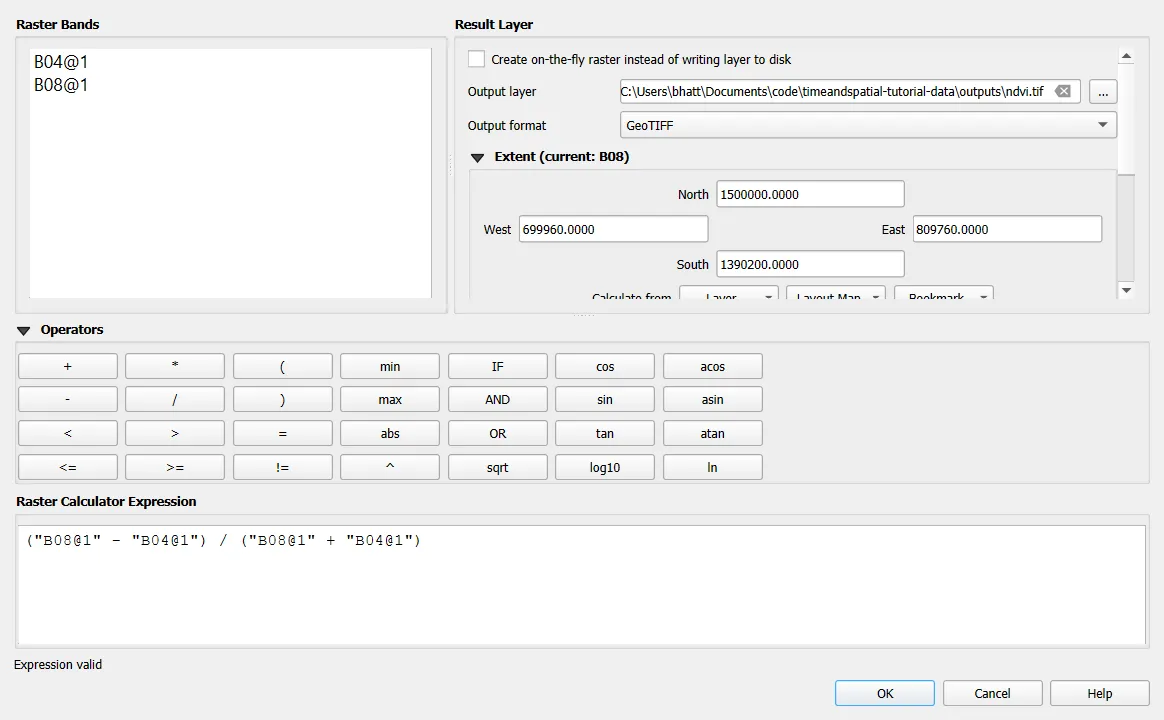
- Raster > Raster Calculator.
- Type the expression for NDVI (the normalised difference vegetation index):
("B08@1" - "B04@1") / ("B08@1" + "B04@1")
- Set the output file
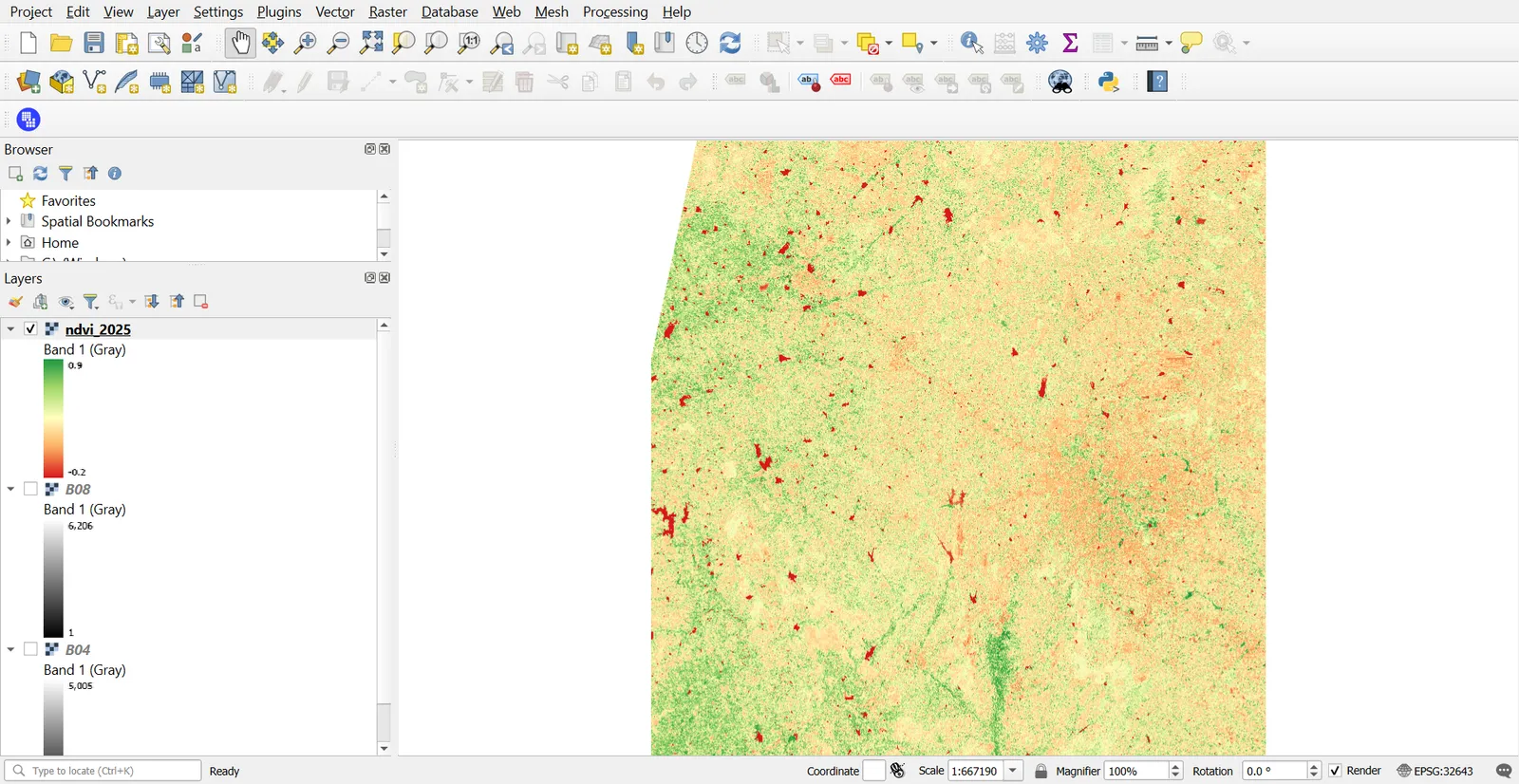
ndvi.tif, the extent fromB04, and OK. - Style it with Singleband pseudocolor, the RdYlGn ramp, min
-0.2, max0.8.
Results run from -1 to 1. Dense vegetation is high, bare soil is near zero, and water is negative.
8. Save and export
To save a raster layer, right-click it and choose Export > Save As. Choose Raw data to keep the values, or Rendered image to keep the styled picture. Set a NoData value in the same dialog if you clipped the image.
Save the project with Ctrl+S. A .qgz file stores only paths to the data, so copy the data folder together with it when you move the project.
Common mistakes
- Treating the project CRS as the file CRS. The project CRS only controls drawing.
- Stacking bands of different resolutions without resampling first.
- Judging a raster by how it looks on the first load. QGIS applies an automatic stretch.
- Using Bilinear resampling on a classified raster. Class codes get invented values.
- Storing the output in a path with spaces or special characters when a tool fails. Short folder names are safer.