

This guide has 2 routes. Pick one, or read both. Each route is complete on its own.
A raster of a whole country or a whole tile is more than you need for a district. Clipping cuts it down to your study area, which makes files smaller, maps faster and statistics honest: the mean height of Ludhiana district should not include the hills of the next district.
Two kinds of clip
Clip by extent cuts a rectangle. You give a box, and everything inside the box is kept, including parts that lie outside your district. It is fast and it is good for trimming a big raster to a working area.
Clip by mask, or clip by boundary, keeps only the cells inside a polygon, and it can also shrink the raster to the polygon's bounding box. The cells outside the polygon but inside the box become NoData. Use it when the shape matters, as it does for a district, a watershed or a catchment.
What you need
- QGIS 3.34 or newer, for route A. Python with
geopandas,numpyandrasteriofor route B. - The data: ludhiana_workflow_data.zip (about 35 MB). Unzip it next to your notebook so that you have a folder called
ludhiana_workflow_data. It is shared by the next three guides.
| File | What it is |
|---|---|
dem_ludhiana.tif | The Copernicus DEM mosaic around Ludhiana district from the mosaic guide, 3565 by 1729 cells of about 30 m, EPSG:4326, NoData -9999 |
ludhiana_district.geojson | The boundary of Ludhiana district from geoBoundaries, EPSG:4326, one polygon |
dem_ludhiana_clip.tif | The result of this guide, included so that the reprojection guide can start from it |
ludhiana_scan.png | An index map of the district, made to look like a scan, used in the georeferencing guide |
How to download administrative boundaries shows how to get the boundary of your own district. The boundary used here is © the geoBoundaries project and its sources, under the Open Data Commons Open Database Licence. Credit it when you publish a map that uses it. The file is the simplified version of the geoBoundaries data, with 373 vertices on the district outline instead of about 2,100. Its area, 3,696.5 km², differs by less than 0.03 percent from the full-detail polygon, 3,697.3 km², so the simplification does not matter here. Published district areas come from other sources and dates and differ by more, so do not quote an area calculated from this file as the official area.
First check the CRS
The raster and the polygon must be in the same CRS, or the polygon falls in the wrong place. Check before anything else. In QGIS, open the properties of each layer and read the CRS on the Information page. In Python, the code below prints both.
Route A: QGIS
- Add
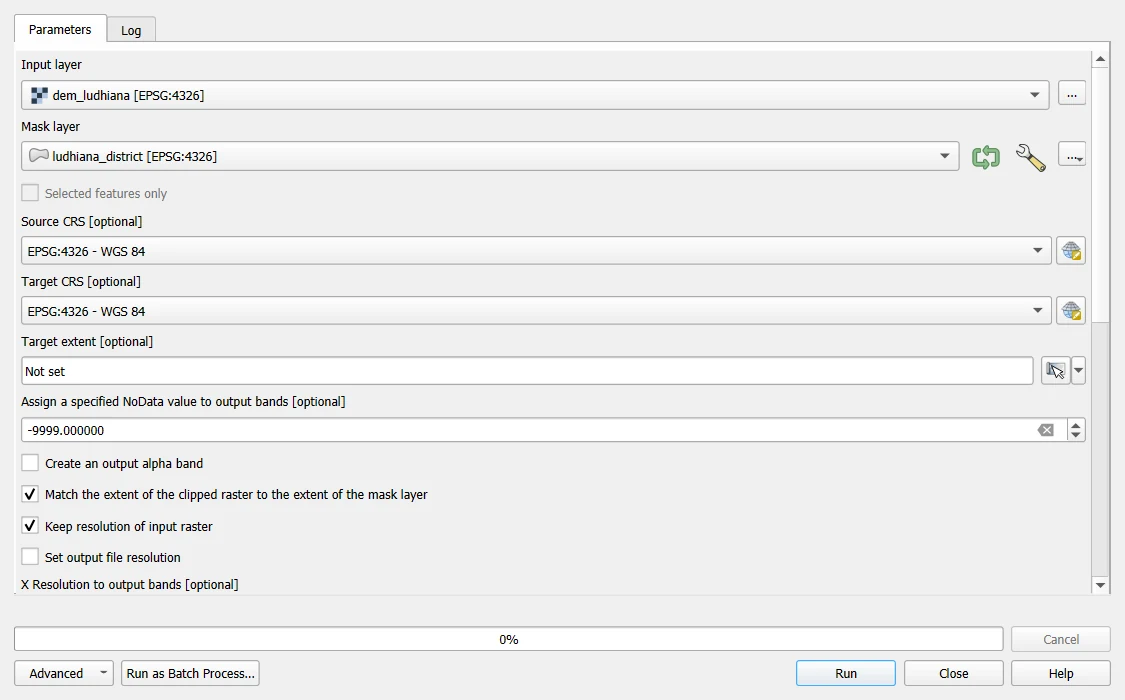
dem_ludhiana.tifandludhiana_district.geojsonwith Layer > Add Layer. Look at the bottom right of the window and at the layer properties: both should say EPSG:4326. - Open Raster > Extraction > Clip Raster by Mask Layer.
- Set Input layer to the DEM and Mask layer to the district.
- Set Source CRS and Target CRS to EPSG:4326 if they are empty.
- Under Assign a specified NoData value to output bands, enter
-9999. Without it, cells outside the district get a default value that looks like data. - Tick Match the extent of the clipped raster to the extent of the mask layer. This is the crop. Untick it and the output keeps the full extent of the DEM.
- Tick Keep resolution of input raster, so the cell size does not change.
- Save the result under Clipped (mask) as
dem_ludhiana_clip.tif, and click Run.
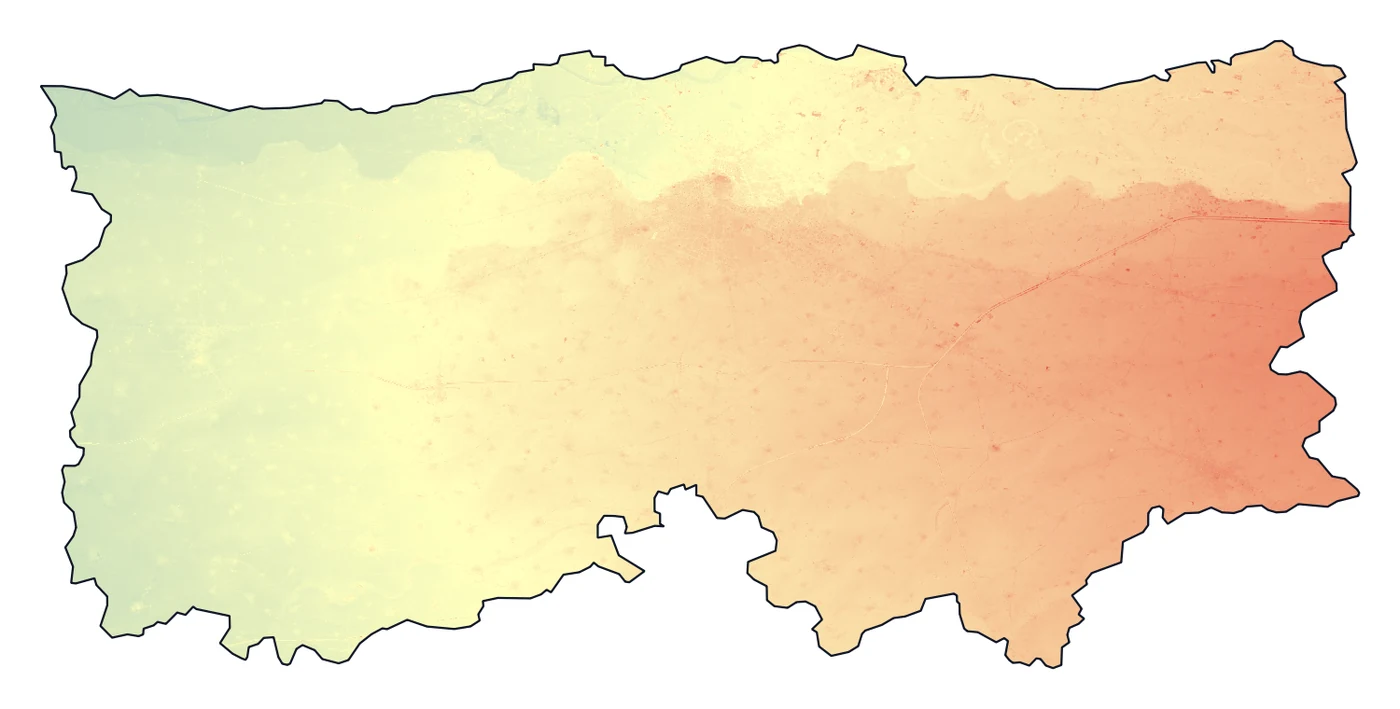
The QGIS tool and the Python code below agree: the same 4,518,276 cells fall inside the district and the mean height is 246.42 m in both. The QGIS output has 1664 rows against 1665 in Python, because the two place their grid half a cell apart along the cut line. That is smaller than the size of a cell and does not matter.
For a rectangle, use Raster > Extraction > Clip Raster by Extent instead, and draw or type the extent. The mask tool has more options than most people need. The ones above are enough.
Route B: Python
import numpy as np
import geopandas as gpd
import rasterio
from rasterio.mask import mask

# Step 1: open the raster and read the boundary
src = rasterio.open("ludhiana_workflow_data/dem_ludhiana.tif")
district = gpd.read_file("ludhiana_workflow_data/ludhiana_district.geojson")

# Step 2: check that they share a CRS
print("raster CRS: EPSG", src.crs.to_epsg(), "| boundary CRS: EPSG", district.crs.to_epsg())
print("raster size:", src.width, "x", src.height, "cells")
raster CRS: EPSG 4326 | boundary CRS: EPSG 4326
raster size: 3565 x 1729 cells
The two CRSs agree. If they do not, convert the boundary to the CRS of the raster with district.to_crs(src.crs). Never convert the raster just for this.
What happens when they do not agree
Try the clip with a boundary in a different CRS, to see the error you would get by accident.
# Step 1: the same district, but in a UTM zone with coordinates in metres
district_utm = district.to_crs(32643)
print("first corner of the polygon:", [round(v) for v in district_utm.total_bounds[:2]])

# Step 2: try to clip the raster with it
try:
    mask(src, district_utm.geometry, crop=True)
except ValueError as error:
    print("error:", error)
first corner of the polygon: [534023, 3381191]
error: Input shapes do not overlap raster.
The coordinates of a polygon in metres are in the hundreds of thousands, and the raster is in degrees, so the polygon is nowhere near the raster. This error, "Input shapes do not overlap raster", almost always means a CRS mismatch. Fix the CRS and run again.
Clip
# Step 1: clip. crop=True shrinks the output to the bounding box of the polygon. nodata fills the cells outside the shape.
clipped, transform = mask(src, district.geometry, crop=True, nodata=-9999)
print("clipped shape (bands, rows, columns):", clipped.shape, "| original:", src.height, "x", src.width)

# Step 2: how much of the clipped box is inside the district?
inside = clipped[0] != -9999
print("cells inside the district:", int(inside.sum()), "| share of the box:", round(float(inside.mean()), 3))

# Step 3: statistics over the cells inside only
heights = clipped[0][inside]
print("height: lowest", round(float(heights.min()), 1), "| mean", round(float(heights.mean()), 1), "| highest", round(float(heights.max()), 1), "m")
clipped shape (bands, rows, columns): (1, 1665, 3497) | original: 1729 x 3565
cells inside the district: 4518276 | share of the box: 0.776
height: lowest 218.8 | mean 246.4 | highest 298.3 m
The output is smaller than the input, because crop=True cut it to the box of the polygon. About three quarters of the cells in that box lie inside the district, and the rest are -9999. The statistics use only the cells inside. If you took the mean of the whole array you would include thousands of -9999 values, so mask first.
The all_touched option
A cell is inside the polygon if its centre is inside. all_touched=True also keeps every cell that the polygon touches at all, which makes the clip a little larger along the edge.
# Step 1: clip again, keeping every cell the boundary touches
touched, _ = mask(src, district.geometry, crop=True, nodata=-9999, all_touched=True)
print("cells inside, centre rule:", int(inside.sum()))
print("cells inside, all touched:", int((touched[0] != -9999).sum()))
cells inside, centre rule: 4518276
cells inside, all touched: 4526262
Use the default (centre rule) for statistics, because it keeps about as many edge cells as it drops, so the area stays close to the area of the polygon. Use all_touched=True when you must not lose any part of a small polygon, for example a narrow strip along a river, where the centre rule might drop it altogether.
Save the clip
# Step 1: copy the profile of the original and update it for the new size and position
profile = src.profile.copy()
profile.update(height=clipped.shape[1], width=clipped.shape[2], transform=transform, nodata=-9999, compress="deflate")

# Step 2: write the clip
with rasterio.open("dem_ludhiana_clip.tif", "w", **profile) as dst:
    dst.write(clipped)
src.close()

# Step 3: read it back to check
with rasterio.open("dem_ludhiana_clip.tif") as check:
    print("saved:", check.width, "x", check.height, "cells | CRS EPSG", check.crs.to_epsg(), "| NoData", check.nodata)
saved: 3497 x 1665 cells | CRS EPSG 4326 | NoData -9999.0
Open dem_ludhiana_clip.tif in QGIS with the district outline on top. The cells follow the outline, and the area outside is transparent.
Common mistakes
- Clipping with a polygon in a different CRS and getting "Input shapes do not overlap raster", or in QGIS an empty result.
- Forgetting the NoData value, so the cells outside the district keep a number that looks like data.
- Not ticking the crop option, and keeping a huge raster that is empty around the district.
- Taking a mean over the whole array without masking the NoData cells.
- Clipping with a boundary of many small parts and a few slivers, and getting a strange edge. Dissolve it first if you want one shape.
- Resampling by accident. A clip should not change the cell size.