

A raster is a grid of cells, and each cell holds one number: an elevation, a reflectance, a land cover class. GDAL (the Geospatial Data Abstraction Library) is the engine behind QGIS, rasterio and most GIS software for reading and writing raster formats. Its Python bindings are in the osgeo package, which comes with QGIS. The same tools exist as command line programs, shown after each step.
What is in a raster?
| Part | Meaning |
|---|---|
| Size | number of columns and rows |
| Bands | layers of values. A DEM has one, a satellite image has several |
| Data type | how numbers are stored, such as Int16 or Float32 |
| GeoTransform | six numbers placing the grid on the ground: top left x, cell width, 0, top left y, 0, negative cell height |
| CRS | the coordinate system of the GeoTransform |
| NoData | a value that means there is no data in that cell |
A DEM (digital elevation model) stores the height of the bare ground. A DSM (digital surface model) includes buildings and trees, and a DTM (digital terrain model) is the bare ground, often used as another word for DEM. The raster in this part is a made-up terrain used as a DEM.
1. Build a small DEM to work on
Real DEMs are large downloads, so this example makes one in NumPy and saves it as a GeoTIFF. The helper function writes any array to a file, and you will reuse it.
# This first block is setup. You do not need to understand every line of the two helper functions yet.
# Think of them as two small tools: one SAVES a grid of numbers as a map file, one READS it back.
# After this block, the rest of the page only calls them.
import numpy as np
from pathlib import Path
from osgeo import gdal, osr

gdal.UseExceptions()                        # show clear Python errors if GDAL fails
Path("rasters").mkdir(exist_ok=True)        # a folder for the files we create

NODATA = -9999                              # the number we use to mean "no value here"


# Tool 1: save a grid of numbers (a NumPy array) as a GeoTIFF raster file
def write_raster(path, array, top_left_x, top_left_y, cell, epsg, nodata=NODATA, dtype=gdal.GDT_Float32):
    """Save a 2D NumPy array as a one band GeoTIFF."""
    rows, cols = array.shape                                         # the grid's height and width

    # 1. create an empty raster file of that size, with one band
    ds = gdal.GetDriverByName("GTiff").Create(str(path), cols, rows, 1, dtype)

    # 2. say where the grid sits on Earth: top left corner and cell size.
    #    The six numbers are (left x, cell width, 0, top y, 0, minus cell height).
    #    The height is negative because rows go DOWN the map while y goes up.
    ds.SetGeoTransform((top_left_x, cell, 0, top_left_y, 0, -cell))

    # 3. say which coordinate system those numbers use
    srs = osr.SpatialReference()
    srs.ImportFromEPSG(epsg)
    ds.SetProjection(srs.ExportToWkt())

    # 4. mark the "no data" value, then write the numbers into band 1
    band = ds.GetRasterBand(1)
    band.SetNoDataValue(nodata)
    band.WriteArray(array)
    band.FlushCache()
    ds = None                      # closing the dataset writes the file


# Tool 2: read band 1 of a raster file back into a NumPy array
def read_array(path):
    """Read band 1 of a raster file into a NumPy array."""
    ds = gdal.Open(str(path))
    band = ds.GetRasterBand(1)
    return band.ReadAsArray()


# Now make some test data: a 400 x 400 terrain (a DEM = digital elevation model), 30 m cells.
# np.mgrid makes two grids with the column number (x) and row number (y) of every cell.
y, x = np.mgrid[0:400, 0:400]

# Elevation = a base of 850 m + a gentle slope towards the east + two hills (smooth bumps)
dem = 850 + 0.25 * x + 300 * np.exp(-((x - 120) ** 2 + (y - 150) ** 2) / 6000) \
          + 180 * np.exp(-((x - 290) ** 2 + (y - 280) ** 2) / 4000)
dem = dem.astype("float32")        # store as decimal numbers using 4 bytes each
dem[20:60, 330:380] = NODATA       # a patch with no data, like a cloud gap

# Save it. Arguments: file, numbers, top-left x, top-left y, cell size (m), EPSG code
write_raster("rasters/dem.tif", dem, 770000, 1460000, 30, 32643)
print(dem.shape, dem.dtype)
(400, 400) float32
The array is 400 by 400 cells. The GeoTransform puts the top left corner at 770,000 E and 1,460,000 N in EPSG:32643 (UTM 43N) with 30 m cells, so the raster covers 12 km by 12 km. The y cell size is negative because rows go downward while northing goes upward. ds = None closes the file, which finishes writing it. Forgetting that line is a common reason for an empty output.
2. Inspect before processing
Open the file and read its metadata, the equivalent of gdalinfo.
# Step 1: open the file and take band 1 (a raster can have many bands; elevation has one)
ds = gdal.Open("rasters/dem.tif")
band = ds.GetRasterBand(1)

# Step 2: ask the basic questions about it
print("size:", ds.RasterXSize, "x", ds.RasterYSize, "bands:", ds.RasterCount)   # columns x rows
print("data type:", gdal.GetDataTypeName(band.DataType))                         # kind of number stored
print("nodata:", band.GetNoDataValue())                                          # the "empty" marker
print("geotransform:", ds.GetGeoTransform())                                     # where the grid sits

# Step 3: the coordinate system (the file stores it as text, so we read it into a helper object)
srs = osr.SpatialReference(wkt=ds.GetProjection())
print("crs:", srs.GetAuthorityName(None), srs.GetAuthorityCode(None), "-", srs.GetName())
size: 400 x 400 bands: 1
data type: Float32
nodata: -9999.0
geotransform: (770000.0, 30.0, 0.0, 1460000.0, 0.0, -30.0)
crs: EPSG 32643 - WGS 84 / UTM zone 43N
Read the GeoTransform as: left edge, cell width, 0, top edge, 0, minus cell height. The extent follows from it:
# The geotransform holds: [0] left x, [1] cell width, [3] top y, [5] minus cell height
gt = ds.GetGeoTransform()
left, top = gt[0], gt[3]
right = left + gt[1] * ds.RasterXSize           # left edge + cell width x number of columns
bottom = top + gt[5] * ds.RasterYSize           # top edge - cell height x number of rows
print("extent:", left, bottom, right, top)
extent: 770000.0 1448000.0 782000.0 1460000.0
The command line version is gdalinfo rasters/dem.tif, which prints all of this and more. Add -stats to include statistics. In Python, gdal.Info("rasters/dem.tif") returns the same text.
3. Read cells into NumPy and handle NoData
ReadAsArray gives the whole band as a NumPy array, which is where you calculate. From here the read_array helper from step 1 does the opening and reading in one call.
# Step 1: read all the cell values into one array
arr = band.ReadAsArray()
print(arr.shape, arr.min(), arr.max())          # the minimum is -9999, the NoData marker, not a real elevation

# Step 2: keep only the real cells (those that are not NoData)
valid = arr[arr != NODATA]
print("valid cells:", valid.size, "of", arr.size)

# Step 3: the mean with and without the NoData cells. Including them gives a wrong, much lower answer.
print("mean elevation, NoData excluded:", round(float(valid.mean()), 1))
print("mean if NoData is treated as a value:", round(float(arr.mean()), 1))
(400, 400) -9999.0 1180.3029
valid cells: 158000 of 160000
mean elevation, NoData excluded: 948.7
mean if NoData is treated as a value: 811.9
The minimum is -9999, the NoData value, and not an elevation. Taking a mean over all cells treats -9999 as a height and drags the result far down. Always filter or mask NoData before calculating. A masked array does this for you:
# A "masked array" hides the NoData cells automatically, so maths ignores them
masked = np.ma.masked_equal(arr, NODATA)
print(round(float(masked.mean()), 1), masked.count())      # the mean, and how many valid cells
948.7 158000
The same mistake in a raster calculator gives wrong slope, wrong sums and wrong classes along the edge of the gap.
4. Convert format and data type
gdal.Translate is gdal_translate. It copies a raster with changes in format, data type, compression or extent.
# Translate copies a raster while changing how it is stored.
# Here: whole numbers (Int16) instead of decimals, and compressed to make the file smaller.
gdal.Translate(
    "rasters/dem_int16.tif", "rasters/dem.tif",         # output first, then input
    outputType=gdal.GDT_Int16,
    creationOptions=["COMPRESS=DEFLATE"],               # lossless compression
)

import os
print(os.path.getsize("rasters/dem.tif"), "->", os.path.getsize("rasters/dem_int16.tif"), "bytes")
print(read_array("rasters/dem_int16.tif").dtype)
640858 -> 57766 bytes
int16
Whole metre elevations fit in 16-bit integers, which need half the space of 32-bit floats, and COMPRESS=DEFLATE shrinks the file further. Converting to an integer type drops the decimals, so choose the type with care. The command line form is gdal_translate -ot Int16 -co COMPRESS=DEFLATE dem.tif dem_int16.tif. To change the format, add -of and a driver name such as COG, PNG or AAIGrid.
5. Reproject
A DEM in UTM metres can be moved to geographic degrees with gdal.Warp, the Python form of gdalwarp.
# Warp changes the coordinate system of a raster (reprojection).
# bilinear smooths between neighbouring cells, which suits continuous values like elevation.
gdal.Warp("rasters/dem_wgs84.tif", "rasters/dem.tif", dstSRS="EPSG:4326", resampleAlg="bilinear")

out = gdal.Open("rasters/dem_wgs84.tif")
print(out.RasterXSize, out.RasterYSize)                          # size changes slightly
print([round(v, 6) for v in out.GetGeoTransform()])              # cell size is now in degrees
408 400
[77.489979, 0.000274, 0.0, 13.194633, 0.0, -0.000274]
Reprojecting a raster has to create a new grid, so the cell size and shape change, and every new cell is calculated from old ones. That is why the choice of resampling method matters:
| Method | Use for |
|---|---|
near (nearest neighbour) | categorical data such as land cover classes |
bilinear, cubic | continuous data such as elevation or temperature |
average, mode | making a coarser grid from a finer one |
The danger shows with categories. A raster of three classes, coded 10, 20 and 30, resampled with bilinear, invents class values that do not exist:
# Step 1: make a land-class raster with whole numbers: 30 above 1000 m, 20 above 950 m, otherwise 10
# (np.where(condition, value if True, value if False); the inner one handles the "otherwise")
classes = np.where(dem > 1000, 30, np.where(dem > 950, 20, 10)).astype("int16")
classes[dem == NODATA] = 0                                       # NoData cells get 0
write_raster("rasters/classes.tif", classes, 770000, 1460000, 30, 32643, nodata=0, dtype=gdal.GDT_Int16)

# Step 2: make the cells coarser (90 m) with two methods and compare which class numbers survive
for method in ["near", "bilinear"]:        # near = copy the closest cell; bilinear = average the neighbours
    gdal.Warp(f"rasters/classes_{method}.tif", "rasters/classes.tif", xRes=90, yRes=90, resampleAlg=method)
    values = np.unique(read_array(f"rasters/classes_{method}.tif"))
    print(method, values.tolist())         # bilinear invents in-between numbers such as 11 or 14, which are not real classes
near [0, 10, 20, 30]
bilinear [0, 10, 11, 12, 13, 14, 16, 17, 18, 19, 20, 21, 22, 23, 24, 26, 27, 28, 29, 30]
Nearest neighbour keeps only the original class numbers. Bilinear averages neighbouring cells, so it creates values between the classes (a cell between 10 and 20 becomes 15), and those are not valid classes. The command line form is gdalwarp -t_srs EPSG:4326 -r bilinear dem.tif dem_wgs84.tif.
6. Clip by extent and by polygon
Clip to a rectangle with gdal.Translate and projWin, given as upper left x, upper left y, lower right x, lower right y:
# Cut a rectangle out of the raster. projWin = [left x, top y, right x, bottom y] in map units.
gdal.Translate("rasters/dem_extent.tif", "rasters/dem.tif", projWin=[772000, 1458000, 776000, 1454000])

clip = gdal.Open("rasters/dem_extent.tif")
print(clip.RasterXSize, clip.RasterYSize, clip.GetGeoTransform()[0], clip.GetGeoTransform()[3])
134 134 771980.0 1458020.0
A 4 km window at 30 m is 133.3 cells, and GDAL rounds the window outwards to 134 cells on a side. To clip to a polygon, such as a district, use gdal.Warp with a cutline. The polygon needs to be in a vector file. Here a GeoPackage is made with GeoPandas, from Part 10:
import geopandas as gpd
from shapely.geometry import Point

# Step 1: draw a circle (a point with a 2.5 km buffer) and save it as the cut shape
area = gpd.GeoDataFrame({"name": ["study area"]}, geometry=[Point(776000, 1455000).buffer(2500)], crs="EPSG:32643")
area.to_file("rasters/study_area.gpkg", driver="GPKG")

# Step 2: cut the raster to that shape. cropToCutline trims the file to the shape's box,
# and cells outside the circle become NoData.
gdal.Warp(
    "rasters/dem_cut.tif", "rasters/dem.tif",
    cutlineDSName="rasters/study_area.gpkg",
    cropToCutline=True,
    dstNodata=NODATA,
)

# Step 3: read the result and average only the cells inside the circle
cut = read_array("rasters/dem_cut.tif")
inside = cut[cut != NODATA]
print(cut.shape, "cells in the box,", inside.size, "inside the circle")
print("mean elevation in study area:", round(float(inside.mean()), 1))
(166, 166) cells in the box, 21784 inside the circle
mean elevation in study area: 1001.9
cropToCutline=True shrinks the output to the polygon's bounding box. Cells in that box but outside the polygon are set to NoData, and dstNodata states the value to use. The raster and the polygon must be in the same CRS, or GDAL has to be told how to transform them. The command line version is gdalwarp -cutline study_area.gpkg -crop_to_cutline -dstnodata -9999 dem.tif dem_cut.tif.
7. Mosaic tiles
Large areas arrive as tiles. A VRT (virtual raster) is a small XML file that points to the tiles and behaves like one raster, without copying any data.
# Step 1: split the DEM into a west half and an east half, as if it came as two map sheets
left_tile = dem[:, :200]                  # all rows, first 200 columns
right_tile = dem[:, 200:]                 # all rows, last 200 columns
write_raster("rasters/tile_west.tif", left_tile, 770000, 1460000, 30, 32643)
# the east tile starts 200 cells (200 x 30 m) further east
write_raster("rasters/tile_east.tif", right_tile, 770000 + 200 * 30, 1460000, 30, 32643)

# Step 2: BuildVRT makes a tiny "virtual" file that points at both tiles, with no copying
vrt = gdal.BuildVRT("rasters/mosaic.vrt", ["rasters/tile_west.tif", "rasters/tile_east.tif"])
vrt = None

# Step 3: turn the virtual mosaic into a real file
gdal.Translate("rasters/mosaic.tif", "rasters/mosaic.vrt")

# Step 4: check - same size, and identical numbers to the original DEM
mosaic = gdal.Open("rasters/mosaic.tif")
print(mosaic.RasterXSize, mosaic.RasterYSize)
print(np.array_equal(read_array("rasters/mosaic.tif"), dem))
400 400
True
Two 200 by 400 tiles become one 400 by 400 raster identical to the original. BuildVRT is fast, and Translate turns the virtual raster into a real file. Tiles should share the same CRS and cell size, otherwise reproject them first. Command line: gdalbuildvrt mosaic.vrt tile_*.tif, then gdal_translate mosaic.vrt mosaic.tif.
8. Raster calculation
A raster calculation works on every cell at once. Find the cells that are both high (above 1,000 m) and gentle, then save a binary mask. This uses a simple elevation test and the neighbour difference as a rough steepness measure.
# Goal: find cells that are high (above 1000 m) AND gentle (slope under 10 degrees).

# Step 1: read the DEM and note which cells have no data
elev = read_array("rasters/dem.tif")
nodata_mask = elev == NODATA                 # True where there is no data

# Step 2: first rule, high ground
high = elev > 1000                           # True or False for every cell

# Step 3: second rule, gentle slope.
# np.gradient gives the rise per metre in the x and y directions (30 = cell size).
# Combining them (hypot) and converting to an angle (arctan, degrees) gives the slope.
gy, gx = np.gradient(np.where(nodata_mask, np.nan, elev), 30)
slope_deg = np.degrees(np.arctan(np.hypot(gx, gy)))
gentle = slope_deg < 10

# Step 4: combine the rules. & means AND, ~ means NOT. Result: 1 = suitable, 0 = not suitable.
suitable = (high & gentle & ~nodata_mask).astype("uint8")
suitable[nodata_mask] = 255            # 255 marks NoData in this byte raster

# Step 5: save it, then count the suitable cells and turn the count into an area (each cell is 30 x 30 m)
write_raster("rasters/suitable.tif", suitable, 770000, 1460000, 30, 32643, nodata=255, dtype=gdal.GDT_Byte)

good = int((suitable == 1).sum())
total = int((suitable != 255).sum())
print(good, "of", total, "cells suitable,", round(good / total * 100, 1), "percent")
print("area:", round(good * 30 * 30 / 1_000_000, 2), "km2")
28553 of 158000 cells suitable, 18.1 percent
area: 25.7 km2
The calculation has four parts: a test on elevation, a slope estimated from the neighbouring cells with np.gradient, the two tests combined with &, and the NoData cells marked 255 so they are not counted as unsuitable. Multiplying the number of suitable cells by the cell area (30 m by 30 m) converts cells to square kilometres. The slope is a rough estimate, and cells next to the NoData gap are less reliable. This is a teaching example with invented terrain, not a real suitability analysis. GDAL also ships a command line calculator, gdal_calc.py, for simple expressions such as gdal_calc.py -A dem.tif --outfile=high.tif --calc="A>1000" --NoDataValue=0.
9. Look at the results
import matplotlib.pyplot as plt

# Step 1: hide the NoData cells so they appear blank instead of as -9999
dem_m = np.ma.masked_equal(elev, NODATA)
cut_m = np.ma.masked_equal(cut, NODATA)
suit_m = np.ma.masked_equal(suitable, 255)

# Step 2: three panels side by side, each showing one raster with imshow
fig, axes = plt.subplots(1, 3, figsize=(15, 5))

im = axes[0].imshow(dem_m, cmap="terrain")                # the elevation
axes[0].set_title("DEM (m), gap is NoData")
fig.colorbar(im, ax=axes[0], shrink=0.7)                  # the legend bar

im = axes[1].imshow(cut_m, cmap="terrain")                # the clipped part
axes[1].set_title("Clipped to the study area")
fig.colorbar(im, ax=axes[1], shrink=0.7)

axes[2].imshow(suit_m, cmap="Greens")                     # the suitability result
axes[2].set_title("Suitable: above 1000 m, slope under 10 degrees")

# Step 3: hide the axes and save
for ax in axes:
    ax.set_axis_off()
fig.savefig("raster_results.png", dpi=130, bbox_inches="tight")
print("saved")
saved
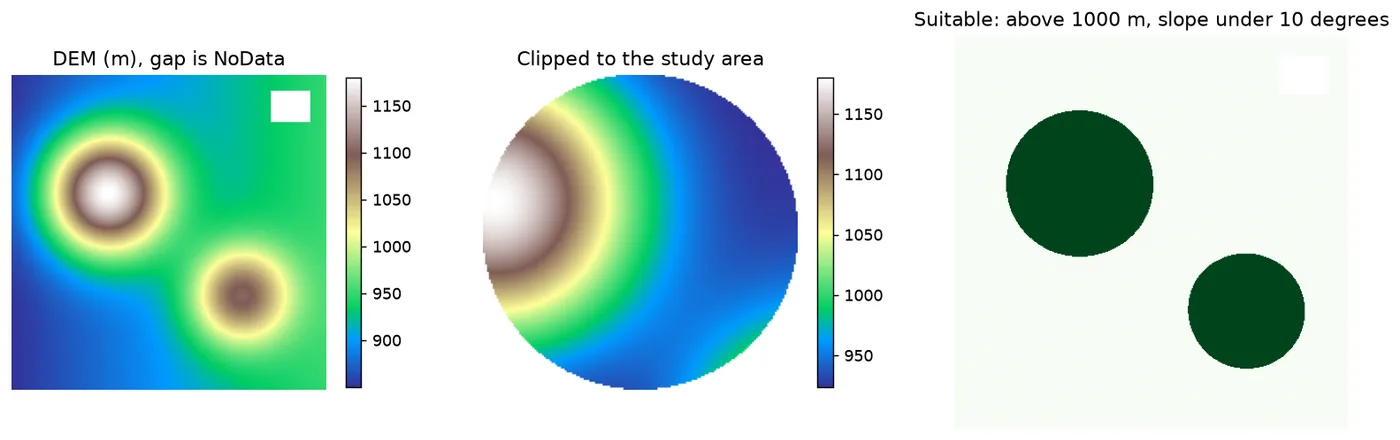
imshow draws the array, and masked cells stay blank. This view has no coordinates. To draw a map with coordinates, pass the extent calculated in step 2.
Reading rasters with rasterio
Rasterio is another Python library for rasters, built on GDAL. It is installed separately (pip install rasterio). Its rasterio.open() gives a similar view of the same file, with src.read(1) for the array, src.crs, src.transform and src.nodata for the metadata. The concepts are the same ones used here, and the two libraries read each other's files. Part 16 is a full introduction to rasterio.
Run this part as a notebook
The code on this page is also a Jupyter notebook. It has the theory in text cells, then the code, then guided practice, an independent assignment and hidden solutions, so you can try each task before you look. Download the Part 12 notebook, open it in JupyterLab and run the cells from top to bottom. Part 1 shows how to install and start Jupyter. This part needs the GDAL Python bindings, which come with QGIS. The notebook was run on QGIS's own Python, and if GDAL is installed in another way, check that from osgeo import gdal works before you start.
Practice
- Open a real DEM, for example an SRTM tile, and print its size, cell size, CRS and NoData value.
- Reproject your DEM to EPSG:4326 with
nearandbilinearand compare their statistics. - Clip your DEM to an extent you choose and check the new GeoTransform.
- Change the threshold in step 8 and report how the suitable area changes.
Common mistakes
- Averaging a raster without removing NoData.
- Forgetting
ds = None, so the file is incomplete or locked. - Chaining
gdal.Open(path).GetRasterBand(1).ReadAsArray()in one line. The dataset is discarded before the band is read, and GDAL fails with a confusingTypeError. Keep the dataset in a variable, asread_arraydoes. - Resampling a categorical raster with a smoothing method.
- Clipping with a polygon in a different CRS.
- Mosaicking tiles that differ in CRS or cell size.
- Saving floating point values into an integer type without noticing the rounding.
- Assuming the origin is the bottom left. A GeoTransform starts at the top left.
Key takeaways
Next: GDAL and OGR for vectors.