

This guide has 2 routes. Pick one, or read both. Each route is complete on its own.
A scanned map is a picture. It is a grid of coloured pixels, and nothing in the file says where on the Earth the map sits. Georeferencing gives it that: you tell the software that this pixel on the scan is this longitude and latitude, and that one is that, and the software works out the rest. The result is a GeoTIFF that lines up with your other layers.
This guide georeferences a scan of an index map of Ludhiana district, with its coordinate grid printed on it. The scan is a stand-in for a real sheet, so that you can check your answer against a boundary you trust. It is the usual first step for old toposheets, cadastral sheets, planning maps, photographs of a wall map and PDFs of maps.
What you need
- QGIS 3.34 or newer for route A. Python with
geopandas,matplotlib,numpy,rasterioandscipyfor route B. - The data: ludhiana_workflow_data.zip, the same zip as in the other guides. This one uses
ludhiana_scan.pngand the district boundaryludhiana_district.geojson.
The scan is an index map drawn for this guide and made to look like a scanned sheet. It is not a historical map. It is an image of 1638 by 1054 pixels, slightly rotated, as if the sheet had been laid crooked on the scanner. It has a graticule, which is a grid of lines of equal longitude and latitude, every 15 minutes, with labels. Six red crosses mark graticule crossings, which are points whose coordinates you can read off the map. On a real map you look for the same kinds of points.
Control points
A ground control point, or GCP, is a pair: a position in the picture and the real coordinates of the same place. The position in the picture is a column and a row of pixels, counted from the top left. The real position is a longitude and latitude, or an easting and a northing.
Good control points have these qualities:
- They are known exactly. Graticule crossings and corner ticks printed on the map are best, because the map's maker placed them with care. Road junctions, bridges and building corners that still exist today are the next choice. You read their coordinates from a trusted layer or a basemap.
- They are stable. A river bend, a field boundary or a shoreline moves with time. Choose things that do not.
- They are spread over the whole map. Put them near the corners and the edges and not in a clump. A fit is good inside the points and poor outside them.
- They are sharp. A cross is easy to click on, and a blurry blob is not.
You need three points for the simplest transformation, but use four to six, because the extra points tell you how good the fit is. And set some points aside as check points: points that are not used for the fit and are only used to test it afterwards.
Route A: QGIS
The steps use the QGIS Georeferencer, which is in the Layer menu. The menu, button and field names below are those of QGIS 3.44, and they change a little between versions, so check them against what you see.
- Open Layer > Georeferencer.
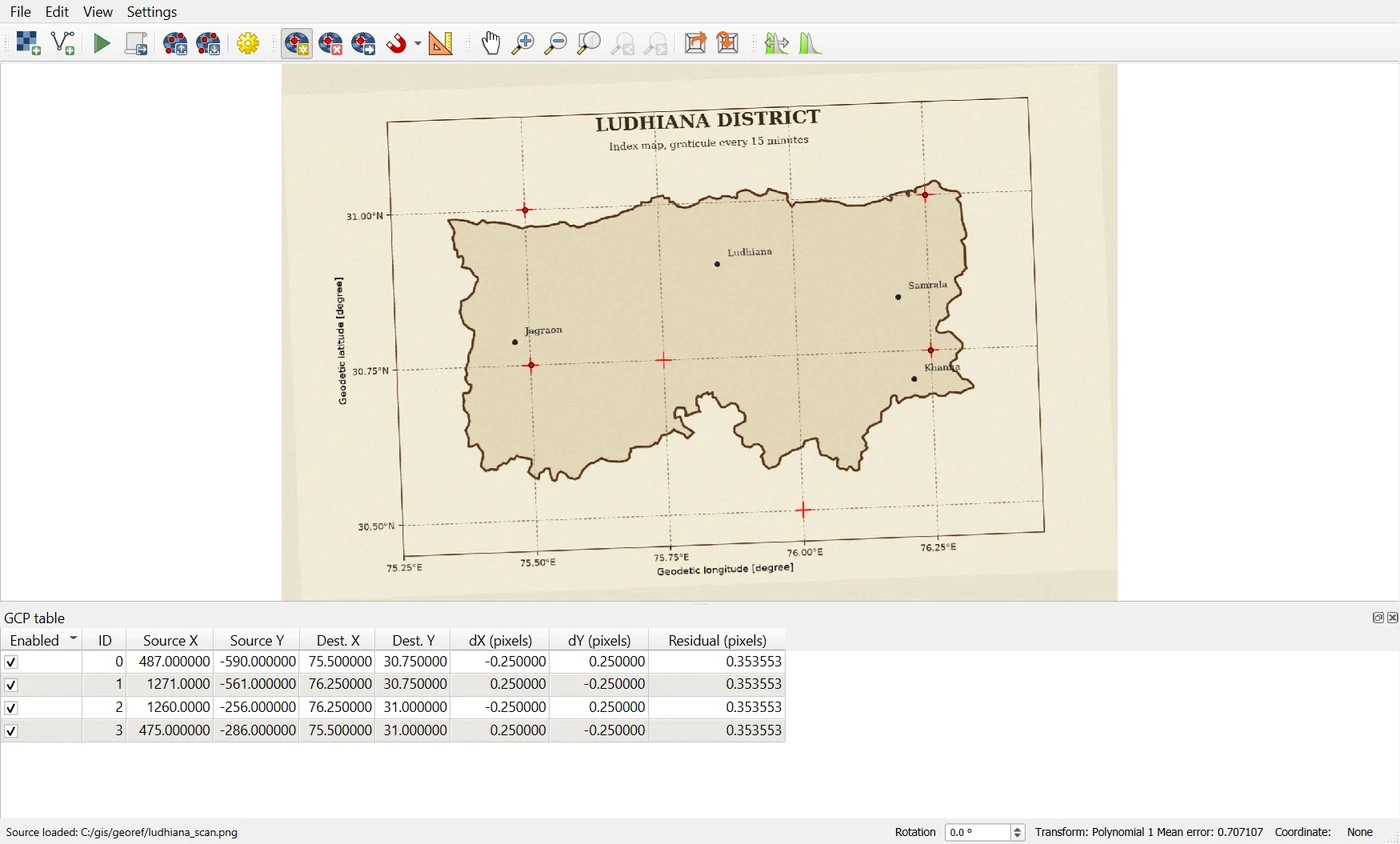
- Open the scan. In the Georeferencer window, choose File > Open Raster and pick
ludhiana_scan.png. The window title changes to Georeferencer - ludhiana_scan.png, and the scan appears in the window. - Add a control point. Choose Edit > Add GCP Point and click on the centre of a red cross in the picture. A window asks for the map coordinates. Enter the X (longitude) and the Y (latitude) of the crossing, for example
75.5and30.75. If you have a basemap or another layer in the project, you can instead choose to pick the point from the map canvas. Edit also has Delete GCP Point and Move GCP Point, for corrections. - Repeat for at least four crosses. The table of points at the bottom of the window has the columns Enabled, ID, Source X, Source Y, Dest. X, Dest. Y, dX (pixels), dY (pixels) and Residual (pixels). Source Y is negative, because QGIS counts rows downward from the top of the picture as negative numbers.
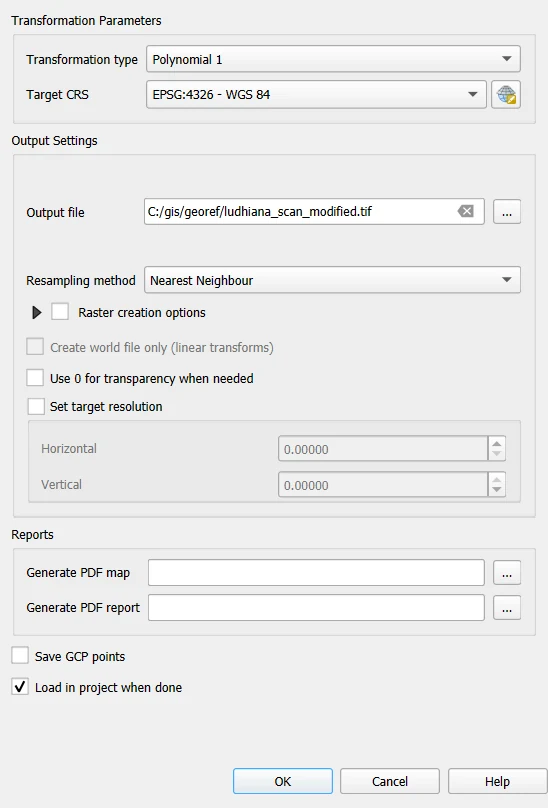
- Open Settings > Transformation Settings. The dialog has five groups: Transformation Parameters, Reports, Output Settings, Set target resolution and Raster creation options.
- In Transformation Parameters, the Transformation type starts on Linear. The list is Linear, Helmert, Polynomial 1, Polynomial 2, Polynomial 3, Thin Plate Spline and Projective. Choose Polynomial 1, which allows shifting, scaling and rotation. The Target CRS starts as the CRS of the project, here EPSG:4326 - WGS 84. The Resampling method starts on Nearest Neighbour, and the list has Bilinear, Cubic, Cubic B-Spline and Lanczos.
- In Output Settings, the Output file starts as the name of the scan with
_modified.tifadded, in the same folder. Load in project when done is ticked. Save GCP points, Create world file only (linear transforms) and Use 0 for transparency when needed are not. - Set target resolution, Horizontal and Vertical, starts at 0, which lets QGIS choose.
- Click OK and look at the Residual (pixels) column. With the default Linear type the residuals are 14 to 17 pixels, because a linear transformation cannot rotate the picture, and this scan is rotated. With Polynomial 1 every residual drops to 0.35 pixels. A point with a large residual under a type that should fit is probably a mistake: a mistyped coordinate, or a click on the wrong cross. Fix or delete it.
- Choose File > Start Georeferencing. QGIS writes the GeoTIFF and, because Load in project when done is ticked, adds it to the project.
Then add ludhiana_district.geojson. The district outline should lie on the brown outline of the scan.
The File menu has three more entries worth knowing. Save GCP Points as writes your control points to a file with the extension .points, and Load GCP Points reads them back. If a .points file with the name of the scan plus .points sits next to it, the Georeferencer loads the points by itself when you open the scan, so a long session is never lost. Generate GDAL Script writes the gdal_translate and gdalwarp commands that do the same job, which you can keep as a record or run again for a similar sheet.
On this scan, the result of these steps is a north-up GeoTIFF of 1754 by 1001 pixels in EPSG:4326, with its top-left corner at 75.0186 E and 31.2489 N and pixels of 0.000913 degrees, about 87 m. That is the same corner as the Python result below. The district boundary lies on the printed outline in the same way: all of the boundary cells are within 2 cells of the outline in the QGIS result, and 60 percent when the boundary is moved by 6 cells. QGIS fits Polynomial 1 with GDAL, and the GDAL fit gives errors of 32 m at the four control points and 69 m and 58 m at the two check points, the same numbers as the Python route.
Route B: Python
import warnings
import numpy as np
import rasterio
from rasterio.control import GroundControlPoint
from rasterio.transform import from_gcps

warnings.simplefilter("ignore")                    # rasterio warns that a PNG has no coordinates, which is the point here

# Step 1: open the scan and look at what it knows about itself
scan = rasterio.open("ludhiana_workflow_data/ludhiana_scan.png")
print("size:", scan.width, "x", scan.height, "pixels | bands:", scan.count, "| CRS:", scan.crs)
size: 1638 x 1054 pixels | bands: 3 | CRS: None
The CRS is None: the file has no coordinates. Georeferencing fills that in.
The control points
Each point is a longitude, a latitude, and the column and row of the same place in the scan. The columns and rows were read from the red crosses. Four points are used for the fit, and two are kept as check points.
# Step 1: the control points, as (longitude, latitude, column, row). The first four are used for the fit.
control = [
    (75.50, 30.75, 487, 590),
    (76.25, 30.75, 1271, 561),
    (76.25, 31.00, 1260, 256),
    (75.50, 31.00, 475, 286),
]

# Step 2: two more points, kept back to test the fit. They are not used for it.
check = [
    (76.00, 30.50, 1022, 875),
    (75.75, 30.75, 748, 581),
]

# Step 3: turn them into ground control points. Note the order: row first, then column, then x (longitude), then y (latitude).
gcps = [GroundControlPoint(row=row, col=col, x=lon, y=lat) for lon, lat, col, row in control]
print(len(gcps), "control points,", len(check), "check points")
4 control points, 2 check points
Fit the transformation
A transformation is a rule that turns a pixel position into a longitude and latitude. The simplest kind is an affine transformation: it can shift, scale and rotate the picture, and keeps straight lines straight. It is what the QGIS setting Polynomial 1 gives. With more than three points, from_gcps finds the best fit in the least squares sense.
# Step 1: fit the affine transformation to the control points
transform = from_gcps(gcps)
print("size of a pixel:", round(transform.a, 5), "degrees east-west,", round(-transform.e, 5), "degrees north-south")
print("rotation terms:", round(transform.b, 6), round(transform.d, 6), "(zero would mean no rotation)")

# Step 2: how far is each point from where the fit puts it? Convert the error from degrees to metres.
def errors_in_metres(points):
    result = []
    for lon, lat, col, row in points:
        fitted_lon, fitted_lat = transform * (col, row)
        east_west = (fitted_lon - lon) * 111320 * np.cos(np.radians(lat))
        north_south = (fitted_lat - lat) * 110574
        result.append(np.hypot(east_west, north_south))
    return np.array(result)

pixel_in_metres = abs(transform.a) * 111320 * np.cos(np.radians(30.8))
print("one pixel is about", round(pixel_in_metres), "m on the ground")
print("error at the control points, in metres:", errors_in_metres(control).round(0).tolist())
print("error at the check points, in metres:", errors_in_metres(check).round(0).tolist())
size of a pixel: 0.00095 degrees east-west, 0.00082 degrees north-south
rotation terms: -3.6e-05 -3.1e-05 (zero would mean no rotation)
one pixel is about 91 m on the ground
error at the control points, in metres: [32.0, 32.0, 32.0, 32.0]
error at the check points, in metres: [69.0, 58.0]
The rotation terms are not zero, which matches the crooked scan. A pixel is about 91 m on the ground. The errors at the control points are about a third of a pixel. The check points, which the fit never saw, are the real test. Their errors, 69 and 58 m, are under one pixel, which is as good as you can expect from clicking by eye.
The summary figure to quote is the root mean square error, RMSE, the typical size of the errors.
# Step 1: root mean square error for the control points and for the check points
rmse = lambda errors: float(np.sqrt(np.mean(errors ** 2)))
print("RMSE, control points:", round(rmse(errors_in_metres(control))), "m")
print("RMSE, check points:", round(rmse(errors_in_metres(check))), "m")
RMSE, control points: 32 m
RMSE, check points: 64 m
When you report a georeferenced map, report the check RMSE, and say how many points you used.
Make a north-up GeoTIFF
The fitted transformation is rotated. A raster is easier to use when it is north up, with its rows running west to east. reproject resamples the scan onto a straight grid.
import math
from rasterio.transform import from_origin
from rasterio.warp import reproject, Resampling

# Step 1: where do the four corners of the scan fall? Take the box around them.
width, height = scan.width, scan.height
corners = [transform * c for c in [(0, 0), (width, 0), (width, height), (0, height)]]
west, east = min(x for x, y in corners), max(x for x, y in corners)
south, north = min(y for x, y in corners), max(y for x, y in corners)

# Step 2: a straight grid with pixels of 0.0008 degrees, about 76 m, a little finer than the original pixels
pixel = 0.0008
new_width, new_height = math.ceil((east - west) / pixel), math.ceil((north - south) / pixel)
new_transform = from_origin(west, north, pixel, pixel)
print("new grid:", new_width, "x", new_height, "pixels | west", round(west, 3), "| north", round(north, 3))

# Step 3: move every band of the scan onto the new grid
picture = scan.read()
straight = np.zeros((3, new_height, new_width), dtype="uint8")
for band in range(3):
    reproject(source=picture[band], destination=straight[band],
              src_transform=transform, src_crs="EPSG:4326",
              dst_transform=new_transform, dst_crs="EPSG:4326", resampling=Resampling.bilinear)
print("share of the new grid that has picture in it:", round(float((straight.sum(axis=0) > 0).mean()), 2))
new grid: 2003 x 1144 pixels | west 75.019 | north 31.249
share of the new grid that has picture in it: 0.92
The grid is bigger than the scan, because the box around a rotated picture has empty corners. Those corners stay black. Set them to transparent or NoData if you want, with an alpha band.
Check it against data you trust
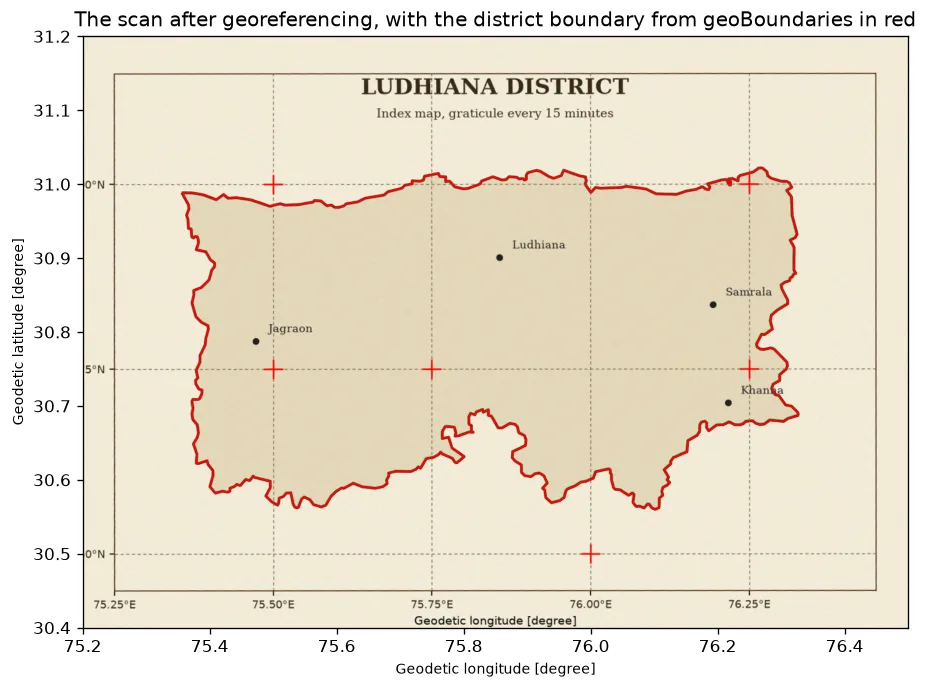
The best check uses something that was not used for the fit. The district boundary is such a layer. If the georeferencing is right, the printed outline on the scan lies under the boundary line from ludhiana_district.geojson.
import geopandas as gpd
from rasterio.features import rasterize
from scipy.ndimage import binary_dilation

# Step 1: the district boundary from a trusted source, drawn as a line of cells on the new grid
district = gpd.read_file("ludhiana_workflow_data/ludhiana_district.geojson")
line = rasterize([(district.boundary.iloc[0], 1)], out_shape=(new_height, new_width), transform=new_transform, all_touched=True).astype(bool)

# Step 2: the dark brown outline of the scan, found by colour
dark = (straight[0] < 120) & (straight[1] < 100) & (straight[2] < 80)

# Step 3: how many boundary cells have a piece of the printed outline within 2 cells? 2 cells is about 150 m.
near_outline = binary_dilation(dark, iterations=2)
print("boundary cells:", int(line.sum()))
print("share with the printed outline within 2 cells:", round(float((near_outline & line).sum() / line.sum()), 2))

# Step 4: the same test with the boundary moved 6 cells to the east, as it would be if the georeferencing were wrong
moved = np.roll(line, 6, axis=1)
print("share with the boundary moved 6 cells:", round(float((near_outline & moved).sum() / moved.sum()), 2))
boundary cells: 5558
share with the printed outline within 2 cells: 1.0
share with the boundary moved 6 cells: 0.61
The boundary sits on the printed outline all along its length, and a boundary moved by only 6 cells, about 450 m, no longer does. That is the proof that the picture is in the right place, from data that played no part in the fit. A town marker helps as a last look. The printed dot for Jagraon, at 75.473 E and 30.788 N, should be under that coordinate.
# Step 1: the pixel of the new grid that holds the coordinates of Jagraon, and its colour
row, col = rasterio.transform.rowcol(new_transform, 75.473, 30.788)
print("pixel under Jagraon: red, green, blue =", straight[:, row, col].tolist())
pixel under Jagraon: red, green, blue = [35, 33, 35]
A dark pixel, with all three values low, is the black dot of the town marker.
Draw it and save it
import matplotlib
matplotlib.use("Agg")
import matplotlib.pyplot as plt

# Step 1: show the straightened scan with the trusted boundary on top in red
fig, ax = plt.subplots(figsize=(10, 6.4))
ax.imshow(np.moveaxis(straight, 0, 2), extent=(west, east, south, north))
district.boundary.plot(ax=ax, color="red", linewidth=1)
ax.set_xlim(75.2, 76.5)
ax.set_ylim(30.4, 31.2)
ax.set_aspect(1 / math.cos(math.radians(30.8)))
ax.set_title("The scan after georeferencing, with the district boundary from geoBoundaries in red")
fig.savefig("georeferenced_check.png", dpi=120, bbox_inches="tight")

# Step 2: write the GeoTIFF
profile = {"driver": "GTiff", "height": new_height, "width": new_width, "count": 3, "dtype": "uint8",
           "crs": "EPSG:4326", "transform": new_transform, "compress": "deflate", "photometric": "RGB"}
with rasterio.open("ludhiana_scan_georeferenced.tif", "w", **profile) as dst:
    dst.write(straight)

# Step 3: read it back to check
with rasterio.open("ludhiana_scan_georeferenced.tif") as check_file:
    print("saved:", check_file.width, "x", check_file.height, "pixels | CRS EPSG", check_file.crs.to_epsg(), "| bands", check_file.count)
saved: 2003 x 1144 pixels | CRS EPSG 4326 | bands 3
Choosing the transformation
The affine transformation, Polynomial 1 in QGIS, is the right choice for a flat, accurate scan. Real paper maps are often worse. They stretch, they fold and they bulge, and an old map may not have been drawn accurately in the first place. QGIS offers more:
- Polynomial 2 and 3 can bend the map, and they need at least 6 and 10 control points. Too few points, or points that are poorly spread, make the edges swing wildly.
- Thin plate spline pulls the map to every point exactly, which suits distorted sheets, and it can fold the map between points.
- Projective lets straight lines stay straight while the scale changes across the sheet, as in a photograph of a map taken at an angle.
Start with Polynomial 1. Move to a stronger transformation only when the residuals of the check points stay large and you have the points to support it.
Old maps and datums
A modern GPS layer and an old map may not agree even after a perfect georeferencing. Old Survey of India sheets, for example, were drawn on older datums and projections, and positions can differ from a WGS 84 layer by tens to hundreds of metres. If a map states its datum or projection, such as a polyconic projection on an old datum, find its EPSG code and set that as the CRS of the control points, then let QGIS or Python reproject to your working CRS. If it does not, the leftover offset is a property of the map and not a failure of your work. Note it in your report.
Common mistakes
- Putting all the control points in one part of the map and getting a fit that is poor everywhere else.
- Mixing up the order of the numbers: longitude is x and latitude is y. In rasterio's
GroundControlPointthe row comes before the column. - Using only three points, which fits exactly and tells you nothing about the error.
- Skipping the check points, so the quality of the fit is a guess.
- Using control points that move, such as river bends and field boundaries.
- Trusting a low RMSE at the control points. Look at the check points.
- Georeferencing to the wrong CRS because the map's printed grid is in a projection and not in degrees.
- Reading a coordinate off the map in degrees and minutes and entering it as decimal degrees. 30 degrees 45 minutes is 30.75, and not 30.45.